简介
自定义组件中的变量被状态装饰器(@State,@Prop等)装饰后成为状态变量,而状态变量的改变会引起使用该变量的UI组件渲染刷新。状态变量的不合理使用可能会带来冗余刷新等性能问题。开发者可以使用状态变量组件定位工具(hidumper)获取状态管理相关信息,例如自定义组件拥有的状态变量、状态变量的同步对象和关联组件等,了解状态变量影响UI的范围,写出高性能应用代码。
下面通过一个点击按钮更改状态变量引起组件刷新的场景示例,结合hidumper工具,介绍状态变量使用范围不当,导致UI冗余刷新的问题定位。
示例代码
在以下代码中,创建了自定义组件ComponentA、SpecialImage,每个组件都拥有一些状态变量和UI组件。组件ComponentA中存在Move和Scale两个按钮,在按钮的点击回调中改变状态变量的值刷新相应的组件。
// constant declaration
const animationDuration: number = 500; // Move animation duration
const opacityChangeValue: number = 0.1; // The value of each change in opacity
const opacityChangeRange: number = 1; // Range of opacity changes
const translateYChangeValue: number = 180; // The value of translateY each time it changes
const translateYChangeRange: number = 250; // The range in which translateY changes
const scaleXChangeValue: number = 0.6; // The value of scaleX for each change
const scaleXChangeRange: number = 0.8; // The value of scaleX for each change

// Style Attribute Classes
class UIStyle {
  public translateX: number = 0;
  public translateY: number = 0;
  public scaleX: number = 0.3;
  public scaleY: number = 0.3;
}

@Component
struct ComponentA {
  @Link uiStyle: UIStyle; // Properties of uiStyle used by multiple components

  build() {
    Column() {
      // Components that use state variables
      SpecialImage({ specialImageUiStyle: this.uiStyle })
      Column() {
        // 需要替换为开发者所需的图像资源文件
        Image($r('app.media.startIcon'))
          .height('150vp')
          .width('150vp')
          .scale({
            x: this.uiStyle.scaleX,
            y: this.uiStyle.scaleY
          })
        Text('Hello World')
          .fontWeight(FontWeight.Bold)
      }
      .translate({
        x: this.uiStyle.translateX,
        y: this.uiStyle.translateY
      })
      .width('95%')
      .height('200vp')
      .margin({
        top: '10vp',
        left: '15vp',
        right: '15vp'
      })
      .borderRadius('16vp')
      .backgroundColor(Color.White)
      // Modify the value of a state variable via a button click callback, causing the corresponding component to refresh.
      Column() {
        Button('Move')
          .width('80%')
          .onClick(() => {
            this.getUIContext().animateTo({ duration: animationDuration }, () => {
              this.uiStyle.translateY = (this.uiStyle.translateY + translateYChangeValue) % translateYChangeRange;
            })
          })
        Button('Scale')
          .width('80%')
          .onClick(() => {
            this.uiStyle.scaleX = (this.uiStyle.scaleX + scaleXChangeValue) % scaleXChangeRange;
          })
          .margin({
            top: '10vp',
            left: '15vp',
            right: '15vp'
          })
      }
      .height('35%')
      .justifyContent(FlexAlign.End)
      .width('100%')
    }
  }
}

@Component
struct SpecialImage {
  @Link specialImageUiStyle: UIStyle;
  private opacityNum: number = 0.5; // Default transparency

  private isRenderSpecialImage(): number {
    // Image transparency increases by 0.1 each time it is rendered, cycling between 0 and 1.
    this.opacityNum = (this.opacityNum + opacityChangeValue) % opacityChangeRange;
    return this.opacityNum;
  }

  build() {
    Column() {
      // 需要替换为开发者所需的图像资源文件
      Image($r('app.media.startIcon'))
        .size({ width: 78, height: 78 })
        .scale({
          x: this.specialImageUiStyle.scaleX,
          y: this.specialImageUiStyle.scaleY
        })
        .opacity(this.isRenderSpecialImage())
      Text("SpecialImage")
        .fontWeight(FontWeight.Bold)
    }
    .width('95%')
    .margin({
      top: '10vp',
      left: '15vp',
      right: '15vp'
    })
    .borderRadius('16vp')
    .height('200vp')
    .backgroundColor(Color.White)
  }
}


@Entry
@Component
struct DFXStateBeforeOptimization {
  @State uiStyle: UIStyle = new UIStyle();

  build() {
    Column() {
      ComponentA({
        uiStyle: this.uiStyle
      })
    }
    .width('100%')
    .height('100%')
    .backgroundColor(0xDCDCDC)
  }
}
运行上述示例并分别点击按钮,可以看到点击Move按钮和Scale按钮时组件SpecialImage都出现了刷新,运行效果图如下。
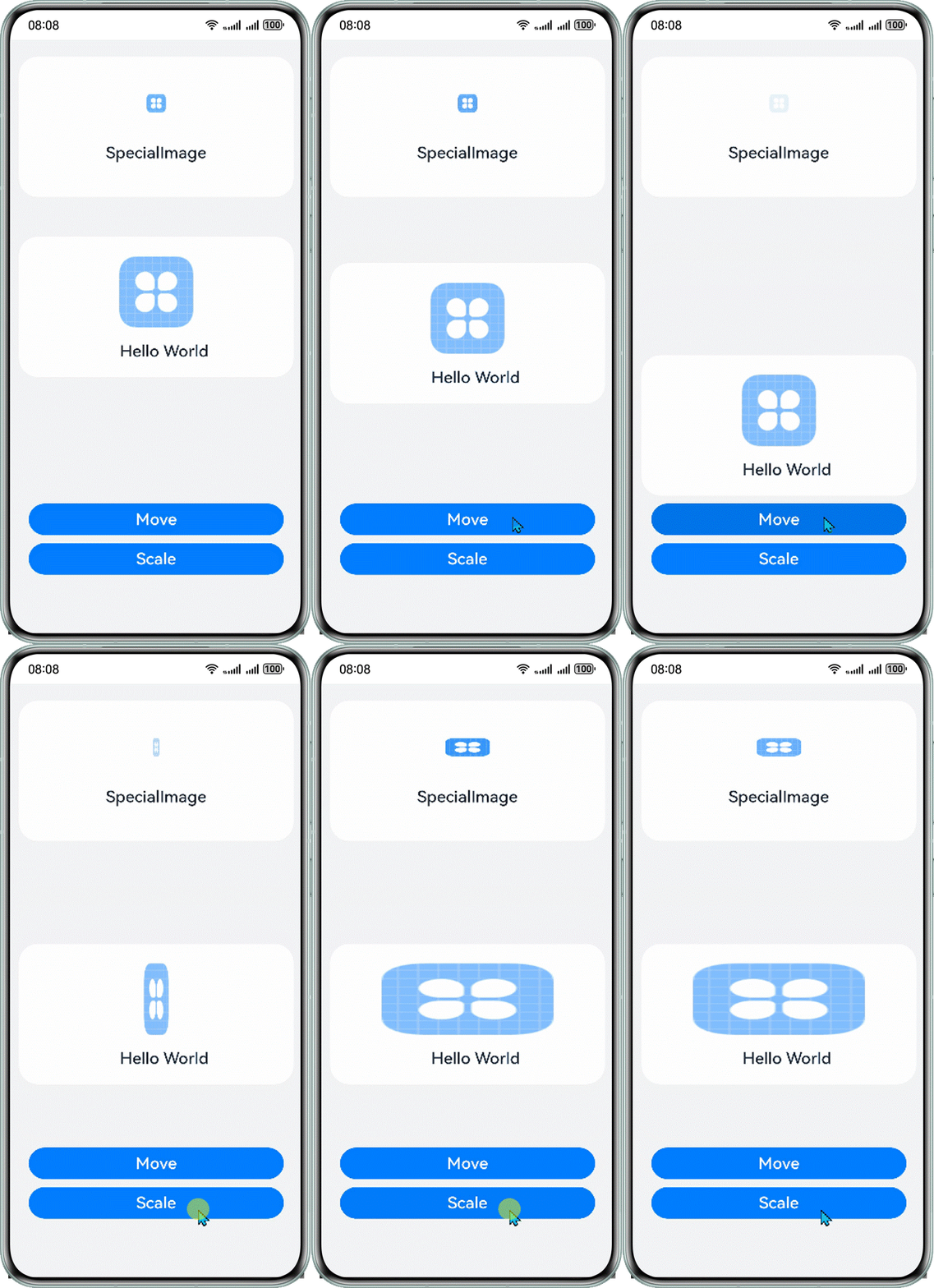
点击Move按钮的时候SpecialImage组件却发生了旋转动画,这就造成了冗余刷新。
问题定位
下面通过这个示例代码结合hidumper工具来介绍冗余刷新的问题定位。
1. 首先在设备上打开应用,进入ComponentA组件所在的页面。
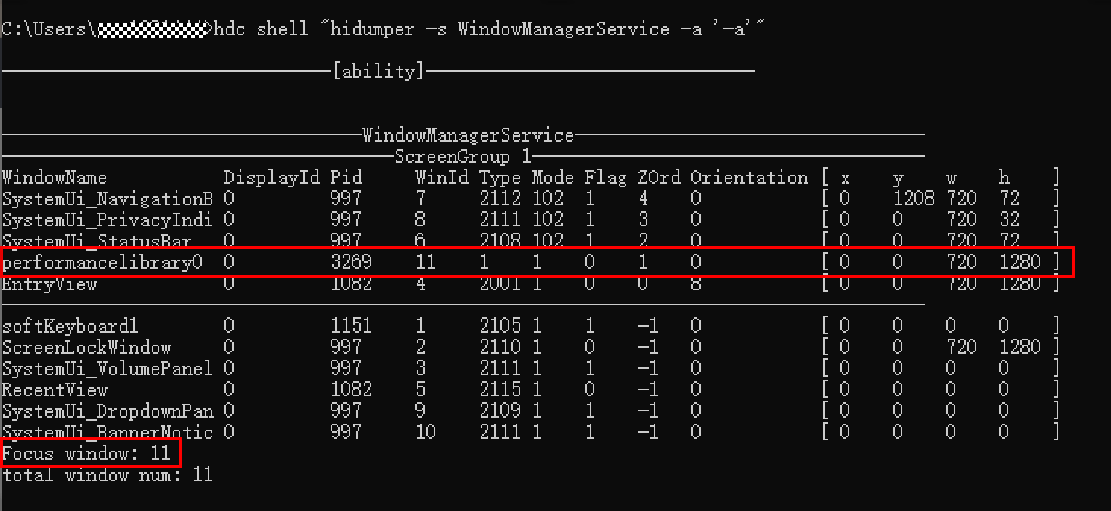
2. 使用以下命令获取示例应用的窗口Id。当前运行的示例应用包名为performancelibrary,可以在输出结果中找到对应窗口名performancelibrary0的WinId,即为应用的窗口Id。或者当应用正处于前台运行时,Focus window的值就是应用的窗口Id。此处示例应用的窗口Id为11,后面的流程中使用的命令都需要指定窗口Id。
hdc shell "hidumper -s WindowManagerService -a '-a'"
3. 基于上一步获取的窗口Id 11,使用-viewHierarchy命令携带-r 参数递归打印应用的自定义组件树。
hdc shell "hidumper -s WindowManagerService -a '-w 11 -jsdump -viewHierarchy -r'"
打印应用的自定义组件树结果如下:
-----------------ViewPUHierarchy-----------------
[-viewHierarchy, viewId=4, isRecursive=true]


|--DFXStateBeforeOptimization[4]ViewPU {isViewActive: true, isDeleting_: false}
  |--ComponentA[6]ViewPU {isViewActive: true, isDeleting_: false}
    |--SpecialImage[8]ViewPU {isViewActive: true, isDeleting_: false}
从结果中找到目标组件ComponentA,后面括号中的内容即为组件ComponentA的节点Id 6。
4. 使用命令-stateVariables携带参数-viewId(参数的值为ComponentA的节点Id)获取自定义组件ComponentA中的状态变量信息。
hdc shell "hidumper -s WindowManagerService -a '-w 11 -jsdump -stateVariables -viewId=6'"
打印组件ComponentA的状态变量信息如下:
--------------ViewPUState Variables--------------
[-stateVariables, viewId=6, isRecursive=false]

|--ComponentA[6]
  @Link 'uiStyle'[-1]
  |--Owned by @Component 'ComponentA'[6]
  |--Sync peers: {
    @Link 'specialImageUiStyle'[-2] <@Component 'SpecialImage'[8]>
  }
  dependencies: variable assignment affects elmtIds: Column[9], Image[10]
  |--Dependent elements: Column[9], Image[10]; @Component 'SpecialImage'[8], Image[18]
结果显示ComponentA拥有@Link类型的状态变量uiStyle。每条状态变量的详细信息都包含状态变量的所属组件、同步对象和关联组件。
5. 以状态变量uiStyle为例。
① Sync peers表示uiStyle在自定义组件SpecialImage中存在@Link类型的状态变量specialImageUiStyle订阅数据变化。
② Dependent elements表示当前状态变量和其同步对象的关联组件SpecialImage。
所以当uiStyle变化时,影响的组件范围为自定义组件SpecialImage以及系统组件Column[9]和Image[10]。
示例中组件SpecialImage仅使用了uiStyle传递到specialImageUiStyle中的属性scaleX、scaleY。但点击Move按钮修改uiStyle中的属性translateY时,引起的uiStyle变化也会导致组件SpecialImage的刷新。所以,可以将uiStyle中的属性scaleX、scaleY提取到状态变量scaleStyle中,属性translateX和translateY提取到状态变量translateStyle中,仅传递scaleStyle给组件SpecialImage,避免不必要的刷新。
由于提取后存在Class的嵌套,因此需要使用@Observed/@ObjectLink装饰器装饰相应的Class和状态变量。修改后的部分代码如下:
// constant declaration
const animationDuration: number = 500; // Move animation duration
const opacityChangeValue: number = 0.1; // The value of each change in opacity
const opacityChangeRange: number = 1; // Range of opacity changes
const translateYChangeValue: number = 180; // The value of translateY each time it changes
const translateYChangeRange: number = 250; // The range in which translateY changes
const scaleXChangeValue: number = 0.6; // The value of scaleX for each change
const scaleXChangeRange: number = 0.8; // The value of scaleX for each change

// Style property class, nested ScaleStyle, TranslateStyle
@Observed
class UIStyle {
  translateStyle: TranslateStyle = new TranslateStyle();
  scaleStyle: ScaleStyle = new ScaleStyle();
}

// Zoom Property Class
@Observed
class ScaleStyle {
  public scaleX: number = 0.3;
  public scaleY: number = 0.3;
}

// Displacement Attribute Class
@Observed
class TranslateStyle {
  public translateX: number = 0;
  public translateY: number = 0;
}

@Component
struct ComponentA {
  @ObjectLink scaleStyle: ScaleStyle;
  @ObjectLink translateStyle: TranslateStyle;

  build() {
    Column() {
      SpecialImage({
        specialImageScaleStyle: this.scaleStyle
      })
      // Other UI components
        Column() {
        // 需要替换为开发者所需的图像资源文件
          Image($r('app.media.startIcon'))
            .height('150vp')
            .width('150vp')
            .scale({
              x: this.scaleStyle.scaleX,
              y: this.scaleStyle.scaleY
            })
          Text('Hello World')
            .fontWeight(FontWeight.Bold)
        }

      .translate({
        x: this.translateStyle.translateX,
        y: this.translateStyle.translateY
      })
      .width('95%')
      .height('200vp')
      .margin({
        top: '10vp',
        left: '15vp',
        right: '15vp'
      })
      .borderRadius('16vp')
      .backgroundColor(Color.White)
      // Modify the value of a state variable via a button click callback, causing the corresponding component to refresh.
      Column() {
        Button('Move')
          .width('80%')
          .onClick(() => {
            this.getUIContext().animateTo({ duration: animationDuration }, () => {
              this.translateStyle.translateY =
                (this.translateStyle.translateY + translateYChangeValue) % translateYChangeRange;
            })
          })
        Button('Scale')
          .width('80%')
          .onClick(() => {
            this.scaleStyle.scaleX = (this.scaleStyle.scaleX + scaleXChangeValue) % scaleXChangeRange;
          })
          .margin({
            top: '10vp',
            left: '15vp',
            right: '15vp'
          })
      }
      .height('35%')
      .justifyContent(FlexAlign.End)
      .width('100%')
    }
  }
}

@Component
struct SpecialImage {
  @Link specialImageScaleStyle: ScaleStyle;
  private opacityNum: number = 0.5; // Default transparency

  // isRenderSpecialImage function
  private isRenderSpecialImage(): number {
    // Image transparency increases by 0.1 each time it is rendered, cycling between 0 and 1.
    this.opacityNum = (this.opacityNum + opacityChangeValue) % opacityChangeRange;
    return this.opacityNum;
  }

  build() {
    Column() {
      // 需要替换为开发者所需的图像资源文件
      Image($r('app.media.startIcon'))
        .size({ width: 78, height: 78 })
        .scale({
          x: this.specialImageScaleStyle.scaleX,
          y: this.specialImageScaleStyle.scaleY
        })
        .opacity(this.isRenderSpecialImage())
      Text("SpecialImage")
        .fontWeight(FontWeight.Bold)
    }
    .width('95%')
    .margin({
      top: '10vp',
      left: '15vp',
      right: '15vp'
    })
    .borderRadius('16vp')
    .height('200vp')
    .backgroundColor(Color.White)
  }
}

@Entry
@Component
struct DFXStateAfterOptimization {
  @State uiStyle: UIStyle = new UIStyle();

  build() {
    Stack() {
      ComponentA({
        scaleStyle: this.uiStyle.scaleStyle,
        translateStyle: this.uiStyle.translateStyle,
      })
    }
    .width('100%')
    .height('100%')
    .backgroundColor(0xDCDCDC)
  }
}
修改后的示例运行效果图如下,只有点击Scale按钮时SpecialImage产生刷新现象,点击Move按钮时SpecialImage不会刷新。
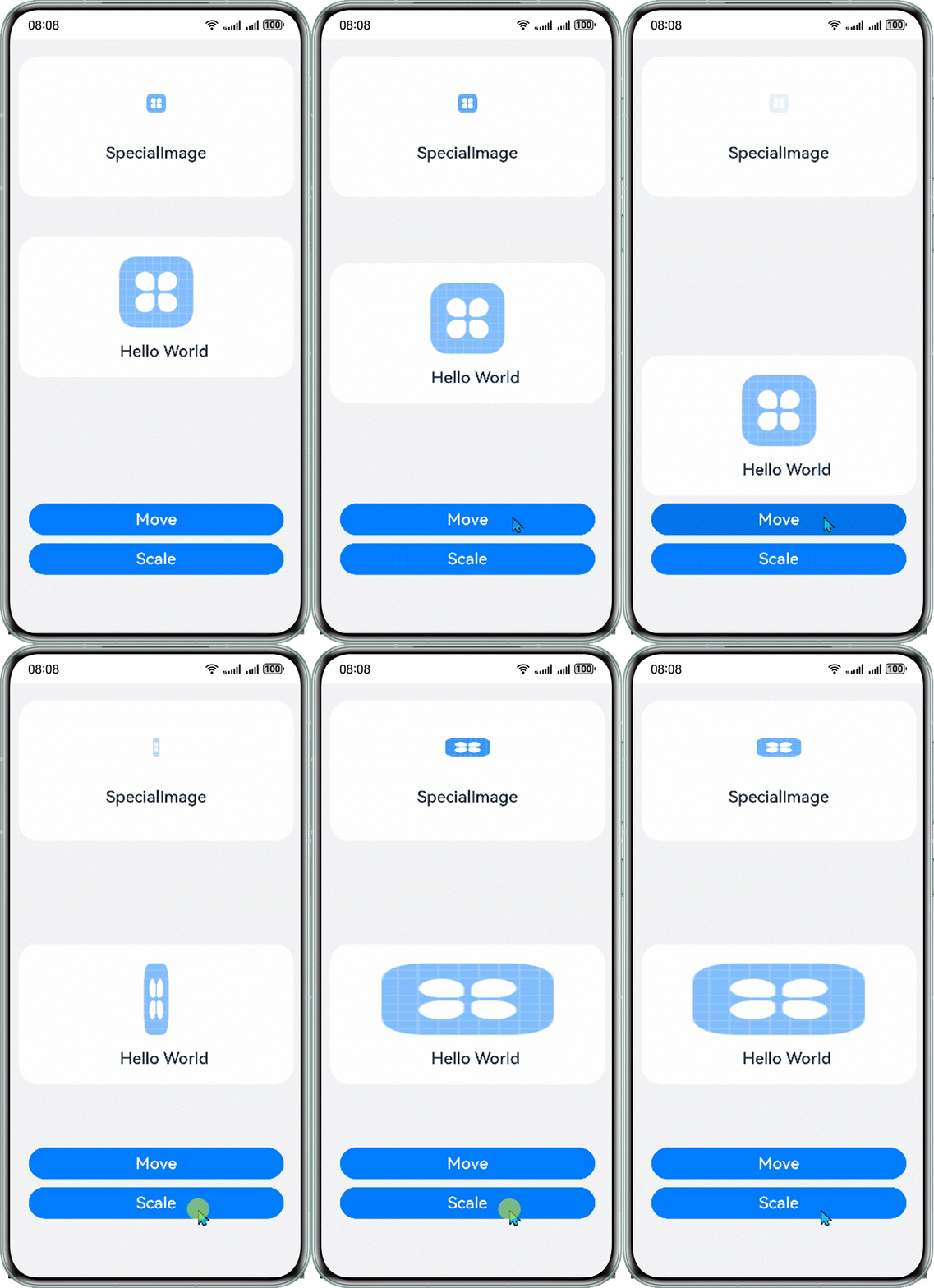
可以使用上文步骤再次获取ComponentA组件的状态变量信息如下,可以看到ComponentA中状态变量scaleStyle影响组件SpecialImage[8]和Image[18],状态变量translateStyle影响组件Column[9],translateStyle的变化不会再导致SpecialImage的刷新。
--------------ViewPUState Variables--------------
[-stateVariables, viewId=6, isRecursive=false]

|--ComponentA[6]
  @ObjectLink 'scaleStyle'[-1]
  |--Owned by @Component 'ComponentA'[6]
  |--Sync peers: {
    @Link 'specialImageScaleStyle'[-3] <@Component 'SpecialImage'[8]>
  }
  dependencies: variable assignment affects elmtIds: Image[10]
  |--Dependent elements: Image[10]; @Component 'SpecialImage'[8], Image[18]
  @ObjectLink 'translateStyle'[-2]
  |--Owned by @Component 'ComponentA'[6]
  |--Sync peers: none
  dependencies: variable assignment affects elmtIds: Column[9]
  |--Dependent elements: Column[9]