5G Modem Kit introduces the crowdtesting function, making rich modem parameters accessible. With the crowdtesting API, you can obtain more comprehensive network parameters to support network evaluation and tuning.
In the codelab, you will create an app integrated with 5G Modem Kit to query modem parameters.
In this codelab, you will learn how to:
The procedure for configuring the Maven repository address in Android Studio is different for Gradle plugin earlier than 7.0, Gradle plugin 7.0, and Gradle plugin 7.1 or later. Click a relevant link below to find the configuration procedure for the specific Gradle plugin version.
Gradle plugin earlier than 7.0 | Gradle plugin 7.0 | Gradle plugin 7.1 or later |
Gradle plugin earlier than 7.0
a. Open the build.gradle file in the root directory of your Android Studio project.
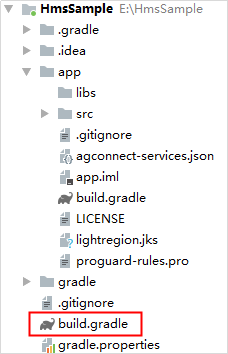
b. Add the Huawei Maven repository.
buildscript {
    repositories {
        google()
        jcenter()
        // Configure the Maven repository address for the HMS Core SDK.
        maven {url 'https://developer.huawei.com/repo/'}
    }
    dependencies {
        ...
    }
}

allprojects {
    repositories {
        google()
        jcenter()
        // Configure the Maven repository address for the HMS Core SDK.
        maven {url 'https://developer.huawei.com/repo/'}
    }
}
Gradle plugin 7.0
a. Open the build.gradle file in the root directory of your Android Studio project.

b. Add the Huawei Maven repository.
buildscript {
    repositories {
        google()
        jcenter()
        // Configure the Maven repository address for the HMS Core SDK.
        maven {url 'https://developer.huawei.com/repo/'}
    }
    dependencies {
        ...
    }
}
c. Open the project-level settings.gradle file and configure the Maven repository address for the HMS Core SDK.
dependencyResolutionManagement {
    ...
    repositories {
        google()
        jcenter()
        // Configure the Maven repository address for the HMS Core SDK.
        maven {url 'https://developer.huawei.com/repo/'}
    }
}
Gradle plugin 7.1 or later
a. Open the build.gradle file in the root directory of your Android Studio project.
b. Open the project-level settings.gradle file and configure the Maven repository address for the HMS Core SDK.
pluginManagement {
    repositories {
        gradlePluginPortal()
        google()
        mavenCentral()
        // Configure the Maven repository address for the HMS Core SDK.
        maven { url 'https://developer.huawei.com/repo/' }
    }
}
dependencyResolutionManagement {
    ...
    repositories {
        google()
        mavenCentral()
        // Configure the Maven repository address for the HMS Core SDK.
        maven { url 'https://developer.huawei.com/repo/' }
    }
}

dependencies {
implementation 'com.huawei.hms:hms5gmodem-crowdtesting:{version}'
}
Configure compilation options for 5G Modem Kit to use Java 8 language features, such as lambda expressions.
android{
compileOptions{
    sourceCompatibility JavaVersion.VERSION_1_8
    targetCompatibility JavaVersion.VERSION_1_8
}
}
After completing the preceding configuration, click the synchronization icon on the toolbar to synchronize the Gradle files.
Before building the APK, configure the obfuscation configuration file to prevent the HMS Core SDK from being obfuscated.
-ignorewarnings
-keepattributes *Annotation*
-keepattributes Exceptions
-keepattributes InnerClasses
-keepattributes Signature
-keepattributes SourceFile,LineNumberTable
-keep class com.huawei.hms5gkit.**{*;}
"R.string.hms*",
"R.string.connect_server_fail_prompt_toast",
"R.string.getting_message_fail_prompt_toast",
"R.string.no_available_network_prompt_toast",
"R.string.third_app_*",
"R.string.upsdk_*",
"R.layout.hms*",
"R.layout.upsdk_*",
"R.drawable.upsdk*",
"R.color.upsdk*",
"R.dimen.upsdk*",
"R.style.upsdk*",
"R.string.agc*"

<!–Allow the app to access the Internet.–>
<uses-permission android:name="android.permission.INTERNET" />
<!–Allow the app to query the network status.–>
<uses-permission android:name="android.permission.ACCESS_NETWORK_STATE" />
<!–Allow the app to query the Wi-Fi status.–>
<uses-permission android:name="android.permission.ACCESS_WIFI_STATE" />
<!–Allow the app to receive location information from satellites through the GPS chip.–>
<uses-permission android:name="android.permission.ACCESS_FINE_LOCATION" />
In the previous section, you have successfully integrated the 5G Modem SDK.
In this section, you will build a demo app and learn how to use 5G Modem Kit APIs simply by performing the following steps:
private IQueryModem mQueryModem = QueryModemController.getInstance();// Register the 5G Modem SDK callback functions: IResProcess used for parameter query and IConnectProcess used for service connection.
public boolean registerCallback(Context context) {
return mQueryModem.registerCallback(context, mResProcess, mConnectProcess);
}
// IResProcess is the parameter query callback function.
private IResProcess mResProcess = response -> {
if (response != null && response.getCode() == 0) {
// key indicates a requested parameter.
String key = response.getQueryParameters();
// data indicates the returned parameter value.
String data = response.getValue();
String content = "";
if (data != null) {
content += key + " request result: " + data;
} else {
content += key + " request result is null";
}
Log.i(TAG, content);
} else {
// A null pointer or a non-zero result code indicates that the requested parameter and its value are invalid.
if (response != null) {
String content = "error code: " + response.getCode() + ",\t" + response.getMsg();
Log.e(TAG, content);
} else {
Log.e(TAG, "response is null");
}
}
};
// IConnectProcess is the service connection callback function.
private IConnectProcess mConnectProcess = response -> {
if (response == null) {
Log.e(TAG, "ConnectProcess callback response data is null");
return;
}
String content;
// A non-zero result code indicates abnormal connection. msg indicates the error message.
if (response.getCode() != 0) {
content = "connect error code: " + response.getCode() + ", error msg: " + response.getMsg();
Log.e(TAG, content);
} else {
content = "connect code: " + response.getCode() + ", msg: " + response.getMsg();
Log.i(TAG, content);
}
};
// Check the callback function registration.
// false if the registration fails or your app is disconnected from the low-level service.
public boolean getConnectStatus() {
return mQueryModem.getAidlConnectStatus();
}

// Query the parameters.
public boolean queryModem(String requestName) {
return mQueryModem.queryModem(requestName);
}
// Unregister the callback functions and disconnect your app from the low-level service.
public void unRegisterCallback() {
mQueryModem.unRegisterCallback();
}
After completing the above service code, you can build the demo. After the demo is built, an APK file will be generated. Install and run it on the test phone.
Well done. You have successfully completed this codelab and learned how to:
For more information, please click the following links: API Reference, Sample Code
To download the sample code, please click the button below: