

1. Introduction
Overview
Analytics Kit predefines rich analysis models to help you easily understand user behavior and gain in-depth insights into users, products, and content. As such, you can carry out data-driven operations and make informed decisions about app marketing and product optimization.
Analytics Kit implements the following functions using data collected from apps:
- Collects and reports custom events through coding.
- Sets up to 25 user attributes.
- Automatically collects events, calculates sessions, and predefines event IDs and parameters.
What You Will Create
In this codelab, you will create a demo app based on the provided demo project. After creating a demo app, you will be able to:
- Report events using the Analytics SDK.
- View event analysis reports on the cloud platform of Analytics Kit.
What You Will Learn
In this codelab, you will learn how to:
- Use HUAWEI DevEco Studio to efficiently integrate capabilities of Analytics Kit.
- Use Analytics Kit to implement data collection, management, analysis, and usage.
2. What You Will Need
Hardware Requirements
- A computer (desktop or laptop)
- A Huawei phone running HarmonyOS 2.0.0 or later, which is used for debugging the developed app
Software Requirements
- For computers
- HUAWEI DevEco Studio 2.1 or later
- JDK version: 1.8 or later
- For Huawei phones
HarmonyOS 2.0.0 (API level 4) or later
Required Knowledge
- HarmonyOS app development basics
- HarmonyOS multithreading
3. Integration Preparations
To integrate Analytics Kit, you must complete the following preparations:
- Create an app in AppGallery Connect.
- Create a HUAWEI DevEco Studio project.
- Add the app package name and save the configuration file.
- Add the AppGallery Connect plugin and the Maven repository in the project-level build.gradle file.
- Sign in to AppGallery Connect and click My projects.
- Find your project and select the app that needs to integrate the Analytics SDK.
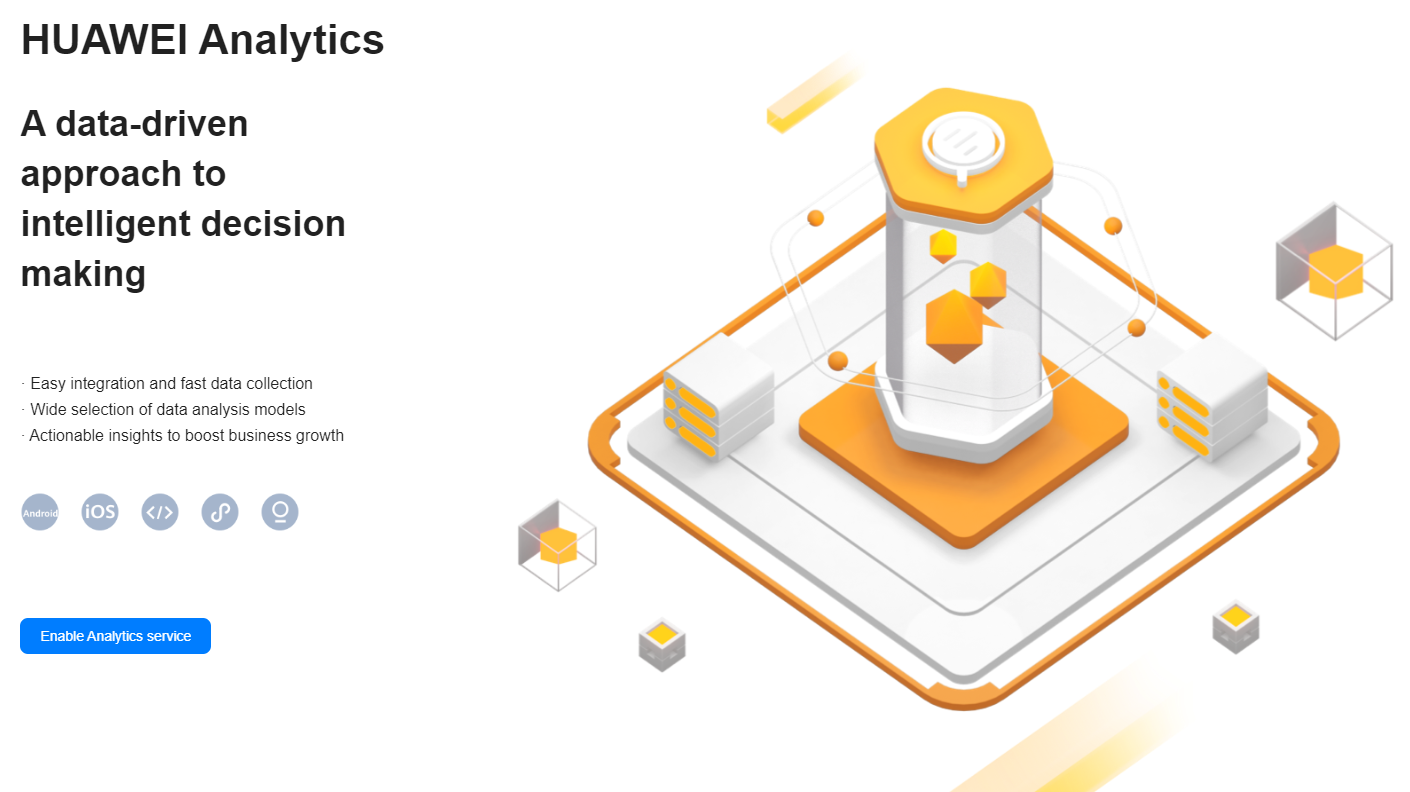
- Select any menu under HUAWEI Analytics and click Enable Analytics service. (You must have the app management permission to perform this operation.)
- On the Project access settings page displayed, set the data processing location and complete other settings. Then click Finish.

- Download the configuration file.

- In HUAWEI DevEco Studio, switch to the Project view and copy the agconnect-services.json file to the entry directory.

Adding SDK Dependencies
- Add the AppGallery Connect dependency in the project-level build.gradle file.
a) Open the project-level build.gradle file.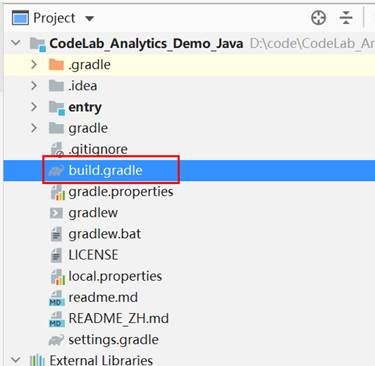
b) Add the AppGallery Connect dependency to dependencies.dependencies { classpath 'com.huawei.agconnect:agcp-harmony:1.3.0.300' } - Add the Analytics Kit dependency to the build.gradle file in the entry directory.
a) Open the build.gradle file in the entry directory.
b) Add the build dependency to dependencies.
c) Add the AppGallery Connect plugin configuration.dependencies { implementation 'com.huawei.hms:hianalytics-harmony:6.3.2.301' }
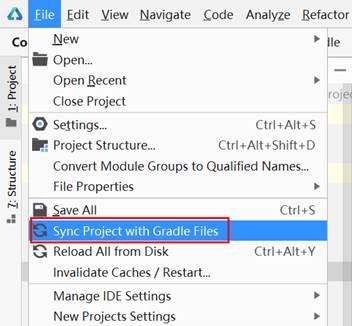
Add the following information under apply plugin: 'com.huawei.ohos.hap' in the file header:apply plugin: 'com.huawei.agconnect' - Click Sync Now in the upper-right corner or go to File > Sync Project with Gradle Files to build a project.
Configuring Obfuscation Scripts
Before building the app, configure the obfuscation configuration file to prevent the Analytics SDK from being obfuscated.
Open the obfuscation configuration file proguard-rules.pro in the app-level directory, and add configurations to exclude the Analytics SDK from being obfuscated.
-ignorewarnings
-keep class com.huawei.agconnect.**{*;}
-keep class com.huawei.hms.analytics.**{*;}
-keep class com.huawei.hms.push.**{*;}
4. Accessing Analytics Kit
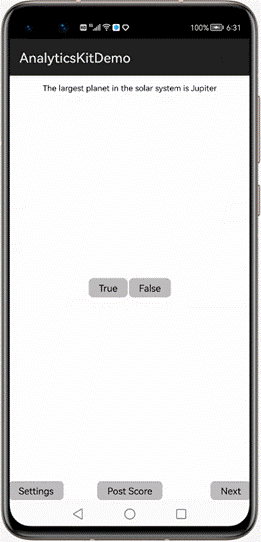
In this section, you will try to build a demo with the question answering function to learn how to use the main APIs of Analytics Kit. We have prepared the code for you, meaning you only need to follow the instructions in each step below to learn how to use Analytics Kit to report the events you are interested in, such as answering questions, calculating scores, and setting user attributes.
Extracting Sample Code to the src Directory
Copying Code Files
Copy all Java files from the code directory to your project.

Copying Resource Files
Copy all resource files from the resources directory to your project.

Importing the Resource Package Path Name
- Open the MainAbilitySlice file, move the cursor to ResourceTable, and click Import class to import the path name of the ResourceTable resource package.

- Import the path name of the SettingAbilitySlice resource package to the SettingAbility file by referring to 1.
- Import the path name of the ResourceTable resource package to the SettingAbilitySlice file by referring to 1.
Modifying the config.json File
- Declare SettingAbility under abilities.
"module": { "abilities": [ { ...... }, { "icon": "$media:icon", "name": ".SettingAbility", "description": "", "type": "page" } ] } - In the abilities element, declare the AppGallery Connect provider and replace com.example.myapplication with your app package name.
"module": {
    "abilities": [
       { ......
       },
       {
          "permissions": [
          "com.huawei.agconnect.core.DataAbilityShellProvider.PROVIDER"
          ],
          "name": "com.huawei.agconnect.core.provider.AGConnectInitializeAbility",
          "type": "data",
          "uri": "dataability://com.example.myapplication.AGConnectInitializeAbility"
       }
    ]
}
Your app is so far loaded with the required functions. Next, you will use Analytics Kit to report the events that interest you.
Modifying the MainAbilitySlice Class
- Add the following code to import classes from Analytics Kit:
// TODO: Import classes from Analytics Kit. import com.huawei.hms.analytics.HiAnalytics; import com.huawei.hms.analytics.HiAnalyticsInstance; import com.huawei.hms.analytics.HiAnalyticsTools; import static com.huawei.hms.analytics.type.HAEventType.SUBMITSCORE; import static com.huawei.hms.analytics.type.HAParamType.SCORE; - Add the following code to define a variable for the Analytics Kit instance:
private int score = 0; // TODO: Define a variable for the Analytics Kit instance. HiAnalyticsInstance instance; - Add the following code in the onStart method to initialize Analytics Kit:
@Override public void onStart(Intent intent) { super.onStart(intent); super.setUIContent(ResourceTable.Layout_ability_main); // TODO: Initialize Analytics Kit. // Enable Analytics Kit logging. HiAnalyticsTools.enableLog(); // Generate an Analytics Kit instance. instance = HiAnalytics.getInstance(this); txtQuestion = (Text) findComponentById(ResourceTable.Id_question_text_view); txtQuestion.setText(questions[curQuestionIdx]); ...... } - Add the following code to implement the reportAnswerEvt method:
private void reportAnswerEvt(String answer) { // TODO: Report a custom event. // Event name: Answer // Event parameters: // -- question: String // -- answer: String // -- answerTime: String // Initialize parameters. PacMap pacMap = new PacMap(); pacMap.putString("question", txtQuestion.getText().trim()); pacMap.putString("answer", answer); SimpleDateFormat sdf = new SimpleDateFormat("yyyy-MM-dd HH:mm:ss", Locale.ENGLISH); pacMap.putString("answerTime", sdf.format(new Date())); // Report a custom event. instance.onEvent("Answer", pacMap); } - Add the following code to implement the postScore method:
private void postScore() {
    // TODO: Report the score by using the SUBMITSCORE event.
    // Initialize parameters.
    PacMap pacMap = new PacMap();
    pacMap.putLongValue(SCORE, score);

    // Report a predefined event.
    instance.onEvent(SUBMITSCORE, pacMap);
}
Modifying the SettingAbilitySlice Class
- Add the following code to import classes from Analytics Kit:
// TODO: Import classes from Analytics Kit. import com.huawei.hms.analytics.HiAnalytics; import com.huawei.hms.analytics.HiAnalyticsInstance; - Add the following code to define a variable for the Analytics Kit instance:
// TODO: Define a variable for the Analytics Kit instance. HiAnalyticsInstance instance; - Add the following code to initialize Analytics Kit:
// TODO: Generate an Analytics Kit instance. instance = HiAnalytics.getInstance(this); - Add the following code to save user attributes:
btnSave.setClickedListener(view -> {
    strFavorSport = editFavorSport.getText().trim();
    // TODO: Set users' favorite sport using the setUserProfile API.
    instance.setUserProfile("favor_sport", strFavorSport);
});
For details about APIs, please refer to the Analytics Kit API Reference.
5. Testing Your App
Start the app in the emulator and trigger event reporting as instructed.
6. Viewing Data
- Sign in to AppGallery Connect and click My projects.
- Find your project, and click the app to view its data.
- Go to HUAWEI Analytics > Overview > Real-time overview.
- Check the data. For details, please refer to the Analytics Kit operation guide.

7. Debugging Your App
- Run the following command to enable the debug mode on a HarmonyOS device:
hdc shell setprop debug.huawei.hms.analytics.hap <package_name>After the debug mode is enabled, all triggered events are reported to the App debugging page in real time.
- View the reported debugging data.
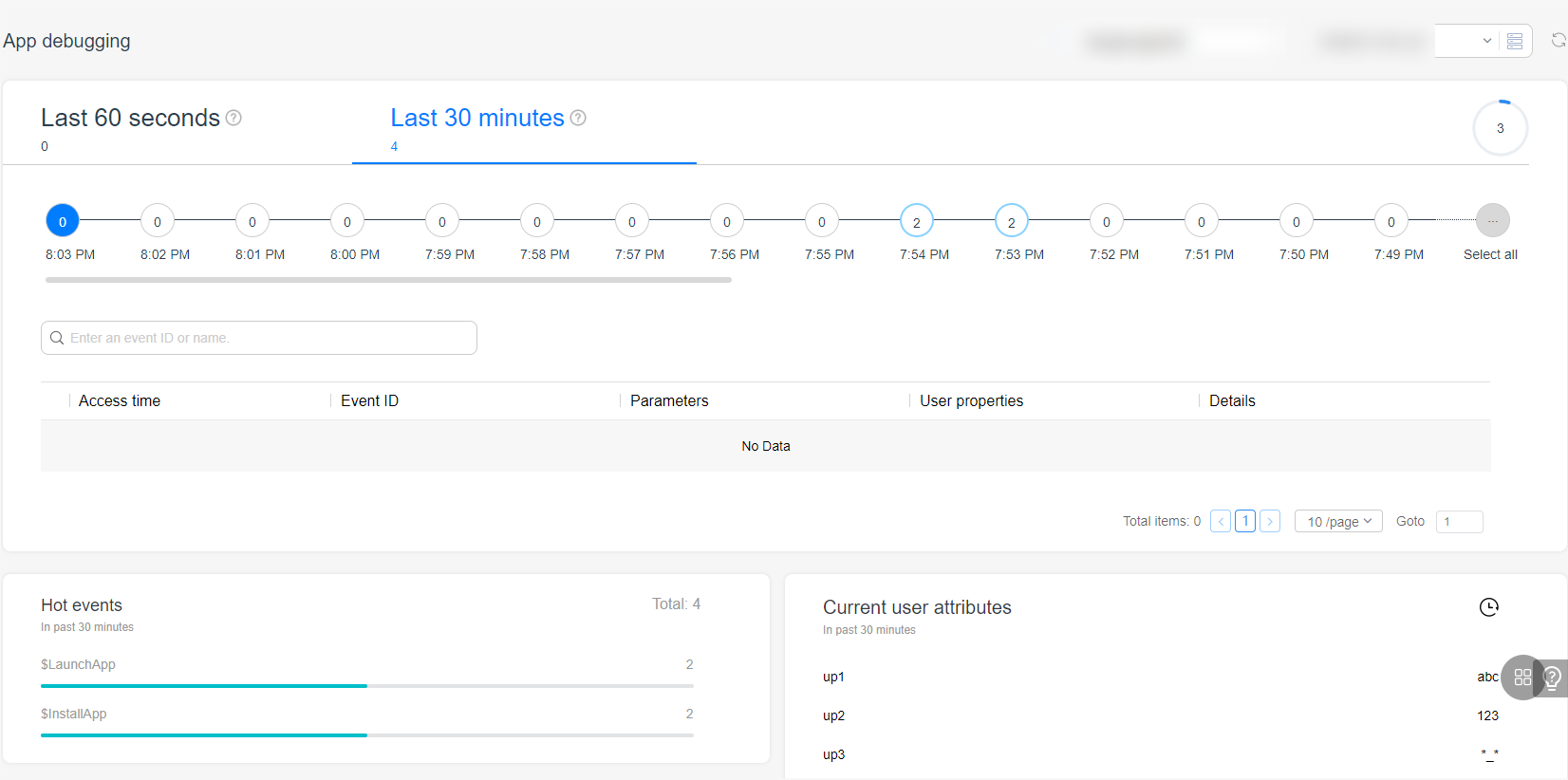
To disable the debug mode, run the following command:
hdc shell setprop debug.huawei.hms.analytics.hap .none.
FAQs
How should I perform initialization?
Initialize the Analytics SDK in the main thread by using the onStart() method of the first app ability. Otherwise, the processing of automatically collected lifecycle events may be affected.
How does Analytics Kit identify users?
Analytics Kit identifies users through an Anonymous Application ID (AAID).
When will the AAID be reset? How does Analytics Kit collect user statistics after AAID reset?
The AAID will be reset in the following scenarios:
- The user reinstalls the app.
- The user restores the device to its factory settings.
- The user clears the app data.
- The app calls the clearCachedData() API.
A user is counted as a new one after their AAID is reset.
What permissions are required for using Analytics Kit?
Analytics Kit requires the ohos.permission.INTERNET permission, which has been preset in Analytics Kit. You do not need to apply for this permission.
Why can't I view the analysis result of the data reported during the test?
- When app debugging is disabled, you can only view some results on the Real-time overview page. The results of other pages such as Event analysis and Launch analysis are available the day after the corresponding data is processed.
- When app debugging is enabled, the reported test data will not be analyzed and can only be viewed on the App debugging page.
8. Congratulations
Well done. You have successfully completed this codelab and learned how to:
- Integrate Analytics Kit.
- Call APIs of Analytics Kit.
9. Reference
For more information, please click the following link:
Related documents
To download the sample code, please click the button below: