

1. Overview
Audio Kit provides a set of audio capabilities, focusing on audio playback, audio effects, and audio data, which are integral to apps providing audio and video services. The Kit enables you to create an enriching and immersive audio experience for your users. It supports a wide range of formats like M4A, AAC, AMR, IMY, WAV, OGG, RTTTL, MP3, APE, and FLAC.
Audio Engine provides the API for recording in the low-latency channel.
Cloud Storage and Cloud DB are used to store and retrieve data of audio files.
Awareness Kit provides the ability to obtain information including the user's current time, location, weather, behavior, audio device status, nearby beacons, ambient light intensity, and car Bluetooth status. Equipped with such valuable information, your app can better adapt to user environments.
2. Introduction
This codelab illustrates the main capabilities of Audio Kit, Audio Engine, Awareness Kit, Cloud DB, and Cloud Storage.
Audio Kit provides you with audio playback capabilities.
Audio Engine helps realize the recording function in the low-latency channel.
Awareness Kit enables your app to obtain users' contextual information like the current time, location, behavior, audio device status, ambient light, weather, and nearby beacons.
Cloud Storage can be used to store podcasts.
With Cloud DB, you can perform CRUD operations on podcast data.
Cloud Storage, Cloud DB, and Audio Kit work in an interdependent manner: Cloud Storage firstly saves an audio file, Cloud DB retrieves its data, and Audio Kit finally plays the audio file.
In this codelab, you will learn to build an app that integrates Cloud Storage, Cloud DB, Audio Kit, Audio Engine, and Awareness Kit. Your app will be able to:
- Store and retrieve files by using Cloud Storage.
- Store and retrieve real-time data by using Cloud DB.
- Play HD podcasts and control audio playback by using Audio Kit.
- Record audio in the low-latency channel by using Audio Engine.
- Display the headset status by using Awareness Kit.
What You Will Create
In this codelab, you will use the demo project that we provide to call the APIs of the mentioned services. With the demo project, you will:
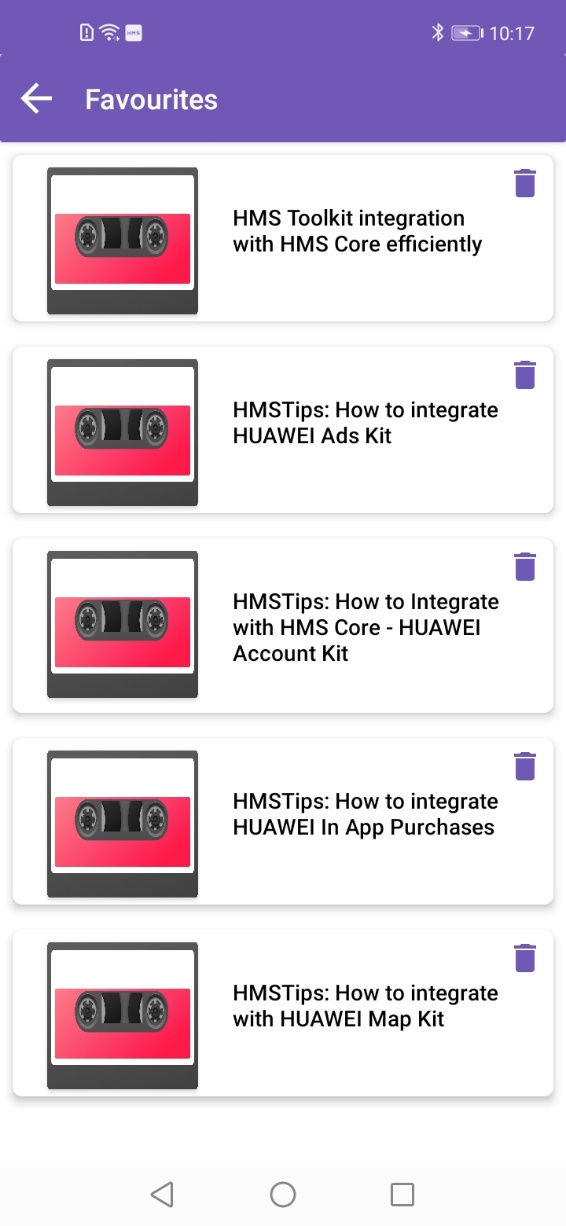
- Retrieve the podcast list and add a podcast to your favourites by using Cloud DB.
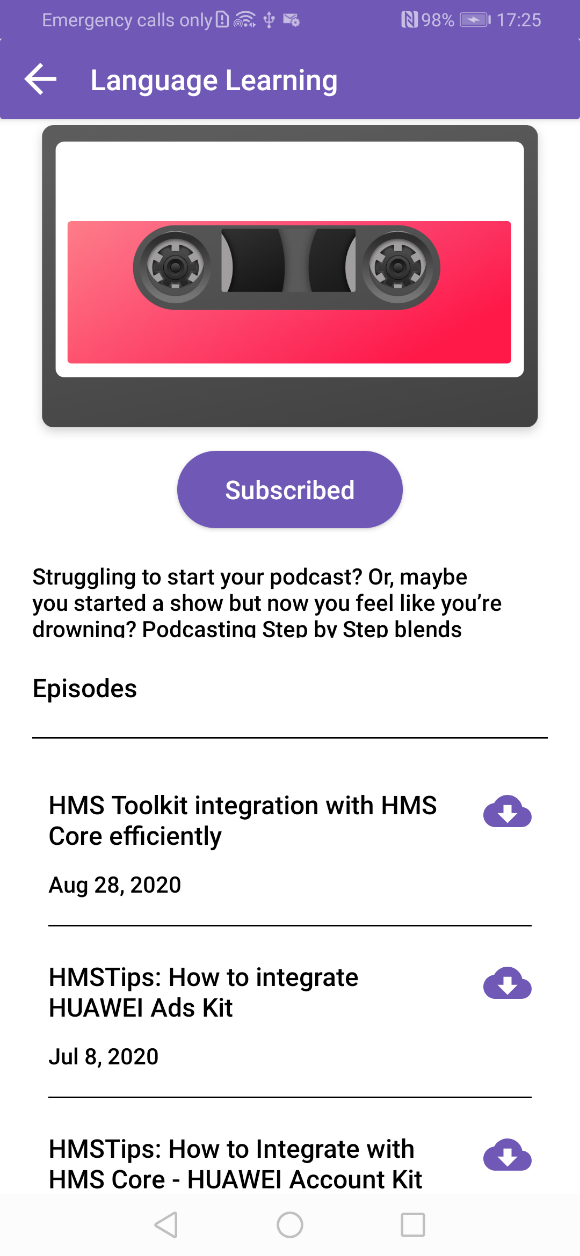
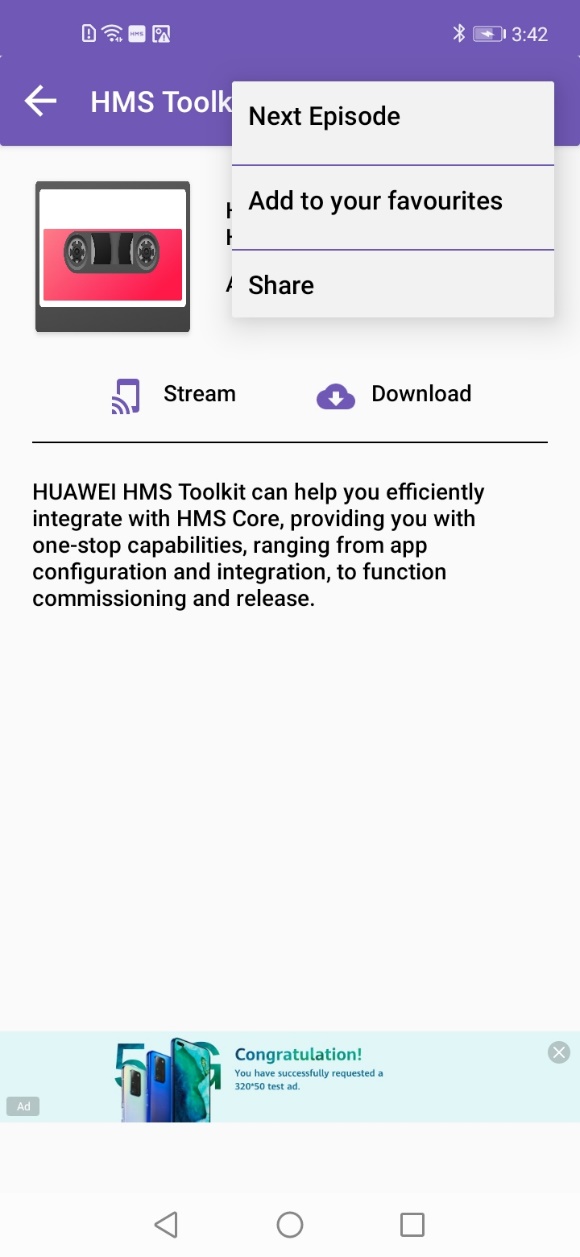
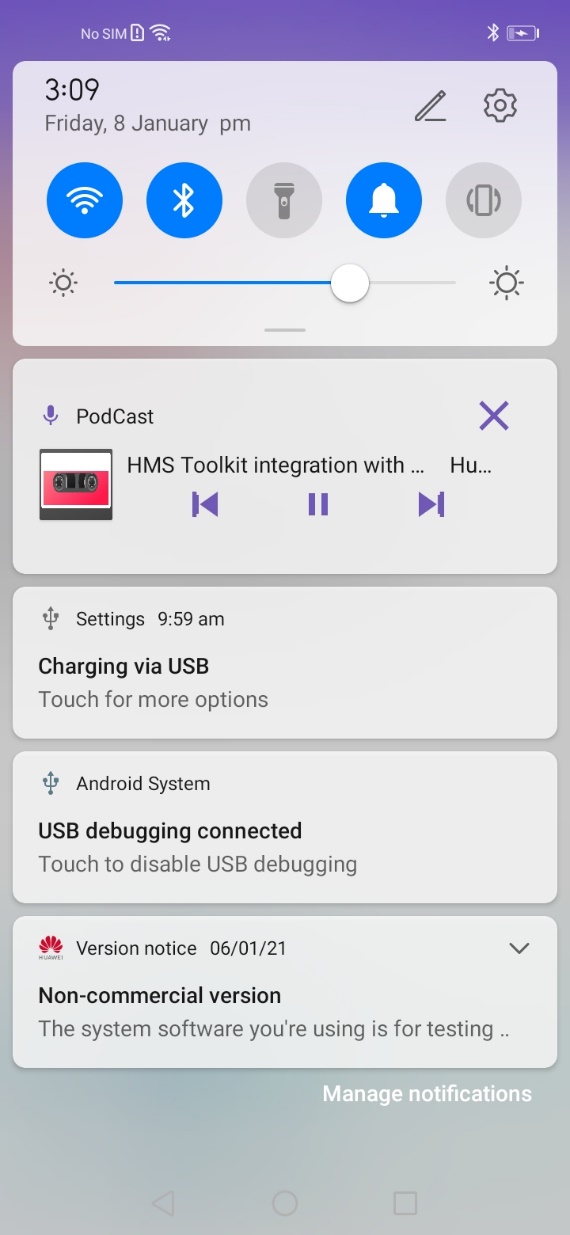
- Control podcast playback by using Audio Kit for playing, pausing, skipping back, skipping forward, stopping, and dragging the progress bar.
Foreground playback control Background playback control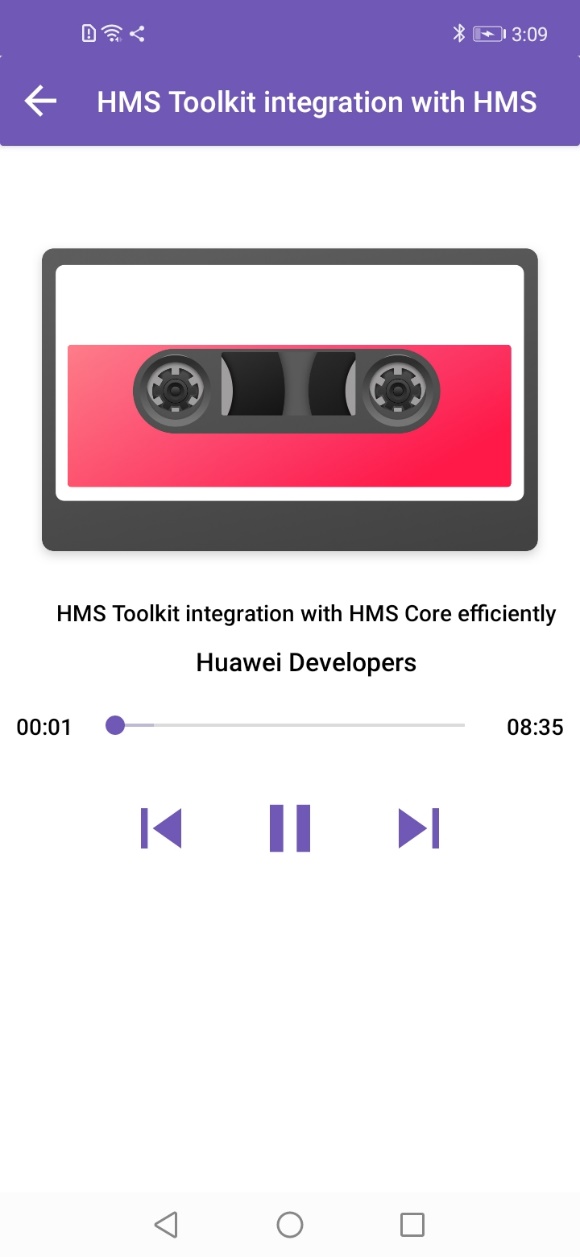
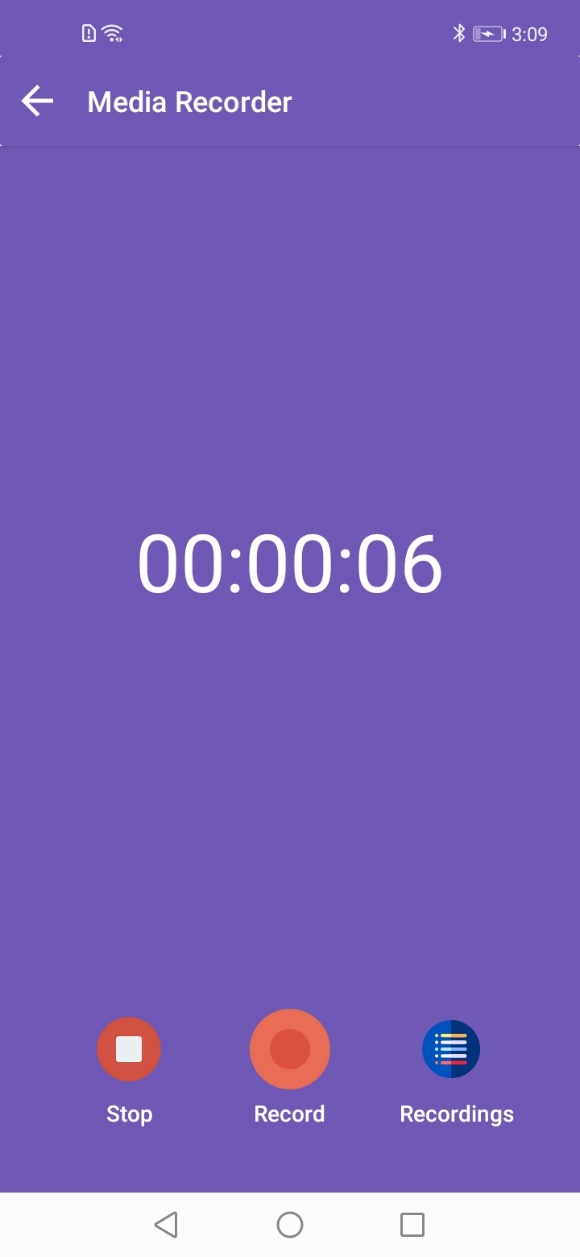
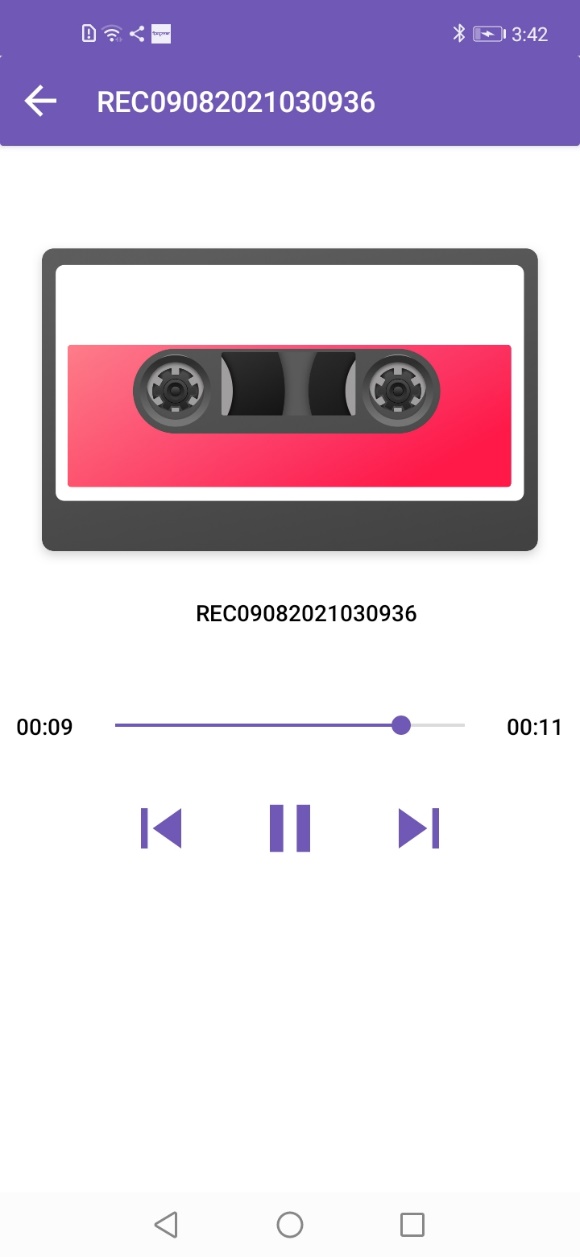
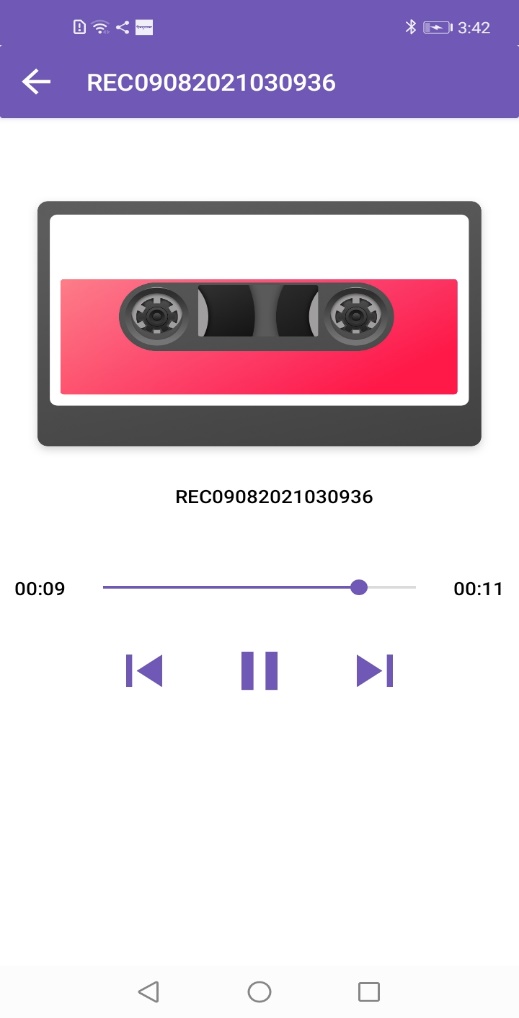
- Record and play an audio file by using Audio Engine.
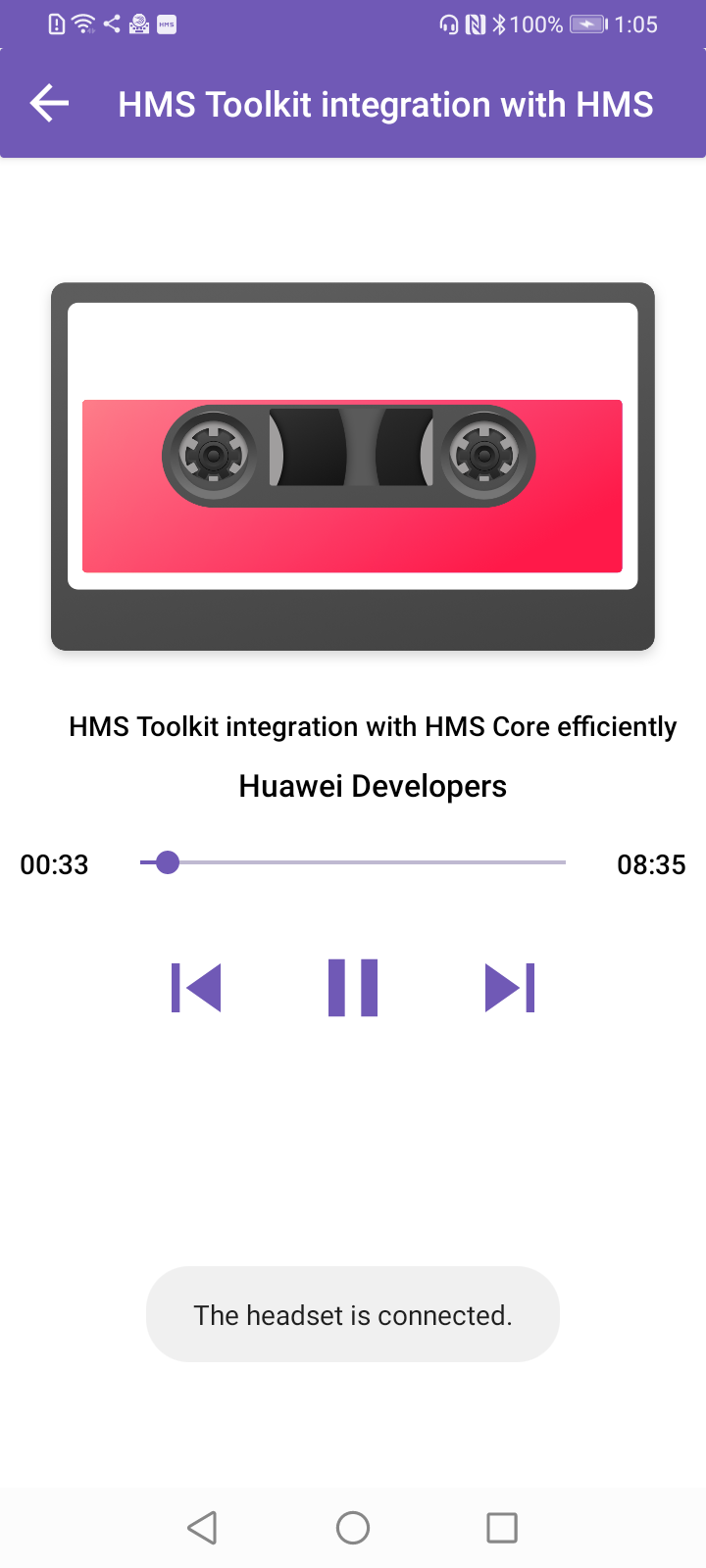
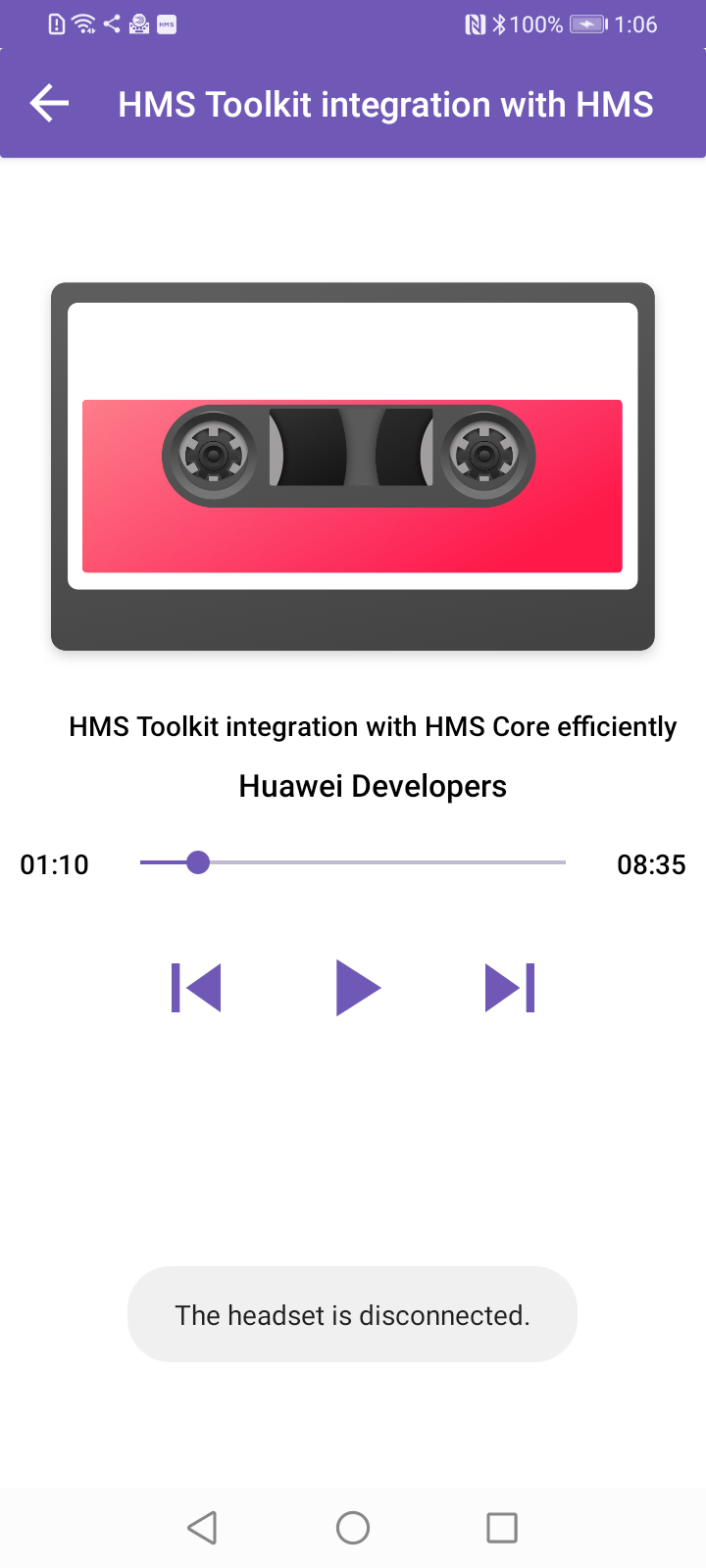
- Display the headset status by using Awareness Kit.
Activity description
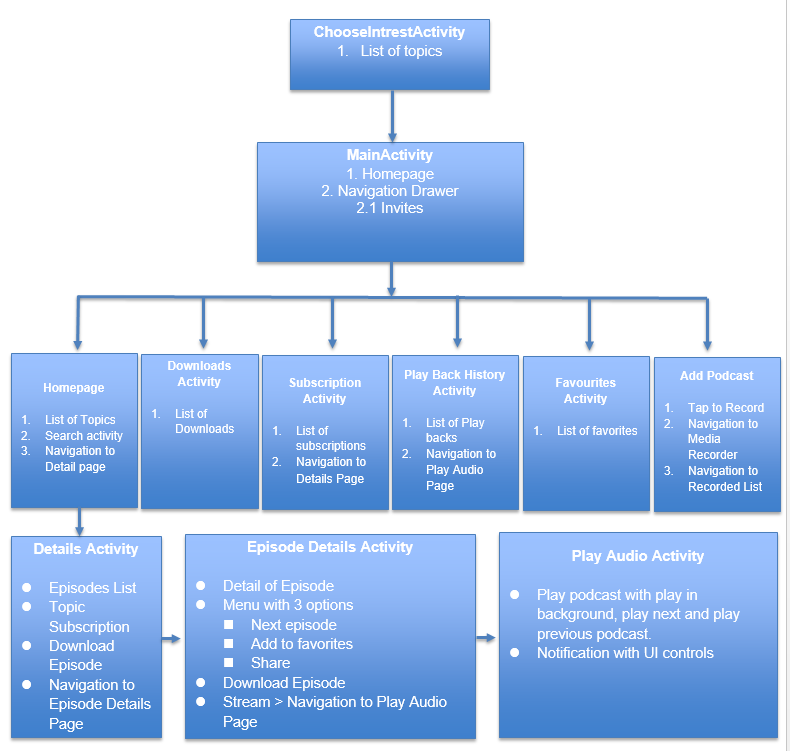
What You Will Learn
In this codelab, you will learn how to:
- Store an audio file by using Cloud Storage.
- Store and retrieve data by using Cloud DB.
- Control podcast playback by using Audio Kit.
- Record an audio file by using Audio Engine.
- Display the headset status by using Awareness Kit.
3. What You Will Need
Hardware Requirements
- A computer (desktop or laptop) that runs Windows 10
- A Huawei phone with HMS Core (APK) 5.0.0.300 or later
Software Requirements
- Android Studio 3.X
- JDK 1.8 or later
- SDK Platform 19 or later
- Gradle 4.6 or later
4. Integration Preparations
To integrate Cloud Storage, Cloud DB, Audio Kit, Audio Engine, and Awareness Kit, you must complete the following tasks:
- Create an app in AppGallery Connect.
- Create a project in Android Studio.
- Generate a signing certificate.
- Generate a signing certificate fingerprint.
- Configure the signing certificate fingerprint.
- Add the app package name and save the configuration file.
- Add the AppGallery Connect plugin and Maven repository in the project-level build.gradle file.
- Configure the signing certificate in Android Studio.
5. Integrating HMS Services
Integrating Cloud Storage
Step 1. Enable Cloud Storage.
Sign in to AppGallery Connect and click My projects.
On the page displayed, go to Project settings > Manage APIs. Toggle on the switch to enable Cloud Storage.
Step 2. Upload a file.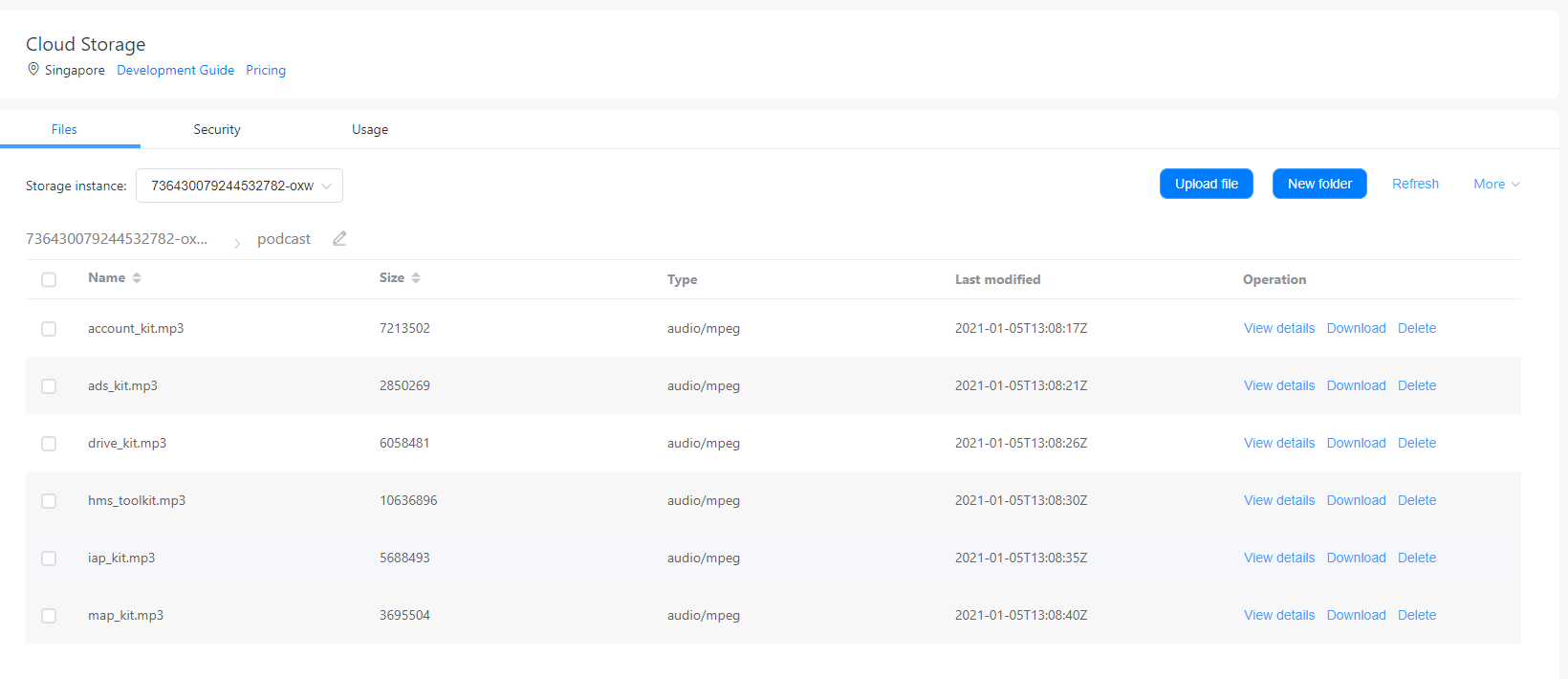
Step 3. Click View Details. Click Copy to copy the sharing token. You can then save it in Cloud DB, which is used to access the file.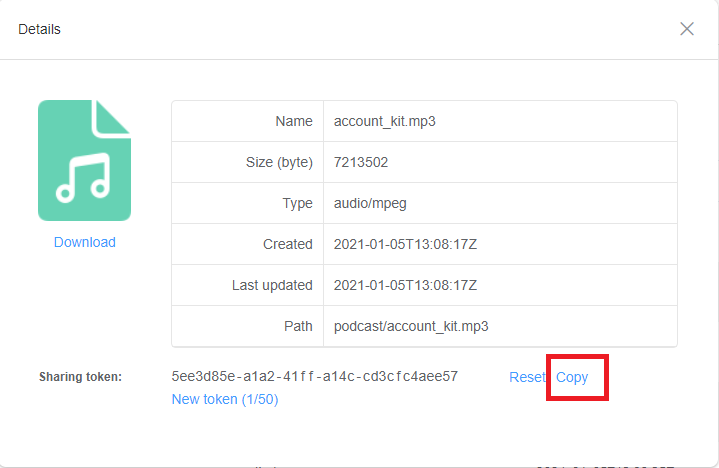
—-End
The uploaded file can now be accessed from any device.
Integrating Cloud DB
Step 1. Enable Cloud DB
Sign in to AppGalleryConnect and click My projects.
On the page displayed, go to Build > Cloud DB. Then click Enable now to enable this service.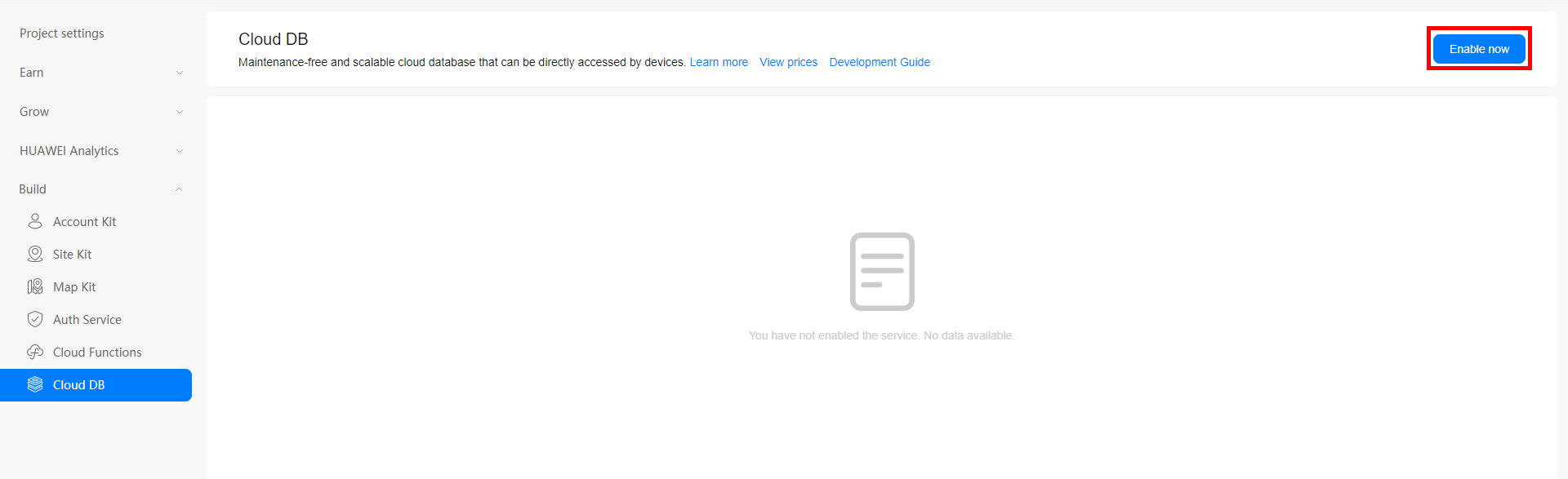
Step 2. Create an object type.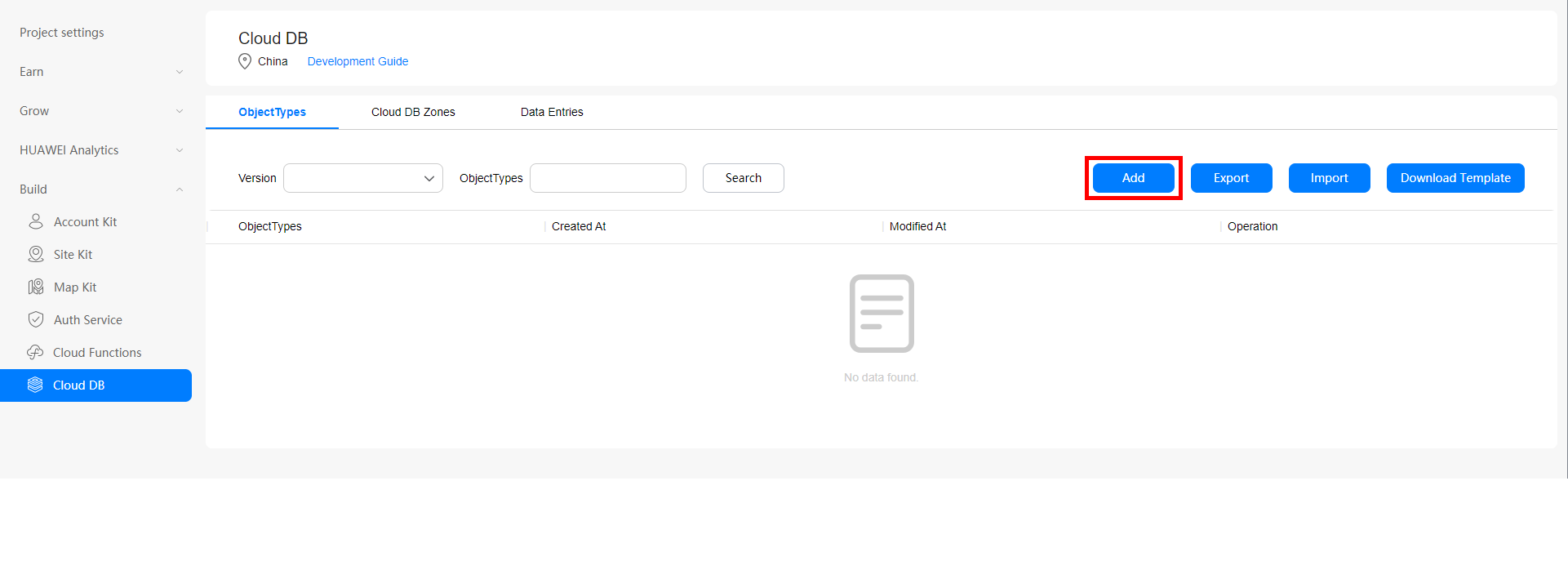
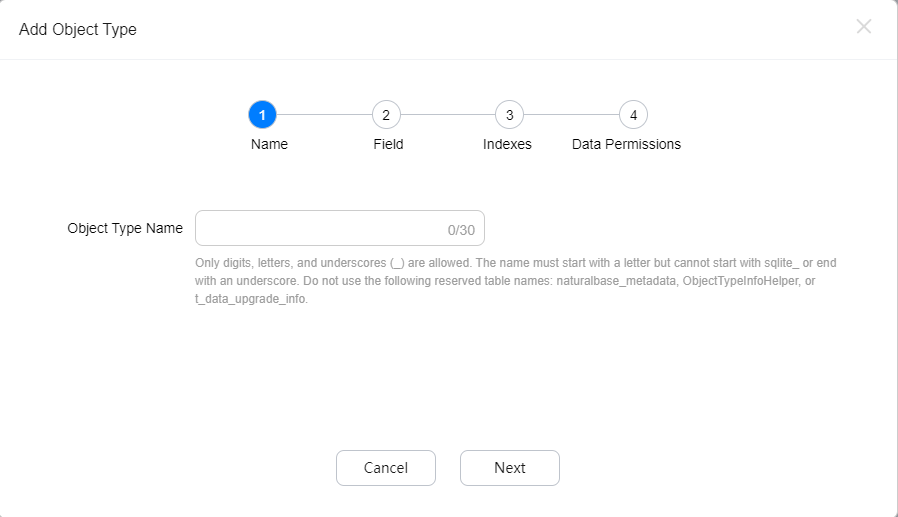
Step 3. Export the object type as a Java file to your project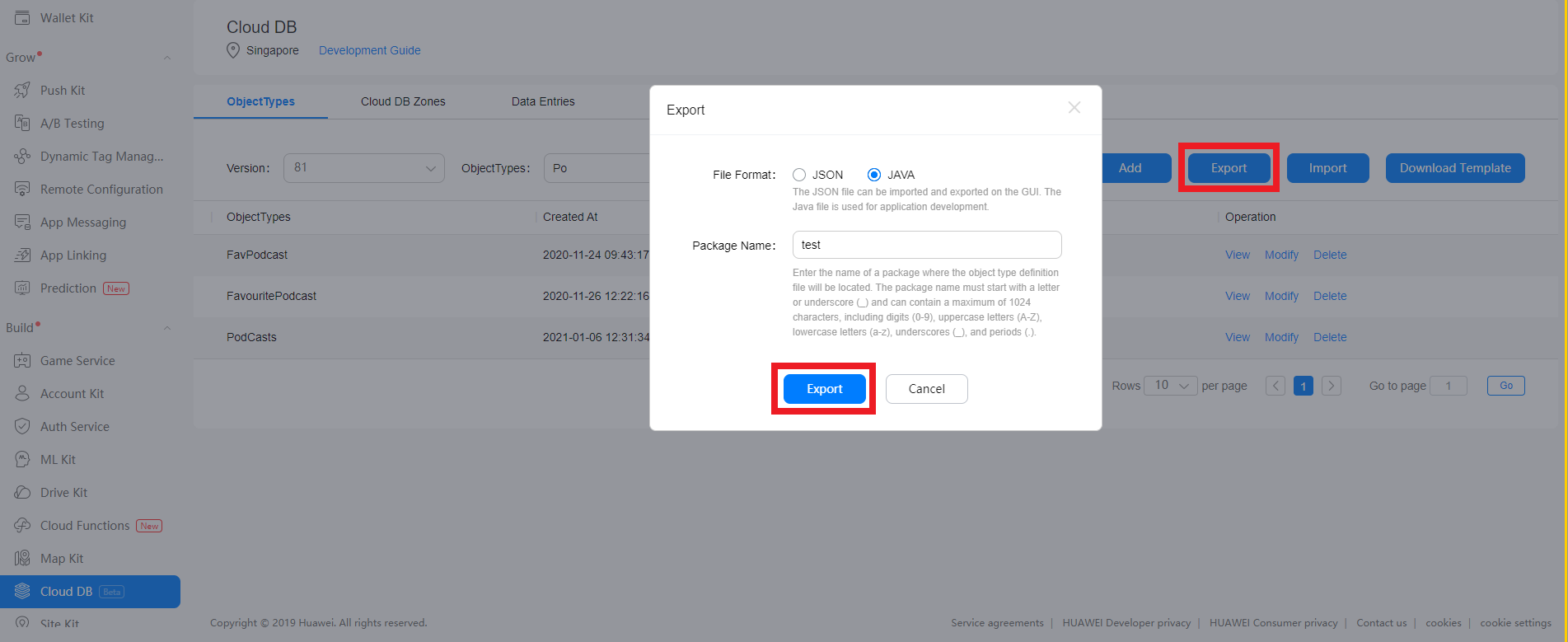
For more details, see Managing Cloud DB.
Step 4. Create a Cloud DB zone configuration object and open the Cloud DB zone.
Java
/**
 * Call AGConnectCloudDB.openCloudDBZone2 to open a Cloud DB zone.
 * The data is cached on cloud by default, but it can also be stored in the local storage.
 * AGConnectCloudDB.openCloudDBZone2 is an asynchronous method. Add
 * OnSuccessListener/OnFailureListener to receive the result of opening a Cloud DB zone.
 */

public void openCloudDBZoneV2() {
    mConfig = new CloudDBZoneConfig("Podcast",
            CloudDBZoneConfig.CloudDBZoneSyncProperty.CLOUDDBZONE_CLOUD_CACHE,
            CloudDBZoneConfig.CloudDBZoneAccessProperty.CLOUDDBZONE_PUBLIC);
    mConfig.setPersistenceEnabled(true);
    Task<CloudDBZone> openDBZoneTask = mCloudDB.openCloudDBZone2(mConfig, true);
    openDBZoneTask.addOnSuccessListener(new OnSuccessListener<CloudDBZone>() {
        @Override
        public void onSuccess(CloudDBZone cloudDBZone) {
            Log.w(TAG, "open clouddbzone success");
            mCloudDBZone = cloudDBZone;
            mUiCallBack.onDBReady(true);
            // Add a podcast to subscription after the Cloud DB zone is successfully opened.
            addSubscription();
        }
    }).addOnFailureListener(new OnFailureListener() {
        @Override
        public void onFailure(Exception e) {
            Log.w(TAG, "open clouddbzone failed for " + e.getMessage());
        }
    });
}
Kotlin
/**
 * Call AGConnectCloudDB.openCloudDBZone2 to open a Cloud DB zone.
 * The data is cached on cloud by default, but it can also be stored in the local storage.
 * AGConnectCloudDB.openCloudDBZone2 is an asynchronous method. Add
 * OnSuccessListener/OnFailureListener to receive the result of opening a Cloud DB zone.
 */
fun openCloudDBZoneV2() {
    mConfig = CloudDBZoneConfig(
        "Podcast",
        CloudDBZoneConfig.CloudDBZoneSyncProperty.CLOUDDBZONE_CLOUD_CACHE,
        CloudDBZoneConfig.CloudDBZoneAccessProperty.CLOUDDBZONE_PUBLIC
    )
    mConfig!!.persistenceEnabled = true
    val task = mCloudDB.openCloudDBZone2(mConfig!!, true)
    task.addOnSuccessListener {
        Log.w(TAG, "open clouddbzone success")
        mCloudDBZone = it
        mUiCallBack.onDBReady(true)
        addSubscription()
    }.addOnFailureListener {
        Log.w(TAG, "open clouddbzone failed for in Wrapper ")
    }
}
Step 5. Call AGConnectCloudDB.createObjectType to initialize the schema.
Java
/**
 * Call AGConnectCloudDB.createObjectType to initialize the schema.
 */
public void createObjectType() {
    try {
        mCloudDB.createObjectType(ObjectTypeInfoHelper.getObjectTypeInfo());
    } catch (AGConnectCloudDBException e) {
    }
}
Kotlin
/**
 * Call AGConnectCloudDB.createObjectType to initialize the schema.
 */
fun createObjectType() {
    try {
        mCloudDB.createObjectType(ObjectTypeInfoHelper.getObjectTypeInfo())
    } catch (e: AGConnectCloudDBException) {
}
}
Step 6. Request to obtain all podcasts from Cloud DB.
Java
/**
 * Request to obtain all podcasts by calling CloudDBZoneQueryPolicy.POLICY_QUERY_FROM_CLOUD_ONLY.
 */
public void getAllPodCasts() {
    if (mCloudDBZone == null) {
        Log.w(TAG, "CloudDBZone is null, try re-open it");
        return;
    }

    Task<CloudDBZoneSnapshot<PodCasts>> queryTask = mCloudDBZone.executeQuery(
            CloudDBZoneQuery.where(PodCasts.class) ,
            CloudDBZoneQuery.CloudDBZoneQueryPolicy.POLICY_QUERY_FROM_CLOUD_ONLY);
    queryTask.addOnSuccessListener(snapshot -> processPodCastsResult(snapshot)).addOnFailureListener(e -> mUiCallBack.updateUiOnError("Query podcast list from cloud failed"));
}
Kotlin
/**
 * Request to obtain all podcasts by calling CloudDBZoneQueryPolicy.POLICY_QUERY_FROM_CLOUD_ONLY.
 */

fun getAllPodCasts() {
    if (mCloudDBZone == null) {
        Log.w(TAG, "CloudDBZone is null, try re-open it")
        return
    }
    val queryTask = mCloudDBZone!!.executeQuery(
        CloudDBZoneQuery.where(PodCasts::class.java),
        CloudDBZoneQuery.CloudDBZoneQueryPolicy.POLICY_QUERY_FROM_CLOUD_ONLY
    )
    queryTask.addOnSuccessListener { snapshot -> processPodCastsResult(snapshot) }
        .addOnFailureListener {
            mUiCallBack.updateUiOnError("Query podcast list from cloud failed")
        }
}
Obtained podcast list
Step 7. Request to obtain all favourite podcasts from Cloud DB.
Java
/**
 * Request to obtain all favourite podcasts by calling CloudDBZoneQueryPolicy.POLICY_QUERY_FROM_CLOUD_ONLY.
 */
public void getFavouritePodCasts() {
    if (mCloudDBZone == null) {
        Log.w(TAG, "CloudDBZone is null, try re-open it");
        return;
    }

    Task<CloudDBZoneSnapshot<FavouritePodcast>> queryTask = mCloudDBZone.executeQuery(
            CloudDBZoneQuery.where(FavouritePodcast.class),
            CloudDBZoneQuery.CloudDBZoneQueryPolicy.POLICY_QUERY_FROM_CLOUD_ONLY);
    queryTask.addOnSuccessListener(snapshot -> processQueryResult(snapshot)).addOnFailureListener(e -> mUiCallBack.updateUiOnError("Query failed"));
}
Kotlin
/**
 * Request to obtain all favourite podcasts by calling CloudDBZoneQueryPolicy.POLICY_QUERY_FROM_CLOUD_ONLY.
 */

fun getFavouritePodCasts() {
    if (mCloudDBZone == null) {
        Log.w(TAG, "CloudDBZone is null, try re-open it")
        return
    }
    val queryTask = mCloudDBZone!!.executeQuery(
        CloudDBZoneQuery.where(FavouritePodcast::class.java),
        CloudDBZoneQuery.CloudDBZoneQueryPolicy.POLICY_QUERY_FROM_CLOUD_ONLY
    )
    queryTask.addOnSuccessListener { snapshot -> processQueryResult(snapshot) }
        .addOnFailureListener {
            mUiCallBack.updateUiOnError("Query podcast list from cloud failed")
        }
}
Step 8. Add a podcast to the favourites.
Java
/**
 * Add a podcast into the favourites.
 *
 * @param favourite Podcast added from local
 */
public void upsertFavPodCasts(FavouritePodcast bookInfo) {
    if (mCloudDBZone == null) {
        Log.w(TAG, "CloudDBZone is null, try re-open it");
        return;
    }

    Task<Integer> upsertTask = mCloudDBZone.executeUpsert(bookInfo);
    upsertTask.addOnSuccessListener(cloudDBZoneResult -> {
        mUiCallBack.updateUiOnError("Added to favourites");
    }).addOnFailureListener(e -> mUiCallBack.updateUiOnError("Insert Podcast info failed"));
}
Kotlin
/**
 * Add a podcast into the favourites.
 *
 * @param favourite Podcast added from local
 */
fun upsertFavPodCasts(favPodcast: FavouritePodcast?) {
    if (mCloudDBZone == null) {
        Log.w(TAG, "CloudDBZone is null, try re-open it")
        return
    }
    val upsertTask = mCloudDBZone!!.executeUpsert(favPodcast!!)
    upsertTask.addOnSuccessListener { cloudDBZoneResult ->
        mUiCallBack.updateUiOnError("Added to favourites")
    }.addOnFailureListener {
        mUiCallBack.updateUiOnError("Insert podcast info failed")
    }
}
Step 9. Remove a podcast from the favourites.
Java
/**
 * Remove a podcast from the favourites.
 *
 */
public void deleteFavPodCast(FavouritePodcast favouritePodcast) {
    if (mCloudDBZone == null) {
        Log.w(TAG, "CloudDBZone is null, try re-open it");
        return;
    }

    Task<Integer> deleteTask = mCloudDBZone.executeDelete(favouritePodcast);
    if (deleteTask.getException() != null) {
        Log.d("Delete query ", deleteTask.getException().getMessage());
        mUiCallBack.updateUiOnError("Delete podcast failed");
        return;
    }
    mUiCallBack.onDelete(true);
}
Kotlin
/**
 * Remove a podcast from the favourites.
 *
 */
fun deleteFavPodCast(favPodcast: FavouritePodcast?) {
    if (mCloudDBZone == null) {
        Log.w(TAG, "CloudDBZone is null, try re-open it")
        return
    }
    val deleteTask = mCloudDBZone!!.executeDelete(favPodcast!!)
    if (deleteTask.exception != null) {
        mUiCallBack.updateUiOnError("Delete podcast failed")
        return
    }
    mUiCallBack.onDelete(true)
}
Add a podcast to the favourites Favourites list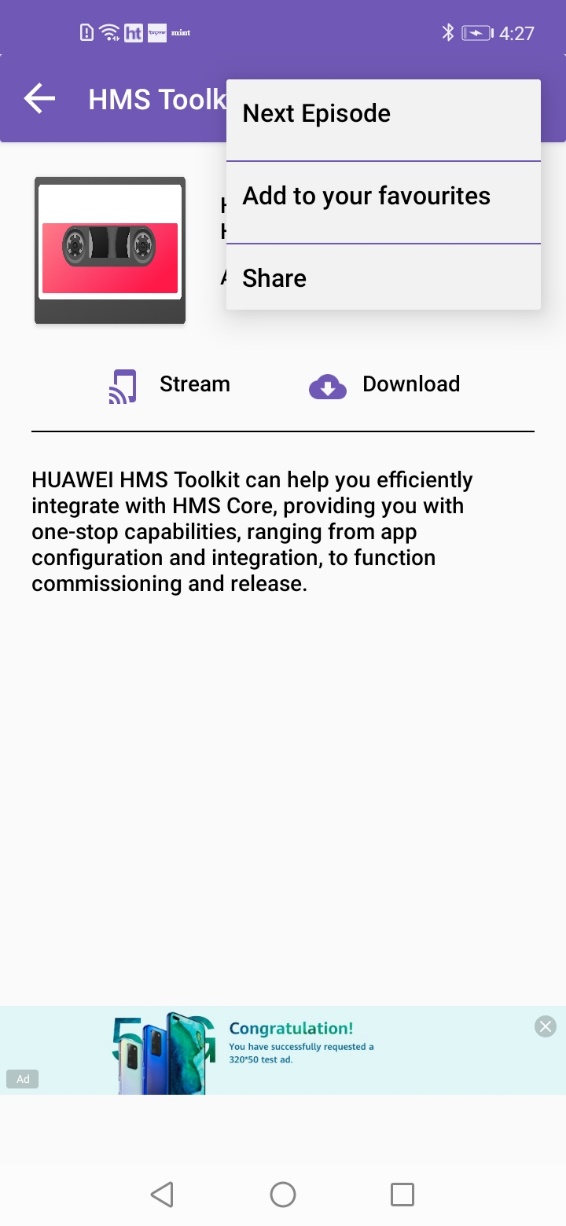
Step 10. Call AGConnectCloudDB.closeCloudDBZone to close a Cloud DB zone.
Java
/**
 * Call AGConnectCloudDB.closeCloudDBZone to
 * close a Cloud DB zone.
 */
public void closeCloudDBZone() {
    try {
        mRegister.remove();
        mCloudDB.closeCloudDBZone(mCloudDBZone);
    } catch (AGConnectCloudDBException e) {
        Log.w(TAG, "closeCloudDBZone: " + e.getMessage());
    }
}
Kotlin
/**
 * Call AGConnectCloudDB.closeCloudDBZone to
 * close a Cloud DB zone.
 */
fun closeCloudDBZone() {
    try {
        mRegister!!.remove()
        mCloudDB.closeCloudDBZone(mCloudDBZone)
    } catch (e: AGConnectCloudDBException) {
        Log.w(TAG, "closeCloudDBZone: ")
    }
}
—-End
For more details, see Cloud DB.
Integrating Audio Kit
Step 1: Create the audio player UI by using the following code.
<?xml version="1.0" encoding="utf-8"?>
<androidx.constraintlayout.widget.ConstraintLayout xmlns:android="http://schemas.android.com/apk/res/android"
    android:layout_width="match_parent"
    android:layout_height="match_parent"
    android:background="@color/colorWhite"
    xmlns:app="http://schemas.android.com/apk/res-auto">
    <include
        android:id="@+id/include"
        android:layout_width="match_parent"
        android:layout_height="?actionBarSize"
        app:layout_constraintTop_toTopOf="parent"
        layout="@layout/include_play_audio"/>

    <ImageView
        android:id="@+id/img_pod_cast"
        android:layout_width="match_parent"
        android:layout_height="@dimen/_200dp"
        app:layout_constraintEnd_toEndOf="parent"
        app:layout_constraintTop_toBottomOf="@+id/include"
        app:layout_constraintStart_toStartOf="parent"
        android:scaleType="fitCenter"
        android:src="@drawable/guy_"
        android:layout_marginTop="@dimen/_60dp"
        />
    <TextView
        android:layout_width="wrap_content"
        android:layout_height="wrap_content"
        android:id="@+id/txt_title"
        app:layout_constraintStart_toStartOf="parent"
        app:layout_constraintEnd_toEndOf="parent"
        android:layout_marginTop="@dimen/_20dp"
        android:text=""
        android:layout_marginStart="@dimen/_20dp"
        app:layout_constraintTop_toBottomOf="@+id/img_pod_cast"
        style="@style/app_text_14"/>
    <TextView
        android:layout_width="wrap_content"
        android:layout_height="wrap_content"
        android:id="@+id/txt_author"
        android:layout_marginTop="@dimen/_10dp"
        app:layout_constraintStart_toStartOf="parent"
        app:layout_constraintEnd_toEndOf="parent"
        android:text="@string/author"
        android:layout_marginStart="@dimen/_20dp"
        app:layout_constraintTop_toBottomOf="@+id/txt_title"
        style="@style/app_text"/>
    <SeekBar
        android:id="@+id/musicSeekBar"
        android:layout_width="0dp"
        android:layout_height="wrap_content"
        android:layout_marginStart="@dimen/_10dp"
        android:layout_marginTop="@dimen/_20dp"
        android:layout_marginEnd="@dimen/_10dp"
        app:layout_constraintEnd_toStartOf="@+id/totalDurationTextView"
        app:layout_constraintStart_toEndOf="@+id/progressTextView"
        app:layout_constraintTop_toBottomOf="@+id/txt_author" />
    <TextView
        android:id="@+id/progressTextView"
        android:layout_width="wrap_content"
        android:layout_height="wrap_content"
        android:layout_marginStart="@dimen/_10dp"
        android:layout_marginTop="@dimen/_20dp"
        android:text="0?:??"
        style="@style/app_text_14"
        app:layout_constraintStart_toStartOf="parent"
        app:layout_constraintTop_toBottomOf="@+id/txt_author" />

    <TextView
        android:id="@+id/totalDurationTextView"
        android:layout_width="wrap_content"
        android:layout_height="wrap_content"
        android:layout_marginTop="@dimen/_20dp"
        android:layout_marginEnd="@dimen/_10dp"
        android:text="0?:??"
        style="@style/app_text_14"
        app:layout_constraintEnd_toEndOf="parent"
        app:layout_constraintTop_toBottomOf="@+id/txt_author" />
    <androidx.constraintlayout.widget.ConstraintLayout
        app:layout_constraintTop_toBottomOf="@+id/musicSeekBar"
        app:layout_constraintStart_toStartOf="parent"
        app:layout_constraintEnd_toEndOf="parent"
        android:layout_width="wrap_content"
        android:layout_height="wrap_content">


    <ImageView
        android:id="@+id/previousSongImageView"
        android:layout_width="@dimen/_50dp"
        android:layout_height="@dimen/_50dp"
        android:layout_marginTop="@dimen/_30dp"
        app:layout_constraintStart_toStartOf="parent"
        app:layout_constraintTop_toTopOf="parent"
        app:srcCompat="@drawable/ic_skip_previous" />

    <ImageView
        android:id="@+id/playButtonImageView"
        android:layout_width="@dimen/_50dp"
        android:layout_height="@dimen/_50dp"
        android:layout_marginStart="@dimen/_30dp"
        android:layout_marginTop="@dimen/_30dp"
        app:layout_constraintStart_toEndOf="@+id/previousSongImageView"
        app:layout_constraintTop_toTopOf="parent"
        app:srcCompat="@drawable/ic_play_arrow" />

    <ImageView
        android:id="@+id/nextSongImageView"
        android:layout_width="@dimen/_50dp"
        android:layout_height="@dimen/_50dp"
        android:layout_marginTop="@dimen/_30dp"
        android:layout_marginStart="@dimen/_30dp"
        app:layout_constraintStart_toEndOf="@+id/playButtonImageView"
        app:layout_constraintTop_toTopOf="parent"
        app:srcCompat="@drawable/ic_skip_next" />

    </androidx.constraintlayout.widget.ConstraintLayout>

</androidx.constraintlayout.widget.ConstraintLayout>
Step 2. Play audio.
Java
/**
 * Play audio.
 *
 */

public class AudioPlayTask extends AsyncTask {
    @Override
    protected Void doInBackground(Void... params) {
        HwAudioPlayerConfig hwAudioPlayerConfig = new HwAudioPlayerConfig(PlayAudioActivity.this);
        HwAudioManagerFactory.createHwAudioManager(
                hwAudioPlayerConfig,
                new HwAudioConfigCallBack() {
                    @Override
                    public void onSuccess(HwAudioManager hwAudioManager) {
                        try {
                            mHwAudioManager = hwAudioManager;
                            mHwAudioPlayerManager = hwAudioManager.getPlayerManager();
                            mHwAudioConfigManager = hwAudioManager.getConfigManager();
                            mHwAudioQueueManager = hwAudioManager.getQueueManager();
                            playList = getOnlinePlaylist();
                            if (playList.size() > 0) {
                                play();
                            }
                            doListenersAndNotifications();
                        } catch (Exception e) {
                        }
                    }

                    @Override
                    public void onError(int i) {}
                });
        return null;
    }

    @Override
    protected void onPostExecute(Void result) {
        // Use Handler to avoid the ANR issue.
        new Handler(Looper.getMainLooper())
                .postDelayed(
                        new Runnable() {
                            @Override
                            public void run() {
                                addListener(mPlayListener);
                            }
                        },
                        Constants.HUNDRED);
    }
}

private void play() {
    if (mHwAudioPlayerManager != null
            && mHwAudioQueueManager != null
            && mHwAudioQueueManager.getAllPlaylist() != null) {
        if (mHwAudioQueueManager.getAllPlaylist() == playItemList) {
            mHwAudioPlayerManager.play(position);
        } else {
            mHwAudioPlayerManager.playList(playList, position, Constants.ZERO);
            mHwAudioPlayerManager.setPlayMode(Constants.ZERO);
            mHwAudioQueueManager.setPlaylist(playList);
        }
    }
}
Kotlin
/**
 * Play audio.
 *
 */
val hwAudioPlayerConfig = HwAudioPlayerConfig(context)
HwAudioManagerFactory.createHwAudioManager(
    hwAudioPlayerConfig,
    object : HwAudioConfigCallBack {
        override fun onSuccess(hwAudioManager: HwAudioManager) {
            try {
                mHwAudioManager = hwAudioManager
                mHwAudioPlayerManager = hwAudioManager.playerManager
                mHwAudioConfigManager = hwAudioManager.configManager
                mHwAudioQueueManager = hwAudioManager.queueManager
                playList = getOnlinePlaylist()
                if (playList.isNotEmpty()) {
                    play()
                }
                } catch (e: Exception) {
                Log.e("TAG", "player init fail")
            }
        }

        override fun onError(errorCode: Int) {
            Log.e("TAG", "init err: ")
        }
private fun play() {
    if (mHwAudioPlayerManager != null && mHwAudioQueueManager != null && mHwAudioQueueManager?.allPlaylist != null) {
        if (mHwAudioQueueManager?.allPlaylist === playItemList) {
            mHwAudioPlayerManager?.play(position)
        } else {
            mHwAudioPlayerManager?.playList(playList, position, 0)
            mHwAudioPlayerManager?.playMode = 0
            mHwAudioQueueManager?.setPlaylist(playList)
        }
    }
}
Step 3. Display the audio playback control in the notification bar while an audio file is playing in the background.
Java
/**
 * Display the audio playback control in the notification bar while an audio file is playing in the background.
 *
 */

private void doListenersAndNotifications() {
    new Handler(Looper.getMainLooper())
            .post(
                    new Runnable() {
                        @Override
                        public void run() {
                            for (HwAudioStatusListener listener : mTempListeners) {
                                try {
                                    mHwAudioManager.addPlayerStatusListener(listener);
                                } catch (RemoteException e) {
                                }
                            }
                            mHwAudioConfigManager.setSaveQueue(true);
                            mHwAudioConfigManager.setNotificationFactory(
                                    new INotificationFactory() {
                                        @Override
                                        public Notification createNotification(
                                                NotificationConfig notificationConfig) {
                                            builder = new NotificationCompat.Builder(getApplication(), null);
                                            RemoteViews remoteViews =
                                                    new RemoteViews(
                                                            getApplication().getPackageName(),
                                                            R.layout.notification_player);
                                            builder.setContent(remoteViews);
                                            builder.setSmallIcon(R.drawable.ic_share);
                                            builder.setVisibility(NotificationCompat.VISIBILITY_PUBLIC);
                                            builder.setCustomBigContentView(remoteViews);
                                            NotificationUtils.addChannel(
                                                    getApplication(),
                                                    NotificationUtils.NOTIFY_CHANNEL_ID_PLAY,
                                                    builder);
                                            boolean isQueueEmpty = mHwAudioManager.getQueueManager().isQueueEmpty();
                                            boolean isPlaying =
                                                    mHwAudioManager.getPlayerManager().isPlaying() && !isQueueEmpty;
                                            remoteViews.setImageViewResource(
                                                    R.id.image_toggle,
                                                    isPlaying ? R.drawable.ic_pause : R.drawable.ic_play_arrow);
                                            HwAudioPlayItem playItem =
                                                    mHwAudioManager.getQueueManager().getCurrentPlayItem();
                                            remoteViews.setTextViewText(R.id.text_song, playItem.getAudioTitle());
                                            remoteViews.setTextViewText(R.id.text_artist, playItem.getSinger());
                                            remoteViews.setImageViewResource(
                                                    R.id.image_last, R.drawable.ic_skip_previous);
                                            remoteViews.setImageViewResource(
                                                    R.id.image_next, R.drawable.ic_skip_next);
                                            remoteViews.setOnClickPendingIntent(
                                                    R.id.image_last, notificationConfig.getPrePendingIntent());
                                            remoteViews.setOnClickPendingIntent(
                                                    R.id.image_toggle, notificationConfig.getPlayPendingIntent());
                                            remoteViews.setOnClickPendingIntent(
                                                    R.id.image_next, notificationConfig.getNextPendingIntent());
                                            remoteViews.setOnClickPendingIntent(
                                                    R.id.image_close, getCancelPendingIntent());
                                            remoteViews.setOnClickPendingIntent(
                                                    R.id.layout_content, getMainIntent());
                                            return builder.build();
                                        }
                                    });
                        }
                    });
}
Kotlin
/**
 * Display the audio playback control in the notification bar while an audio file is playing in the background.
 *
 */
private fun doListenersAndNotifications() {
    Handler(Looper.getMainLooper()).post {
        for (listener in mTempListeners) {
            try {
                mHwAudioManager.addPlayerStatusListener(listener)
            } catch (e: RemoteException) {

            }
        }
        mHwAudioConfigManager?.setSaveQueue(true)
        mHwAudioConfigManager?.setNotificationFactory { notificationConfig ->
            if (Build.VERSION.SDK_INT > Build.VERSION_CODES.M) {
                builder = NotificationCompat.Builder(application, "null")
                val remoteViews = RemoteViews(application.packageName, R.layout.notification_player)
                builder.setContent(remoteViews)
                builder.setSmallIcon(R.drawable.ic_share)
                builder.setVisibility(NotificationCompat.VISIBILITY_PUBLIC)
                builder.setCustomBigContentView(remoteViews)
                addChannel(application, NotificationUtils.NOTIFY_CHANNEL_ID_PLAY, builder)
                val isQueueEmpty = mHwAudioManager.queueManager.isQueueEmpty
                val isPlaying = mHwAudioManager.playerManager.isPlaying && !isQueueEmpty
                remoteViews.setImageViewResource(R.id.image_toggle, if (isPlaying) R.drawable.ic_pause else R.drawable.ic_play_arrow)
                val playItem = mHwAudioManager.queueManager.currentPlayItem
                remoteViews.setTextViewText(R.id.text_song, playItem.audioTitle)
                remoteViews.setTextViewText(R.id.text_artist, playItem.singer)
                remoteViews.setImageViewResource(R.id.image_last, R.drawable.ic_skip_previous)
                remoteViews.setImageViewResource(R.id.image_next, R.drawable.ic_skip_next)
                remoteViews.setOnClickPendingIntent(R.id.image_last, notificationConfig.prePendingIntent)
                remoteViews.setOnClickPendingIntent(R.id.image_toggle, notificationConfig.playPendingIntent)
                remoteViews.setOnClickPendingIntent(R.id.image_next, notificationConfig.nextPendingIntent)
                remoteViews.setOnClickPendingIntent(R.id.image_close, getCancelPendingIntent())
                remoteViews.setOnClickPendingIntent(R.id.layout_content, getMainIntent())
                builder.build()
            } else {
                val builder = NotificationCompat.Builder(application, "null")
                builder.build()
            }
        }
    }
}
Step 4. Use HwAudioStatusListener to obtain the changes to audio playback, such as playing, pausing, completing, playback progress, and errors.
Java
/**
 * Obtain changes in audio playback.
 *
 */

private HwAudioStatusListener mPlayListener =
        new HwAudioStatusListener() {
            @Override
            public void onSongChange(HwAudioPlayItem song) {
                Log.i(TAG, "onSongChange");
                updateSongName(song);
            }

            @Override
            public void onQueueChanged(List infos) {
                Log.i(TAG, "onQueueChanged");
                if (mHwAudioPlayerManager != null && infos.size() != 0 && !isReallyPlaying) {
                    mHwAudioPlayerManager.play();
                    isReallyPlaying = true;
                    binding.playButtonImageView.setImageDrawable(getDrawable(R.drawable.ic_pause));
                }
            }

            @Override
            public void onBufferProgress(int percent) {}

            @Override
            public void onPlayProgress(long currPos, long duration) {}

            @Override
            public void onPlayCompleted(boolean isStopped) {
                if (mHwAudioPlayerManager != null && isStopped) {
                    mHwAudioPlayerManager.playNext();
                }
                isReallyPlaying = !isStopped;
            }

            @Override
            public void onPlayError(int errorCode, boolean isUserForcePlay) {
                Toast.makeText(PlayAudioActivity.this, getString(R.string.can_not_play), Toast.LENGTH_SHORT).show();
            }

            @Override
            public void onPlayStateChange(boolean isPlaying, boolean isBuffering) {
                refresh();
                if (isPlaying || isBuffering) {
                    binding.playButtonImageView.setImageDrawable(getDrawable(R.drawable.ic_pause));
                    isReallyPlaying = true;
                } else {
                    binding.playButtonImageView.setImageDrawable(getDrawable(R.drawable.ic_play_arrow));
                    isReallyPlaying = false;
                    if (builder != null) builder.setOngoing(false); // Probably not working as intended
                }
            }
        };
Kotlin
/**
 * Obtain changes in audio playback.
 *
 */

var mPlayListener: HwAudioStatusListener = object : HwAudioStatusListener {
override fun onSongChange(hwAudioPlayItem: HwAudioPlayItem) {
        setSongDetails(hwAudioPlayItem)
}
    override fun onQueueChanged(list: List<HwAudioPlayItem>) {
        if (mHwAudioPlayerManager != null && list.isNotEmpty() && !isReallyPlaying) {
            mHwAudioPlayerManager?.play()
            isReallyPlaying = true
            playButtonImageView?.setImageDrawable(ContextCompat.getDrawable(this@PlayAudioActivity, R.drawable.ic_pause))
        }
    }

    override fun onBufferProgress(percent: Int) {}
    override fun onPlayProgress(currentPosition: Long, duration: Long) {}
    override fun onPlayCompleted(isStopped: Boolean) {
        if (mHwAudioPlayerManager != null && isStopped) {
            mHwAudioPlayerManager?.playNext()
        }
        isReallyPlaying = !isStopped
    }

    override fun onPlayError(errorCode: Int, isUserForcePlay: Boolean) {
        Toast.makeText(this@PlayAudioActivity, getString(R.string.can_not_play), Toast.LENGTH_LONG).show()
    }

    override fun onPlayStateChange(isPlaying: Boolean, isBuffering: Boolean) {
        refresh()
        if (isPlaying || isBuffering) {
            playButtonImageView?.setImageDrawable(ContextCompat.getDrawable(this@PlayAudioActivity, R.drawable.ic_pause))
            isReallyPlaying = true
        } else {
            playButtonImageView?.setImageDrawable(ContextCompat.getDrawable(this@PlayAudioActivity, R.drawable.ic_play_arrow))
            isReallyPlaying = false
            if (builder != null) builder.setOngoing(false) // Probably not working as intended
        }
    }
}
Step 5. Stop the audio playback.
Java
/**
 * Stop the audio playback.
 */
public void stop() {
    if (mHwAudioPlayerManager == null) {
        return;
    }
    mHwAudioPlayerManager.stop();
}
Kotlin
/**
 * Stop the audio playback.
 */
fun stop() {
    if (mHwAudioPlayerManager == null) {
        return
    }
    mHwAudioPlayerManager?.stop()
}
—-End
Foreground playback control Background playback control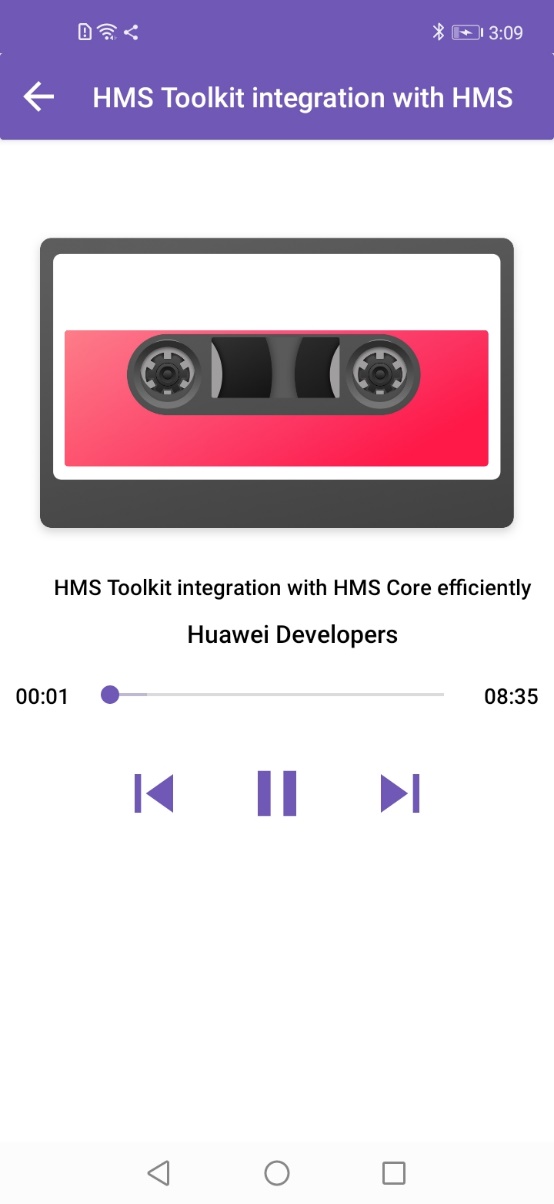
For more details, see Audio Kit.
Integrating Audio Engine
Step 1. Create the audio player UI by using the following code.
<?xml version="1.0" encoding="utf-8"?>
<LinearLayout
    xmlns:android="http://schemas.android.com/apk/res/android"
    android:layout_width="match_parent"
    android:layout_height="match_parent"
    android:background="@color/colorPrimary"
    android:orientation="vertical">

    <TextView
        android:id="@+id/txt_recording"
        android:layout_width="match_parent"
        android:layout_height="match_parent"
        android:text="00:00:00"
        android:layout_weight="1"
        android:gravity="center"
        android:textColor="@color/colorWhite"
        android:textSize="50dp"/>

    <LinearLayout
        android:id="@+id/showProgress"
        android:layout_width="match_parent"
        android:layout_height="wrap_content"
        android:layout_marginTop="20dp"
        android:layout_marginBottom="40dp"
        android:orientation="horizontal">

        <LinearLayout

            android:id="@+id/lin_stop"
            android:layout_width="match_parent"
            android:layout_height="wrap_content"
            android:layout_weight="1"
            android:gravity="end"
            android:layout_marginEnd="@dimen/_50dp"
            android:orientation="vertical">

            <ImageView

                android:id="@+id/stop"
                android:layout_width="@dimen/_50dp"
                android:layout_height="@dimen/_50dp"
                android:layout_marginLeft="20dp"
                android:padding="5dp"
                android:src="@drawable/ic_stop"/>

            <TextView
                android:layout_width="wrap_content"
                android:layout_height="wrap_content"
                android:layout_marginEnd="10dp"
                android:layout_marginTop="5dp"
                android:gravity="center"
                android:text="@string/stop"
                style="@style/app_text_14_white"/>

        </LinearLayout>

        <LinearLayout
            android:id="@+id/lin_record"
            android:layout_width="wrap_content"
            android:layout_height="wrap_content"
            android:gravity="center"
            android:orientation="vertical">

            <ImageView
                android:id="@+id/start"
                android:layout_width="@dimen/_50dp"
                android:layout_height="@dimen/_50dp"
                android:src="@drawable/ic_record"/>

            <TextView
                android:layout_width="wrap_content"
                android:layout_height="wrap_content"
                android:layout_marginTop="5dp"
                android:gravity="center"
                android:text="@string/record"
              style="@style/app_text_14_white"/>

        </LinearLayout>

        <LinearLayout
            android:id="@+id/lin_list"
            android:layout_width="match_parent"
            android:layout_height="wrap_content"
            android:layout_marginStart="@dimen/_30dp"
            android:layout_weight="1"
            android:orientation="vertical">

            <ImageView
                android:id="@+id/recordings"
                android:layout_width="@dimen/_50dp"
                android:layout_height="@dimen/_50dp"
                android:layout_marginLeft="20dp"
                android:padding="7dp"
                android:src="@drawable/ic_list"/>

            <TextView
                android:layout_width="wrap_content"
                android:layout_height="wrap_content"
                android:layout_marginStart="13dp"
                android:layout_marginTop="5dp"
                android:gravity="center"
                android:text="@string/txt_record"
               style="@style/app_text_14_white"/>

        </LinearLayout>

    </LinearLayout>
</LinearLayout>
Step 2. Start recording.
Java
/**
 * Start recording.
 *
 */

private void startRecord() {
    if (!hasPermission()) {
        startRequestPermission();
        return;
    }
    showTimer();
    synchronized (mRecordingLock) {
        if (mSupportLowLatencyRecording) {
            startLowLatencyRecord();
            startAudioTrackThread();
            return;
        }

        // If Media Recorder has been initialized, return:
        if (mMediaRecorder != null && mIsRecording) {
            Log.i(TAG, "already created record");
            return;
        }

        try {
            mMediaRecorder = new MediaRecorder();
            mMediaRecorder.setAudioSource(MediaRecorder.AudioSource.MIC);
            mMediaRecorder.setOutputFormat(MediaRecorder.OutputFormat.THREE_GPP);
            mMediaRecorder.setAudioEncoder(MediaRecorder.AudioEncoder.AMR_NB);
            mRecordFile = new File(getExternalCacheDir(), RECORD_FILE_NAME);
            mMediaRecorder.setOutputFile(mRecordFile.getAbsolutePath());
            mMediaRecorder.prepare();
            mMediaRecorder.start();
            startAudioTrackThread();
            mIsRecording = true;
        } catch (IOException | IllegalStateException e) {
            Log.e(TAG, "startRecord, Exception is IOException");
        }
    }
}
private void startLowLatencyRecord() {
    if (mIsLowLatencyRecording) {
        Log.i(TAG, "already recording");
        return;
    }
    try {
        mRecordFile = new File(getExternalCacheDir(), RECORD_FILE_NAME);
        if (!mRecordFile.exists()) {
            mRecordFile.mkdirs();
        }
        @SuppressLint("SimpleDateFormat") DateFormat dateFormat =new SimpleDateFormat("MMddyyyyhhmmss");
        String date = dateFormat.format(new Date());
        audioFile = "REC"+date;
        filePath = mRecordFile.getAbsolutePath() + File.separator + audioFile;
        createAudioRecorder(filePath);
        startRecording();
        mIsLowLatencyRecording = true;
    }catch (Exception e){
        e.printStackTrace();
    }

}

private void startAudioTrackThread() {
    try {
        if (mAudioTrackThread != null) {
            mAudioTrackThread.destroy();
            mAudioTrackThread = null;
        }
        mAudioTrackThread = new AudioTrackThread();
        mAudioTrackThread.start();
        Log.i(TAG, "startAudioTrackThread  start...");
    } catch (IllegalThreadStateException e) {
        Log.e(TAG, "startAudioTrackThread IllegalThreadStateException");
    }
}
Kotlin
/**
 * Start recording.
 *
 */

private fun startRecord() {
    if (!hasPermission()) {
        startRequestPermission()
        return
    }
    showTimer()
    synchronized(mRecordingLock) {
        if (mSupportLowLatencyRecording) {
            startLowLatencyRecord()
            startAudioTrackThread()
            return
        }

        // If Media Recorder has been initialized, return:
        if (mMediaRecorder != null && mIsRecording) {
            Log.i(TAG, "already created record")
            return
        }
        try {
            mMediaRecorder = MediaRecorder()
            mMediaRecorder.setAudioSource(MediaRecorder.AudioSource.MIC)
            mMediaRecorder.setOutputFormat(MediaRecorder.OutputFormat.THREE_GPP)
            mMediaRecorder.setAudioEncoder(MediaRecorder.AudioEncoder.AMR_NB)
            mRecordFile = File(externalCacheDir, RECORD_FILE_NAME)
            if (!mRecordFile.exists()) {
                mRecordFile.mkdirs()
            }
            val dateFormat = SimpleDateFormat("mmddyyyyhhmmss")
            val date = dateFormat.format(Date())
            audioFile = "REC$date"
            filePath = mRecordFile.absolutePath + File.separator + audioFile
            mMediaRecorder.setOutputFile(filePath)
            mMediaRecorder.prepare()
            mMediaRecorder.start()
            startAudioTrackThread()
            mIsRecording = true
        } catch (e: IOException) {

        } catch (e: IllegalStateException) {

        }
    }
}

private fun startLowLatencyRecord() {
    if (mIsLowLatencyRecording) {
        Log.i(TAG, "already recording")
        return
    }
    try {
        mRecordFile = File(externalCacheDir, RECORD_FILE_NAME)
        if (!mRecordFile.exists()) {
            mRecordFile.mkdirs()
        }
        val dateFormat = SimpleDateFormat("mmddyyyyhhmmss")
        val date = dateFormat.format(Date())
        audioFile = "REC$date"
        filePath = mRecordFile.absolutePath + File.separator + audioFile
        createAudioRecorder(filePath)
        startRecording()
        mIsLowLatencyRecording = true
    } catch (e: Exception) {
    }
}

private fun startAudioTrackThread() {
    try {
        if (mAudioTrackThread != null) {
            mAudioTrackThread?.destroy()
        }
        mAudioTrackThread = AudioTrackThread()
        mAudioTrackThread?.start()
        Log.i(TAG, "startAudioTrackThread  start...")
    } catch (e: IllegalThreadStateException) {
    }
}
Step 3. Stop recording.
Java
/**
 * Stop recording.
 *
 */

private void stopRecord() {
    Log.i(TAG, "stop");
    if(countDownTimer!=null)
    countDownTimer.cancel();
    txt_recording.setText("00:00:00");
synchronized (mRecordingLock) {
        if (mSupportLowLatencyRecording) {
            Log.i(TAG, "stopLowLatencyRecord");
            stopRecording();
            mIsLowLatencyRecording = false;
            return;
        }

        if (mMediaRecorder != null && mIsRecording) {
            try {
                stopAudioTrackThread();
                mMediaRecorder.pause();
                mMediaRecorder.stop();
                mMediaRecorder.release();
                mMediaRecorder = null;
                mIsRecording = false;
            } catch (IllegalStateException e) {
                Log.e(TAG, "stopRecord(), IllegalStateException");
            }
        } else {
            Log.i(TAG, "stopRecord(), mMediaRecorder is null");
        }
    }
}

private void stopAudioTrackThread() {
    try {
        if (mAudioTrackThread != null) {
            mAudioTrackThread.destroy();
            mAudioTrackThread = null;
        }
    } catch (IllegalThreadStateException e) {
        Log.e(TAG, "stopAudioTrackThread, IllegalThreadStateException");
    }
}
Kotlin
/**
 * Stop recording.
 *
 */

private fun stopRecord() {
    Log.i(TAG, "stop")
    countDownTimer?.cancel()
    txt_recording.text = "00:00:00"
    synchronized(mRecordingLock) {
        if (mSupportLowLatencyRecording) {
            Log.i(TAG, "stopLowLatencyRecord")
            stopRecording()
            mIsLowLatencyRecording = false
            return
        }
        if (mMediaRecorder != null && mIsRecording) {
            try {
                stopAudioTrackThread()
                mMediaRecorder.pause()
                mMediaRecorder.stop()
                mMediaRecorder.release()
                mIsRecording = false
            } catch (e: IllegalStateException) {
                Log.e(TAG, "stopRecord()")
            }
        } else {
            Log.i(TAG, "stopRecord(), mMediaRecorder is null")
        }
    }
}

private fun stopAudioTrackThread() {
    try {
        if (mAudioTrackThread != null) {
            mAudioTrackThread?.destroy()
        }
    } catch (e: IllegalThreadStateException) {

    }
}
Step 4. Display the recording time.
Java
// Display the recording time.
private void showTimer() {
    countDownTimer=new CountDownTimer(Long.MAX_VALUE, 1000) {

        public void onTick(long millisUntilFinished) {
            second++;
            txt_recording.setText(recorderTime());
        }

        public void onFinish() {
        }

    }.start();
}

@SuppressLint("DefaultLocale")
private String recorderTime() {
    if (second == 60) {
        minute++;
        second = 0;
    }
    if (minute == 60) {
        hour++;
        minute = 0;
    }
    return String.format("%02d:%02d:%02d", hour, minute, second);
}
Kotlin
// Display the recording time.
private fun showTimer() {
    countDownTimer = object : CountDownTimer(Long.MAX_VALUE, 1000) {
        override fun onTick(millisUntilFinished: Long) {
            second++
            txt_recording!!.text = recorderTime()
        }

        override fun onFinish() {}
    }
    countDownTimer?.start()
}

fun recorderTime(): String {
    if (second == 60) {
        minute++
        second = 0
    }
    if (minute == 60) {
        hour++
        minute = 0
    }
    return String.format("%02d:%02d:%02d", hour, minute, second)
}
—-End
Audio recording Audio playing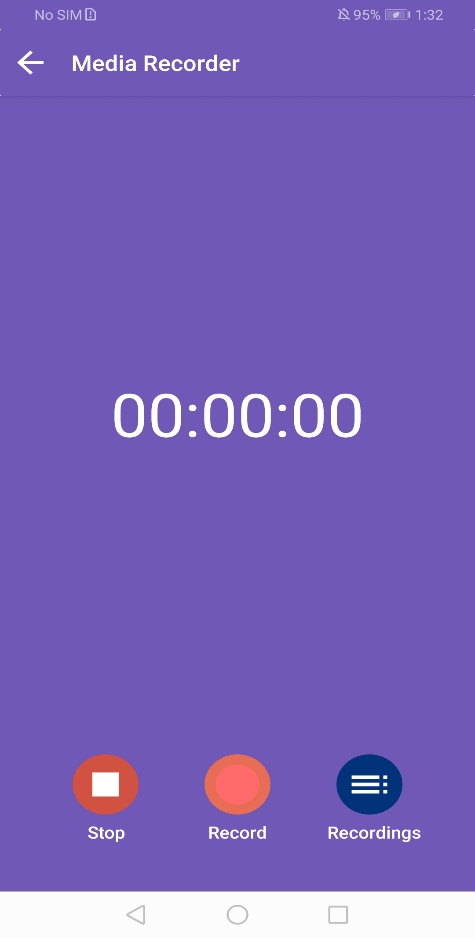
Integrating Awareness Kit
Step 1. Enable Awareness Kit.
Sign in to AppGallery Connect and click My projects.
On the page displayed, go to Project settings > Manage APIs. Find Awareness Kit and toggle on the switch to enable it.
Step 2. Call the headset barrier API to obtain the headset status.
Java
/**
 * Call the headset barrier API to obtain the headset status.*
 */
String barrierReceiverAction =
        getApplication().getPackageName() + getString(R.string.headset_action);
Intent intentBarrier = new Intent(barrierReceiverAction);
// The action you want Awareness Kit to trigger when the barrier status changes.
PendingIntent mPendingIntent = PendingIntent.getBroadcast(
        this, 0, intentBarrier, PendingIntent.FLAG_UPDATE_CURRENT);
// Register a broadcast receiver to receive the broadcast sent by Awareness Kit when the barrier status changes.
mBarrierReceiver = new HeadsetBarrierReceiver();
registerReceiver(mBarrierReceiver, new IntentFilter(barrierReceiverAction));
AwarenessBarrier keepingConnectedBarrier= HeadsetBarrier.keeping(HeadsetStatus.CONNECTED);
addBarrier(this, KEEPING_BARRIER_LABEL, keepingConnectedBarrier, mPendingIntent);

public static void addBarrier(Context context, final String label, AwarenessBarrier barrier, PendingIntent pendingIntent) {
    BarrierUpdateRequest.Builder builder = new BarrierUpdateRequest.Builder();
    // When the status of the registered barrier changes, pendingIntent is triggered.
    BarrierUpdateRequest request = builder.addBarrier(label, barrier, pendingIntent).build();
    Awareness.getBarrierClient(context).updateBarriers(request)
            .addOnSuccessListener(new OnSuccessListener<Void>() {
                @Override
                public void onSuccess(Void aVoid) {
                    showToast(context, context.getString(R.string.barrier_success));
                }
            })
            .addOnFailureListener(new OnFailureListener() {
                @Override
                public void onFailure(Exception e) {
                    showToast(context, context.getString(R.string.barrier_failed));
                }
            });
}
Kotlin
/**
 * Call the headset barrier API to obtain the headset status.*
 */

val barrierReceiverAction =
    application.packageName + resources.getString(R.string.headset_action)
val intentBarrier = Intent(barrierReceiverAction)
// The action you want Awareness Kit to trigger when the barrier status changes.
val mPendingIntent =
    PendingIntent.getBroadcast(this, 0, intentBarrier, PendingIntent.FLAG_UPDATE_CURRENT)
// Register a broadcast receiver to receive the broadcast sent by Awareness Kit when the barrier status changes.
mBarrierReceiver = HeadsetBarrierReceiver()
registerReceiver(mBarrierReceiver, IntentFilter(barrierReceiverAction))
val keepingConnectedBarrier = HeadsetBarrier.keeping(HeadsetStatus.CONNECTED)
addBarrier(this, KEEPING_BARRIER_LABEL, keepingConnectedBarrier, mPendingIntent)

@JvmStatic
fun addBarrier(
    context: Context,
    label: String?,
    barrier: AwarenessBarrier?,
    pendingIntent: PendingIntent?
) {
    val builder = BarrierUpdateRequest.Builder()

    // When the status of the registered barrier changes, pendingIntent is triggered.
    val request =
        builder.addBarrier(label!!, barrier!!, pendingIntent!!).build()
    Awareness.getBarrierClient(context).updateBarriers(request)
        .addOnSuccessListener {
            showToast(
                context,
                context.getString(R.string.barrier_success)
            )
        }
        .addOnFailureListener { e ->
            showToast(
                context,
                context.getString(R.string.barrier_failed)
            )
            Log.e(TAG, "add barrier failed", e)
        }
}
Step 3. Call onReceive to display the headset status.
Java
/**
 * Call onReceive to display the headset status. *
 */

@Override
    public void onReceive(Context context, Intent intent) {
        BarrierStatus barrierStatus = BarrierStatus.extract(intent);
        String label = barrierStatus.getBarrierLabel();
        int barrierPresentStatus = barrierStatus.getPresentStatus();
        switch (label) {
            case KEEPING_BARRIER_LABEL:
                if (barrierPresentStatus == BarrierStatus.TRUE) {
                    Toast.makeText(context, context.getResources().getString(R.string.headset_connected), Toast.LENGTH_LONG).show();
                } else if (barrierPresentStatus == BarrierStatus.FALSE) {
                    Toast.makeText(context, context.getResources().getString(R.string.headset_disConnected), Toast.LENGTH_LONG).show();
                } else {
                    Toast.makeText(context, context.getResources().getString(R.string.headset_unknown), Toast.LENGTH_LONG).show();
                }
                break;

            case CONNECTING_BARRIER_LABEL:
                if (barrierPresentStatus == BarrierStatus.TRUE) {
                    Toast.makeText(context, context.getResources().getString(R.string.headset_connecting), Toast.LENGTH_LONG).show();
                } else if (barrierPresentStatus == BarrierStatus.FALSE) {
                    Toast.makeText(context, context.getResources().getString(R.string.headset_not_connecting), Toast.LENGTH_LONG).show();
                } else {
                    Toast.makeText(context, context.getResources().getString(R.string.headset_unknown), Toast.LENGTH_LONG).show();
                }
                break;

            case DISCONNECTING_BARRIER_LABEL:
                if (barrierPresentStatus == BarrierStatus.TRUE) {
                    Toast.makeText(context, context.getResources().getString(R.string.headset_disconnecting), Toast.LENGTH_LONG).show();
                } else if (barrierPresentStatus == BarrierStatus.FALSE) {
                    Toast.makeText(context, context.getResources().getString(R.string.headset_not_disconnecting), Toast.LENGTH_LONG).show();
                } else {
                    Toast.makeText(context, context.getResources().getString(R.string.headset_unknown), Toast.LENGTH_LONG).show();
                }
                break;

            default:
                break;
        }
}
Kotlin
/**
 * Call onReceive to display the headset status. *
 */
override fun onReceive(context: Context, intent: Intent) {
    val barrierStatus = BarrierStatus.extract(intent)
    val label = barrierStatus.barrierLabel
    val barrierPresentStatus = barrierStatus.presentStatus
    when (label) {
        KEEPING_BARRIER_LABEL -> when (barrierPresentStatus) {
            BarrierStatus.TRUE -> {
                Toast.makeText(context, context.resources.getString(R.string.headset_connected), Toast.LENGTH_LONG).show()
            }
            BarrierStatus.FALSE -> {
                Toast.makeText(context, context.resources.getString(R.string.headset_disConnected), Toast.LENGTH_LONG).show()
            }
            else -> {
                Toast.makeText(context, context.resources.getString(R.string.headset_unknown), Toast.LENGTH_LONG).show()
            }
        }
        CONNECTING_BARRIER_LABEL -> when (barrierPresentStatus) {
            BarrierStatus.TRUE -> {
                Toast.makeText(context, context.resources.getString(R.string.headset_connecting), Toast.LENGTH_LONG).show()
            }
            BarrierStatus.FALSE -> {
                Toast.makeText(context, context.resources.getString(R.string.headset_not_connecting), Toast.LENGTH_LONG).show()
            }
            else -> {
                Toast.makeText(context, context.resources.getString(R.string.headset_unknown), Toast.LENGTH_LONG).show()
            }
        }
        DISCONNECTING_BARRIER_LABEL -> when (barrierPresentStatus) {
            BarrierStatus.TRUE -> {
                Toast.makeText(context, context.resources.getString(R.string.headset_disconnecting), Toast.LENGTH_LONG).show()
            }
            BarrierStatus.FALSE -> {
                Toast.makeText(context, context.resources.getString(R.string.headset_not_disconnecting), Toast.LENGTH_LONG).show()
            }
            else -> {
                Toast.makeText(context, context.resources.getString(R.string.headset_unknown), Toast.LENGTH_LONG).show()
            }
        }
        else -> {
        }
    }
}
Headset is connected Headset is disconnected
6. Congratulations
Well done. You have successfully completed this codelab and learned how to:
- Configure app information in AppGallery Connect.
- Play HD audio files by using Audio Kit.
- Control audio playback by using Audio Kit.
- Record and play audio by using Audio Engine.
- Display the headset status by using Awareness Kit.
- Store a podcast and access its path by using Cloud Storage.
- Store the data of a podcast in Cloud DB.
7. References
For more information, click the following links:
To download the sample code, click the button below:
Download.