For Registration and ID Verification: Click here
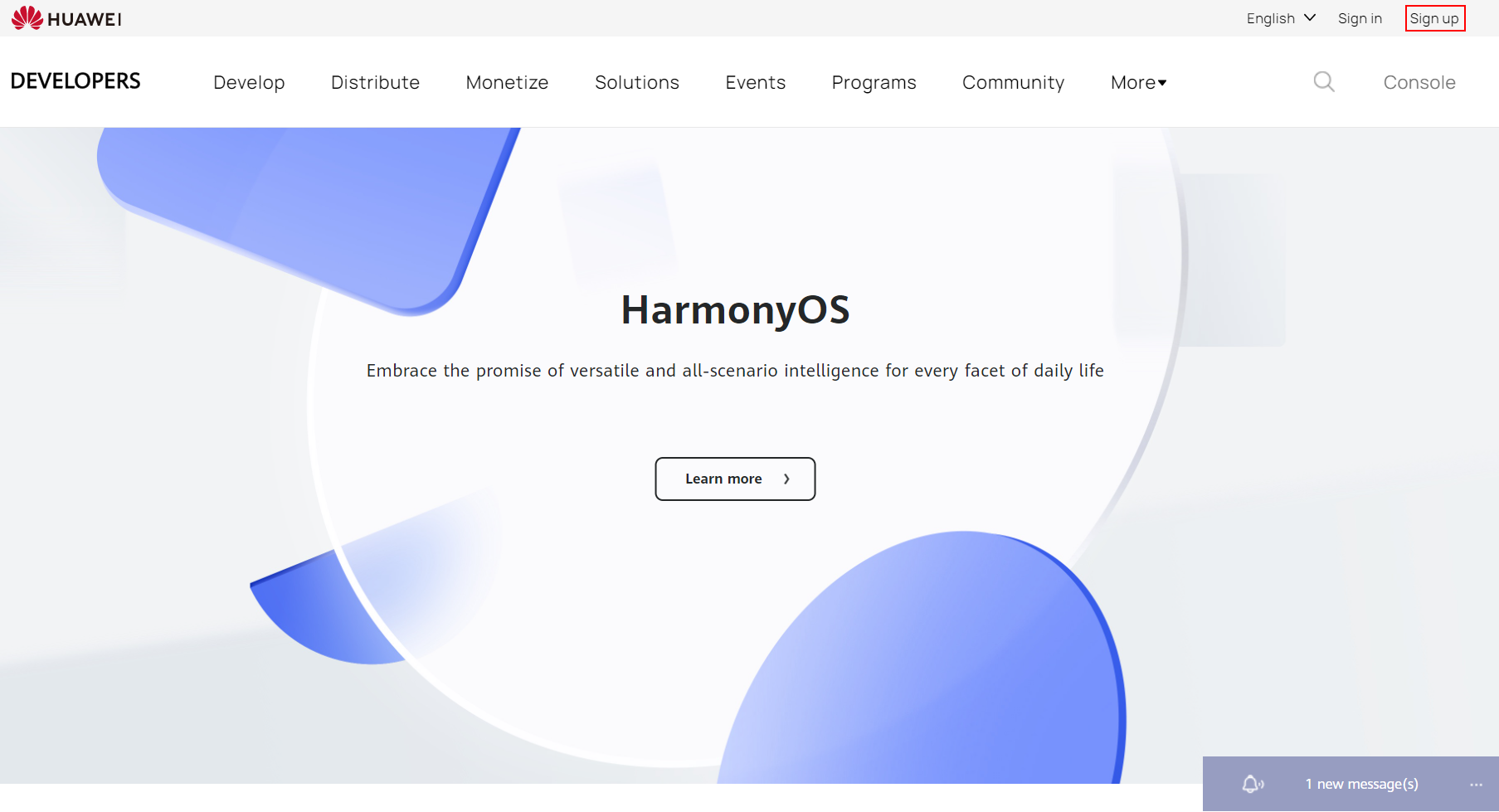
Go to HUAWEI Developers and click Sign up on the upper right corner. You may use either your phone number or email address for registration.
For Registration and ID Verification: Click here
Complete and submit the required company information.
For Registration and ID Verification: Click here
[Developer information settings]
Go to Settings > Profile, enter contact name, email address, and contact number to receive our news, policies, and important reminders.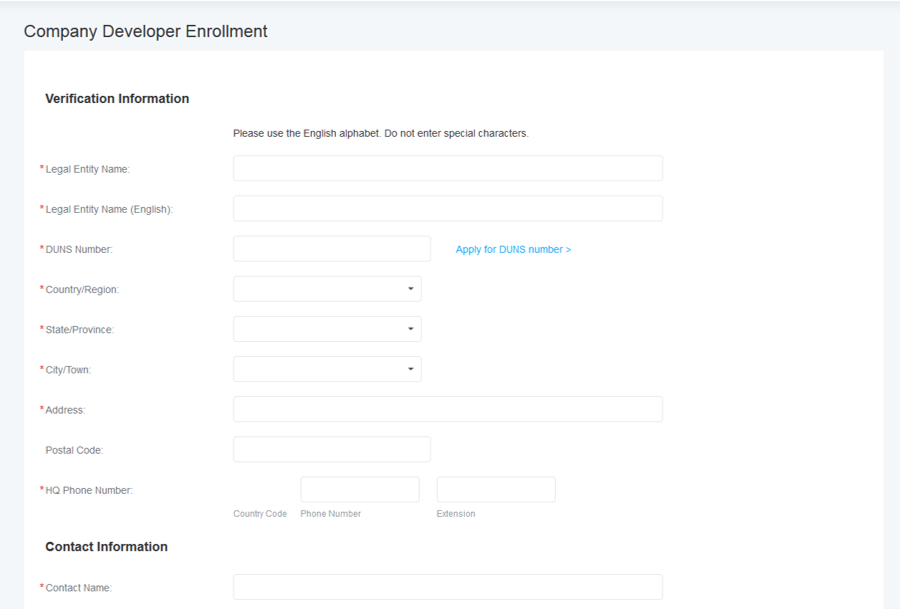
To use our paid promotion service, ensure that your app has been released in HUAWEI AppGallery. For details, please refer to App Creation and Management Guide.
4.1.1 Paid promotion service is available only to apps released on HUAWEI AppGallery. Apply for the service on the AppGallery paid promotion platform. The assessment will take 2 to 3 working days.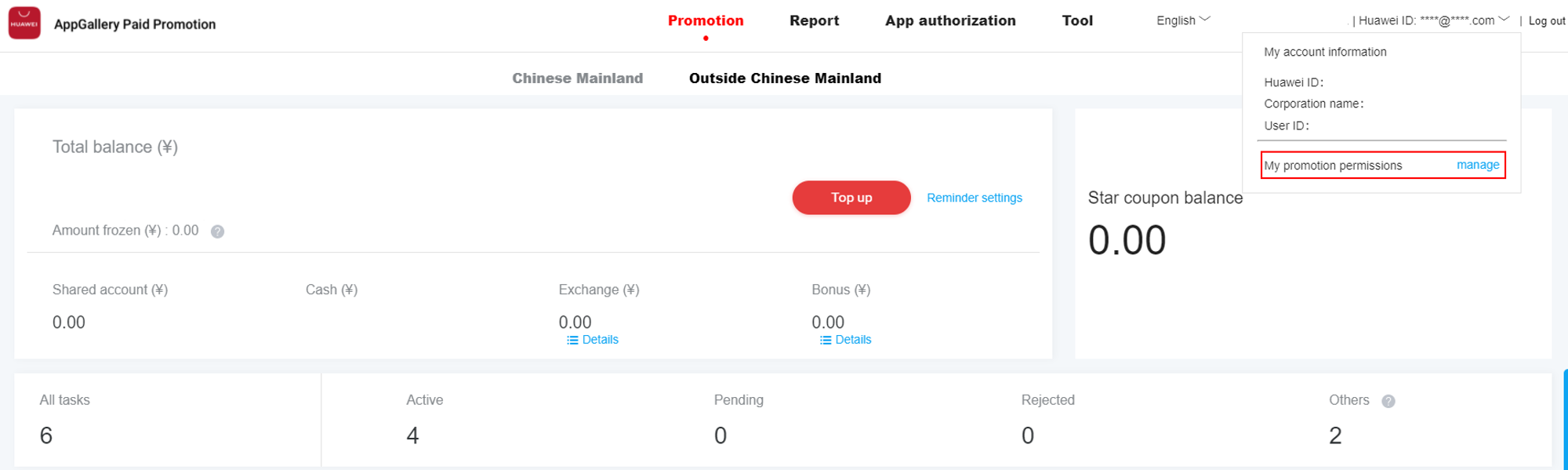
4.1.2 Click the arrow next to your HUAWEI ID in the upper right corner and choose My promotion permissions. On the page that is displayed, click the Promoted apps tab, find your app, and click Apply for promotion next to it.
4.1.3 View your assessment status on the Not promoted tab page. You can click View① to learn about the assessment progress and result, click Upload file② to provide your qualification proof materials, and click Apply for promotion③ to submit an application again.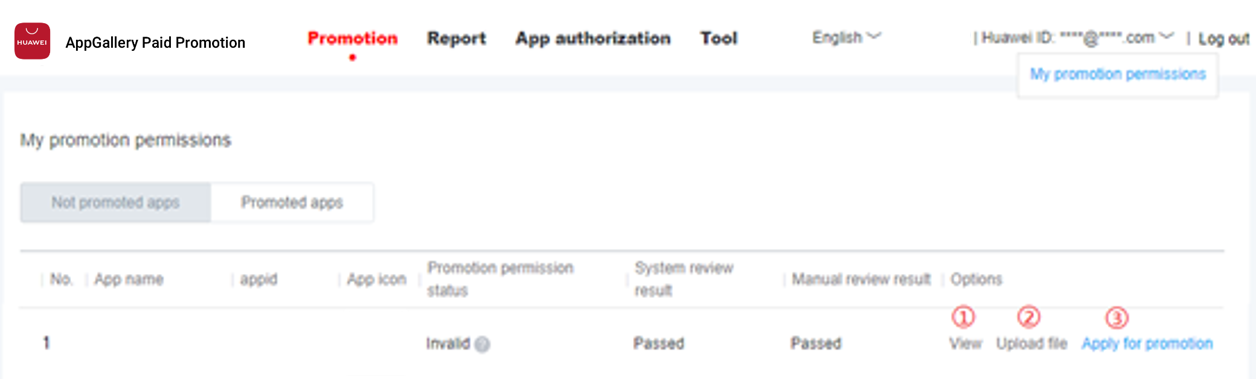
[Test standards]:
(1) The app must comply with HUAWEI AppGallery’s release standards and be subjected to random audit.
(2) The app does not collect, transfer or use users’ private data without users’ prior consent.
(3) The app does not contain or leverage any program that secretly collects users’ password or private data.
(4) The app must display its icon or the path to run the app after it is installed.
(5) The app’s screen resolution must be compatible with HUAWEI’s standards (1920 x 1080, 1280×720, 960×540, 854×480) for terminal devices. User experience should be enhanced. Make sure display and input functions work properly when a user switches from landscape to portrait mode.
(6) Full screen app should make full use of the entire screen space, and aligned to the center.
(7) Characters and images must be clearly displayed. Buttons and links should work properly and are of appropriate sizes.
(8) The user interface should be concise, creative and well designed.
(9) The app must be compatible with Hisilicon chips. It should cater to the end users of HUAWEI devices and AppGallery with established word-of-mouth and user base.
To top up your account, make sure that you have passed the app test, signed the HUAWEI Partner Paid Service Agreement and completed the required invoice information. Currency information is needed before you top up your account for the first time. Currently, USD, EUR, GBP, JPY and RMB are supported. Only 1 currency can be selected for each Developer account and the currency cannot be changed after it is selected. Invoice can only be issued to the payer (company). To top up your account offline, please create a top-up record in My Account, and upload the proof of payment and tax return. The bank transfer and audit takes 2 business days.
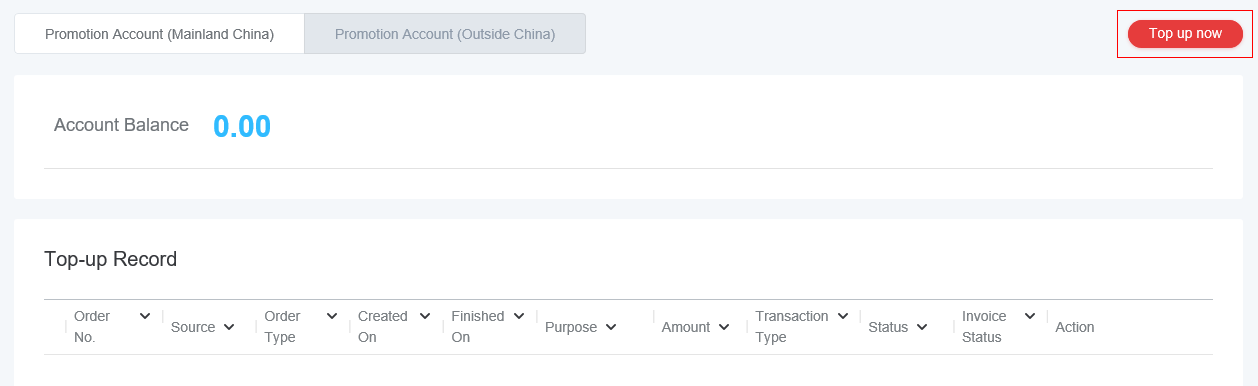
Go to Console > My Account > Balance > Top Up. If you have not signed the HUAWEI AppGallery Paid Promotion Service Agreement, you will be redirected to the agreement and invoice information page to complete the required information.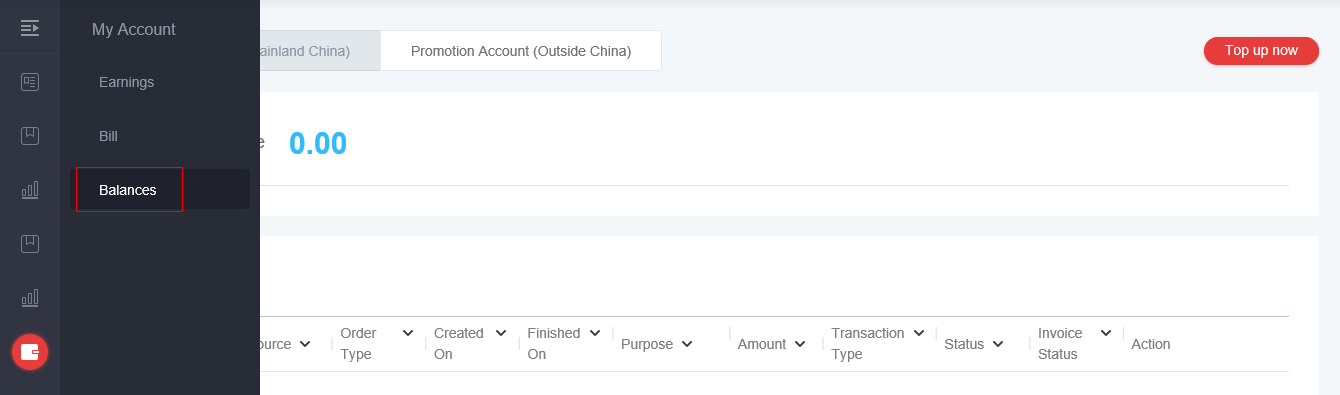
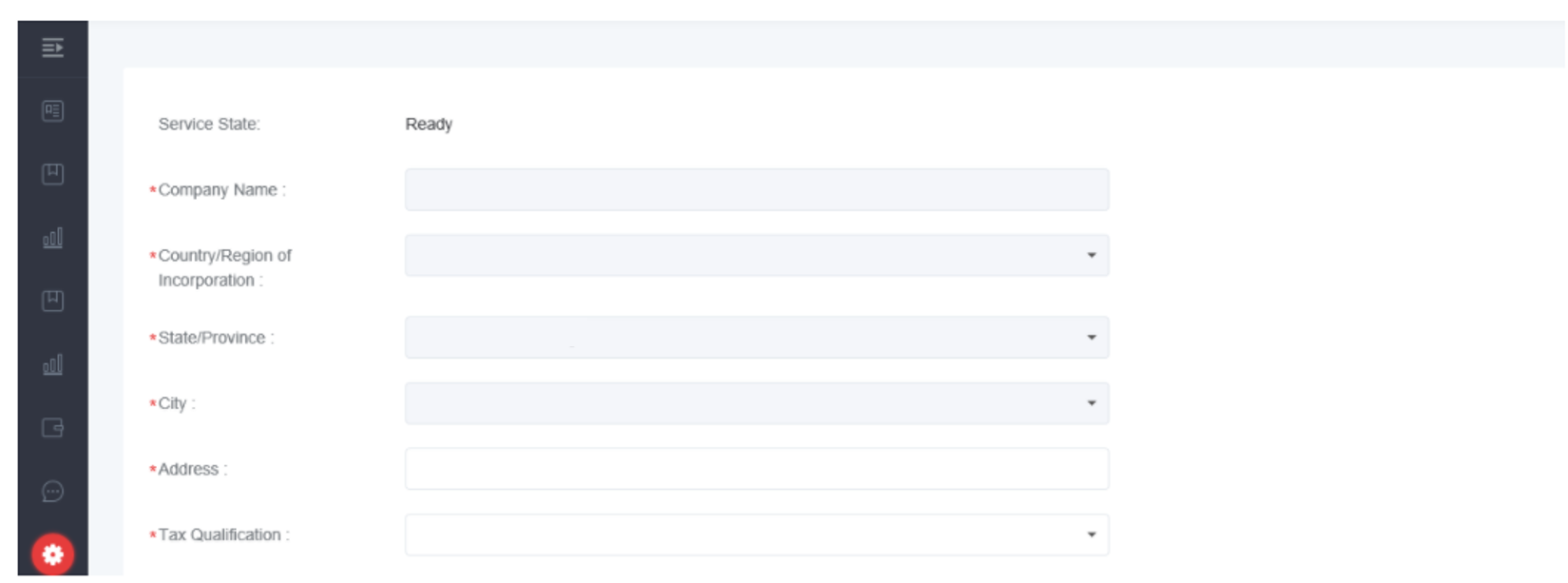
Please check your invoice information. The payer must be the company you have registered with HUAWEI.
Fill in the top-up amount. The amount must be consistent with the bank transfer information. For example, if the payment is made in 2 transactions, then you need to create 2 records accordingly. Bank transfer takes 2 business days (or 3 business days during festival season) if you have correctly completed the account information.
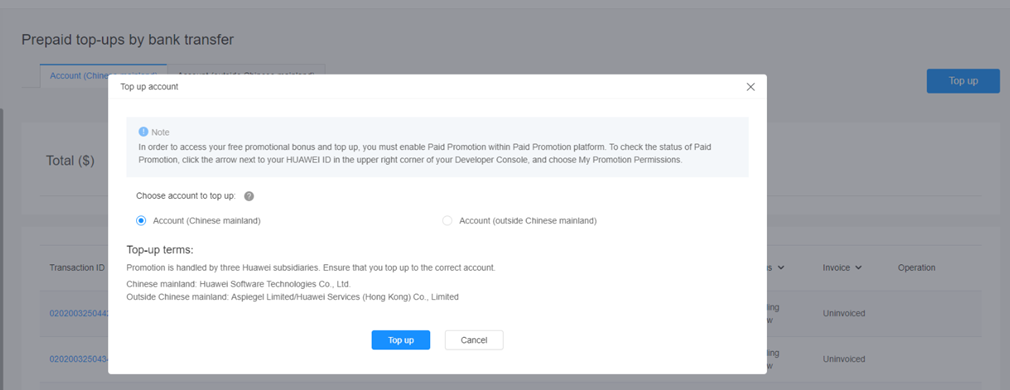
Based on ads placement section and the currency you use, Huawei AppGallery provides three types of accounts for your top-up and payment collection.
A dedicated account is provided when you need to place an ad to Europe, Oceania, or North America. If you choose the currency of USD, the system will provide USD account information; if you choose GBP, EUR, JPY and RMB, the system will provide EUR account information.
USD Account information:
(1) Account name : Aspiegel Limited
(2) Bank name : CITIBANK EUROPE PLC
(3) Account No.:0024215016
(4) Currency: USD
(5) Bank SWIFT CODE:CITIIE2X
(6) IBAN CODE : IE24CITI99005124215016
(7) Remarks : General fund+ account
EUR Account information:
(1) Account name: Aspiegel Limited Citibank Europe plc, Dublin Branch
(2) Bank name: Citibank Europe plc, Dublin Branch
(3) Account No.: 23630001
(4) Currency: EUR
(5) Bank SWIFT CODE: CITIIE2X
(6) Remarks: General fund+ account
The Hong Kong (China) account is provided when you need to place an ad to Asia, Africa, Latin America, or South America.
Hong Kong (China) Account information:
(1) Account name: Huawei Services(Hong Kong)Co.,Limited
(2) Bank name: INDUSTRIAL AND COMMERCIAL BANK OF CHINA(ASIA) LIMITED
(3) Account No.: 861530180846
(4) Currency: USD
(5) Bank SWIFT CODE: UBHKHKHH
(6) Remarks: HUAWEI123
Please fill in the following information into the remarks section of your bank transfer order: Developer account name, and purpose of the fund transferred. Prioritize the developer account name if there’s a word limit.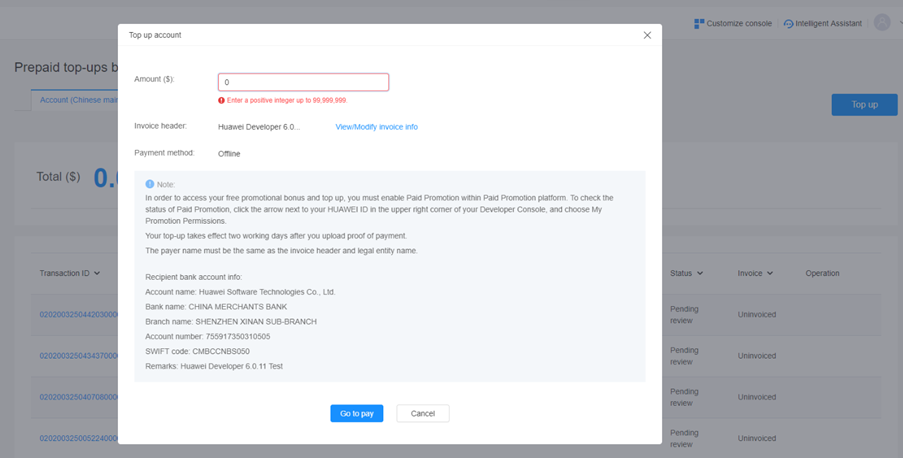
Please upload your proof of payment (bank transaction record) and tax return as soon as possible to expedite the review process. To create a record after you have made payment, select Upload Now; otherwise, select Later.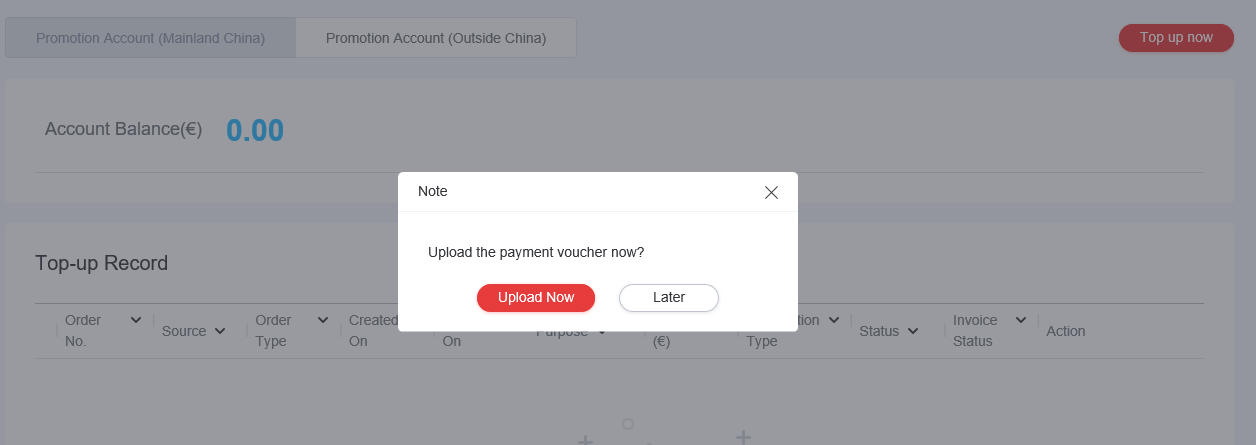
After you have obtained the order number, click Confirm Payment to upload your proof of payment and tax return. You may also click Cancel to delete a repetitive or wrong record. After the payment is confirmed, you may export your contract or modify your invoice information.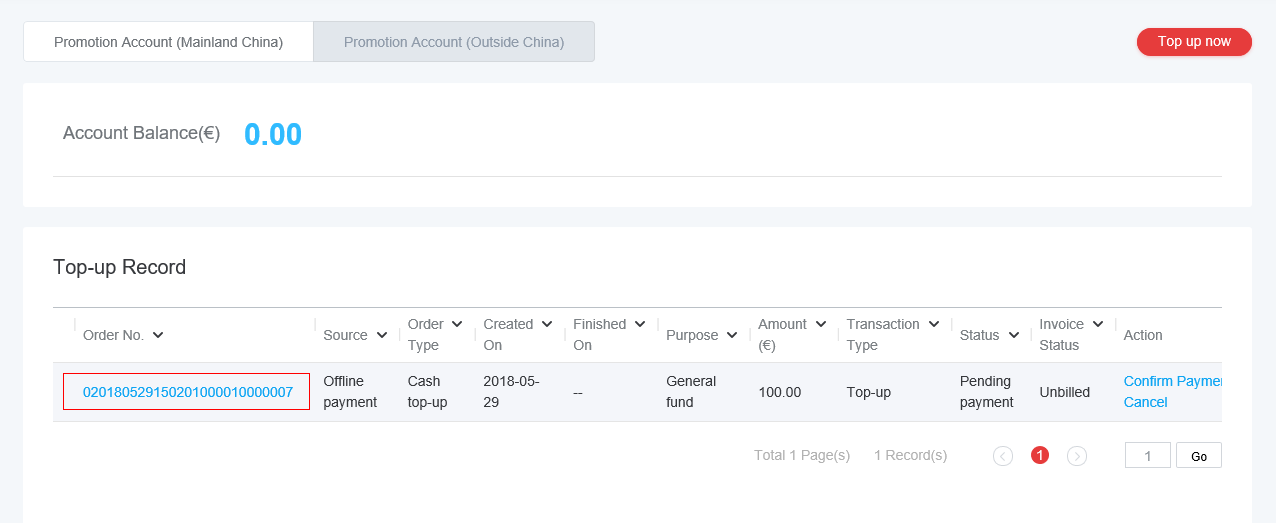
The top-up amount will be displayed in your account balance. You are now able to create a task and set a bid for your promotion task.
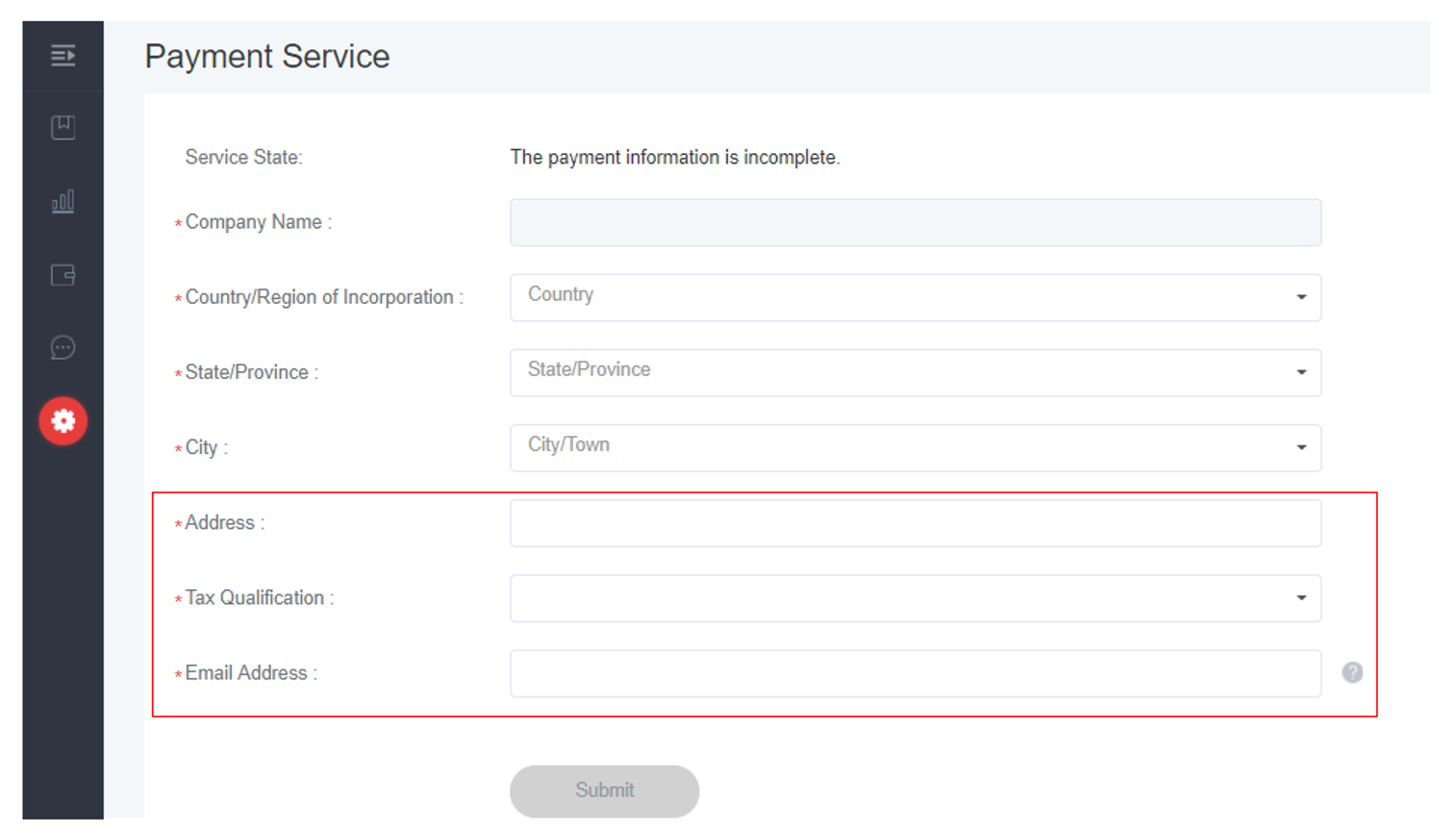
Please fill in and check your invoice information in the Payment Service of HUAWEI Developer. We will not re-issue an invoice if you fail to fill in the correct information.
Please check your invoice information before you top up your account. Your invoice will be issued in 15 business days if you have clicked Invoice after top-up. Otherwise, an invoice request will be automatically generated after 15 business days and the invoice will be issued after another 15 business days.
[Update]
If you need to change your invoice information, please update the information on HUAWEI Developer. The information will be updated in the invoices that have not been requested and not in the invoices already requested.
Please go to Console > Create a new promotion task, and fill in and submit the required information.
(1) Task name: This name will be used by HUAWEI and you to identify your promotion task.
(2) Promoted app: The app you want to promote.
(3) Category: The app category that your app will be listed.
(4) Pricing method: CPD
(5) Type of channel: You may select from standard, app search and points sections.
(6) Price: Bid per download. When you need to promote your app in multiple countries/regions, your bid must be greater than the highest bottom price among the countries/regions. Bottom prices of different countries/regions: CPD bottom prices.
(7) Daily budget: The budget limit that you can set for a day. When you have reached the daily budget limit, your promotion task will be suspended for that day and resume the next day.
(8) Start/End time: Set the start date and end date of the promotion task. The task will stop automatically after the expiration.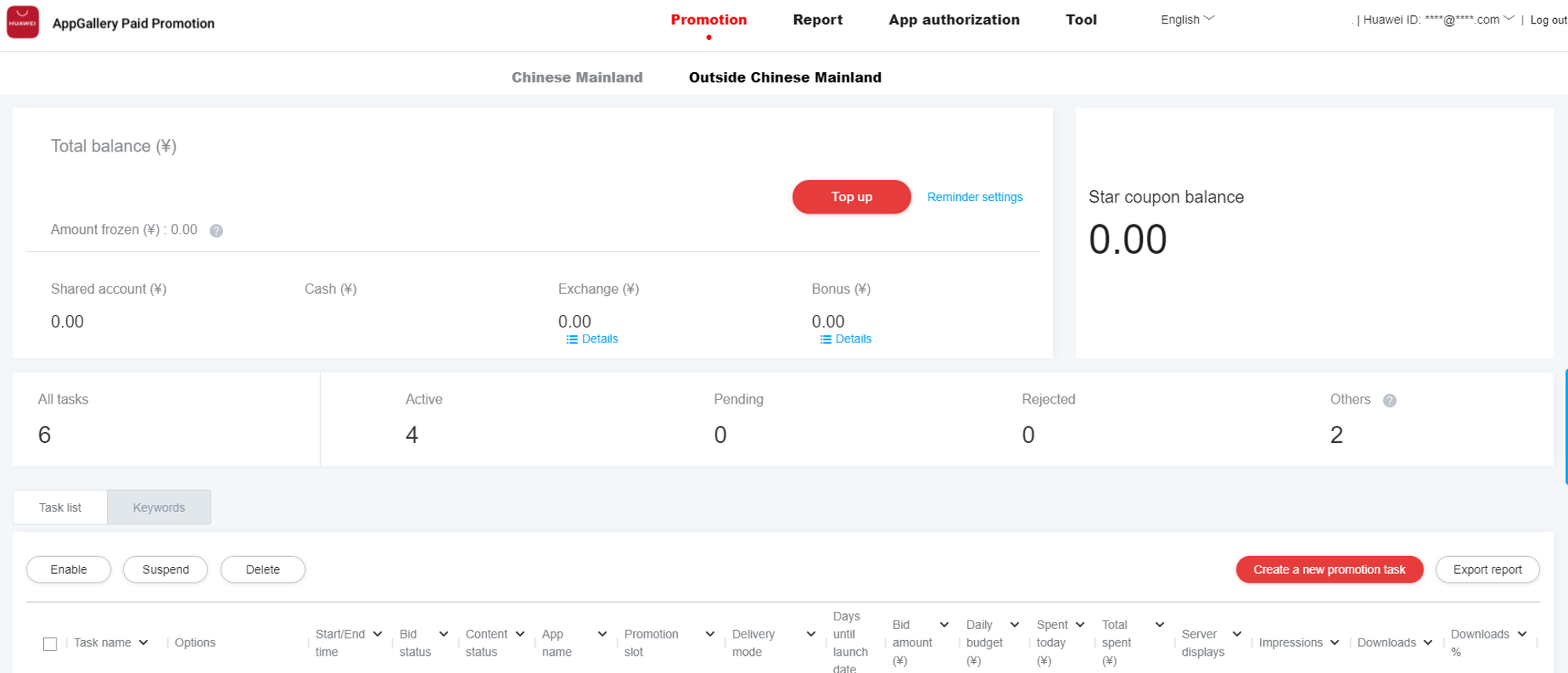
There are four types of promotion resource tasks for you to choose based on the display position of your app to be promoted.
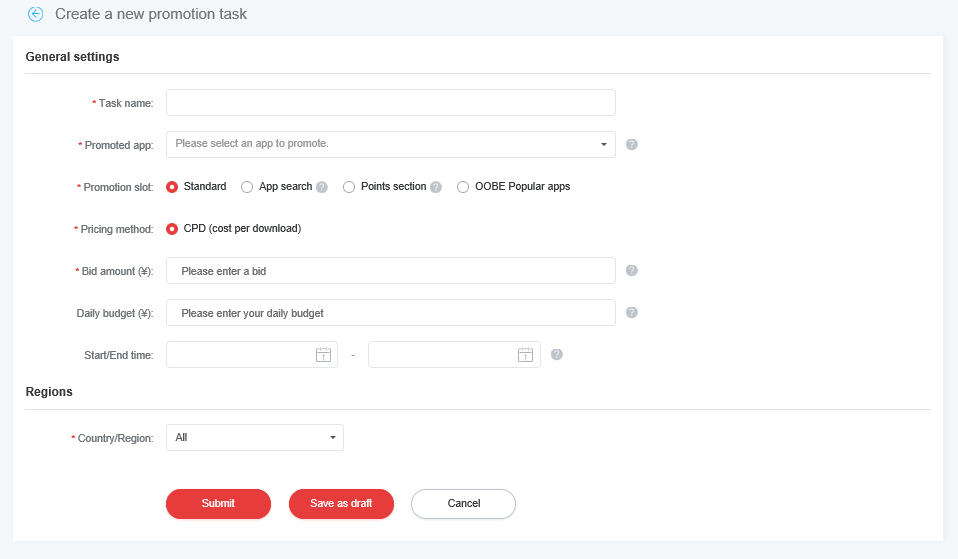
Standard: After a task of this type is created, the recommended apps will be displayed in the such as NEW APPS WE LOVE, NEW GAMES WE LOVE, APP Ranking, GAME Ranking sections on the AppGallery home page, OOBE, and AppAdvisor.
Points section: If you want users to see your app when they launch AppGallery for the first time, you can use this task type.
OOBE popular apps: If you want users to see your app only when they power on their device for the first time, you can use this task type.
App search: In this task type, your app will be displayed in search scenarios.
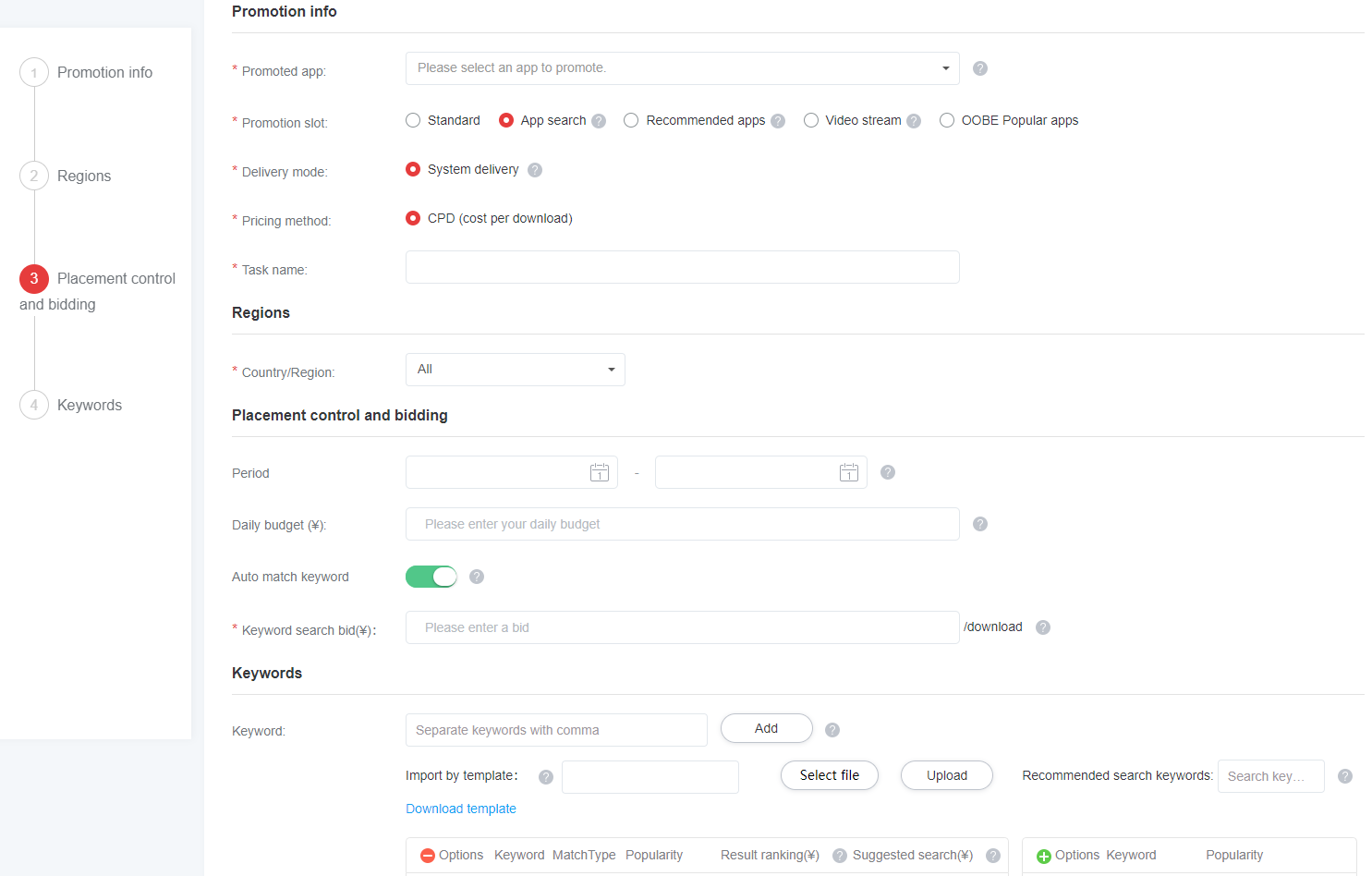
You can set keywords for exact match in a search task. If the content that a user searches matches a keyword exactly, the app will be displayed. You can set bids for the search result and quick search separately in the exact match mode.
If you do not want users to see your app when they search for a specific keyword, you can set a negative keyword in the task.
① Currently, only the exact match mode is supported for keywords.
② Automatic match: The system automatically places your ad when a user searches for a variant of the keyword that you set. This match mode maximizes the exposure of your app.
③ Popularity: The metric helps advertisers learn about the recent search volume of a keyword on AppGallery. The popularity is represented by the length of a bar in a bar chart. The longer the bar is, the more popular the keyword is and the more fierce the competition is for the keyword.
You may search your promotion tasks by app or time. Our report includes impressions, downloads, spent, average download price, etc., which you can download and save locally. Our report covers a period of no more than 31 calendar days.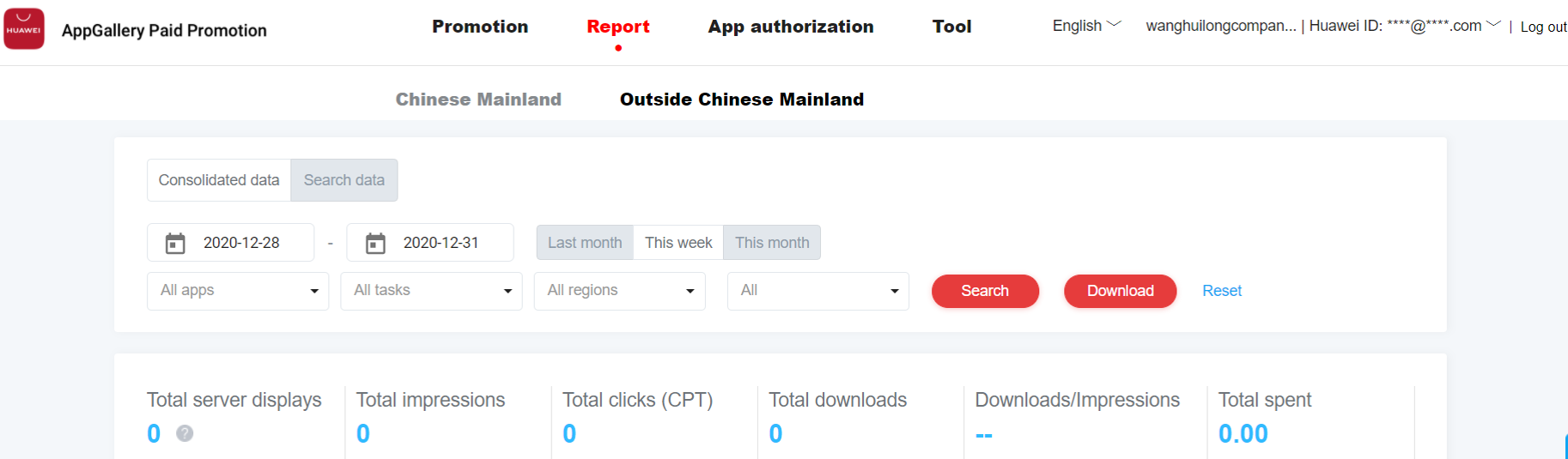
This report includes paid promotion only. You may check HUAWEI AppGallery report for organic downloads.
Contact information
Mainland China: https://developer.huawei.com/consumer/cn/devservice/support
Outside Mainland China: https://developer.huawei.com/consumer/en/devservice/support