




Intelligent Assistant
Chat with our virtual assistant to get answers promptly.
DevEco IDE is an integrated development environment provided by HUAWEI Technologies. It helps app developers to leverage HUAWEI device EMUI open capabilities. DevEco IDE is provided as an Android Studio plugin. The current version provides development toolsets for HUAWEI Hi AI capability, including HiAI Engine tools, HiAI Foundation tools, AI Model Marketplace, Remote Device Service.
Android Studio 2.3.x +
Windows7, Windows10, MacOS10.12, MacOS10.13
Please note: AI Foundation model converter will not work, on non-supported OS
(1) Windows7/Windows10
RAM:4GB+
HDD:100G+
Other software:docker(17.09+)
(2) MacOS 10.12.x/10.13.x:
RAM:4GB+
HDD:100G+
Other software:docker(17.12+)
*Docker Download URL https://store.docker.com/
Windows: Darcula/IntelliJ
MacOS: Darcula/Default
Select the corresponding tools based on your app development scenario.
Choose HiAI Engine, if you want to use HiAI Engine AI API.
Choose HiAI Foundation, if you have your own Tensorflow/Caffe model and need to use them in your app.
Download the plugin from http://developer.huawei.com and install it from within Android Studio, shown as in Figure 1.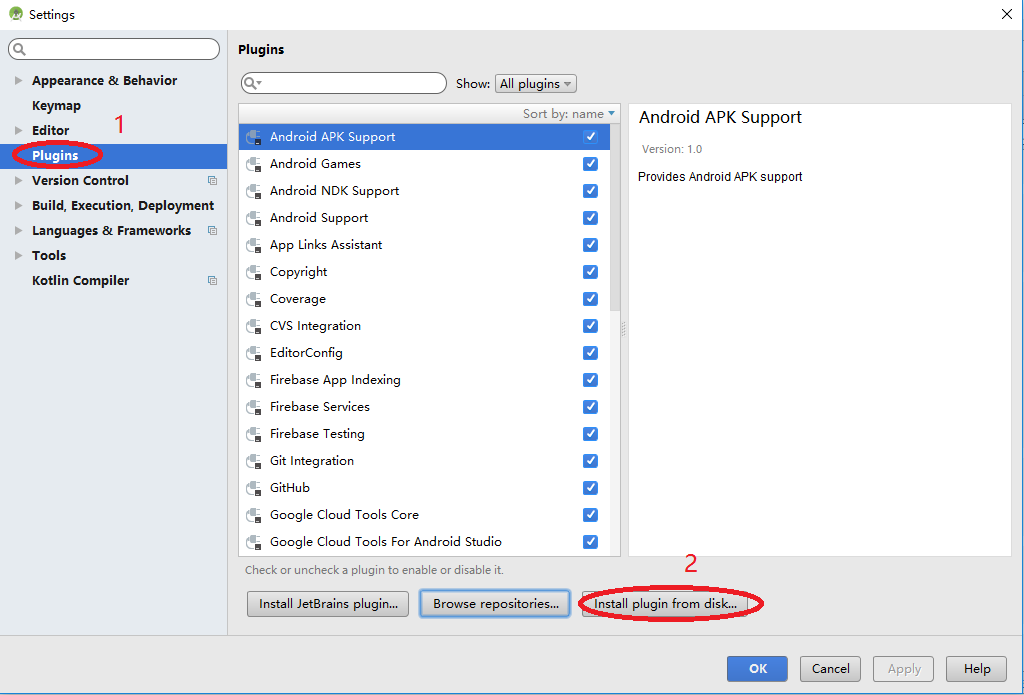
On Android Studio menu, click DevEco > Develop, the tool shows up in the tool window, shown as in Figure 2
Only Intelligent Service is supported at the moment. There are two tools for Intelligent Service – HiAI Engine tool and HiAI Foundation tool, as shown in Figure 3.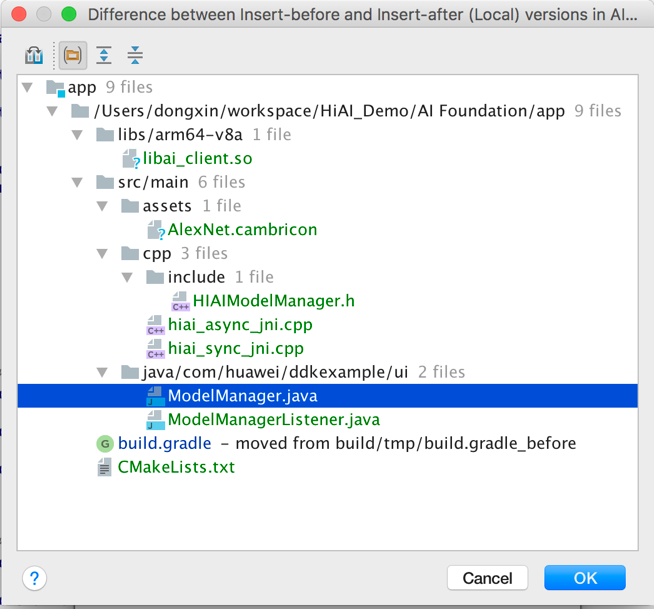
HiAI Engine tool helps app developers to integrate HUAWEI EMUI AI API. AI API are shown as individual cards. Clicking a card will invoke the details windows on the left side, which describes the API in details, including application scenario, interface description (with input output parameter description) and Code sample. Developers can directly drag and drop and card or the code sample area to apply the code. For users’ convenience, the tool will automatically add imports to target java file and add gradle dependencies.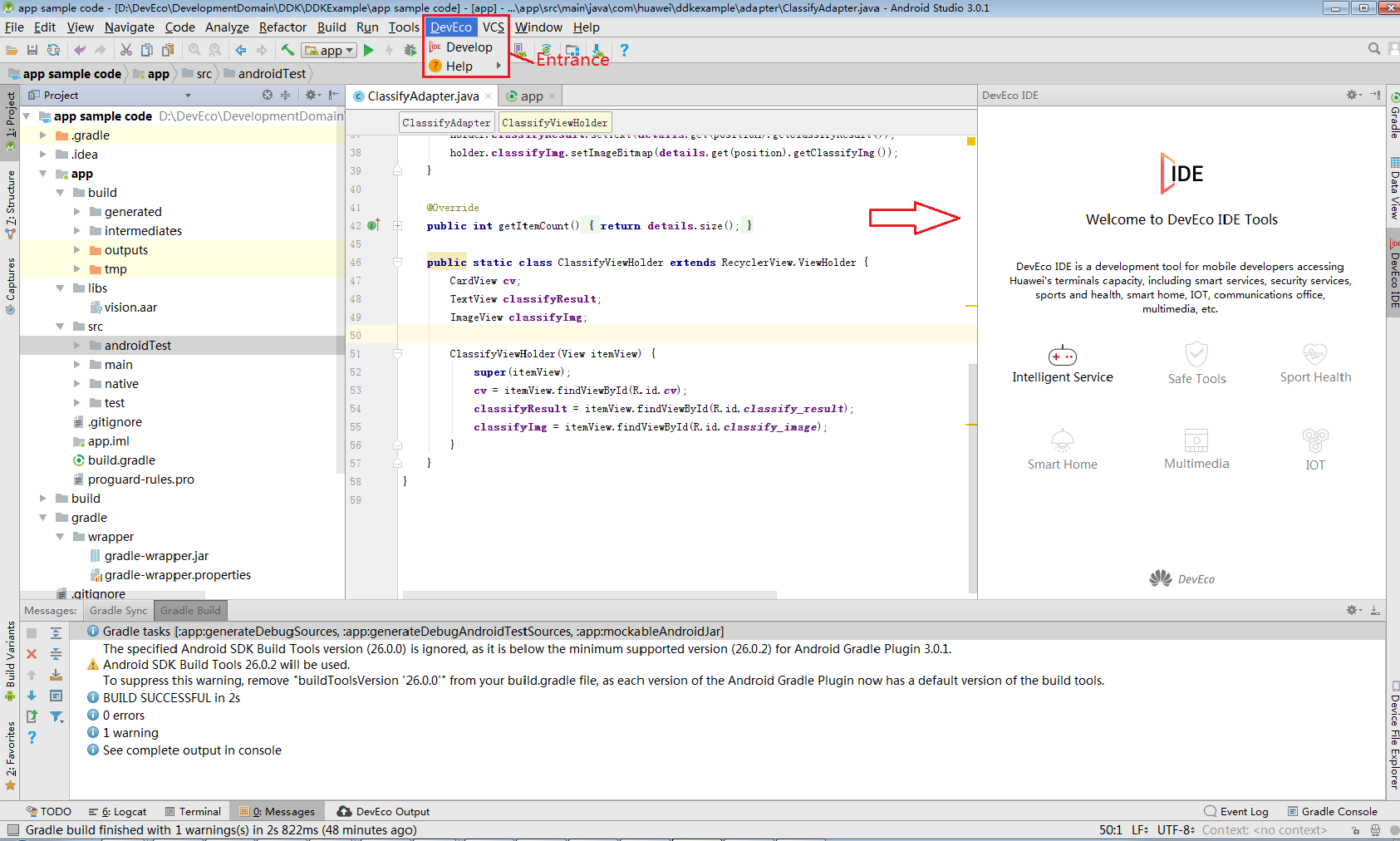
HiAI Foundation tool is designed for developers who have their own AI model. Both Tensorflow and Caffe model are supported. The tool performs several tasks in sequence, including checking model conversion environment (containerized), analyzing AI model, converting AI model, generating model reference class and add dependencies.
When you open the HiAI Foundation tool, you can click the “Select local model file” button to open the model converted dialog. In this dialog, there are a few parameters you need to provide in order to integrate your AI model successfully. If you have a Caffe model, you need to specify the following parameters, see Figure 5.
AI Model file – the location of your Caffe model file on your local disk
Model Prototxt file – the prototxt file of your Caffe model
Location to output converted HiAI model file – the tool converts your AI model to HiAI compatible model, which will be used for runtime inference. The converted model will be placed in the project specified by this parameter.
Folder to place model reference API class – after converting the model AI model to HiAI compatible model, the tool will also generate a java API class file for you to reference the model and use it for runtime inference. This parameter specifies the java API file location. A reference class with the name pattern [AIModelFileName]Model.java will be generated under the given location. This class can be used to reference your AI model at runtime. For example, if your Caffe model file name is AlexNet.caffe, a file with the name AlexNetModel.java will be generated. When the model conversion is finished, you can use the following code to run inference with your model:
AlexNetModel.predict(assetManager);
An async API is also provided;
AlexNetModel.predictAsync(assetManager).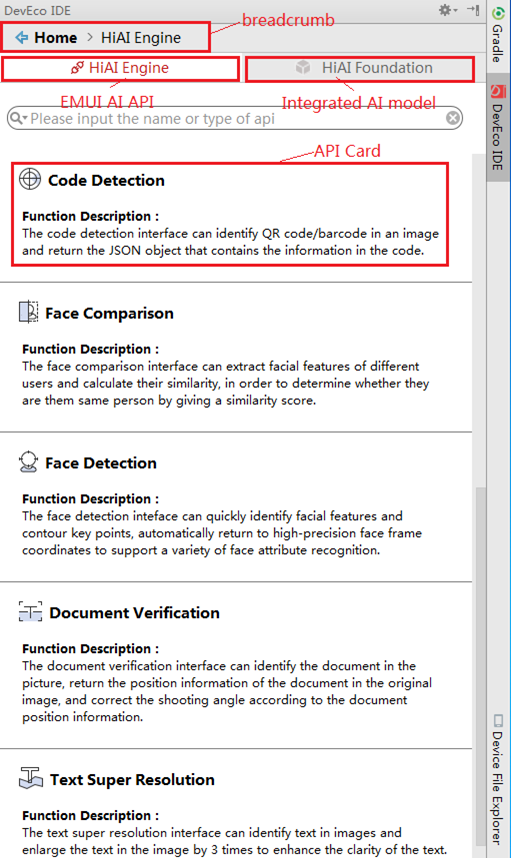
If a Tensorflow model is provided, there need to be a few alternative parameters other than the model prototxt file for Caffe model, see Figure 6.
Input_nodes - the input node(s) of the neural network
Output_nodes - the output node(s) of the neural network
Target_nodes – used for LSTM network, the ending node of the Session::Run in Tensorflow graph, this parameter is optional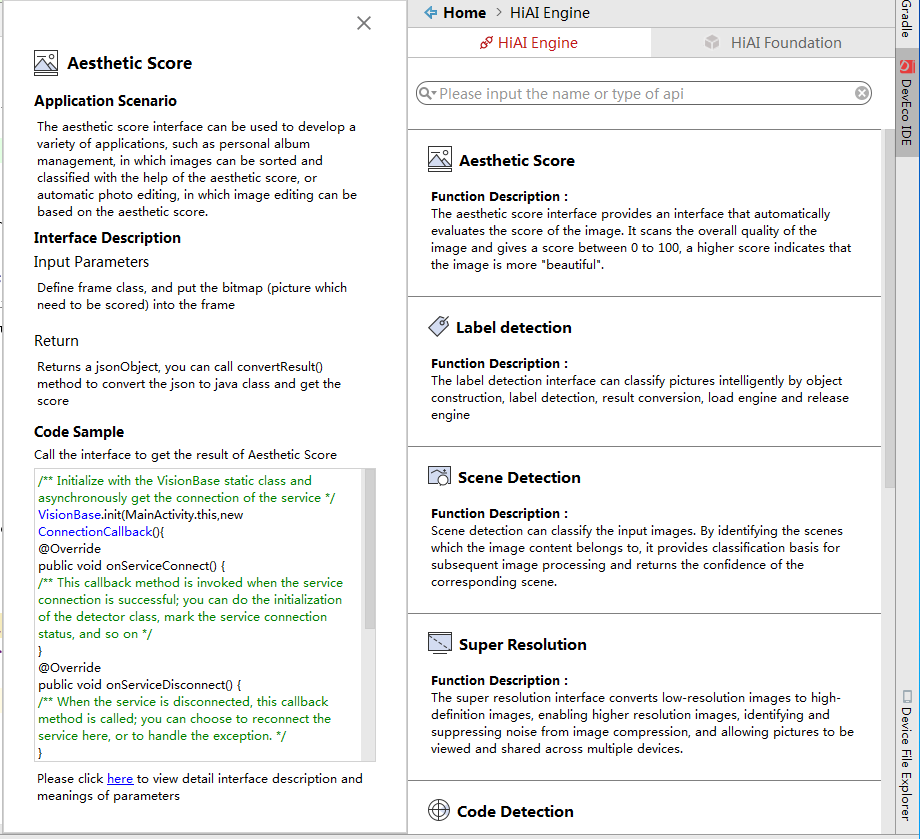
When you finish specifying the parameters, you can click Run button to initiate the model conversion. The conversion process is divided into a few stages.
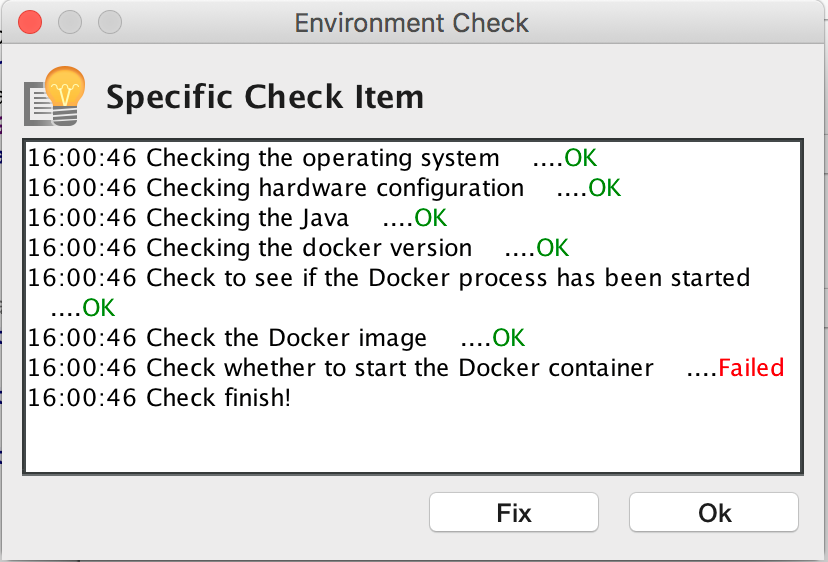
(1) Check model conversion environment (containerized)
In this stage, the tool will check the containerized model conversion environment. If there is any issue, a dialog will pop up to guide you through fixing the environment.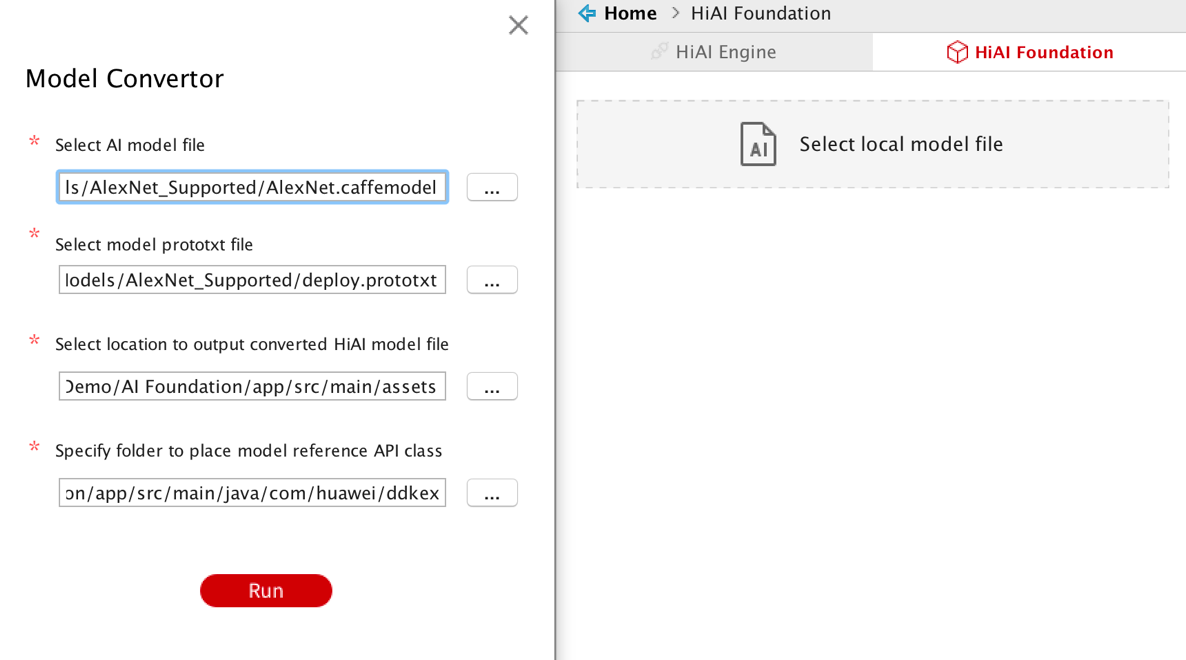
(2) Analyze AI model
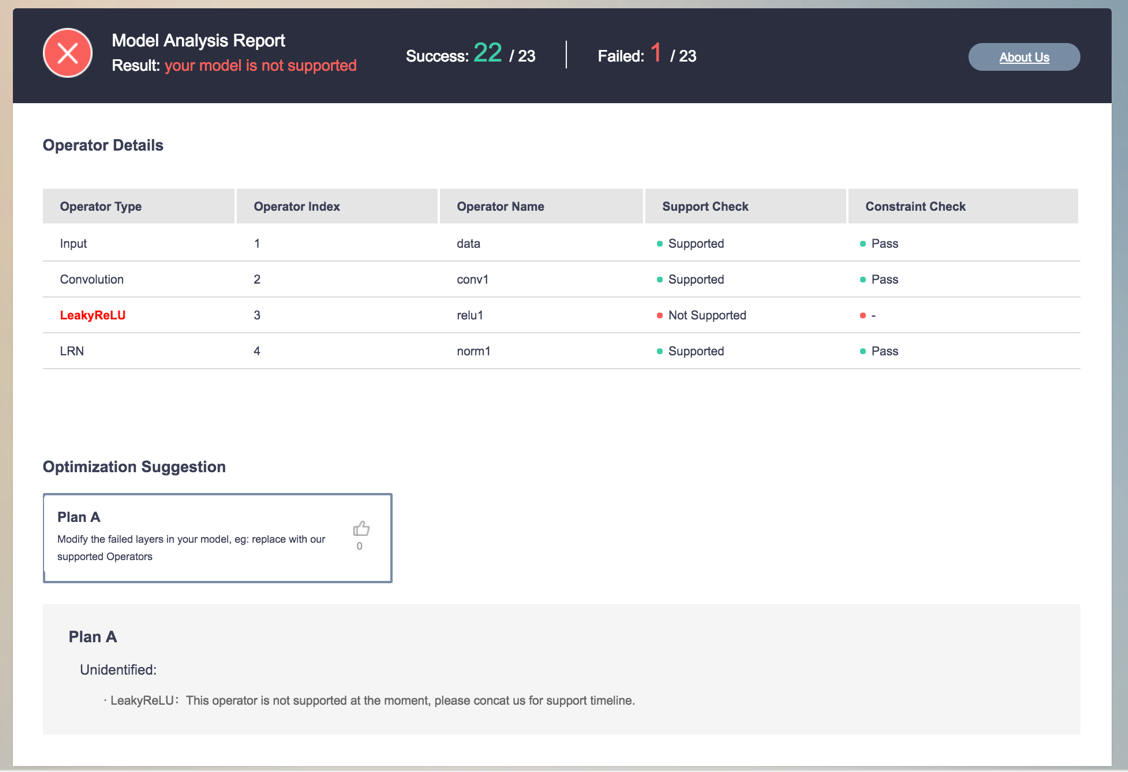
In this stage, the tool will analyze if the provided model is compatible with HiAI foundation. Though HiAI foundation supports 99 neural network operators and continues to expand the support, there can be unsupported operators in your AI model. In this case, the conversion process will stop and show that it failed to convert the provided model (Figure 8). You can click the Model Analysis Report to see details on what are the issues and what are the suggested measures to fix them (Figure 9).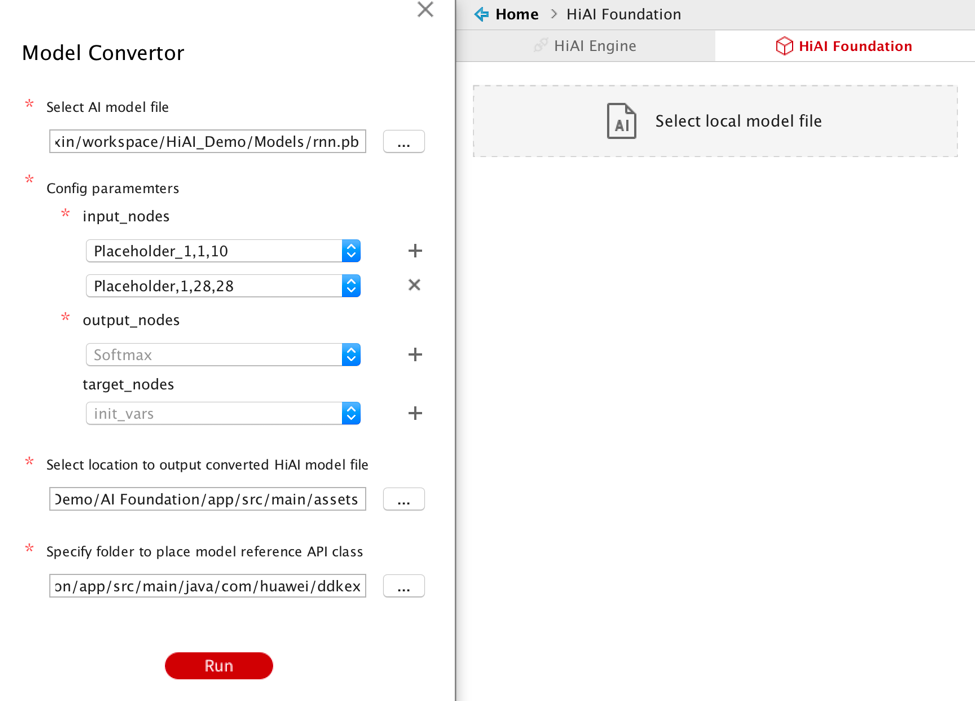
(3) Convert AI model
In this stage, the provided AI model is converted to HiAI model format and placed under the location specified by the parameter with the name [ModelName].cambricon. For example, if your AI model is named AlexNet.caffe, the converted model is named AlexNet.cabricon.
(4) Generate model reference class and add dependencies
In this stage, the tool will generate the model reference class and include all necessary dependencies into the project. When this stage finished, the model conversion is finished (Figure 10). You can then click the Detail button to see what files are added to your app project and what files are modified (Figure 11).
After all the above stages are finished successfully, you can then use the [ModelName]Model.java class at runtime to run inference with your AI model. In our AlexNet.caffe model example above, the following code can be used,
AlexNetModel.predict(assetManager);
Alternatively, async API can also be used,
AlexNetModel.predictAsync(assetManager);
For more information, please read the API documentation in the generated reference class.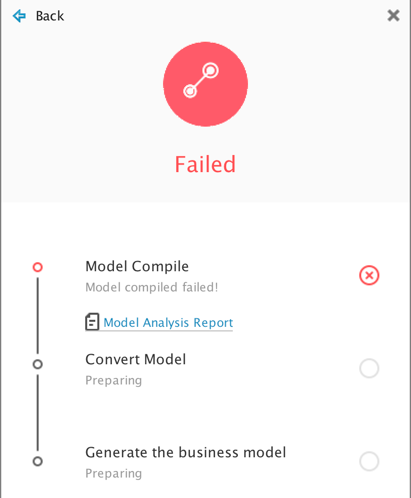
You are welcome to send us email to deveco@huawei.com, if you have any questions or issues.