




Intelligent Assistant
Chat with our virtual assistant to get answers promptly.
If you no longer want to make an app available for users, or if issues occur in your released app version, you can apply to remove the app from HUAWEI AppGallery. After an app is removed from sale, users will not be able to find the app on AppGallery and the app version changes to the Draft state in AppGallery Connect. If you want to release the app again, you can edit the app version in Draft state and release the edited version.
You can only remove a released app version.
1. Sign in to AppGallery Connect and select My apps.
2. Find your app from the list and click the version to be removed.
3. Click Remove in the upper right corner.
The Remove button is not displayed for app versions that are not in the Released status.

4. In the displayed dialog box, enter the removal reason and remarks (optional), and click OK.
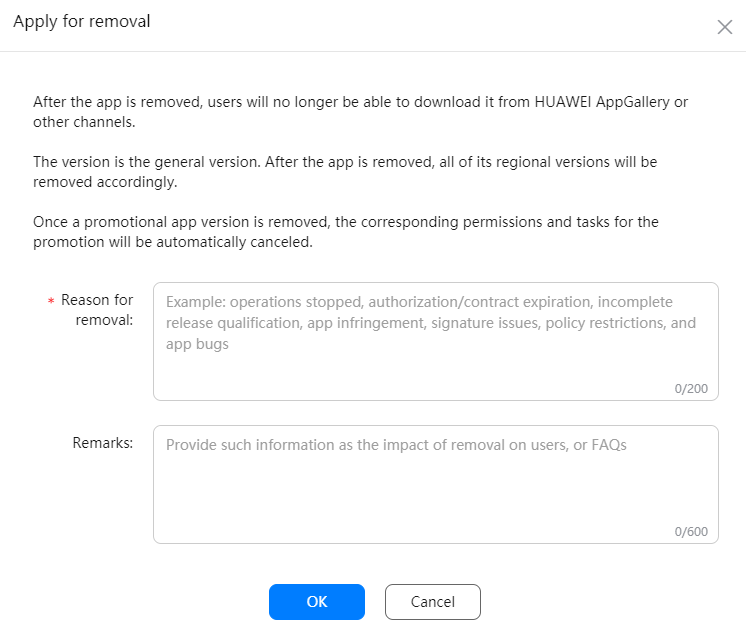
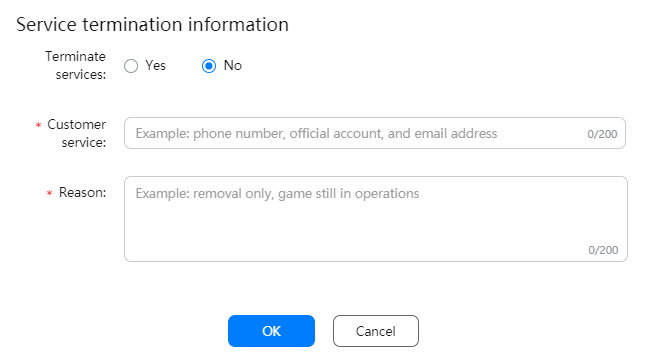
5. For a game app, after you click Remove, enter the removal reason and set whether to terminate services in the displayed dialog box.
If you select No for Terminate services, you need to enter contact information for your customer service and provide a reason for not terminating game services. Click OK to submit the application.
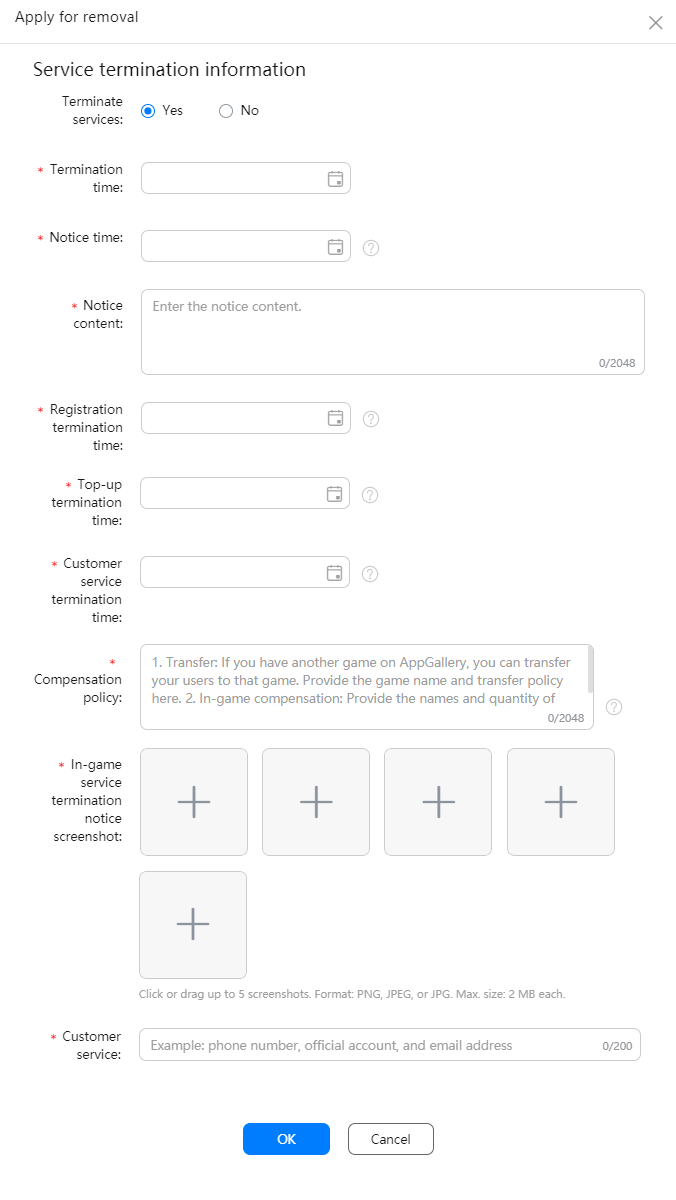
If you select Yes, complete the information below, including the time for both termination and notification. Click OK to submit the application.
To ensure player experience when the game terminates, you need to:
1. Release a service termination notice and apply for removing the game at least 60 days before game service termination.
2. Disable the top-up function at least 30 days before game service termination to reserve enough time for players to consume their top-up amount.
3. Set the registration termination time earlier than the server termination time.
4. Set player compensation restrictions as follows:
Item transfer: If you have another game on AppGallery, you can transfer your players' items to that game. Provide the game name and transfer policy here.
In-game compensation: Provide the names and quantity of gifts or items.
Refund: Provide a specific refund method and policy.
6. After an app removal application is successfully submitted, the app status changes to Removing. Huawei operations personnel will handle your application in 1 to 2 working days.

After the application is approved, the app status changes to Removed by developer.

When your application is under review, you can cancel the application or send a review reminder to us.
1. On the Version information page, click Send review reminder in the upper right corner.

2. In the displayed dialog box, click OK.
1. On the Version information page, click Cancel removal in the upper right corner.

2. In the displayed dialog box, click OK.
If you want to release an app after its removal, click Submit on the Version information page. After the application is approved, the app will be released again.
