Overview
When using the camera service, if you only need to display the preview stream, you can use the XComponent component. If you need to obtain each frame of image for further processing (for example, to recognize QR codes or faces), you can use the imageArrival event in ImageReceiver to listen to each frame of data in the preview stream and parse the image content. Failing to account for the stride during image parsing and directly reading the image data using width × height can result in abnormal camera previews, leading to screen artifacts.
After obtaining the preview stream buffer of each frame, if the image is stacked and preview artifacts occur, check and parse each frame. If the stride of the preview image does not match the width, it is necessary to remove invalid pixels from the stride.
How to Implement
In computer graphics and image processing, stride typically refers to the byte interval between rows when storing multidimensional arrays (such as images or textures) in memory. In this context, stride refers to the actual number of bytes occupied by a row of image data in memory. To ensure memory alignment and improve read efficiency, the stride is usually greater than the width of the image.

The stride value reported by the bottom layer varies depending on the platform. You need to obtain the stride and perform appropriate processing and adaptation based on service requirements. In this topic, the stride is obtained from the return value image.Component.rowStride of the preview stream frame data.
As shown in the figure below, for an image with a width of 3, height of 3, and stride of 4 (an image with 480 × 480 resolution), the actual memory allocation is not width × height, that is, 3 × 3 (which is the aspect ratio of the defined preview stream resolution, meaning the actual memory allocation is not 480 × 480). Instead, it is stride × height (4 × 3). This achieves memory alignment and facilitates hardware processing.
Figure 1 Correctly handling stride
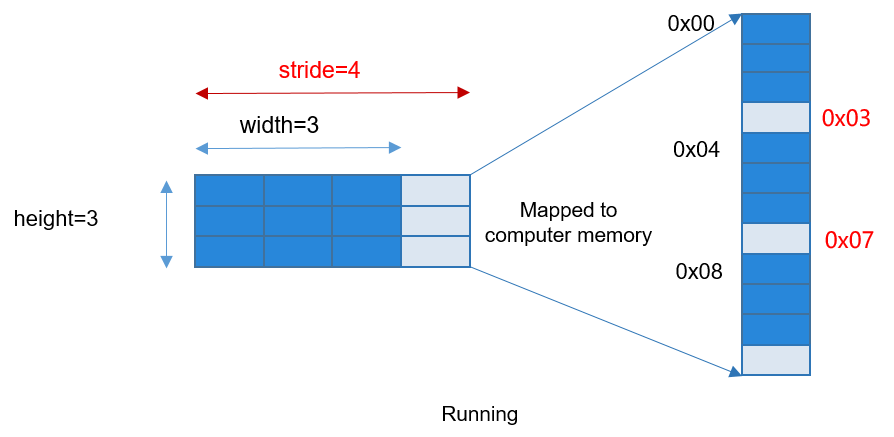
If you process pixel data based on the width and height, treating the data from addresses 0x00 to 0x09 as pixels, issues with incorrect pixel data parsing occur. Moreover, using invalid pixels such as 0x03 and 0x07 can lead to improper image display, causing screen artifacts. Therefore, it is essential to process the preview data stream based on the stride, remove invalid pixels, and then send it for display to obtain the correct preview stream image.
Scenario Case
Consider a common use scenario where an application needs to define a preview stream image with a resolution of 1080 × 1080. In this case, the stride returned by the relevant platform is 1088. You should process the stride and remove invalid pixels to parse the correct pixel data, avoiding preview artifacts.
[Negative example] The stride is not processed. A PixelMap is created to parse the buffer, and each row of data is read based on the width without processing the stride. As a result, invalid pixel data is parsed and transmitted to the Image component for display, causing artifacts during preview.
The following is a partial example code:
The application registers the imageArrival event through image.ImageReceiver to obtain the image data instance image.Image of each frame. The application creates a PixelMap directly with a preview stream whose width and height are both 1080. At this time, the obtained stride is 1088. When the buffer is parsed, if reach row of data is read based on the width (using invalid pixel data), stored in the global variable stridePixel, and then passed to Image for display, artifacts occur during preview.
onImageArrival(receiver: image.ImageReceiver): void {
  receiver.on('imageArrival', () => {
    receiver.readNextImage((err: BusinessError, nextImage: image.Image) => {
      if (err || nextImage === undefined) {
        Logger.error(TAG, `requestPermissionsFromUser call Failed! error: ${err.code}`);
        return;
      }
      if (nextImage) {
        nextImage.getComponent(image.ComponentType.JPEG, async (_err, component: image.Component) => {
          let width: number = 1080;
          let height: number = 1080;
          let pixelMap: image.PixelMap | undefined = await image.createPixelMap(component.byteBuffer, {
            size: {
              height: height,
              width: width
            },
            srcPixelFormat: image.PixelMapFormat.NV21
          })
          AppStorage.setOrCreate('stridePixel', pixelMap);
          nextImage.release();
        })
      }
    });
  })
}
When initializing the camera module, call onImageArrival(), create a PixelMap with the unprocessed width and height as size, refresh the data by passing the stridePixel variable decorated with @StorageLink, and send the data to the Image component for display.
@Component
export struct PageThree {
  pathStack: NavPathStack = new NavPathStack();
  @State name: string = 'pageOne';
  @State isShowStridePixel: boolean = false;
  @StorageLink('stridePixel') @Watch('onStridePixel') stridePixel: image.PixelMap | undefined = undefined;
  @State imageWidth: number = 1080;
  @State imageHeight: number = 1080;
  @StorageLink('previewRotation') previewRotate: number = 0;

  onStridePixel(): void {
    this.isShowStridePixel = true;
  }

  aboutToAppear(): void {
    CameraService.initCamera(0, this.getUIContext());
  }

  aboutToDisappear(): void {
    CameraService.releaseCamera();
  }

  // ...
  build() {
    NavDestination() {
      // ...
      Column() {
        if (this.isShowStridePixel) {
          Image(this.stridePixel)
            .width(this.getUIContext().px2vp(this.imageWidth))
            .height(this.getUIContext().px2vp(this.imageHeight))
            .margin({ top: 150 })
            .rotate({
              z: 0.5,
              angle: this.previewRotate
            })
        }
        // ...
      }
      .justifyContent(FlexAlign.Center)
      .height('90%')
      .width('100%')
    }
    .backgroundColor(Color.White)
    .hideTitleBar(true)
    .onBackPressed(() => {
      this.pathStack.pop();
      return true;
    })
    .onReady((context: NavDestinationContext) => {
      this.pathStack = context.pathStack;
    })
  }
}
[Positive Example 1] You can use the width, height, and stride to process the camera preview stream data. Method one for handling the stride is as follows.
There are two cases:
When the stride equals the width, reading the buffer by the width does not affect the result.
When the stride does not equal the width, remove the stride from the preview stream data returned by the camera, that is, the data in component.byteBuffer, to obtain the new dstArr data for processing. Create a PixelMap directly from the processed dstArr buffer using the width and height, store it in the global variable stridePixel, and send it to the Image component for display.
onImageArrival(receiver: image.ImageReceiver): void {
  // ...
      if (nextImage) {
        nextImage.getComponent(image.ComponentType.JPEG,
          async (err, component: image.Component) => {
            let width: number = 1080;
            let height: number = 1080;
            let stride: number = component.rowStride;
            Logger.info(TAG, `receiver getComponent width:${width} height:${height} stride:${stride}`);
            if (stride === width) {
              let pixelMap: image.PixelMap | undefined = await image.createPixelMap(component.byteBuffer, {
                size: { height: height, width: width },
                srcPixelFormat: image.PixelMapFormat.NV21,
              })
              AppStorage.setOrCreate('stridePixel', pixelMap);
            } else {
              const dstBufferSize: number = width * height *
                1.5;
              const dstArr: Uint8Array = new Uint8Array(dstBufferSize);
              for (let j = 0; j < height * 1.5; j++) {
                const srcBuf: Uint8Array = new Uint8Array(component.byteBuffer, j * stride,
                  width);
                dstArr.set(srcBuf, j * width);
              }
              let pixelMap: image.PixelMap | undefined = await image.createPixelMap(dstArr.buffer, {
                size: { height: height, width: width },
                srcPixelFormat: image.PixelMapFormat.NV21,
              })
              AppStorage.setOrCreate('stridePixel', pixelMap);
            }
            nextImage.release();
          })
      }
    });
  })
}
[Positive Example 2] You can use the width, height, and stride to process the camera preview stream data. Method two for handling the stride is as follows.
Simulate the following two scenarios:
When the stride and width are the same, the result is not affected when the buffer is read by width.
When the stride does not equal the width, if the application wants to use the byteBuffer of the preview stream data to create a PixelMap for direct display, it can first create a PixelMap based on the byte size of stride × height, and then call the cropSync() method of PixelMap to crop excess pixels, thereby correctly handling the stride and resolving the artifact issue.
onImageArrival(receiver: image.ImageReceiver): void {
  receiver.on('imageArrival', () => {
    receiver.readNextImage((err: BusinessError, nextImage: image.Image) => {
      // ...
      if (nextImage) {
        nextImage.getComponent(image.ComponentType.JPEG, async (_err, component: image.Component) => {
          let width: number = 1080;
          let height: number = 1080;
          let stride: number = component.rowStride;
          Logger.info(TAG, `receiver getComponent width:${width} height:${height} stride:${stride}`);
          if (stride === width) {
            let pixelMap: image.PixelMap | undefined = await image.createPixelMap(component.byteBuffer, {
              size: { height: height, width: width },
              srcPixelFormat: image.PixelMapFormat.NV21,
            })
            AppStorage.setOrCreate('stridePixel', pixelMap);
          } else {
            let pixelMap: image.PixelMap | undefined = await image.createPixelMap(component.byteBuffer, {
              size: { height: height, width: stride },
              srcPixelFormat: 8,
            })
            try {
              pixelMap.cropSync({
                size: { width: width, height: height },
                x: 0,
                y: 0
              })
              let pixelBefore: PixelMap | undefined = AppStorage.get('stridePixel');
              await pixelBefore?.release();
              AppStorage.setOrCreate('stridePixel', pixelMap);
            } catch (error) {
              let err: BusinessError = error as BusinessError;
              hilog.warn(0x000, 'testTag', `setColorMode failed, code=${err.code}, message=${err.message}`);
            }
          }
          nextImage.release();
        })
      }
    });
  })
}
Comparison
Table 1
| (Negative Example) Unprocessed Stride | (Positive Example) Method One for Processing Stride | (Positive Example) Method Two for Processing Stride |
|---|---|---|
 |  |  |
[h2]How do I obtain frame data from the camera preview stream?
Listen for the imageArrival event in ImageReceiver to obtain the image data returned by the underlying layer. For details, see Dual-Channel Preview (ArkTS).