Overview of Scenario-Specific Message Permissions
Push Kit supports a wide range of scenario-specific message types. Some of the types require specific permissions to reach users. The following table describes the permissions required by each message type.
| Scenario-Specific Message Permission | Description | Application Scope |
|---|---|---|
| Message self-classification | Allows you to classify notification messages by yourself to improve user experience. Messages can still be sent without this permission. In this case, Push Kit classifies these messages as news and marketing messages by default. NOTE If you have not applied for the message self-classification permission, messages pushed by your app are categorized as news and marketing messages by default. The maximum number of news and marketing messages that can be pushed by your app to each device on a daily basis is either 2 or 5, depending on your app category. If your upper limit is reached, send test messages or apply for the self-classification permission. | All apps can apply for this permission. However, some message categories are available only for specific app categories. |
| Text-to-speech message | Pushes a notification and awakens the app to perform text-to-speech when a message arrives. An app can push text-to-speech messages only after gaining this permission. | This permission is available only for apps that track order status changes and logistics status changes, support payment collection by merchants, and issue emergency medical alerts. |
| In-app call message | Allows your app to display the call screen and start the voice or video call when an in-app call message arrives at a device. An app can push in-app call messages only after gaining this permission. | This permission is available only for communication and alarm apps that provide the in-app video and voice call function. This permission applies only to call scenarios within an enterprise or a government organization itself, or to users of the app. |
The following sections will detail the specific permissions of scenario-specific messages and how to apply for them.
[h2]Message Classification Mode
To improve user experience and build a sound sustainable messaging ecosystem, Push Kit classifies notification messages into the following categories based on the message content for easier management: service and communication, as well as news and marketing. To tailor notification messages more precisely to your business requirements, you can classify messages by yourself based on the message classification standards.
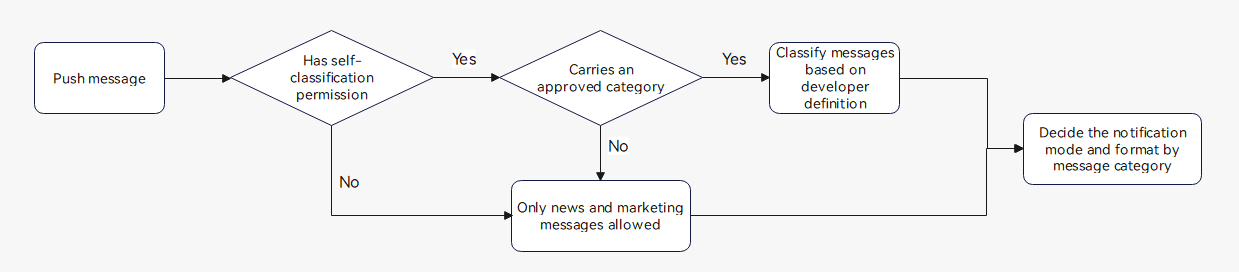
If your app does not have the message self-classification permission, all notification messages are classified into news and marketing messages by default.
The following flowchart demonstrates the message classification logic.

-
If your app has the self-classification permission and the message to be pushed carries the category field with an approved value, Push Kit will trust your self-classification. Note that, if your app only needs to push news and marketing messages, you do not need to apply for the self-classification permission.
-
If the message to be pushed for your app contains an unapproved value of the category field (for example, the value IM that has not been approved for your app is passed to category), the message is automatically classified into a news and marketing message instead of your defined category.
The standards for classifying notification messages apply only to the scenario of pushing notification messages, and also must be followed for such messages. For other scenario-specific messages, you can complete development and adaptation according to relevant guides.
[h2]Message Classification Standards and Notification Modes
Push Kit classifies notification messages into the following types based on message content and messaging scenarios: service and communication messages, as well as news and marketing messages. Push Kit also tailors notification management based on message classification. This includes adjusting notification modes, display positions, and push frequency for different message types.
| Message Type | Scenario Description | Notification Mode and Display Position | Frequency Control |
|---|---|---|---|
| Service and communication | Provides timely updates to users through the notification panel, including social communication and service reminder messages. These messages are usually expected by users. | Lock screen, ringtone, vibration, etc. NOTE Service reminder messages can only be displayed in the notification panel on wearables in gentle notification mode. TVs do not support ringtones or vibration. | The message sending frequency will be regulated according to the service scenario and traffic. In cases where message sending is unnecessary or unreasonable, frequency limits will be applied. |
| News and marketing | Provides information such as activity notices, recommendations, and news, including news messages and marketing messages. These messages are sent from operations personnel to users. | Gentle notification, which will display a notification only in the notification panel (under the More notifications section) NOTE News and marketing messages are delivered in the lock screen, ringtone, vibration, or other notification modes on wearables. TVs do not support ringtones or vibration. | Each app can push up to 2 or 5 (depending on the app category) messages to each device on a daily basis. |

Push Kit's message classification standards are subject to change as app messaging evolves. Please refer to this document for the most current classification guidelines.
Service and communication—social communication
| Message Type | Value of category on Cloud | Scenario Description | Notification Mode |
|---|---|---|---|
| Instant messaging | IM | Point-to-point or group chatting messages (or private messages) between users Note: You need to declare that such messages do not include private messages from unfollowed users, official account messages, or batch messages or ads sent by merchants. | Social messages under the service and communication category. The default notification mode is lock screen + ringtone + vibration. Users can change the notification mode for an app in Notifications. |
| Voice and video call | VOIP | Voice or video call invitation, incoming call notifications, etc. Note: These messages serve as notifications only and do not initiate app launch or call connection. | Social messages under the service and communication category. The default notification mode is lock screen + ringtone + vibration. Users can change the notification mode for an app in Notifications. |
| Voice and video call | MISS_CALL | Missed call notifications. | Social messages under the service and communication category. The default notification mode is lock screen + ringtone + vibration. Users can change the notification mode for an app in Notifications. |
Service and communication—service reminder
| Message Type | Value of category on Cloud | Scenario Description | Notification Mode |
|---|---|---|---|
| Travel | TRAVEL | Notification messages relevant to travel, which are pushed to consumers, including: · Trip reminders · Ground transport/Flight service change reminders · Reminders before hotel check-in · Bus arrival reminders | Service reminder messages under the service and communication category. The default notification mode is lock screen + ringtone + vibration. Users can change the notification mode for an app in Notifications. NOTE Gentle notification is used for wearables, which will display a notification only in the notification panel. |
| Health | HEALTH | Notifications about health data that users proactively request measurement. This type is available only for fitness and health apps. · Workout data (such as steps, cycling distance, and swimming distance) · Body data (such as the heart rate, weight, body fat, and calories burned) | Service reminder messages under the service and communication category. The default notification mode is lock screen + ringtone + vibration. Users can change the notification mode for an app in Notifications. NOTE Gentle notification is used for wearables, which will display a notification only in the notification panel. |
| Work reminder | WORK | Notifications that remind users of future events and to-do items. · Work-related event reminders: such as meeting reminders, to-do reminders, schedule reminders, and teaching task/course reminders · To-do items for service providers: such as review progress reminders, certification status and process reminders, work order handling notifications, new order notifications, after-sales service notifications, delivery urging notifications, and ride hailing order notifications · Merchant operations alerts: such as low-stock and out-of-stock notifications, product delisting notices, withdrawal restrictions, customer complaint warnings, store restrictions, product blocklists, transaction violation alerts, and counterfeit or fraudulent shipping notifications | Service reminder messages under the service and communication category. The default notification mode is lock screen + ringtone + vibration. Users can change the notification mode for an app in Notifications. NOTE Gentle notification is used for wearables, which will display a notification only in the notification panel. |
| Account change | ACCOUNT | Notifications sent when a user account or resources and assets under an account change. · Account change: such as account sign-in and sign-out, account status changes, and account information verification · Account asset change: such as membership expiration, membership renewal, and balance change (real asset change, but not changes of bonus points, gold coins, or leaderboard rankings) | Service reminder messages under the service and communication category. The default notification mode is lock screen + ringtone + vibration. Users can change the notification mode for an app in Notifications. NOTE Gentle notification is used for wearables, which will display a notification only in the notification panel. |
| Order & logistics | EXPRESS | Notifications that contain order information or logistics status information of ongoing or completed orders. · Order notifications: These notifications are sent to notify consumers of successful order placement, order details, order status, order complaint handling progress, and invoicing information. · Logistics notifications: These notifications contain logistics status, including shipped, being delivered, accepted, and picked up. | Service reminder messages under the service and communication category. The default notification mode is lock screen + ringtone + vibration. Users can change the notification mode for an app in Notifications. NOTE Gentle notification is used for wearables, which will display a notification only in the notification panel. |
| Finance | FINANCE | Notifications about transaction amount changes and wealth management/investment information. This type is available only for financial, banking, and payment apps and can be triggered in the following scenarios: · Payment and payment reception, bank credit and debit, transaction, payment reminder and refund, top-up, unpaid bills, loan application status, repayment/overdue payment, fund freezing, fund restriction, and security deposit payment · Successful wealth management product purchases, wealth management product maturity/redemption availability, dividend distribution/income update, and risk level adjustment · Conditional order triggering, entrusted trade, successful allotment, auto-renewal or redemption, net asset value notification, rights issue/convertible bond priority subscription, scheduled IPO subscription, and stock trade | Service reminder messages under the service and communication category. The default notification mode is lock screen + ringtone + vibration. Users can change the notification mode for an app in Notifications. NOTE Gentle notification is used for wearables, which will display a notification only in the notification panel. |
| Device reminder | DEVICE_REMINDER | Notifications sent from IoT devices to inform users of the device status, information, warnings, alarms, and other related information. | Service reminder messages under the service and communication category. The default notification mode is lock screen + ringtone + vibration. Users can change the notification mode for an app in Notifications. NOTE Gentle notification is used for wearables, which will display a notification only in the notification panel. |
| New email notifications. This type is available only for email and office apps. | Service reminder messages under the service and communication category. The default notification mode is lock screen + ringtone + vibration. Users can change the notification mode for an app in Notifications. NOTE Gentle notification is used for wearables, which will display a notification only in the notification panel. | ||
| Voice broadcast | PLAY_VOICE | Voice broadcast played by the app to remind users. This mode is especially suitable for merchant operations to broadcast user payment amounts, user payment cancellations, and order placement by users. | Service reminder messages under the service and communication category. The default notification mode is lock screen + vibration. Users can change the notification mode for an app in Notifications. To avoid conflicts with in-app voice notifications, the ringtone notification mode is not available to this type of messages. NOTE Gentle notification is used for wearables, which will display a notification only in the notification panel. |
| Subscription | SUBSCRIPTION | Subscription messages sent to users if they proactively subscribe to relevant content and allow notifications. This type is available only in the following scenarios: · User-configured alerts for live streams and scheduled events · User-configured check-in and punch-in reminders · User-configured product price drop alerts · Update notifications for followed accounts/authors and book content · User-configured market alerts (price fluctuations and forecasts) · Reminders for paid subscription content · Opt-in topic alerts, such as news, financial updates, weather, and industry-specific information · Social interaction notifications, such as post updates from friends, new followers, friend requests, being liked, being mentioned, being added to favorites, comments, messages, follows, replies, and reposts | Service reminder messages under the service and communication category. The default notification mode is lock screen + ringtone + vibration. Users can change the notification mode for an app in Notifications. NOTE · Gentle notification is used for wearables, which will display a notification only in the notification panel. · You can select the subscription message type when requesting the message self-classification permission only if the relevant process requirements listed in the table below are met. · You are advised to set a quick entry for enabling app notifications in your app. This will allow users to easily locate the notification categorization switch, thereby enhancing their notification management experience and helping to reduce the app notification disabling rate. |
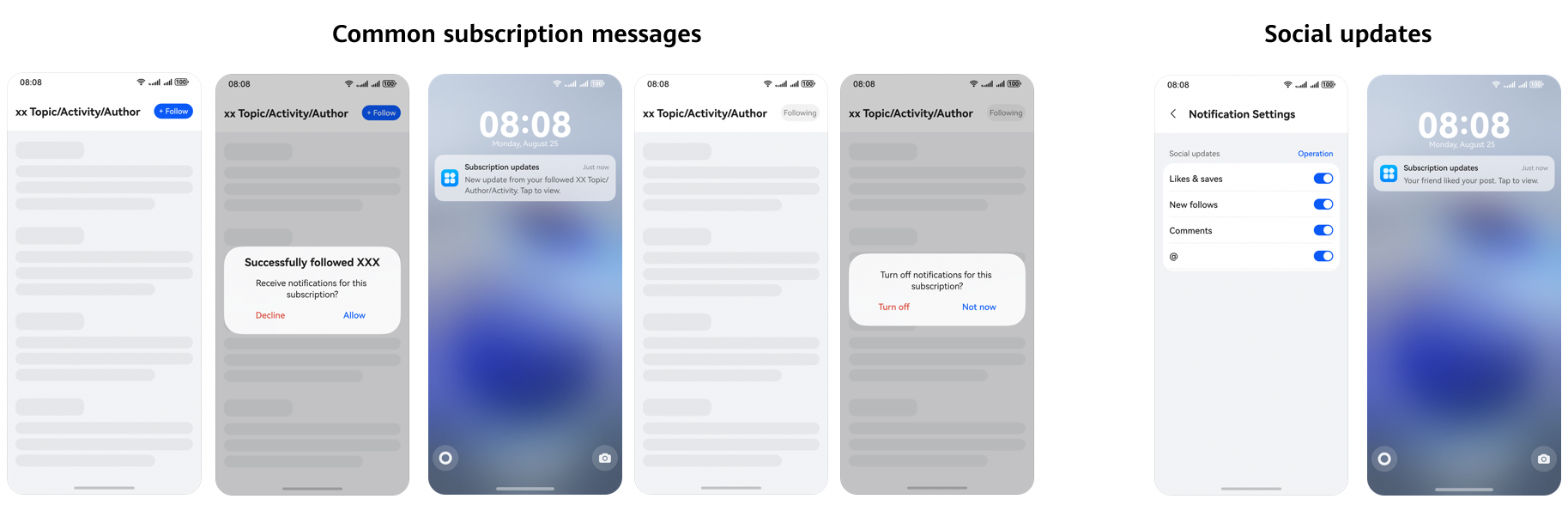
Subscription process requirements
| Subscription Type | Subscription Scenario | Subscription Process Requirement (Submit Screenshots Illustrating Your Subscription Process) |
|---|---|---|
| Common subscription messages | Live stream alert Scheduled event alert Check-in and punch-in reminder Product price drop alert Reminder sent when a followed account/author releases a new post Book update reminder Market alert Reminder for paid subscription content Opt-in topic alert | · The subscription page must include both a subscribe/follow button and a corresponding unsubscribe/unfollow option. · The option for sending notifications about subscription/following should be disabled by default. · Upon subscription, your app must display a separate pop-up asking users whether they want to receive push notifications related to this subscription. · Push notifications must clearly indicate that they are subscription messages. (For example, the notification title or body should include explicit words like "subscription"/"scheduled event"/"following"/friend"/"follower".) · The subscription content topic scope should not be overly broad or vague (incorrect examples: news subscription; interest tag–based subscription). |
| Social updates | Notifications about social interactions | · Your app must provide a separate notification switch for each type of social interaction, including comments, replies, favorites, and likes. · Push notifications must clearly indicate that they are subscription messages. (For example, the notification title or body should include explicit words like "subscription"/"scheduled event"/"following"/friend"/"follower".) |
Screenshots illustrating the subscription process
News and marketing—content & news
| Message Type | Value of category on Cloud | Scenario Description |
|---|---|---|
| Financial dynamics | MARKETING | Notifications about stock, lottery, futures, options, and foreign exchange, including transaction notices and industry announcements. |
| Lifestyle | MARKETING | Navigation notifications: including route display, route planning based on real-time traffic conditions, traffic conditions (congestion alerts), location services, and map app launch for location. |
| Surveys | MARKETING | Notifications to gather user feedback on product usage habits, product satisfaction, and service quality. |
| Other | MARKETING | Messages for feature recommendations, platform announcements, and app updates, intended for a broad user base. |
| Content recommendation | MARKETING | Messages for recommending content to users, without their proactive subscription. Such content includes comments, books, ads, videos, audios, programs, courses, live streams, community topics, and game publicity. |
| News | MARKETING | Notifications highlighting newsworthy, recent events. News topics include politics, economics, law, military, technology, education, culture, sports, and society. |
| Social updates | MARKETING | Notifications that recommend users: including people nearby, influencers, streamers, potential matches, and potential acquaintances. |
News and marketing notification messages will be displayed only in the notification panel (under the More notifications section) in gentle notification mode.

The notification mode for wearables is lock screen + ringtone + vibration. Users can change the notification mode for an app in Notifications.
News and marketing—campaigns
| Message Type | Value of category on Cloud | Scenario Description |
|---|---|---|
| Function recommendation | MARKETING | Notifications that recommend a certain function of the app to users. |
| User engagement activities | MARKETING | Notifications sent by an app but not set by users, including user-involved activity notifications, reminders, game notifications, and service messages. |
| Product promotion | MARKETING | Notifications used to promote products and publicize special offers, including deduction for specific amount, lowest prices, promotions, buy-one-get-one-free offers, rebates, coupons, vouchers, and red envelope giveaways. |
News and marketing notification messages will be displayed only in the notification panel (under the More notifications section) in gentle notification mode.

The notification mode for wearables is lock screen + ringtone + vibration. Users can change the notification mode for an app in Notifications.
[h2]Notification Message Frequency Control Rules
Based on the message classification standards, Push Kit classifies notification messages into the following categories: service and communication and news and marketing. Push Kit provides different frequency control rules for the two types of notification messages.
-
Service and communication messages are subject to device-based frequency control. The message sending frequency will be regulated according to the service scenario and traffic. In cases where message sending is unnecessary or unreasonable, frequency limits will be applied. For details about frequency control, please refer to Message Frequency Control.
-
The maximum number of news and marketing messages sent each day is managed by app category. The following table lists the details.

-
For details about app categories, please refer to the examples of AppGallery app categorization.
-
The daily limit is defined on a natural day basis.
-
If your app does not belong to any category below or you have not applied for the self-classification permission, the daily push limit of your app per device is two messages by default.
-
To prevent frequency control on messages during debugging, you are advised to send test messages in this phase. For details, please refer to Message Frequency Control.
| Level-2 Category | Level-3 Category | Maximum Number of Messages Sent to Each Device per App per Day |
|---|---|---|
| News & reading | News (These apps need to obtain the Internet News Information Service License.) | 5 |
| News & reading | Books, magazines, audiobooks, anime & comics, humor, sports, and classification information | 2 |
| Puzzle & casual | All | 2 |
| Strategy | All | 2 |
| Sports | All | 2 |
| Card & board games | All | 2 |
| Action | All | 2 |
| Role-playing | All | 2 |
| Entertainment | All | 2 |
| Tools | All | 2 |
| Social | All | 2 |
| Education | All | 2 |
| Photo & video | All | 2 |
| Food & drink | All | 2 |
| Navigation & transport | All | 2 |
| Travel & accommodation | All | 2 |
| Shopping | All | 2 |
| Business | All | 2 |
| Kids | All | 2 |
| Finance | All | 2 |
| Health & fitness | All | 2 |
| Lifestyle | All | 2 |
| Cars | All | 2 |
| Personalized themes | All | 2 |
[h2]Application Procedure
Application principles
Before applying for the notification message self-classification permission, ensure a thorough understanding of the notification message classification modes and verify that your app complies with the following principles:
-
Push messages of your app are classified based on criteria that align with the aforementioned message classification standards.
-
Your app complies with the HUAWEI Push Service Agreement and other related regulations, and has no violation record.
-
Your message types align with the classification rules, and the message content example is consistent with the message type description.
Application process
-
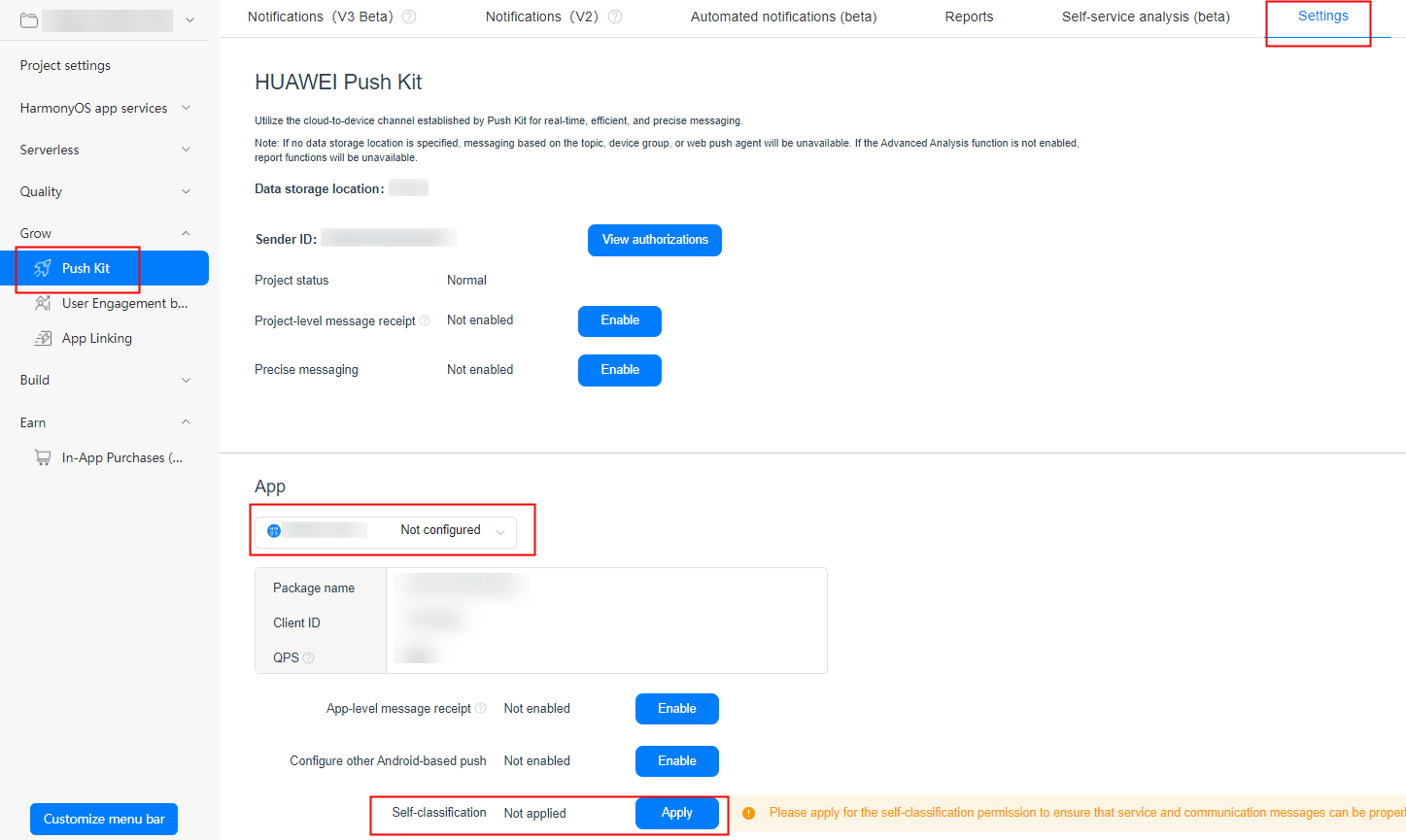
Sign in to AppGallery Connect and click Development and services. Find and click the desired project in the project list. Then, go to Grow > Push Kit > Settings. Select the desired app, and click Apply on the Self-classification row.
-
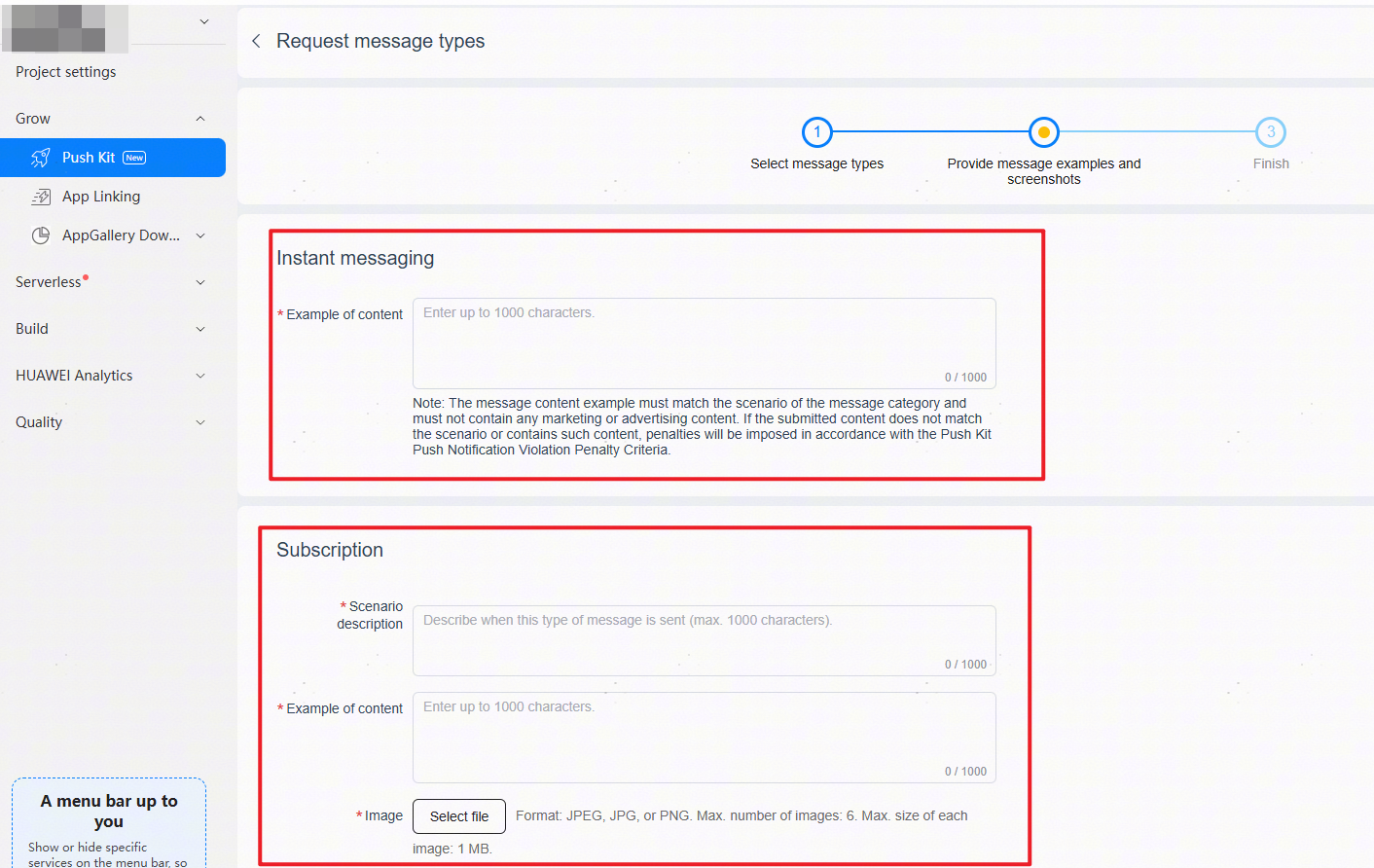
Select message types as required and click Next. Then provide message examples (for subscription messages, you must also include a scenario description and screenshots) and submit the application. You can click View progress to check the review progress.
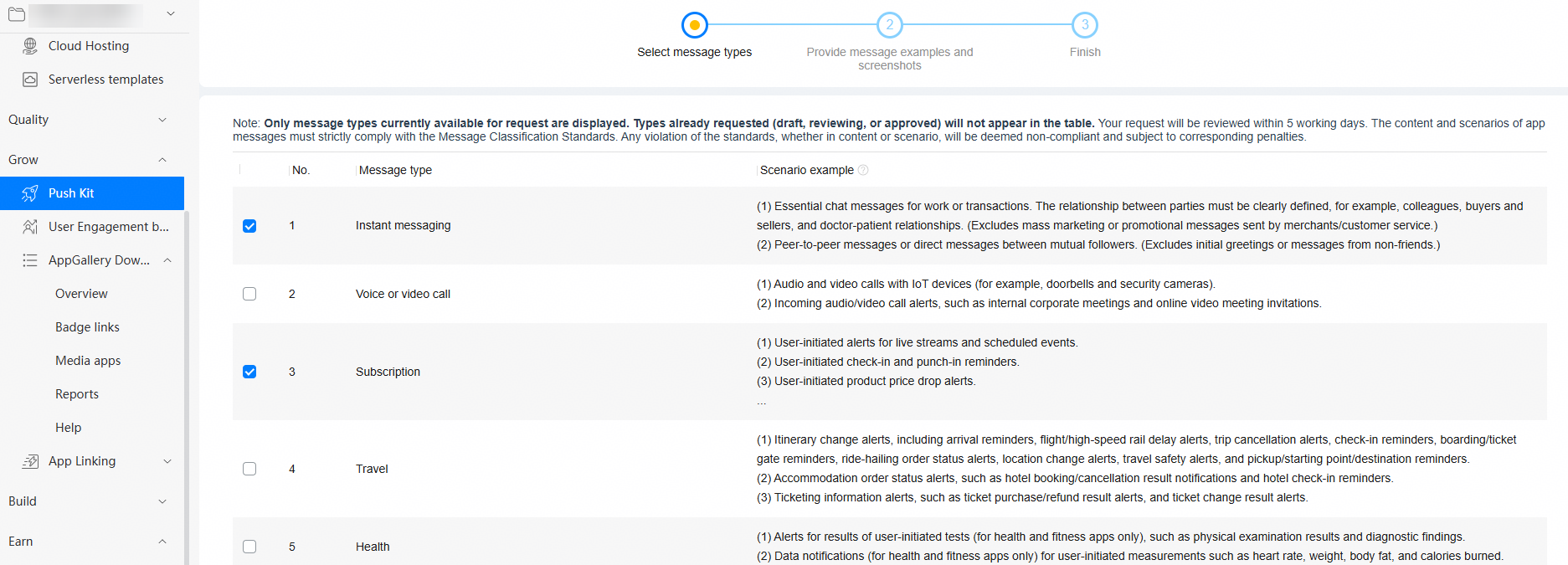

If a message type has already been approved, repeated application is unnecessary for subsequent messages falling under this type.

-
The message content example must match the scenario of the message category and must not contain any marketing or advertising content. If the submitted content does not match the scenario or contains such content, penalties will be imposed in accordance with the Push Notification Violation Penalty Criteria.
-
To ensure that the reviewer fully understands your application and expedite the approval process, describe the message example or scenario as comprehensively as possible.
The following message content examples are for reference only.
Order & logistics message content example:
Your order has been successfully placed. You can check the order details.
Subscription message content example:
Updates available for topic/author/event XX you have subscribed to/followed. Click to view.
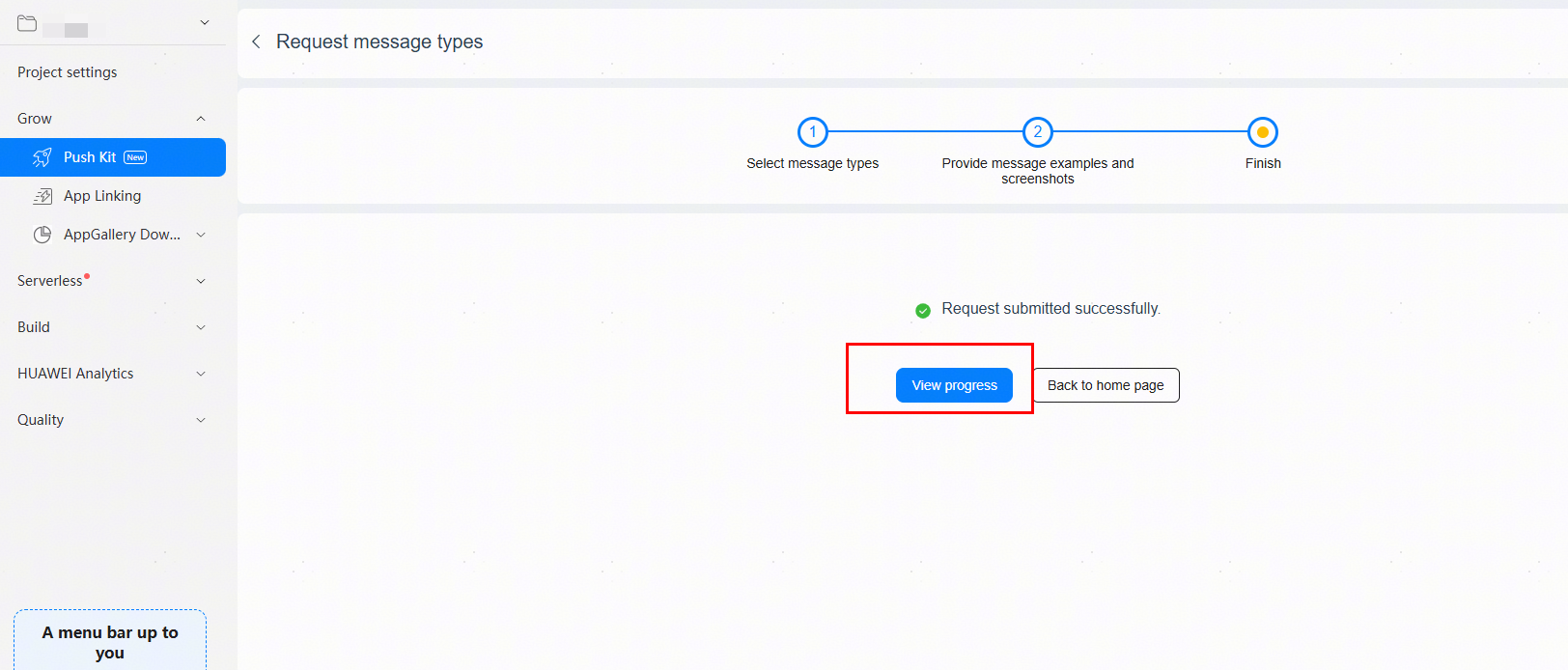
-
-
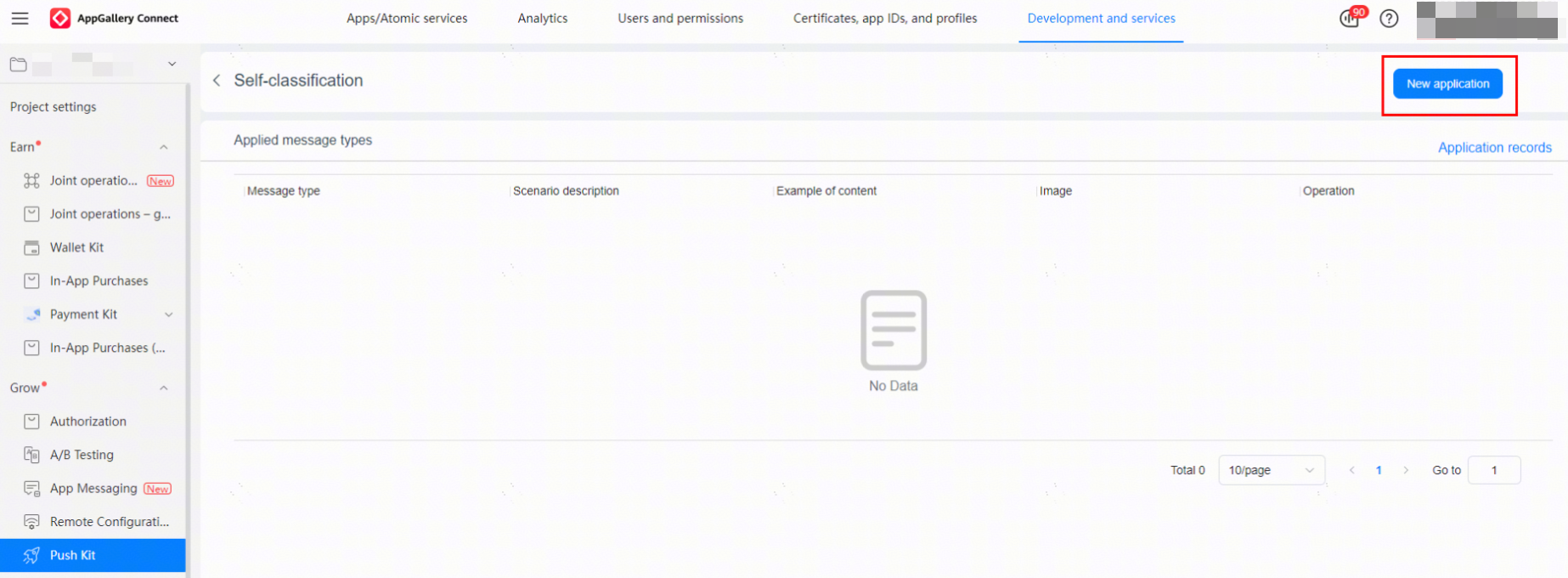
If this is not your first application, click New application to apply for a new message type.
-
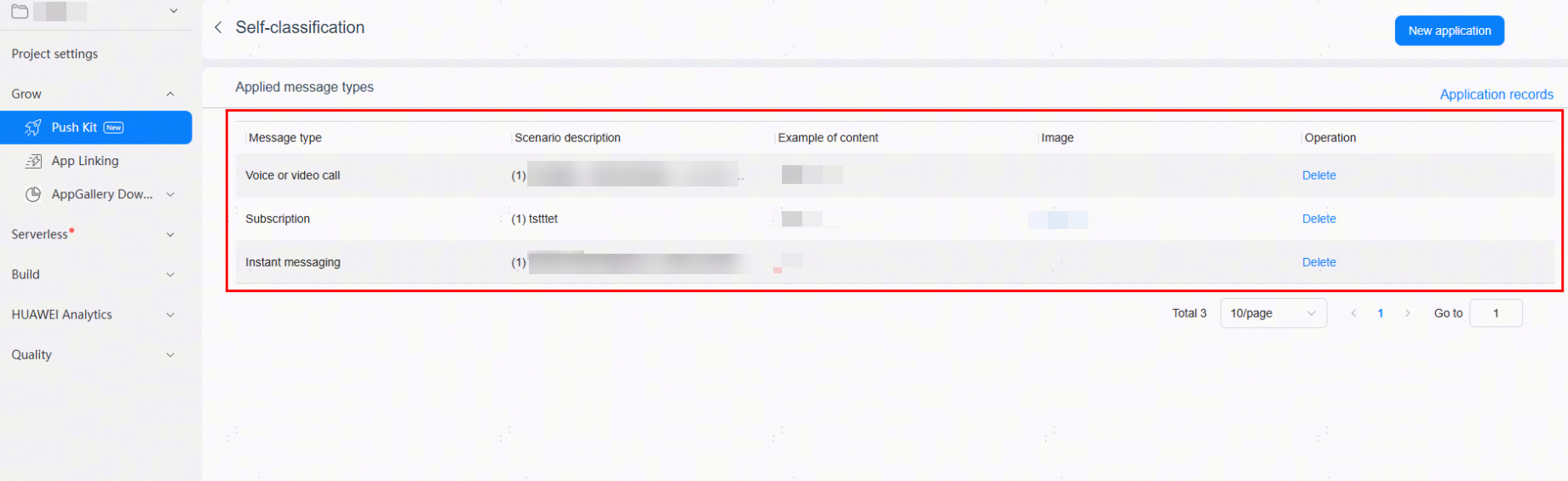
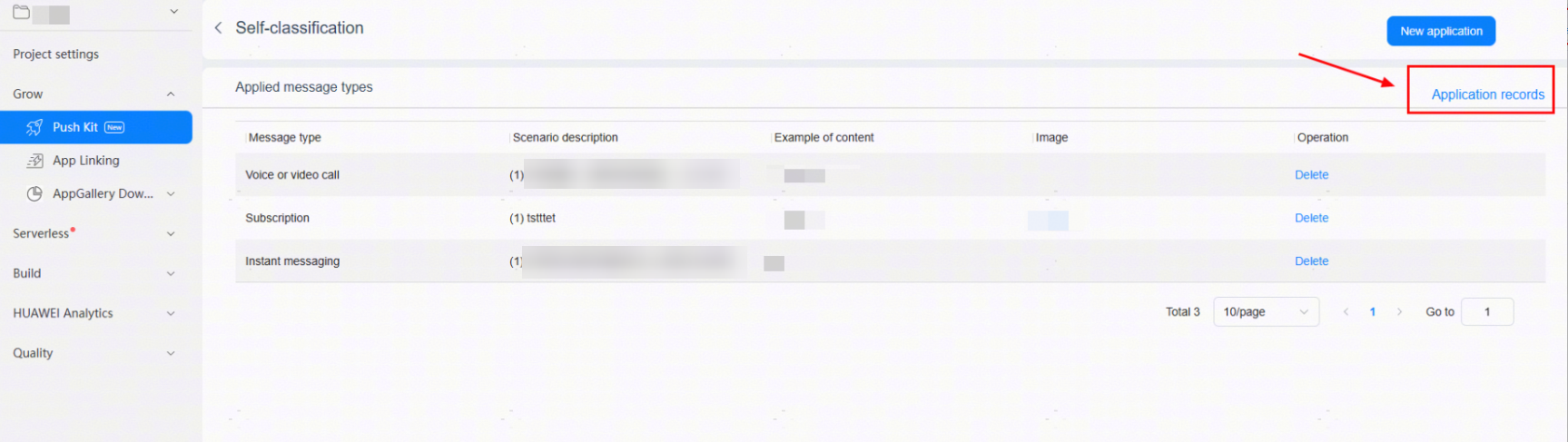
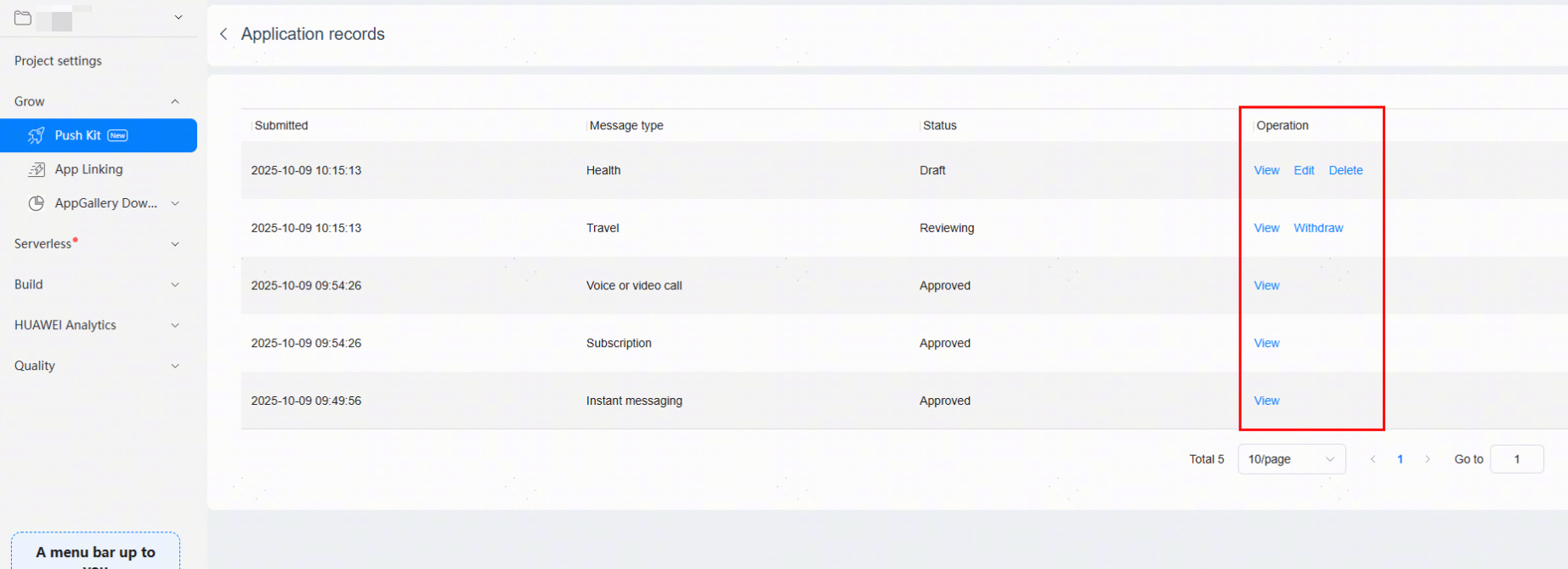
The message type application review takes three working days. You can click Details on the Self-classification row to view the approved message types. You can also click Application records to view message types you have applied for.
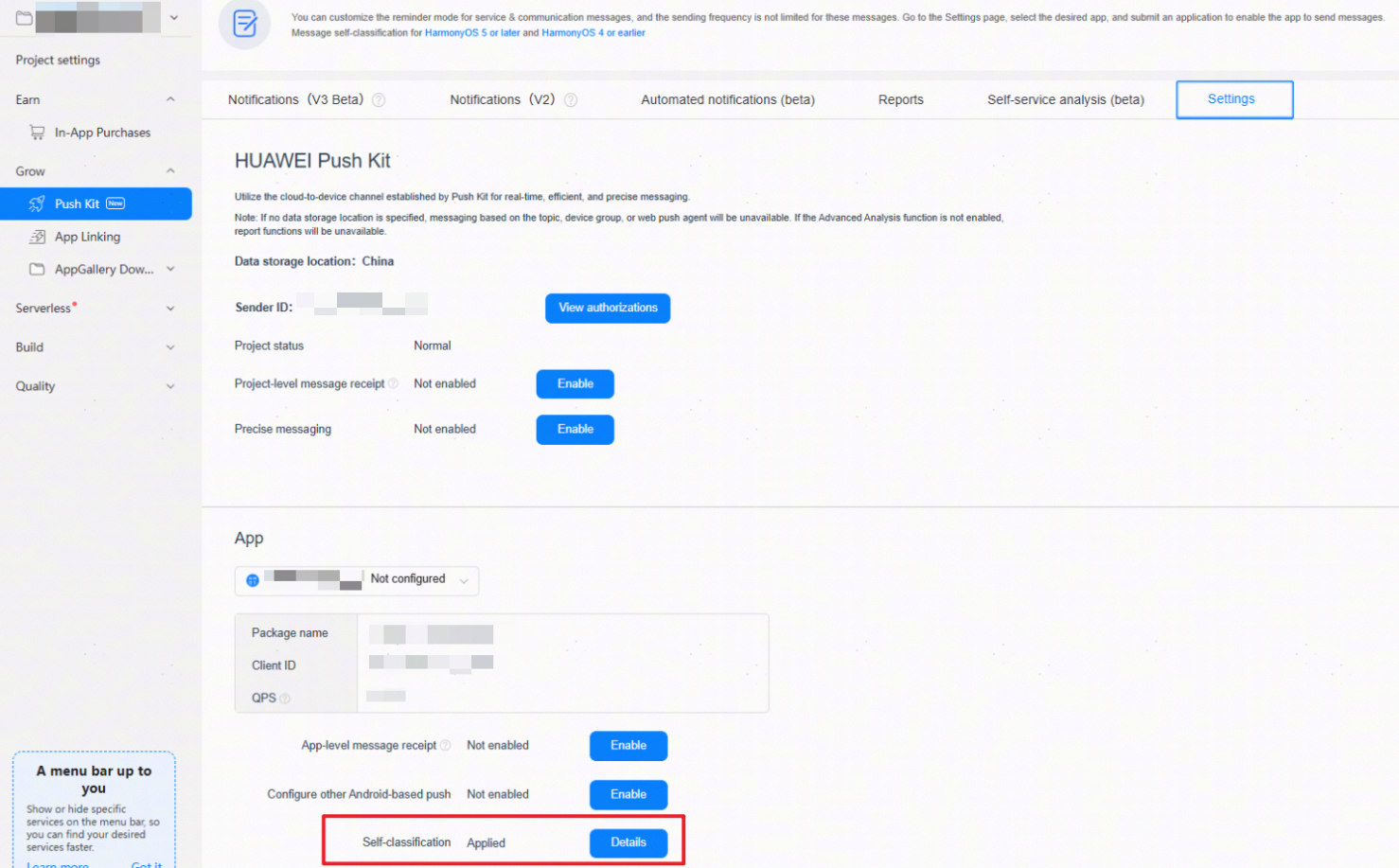
You can click Application records to view the message types you have applied for, and view, edit, delete, and perform other operations on these application records.
-
Adapt the category field on the cloud based on the self-classification information after your application is approved. Your self-classification permission takes effect five minutes after approval.
After the self-classification permission takes effect, notification messages pushed by your app will be classified based on the category field that you have defined on the cloud.
The value of the category field must contain an approved, capitalized English value of category defined in AppGallery Connect. An incorrect category or a category that does not comply with the classification standards will result in a violation.
For details about the violations and penalties, please refer to Push Notification Violation Penalty Criteria.
Applying for the In-App Call Message Permission
This permission allows your app to display the call screen and start the voice or video call when an in-app call message arrives at a device.
It is available only for communication and alarm apps that provide the in-app video and voice call function.
Procedure
-
Sign in to AppGallery Connect and click Development and services.
-
Find and click your project on the project list, go to Project settings, select your app, and go to Manage open capabilities. Click Request on the row for the in-app call message permission.
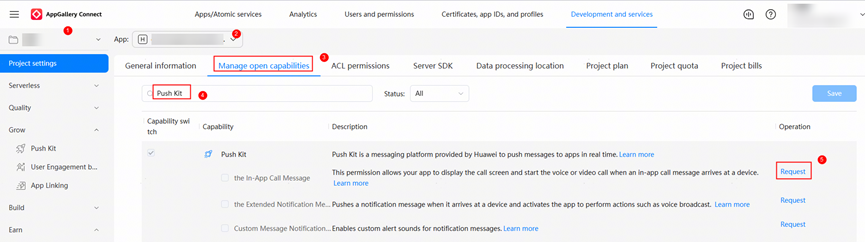
In the permission application dialog box, configure your app information based on the request reason template and upload an attachment. Then click Submit.
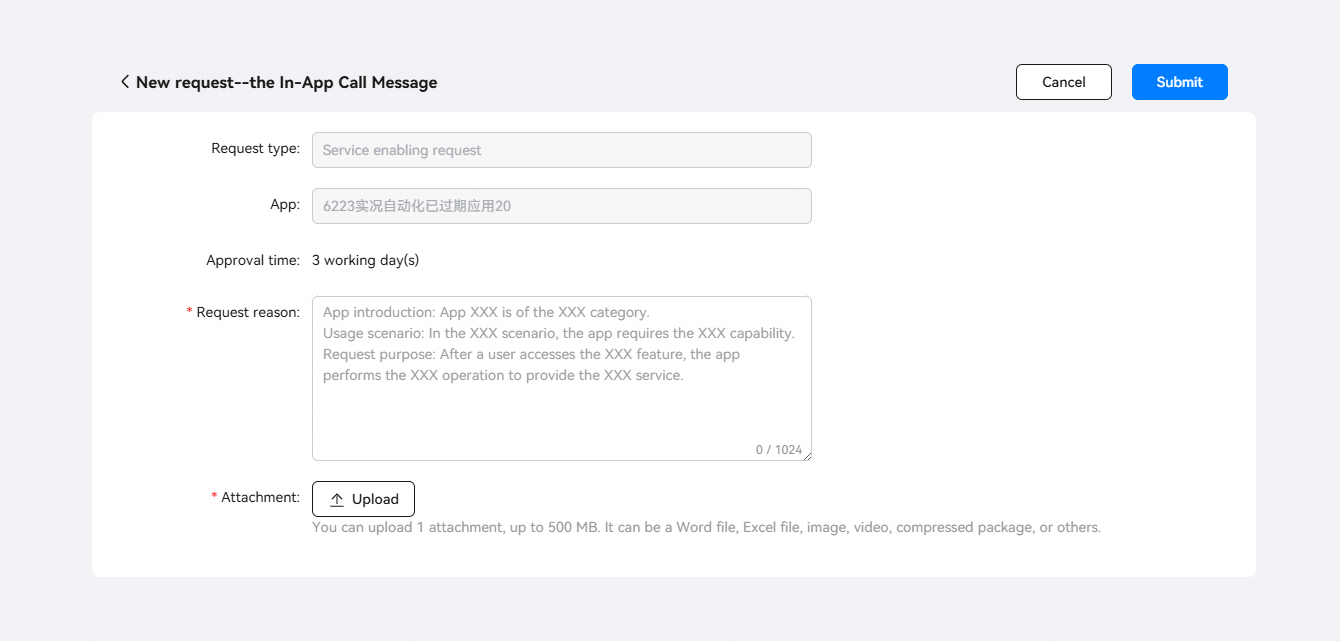

-
When applying for the permission, upload the relevant materials as an attachment. If your app is an internal app of an enterprise, an intelligent security app (including intelligent video surveillance and elevator emergency call), or a wearable app, you need to provide a proof letter stamped by the served entity. For other apps, you need to provide a Value-added Telecom Business License (for B22 multi-party communication service business in the Chinese mainland).
-
According to the Regulation on Telecommunications of the People's Republic of China and the Administrative Measures on Internet Information Services, China implements a licensing system for telecommunications service operations based on the classification of telecommunications services. Telecommunications service operators must obtain a telecommunications business license issued by the competent information industry authority under the State Council or the telecommunications administrative authority of a province, autonomous region, or municipality directly under the central government, in accordance with these regulations. No organization or individual may engage in telecommunications service operations without such a license. Specifically, to engage in multi-party communication services, a Value-added Telecom Business License (for B22 multi-party communication service business in the Chinese mainland) is required. Therefore, this license is required for applying for the in-app call message permission. Huawei will abide by the telecommunications regulator's decision on specific qualification requirements and remove any non-compliant apps from AppGallery.
-
Wearables, TVs, and PCs/2-in-1 devices do not support this permission.
Proof letter for applying for the in-app call message permission:
App name: ***
App package name and app ID: ***&***
Commitments:
a. *** (app name) will use in-app call messages only in the applied scenario (video and voice call scenario).
b. Upon the termination of the relevant service, the app will no longer prevent the system from entering sleep mode.
c. The in-app call message permission requested for this office app is used only in this app and is intended exclusively for internal use by employees of this company or organization. It will not be transferred or made available to external parties or non-affiliated employees.
d. The in-app call message permission requested for this intelligent security (including intelligent video surveillance and elevator emergency call) app or wearable app is only used in the compliant service scenarios specified by the app system, and is intended only for users of the app. It will not be transferred or provided to any irrelevant parties.
e. If there are any other acts that violate the above item a, b, c, or d, I agree that Push Kit can revoke this permission.
Company XXX
YYYY-MM-DD
-
-
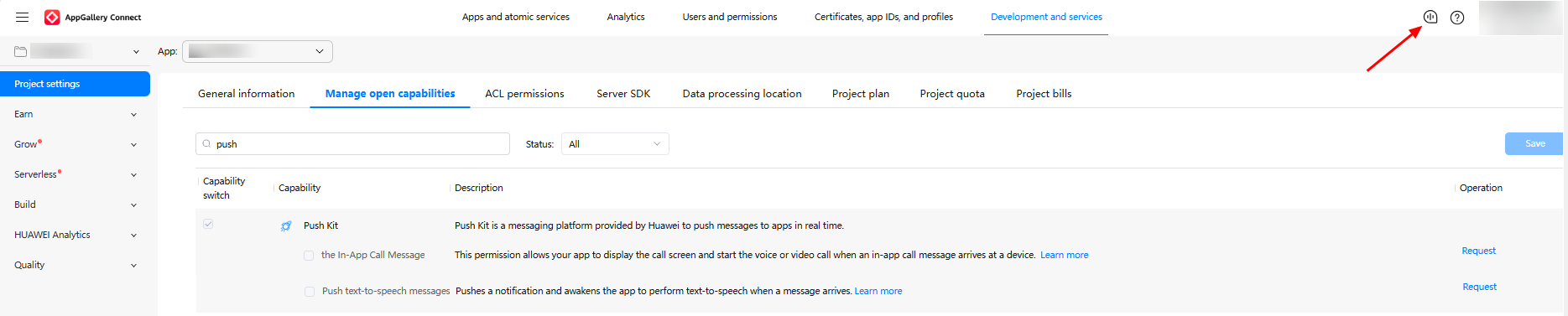
You will be redirected to the Interaction center page after submitting the application. The intelligent assistant will inform you of the review progress. Usually, the review takes no more than three working days. After exiting Interaction center, you can click the bubble icon in the upper right corner of AppGallery Connect to access it again.
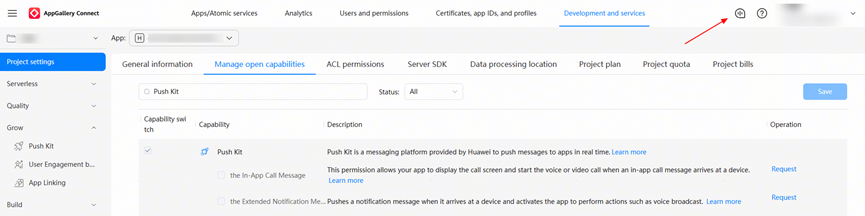
-
Wait for the review to complete. The permission will take effect once it is approved and you can see the permission selected for Push Kit.

Applying for the Text-to-Speech Message Permission
When a user device receives a text-to-speech message from your app, Push Kit will start a subprocess of your app to handle the relevant service logic, for example, voice broadcast. The subprocess will be running for 10 seconds by default, within which you need to complete your service handling.
The following limitations apply to applications for the text-to-speech message permission:
-
This permission is available only for apps that track order status changes and logistics status changes, support payment collection by merchants, and issue emergency medical alerts.
-
Apps cannot use text-to-speech messages to start the main app process.

-
To streamline the text-to-speech message experience, the extended notification message permission was renamed to text-to-speech message permission in early January 2026. This update simplifies the integration process: You only need to request this single permission, eliminating the previous requirement to apply for both the extended notification message permission and the self-classification permission for the PLAY_VOICE (text-to-speech message) category separately.
-
Services that have already obtained the extended notification permission and the self-classification permission for the PLAY_VOICE category can continue using this function. No adjustments to your code or service workflows are required.
Procedure
-
Sign in to AppGallery Connect and click Development and services.
-
Find and click your project on the project list, go to Project settings, select your app, and go to Manage open capabilities. Click Request on the row for the text-to-speech message permission.
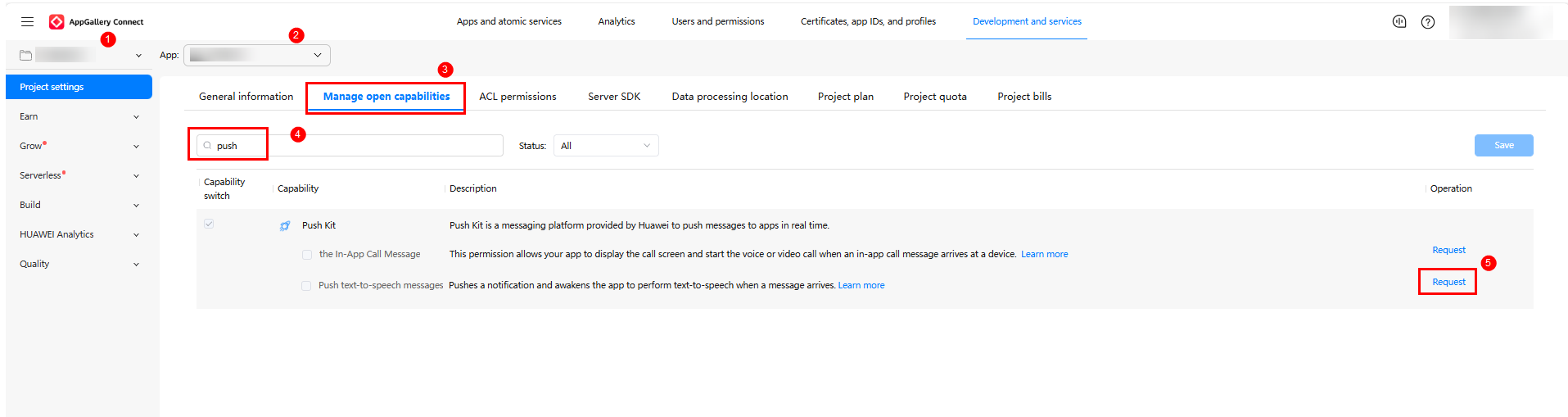
In the permission application dialog box, configure your app information based on the request reason template and upload an attachment. Then click Submit.
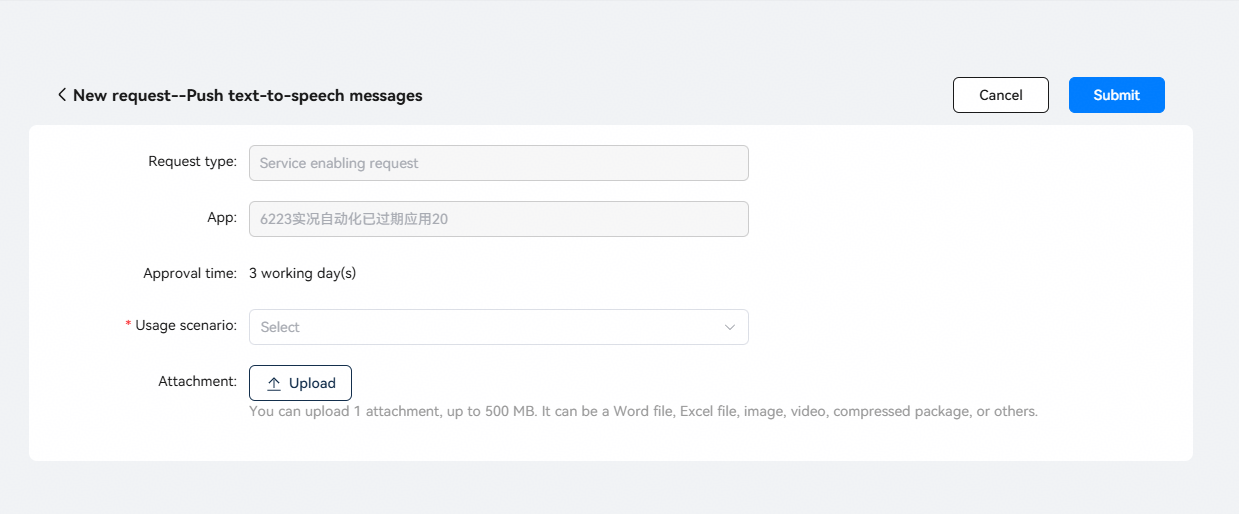

You need to upload screenshots or schematic diagrams of the voice notification UI or video recordings of voice playback.
-
You will be redirected to the Interaction center page after submitting the application. The intelligent assistant will inform you of the review progress. Usually, the review takes no more than three working days. After exiting Interaction center, you can click the bubble icon in the upper right corner of AppGallery Connect to access it again.
-
Wait for the review to complete. The permission will take effect once it is approved and you can see the permission selected for Push Kit.

Applying for the Custom Message Notification Ringtone Permission
The custom ringtone is played only when a user device receives a notification message that carries the sound field. Otherwise, the default ringtone is played. If the soundDuration field also exists, the duration of the custom ringtone is subject to the parameter setting.

To further optimize user experience, the custom ringtone function in Push Kit is no longer managed as a permission control item since November 2025. You can now use this function without applying for explicit permission.
Services that have already obtained the custom ringtone permission can continue using the function. No adjustments to your code or service workflows are required.