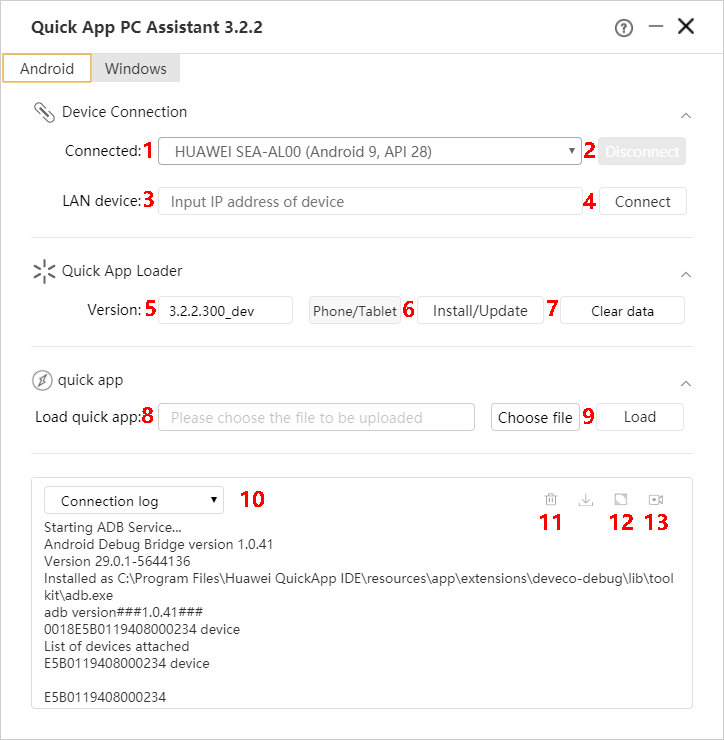
After installing the Huawei Quick App PC Assistant on your PC, you can run the RPK package of a quick app. The following figure shows the PC assistant UI.
1: Name of the device connected either through a USB cable or the network.
2: Button for disconnecting the device connected through the network.
3: IP address of the device to be connected through the network.
4: Button for connecting the device for which the IP address is specified.
5: Version of the Quick App Loader installed on the currently connected device.
6. Button for selecting a local loader installation package for installation or update.
7: Button for clearing data on the loader.
8: RPK package selected from the PC for debugging.
9: Button for loading the RPK package on the connected device.
10: Log display area.
11: Icon for clearing log information.
12: Button for taking a screenshot.
13: Button for saving the screenshot to the PC.
1. Connect your device through a USB cable or the network and select the device to which the RPK package is to be loaded.
USB connection: A connected device will be autocratically detected and displayed in the Connected text box.
Network connection: Enter the IP address of the device in LAN device and click Connect. After the connection is successful, the device is automatically displayed in the Connected text box.

2. Load the RPK package on your device.
a) In the Quick App Loader area, select the loader of the required version.
You can visit Tool Download to obtain the loader of the required version.

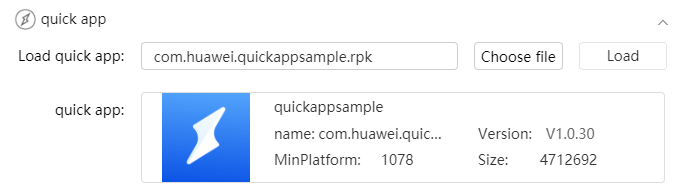
b) In the quick app area, select the RPK package to be run and click Load.
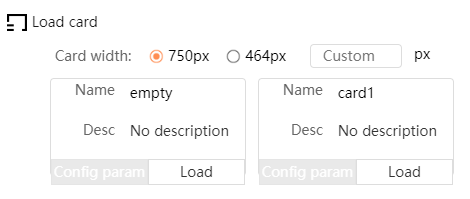
3. If a card is included, you can load the card.
Select the card to be loaded, and click Load.
4. Check the RPK running effect on the connected device and view logs in the log area.