概述
LLDB(Low Level Debugger)是新一代高性能调试器。具备断点设置、变量查看与修改、内存操作、线程控制、表达式计算、堆栈回溯等功能,并支持跨平台和插件扩展。
当前HarmonyOS中的LLDB工具是在llvm15.0.4基础上适配演进出来的,是DevEco Studio工具链中默认的调试器,支持调试C和C++应用程序。
详细说明参考LLDB官方文档。
功能特点
LLDB调试器具备以下功能特点:
强大的调试功能:支持断点设置、变量查看与修改、内存操作、线程控制、表达式计算、堆栈回溯等。
跨平台支持:适用于Windows、Linux x86_64、ohos和Mac平台。
插件扩展性:支持插件扩展,方便开发者根据需求进行定制。
工具获取路径
通过安装DevEco Studio集成开发环境,可在其SDK组件中获取完整的LLDB调试套件。
以下是基于DevEco Studio的LLDB工具完整路径结构图(以windows为例):
DevEco_Studio_Home/
└── sdk/
    ├── default/
    │   ├── HarmonyOS/
    │   │   └── native/
    │   │       └── llvm/
    │   │           ├── bin/
    │   │           │   └── lldb.exe                 # Windows客户端主程序
    │   │           └── lib/
    │   │               └── clang/
    │   │                   └── current/
    │   │                       └── bin/
    │   │                           ├── aarch64-linux-ohos/
    │   │                           │   └── lldb      # ARM64独立调试器
    │   │                           └── arm-linux-ohos/
    │   │                               └── lldb      # ARM32独立调试器
    │   └── hms/
    │       └── native/
    │           └── lldb/
    │               ├── aarch64-linux-ohos/
    │               │   └── lldb-server              # ARM64调试服务端
    │               ├── arm-linux-ohos/
    │               │   └── lldb-server              # ARM32调试服务端
    │               └── x86_64-linux-ohos/
    │                   └── lldb-server              # x86_64模拟器调试服务端
lldb客户端 (Windows系统) 执行文件路径:
<DevEco_Studio_Home>\sdk\default\HarmonyOS\native\llvm\bin\lldb.exe
静态化lldb
表1 静态化lldb工具目录
路径 说明 \DevEco Studio\sdk\default\HarmonyOS\native\llvm\lib\clang\current\bin\aarch64-linux-ohos\lldb 适用于aarch64-linux-ohos架构的静态化lldb \DevEco Studio\sdk\default\HarmonyOS\native\llvm\lib\clang\current\bin\arm-linux-ohos\lldb 适用于arm-linux-ohos架构的静态化lldb lldb-server
表2 lldb-server工具目录
路径 说明 \DevEco Studio\sdk\default\hms\native\lldb\aarch64-linux-ohos\lldb-server 适用于aarch64-linux-ohos架构的lldb-server \DevEco Studio\sdk\default\hms\native\lldb\arm-linux-ohos\lldb-server 适用于arm-linux-ohos架构的lldb-server \DevEco Studio\sdk\default\hms\native\lldb\x86_64-linux-ohos\lldb-server 适用于x86_64-linux-ohos架构的lldb-server

签名校验机制
lldb-server在运行时会对自身进行数字签名验证,只有通过华为官方签名的lldb-server才能正常调试应用。
中的lldb-server是经过闭源签名处理的特殊版本。
这种设计主要用于保护鸿蒙(HarmonyOS)调试权限,防止未授权的调试行为。
功能列表
此处列举LLDB调试器支持的部分功能,更多命令参考:LLDB工具使用指导和LLDB官网手册。Windows、Linux x86_64和Mac平台的LLDB工具有些许差异,以实际应用为准。
记录日志
# 记录完整调试会话到文件
(lldb) log enable -F -T -p -f d:\lldb.log lldb all
(lldb) log enable -F -T -p -f d:\lldbgdbremote.log gdb-remote all
# 示例:过滤只记录断点事件
(lldb) log enable -f /tmp/breakpoints.log lldb break
# 查看当前日志配置
(lldb) log list
断点管理
# 设置函数断点(支持模糊匹配)
(lldb) breakpoint -f main.cpp -l 266
# 设置条件断点(当x>100时触发)
(lldb) breakpoint set -f main.cpp -l 20 -c '(x > 100)'
# 列出所有断点
(lldb) breakpoint list
# 临时禁用断点
(lldb) breakpoint disable 1
观察点管理
# 监控变量变化
(lldb) watchpoint set variable global_var
# 监控内存地址变化
(lldb) watchpoint set expression -w write -- 0x7ffeefbff5d8
# 查看观察点列表
(lldb) watchpoint list
表达式处理
# 创建变量
(lldb) print int $value1 = 7
(lldb) expression int $value2 = 7
# 打印变量值
(lldb) print $value1
(lldb) expression $value2
# 变量运算
(lldb) expression $value1 * 3
# 格式化输出(16进制显示)
(lldb) p/x 12345
查看变量
# 查看当前帧的已初始化的局部变量
(lldb) frame variable
# 查看全局变量和静态变量
(lldb) frame variable -g
# 查看寄存器
(lldb) register read
进程/线程管理
# 显示线程回溯(所有线程)
(lldb) thread backtrace all
# 单步跳过(Step over)
(lldb) thread step-over (或next)
# 跳出当前选定的帧(步出)
(lldb) thread step-out (或finish)
汇编处理
# 查看寄存器
(lldb) register read
# 更改pc寄存器
(lldb) register write pc `$pc+8`
# 查看当前堆栈帧的汇编指令
(lldb) disassemble --frame (或 dis -f )
# 查看main函数的汇编指令
(lldb) disassemble -name main
# 汇编单步执行程序,步过(不进入函数体)
(lldb) nexti
# 汇编单步执行程序,步入(进入函数体)
(lldb) stepi
信号处理
# 捕获信号时打印回溯
(lldb) process handle SIGSEGV -s true
# 查看当前信号处理配置
(lldb) process handle
attach进程
# 附加到PID(需调试权限)
(lldb) process attach -p 1234
环境准备
本地调试(受限模式)
HarmonyOS设备需获取root权限
无需DevEco Studio,直接设备端调试
选择静态化lldb路径(根据设备CPU架构选择,参考)并使用hdc传输到设备:
hdc file send \DevEco Studio\sdk\default\HarmonyOS\native\llvm\lib\clang\current\bin\aarch64-linux-ohos\lldb /data/local/tmp/debugserver
选择lldb server路径(根据设备CPU架构选择,参考)并使用hdc传输到设备:
hdc file send \DevEco Studio\sdk\default\hms\native\lldb\aarch64-linux-ohos\lldb-server /data/local/tmp/debugserver
远程调试(主要调试方式)
一键调试:
- 下载DevEco Studio,根据IDE的调试方法即可进行一键调试:通过DevEco Studio调试。
- 支持Windows/Mac连接HarmonyOS设备或模拟器,支持调试Native C++应用。
- 直接使用DevEco Studio的Debug功能即可,无需手动推送lldb或lldb-server。
手动调试:
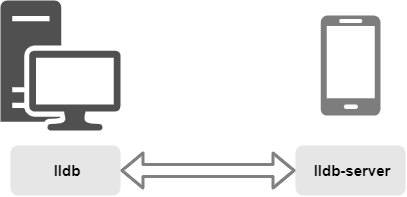
- 如需要手动进行远程调试(不通过DevEco Studio),如调试二进制等,则需要保证设备上有lldb-server,PC上有lldb。
- 准备lldb-server,建议使用DevEco Studio推送。如手动推送,选择lldb-server路径(根据设备CPU架构选择,参考)并使用hdc传输到设备:
hdc file send \DevEco Studio\sdk\default\hms\native\lldb\aarch64-linux-ohos\lldb-server /data/local/tmp/debugserver
PC上准备lldb,如windows系统则使用lldb.exe, 稍后将使用lldb与OH设备上的lldb-server远程连接进行调试。
设备状态与调试支持矩阵(分三种情况):
设备状态 调试支持范围 lldb-server部署路径 root镜像+SELinux关闭 全类型C/C++应用及二进制 任意可执行目录 root镜像+SELinux开启 全类型C/C++应用及二进制 /data/local/tmp/debugserver user镜像+SELinux开启 DevEco Studio编译签名debug版HAP包 自动部署

root镜像:使用hdc shell id命令查询到“uid=0(root)”,或执行hdc shell进入交互命令环境,提示符为“#”。
user镜像:使用hdc shell id命令查询到“uid=2000(shell)”,或执行hdc shell进入交互命令环境,提示符为“$”。
SELinux开启模式:使用hdc shell getenforce命令查询到“Enforcing”。
SELinux关闭模式:使用hdc shell getenforce命令查询到“Permissive”。
注意:
lldb-server建议通过DevEco Studio创建Native项目并点击Debug按钮自动推送,避免手动推送的版本兼容性和权限问题。
[h2]使用LLDB工具启动并调试应用
此处以在HarmonyOS环境调试一个使用clang编译器生成的带有调试信息的可执行文件a.out为例。
源文件:hello.cpp
#include <iostream>
using namespace std;
int main() {
    cout << "hello world!" <<endl;
    return 0;
}
编译:
<clang distribution>/bin/clang++ --target=aarch64-linux-ohos --sysroot=<sysroot distribution> -g hello.cpp -o a.out
获取到与LLDB同一版本的clang编译器生成的带有调试信息的可执行文件a.out。
使用hdc shell进入手机交互命令环境,进入lldb路径。
运行LLDB工具,并指定要调试的文件为a.out。
./lldb a.out
在代码中main函数处设置断点。
(lldb) b main
运行应用,使其停在断点处。
(lldb) run
继续运行应用。
(lldb) continue
列出所有断点。
(lldb) breakpoint list
显示当前帧的参数和局部变量。
(lldb) frame variable
按需执行调试命令进行后续调试操作。
退出调试。
(lldb) quit
[h2]使用LLDB工具调试已经启动的应用
此处以在手机环境调试一个使用clang编译器生成的带有调试信息和用户输入的可执行文件a.out为例。
源文件:hello.cpp
#include <iostream>
using namespace std;

int main() {
    int i = 0, j = 5, sum = 0;
    cout << "Please input a number of type int" <<endl;
    cin >> i;
    cout << i;
    sum = i + j;
    cout << sum <<endl;
    return 0;
}
编译:
<clang distribution>/bin/clang++ --target=aarch64-linux-ohos --sysroot=<sysroot distribution> -g hello.cpp -o a.out
使用hdc shell进入手机交互命令环境,进入lldb路径。
在终端窗口1启动应用。(窗口会返回一条信息“Please input a number of type int”)
./a.out
在终端窗口2运行LLDB工具。
./lldb
attach应用。
(lldb) process attach --name a.out
在hello.cpp的第10行设置断点。
(lldb) breakpoint set --file hello.cpp --line 10
在终端窗口1,输入一个int类型的数。
88
在终端行窗口2继续运行应用,使应用停在断点处。
(lldb) continue
按需执行调试命令进行后续调试操作。
detach应用。
(lldb) detach
退出调试。
(lldb) quit

步骤attach应用和设置断点可以调换顺序执行。
使用指导-远程调试

远程调试是指使用lldb进行跨端调试。本章节主要针对开发者跨平台调试HarmonyOS设备的应用进行说明。
基于DevEco Studio的远程调试参考官方调试指导。
远程调试时需要lldb-server和lldb配合使用。
Windows,Linux x86_64和Mac远程调试步骤一致。
[h2]root镜像远程调试

支持调试的应用或二进制是aarch64-linux-ohos架构的native C++工程。
为了方便调试建议调试时关闭SELinux。
源文件:hello.cpp
#include <iostream>
using namespace std;
int main() {
    cout << "hello world!" <<endl;
    return 0;
}
编译:
<clang distribution>/bin/clang++ --target=aarch64-linux-ohos --sysroot=<sysroot distribution> -g hello.cpp -o a.out
打开命令行窗口1,关闭SELinux。
hdc shell setenforce 0
在命令行窗口1,将lldb-server和可执行文件a.out推送到设备。
hdc file send lldb-server hdc file send a.out /data/local/tmp/debugserver/debugserver
hdc shell chmod 755
/data/local/tmp/debugserver/lldb-server /data/local/tmp/debugserver/a.out
运行lldb-server。(8080为有效且当前未被占用的端口号,用户可自定义)
hdc shell /data/local/tmp/debugserver/lldb-server p --server --listen "*:8080"
打开命令行窗口2,运行二进制文件lldb。
./lldb
在LLDB命令行窗口进行远端选择与连接。
(lldb) platform select remote-ohos
(lldb) platform connect connect://localhost:8080
指定要调试的设备上的二进制文件a.out。
(lldb) target create /data/local/tmp/debugserver/a.out
在代码中main函数处设置断点。
(lldb) b main
启动应用。
(lldb) run
查看当前目标进程的源码。
(lldb) source list
按需执行调试命令进行后续调试操作。
退出调试。
(lldb) quit
[h2]user镜像远程调试

user镜像SELinux默认开启,无法关闭。
建议基于DevEco Studio调试user镜像SELinux开启的HarmonyOS设备的hap包。
lldb-server需推送至指定的目录/data/local/tmp/debugserver。如:/data/local/tmp/debugserver/lldb-server或/data/local/tmp/debugserver/com.example.myapplication/lldb-server。
lldb-server在aarch64-linux-ohos架构目录获取。详情参考表1 lldb-server工具目录
此案例中的hap包为基于DevEco Studio创建的native C++默认工程编译的带debug信息的hap包。
调试过程中需保持设备在非锁屏状态,锁屏不允许启动调试器调试。
打开命令行窗口1,将lldb-server和hap包推送到设备。
hdc shell mkdir data/local/tmp/debugserver/com.example.myapplication
hdc file send lldb-server data/local/tmp/debugserver/com.example.myapplication
hdc shell chmod 755 data/local/tmp/debugserver/com.example.myapplication/lldb-server
hdc shell mkdir data/local/tmp/d333e74fe3ab488aad622a7055fbf396
hdc file send C:\Users\xxx\DevEcoStudioProjects\MyApplication\entry\build\default\outputs\default\entry-default-signed.hap data/local/tmp/d333e74fe3ab488aad622a7055fbf396
hap包安装运行,关闭appfreeze。
hdc shell bm install -p data/local/tmp/d333e74fe3ab488aad622a7055fbf396
hdc shell aa start -a EntryAbility -b com.example.myapplication
hdc shell aa attach -b com.example.myapplication
运行lldb-server。
hdc shell aa process -a EntryAbility -b com.example.myapplication -D "/data/local/tmp/debugserver/com.example.myapplication/lldb-server platform --listen unix-abstract:///lldb-server/platform.sock"
打开命令行窗口2,运行二进制文件lldb。
./lldb
在LLDB命令行窗口进行远端选择与连接。
(lldb) platform select remote-ohos
(lldb) platform connect unix-abstract-connect:///lldb-server/platform.sock
添加目标可执行文件搜索路径。
(lldb) settings append target.exec-search-paths "C:\Users\xxx\DevEcoStudioProjects\MyApplication\entry\build\default\intermediates\cmake\default\obj\arm64-v8a"
在源代码第6行处设置断点。
(lldb) breakpoint set --file "C:/Users/xxx/DevEcoStudioProjects/MyApplication/entry/src/main/cpp/napi_init.cpp" --line 6
指定要调试的设备上的hap包对应的应用pid。
(lldb) attach <pid>
点击设备应用,使其继续响应,并停止在断点处。
继续调试。
(lldb) continue
显示当前线程的堆栈回溯。
(lldb) bt
按需执行调试命令进行后续调试操作。
退出调试。
(lldb) quit