




文档开发者中心
我的
|

ArkUI (方舟UI框架)

HarmonyOS 6

应用媒体

HarmonyOS 5

Ability (程序框架)

如何将Canvas绘制的资源以图片的形式保存至图库【案例示例】

1、自定义绘制的Canvas如何转为图片?

2、图片保存方案种类繁杂,申请各种权限成为您前进路上的绊脚石?

点赞
收藏
回复
1
分享
举报
浏览229 发布于2025-12-14 03:38广东
全部评论
最多点赞
最新发布
最早发布

无需申请任何权限,即可完成。

实现步骤:

  1. 将Canvas组件赋予一个id,通过组件id截图的形式获取到对应的pixelMap;

  2. 通过SaveButton安全控件将pixelMap通过imagePackerApi.packToFile()这个API直接编写进文件即可。

  • ImagePacker:图片编码器类,用于图片压缩和编码。在调用ImagePacker的方法前,需要先通过createImagePacker构建一个ImagePacker实例。

  • SaveButton:安全控件的保存控件。应用集成保存控件后,用户首次使用保存控件展示弹窗,在点击允许后自动授权,应用会在短时间内获取访问媒体库特权接口的授权。后续使用无需弹窗授权。在API version 19及之前的版本中,授权持续时间为10秒;在API version20及之后的版本中,授权持续时间为1分钟。

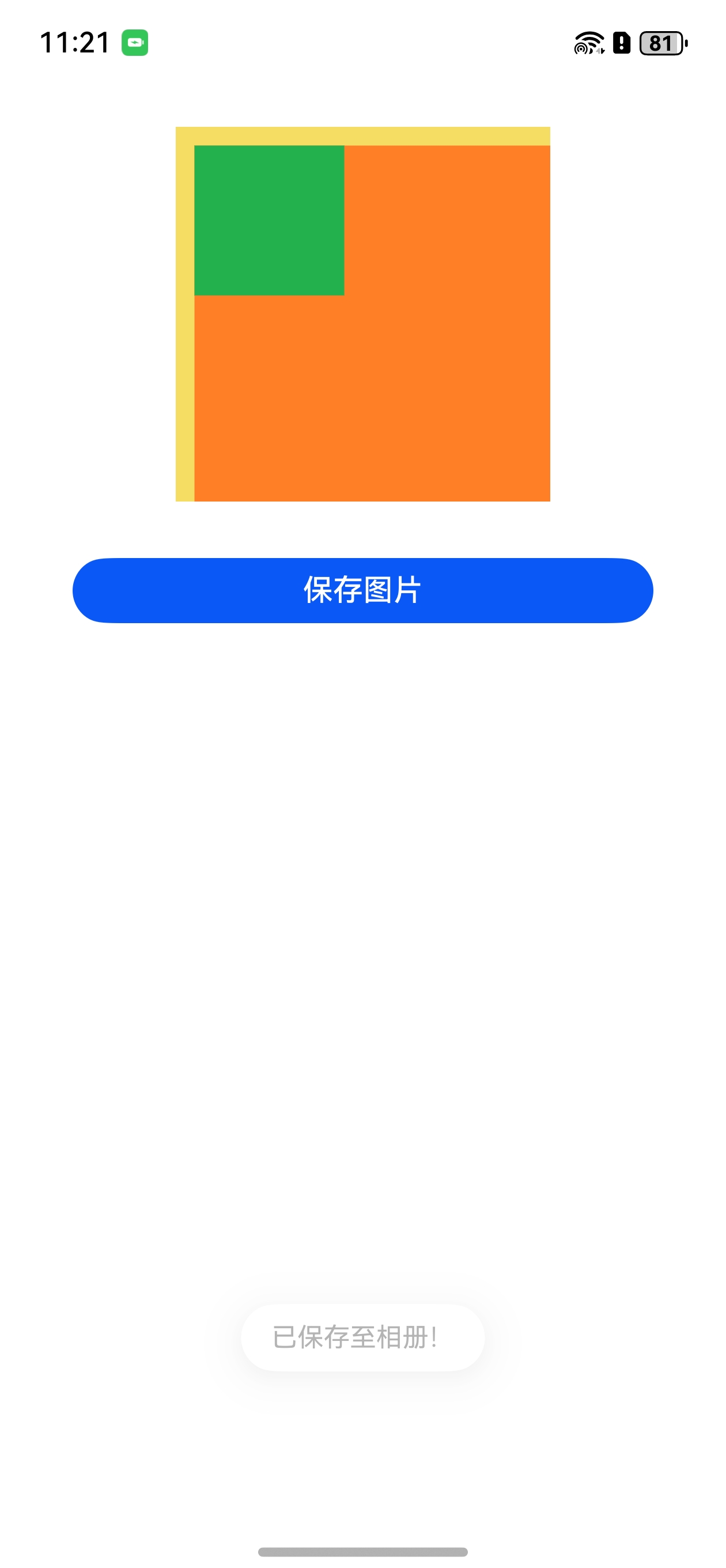
真机效果:

关键代码:

1、id截图的形式获取到对应的pixelMap

收起
自动换行
深色代码主题
复制
  @Local pixelMap?: image.PixelMap
  private cvsID: string = 'canvasId'
  //...  
  this.getUIContext().getComponentSnapshot().get(this.cvsID, (error: Error, pixmap: image.PixelMap) => {

  }

​​2、imagePackerApi.packToFile()将pixelMap编写进图库

收起
自动换行
深色代码主题
复制
imagePackerApi.packToFile(this.pixelMap, file.fd, packOpts, (err: BusinessError) => {
      if (err) {
      } else {
        imagePackerApi.release((err: BusinessError) => {
          if (err) {
          } else {
            fileIo.close(file.fd);
          }
        })
        promptAction.showToast({ message: '已保存至相册!' });
      }
    })

完整代码:

收起
自动换行
深色代码主题
复制
import { image } from "@kit.ImageKit";
import { common } from "@kit.AbilityKit";
import { photoAccessHelper } from "@kit.MediaLibraryKit";
import { fileIo } from "@kit.CoreFileKit";
import { promptAction } from "@kit.ArkUI";
import { BusinessError } from '@kit.BasicServicesKit';


@ComponentV2
export struct CanvasSaveImg {
  private settings: RenderingContextSettings = new RenderingContextSettings(true);
  private ctx: CanvasRenderingContext2D = new CanvasRenderingContext2D(this.settings);
  @Local pixelMap?: image.PixelMap
  private cvsID: string = 'canvasId'
  private context: common.UIAbilityContext = this.getUIContext().getHostContext() as common.UIAbilityContext;

  build() {
    Scroll() {
      Column() {
        Canvas(this.ctx)
          .width(200)
          .height(200)
          .backgroundColor('#F5DC62')
          .onReady(() => {
            // 设定填充样式,填充颜色设为蓝色
            this.ctx.fillStyle = '#ff7f27'
            // 以(50, 50)为左上顶点,画一个宽高400的矩形B
            this.ctx.fillRect(10, 10, 190, 190)
            this.ctx.fillStyle = '#22b14c';
            // 以(50, 50)为左上顶点,画一个宽高200的矩形A
            this.ctx.fillRect(10, 10, 80, 80);
          })
          .id(this.cvsID)
        Blank().height(30)
        SaveButton({ text: SaveDescription.SAVE_IMAGE }).width('80%')
          .onClick((event: ClickEvent, result: SaveButtonOnClickResult) => {
            if (result === SaveButtonOnClickResult.SUCCESS) {
              // 免去权限申请和权限请求等环节,获得临时授权,保存对应图片。
              this.getUIContext().getComponentSnapshot().get(this.cvsID, (error: Error, pixmap: image.PixelMap) => {
                this.pixelMap = pixmap;
                this.savePixelMap();
              });
            } else {
              promptAction.openToast({ message: '设置权限失败!' });
            }
          })
      }.safeAreaPadding({ top: 30 })
      .width('100%')
      .height('100%')
    }
    .width('100%')
    .height('100%')
  }

  async savePixelMap() {
    // 获取相册的保存路径
    let helper = photoAccessHelper.getPhotoAccessHelper(this.context);
    let uri = await helper.createAsset(photoAccessHelper.PhotoType.IMAGE, 'jpeg');
    let file = await fileIo.open(uri, fileIo.OpenMode.READ_WRITE | fileIo.OpenMode.CREATE);
    let imagePackerApi = image.createImagePacker();
    let packOpts: image.PackingOption = { format: 'image/jpeg', quality: 98 };

    imagePackerApi.packToFile(this.pixelMap, file.fd, packOpts, (err: BusinessError) => {
      if (err) {
        console.error(`Failed to pack the image to file.code ${err.code},message is ${err.message}`);
      } else {
        console.info('Succeeded in packing the image to file.');
        imagePackerApi.release((err: BusinessError) => {
          if (err) {
            console.error(`Failed to release the image source instance.code ${err.code},message is ${err.message}`);
          } else {
            console.info('Succeeded in releasing the image source instance.');
            fileIo.close(file.fd);
          }
        })
        promptAction.showToast({ message: '已保存至相册!' });
      }
    })
  }
}

组件引用

收起
自动换行
深色代码主题
复制
@Entry
@ComponentV2
struct Index {
  build() {
    Column() {
      CanvasSaveImg()
    }
    .height('100%')
    .width('100%')
  }
}

相关文档:


展开全部
1楼编辑于2025-12-14 04:34 来自广东
写回答
新增插入模板功能
一键使用模板,快速填写内容,轻松发帖~
知道了
  • 为了保障您的信息安全,请勿上传您的敏感个人信息(如您的密码等信息)和您的敏感资产信息(如关键源代码、签名私钥、调试安装包、业务日志等信息),且您需自行承担由此产生的信息泄露等安全风险。
  • 如您发布的内容为转载内容,请注明内容来源。

我要提问题

了解社区公约,与您携手共创和谐专业的开发者社区。