












 狼哥
ArkUI eTS舒尔特方格游戏
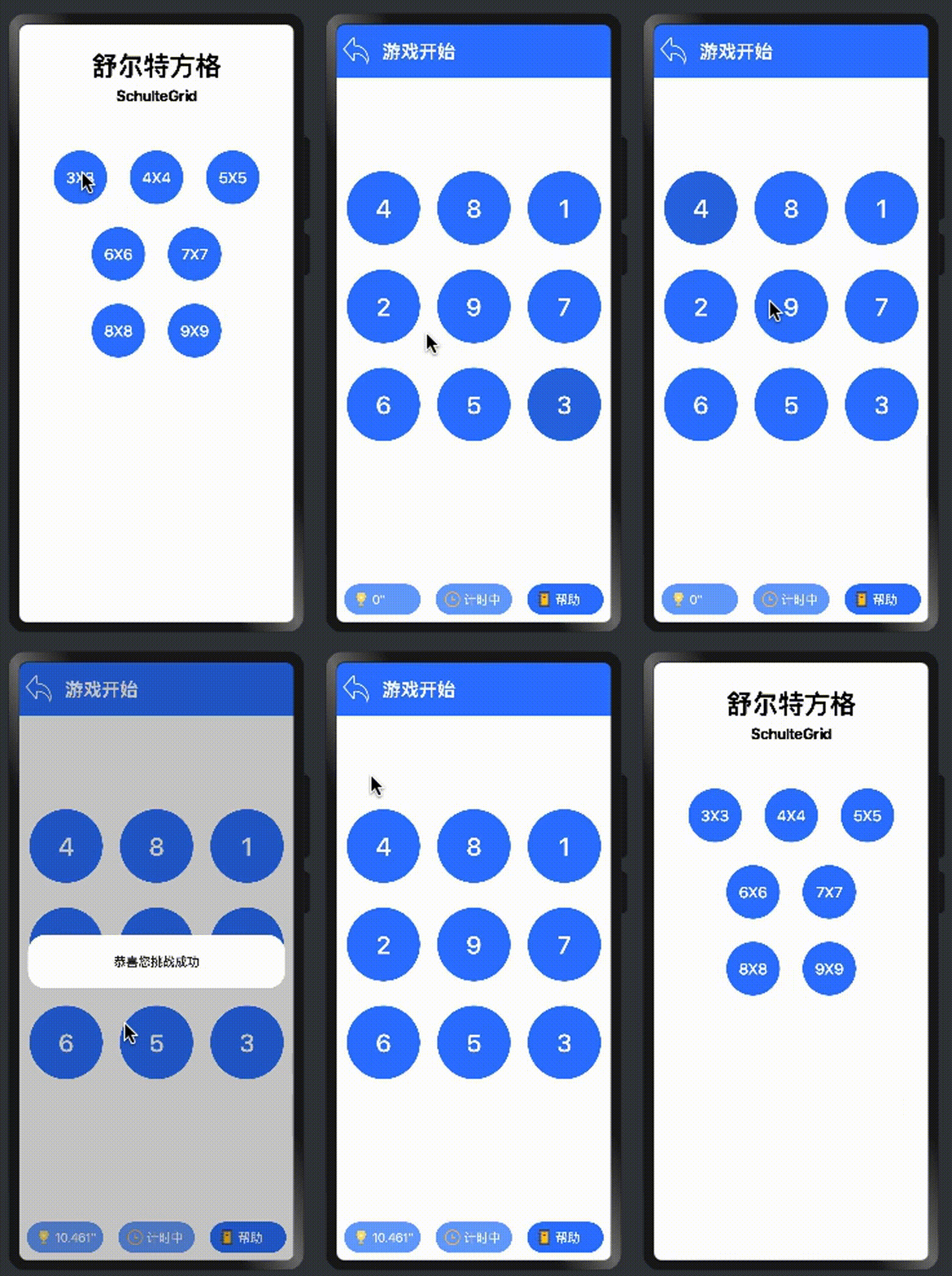
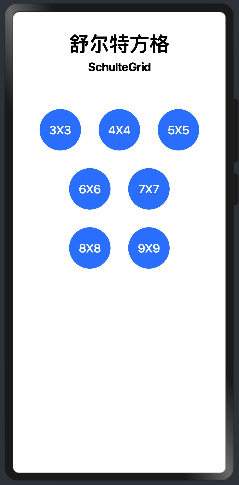
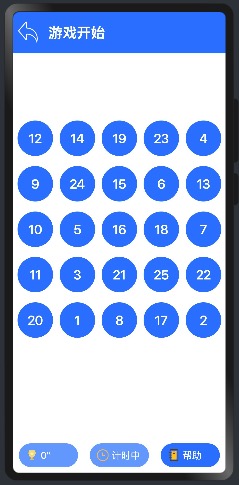
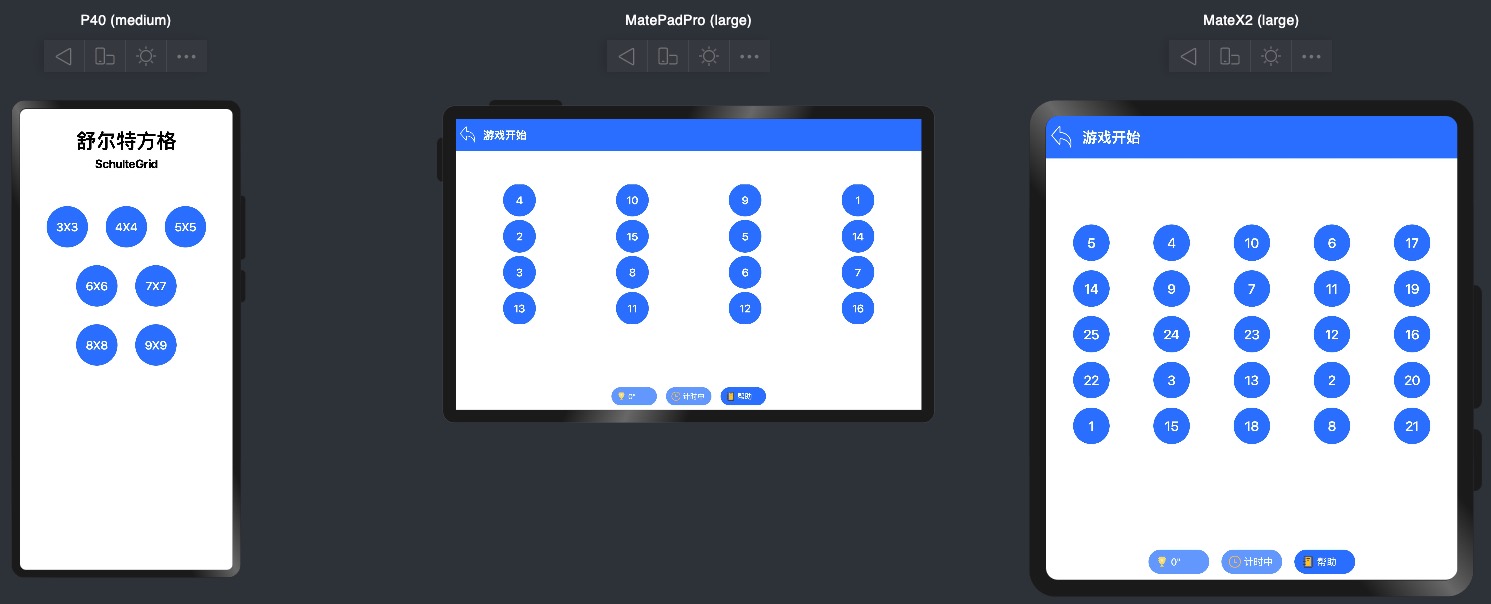
1. 效果图直接先上:
B站蜡笔小新介绍游戏规则: https://www.bilibili.com/video/BV1E3411t7cK?spm_id_from=333.999.0.0
 |  |  |
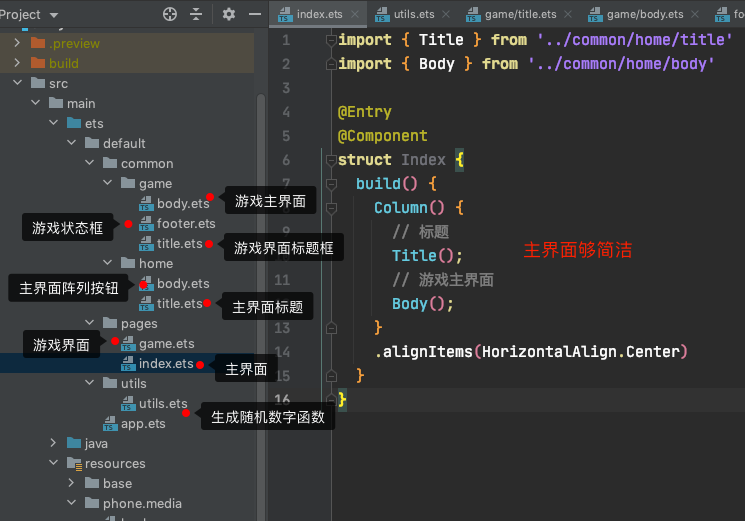
2. 项目结构图
3. 项目开发介绍
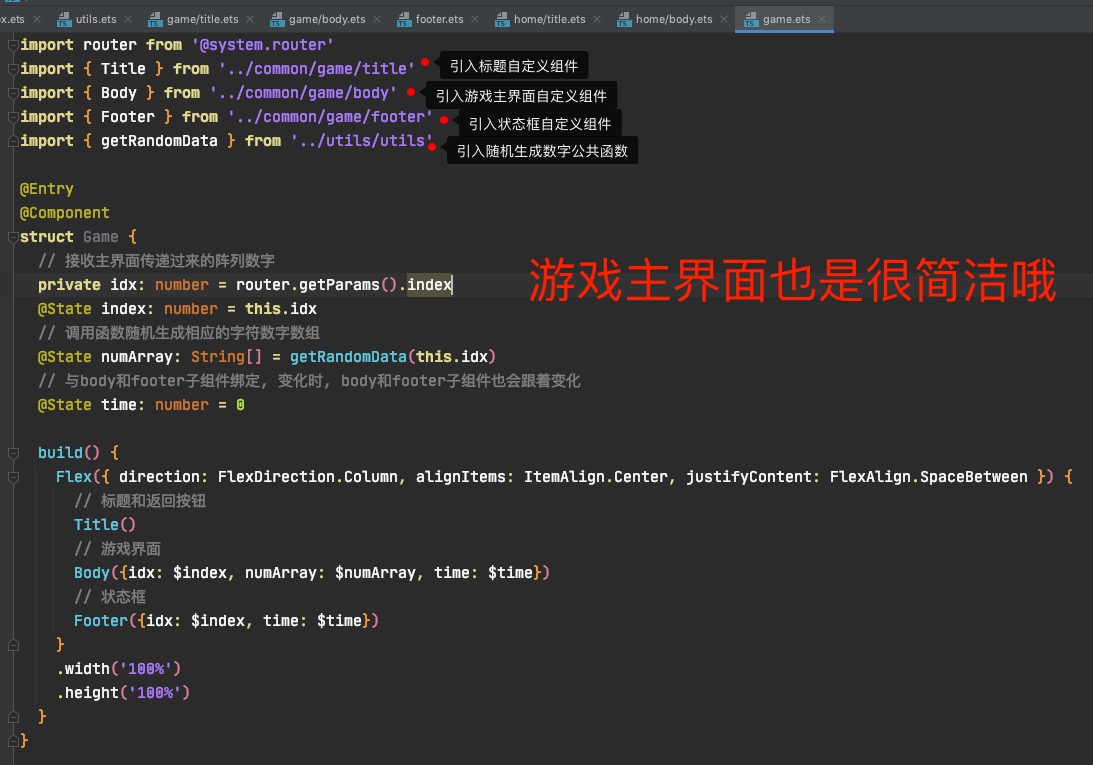
舒尔特方格游戏有主界面和游戏界面两个页面组成,主界面拆开为title和body两个自定义组件组成,游戏界面拆开为title,body和footer三个自定义组件组成,utils为随机生成数字公共类。下面我们来一个一个界面和组件介绍:
3.1 主界面代码,只是一个程序入口,具体页面布局在自定义组件实现:
3.1.1 Index代码:
import { Title } from '../common/home/title'import { Body } from '../common/home/body'@Entry@Componentstruct Index { build() { Column() { // 标题 Title(); // 游戏主界面 Body(); } .alignItems(HorizontalAlign.Center) }}3.1.2 Title自定义组件代码:
@Componentexport struct Title { build() { // 主界面标题 Column() { Text("舒尔特方格") .fontSize(34).margin({top: 30}) .fontWeight(FontWeight.Bold) Text("SchulteGrid") .fontSize(20).margin({top: 3, bottom: 60}) .fontWeight(FontWeight.Bold) } .width('100%') }}3.1.3 Body自定义组件代码:
import router from '@system.router'@Componentexport struct Body { build() { Flex({ direction: FlexDirection.Column, alignItems: ItemAlign.Center, justifyContent: FlexAlign.Start }) { // 3x3, 4x4, 5x5 按钮布局 Row() { Button("3X3", { type: ButtonType.Circle, stateEffect: true }) .width(70).height(70).backgroundColor(0x317aff).fontSize(20) .onClick(() => { this.startGame(3) }) Button("4X4", { type: ButtonType.Circle, stateEffect: true }) .width(70).height(70).backgroundColor(0x317aff).fontSize(20) .margin({left: 30, right: 30}) .onClick(() => { this.startGame(4) }) Button("5X5", { type: ButtonType.Circle, stateEffect: true }) .width(70).height(70).backgroundColor(0x317aff).fontSize(20) .onClick(() => { this.startGame(5) }) }.alignItems(VerticalAlign.Center).margin({bottom: 30}) // 6x6, 7x7 按钮布局 Row() { Button("6X6", { type: ButtonType.Circle, stateEffect: true }) .width(70).height(70).backgroundColor(0x317aff).fontSize(20) .onClick(() => { this.startGame(6) }) Button("7X7", { type: ButtonType.Circle, stateEffect: true }) .width(70).height(70).backgroundColor(0x317aff).fontSize(20) .margin({left: 30}).onClick(() => { this.startGame(7) }) }.alignItems(VerticalAlign.Center).margin({bottom: 30}) // 8x8, 9x9 按钮布局 Row() { Button("8X8", { type: ButtonType.Circle, stateEffect: true }) .width(70).height(70).backgroundColor(0x317aff).fontSize(20) .onClick(() => { this.startGame(8) }) Button("9X9", { type: ButtonType.Circle, stateEffect: true }) .width(70).height(70).backgroundColor(0x317aff).fontSize(20) .margin({left: 30}) .onClick(() => { this.startGame(9) }) }.alignItems(VerticalAlign.Center) } .width('100%') .height('100%') } // 开始游戏 startGame(idx:number) { router.push({ uri: 'pages/game', params: {index: idx} }) }}
3.2. 游戏界面代码,具体页面布局在自定义组件实现:
3.2.1 Game代码:
import router from '@system.router'import { Title } from '../common/game/title'import { Body } from '../common/game/body'import { Footer } from '../common/game/footer'import { getRandomData } from '../utils/utils'@Entry@Componentstruct Game { // 接收主界面传递过来的阵列数字 private idx: number = router.getParams().index @State index: number = this.idx // 调用函数随机生成相应的字符数字数组 @State numArray: String[] = getRandomData(this.idx) // 与body和footer子组件绑定, 变化时, body和footer子组件也会跟着变化 @State time: number = 0 build() { Flex({ direction: FlexDirection.Column, alignItems: ItemAlign.Center, justifyContent: FlexAlign.SpaceBetween }) { // 标题和返回按钮 Title() // 游戏界面 Body({idx: $index, numArray: $numArray, time: $time}) // 状态框 Footer({idx: $index, time: $time}) } .width('100%') .height('100%') }}3.3.2 游戏Title自定义组件代码:
import router from '@system.router'@Componentexport struct Title { build() { Row() { // 返回游戏主界面 Image($r("app.media.back")) .objectFit(ImageFit.Contain) .width(50) .height(50) .margin({ right: 10 }) .onClick(()=>{ this.onBack() }) Text("游戏开始") .fontSize(24) .fontColor(Color.White) .fontWeight(FontWeight.Bold) } .width('100%') .padding({ top: 10, bottom: 10}) .backgroundColor(0x317aff) } // 回退 onBack() { router.back(); }}3.2.3 游戏Body自定义组件代码:
@Componentexport struct Body { // 与game父组件绑定, 记录当前的阵列数字 @Link idx: number; // 与game父组件绑定, 显示相应的数字按钮 @Link numArray: String[]; // 与game父组件绑定, 变化时, 父组件time变量也跟着变化, 同时footer子组件也会跟着变化 @Link time: number; // 根据不同的阵列, 按钮宽高显示不同的大小 private btnSize: number[] = [32, 18, 12, 8, 6, 4, 4] // 根据不同的阵列, 按钮字段显示不同大小 private btnFont: number[] = [32, 24, 22, 12, 7, 8, 6] // 根据不同的阵列, 显示不同界面高度 private gridHeight: number[] = [48, 48, 48, 44, 46, 50, 66] // 根据不同的阵列, 显示不同的行列 private template: string[] = ['1fr 1fr 1fr', '1fr 1fr 1fr 1fr', '1fr 1fr 1fr 1fr 1fr', '1fr 1fr 1fr 1fr 1fr 1fr', '1fr 1fr 1fr 1fr 1fr 1fr 1fr', '1fr 1fr 1fr 1fr 1fr 1fr 1fr 1fr', '1fr 1fr 1fr 1fr 1fr 1fr 1fr 1fr 1fr'] // 记录当前点击的数字 private flagNum: number = 1 // 开始计时 private startTime: number = new Date().getTime() build() { Grid() { // 循环显示阵列数字按钮 ForEach(this.numArray, (day: string) => { GridItem() { Button(day, { type: ButtonType.Circle, stateEffect: true }) .width(this.btnSize[this.idx-3] * this.idx) .height(this.btnSize[this.idx-3] * this.idx) .backgroundColor(0x317aff).fontSize(this.btnFont[this.idx-3]) .onClick(() => { this.startGame(Number(day)) }) } }, day => day) } // 根据相应的阵列数字,显示相应的列数字 .columnsTemplate(this.template[this.idx-3]) // 根据相应的阵列数字,显示相应的行数字 .rowsTemplate(this.template[this.idx-3]) .columnsGap(10) .rowsGap(10) .width(96+'%') .height(this.gridHeight[this.idx-3]+'%') } // 开始游戏 startGame(num:number) { // 如果当前点击的数字等于阵列数组长度, 说明点击到最后一个数字, 弹出挑战成功, 计算出总共耗时 if (num == this.numArray.length && this.flagNum == this.numArray.length ) { AlertDialog.show({ message: '恭喜您挑战成功'}) this.time = (new Date().getTime() - this.startTime) * 1.0 / 1000 } // 如果点击的数字大于累计的数字,弹出提醒信息 if (num > this.flagNum) { AlertDialog.show({ message: '请点击小于此数字'}) // 如果点击的数字小于累计的数字,弹出提醒信息 } else if (num < this.flagNum) { AlertDialog.show({ message: '当前点击的数字,已点击过'}) // 否则累计数字加1 } else { this.flagNum++ } }}3.2.4 游戏Footer自定义组件代码:
@Componentexport struct Footer { // 与game父组件绑定, 记录当前的阵列数字 @Link idx: number; // 与game父组件绑定, 变化时, 父组件time变量也跟着变化, 同时footer子组件也会跟着变化 @Link time: number; build() { Stack({ alignContent: Alignment.Bottom }) { Row() { // 耗时 Button({ type: ButtonType.Capsule, stateEffect: false }) { Row() { Image($r('app.media.trophy')).width(20).height(20).margin({ left: 12 }) Text(this.time + '"').fontSize(16).fontColor(0xffffff).margin({ left: 5, right: 12 }) }.alignItems(VerticalAlign.Center).width(100) }.backgroundColor(0x317aff).opacity(0.7).width(100) // 显示计时中 Button({ type: ButtonType.Capsule, stateEffect: false }) { Row() { Image($r('app.media.time')).width(20).height(20).margin({ left: 12 }) Text('计时中').fontSize(16).fontColor(0xffffff).margin({ left: 5, right: 12 }) }.alignItems(VerticalAlign.Center).width(100) }.backgroundColor(0x317aff).opacity(0.7).width(100) .margin({left: 20, right: 20}) // 帮助功能 Button({ type: ButtonType.Capsule, stateEffect: true }) { Row() { Image($r('app.media.help')).width(20).height(20).margin({ left: 12 }) Text('帮助').fontSize(16).fontColor(0xffffff).margin({ left: 5, right: 12 }) }.alignItems(VerticalAlign.Center).width(100) }.backgroundColor(0x317aff).width(100) .onClick(() => { this.showHelp() }) } }.width('100%').height(100).margin({ top: 5, bottom: 10 }) } // 提示游戏帮助 showHelp() { AlertDialog.show({ message: '以最快速度从 1 选到 ' + (this.idx*this.idx) }) }}3.3. Utils公共函数实现:
/** * 随机生成1-count参数的整数 * @param idx */export function getRandomData(idx:number): Array<String> { // 生成count个数字 let count:number = idx * idx; // 存储生成的字符数字 let result:Array<String> = []; do { // 随机生成一个指定范围的数字 let num = Math.floor(Math.random() * count + 1); // 如果数字不在数组里, 存储到数组 if (-1 == result.indexOf(num+'')) { result.push(num+''); } // 如果随机生成的数字存储到数组的长度等于阵列数, 跳出死循环 if (count == result.length) { break; } }while(true) // 返回数组 return result;};
总结:看到主界面和游戏界面代码,是不是很简洁,声明式开发范式之美,那你还等什么?跟上步伐开始声明式开发吧!!!
源码在码云上等着你: https://gitee.com/army16/schulte-game

5

6

14


浏览949 编辑于2022-09-08 03:50未知归属地
全部评论
最多点赞
最新发布
最早发布




写回答
新增插入模板功能
一键使用模板,快速填写内容,轻松发帖~
知道了
- 为了保障您的信息安全,请勿上传您的敏感个人信息(如您的密码等信息)和您的敏感资产信息(如关键源代码、签名私钥、调试安装包、业务日志等信息),且您需自行承担由此产生的信息泄露等安全风险。
- 如您发布的内容为转载内容,请注明内容来源。
我要发帖子
ArkUI eTS应用开发实战
01
ArkUI eTS 计算十二生肖
02
ArkUI eTS PA计算十二生肖[Service Ability]
03
ArkUI eTS 云函数计算十二生肖[Serverless]
04
ArkUI eTS上实现"流光按钮"效果
05
ArkUI eTS上实现"流光按钮"组件
06
ArkUI eTS舒尔特方格游戏
07
ArkUI eTS开发瀑布式HDC2021图片展示
了解社区公约,与您携手共创和谐专业的开发者社区。


 苏公安网备 32011402010933号