













 大飞哥
【HarmonyOS NEXT实战】从零开发一款急救手册App:多设备适配与硬件调用全攻略
> 本文将详细介绍如何使用HarmonyOS NEXT开发一款功能完善的急救手册应用,涵盖响应式布局、手机/平板多设备适配、手电筒硬件调用、数据持久化等核心技术点。
## 一、项目背景与功能概述
### 1.1 为什么要开发急救手册App?
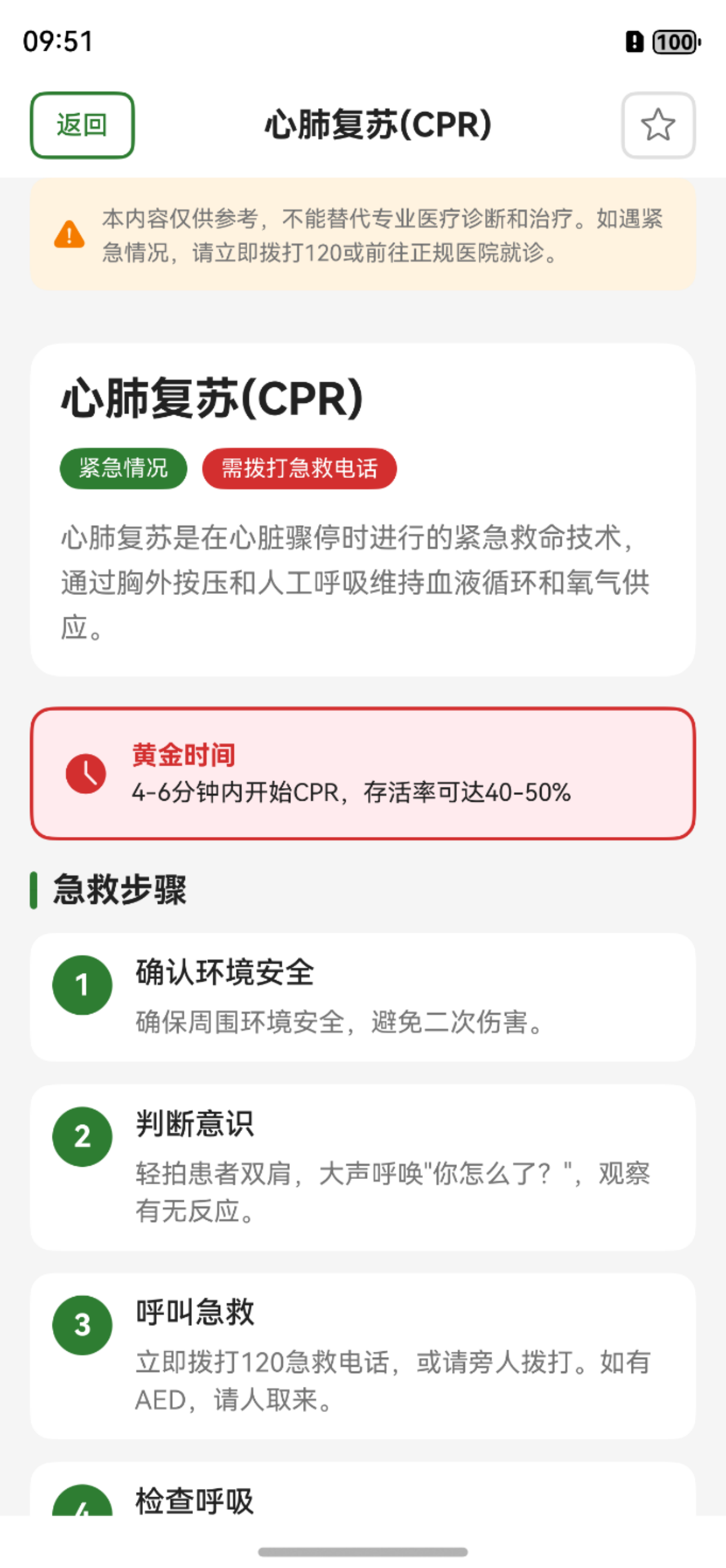
在紧急情况下,掌握正确的急救知识可能挽救生命。然而,大多数人并不具备专业的急救技能。本项目旨在开发一款**离线可用**的急救手册应用,让用户在任何情况下都能快速获取急救指导。
### 1.2 核心功能模块
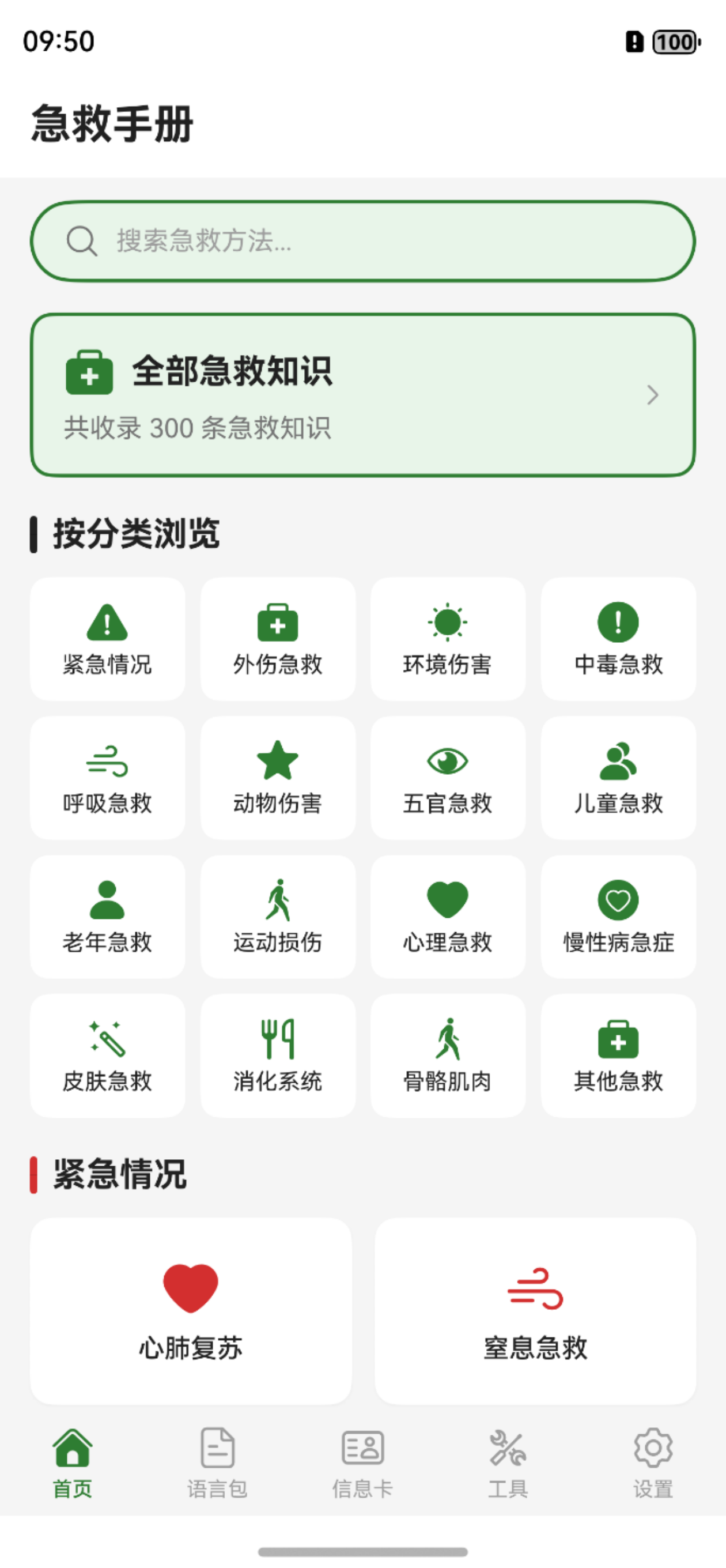
| 模块 | 功能描述 |
|------|----------|
| 🏠 首页 | 急救知识分类展示、快速搜索 |
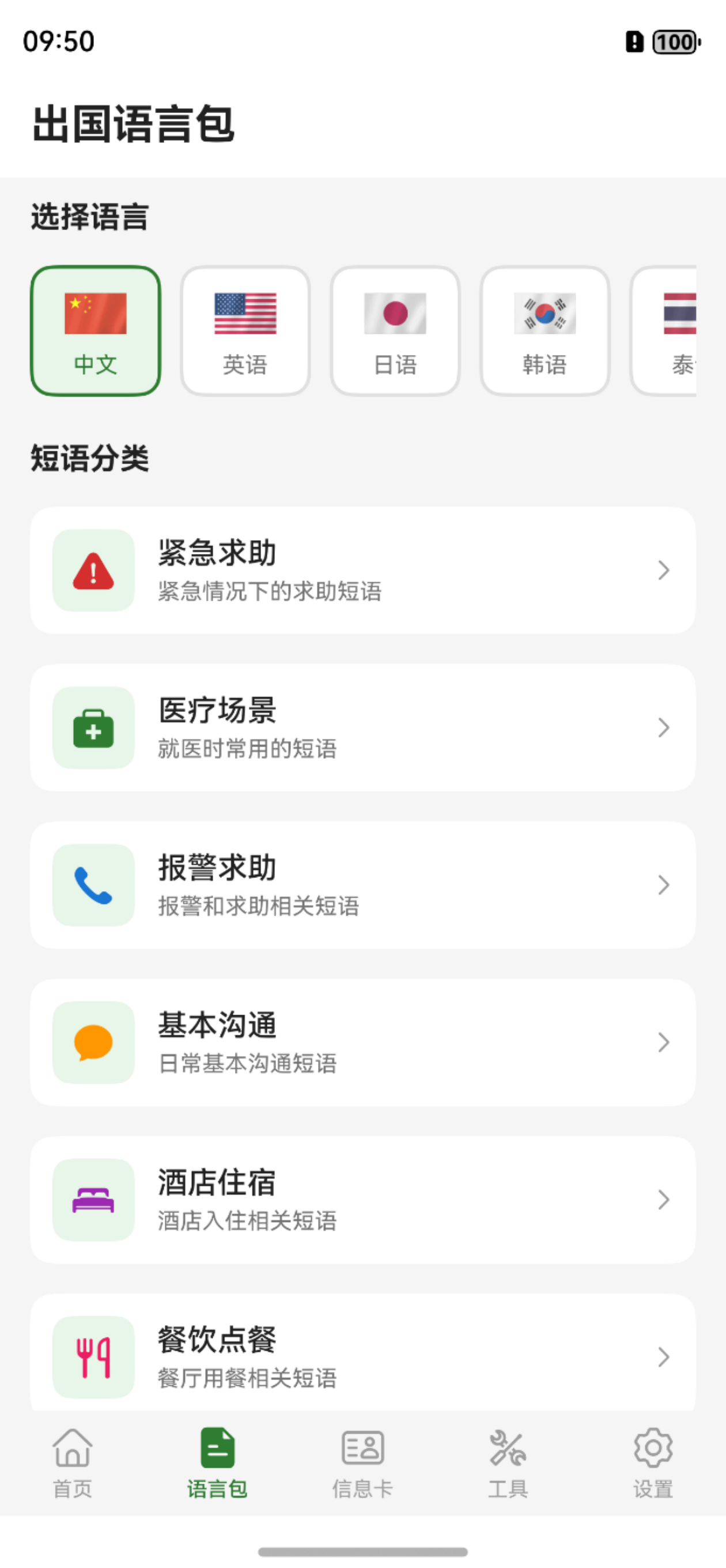
| 🌍 语言包 | 多语言急救短语,出国旅行必备 |
| 💳 信息卡 | 个人医疗信息卡,紧急时刻展示 |
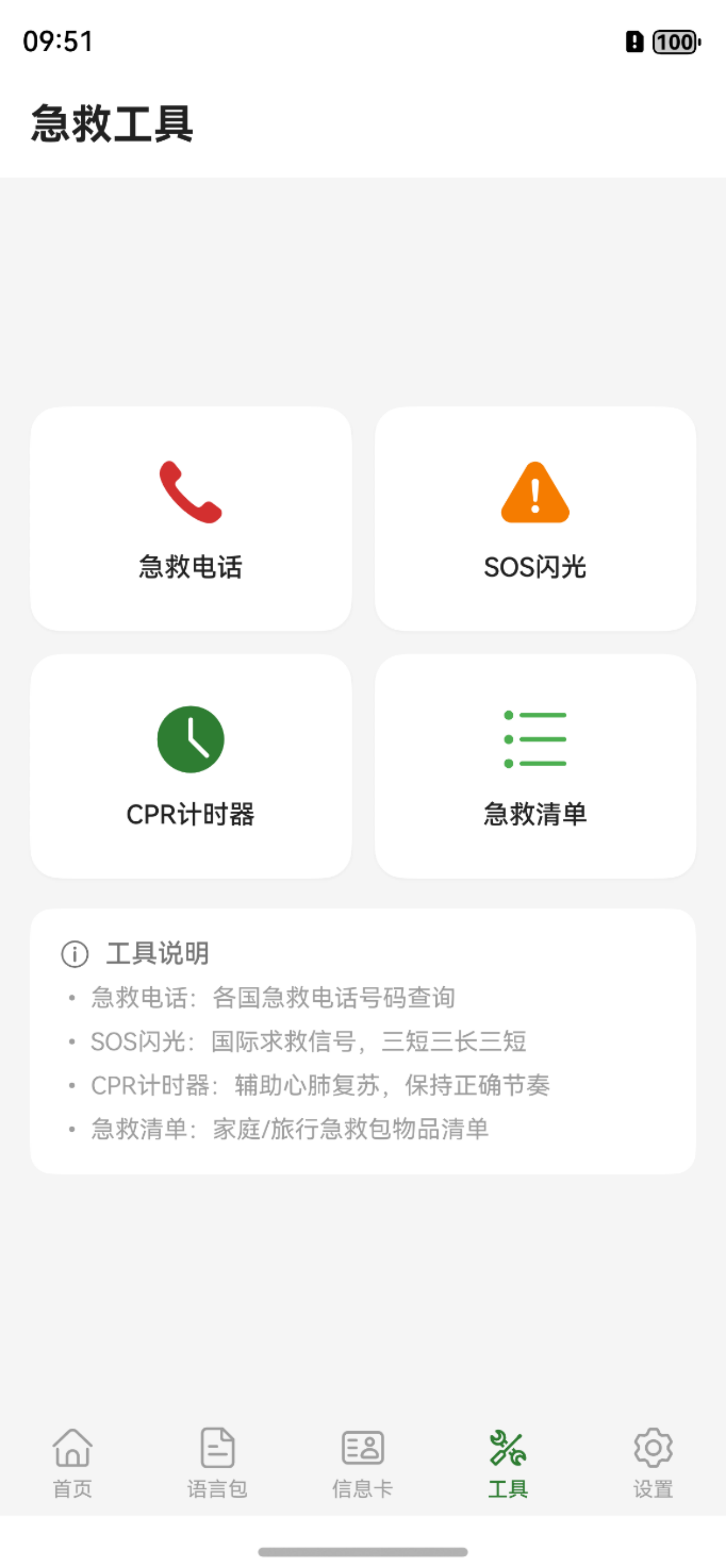
| 🔧 工具箱 | SOS闪光、CPR计时器、紧急电话 |
| ⚙️ 设置 | 主题切换、数据管理、收藏夹 |
### 1.3 技术亮点
- ✅ **一次开发,多端部署**:完美适配手机和平板
- ✅ **响应式布局**:自动适应横竖屏切换
- ✅ **硬件调用**:手电筒SOS信号控制
- ✅ **数据持久化**:用户数据本地存储
- ✅ **权限管理**:规范的动态权限申请流程
---
## 二、项目架构设计
### 2.1 目录结构
```
entry/src/main/ets/
├── common/ # 公共模块
│ ├── DataManager.ets # 数据持久化管理器
│ ├── OrientationManager.ets # 屏幕方向管理器
│ ├── ThemeManager.ets # 主题管理器
│ └── AudioManager.ets # 音频管理器
├── data/ # 数据层
│ ├── FirstAidData.ets # 急救知识数据
│ └── PhraseData.ets # 多语言短语数据
├── models/ # 数据模型
│ ├── FirstAidItem.ets # 急救条目模型
│ └── Phrase.ets # 短语模型
└── pages/ # 页面层
├── Index.ets # 主页面(Tab容器)
├── SOSPage.ets # SOS闪光页面
├── CPRTimerPage.ets # CPR计时器
└── ... # 其他页面
```
### 2.2 核心设计模式
本项目采用**单例模式**管理全局状态,确保数据一致性:
```typescript
// DataManager.ets - 数据管理器单例
export class DataManager {
private static instance: DataManager;
private dataStore: preferences.Preferences | null = null;
private constructor() {}
public static getInstance(): DataManager {
if (!DataManager.instance) {
DataManager.instance = new DataManager();
}
return DataManager.instance;
}
public async initialize(context: common.UIAbilityContext): Promise<void> {
this.dataStore = await preferences.getPreferences(context, 'first_aid_manual_data');
}
}
```
---
## 三、多设备适配:响应式布局实战
### 3.1 断点系统设计
HarmonyOS NEXT推荐使用**栅格断点**实现响应式布局。本项目定义了三个断点:
```typescript
// OrientationManager.ets
export enum BreakPoint {
SM = 'sm', // 小屏 (< 600vp) - 手机竖屏
MD = 'md', // 中屏 (600-840vp) - 手机横屏/小平板
LG = 'lg' // 大屏 (> 840vp) - 平板
}
private calculateBreakpoint(width: number): BreakPoint {
if (width < 600) {
return BreakPoint.SM;
} else if (width < 840) {
return BreakPoint.MD;
} else {
return BreakPoint.LG;
}
}
```
### 3.2 使用AppStorage实现全局状态同步
通过`AppStorage`和`@StorageLink`装饰器,实现断点状态的全局同步:
```typescript
// 初始化全局状态
AppStorage.setOrCreate('currentBreakpoint', this.calculateBreakpoint(this.currentWidth));
AppStorage.setOrCreate('screenOrientation', this.currentOrientation);
// 在组件中使用
@Component
struct HomePage {
@StorageLink('currentBreakpoint') currentBreakpoint: BreakPoint = BreakPoint.SM;
@StorageLink('screenOrientation') screenOrientation: string = 'portrait';
build() {
Column() {
// 根据断点动态调整布局
}
.padding({
left: (this.currentBreakpoint !== BreakPoint.SM &&
this.screenOrientation === 'landscape') ? 48 : 16,
right: 16
})
}
}
```
### 3.3 平板挖孔区适配
平板横屏模式下,左侧可能存在摄像头挖孔区。需要为内容区域添加安全边距:
```typescript
// 动态计算左侧padding,避开挖孔区
.padding({
left: (this.currentBreakpoint !== BreakPoint.SM &&
this.screenOrientation === 'landscape') ? 48 : 16,
right: 16,
bottom: 20
})
```
### 3.4 响应式栅格布局
根据断点动态调整列数:
```typescript
export class ResponsiveUtils {
static getColumnCount(breakpoint: BreakPoint): number {
switch (breakpoint) {
case BreakPoint.SM: return 2; // 手机:2列
case BreakPoint.MD: return 3; // 中屏:3列
case BreakPoint.LG: return 4; // 平板:4列
default: return 2;
}
}
}
// 在GridRow中使用
GridRow({ columns: ResponsiveUtils.getColumnCount(this.currentBreakpoint) }) {
ForEach(this.items, (item) => {
GridCol() {
this.buildItemCard(item)
}
})
}
```
---
## 四、硬件调用:SOS手电筒闪光实现
### 4.1 功能需求
实现国际通用的SOS求救信号(三短三长三短),通过手机手电筒闪烁发出。
### 4.2 权限配置
首先在`module.json5`中声明相机权限:
```json5
{
"module": {
"requestPermissions": [
{
"name": "ohos.permission.CAMERA",
"reason": "$string:camera_permission_reason",
"usedScene": {
"abilities": ["EntryAbility"],
"when": "inuse"
}
}
]
}
}
```
### 4.3 手电筒控制核心代码
```typescript
import { camera } from '@kit.CameraKit';
import { abilityAccessCtrl, common, Permissions } from '@kit.AbilityKit';
@Entry
@Component
struct SOSPage {
@State isRunning: boolean = false;
@State flashOn: boolean = false;
@State torchSupported: boolean = true;
private cameraManager: camera.CameraManager | null = null;
private context: common.UIAbilityContext = getContext(this) as common.UIAbilityContext;
// SOS模式时序:短-短-短-长-长-长-短-短-短
private sosPattern: number[] = [
200, 200, 200, 200, 200, 600, // S: 短短短 + 间隔
600, 200, 600, 200, 600, 600, // O: 长长长 + 间隔
200, 200, 200, 200, 200, 1000 // S: 短短短 + 循环间隔
];
// 初始化相机管理器
async initCameraManager(): Promise<void> {
try {
this.cameraManager = camera.getCameraManager(this.context);
this.torchSupported = this.cameraManager.isTorchSupported();
} catch (error) {
console.error('初始化相机管理器失败:', JSON.stringify(error));
this.torchSupported = false;
}
}
// 控制手电筒开关
setTorchMode(on: boolean): void {
if (this.cameraManager && this.torchSupported) {
this.cameraManager.setTorchMode(
on ? camera.TorchMode.ON : camera.TorchMode.OFF
);
}
}
// 运行SOS闪烁循环
runSOSCycle(): void {
let index = 0;
let isOn = true;
const runNext = () => {
if (!this.isRunning) return;
this.flashOn = isOn;
this.setTorchMode(isOn); // 控制实际手电筒
const duration = this.sosPattern[index];
this.timerId = setTimeout(() => {
isOn = !isOn;
index = (index + 1) % this.sosPattern.length;
runNext();
}, duration);
};
runNext();
}
}
```
### 4.4 动态权限申请最佳实践
```typescript
async requestCameraPermission(): Promise<boolean> {
const permissions: Permissions[] = ['ohos.permission.CAMERA'];
const atManager = abilityAccessCtrl.createAtManager();
// 1. 先检查权限状态
const checkResult = atManager.checkAccessTokenSync(
this.context.applicationInfo.accessTokenId,
'ohos.permission.CAMERA'
);
if (checkResult === abilityAccessCtrl.GrantStatus.PERMISSION_GRANTED) {
return true; // 已授权
}
// 2. 请求权限
const grantStatus = await atManager.requestPermissionsFromUser(
this.context, permissions
);
if (grantStatus.authResults[0] === 0) {
return true; // 用户同意
}
// 3. 用户拒绝,引导去设置页面
this.showPermissionDialog();
return false;
}
// 引导用户去设置页面
showPermissionDialog(): void {
AlertDialog.show({
title: '需要相机权限',
message: 'SOS闪光功能需要相机权限来控制手电筒。',
primaryButton: { value: '取消', action: () => {} },
secondaryButton: {
value: '去设置',
action: () => {
this.context.startAbility({
bundleName: 'com.huawei.hmos.settings',
abilityName: 'com.huawei.hmos.settings.MainAbility',
uri: 'application_info_entry',
parameters: { pushParams: this.context.applicationInfo.name }
});
}
}
});
}
```
---
## 五、数据持久化:Preferences实战
### 5.1 数据模型设计
```typescript
// 个人医疗信息
export interface PersonalInfo {
name: string;
bloodType: string;
allergies: string[];
chronicDiseases: string[];
medications: string[];
insuranceNumber: string;
}
// 紧急联系人
export interface EmergencyContact {
id: number;
name: string;
phone: string;
relationship: string;
}
// 收藏项
export interface FavoriteItem {
id: string;
type: 'firstAid' | 'phrase';
addedTime: number;
}
```
### 5.2 数据存储与读取
```typescript
import { preferences } from '@kit.ArkData';
export class DataManager {
private dataStore: preferences.Preferences | null = null;
// 保存个人信息
async savePersonalInfo(info: PersonalInfo): Promise<void> {
if (!this.dataStore) return;
await this.dataStore.put('personal_info', JSON.stringify(info));
await this.dataStore.flush();
}
// 读取个人信息
async getPersonalInfo(): Promise<PersonalInfo | null> {
if (!this.dataStore) return null;
const data = await this.dataStore.get('personal_info', '');
return data ? JSON.parse(data as string) : null;
}
// 添加收藏
async addFavorite(id: string, type: 'firstAid' | 'phrase'): Promise<void> {
const favorites = await this.getFavorites();
if (!favorites.some(f => f.id === id)) {
favorites.push({ id, type, addedTime: Date.now() });
await this.dataStore?.put('favorites', JSON.stringify(favorites));
await this.dataStore?.flush();
}
}
}
```
---
## 六、UI组件封装:@Builder装饰器实战
### 6.1 可复用卡片组件
```typescript
@Builder
buildCategoryCard(title: string, icon: string, color: ResourceColor, itemId?: string) {
Column({ space: 8 }) {
SymbolGlyph($r(icon) as Resource)
.fontSize(32)
.fontColor([color])
Text(title)
.fontSize(14)
.fontWeight(FontWeight.Medium)
.fontColor($r('app.color.text_primary'))
}
.width('100%')
.height(100)
.justifyContent(FlexAlign.Center)
.backgroundColor($r('app.color.card_background'))
.borderRadius(12)
.shadow({ radius: 4, color: '#08000000', offsetY: 2 })
.onClick(() => {
if (itemId) {
router.pushUrl({
url: 'pages/FirstAidDetailPage',
params: { id: itemId }
});
}
})
}
```
### 6.2 带动画的列表项
```typescript
@Builder
buildAnimatedListItem(item: FirstAidItem, index: number) {
Row() {
// 内容...
}
.opacity(this.cardOpacity)
.translate({ y: this.cardTranslateY })
.animation({
duration: 300,
delay: index * 50, // 错开动画
curve: Curve.EaseOut
})
}
aboutToAppear(): void {
setTimeout(() => {
animateTo({ duration: 400, curve: Curve.EaseOut }, () => {
this.cardOpacity = 1;
this.cardTranslateY = 0;
});
}, 50);
}
```
---
## 七、状态管理:@State响应式更新
### 7.1 问题场景
收藏页面的Tab按钮显示收藏数量,删除收藏后数量不更新。
### 7.2 解决方案
使用`@State`装饰器确保UI响应式更新:
```typescript
@Component
struct FavoritesPage {
@State favorites: FavoriteItem[] = [];
@State allCount: number = 0;
@State firstAidCount: number = 0;
@State phraseCount: number = 0;
// 更新计数
updateCounts(): void {
this.allCount = this.favorites.length;
this.firstAidCount = this.favorites.filter(f => f.type === 'firstAid').length;
this.phraseCount = this.favorites.filter(f => f.type === 'phrase').length;
}
// 删除收藏后更新
async removeFavorite(item: FavoriteItem): Promise<void> {
await this.dataManager.removeFavorite(item.id, item.type);
this.favorites = this.favorites.filter(f => f.id !== item.id);
this.updateCounts(); // 触发UI更新
}
build() {
Column() {
// Tab按钮使用@State变量
this.buildTabButton('全部', 'all', this.allCount)
this.buildTabButton('急救知识', 'firstAid', this.firstAidCount)
this.buildTabButton('语言短语', 'phrase', this.phraseCount)
}
}
}
```
---
## 八、性能优化建议
### 8.1 懒加载
```typescript
// 使用LazyForEach优化长列表
LazyForEach(this.dataSource, (item: FirstAidItem) => {
ListItem() {
this.buildListItem(item)
}
}, (item: FirstAidItem) => item.id)
```
### 8.2 图片缓存
```typescript
Image(item.imageUrl)
.objectFit(ImageFit.Cover)
.syncLoad(false) // 异步加载
```
### 8.3 避免不必要的重渲染
```typescript
// 使用@Prop传递不可变数据
@Component
struct ItemCard {
@Prop item: FirstAidItem; // 单向数据流
build() {
// ...
}
}
```
---
## 九、总结与展望
### 9.1 项目收获
通过本项目的开发,我深入实践了HarmonyOS NEXT的以下核心能力:
1. **ArkTS声明式UI**:简洁高效的UI开发体验
2. **响应式布局**:一套代码适配多种设备
3. **硬件调用**:Camera Kit控制手电筒
4. **数据持久化**:Preferences轻量级存储
5. **权限管理**:规范的动态权限申请流程
### 9.2 未来规划
- [ ] 接入盘古大模型,实现智能急救问答
- [ ] 添加AR功能,可视化展示急救步骤
- [ ] 支持穿戴设备,手表端快速查看
- [ ] 接入华为健康Kit,获取用户健康数据
---
## 十、项目源码
> 完整源码已开源,欢迎Star和Fork!
**技术栈**:HarmonyOS NEXT + ArkTS + ArkUI
**适配设备**:手机、平板
**API版本**:API 12+
---
**作者简介**:热爱HarmonyOS开发,致力于打造优质的鸿蒙原生应用。
**标签**:#HarmonyOS NEXT #ArkTS #响应式布局 #硬件调用 #实战项目
---
> 如果这篇文章对你有帮助,欢迎点赞、收藏、关注!有问题欢迎在评论区交流讨论。


- 为了保障您的信息安全,请勿上传您的敏感个人信息(如您的密码等信息)和您的敏感资产信息(如关键源代码、签名私钥、调试安装包、业务日志等信息),且您需自行承担由此产生的信息泄露等安全风险。
- 如您发布的内容为转载内容,请注明内容来源。
我要发帖子


 苏公安网备 32011402010933号