















上期我们针对Android Q 版本中对设备存储空间进行的限制、新特性变更引发的兼容性问题及原因分析推出了《安卓 Q | 8大场景全面解析应用存储沙箱化》文章,本期文章我们将手把手指导各位应用开发者如何针对以上特性进行适配。
文件共享适配指导
1、使用FileProvider的Content Uri替换File Uri
2、参考谷歌提供的适配指导链接:
https://developer.android.com/training/secure-file-sharing
3、大致的适配流程总结:
■ 指定应用的FileProvider
<provider
 android:name='android.support.v4.content.FileProvider'
 android:authorities='com.huawei.qappcompatissues.fileprovider'
 android:exported='false'
 android:grantUriPermissions='true'>
 <meta-data
 android:name='android.support.FILE_PROVIDER_PATHS'
 android:resource='@xml/file_paths'/>
</provider>
■ 指定应用分享的文件路径,在res/xml/目录增加文件file_paths.xml文件
<?xml version='1.0' encoding='utf-8'?>
<paths xmlns:android='http://schemas.android.com/apk/res/android'>
 <external-path name='external' path='' />
</paths>
■ 获得分享文件的Content Uri
fileUri = FileProvider.getUriForFile(
this,
'com.huawei.qappcompatissues.fileprovider',
picFile);
■ 临时授予文件接收方的文件读写权限
// Grant temporary read permission to the content URI
intent.addFlags(
 Intent.FLAG_GRANT_READ_URI_PERMISSION);
■ 分享文件完整代码
private void sharePicFile(File picFile) {
 try {
// Use the FileProvider to get a content URI
 fileUri = FileProvider.getUriForFile(
 this,
 'com.huawei.qappcompatissues.fileprovider',
 picFile);
 Log.e('test', 'fileUri:' + fileUri);
 if (fileUri != null) {
 Intent intent = new Intent(Intent.ACTION_SEND);
 // Grant temporary read permission to the content URI
 intent.addFlags(
 Intent.FLAG_GRANT_READ_URI_PERMISSION);
 // Put the Uri and MIME type in the result Intent
 intent.setDataAndType(
 fileUri,
 getContentResolver().getType(fileUri));
 startActivity(Intent.createChooser(intent, 'test file share'));
 } else {
 Toast.makeText(this, 'share file error', Toast.LENGTH_SHORT).show();
 }
 } catch (IllegalArgumentException e) {
 Log.e('File Selector',
 'The selected file can't be shared: ' + picFile.toString());
 }
■ 接收方读取文件,比如接收图片文件:
AndroidManifest.xml文件中添加intent过滤器:
<intent-filter>
 <action android:name='android.intent.action.SEND' />
 <category android:name='android.intent.category.DEFAULT' />
 <data android:mimeType='image/*' />
</intent-filter>
通过Intent读取图片,content uri:content://com.huawei.qappcompatissues.fileprovider/external/test.jpg
ImageView imageView = findViewById(R.id.imageView);
Intent intent = getIntent();
String action = intent.getAction();
String type = intent.getType();
if (Intent.ACTION_SEND.equals(action) && type != null) {
 // Get the file's content URI from the incoming Intent
 Uri returnUri = intent.getData();
 if (type.startsWith('image/')) {
 Log.e('test', 'open image file:' + returnUri);
 try {
 Bitmap bmp = getBitmapFromUri(returnUri);
 imageView.setImageBitmap(bmp);
 } catch (IOException e) {
 e.printStackTrace();
 }
 }
通过Content Uri读取图片:
public static Bitmap getBitmapFromUri(Context context, Uri uri) throws IOException {
 ParcelFileDescriptor parcelFileDescriptor =
 context.getContentResolver().openFileDescriptor(uri, 'r');
 FileDescriptor fileDescriptor = parcelFileDescriptor.getFileDescriptor();
 Bitmap image = BitmapFactory.decodeFileDescriptor(fileDescriptor);
 parcelFileDescriptor.close();
 return image;
}
权限适配指导
1、应用读写自己生成的文件不需要申请任何权限
2、应用如果需要读取其他应用保存的多媒体公共集合文件,就需要申请对应的权限:
■ 音乐文件:
android.permission.READ_MEDIA_AUDIO
■ 照片文件:
android.permission.READ_MEDIA_IMAGES
■ 视频文件:
android.permission.READ_MEDIA_VIDEO
3、谷歌提供的兼容性方案:
■ 应用的targetSdkVersion<Q,只要应用动态申请了READ_EXTERNAL_STORAGE/WRITE_EXTERNAL_STORAGE权限,系统会自动将该权限转成新增的:android.permission.READ_MEDIA_AUDIO、android.permission.READ_MEDIA_IMAGES和android.permission.READ_MEDIA_VIDEO权限
4、适配指导:
TargetSdkVersion<Q的应用不适配也不会有问题,只有TargetSdkVersion>=Q的应用需要适配,否则会导致没有权限访问多媒体文件:
■ 需要在 AndroidManifest.xml 中新增 uses-permissions 声明 (不一定全要,请根据实际业务需要访问音频,图片还是视频选择必须的; 如果完全不需要访问媒体类的文件,只是访问普通下载文件,下列权限都是不需要申请的)
<uses-permission android:name='android.permission.READ_MEDIA_AUDIO'/>
<uses-permission android:name='android.permission.READ_MEDIA_IMAGES'/>
<uses-permission android:name='android.permission.READ_MEDIA_VIDEO'/>
■ 在代码中使用权限前调用checkSelfPermission检查权限是否授权,未授权情况下调用requestPermission动态申请上述权限,让用户通过弹框确认。
■ 同时兼容Q和Q之前的安卓版本:
◆ 在AndroidManifest.xml 中同时uses-permission声明新老权限;
◆ 在代码中通过API level来区分,当API level低于Q时,运行P版本旧的权限的动态授权代码;大于等于Q时运行新的权限的动态授权代码;
private void requestPermission() {
 if (Build.VERSION.SDK_INT >= Build.VERSION_CODES.Q) {
 if (ContextCompat.checkSelfPermission(this,
 Manifest.permission.READ_MEDIA_IMAGES)
 != PackageManager.PERMISSION_GRANTED || ContextCompat.checkSelfPermission(this,
 Manifest.permission.READ_MEDIA_AUDIO)
 != PackageManager.PERMISSION_GRANTED) {
 ActivityCompat.requestPermissions(this,
 new String[]{Manifest.permission.READ_MEDIA_IMAGES, Manifest.permission.READ_MEDIA_AUDIO},
 MY_PERMISSIONS_REQUEST_READ_MEDIA_IMAGES);
 }
 } else {
 // request old storage permission
 }
}
本地多媒体文件读写适配指导
1、多媒体文件读取
■ 多媒体文件和下载文件读取接口
■ 通过ContentProvider查询文件,获得需要读取的文件Uri:
public static List<Uri> loadPhotoFiles(Context context) {
 Log.e(TAG, 'loadPhotoFiles');
 List<Uri> photoUris = new ArrayList<Uri>();
 Cursor cursor = context.getContentResolver().query(
 MediaStore.Images.Media.EXTERNAL_CONTENT_URI, new String[]{MediaStore.Images.Media._ID}, null, null, null);
 Log.e(TAG, 'cursor size:' + cursor.getCount());
 while (cursor.moveToNext()) {
 int id = cursor.getInt(cursor
 .getColumnIndex(MediaStore.Images.Media._ID));
 Uri photoUri = Uri.parse(MediaStore.Images.Media.EXTERNAL_CONTENT_URI.toString() + File.separator + id);
 Log.e(TAG, 'photoUri:' + photoUri);
 photoUris.add(photoUri);
 }
 return photoUris;
}
■ 通过Uri读取文件:
public static Bitmap getBitmapFromUri(Context context, Uri uri) throws IOException {
 ParcelFileDescriptor parcelFileDescriptor =
 context.getContentResolver().openFileDescriptor(uri, 'r');
 FileDescriptor fileDescriptor = parcelFileDescriptor.getFileDescriptor();
 Bitmap image = BitmapFactory.decodeFileDescriptor(fileDescriptor);
 parcelFileDescriptor.close();
 return image;
}
■ MediaProvider变更适配指导
MediaProvider中的“_data”字段已经废弃掉了,开发者不能再认为该字段保存的是文件的真实路径,Q版本因为存储空间限制的变更,应用已经无法直接通过文件路径读取文件,需要使用文件的Content URI读取文件,目前发现有很多应用通过“_data”值作为文件的真实路径在加载显示图片之前判断文件是否存在,这样的做法在Q版本是有问题的,应用需要整改。
2、多媒体文件保存
应用只能在沙箱内通过文件路径的方式保存文件,如果需要保存文件到沙箱目录外,需要使用特定的接口实现,具体可参考:
■ 方式1:
通过MediaStore.Images.Media.insertImage接口可以将图片文件保存到/sdcard/Pictures/,但是只有图片文件保存可以通过MediaStore的接口保存,其他类型文件无法通过该接口保存;
public static void saveBitmapToFile(Context context, Bitmap bitmap, String title, String discription) {
 MediaStore.Images.Media.insertImage(context.getContentResolver(), bitmap, title, discription);
}
■ 方式2:
通过ContentResolver的insert方法将多媒体文件保存到多媒体的公共集合目录;
/**
 * 保存多媒体文件到公共集合目录
 * @param uri:多媒体数据库的Uri
 * @param context
 * @param mimeType:需要保存文件的mimeType
 * @param displayName:显示的文件名字
 * @param description:文件描述信息
 * @param saveFileName:需要保存的文件名字
 * @param saveSecondaryDir:保存的二级目录
 * @param savePrimaryDir:保存的一级目录
 * @return 返回插入数据对应的uri
 */
public static String insertMediaFile(Uri uri, Context context, String mimeType,
 String displayName, String description, String saveFileName, String saveSecondaryDir, String savePrimaryDir) {
 ContentValues values = new ContentValues();
 values.put(MediaStore.Images.Media.DISPLAY_NAME, displayName);
 values.put(MediaStore.Images.Media.DESCRIPTION, description);
 values.put(MediaStore.Images.Media.MIME_TYPE, mimeType);
 values.put(MediaStore.Images.Media.PRIMARY_DIRECTORY, savePrimaryDir);
 values.put(MediaStore.Images.Media.SECONDARY_DIRECTORY, saveSecondaryDir);
 Uri url = null;
 String stringUrl = null; /* value to be returned */
 ContentResolver cr = context.getContentResolver();
 try {
 url = cr.insert(uri, values);
 if (url == null) {
 return null;
 }
 byte[] buffer = new byte[BUFFER_SIZE];
 ParcelFileDescriptor parcelFileDescriptor = cr.openFileDescriptor(url, 'w');
 FileOutputStream fileOutputStream =
 new FileOutputStream(parcelFileDescriptor.getFileDescriptor());
 InputStream inputStream = context.getResources().getAssets().open(saveFileName);
 while (true) {
 int numRead = inputStream.read(buffer);
 if (numRead == -1) {
 break;
 }
 fileOutputStream.write(buffer, 0, numRead);
 }
 fileOutputStream.flush();
 } catch (Exception e) {
 Log.e(TAG, 'Failed to insert media file', e);
 if (url != null) {
 cr.delete(url, null, null);
 url = null;
 }
 }
 if (url != null) {
 stringUrl = url.toString();
 }
 return stringUrl;
}
比如你需要把一个图片文件保存到/sdcard/dcim/test/下面,可以这样调用:
SandboxTestUtils.insertMediaFile(MediaStore.Images.Media.EXTERNAL_CONTENT_URI, this, 'image/jpeg', 'insert_test_img', 'test img save use insert', 'if_apple_2003193.png', 'test', Environment.DIRECTORY_DCIM);
音频和视频文件也是可以通过这个方式进行保存,比如音频文件保存到/sdcard/Music/test/:
SandboxTestUtils.insertMediaFile(MediaStore.Audio.Media.EXTERNAL_CONTENT_URI, this, 'audio/mpeg', 'insert_test_music', 'test audio save use insert', 'Never Forget You.mp3', 'test', Environment.DIRECTORY_MUSIC);
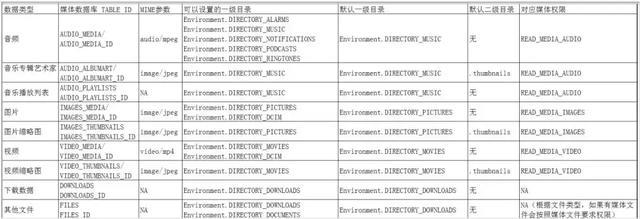
可以通过PRIMARY_DIRECTORY和SECONDARY_DIRECTORY字段来设置一级目录和二级目录:
■ 一级目录必须是和MIME type的匹配的根目录下的Public目录,一级目录可以不设置,不设置时会放到默认的路径;
■ 二级目录可以不设置,不设置时直接保存在一级目录下
■ 应用生成的文档类文件,代码里面默认不设置时,一级是Downloads目录,也可以设置为Documents目录,建议推荐三方应用把文档类的文件一级目录设置为Documents目录。
■ 一级目录MIME type,默认目录、允许的目录映射以及对应的读取权限如下表所示:
3、多媒体文件的编辑和修改
应用只有自己插入的多媒体文件的写权限,没有别的应用插入的多媒体文件的写权限,比如使用下面的代码删除别的应用的多媒体文件会因为权限问题导致删除失败:
context.getContentResolver().delete(uri, null, null))
对于需要修改和删除别的应用保存的多媒体文件的适配建议:
■ 方式1:
如果应用需要修改其他应用插入的多媒体文件,需要作为系统默认应用,比如作为系统默认图库,可以删除和修改其他应用的图片和视频文件;作为系统的默认音乐播放软件,可以删除和修改其他应用的音乐文件。
参考谷歌提供的适配指导:https://developer.android.google.cn/preview/features/roles#check-default-app
在AndroidManifest文件增加对应的权限和默认应用intent过滤器的申明
<activity
 android:name='.MainActivity'>
 <intent-filter>
 <action android:name='android.intent.action.MAIN'/>
 <category android:name='android.intent.category.LAUNCHER'/>
 <category android:name='android.intent.category.APP_GALLERY' />
 <category android:name='android.intent.category.DEFAULT' />
 </intent-filter>
</activity>
在启动应用页面里面增加是不是默认应用的判断:
//设置默认应用
RoleManager roleManager = getSystemService(RoleManager.class);
if (roleManager.isRoleAvailable(RoleManager.ROLE_GALLERY)) {
 if (roleManager.isRoleHeld(RoleManager.ROLE_GALLERY)) {
 // This app is the default gallery app.
 Log.e(TAG, 'This app is the default gallery app');
 } else {
 // This app isn't the default gallery app, but the role is available,
 // so request it.
 Log.e(TAG, 'This app isn't the default gallery app');
 Intent roleRequestIntent = roleManager.createRequestRoleIntent(
 RoleManager.ROLE_GALLERY);
 startActivityForResult(roleRequestIntent, ROLE_REQUEST_CODE);
 }
}
用户设置您的App为默认音乐应用之后,就有权限写其他应用保存的音乐文件了。另外其他的类型多媒体文件也可以按照同样的方式处理:

■ 方式2:
使用ContentResolver对象查找文件并进行修改或者删除。执行修改或删除操作时,捕获RecoverableSecurityException,以便您可以请求用户授予您对多媒体文件的写入权限。(备注:目前这一块代码还未完全ready,当前版本无法通过这个方式完成多媒体文件删除。)
在任意的指定目录读写文件适配指导
1、使用SAF方式适配
2、参考谷歌提供的适配指导:
https://developer.android.com/guide/topics/providers/document-provider
3、参考实现代码:
■ 读取和修改文件
通过Intent传入ACTION_OPEN_DOCUMENT拉起DocumentUI:
public void performFileSearch() {
 // ACTION_OPEN_DOCUMENT is the intent to choose a file via the system's file
 // browser.
 Intent intent = new Intent(Intent.ACTION_OPEN_DOCUMENT);
 // Filter to only show results that can be 'opened', such as a
 // file (as opposed to a list of contacts or timezones)
 intent.addCategory(Intent.CATEGORY_OPENABLE);
 // Filter to show only images, using the image MIME data type.
 // If one wanted to search for ogg vorbis files, the type would be 'audio/ogg'.
 // To search for all documents available via installed storage providers,
 // it would be '*/*'.
 intent.setType('image/*');
 startActivityForResult(intent, READ_REQUEST_CODE);
}
在拉起的DocumentUI中用户可以选择需要打开的图片文件:
DocumentUI会把用户选择的图片文件的Content Uri通过intent传回给应用,应用在onActivityResult回调中就可以拿到这个Uri,通过Uri读取或者修改文件,比如打开文件:
if (requestCode == READ_REQUEST_CODE && resultCode == Activity.RESULT_OK) {
 // The document selected by the user won't be returned in the intent.
 // Instead, a URI to that document will be contained in the return intent
 // provided to this method as a parameter.
 // Pull that URI using resultData.getData().
 Uri uri = null;
 if (resultData != null) {
 uri = resultData.getData();
 Log.i(TAG, 'Uri: ' + uri.toString());
 showImage(uri);
 }
}
private void showImage(Uri uri) {
 try {
 ((ImageView) findViewById(R.id.imageView)).setImageBitmap(getBitmapFromUri(uri));
 } catch (IOException e) {
 e.printStackTrace();
 }
}
private Bitmap getBitmapFromUri(Uri uri) throws IOException {
 ParcelFileDescriptor parcelFileDescriptor =
 getContentResolver().openFileDescriptor(uri, 'r');
 FileDescriptor fileDescriptor = parcelFileDescriptor.getFileDescriptor();
 Bitmap image = BitmapFactory.decodeFileDescriptor(fileDescriptor);
 parcelFileDescriptor.close();
 return image;
}
修改文件:
try {
 ParcelFileDescriptor pfd = getContentResolver().
 openFileDescriptor(uri, 'w');
 FileOutputStream fileOutputStream =
 new FileOutputStream(pfd.getFileDescriptor());
 fileOutputStream.write((
 System.currentTimeMillis() + ' edit file by saf\n').getBytes());
 // Let the document provider know you're done by closing the stream.
 fileOutputStream.close();
 pfd.close();
} catch (FileNotFoundException e) {
 e.printStackTrace();
} catch (IOException e) {
 e.printStackTrace();
}
删除文件:
Uri uri = null;
if (resultData != null) {
 uri = resultData.getData();
 Log.i(TAG, 'delete Uri: ' + uri.toString());
 // showImage(uri);
 final int takeFlags = getIntent().getFlags()
 & (Intent.FLAG_GRANT_READ_URI_PERMISSION
 | Intent.FLAG_GRANT_WRITE_URI_PERMISSION);
 // Check for the freshest data.
 getContentResolver().takePersistableUriPermission(uri, takeFlags);
 try {
 DocumentsContract.deleteDocument(getContentResolver(), uri);
 } catch (FileNotFoundException e) {
 e.printStackTrace();
 }
}
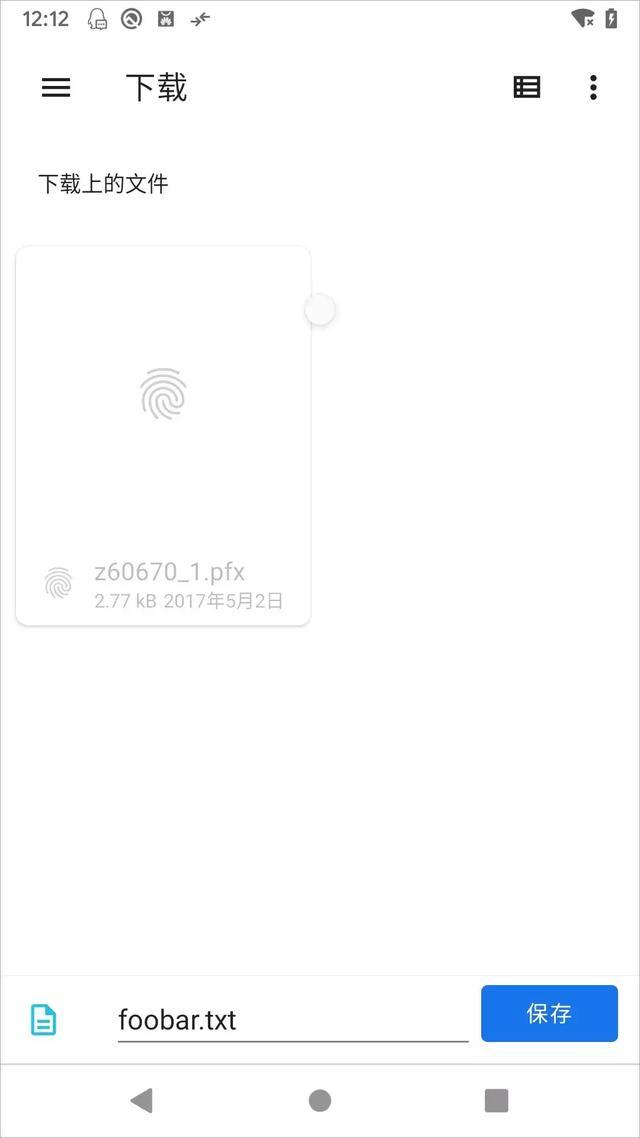
■ 新建文件
private void createFile(String mimeType, String fileName) {
 Intent intent = new Intent(Intent.ACTION_CREATE_DOCUMENT);
 // Filter to only show results that can be 'opened', such as
 // a file (as opposed to a list of contacts or timezones).
 intent.addCategory(Intent.CATEGORY_OPENABLE);
 // Create a file with the requested MIME type.
 intent.setType(mimeType);
 intent.putExtra(Intent.EXTRA_TITLE, fileName);
 startActivityForResult(intent, WRITE_REQUEST_CODE);
}
用户通过拉起的DocumentUI选择文件保存的目录,点击保存:
4.jpg
用户点击保存之后,DocumentUI就会把需要保存的文件的Content Uri通过intent传回给应用:
if (requestCode == WRITE_REQUEST_CODE && resultCode == Activity.RESULT_OK) {
 // The document selected by the user won't be returned in the intent.
 // Instead, a URI to that document will be contained in the return intent
 // provided to this method as a parameter.
 // Pull that URI using resultData.getData().
 Uri uri = null;
 if (resultData != null) {
 uri = resultData.getData();
 Log.i(TAG, 'Uri: ' + uri.toString());
// showImage(uri);
 final int takeFlags = getIntent().getFlags()
 & (Intent.FLAG_GRANT_READ_URI_PERMISSION
 | Intent.FLAG_GRANT_WRITE_URI_PERMISSION);
 // Check for the freshest data.
 getContentResolver().takePersistableUriPermission(uri, takeFlags);
 writeFile(uri);
 }
 }
写文件:
private void writeFile(Uri uri) {
 try {
 ParcelFileDescriptor pfd = getContentResolver().
 openFileDescriptor(uri, 'w');
 FileOutputStream fileOutputStream =
 new FileOutputStream(pfd.getFileDescriptor());
 fileOutputStream.write(('Overwritten by MyCloud at ' +
 System.currentTimeMillis() + '\n').getBytes());
 // Let the document provider know you're done by closing the stream.
 fileOutputStream.close();
 pfd.close();
 } catch (FileNotFoundException e) {
 e.printStackTrace();
 } catch (IOException e) {
 e.printStackTrace();
 }
}
应用卸载之后应用文件删除适配指导
应用通过路径生成的文件都是存放在应用的沙箱目录下面,应用卸载的时候,应用不做适配,应用的整个沙箱目录都会被直接删除,如果应用有一些用户主动保存的文件不希望在应用被卸载的时候删除需要如何做呢?有两个方法:
■ 推荐方法:
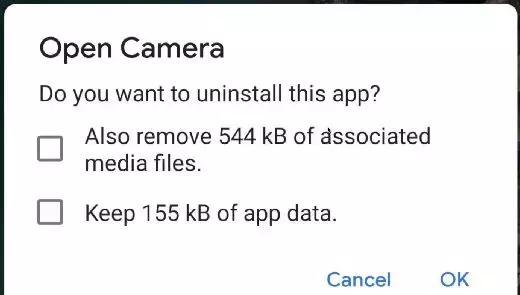
把不希望删除的文件通过MediaProvider或者SAF的接口保存在公共集合目录下面,具体可以参考前面的适配章节内容,保存在公共集合目录的文件在应用卸载的时候默认会弹框提示用户是否删除这些文件,对应下面弹框的第一个勾选,默认保留,勾选删除,谷歌后续的版本计划把这个勾选去掉,意味着应用保存到公共集合目录的文件卸载的时候不会提示用户删除。
■ 方法2:
在应用的AndroidManifest.xml文件增加:<application android:fragileUserData=”true” />,应用不增加该属性的话,应用能卸载的时候应用保存在沙箱目录的文件会直接被删除,不会弹框提示。只有应用增加了这个属性,并且设置的值是为true,在应用被卸载的时候,才会弹框提示,对应的是上面图中的第2个勾选,默认删除,勾选保留。


 苏公安网备 32011402010933号