Keyring's Credential Manager feature allows users of your app to view and manage their sign-in credentials stored by your app on their devices. The detailed procedure and screen are as follows:
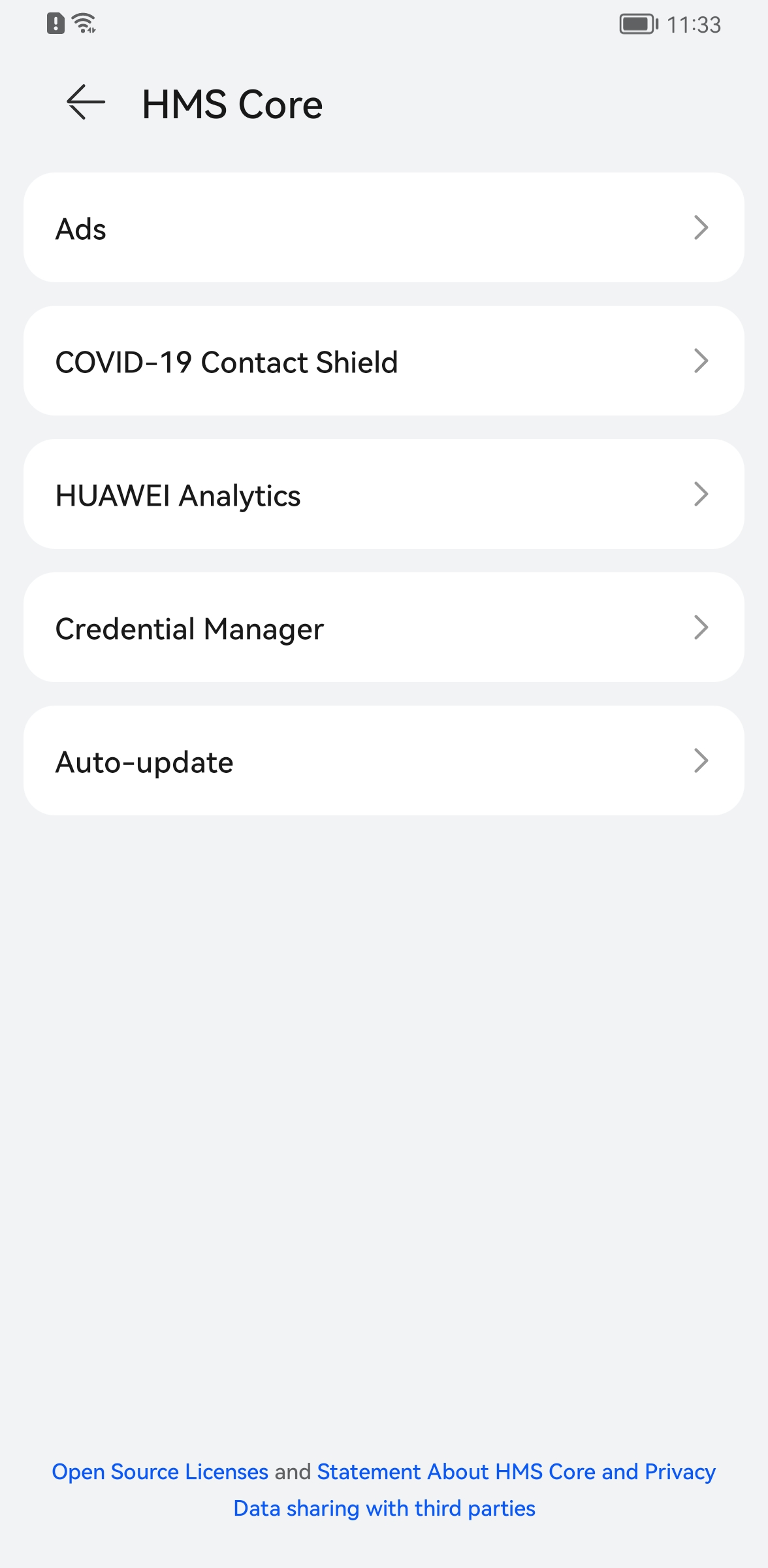
Step 1: Launch the HMS Core app and tap Credential Manager.
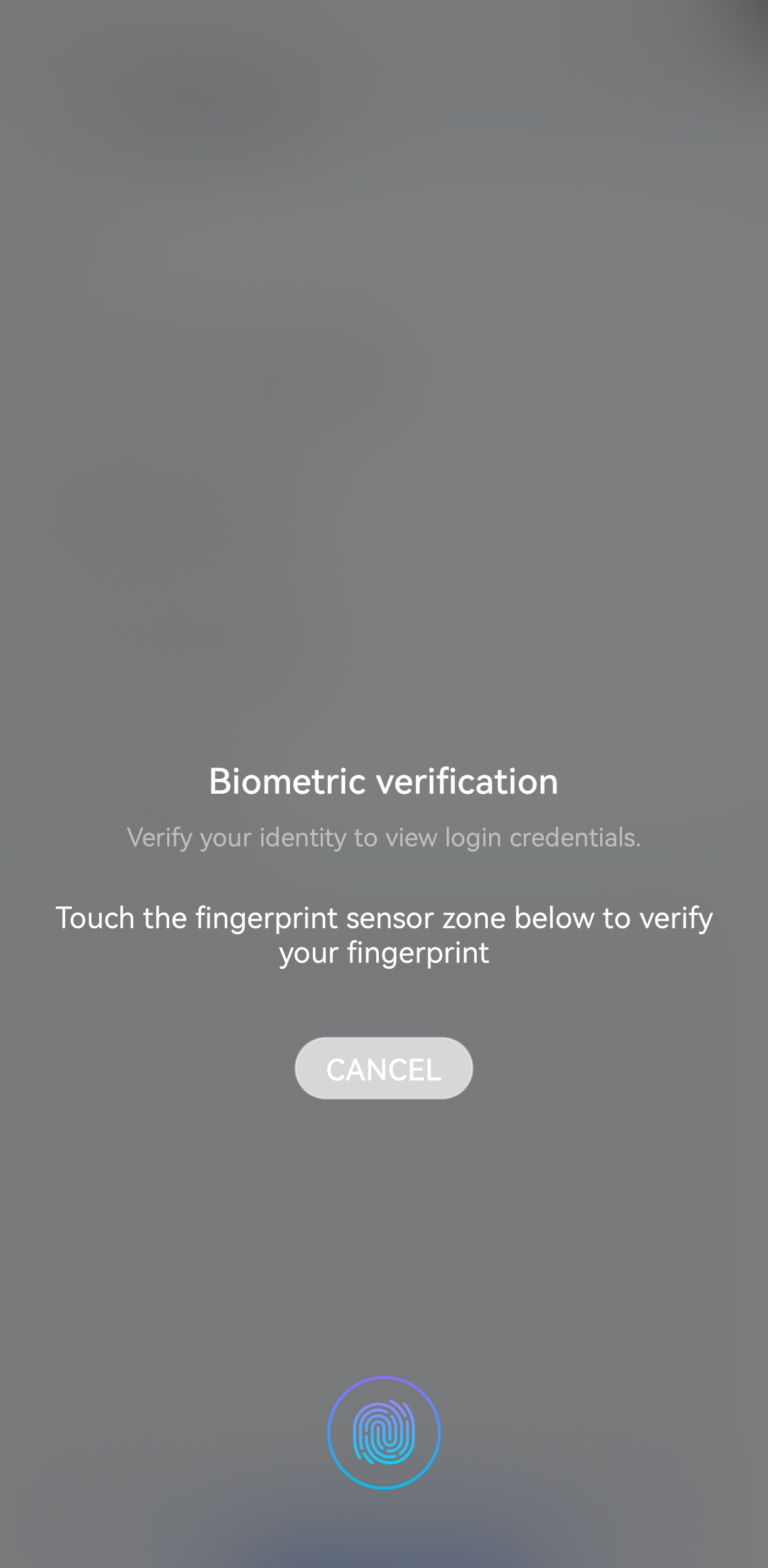
Step 2: Perform identify verification using biometric information or a password.
When a user wants to views sign-in credentials stored on a device, they must first perform identity verification.
Step 3: Go to the Credential Manager screen.
On this screen, the user can view a list of apps that use Keyring on their device and the sign-in credentials stored by these apps. If your app stores multiple sign-in credentials of the same user, these credentials will be displayed individually.
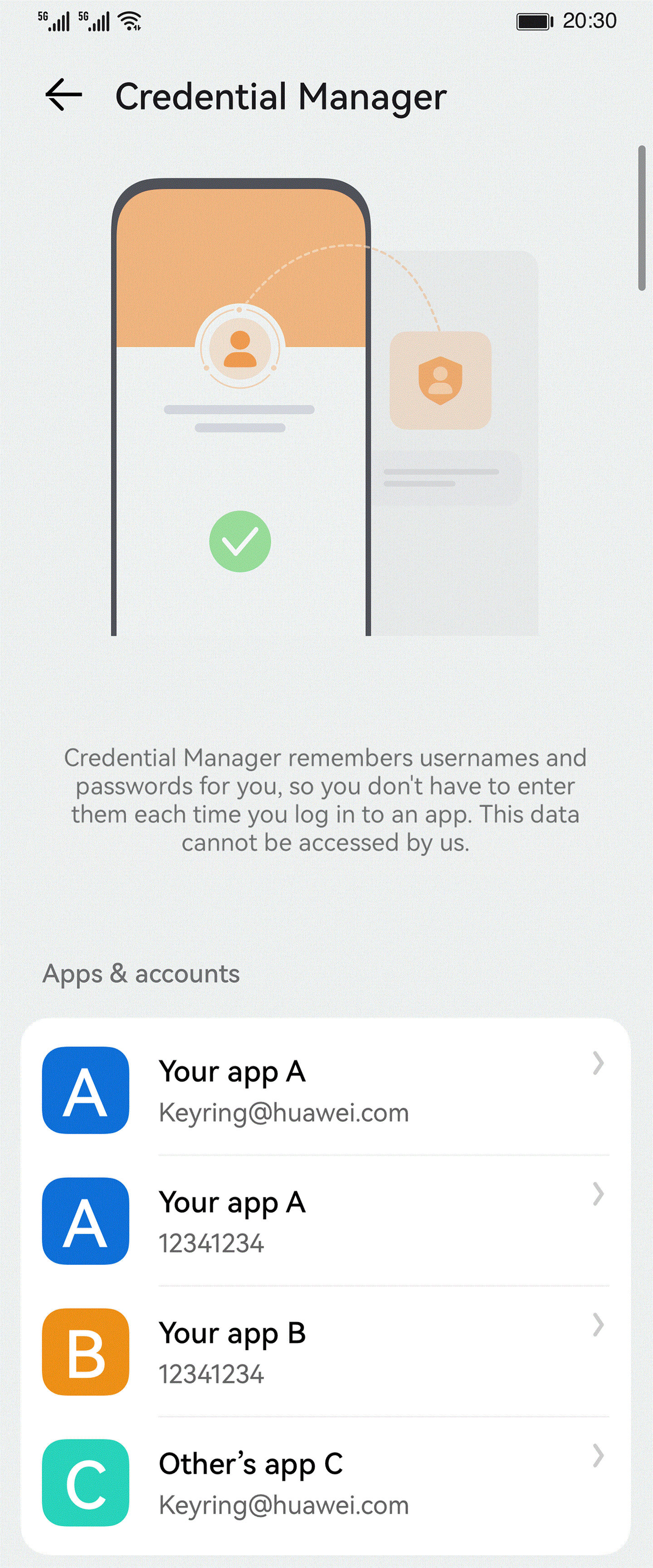
The accounts displayed under Apps & accounts are username values that you set during creation of Credential objects. After an object is created, you will not be able to modify the username parameter. Therefore, you need to ensure that the value of username can be easily understood by the user.
Step 4: Manage credentials on the Credential Manager screen.
The user can tap any credential on the Credential Manager screen to view and manage the credential sharing relationships.
In the screenshot below:
① is the app that stores the credential.
② is a list of apps that can use this credential to directly sign the user in, without requiring the user to enter their account name, password, and verification code.
③ allows users to delete the credential from Keyring.
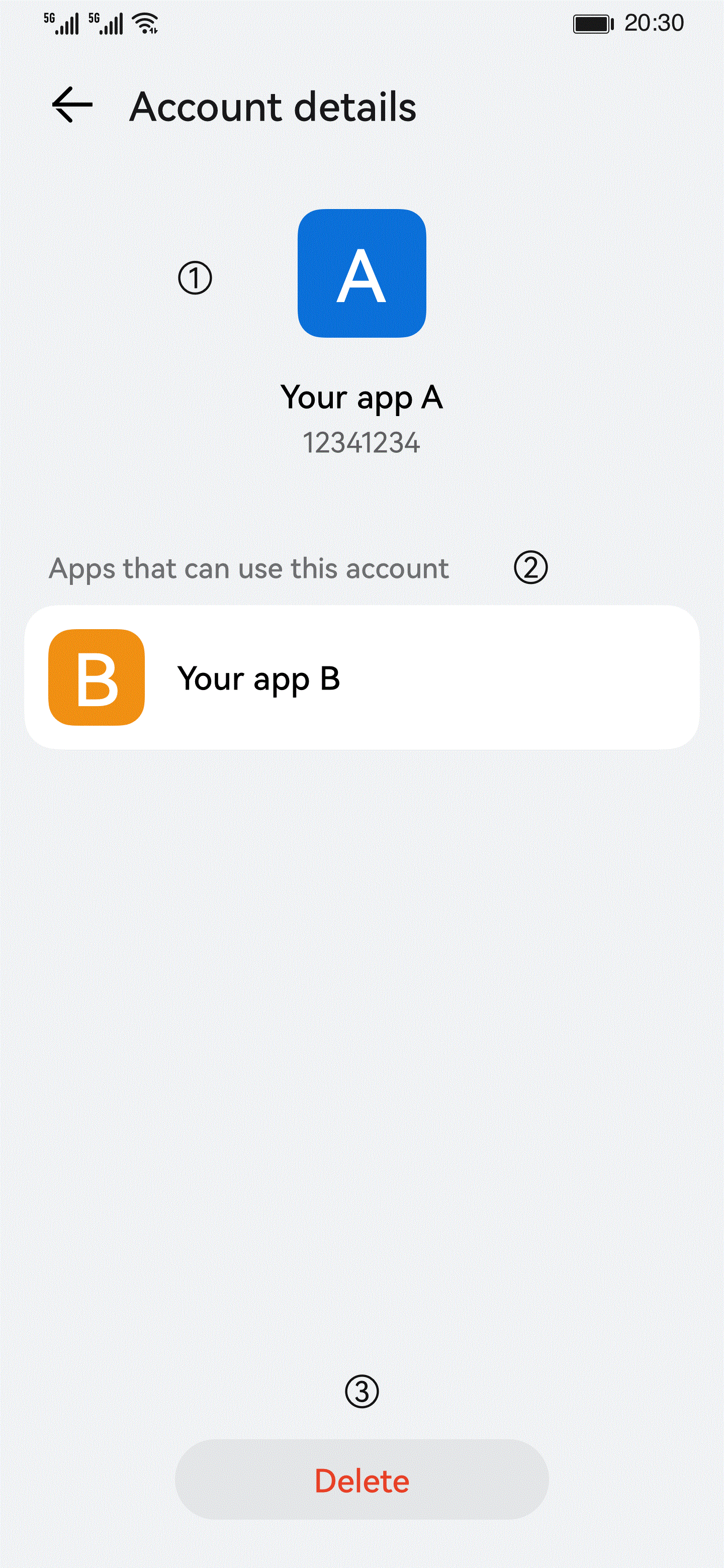
When creating the AndroidAppIdentity, QuickAppIdentity, and WebAppIdentity objects on the sharedWith list, you can set the name parameter to specify the name and icon for an app that can use the credential. Ensure that the name parameter is set correctly, so that users can clearly see which app stores the credential.