













您当前正在浏览新版开发者文档中心,目录分类和层级有所调整。点击左侧当前文档分类名称前的“☰”图标,可切换文档分类。 了解新版目录
高亮显示PDF文档
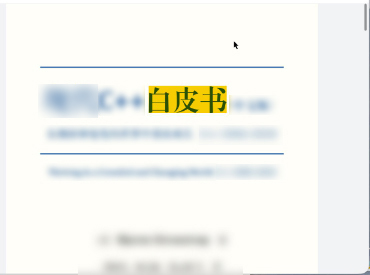
PDF文档在预览时,可以对页面的矩形区域或文本设置高亮显示,高亮颜色可以自定义。
setHighlightText可以同时高亮多个不同的文本。
接口说明
| 接口名 | 描述 |
|---|---|
| setHighlightText(pageIndex: number, textArray: string[], color: number): void | 高亮指定文本。 |
注意
示例代码
-
加载PDF文档。
-
调用PdfView预览组件,渲染显示。
-
在按钮【setHighlightText】里,调用setHighlightText方法,设置单个或多个要高亮的文本。
- import { pdfService, PdfView, pdfViewManager } from '@kit.PDFKit';
- // ...
-
- @Entry
- @Component
- struct HighlightPage {
- private controller: pdfViewManager.PdfController = new pdfViewManager.PdfController();
- private context = this.getUIContext().getHostContext() as Context;
- private loadResult: pdfService.ParseResult = pdfService.ParseResult.PARSE_ERROR_FORMAT;
-
- aboutToAppear(): void {
- // 确保在工程目录src/main/resources/resfile里存在input.pdf文档
- let filePath = this.context.resourceDir + '/input.pdf';
- (async () => {
- this.loadResult = await this.controller.loadDocument(filePath);
- })()
- }
-
- build() {
- // ...
- Column() {
- Row() {
- // 设置文本的高亮显示风格
- Button('setHighlightText').onClick(async () => {
- if (this.loadResult === pdfService.ParseResult.PARSE_SUCCESS) {
- this.controller.setHighlightText(0, ['PDF'], 0xAAF9CC00);
- }
- })
- }
- // 加载PdfView组件进行预览
- PdfView({
- controller: this.controller,
- pageFit: pdfService.PageFit.FIT_WIDTH,
- showScroll: true
- })
- .id('pdfview_app_view')
- .layoutWeight(1);
- }
- // ...
- .width('100%').height('100%')
- }
- }


