














为了方便表述,对通过addTextSpan()方法和addBuilderSpan()方法添加到编辑区域的内容分别命名为textSpan和builderSpan。
您当前正在浏览新版开发者文档中心,目录分类和层级有所调整。点击左侧当前文档分类名称前的“☰”图标,可切换文档分类。 了解新版目录
实现富文本编辑器
本文导读
概述
在移动应用开发中,富文本编辑器是社交、评论、笔记等场景的核心组件。ArkUI提供了RichEditor组件,支持图文混排和交互式文本编辑。
本文旨在探讨如何使用RichEditor组件,在内容发布场景中实现自定义表情、@好友、添加话题等功能,并提供示例代码详细拆解细节逻辑,如@好友如何被视为一个整体,编辑器中内容如何获取并归一化处理等。

实现原理
RichEditor组件内容管理方式选型
RichEditor组件提供两套内容管理接口,方式一使用RichEditor(options: RichEditorStyledStringOptions)接口创建基于属性字符串(StyledString/MutableStyledString)进行内容管理的组件,方式二使用RichEditor(value: RichEditorOptions)接口创建基于Span进行内容管理的组件。在本文内容发布场景中需要频繁进行输入文字、添加表情、@好友、删除等操作,且无需复杂的样式操作,选择使用方式二基于Span进行内容管理更为合适。
- 方式一:基于属性字符串管理
- 进行内容样式更新,更加灵活便捷。
- 序列化困难,需手动提取属性存储,增加持久化逻辑复杂度。
- 动态内容维护成本高,不适合频繁增删操作。
- 方式二:基于Span管理
- 使用便捷,通过直接操作独立的Span来动态构建和修改内容。
- 支持增量式操作,适合需要频繁交互、动态修改(如插入表情、@好友)的场景。
添加不同类型内容的方式选型
编辑区域支持输入文字、表情、@好友等内容。
- 使用系统键盘可输入文字,通过setTypingStyle()方法可以设置默认的文本样式。
- 添加自定义表情图片可使用addImageSpan()方法实现。
- @好友可使用addTextSpan()和addBuilderSpan()两种方法实现。
通过如下对比分析可知,使用addBuilderSpan()方法实现更为便捷,但是无法规避折行问题,具体实现可参考编辑区功能。本文使用addTextSpan()方法实现,提供@好友等自定义内容需要折行显示的开发指导。
使用addBuilderSpan()方法
使用addTextSpan()方法
内容长度
默认作为一个整体,长度视为一个文字
以文本形式添加,长度为文本长度
光标与删除逻辑
默认作为一个整体,无需额外处理
需手动处理光标变化、删除规则
折行与显示规则
长度超一行:光标高度随builderSpan高度自动调整
长度不超一行:无法折行,触达边界后自动换行
与普通文本逻辑一致,支持正常折行显示
数据获取与维护
无法获取builderSpan中的内容
可获取textSpan内容,但额外携带数据需自行维护
说明
维护输入内容
由上述选型可知,使用addTextSpan()方法实现@好友、添加话题等自定义内容时,需手动处理光标变化、删除内容和携带数据的逻辑。
需要定义一个数据结构能将自定义的textSpan维护起来,value用于存储显示的文字内容,spanRange记录内容在编辑区的起始位置和结束位置,以便查找,type用于区分不同类型(例如是@好友还是添加的话题)。data用于携带结构化数据,如好友id、头像等。
- interface TextSpan {
- value: string;
- spanRange: [number, number];
- type: string;
- data: ESObject;
- }
通过维护一个textSpans数组记录所有自定义的textSpan,涉及编辑区域添加或删除内容的操作都需要去更新当前光标后所有textSpan的位置信息(spanRange字段)。
- private textSpans: TextSpan[] = [];
- // ...
- // Update the textSpans range that come after the current offset
- updateTextSpans(insertOffset: number, insertLength: number) {
- this.textSpans.forEach(textSpan => {
- if (textSpan.spanRange[0] >= insertOffset) {
- textSpan.spanRange[0] += insertLength;
- textSpan.spanRange[1] += insertLength;
- }
- })
- }
添加自定义表情
场景描述
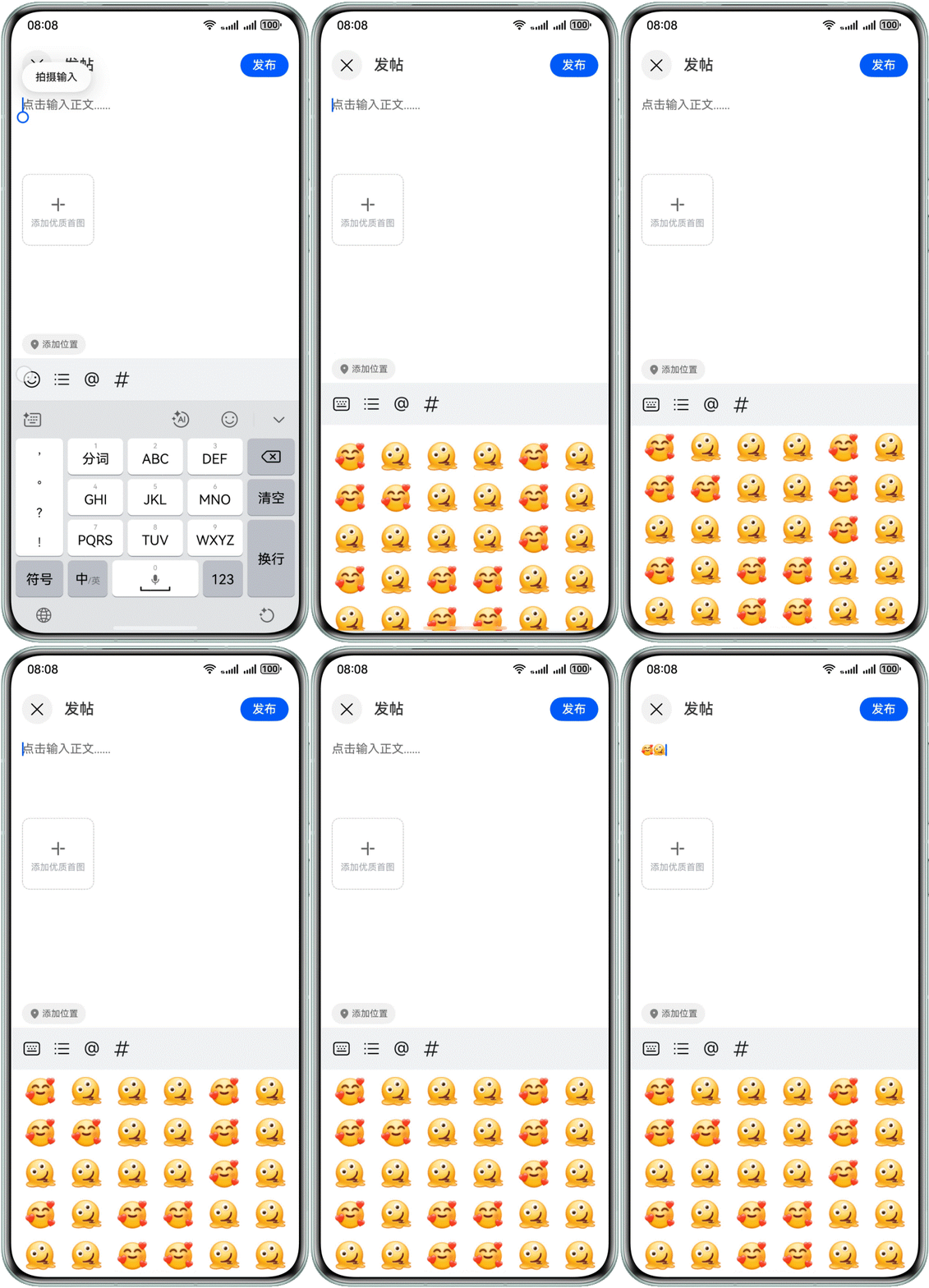
点击下方表情按钮,系统键盘切换为表情面板。点击表情图标,会在编辑区域光标后方添加对应的表情内容。
开发步骤
- 使用customKeyboard(value: CustomBuilder, options?: KeyboardOptions)属性给编辑区域绑定自定义键盘,通过状态变量isEmojiKeyboard控制系统键盘和自定义键盘(表情面板)的切换。并设置KeyboardOptions参数中的supportAvoidance属性值为true,使自定义键盘也支持避让功能。
- @Link isEmojiKeyboard: boolean;
- // ...
- build() {
- RichEditor({
- controller: this.richEditorController
- })
- .customKeyboard(this.isEmojiKeyboard ? this.EmojiKeyboard() : undefined, {
- supportAvoidance: true
- })
- // ...
- }
- 在表情面板中点击表情,可通过addImageSpan()方法在编辑区域添加表情图片,默认在内容最后方插入。
通过设置offset属性为当前光标位置,使表情在正确位置插入。
当前光标位置可通过getCaretOffset()方法获取。后文类似的插入操作都遵循此规则。
- addImageSpan(value: ResourceStr) {
- const controller = this.richEditorController;
- const curOffset = controller.getCaretOffset();
- controller.addImageSpan(value, {
- offset: curOffset,
- imageStyle: {
- size: [16, 16]
- }
- });
- // Update the textSpans spanRange that come after the current offset
- this.updateTextSpans(curOffset, 1);
- }
@好友
场景描述
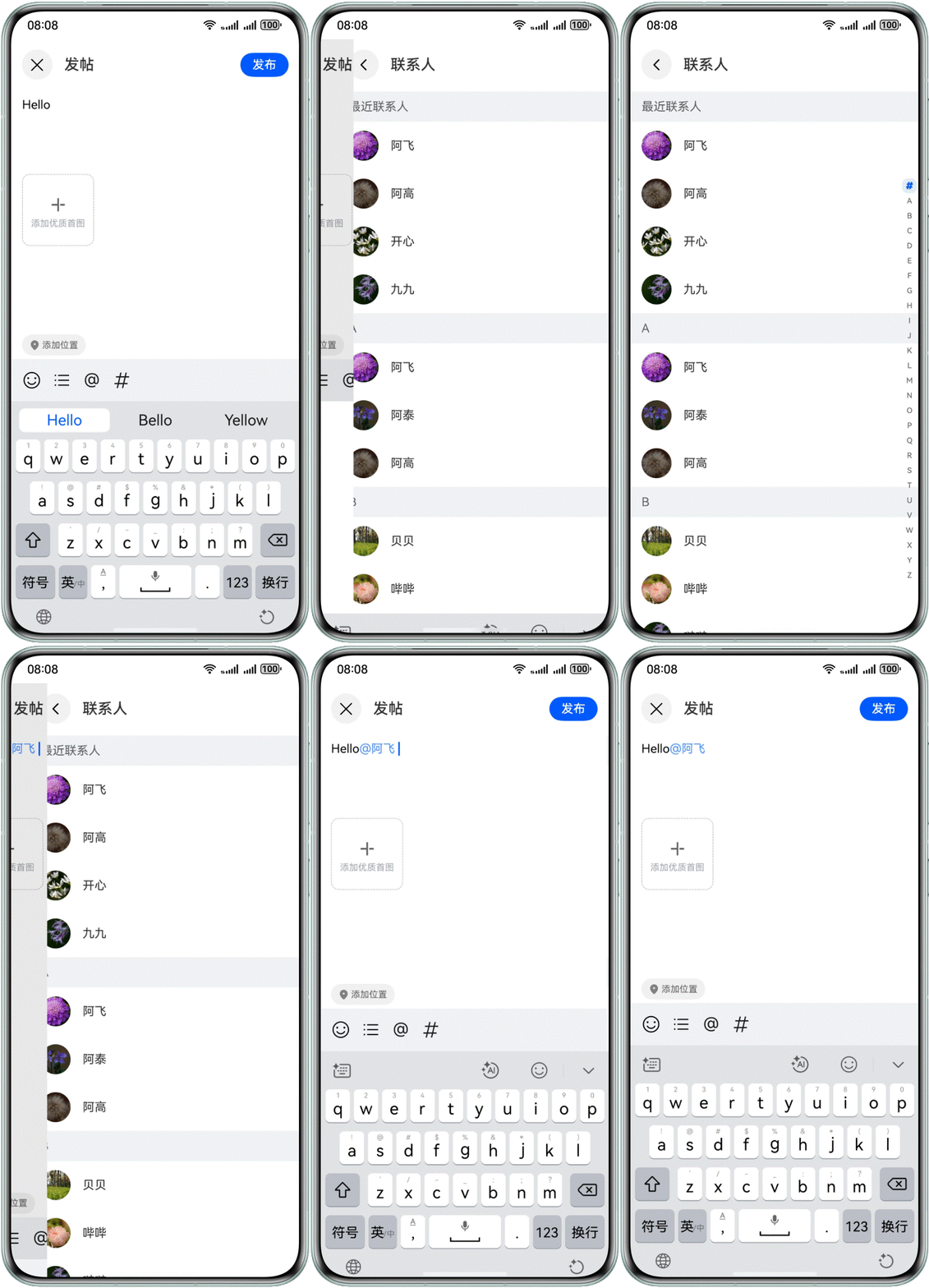
点击下方工具栏@图标或使用系统键盘输入@字符,会跳转到好友列表页面,选择对应好友将自动跳转回编辑页面并在编辑区域添加对应的@好友内容。
添加话题、标题与@好友逻辑一致。
开发步骤
- 点击工具栏@图标跳转好友列表
- 点击下方工具栏@图标,跳转到好友列表页面,选择好友后,使用addTextSpan()方法将@好友作为文本内容添加到编辑区域。通过offset属性和style属性分别控制插入的位置和样式。可通过添加一个空字符和其他内容做视觉上的分割。
- addTextSpan(value: string, type: string, data: ESObject, style: RichEditorTextStyle) {
- // ...
- const controller = this.richEditorController;
- const curOffset = controller.getCaretOffset();
- controller.addTextSpan(value, {
- offset: curOffset,
- style
- });
- const splitChar = ' ';
- controller.addTextSpan(splitChar, {
- offset: controller.getCaretOffset()
- });
- // ...
- }
- 维护自定义textSpan数据。更新在当前光标后面所有的自定义textSpan的位置信息,起始位置往后移动的距离为新添加内容的长度,并在textSpans数组中添加该自定义内容textSpan的信息。
- addTextSpan(value: string, type: string, data: ESObject, style: RichEditorTextStyle) {
- // ...
- this.updateTextSpans(curOffset, value.length + splitChar.length);
- this.textSpans.push({
- value,
- type,
- data,
- spanRange: [curOffset, curOffset + value.length],
- })
- }
- 在编辑区域添加了@好友内容后,在其前后输入的文字会拥有@好友内容的样式,并与其合并成一个textSpan。
在RichEditor组件onReady()事件回调函数中,为键盘输入内容设置默认样式,这样就能与@好友等自定义textSpan内容隔离开。
- RichEditor({
- controller: this.richEditorController
- })
- // ...
- .onReady(() => {
- this.richEditorController.setTypingStyle({
- fontColor: Color.Black,
- })
- })
- 键盘输入@符号跳转好友列表
- 通过键盘输入@符号的方式跳转好友列表,键盘默认行为会先在编辑区添加@符号,在选择好友后需要先删除默认行为添加@符号,再将@好友作为整体通过addTextSpan()方法添加。
通过状态变量isKeyboardTriggered标志是否为键盘输入触发。在aboutToIMEInput()键盘输入事件的回调函数中,判断插入字符是@,则更新标志位为true,并跳转联系人页面。在添加@好友内容时如果是键盘输入触发,则删除光标前一个字符,并将标志位重置为false。
- @State isKeyboardTriggered: boolean = false;
- // ...
- deletePrevChar() {
- const controller = this.richEditorController;
- const offset = controller.getCaretOffset();
- const range: RichEditorRange = { start: offset - 1, end: offset };
- controller.deleteSpans(range);
- }
- // ...
- addTextSpan(value: string, type: string, data: ESObject, style: RichEditorTextStyle) {
- if (this.isKeyboardTriggered) {
- this.deletePrevChar()
- this.isKeyboardTriggered = false;
- }
- // ...
- }
- // ...
- aboutToIMEInput: (value: RichEditorInsertValue) => boolean = value => {
- if (value.insertValue === '@') {
- this.isKeyboardTriggered = true;
- this.getUIContext().getRouter().pushUrl({ url: 'pages/ContactListPage' });
- // ...
- }
- return true;
- }
- 后续步骤与点击工具栏@图标跳转好友列表方式的开发步骤中的1、2、3步一致。
处理光标位置
场景描述
光标不可落入@好友文本的内部。当用户点击或选中@好友这种自定义内容时,光标应自动跳转到内容的开始或结束位置。

开发步骤
- 判断当前光标位置是否在自定义内容的textSpan中间,是则根据就近原则返回textSpan的起始位置或结束位置,否则返回当前光标位置。
- snapCaretToTextSpanBoundary(caretOffset: number, type?: 'start' | 'end') {
- const textSpan = this.textSpans.find(textSpan => {
- return caretOffset > textSpan.spanRange[0] && caretOffset < textSpan.spanRange[1];
- });
- if (!textSpan) return caretOffset;
- if (type === 'start') return textSpan.spanRange[0];
- if (type === 'end') return textSpan.spanRange[1];
- const disToStart = caretOffset - textSpan.spanRange[0];
- const disToEnd = textSpan.spanRange[1] - caretOffset;
- if (disToStart <= disToEnd) return textSpan.spanRange[0];
- return textSpan.spanRange[1];
- }
- 当用户点击@好友内容时,在onSelectionChange()事件的回调函数中重新计算并使用setCaretOffset()设置光标位置。
- onSelectionChange: (range: RichEditorRange) => void = range => {
- // When start and end values are the same, it indicates a cursor position change triggered by a click, with no selected area.
- if (range.start === range.end) {
- const targetCaretOffset = this.snapCaretToTextSpanBoundary(range.start!);
- this.richEditorController.setCaretOffset(targetCaretOffset);
- }
- }
- 当选中内容发生变化时,在onSelect()事件的回调函数中获取选中内容的起始位置和结束位置。
- 当它们处于同一个自定义内容的textSpan中间时,更新两个光标的位置到该textSpan的起始位置和结束为止。
- 否则,更新两个光标的位置到各自就近的textSpan边缘。
最后通过setSelection()方法设置计算后的选中区域。
- onSelect: (selection: RichEditorSelection) => void = richEditorSelection => {
- const caretStart = richEditorSelection.selection[0];
- const caretEnd = richEditorSelection.selection[1];
- // Determine if the selected content lies within a single textSpan.
- // If it does, adjust the selection range to the start and end of that textSpan.
- const textSpan = this.textSpans.find(textSpan => {
- return caretStart >= textSpan.spanRange[0] && caretEnd <= textSpan.spanRange[1];
- });
- if (textSpan) {
- this.richEditorController.setSelection(textSpan.spanRange[0], textSpan.spanRange[1]);
- return;
- }
- // Both values being -1 indicates clear selection operation.
- if (caretStart === -1 && caretEnd === -1) {
- return
- }
- const selectionStart = this.snapCaretToTextSpanBoundary(caretStart);
- const selectionEnd = this.snapCaretToTextSpanBoundary(caretEnd);
- this.richEditorController.setSelection(selectionStart, selectionEnd);
- }
删除内容
场景描述
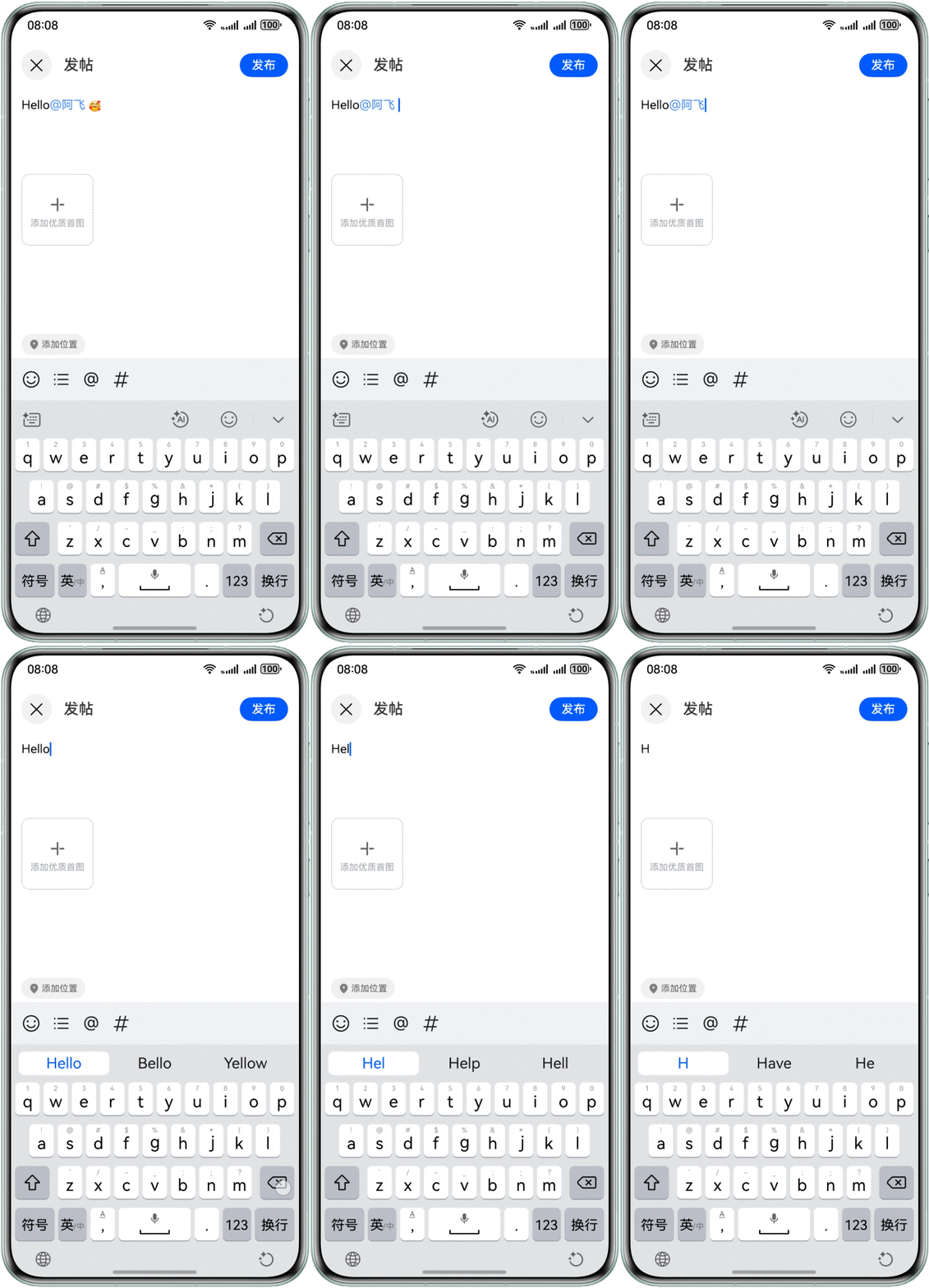
点击软键盘删除按钮,光标前待删除的是@好友等自定义内容时,则作为整体删除。其余内容删除时无需额外处理。
开发步骤
- 在aboutToDelete()事件的回调函数中,获取将要删除内容的起始位置和结束位置。
- 若起始位置在自定义的textSpan中间,则更新起始位置为该textSpan的起始位置。若结束位置在自定义的textSpan中间,则更新结束位置为该textSpan的结束位置。
- 使用deleteSpans()方法删除编辑区域中的内容。
- 更新自行维护的textSpans数据,删除起始位置和结束位置中间所有的textSpan数据,并更新在删除内容后所有的自定义textSpan的位置信息。
- aboutToDelete: (value: RichEditorDeleteValue) => boolean = deleteValue => {
- // when enables pinyin preview on the screen,each input triggers the aboutToDelete Event.
- // in this case,the default deletion logic is directly applied.
- const previewText = this.richEditorController.getPreviewText().value;
- if (previewText.length !== 0) {
- return true;
- }
-
- const start = deleteValue.offset;
- const end = start + deleteValue.length;
- const snapStart = this.snapCaretToTextSpanBoundary(start, 'start');
- const snapEnd = this.snapCaretToTextSpanBoundary(end, 'end');
- this.richEditorController.deleteSpans({
- start: snapStart,
- end: snapEnd
- });
- // delete all textSpans in selection
- this.textSpans = this.textSpans.filter(ts => {
- const isInRange = ts.spanRange[0] >= snapStart && ts.spanRange[1] <= snapEnd
- return !isInRange;
- });
- this.updateTextSpans(snapStart, snapStart - snapEnd);
- return false;
- }
获取内容
场景描述
发布内容时,需要获取编辑区域的文本内容,同时还需要获取带有结构化信息(如好友的id)的数据,用于提交到服务器或持久化存储。
开发步骤
- 实际开发中编辑区域不同类型的内容往往需要一种统一的数据结构来表达,方便传输和存储。这里定义为CustomSpan,其中value表示文本内容,resourceValue表示表情图片资源,type用于区分不同类型的textSpan,例如是@好友还是添加的话题,data用于存储携带的信息,例如好友id等。
- export interface CustomSpan {
- value?: string;
- resourceValue?: ResourceStr;
- type?: string;
- data?: ESObject;
- }
- RichEditor组件提供getSpans()方法来获取内容,但是例如@好友中一些结构化信息仍需要根据位置信息去手动维护的textSpans数组(参考维护输入内容)中去查找。最后将getSpans()方法获取的RichEditorTextSpanResult和RichEditorImageSpanResult转换成CustomSpan。
- getData(): CustomSpan[] {
- const customSpans = this.richEditorController.getSpans().map(span => {
- const textSpan = span as RichEditorTextSpanResult;
- const imageSpan = span as RichEditorImageSpanResult;
- // is imageSpan
- if (!textSpan.value) {
- return { resourceValue: imageSpan.valueResourceStr } as CustomSpan;
- }
- // is textSpan
- const customTextSpan = this.textSpans.find(customTextSpan => {
- return this.isTheSameRange(customTextSpan.spanRange, textSpan.spanPosition.spanRange);
- })
- if (!customTextSpan) {
- return { value: textSpan.value } as CustomSpan;
- }
- return {
- value: customTextSpan.value,
- type: customTextSpan.type,
- data: customTextSpan.data
- } as CustomSpan;
- });
- return customSpans;
- }
- 图中内容通过getData()方法生成的数据序列化后的数据如下,如何与服务端交互或使用这些数据,根据业务需求调整即可。
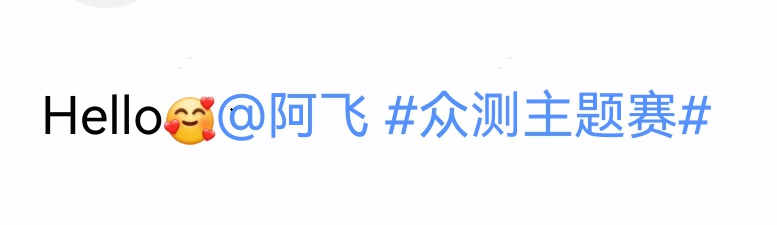
- [{
- "value": "Hello"
- }, {
- "resourceValue": "resource:///emoji_3.png"
- }, {
- "value": "@阿飞",
- "type": "contact",
- "data": {
- "imgName": "app.media.ic_comm_pic1",
- "name": "阿飞"
- }
- }, {
- "value": " "
- }, {
- "value": "#众测主题赛#",
- "type": "topic",
- "data": {
- "topicId": "1",
- "title": "众测主题赛"
- }
- }, {
- "value": " "
- }]
常见问题
使用addBuilderSpan自定义内容时,折行显示与光标异常
对折行显示有硬性需求可使用addTextSpan()方式实现。参考添加不同类型内容的方式选型。
发布内容时如何处理富文本数据
通过维护自定义textSpan数据的方式实现。参考获取内容。
如何自定义选择菜单
通过bindSelectionMenu属性对不同类型的Span绑定不同的菜单。参考设置自定义选择菜单。


