导入模块
在调用接口页面的<script>部分增加如下配置。
import shortcut from '@system.shortcut'
或
var shortcut = require("@system.shortcut") [h2]shortcut.hasInstalled(OBJECT)
描述
获取桌面图标是否创建。
OBJECT参数
| 参数 | 类型 | 是否必填 | 说明 |
|---|---|---|---|
| success | function | 否 | 成功回调。
|
| fail | function | 否 | 失败回调。 |
| complete | function | 否 | 执行结束后的回调。 |
示例代码
shortcut.hasInstalled({
    success: function (ret) {
        console.log('hasInstalled success ret---' + ret);
        if (ret) {
            // 桌面图标已创建
        } else {
            // 桌面图标未创建
        }
    }.bind(this),
    fail: function (erromsg, errocode) {
        console.log('hasInstalled fail ret---' + erromsg);
    }.bind(this),
    complete: function () {
    }
})
[h2]shortcut.install(OBJECT)
描述
创建桌面图标。
调用此接口,需注意如下几点:
- 系统版本 6.0 以下不需要开启在快应用中心里创建桌面图标权限。
- 系统版本 8.0 以下无论是创建成功或者创建失败都会走success回调,执行结束后回调complete(此情况可调用shortcut.hasInstalled接口判断是否创建成功)。
- 系统版本 8.0 以上如果创建成功会走success回调,执行结束后回调complete,如果失败则不会回调。
OBJECT参数
| 参数 | 类型 | 是否必填 | 说明 |
|---|---|---|---|
| message(1030+) | string | 否 | 提示信息,展示在提示对话框上,向用户解释为什么需要创建快捷方式。 |
| success | function | 否 | 成功回调。 |
| fail | function | 否 | 失败回调。 |
| complete | function | 否 | 执行结束后的回调。 |
fail返回错误码:
| 错误码 | 说明 |
|---|---|
| 201 | 用户拒绝,获取创建桌面图标权限失败。 |
示例代码
shortcut.install({
    message: 'Adds the shortcut to the desktop for convenient use next time.',
    success: function (ret) {
        console.log('handling createShortCut success');
    },
    fail: function (erromsg, errocode) {
        console.log('handling createShortCut fail');
    }.bind(this),
})
[h2]shortcut.hasWidget(OBJECT)(1101+)
描述
查询桌面是否已创建对应类型的快应用中心widget小组件。
OBJECT参数
| 参数 | 类型 | 是否必填 | 说明 |
|---|---|---|---|
| type | string | 是 | widget类型。当前支持以下两种:
|
| success | function | 否 | 成功回调。
|
| fail | function | 否 | 失败回调。 |
| complete | function | 否 | 执行结束后的回调。 |
示例代码
shortcut.hasWidget({
    type: 'customWidget',
    success: function (ret) {
        console.log('hasWidget success ret---' + ret);
        if(ret) {
            // 自定义widget已创建
        } else {
            // 自定义widget未创建
        }
    }.bind(this),
    fail: function (erromsg, errocode) {
        console.log('hasWidget fail ret---' + erromsg);
    }.bind(this),
    complete: function () {
    }
})
[h2]shortcut.addWidget(OBJECT)(1101+)
描述
在桌面添加快应用中心widget小组件。
调用此接口,若设备不支持时,会返回fail,如:系统版本 8.0 以下不支持。
Object参数
| 参数 | 类型 | 是否必填 | 说明 |
|---|---|---|---|
| type | string | 是 | widget类型。当前支持以下两种:
|
| success | function | 否 | 成功回调。 |
| fail | function | 否 | 失败回调。 |
| complete | function | 否 | 执行结束后的回调。 |
fail返回错误码:
| 错误码 | 说明 |
|---|---|
| 2001 | 设备不支持在桌面添加快应用中心widget小组件。 |
示例代码
shortcut.addWidget({
    type:'customWidget',
    success: function (ret) {
           console.log('addWidget success ret---' + ret);
           if(ret) {
             // 添加自定义widget成功
           } else {
             // 添加自定义widget失败
           }
     }.bind(this),
     fail: function (erromsg, errocode) {
         console.log('addWidget fail ret---' + erromsg);
     }.bind(this),
     complete: function () {
     }
})
Demo
<template>
  <!-- Only one root node is allowed in template. -->
  <div class="container ">
    <div class="mlr-container">
      <input onclick="hasinstallShortcut" type="button" value="Check Shortcut Creation" class="btn-blue" />
      </div>
      <div class="mlr-container">
      <input onclick="setShortcut" type="button" value="Create Shortcut" class="btn-blue" />
    </div>
  </div>
</template>

<style lang="sass">
.container {
   flex-direction: column;
   justify-content: center;
   align-items: center;
}
.mlr-container {
  margin-top: 50px;
  margin-right: 30px;
  margin-left: 30px;
  flex-direction: column;
}
.btn-blue {
    background-color: #0faeff;
    color: #ffffff;
    width:600px;
    height: 100px;
    font-size: 50px;
    border-radius:15px;
  }
</style>

<script>
  import shortcut from '@system.shortcut';
  import prompt from '@system.prompt';
  module.exports = {
    onInit: function () {
      this.$page.setTitleBar({ text: 'shortcut' });
    },
    setShortcut() {
      shortcut.install({
        message: 'Adds the shortcut to the desktop for convenient use next time.',
        success: function (ret) {
          console.log('handling createShortCut success');
        },
        fail: function (erromsg, errocode) {
          prompt.showToast({
            message: erromsg,
            duration: 2000,
            gravity: 'bottom'
          })
        }
      })
    },
    hasinstallShortcut() {
          shortcut.hasInstalled({
              success: function (ret) {
                  console.log('hasInstalled success ret---' + ret);
                  if (ret) {
                      // 桌面图标已创建
                  } else {
                      // 桌面图标未创建
                  }
              }.bind(this),
              fail: function (erromsg, errocode) {
                  console.log('hasInstalled fail ret---' + erromsg);
              }.bind(this),
              complete: function () {
              }
          })
      }
  }
</script>
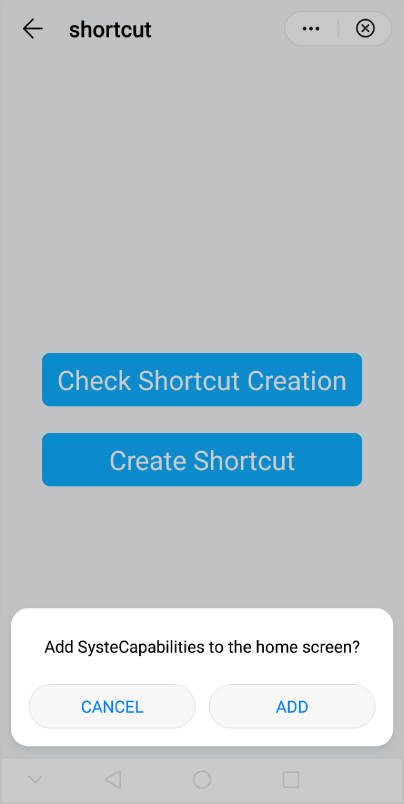
效果图如下: