
Intelligent Assistant
Chat with our virtual assistant to get answers promptly.
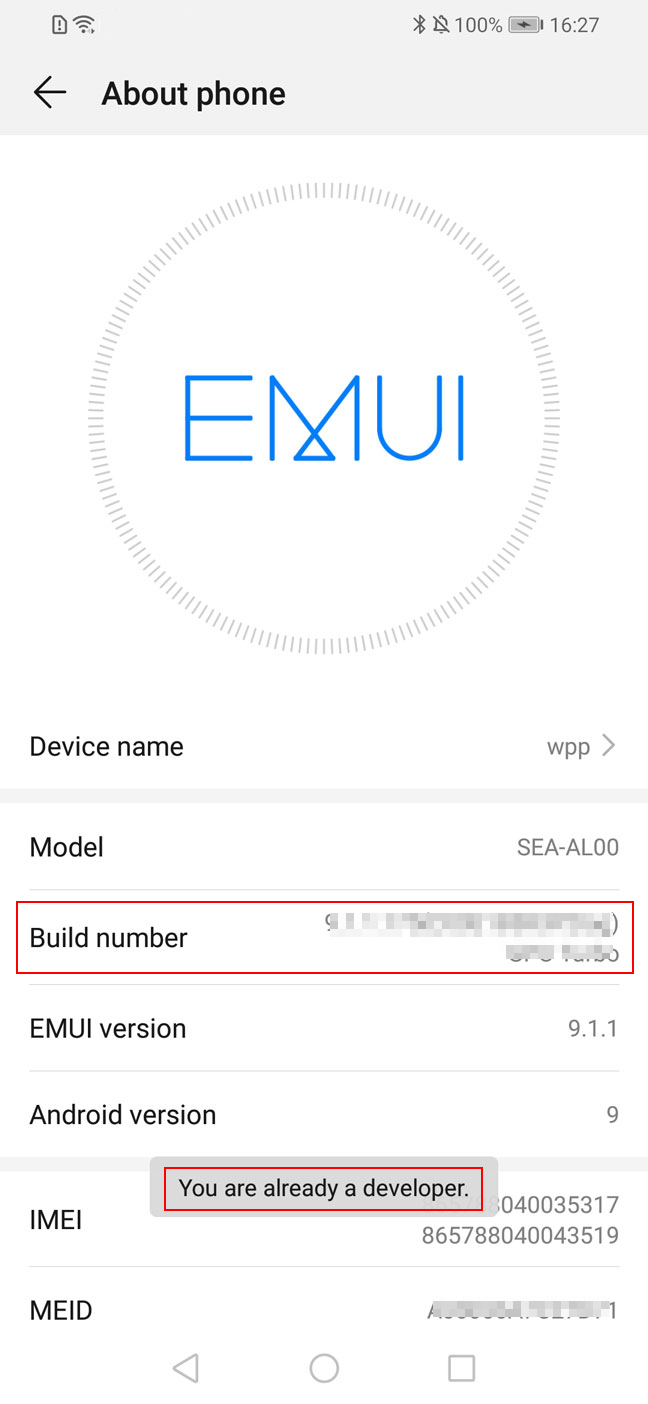
1. Go to Settings > System > About phone on your phone.
2. Keep tapping Build number until the message "You are already a developer" is displayed.
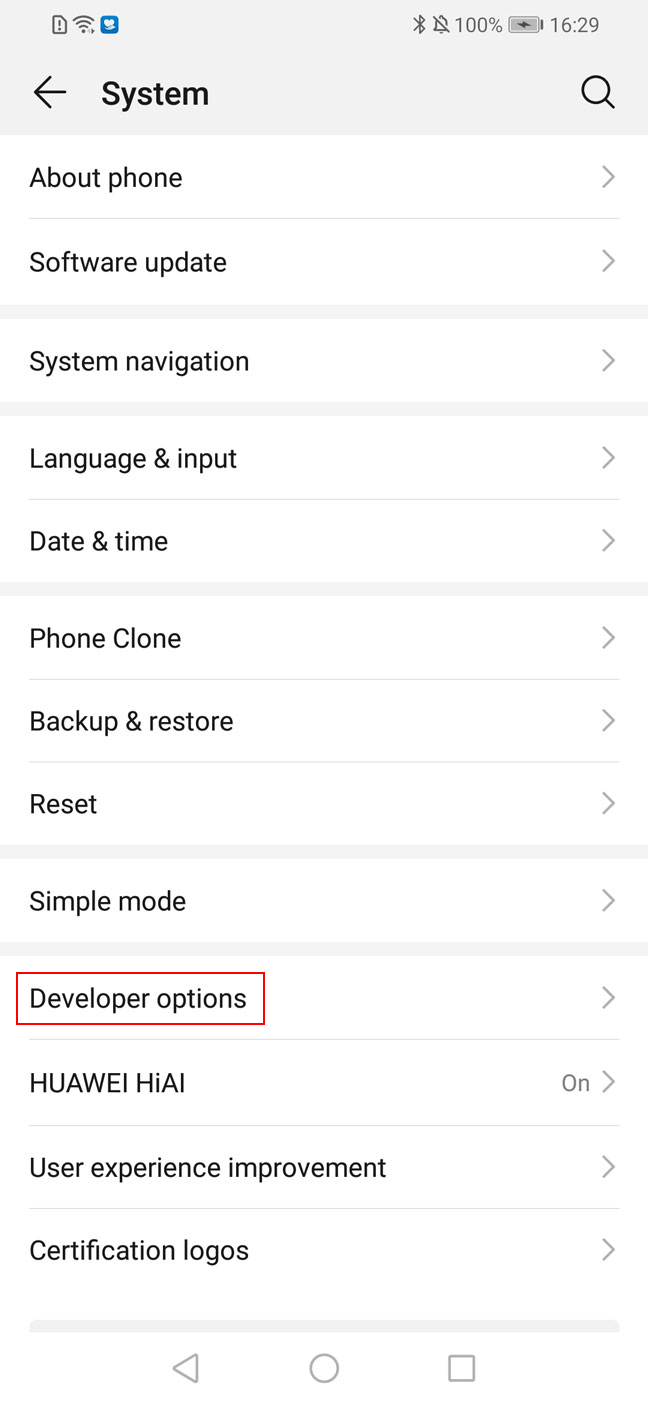
3. Go to Settings > System > Developer options.
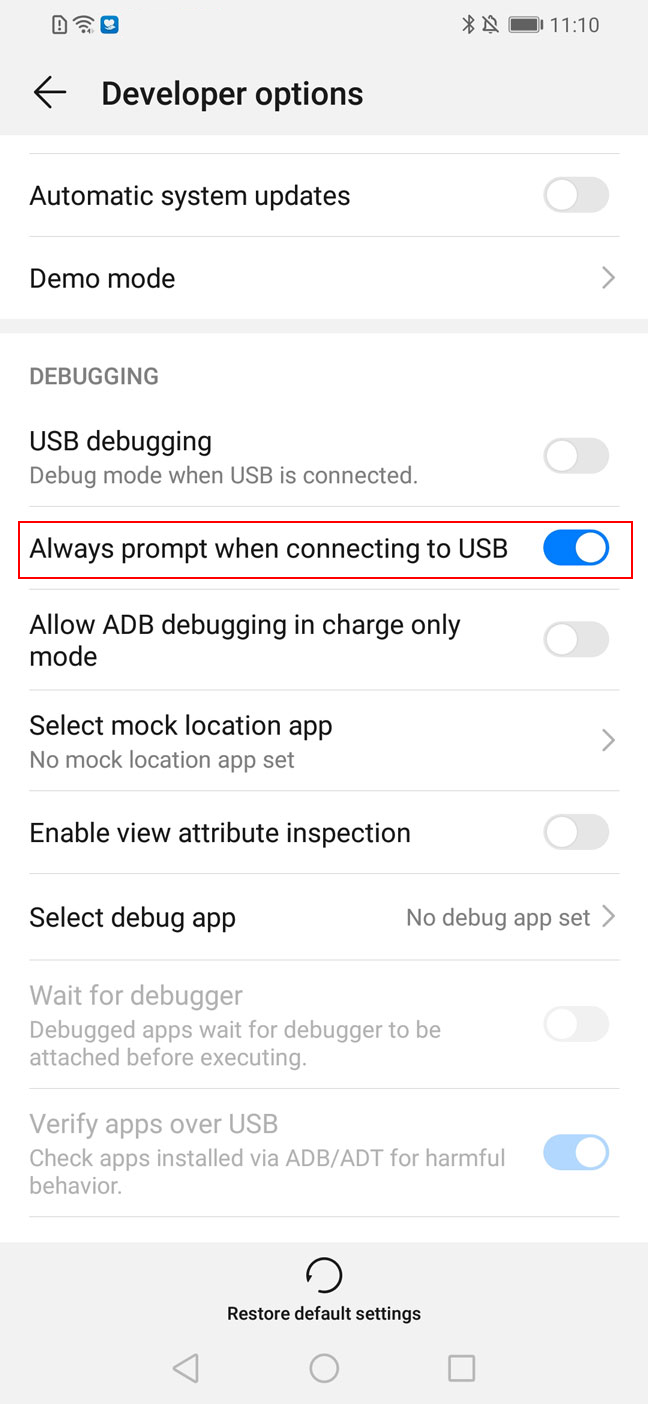
4. Access Developer options, swipe down, and enable Always prompt when connecting to USB.
5. Connect your phone to the computer. In the dialog box, select Transfer files.
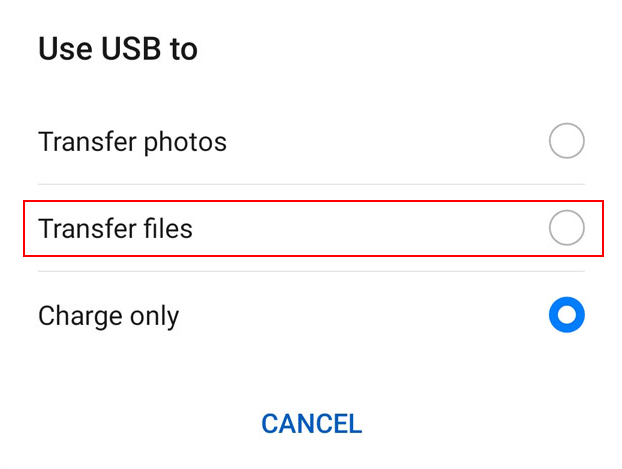
6. Access Developer options, and enable USB debugging.
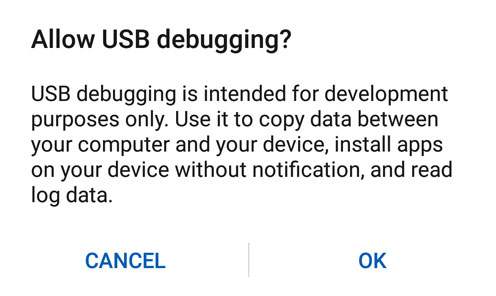
● First time: An authorization prompt message is displayed. Select Always allow from this computer and tap OK.
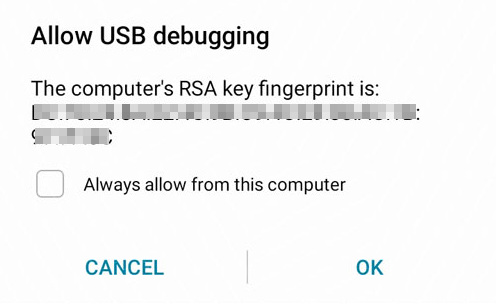
● Non-first time: An authorization prompt message is displayed. Click OK.