


Intelligent Assistant
Chat with our virtual assistant to get answers promptly.
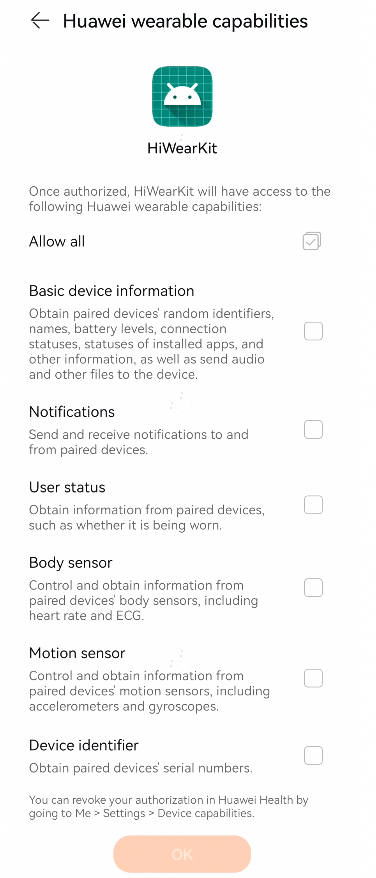
To protect user privacy, the Wear Engine APIs need user authorization to work. It is recommended that you perform the operations in this section when users call the Wear Engine open capabilities for the first time.
Check whether a user has granted permissions for your app. If not, request authorization from the user again by referring to Applying for Wearable Device Permissions.
If the user is using the HUAWEI Health app version 11.0.3.512 or later and has not granted permissions for your app, your app will be granted the NOTIFY (message notification) and DEVICE_MANAGER (basic device information) permissions by default. You are advised to use this API to check whether the required permissions have been granted before requesting user authorization.
Ensure that the permissions requested have been approved after you apply for the Wear Engine service. Otherwise, error code 8 will be returned.
// Step 1: Obtain the AuthClient object.
AuthClient authClient = HiWear.getAuthClient(this);

// Step 2: Call the checkPermission method to check whether the permission is granted.
authClient.checkPermission(Permission.DEVICE_MANAGER).addOnSuccessListener(new OnSuccessListener<Boolean>() {
    @Override
    public void onSuccess(Boolean aBoolean) {
        // Return whether the permission is granted. The value true indicates that the permission is granted, and the value false indicates that the permission is not granted.
    }
}).addOnFailureListener(new OnFailureListener() {
    @Override
    public void onFailure(Exception e) {
        // Failed to call the API.
    }
});

// Call the checkPermissions method to check whether a group of permissions are granted.
Permission[] permissions = {Permission.DEVICE_MANAGER,Permission.NOTIFY};
authClient.checkPermissions(permissions).addOnSuccessListener(new OnSuccessListener<Boolean[]>() {
    @Override
    public void onSuccess(Boolean[] booleans) {
        // Return whether the group of permissions are granted. The value true indicates that the permissions are granted, and the value false indicates that the permissions are not granted. The value will be returned based on the query sequence.
    }
}).addOnFailureListener(new OnFailureListener() {
    @Override
    public void onFailure(Exception e) {
        // Failed to call the API.
    }
}); 
// Step 1: Obtain the AuthClient object.
// "this" indicates the Context object of the app.
AuthClient authClient = HiWear.getAuthClient(this);

// Step 2: Define the callback object for user authorization.
AuthCallback authCallback = new AuthCallback() {
    @Override
    public void onOk(Permission[] permissions) {
        // Return a list of permissions granted by the user.
    }
    @Override
    public void onCancel() {
        // User cancels the authorization.
    }
};

// Step 3: Request the user to grant specified permissions (for example, DEVICE_MANAGER).
authClient.requestPermission(authCallback, Permission.DEVICE_MANAGER)
    .addOnSuccessListener(new OnSuccessListener<Void>() {
        @Override
        public void onSuccess(Void successVoid) {
           // The request authorization task is successfully executed.
        }
    })
    .addOnFailureListener(new OnFailureListener() {
        @Override
        public void onFailure(Exception e) {
             // The request authorization task fails to be executed.
        }
    });

// Note: You can apply for multiple permissions at a time. Use commas (,) to separate multiple permissions, for example, authClient.requestPermission(authCallback, Permission.DEVICE_MANAGER, Permission.NOTIFY, other permissions).
// Note: After this API is called, the user will be prompted with the authorization screen and asked to grant the corresponding permissions.