
This section uses the latest function version as an example to describe the test method. To test a released function version, go to the Function code tab page on the details page of the function version and test the function version based on method 2.
You can test the created function in AppGallery Connect to check whether the function code can run properly. Go to the test page in either of the following ways:
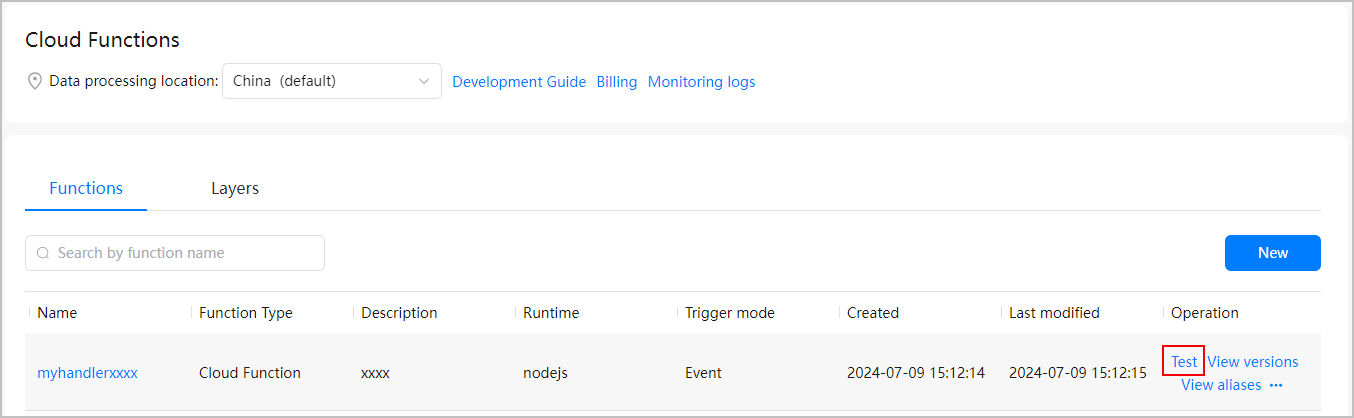
- Method 1: In the function list, click Test in the Operation column of a function, and test the function on the Test function page displayed on the right.
- Method 2:
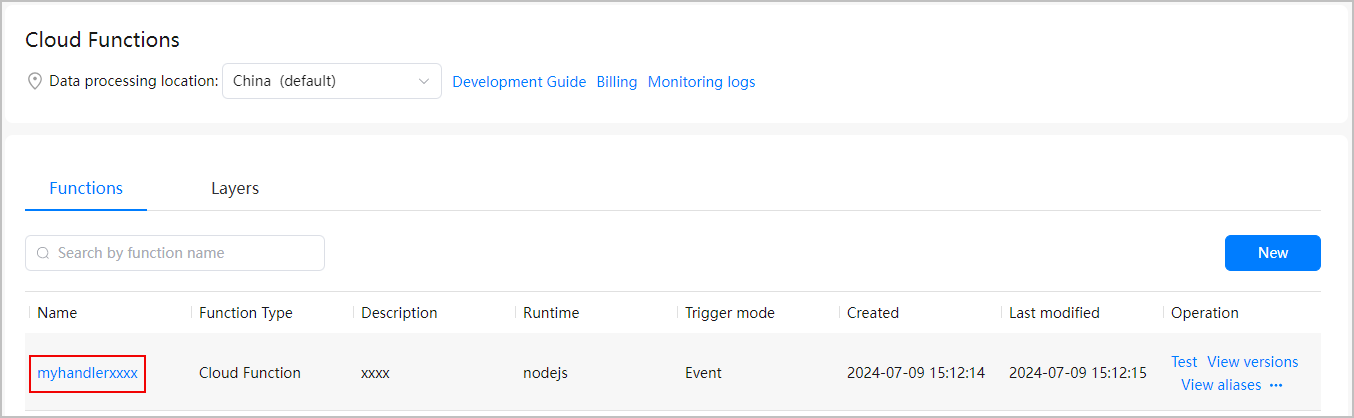
- In the function list, click the name of a function to go to the function details page.
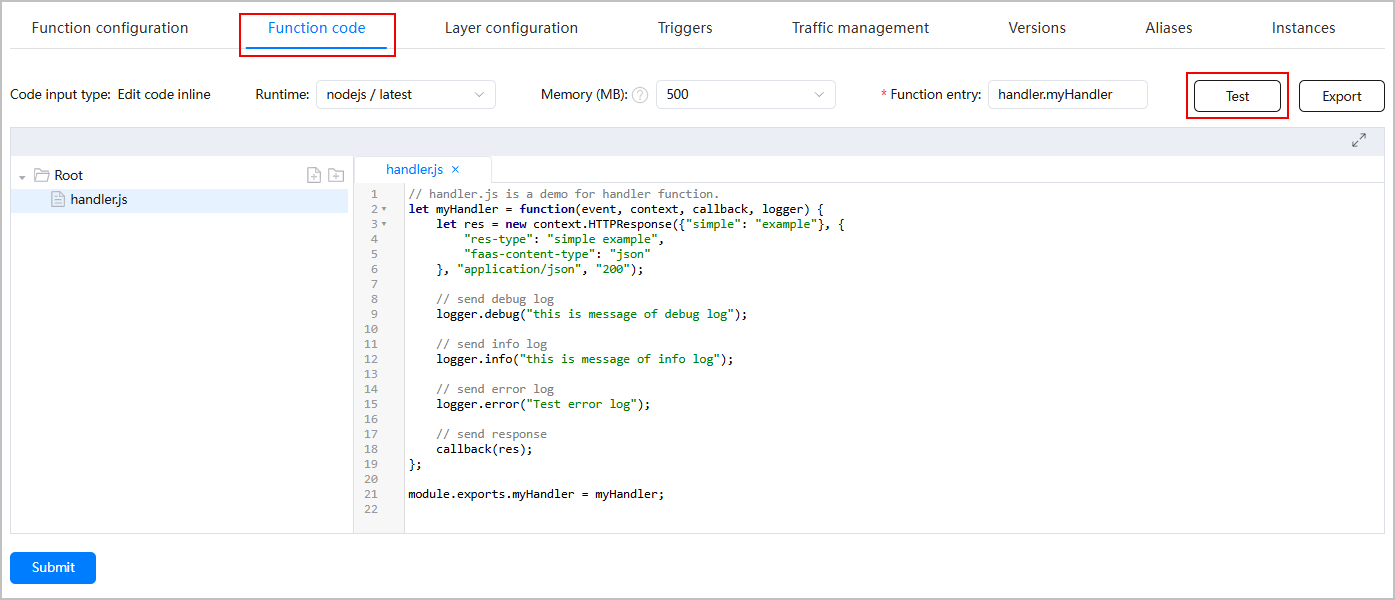
- Click the Function code tab and click Test.
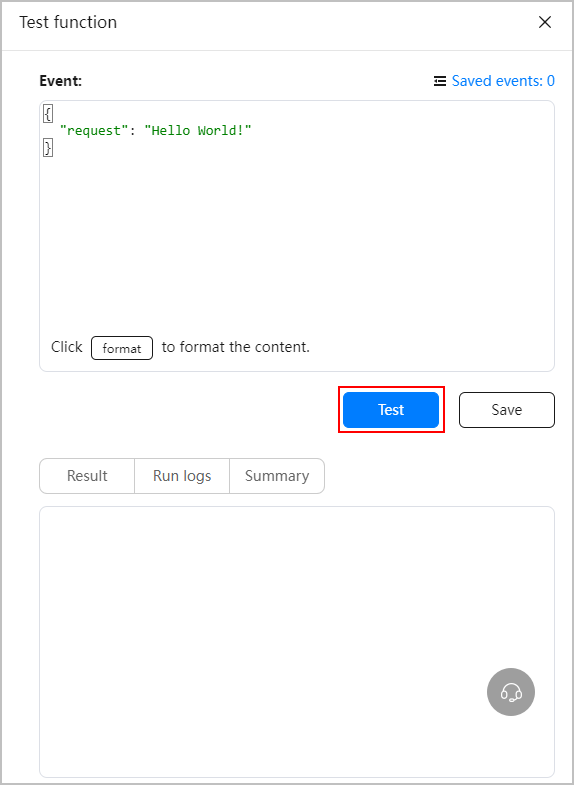
- On the Test function page displayed on the right, test the function using the default test event, a new test event, or a saved test event.
- Using the default test event
Click Test to test the function.
- Using a new test event
To set the request body for calling the function, you can perform the following operations to set test parameters and save the configuration as a test event for future use:
- Enter JSON-format event parameters in the Event text box and click Save. In the Information dialog box displayed, enter an event name and click OK.

The JSON object entered in the Event text box corresponds to the event format of the trigger and will be transparently transmitted to the function.
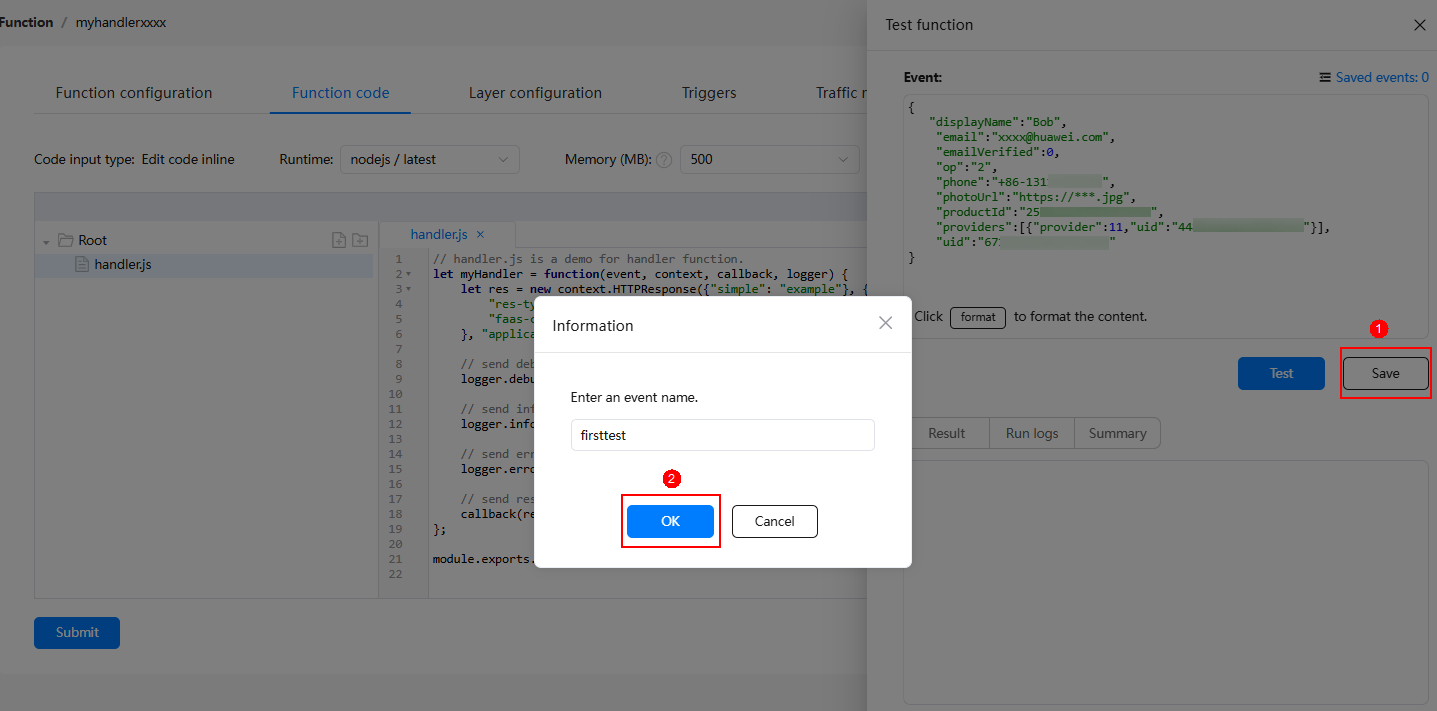
- Click Test. The function will process the event and return the test result.
- Enter JSON-format event parameters in the Event text box and click Save. In the Information dialog box displayed, enter an event name and click OK.
- Using a saved test event
- On the Test function page, click
 to expand the list of saved test events, click Load on the right of a saved event, and click Test. The function will process the event and return the test result.
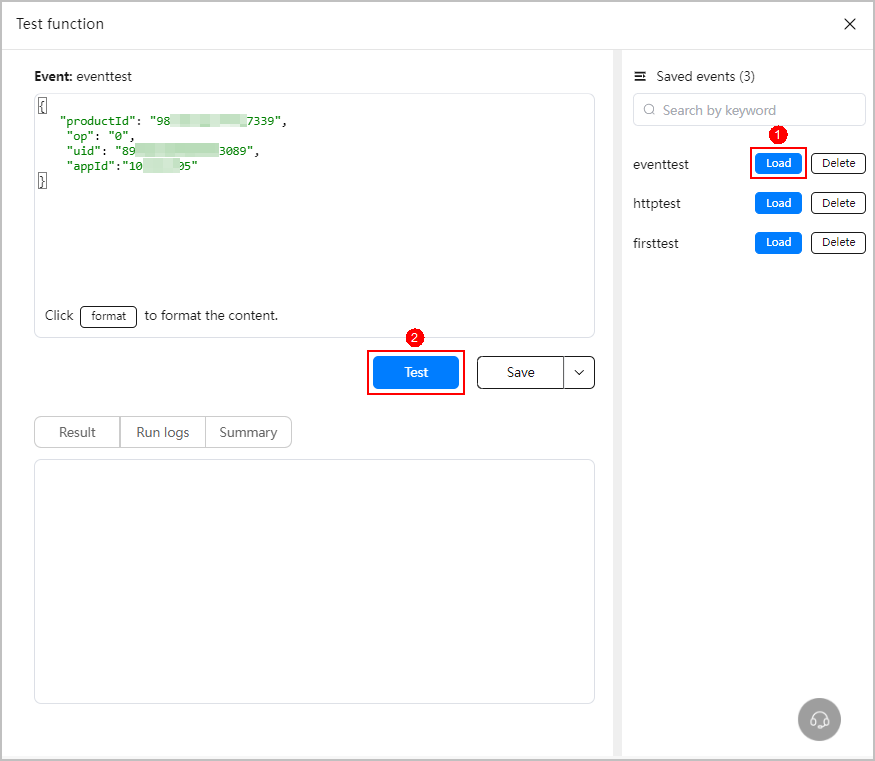
- (Optional) Click Delete on the right of a saved event to delete it as needed.
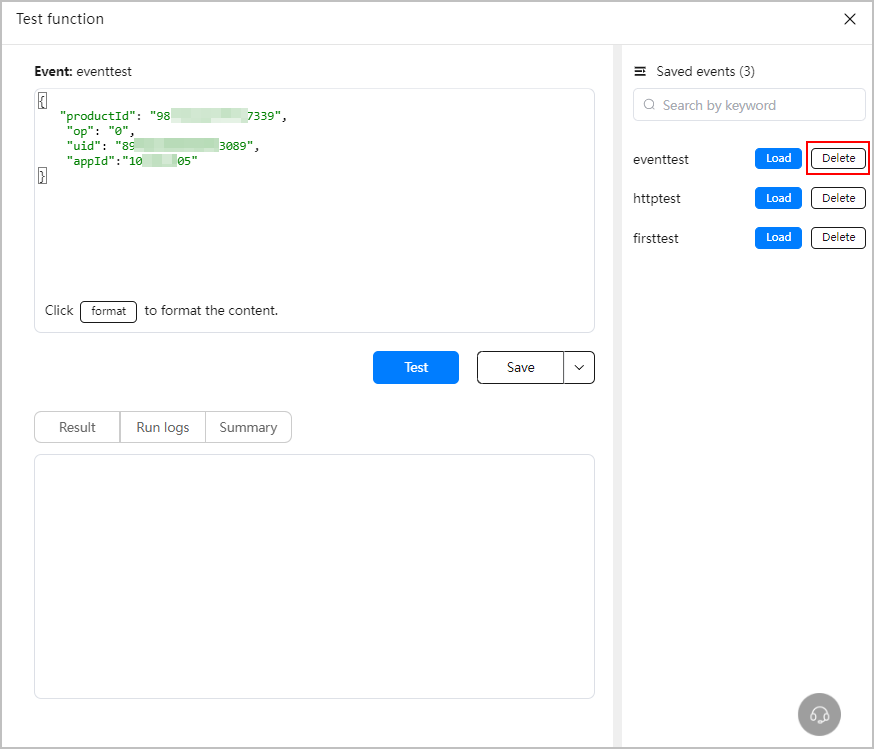
- On the Test function page, click
- Using the default test event
- Check the test result.
- Result: displays the response result obtained after the test.
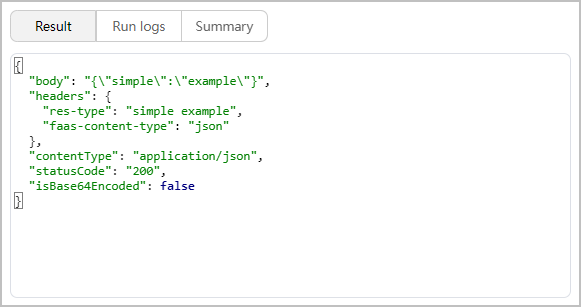
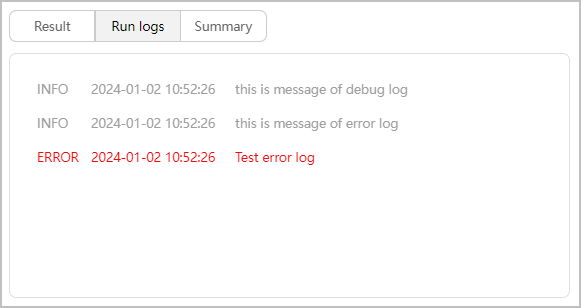
- Run logs: displays logs generated by the logger API during function running. Logs of the DEBUG level or higher are supported. (The following are solely test results for different log levels.)
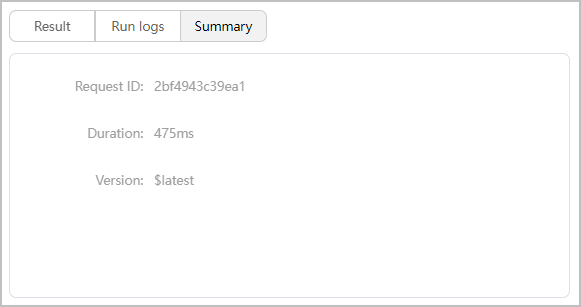
- Summary: displays information about the test request.
- Request ID: ID of the test request, which is displayed as X-Trace-ID in background logs.
- Duration: E2E duration for function execution.
- Version: version of the tested function.
- Result: displays the response result obtained after the test.
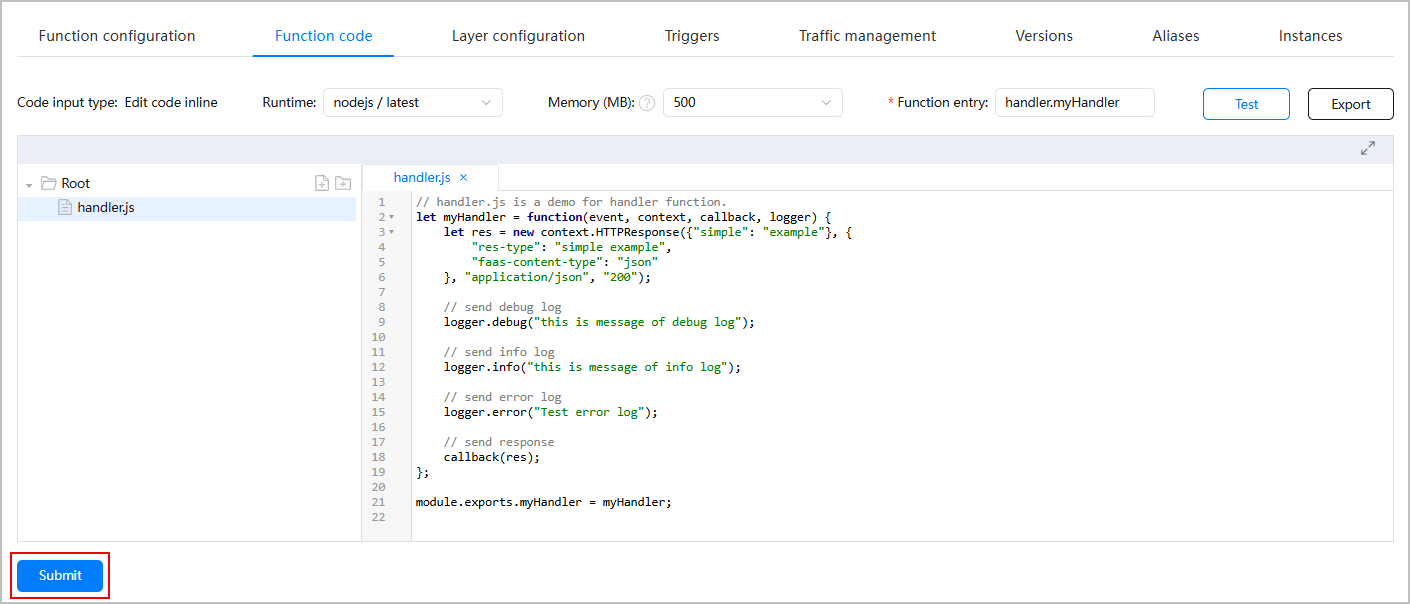
- To modify entry point file code of a function whose Code input type is Edit code inline during the test, directly modify the code in the code editor on the Function code tab page and then click Submit at the bottom of the page. After the function is updated successfully, you can click Test to test the modified code.
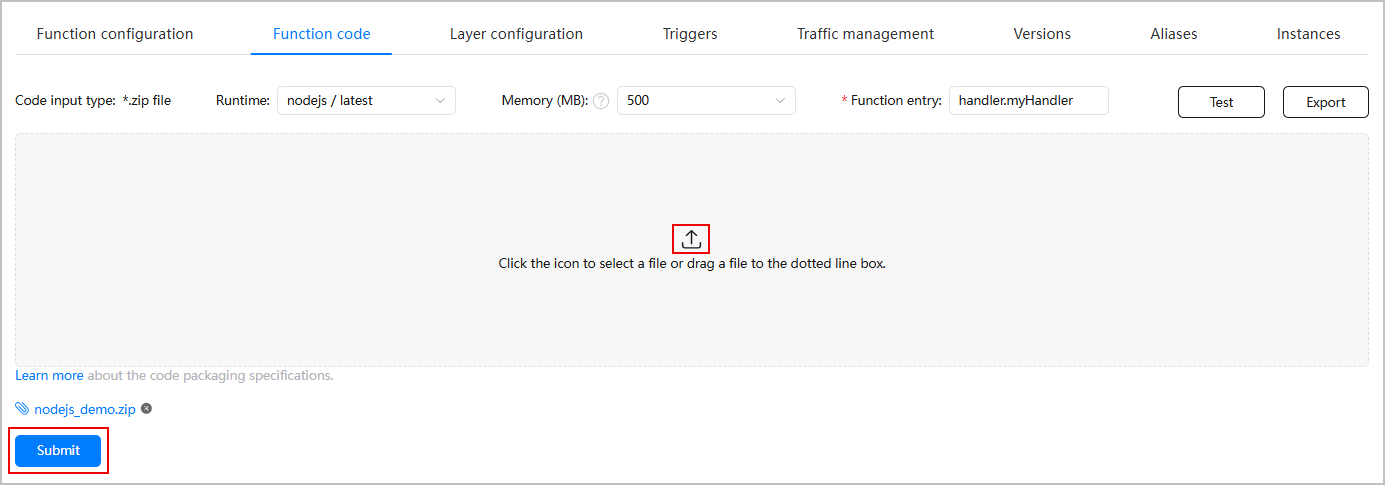
To modify the code file of a function whose Code input type is *.zip file during the test, you can modify the local code file, package the modified file, click
 to upload the packaged file, and click Submit at the bottom of the page. After the function is updated successfully, you can click Test to test the modified code.

If a large amount of code is modified and the function memory setting needs to be changed, you can select a value from the Memory (MB) drop-down list box, and then upload the function deployment package.
- After the function is tested successfully, click Export on the Function code tab page to export the function deployment package. The exported package is named in Function name_Function version.zip format. You can view the function structure and file content in the package.
- In the function list, click the name of a function to go to the function details page.