Third-party shared packages can be classified into two types: Harmony Archive (HAR) and Harmony Shared Package (HSP). The source code debugging methods for theses two types of packages are different.
Debugging HAR Source Code
The debugging of HAR source code varies depending on how the HAR is referenced.

- When the debugger is attached to an app in running, the HAR reference mode of the local project must be the same as that of the app attached to.
- For C++ debugging, ensure that the .so files include debugging information. Add the strip field to the build-profile.json5 file and set it to false.
- The referenced HAR is a module of the local project.
"dependencies": {
  "library": "file:../library",
}
To debug the source code, associate and debug the source code of the local module.
- Reference mode 2: The referenced HAR is a local HAR or an HAR in the ohpm repository.
"dependencies": {
  "package": "file:./package.har",
}
To debug the source code:
- If there is no HAR source code on the local PC, the source code in the oh_modules directory is referenced during the app build and packaging process. In this case, debug the source code in the oh_modules directory.
- If there is HAR source code on the local PC, associate and debug the local HAR source code.
- Method 1: Associating a local HAR
If the project relies on an HAR in a remote repository and the corresponding source code is available on the local PC, you can attach the debugger to the remote HAR by modifying the URL configuration.
As shown in the following figure, the project relies on a remote HAR (or a local HAR).

You can attach the debugger to the targe HAR as follows:
Choose Run > Edit Configurations > Debugger, click
 , and set remoteUrl and localUrl.
- remoteUrl: prefix path for the application to load the HAR package.
- localUrl: prefix path of the HAR in the locally generated sourceMap.
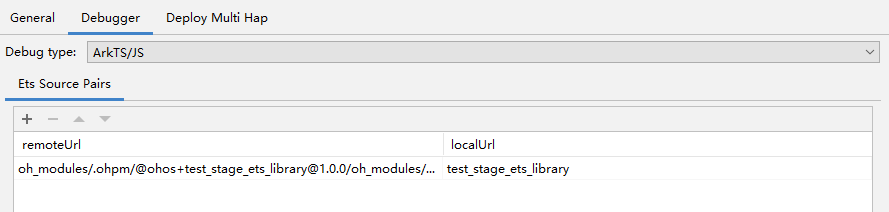
To obtain remoteUrl and localUrl, perform the following steps:
The local HAR project does not generate the sourceMap. Therefore, an entry is required. Generally, create a project and add the dependency (the HAR source code) as a local module.

Build the project to generate a new source map. Open the source map and locate the key value prefix for the local source code; this prefix is the value of localUrl.
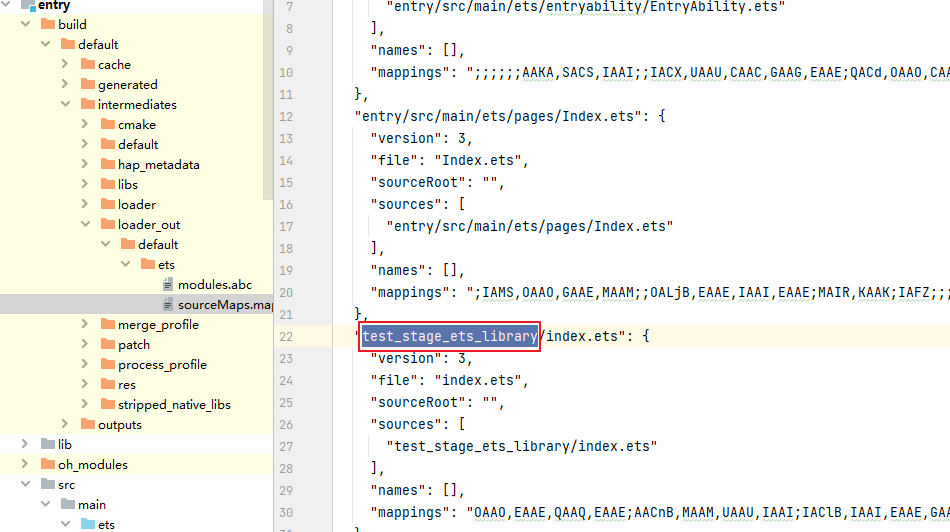
Attach the debugger to start the debugging and obtain the prefix of the app loading path in the debug window. The prefix is remoteUrl.

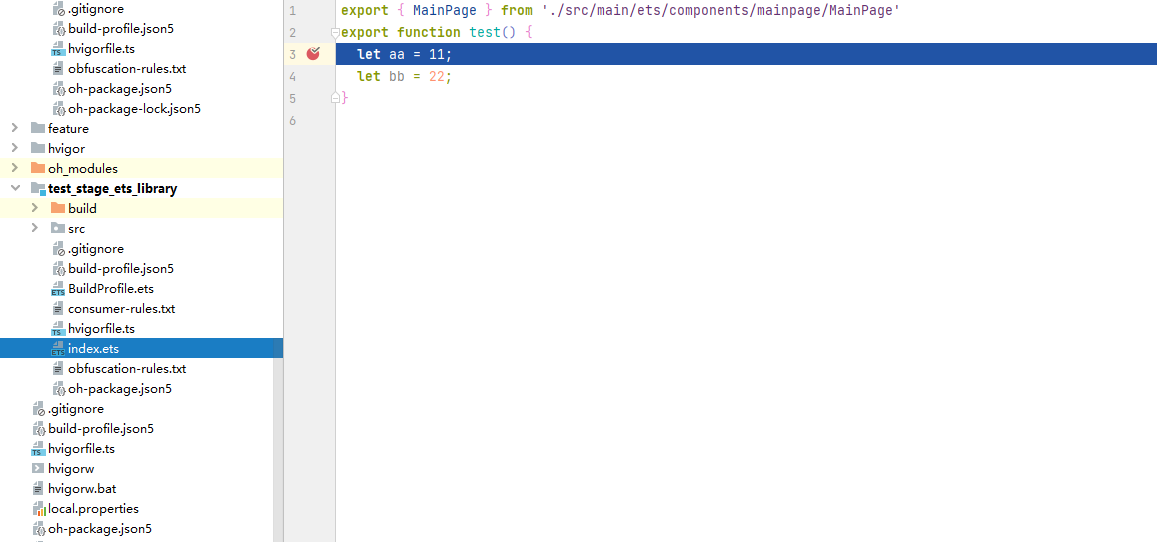
After setting remoteUrl and localUrl, attach the debugger to the target HAR for debugging.
- Method 2: Associating a local HAR
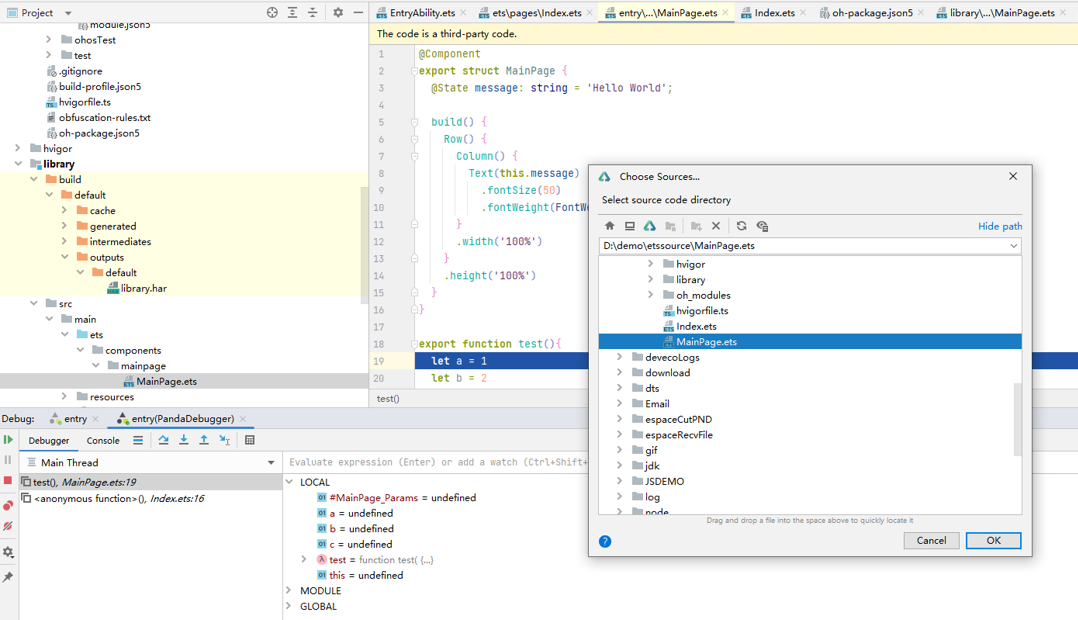
- Associating ets source code: After the debugger steps into the ets code in the oh_modules directory, a message is displayed asking you to select the source code. Click Choose Sources and select the local ets source code.
- Associating C++ source code: After the debugger steps into the assembly code, a message is displayed asking you to select the source code. Click Select file and select the local C++ source code.
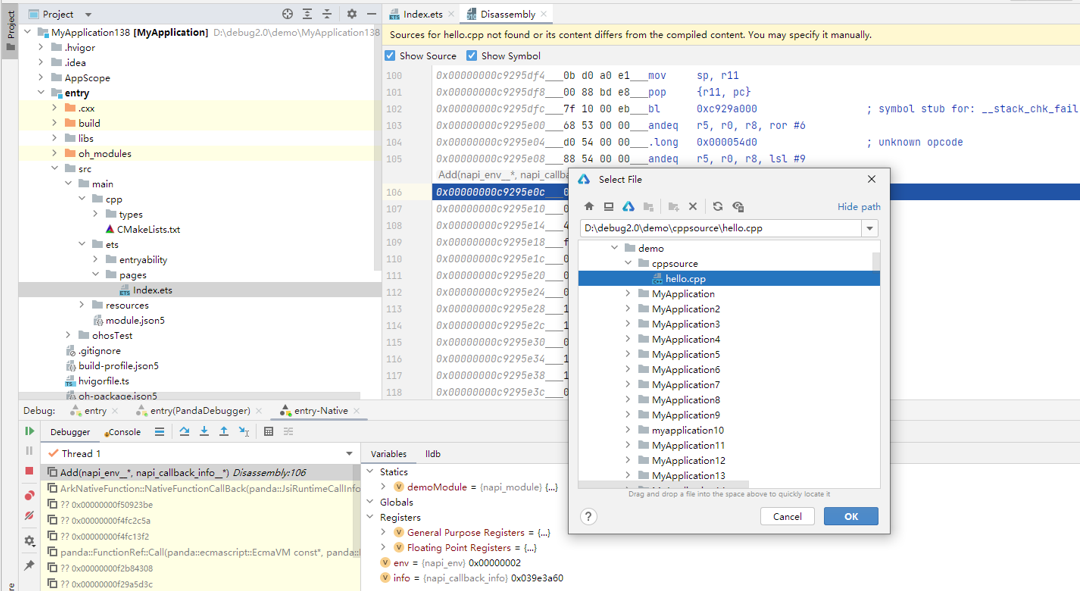
- Associating ets source code: After the debugger steps into the ets code in the oh_modules directory, a message is displayed asking you to select the source code. Click Choose Sources and select the local ets source code.
- Method 1: Associating a local HAR
[h2]Debugging C++ Code
- When debugging a HAP/HSP that references a bytecode HAR containing C++ code, you need to include the .so files with debugging information in the native debugging configuration. To do this, go to the Symbol Directories tab in the native debugging configuration window, click the Add icon and add the .so files with debugging symbols. These .so files are located at {ProjectPath}/{ModuleName}/build/{product}/intermediates/libs/default/arm64-v8a.
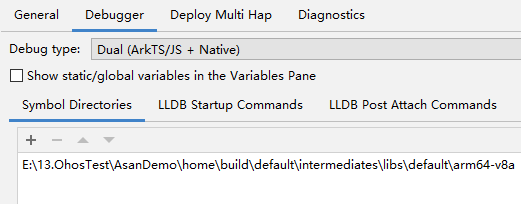
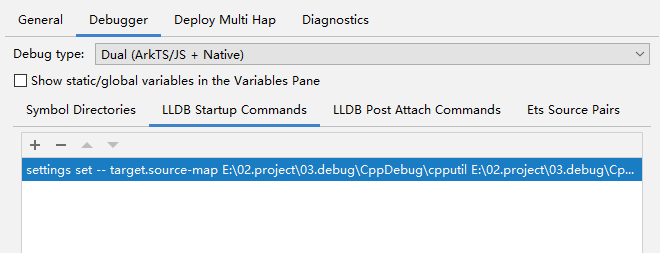
- When you debug an app, DevEco Studio loads the configured .so files preferentially. If these .so files contain debugging info, you can debug the source code. If the source paths in the .so files do not match your local paths, you can add mapping commands on the LLDB Startup Commands tab. Alternatively, you can associate files individually; see Debugging HAR Source Code.
settings set -- target.source-map {old-path} {new-path}- old-path: file path at compile time.
- new-path: local source file path.
[h2]Debugging ArkTS Source Code
- Scenario 1: If a project references a bytecode HAR module and imports the module code with the module's directory structure matching the project's, breakpoints can be set directly in the HAR module because the module includes source maps in debug mode.
- Scenario 2: For a standalone bytecode HAR project, you can create a demo module in the HAR project that references the HAR as the HAP/HSP main project (the app to be debugged) does. After starting the app to be debugged, attach the debugger to it in the demo project to set breakpoints during debugging.

- The bytecode HARs compiled in release mode do not support debugging.
- Build the demo project in debug mode to ensure that the source map is generated.
- For apps using external bytecode HARs, if the local source project is in Dual mode with both Symbol Directories and Ets Source Pairs configured, you can attach the debugger and debug both ArkTS and C++ breakpoints in the local source project at the same time.
Debugging HSP Source Code
To debug the HSP source code, you need to place the source code in the local project module and debug the code of the local module.