


Intelligent Assistant
Chat with our virtual assistant to get answers promptly.
You can interact with the system clipboard through the Web component to copy and paste various types of data. You can cut, copy, and paste web content through the menu, keyboard shortcuts, and the W3C Clipboard APIs.
You can customize the options in the menu. When a user selects a specific option, you can call APIs such as cut, copy, copyImage, paste, and pasteAndMatchStyle to cut or copy web content to the system clipboard, or paste content from the system clipboard into an editable area of the web page.
For details about how to use the menu APIs, see Using Web Menus to Process Web Content.
When a device has a physical keyboard, a user can also use keyboard shortcuts Ctrl+X (cut), Ctrl+C (copy), and Ctrl+V (paste) to interact with the clipboard.
To read data from the system clipboard through the paste and pasteAndMatchStyle APIs, you need to request access to the clipboard permission: ohos.permission.READ_PASTEBOARD.
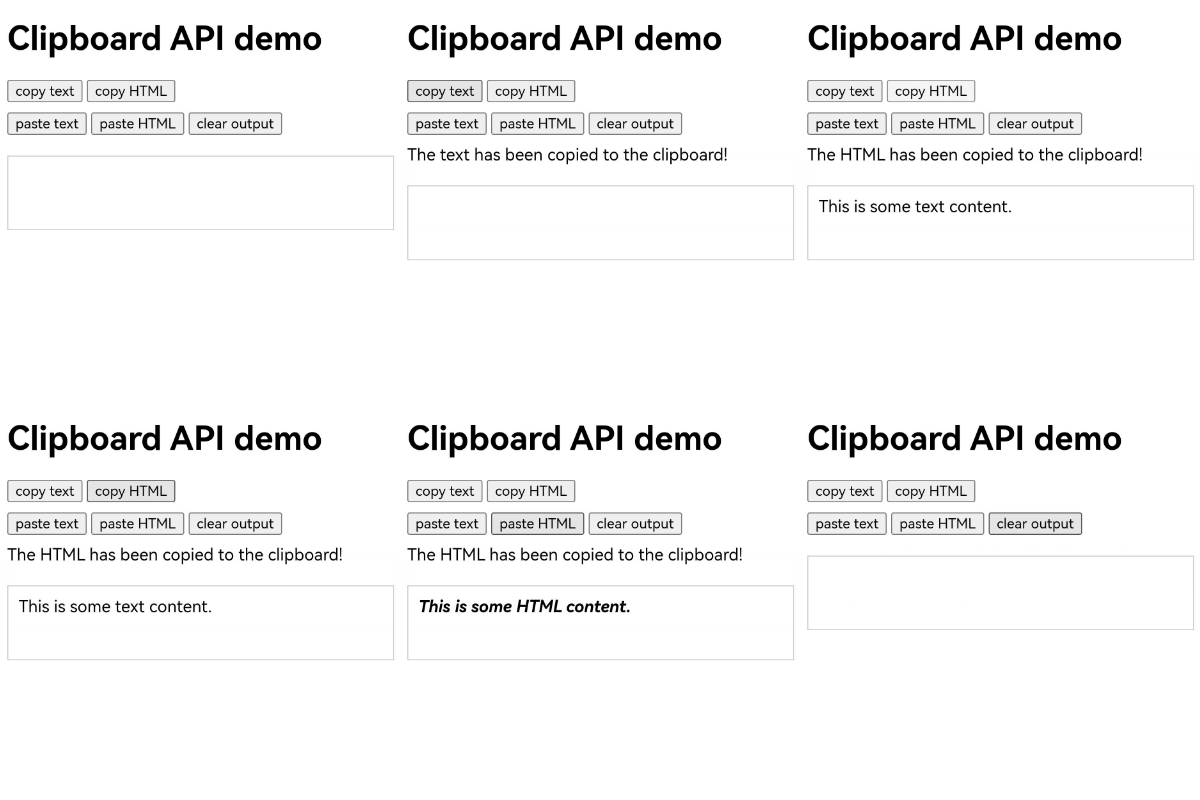
Asynchronous clipboard API provides the methods of reading and writing the system clipboard for you to implement the cutting, copying, and pasting functionalities in web applications.
// Write text content to the clipboard.
await navigator.clipboard.writeText("Text content"); // Write HTML content to the clipboard.
const clipboardItem = new ClipboardItem({
'text/html': new Blob (["HTML content"], { type: 'text/html' })
});
await navigator.clipboard.write([clipboardItem]); // Read text from the clipboard. const text = await navigator.clipboard.readText()
// Read HTML from the clipboard.
const clipboardItems = await navigator.clipboard.read();
const htmlBlob = await clipboardItems[0].getType('text/html'); To read data from the system clipboard through the read() and readText() methods of the asynchronous clipboard API, you need to request access to the clipboard permission: ohos.permission.READ_PASTEBOARD.
import { webview } from '@kit.ArkWeb';

@Entry
@Component
struct WebComponent {
  controller: webview.WebviewController = new webview.WebviewController();

  build() {
    Column() {
      Web({ src: $rawfile('clipboard.html'), controller: this.controller })
    }
  }
}Loaded HTML:
<!--clipboard.html-->
<!DOCTYPE html>
<html lang="zh">
<head>
    <meta charset="UTF-8">
    <meta name="viewport" content="width=device-width, initial-scale=1.0">
    <title>Clipboard API demo</title>
    <style>
        #output {
            margin-top: 20px;
            border: 1px solid #ccc;
            padding: 10px;
            min-height: 50px;
        }
        .button-group {
            margin-bottom: 10px;
        }
    </style>
</head>
<body>
<h1>Clipboard API demo</h1>
<div class="button-group">
    <button id="copyTextButton">Copy text</button>;
    <button id="copyHtmlButton">Copy HTML</button>;
</div>

<div class="button-group">
    <button id="pasteTextButton">Paste text</button>;
    <button id="pasteHtmlButton">Paste HTML</button>;
    <button id="clearOutputButton">Clear the text box</button>;
</div>

<div id="result"></div>
<div id="output" contenteditable="true"></div>

<script>
    const textContent = "This is some text content";
    const htmlContent = `<strong><em>This is some HTML content</em></strong>`;

    // Call writeText()
    async function copyText() {
        await navigator.clipboard.writeText(textContent);
        document.getElementById('result').innerText = "The text has been copied to the clipboard.";
    }

    // Call write()
    async function copyHtml() {
        const clipboardItem = new ClipboardItem({
            'text/html': new Blob([htmlContent], { type: 'text/html' })
        });
        await navigator.clipboard.write([clipboardItem]);
        document.getElementById('result').innerText = "HTML has been copied to the clipboard.";
    }

    // Call readText()
    async function pasteText() {
        const text = await navigator.clipboard.readText();
        document.getElementById('output').innerText = text;
    }

    // Call read()
    async function pasteHtml() {
        const items = await navigator.clipboard.read();
        for (const item of items) {
            const types = item.types;
            if (types.includes('text/html')) {
                const blob = await item.getType('text/html');
                const html = await blob.text();
                document.getElementById('output').innerHTML = html;
                return;
            }
        }
        document.getElementById('result').innerText = "No HTML content on the clipboard.";
    }

    function clearOutput() {
        document.getElementById('result').innerText = " ";
        document.getElementById('output').innerHTML = '';
    }

    // Listen for events.
    document.getElementById('copyTextButton').addEventListener('click', copyText);
    document.getElementById('copyHtmlButton').addEventListener('click', copyHtml);
    document.getElementById('pasteTextButton').addEventListener('click', pasteText);
    document.getElementById('pasteHtmlButton').addEventListener('click', pasteHtml);
    document.getElementById('clearOutputButton').addEventListener('click', clearOutput);
</script>
</body>
</html>
Configure permissions for the module.json5 file.
Required permissions: ohos.permission.READ_PASTEBOARD. To access clipboard content, applications need to request permissions to access the pasteboard.
{
  "module": {
    // ···
    "requestPermissions": [
      {
        "name" : "ohos.permission.READ_PASTEBOARD",
        "reason": "$string:module_desc",
        "usedScene": {
          "abilities": [
            "FormAbility"
          ],
          "when":"inuse"
        }
      }
    ]
  }
}
Clipboard Event describes the cut, copy, and paste events related to the clipboard. When a user performs a cut, copy, or paste operation, the corresponding event is triggered. By listening for these events, you can read from and write to the system clipboard, or intercept the default behavior to change the copy or paste result.
import { webview } from '@kit.ArkWeb';

@Entry
@Component
struct WebComponent {
  controller: webview.WebviewController = new webview.WebviewController();

  build() {
    Column() {
      Web({ src: $rawfile('clipboard_event.html'), controller: this.controller })
    }
  }
}Loaded HTML:
<!--clipboard_event.html-->
<!DOCTYPE html>
<html lang="zh">
<head>
    <meta charset="UTF-8">
    <meta name="viewport" content="width=device-width, initial-scale=1.0">
    <title>Clipboard Event demo</title>
    <style>
        .output {
            margin-top: 20px;
            border: 1px solid #ccc;
            padding: 10px;
            max-width: 400px;
        }
    </style>
</head>
<body>
<h2>Example of listening a clipboard event</h2>
<textarea id="inputArea" rows="4" cols="50" placeholder="Input text here and try to copy and paste..."></textarea>;

<div class="output" id="output">
    <h3>Output content:</h3>
    <p id="resultText">No content is copied or pasted. </p>
</div>

<script>
    const inputArea = document.getElementById('inputArea');
    const resultText = document.getElementById('resultText');

    // Listen to the copy event.
    inputArea.addEventListener('copy', (event) => {
        const selection = document.getSelection();
        const copiedText = selection.toString() + "(Copied from ArkWeb)
        event.clipboardData.setData("text/plain", copiedText);
        event.preventDefault();
        resultText.textContent = `Copied content: "${copiedText}"`;
    });

    // Listen for the paste event.
    inputArea.addEventListener('paste', (event) => {
        const pastedData = event.clipboardData.getData('text');
        resultText.textContent = `Pasted content: "${pastedData}"`;
    });

    // Listen for the cut event.
    inputArea.addEventListener('cut', (event) => {
        const selection = document.getSelection();
        const cutText = selection.toString() + "(Cut from ArkWeb)
        event.clipboardData.setData("text/plain", cutText);
        selection.deleteFromDocument();
        event.preventDefault();
        resultText.textContent = `Copied content: "${cutText}"`;
    });
</script>
</body>
</html> 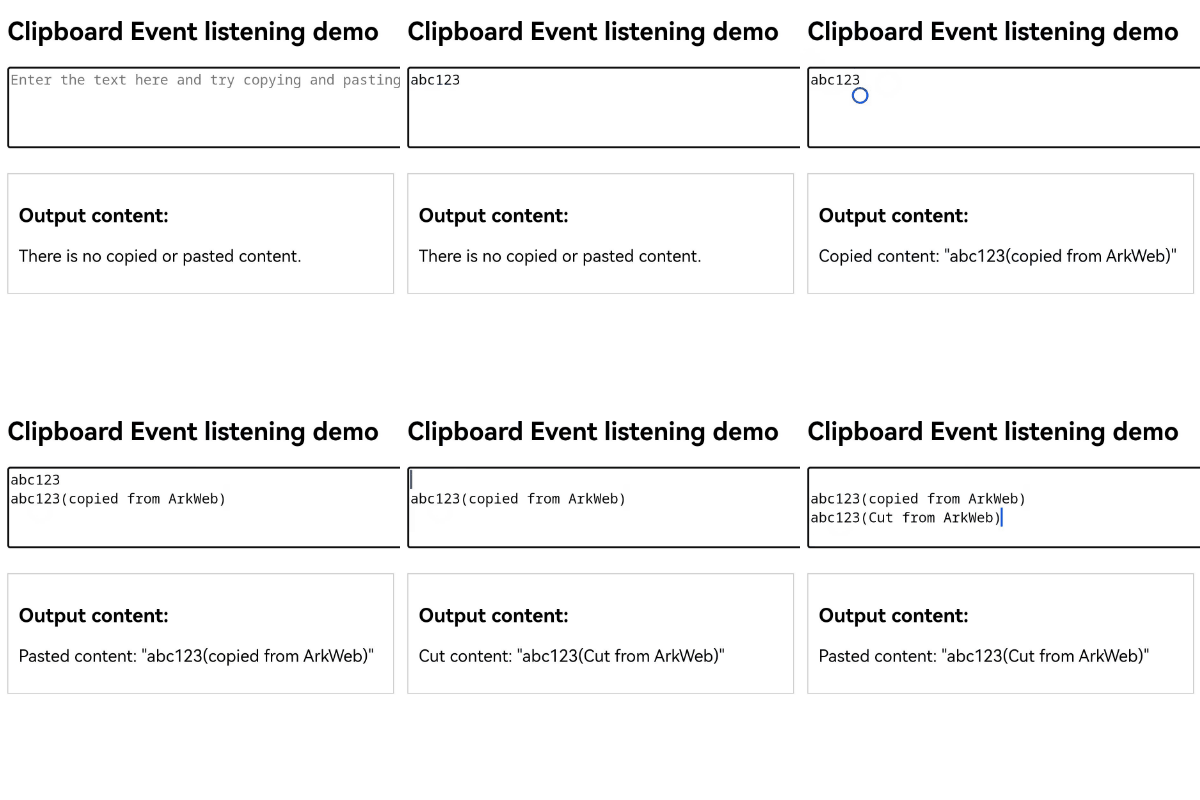
You can set the copyOptions attribute of a Web component to specify the copy scope of the clipboard on the Web component. The available options are CopyOptions.None (copy is not supported), CopyOptions.InApp (in-application copy is supported), and CopyOptions.LocalDevice (in-device copy is supported). The default value is CopyOptions.LocalDevice, indicating that copy within a device is supported by default.
import { webview } from '@kit.ArkWeb';

@Entry
@Component
struct WebComponent {
  controller: webview.WebviewController = new webview.WebviewController();
  @State copyOption: CopyOptions = CopyOptions.LocalDevice;

  build() {
    Column() {
      Web({ src: $rawfile('copyOptions.html'), controller: this.controller })
        .copyOptions(this.copyOption)
    }
  }
}Loaded HTML:
<!--copyOptions.html-->
<!DOCTYPE html>
<html lang="zh">
<head>
    <meta charset="UTF-8">
    <meta name="viewport" content="width=device-width, initial-scale=1.0">
    <title>Clipboard CopyOption demo</title>
</head>
<body>
<h2>Example of clipboard CopyOption</h2>
<textarea id="inputArea"></textarea>
</body>
</html>