




Intelligent Assistant
Chat with our virtual assistant to get answers promptly.
HUAWEI Push Kit enables you to send latest messages from the cloud to devices, improving user perception and engagement and building good user relationships.
HUAWEI Push Kit supports mobile phones running EMUI 8.0 or later.
The service process is as follows.

1. Call the push.getProvider API to check whether the current device supports HUAWEI Push Kit.
HUAWEI Push Kit is supported only when huawei is returned. This is the prerequisite for subsequent function development and API calls.
2. Call the push.subscribe API to obtain regId (registered ID).
The ID is also called a token or push token, which identifies messages sent by HUAWEI Push Kit. It does not have a fixed length. The following are two example formats:
0862767037246841300005665000CN01
ANDmbp0JwPTftSc4tY90C2aW6xTGyKtTIY4idTf5GekYFfOKYmKTeqYlyKYUS0CQbf2xmUdkKWaYU6AoO1Ju6bL5lQgU7pmzQD_6cdIEABhHTLPYhMcsoF64B0tNAE_eBg
3. Report the obtained regId to the server of your quick app through the Fetch Data API, so the server can push messages to the device based on regId.
Generally, the value of regId does not change and does not need to be reported to the server each time after it is obtained.
You are advised to call the Data Storage API to store the regId locally. Each time the regId is obtained, compare the regId with that stored locally. If they are the same, the regId does not need to be reported to the server. Otherwise, report the regId to the server.
The service process is as follows.

The sample code for comparing the obtained regId with that stored locally is as follows:
- checkToken() {
- var subscribeToken=this.$app.$def.dataApp.pushtoken;
- console.log("checkToken subscribeToken= "+subscribeToken);
- var storage = require("@system.storage");
- var that=this;
- storage.get({
- key: 'token',
- success: function (data) {
- console.log("checkToken handling success data= "+data);
- if (subscribeToken != data) {
- // Report regId to your service server.
- that.uploadToken(subscribeToken);
- that.saveToken(subscribeToken);
- }
- },
- fail: function (data, code) {
- console.log("handling fail, code = " + code);
- }
- })
- },
The sample code for saving regId locally is as follows:
- saveToken(subscribeToken){
- console.log("saveToken");
- var storage = require("@system.storage");
- storage.set({
- key: 'token',
- value: subscribeToken,
- success: function (data) {
- console.log("saveToken handling success");
- },
- fail: function (data, code) {
- console.log("saveToken handling fail, code = " + code);
- }
- })
- },
4. Send a push message. For details, please refer to Sending a Push Message.
5. Process the push message as a notification message. When a user taps a notification message, the associated quick app page is opened, and the parameters carried in the message are assigned to the same parameters on the page.
You can send push messages in either of the following ways:
Select target users in AppGallery Connect. In this case, messages can be pushed to both quick apps on the live network and those running on a quick app loader.
Send push messages to a large number of users in batches by invoking server APIs. In this case, messages can be pushed to both quick apps on the live network and those running on a quick app loader.
Conditions for a quick app to receive push messages are as follows.
| Message Type | Condition |
|---|---|
| Notification message | [Quick App Engine 3.2.1 and later versions]A quick app has been used before and either of the following conditions is met: The quick app has been added to the home screen. The quick app has been favorited by the user. |
To debug your app on Huawei Quick App Loader, ensure that the loader is running.
If you have installed Phone Manager on your phone for debugging, enable auto-launch for your quick app in Phone Manager.
1. Sign in to AppGallery Connect and select My projects.
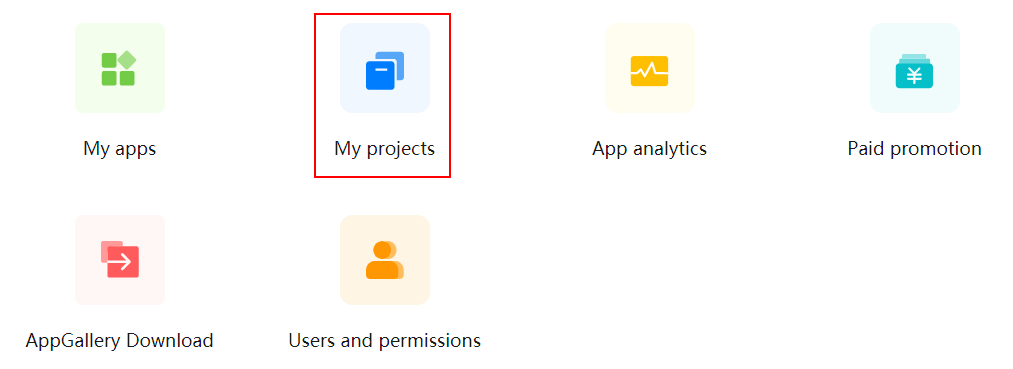
2. Click the card of the project for which you want to debug.
3. Go to Grow > Push Kit.
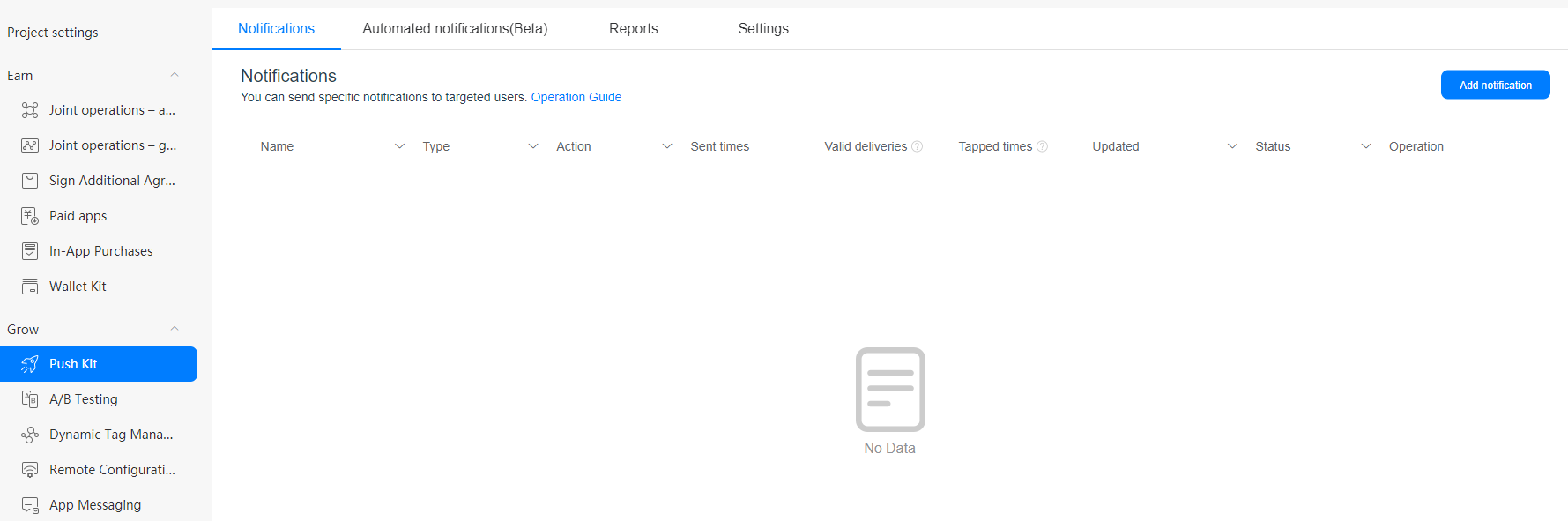
4. Click Add notification and configure the push message to be sent. For details, see Sending a Notification Message to a Huawei Quick App.
To improve user experience and reduce interruptions to users, a quick app can send up to one push message to a user every day. That is, the interval between two messages cannot be shorter than 24 hours.
Through AppGallery Connect, you can send up to 100 push messages to apps you have developed a day and each message can be sent to up to 1500 devices.
5. Click Submit to send the push message. The notification message is displayed on your phone.
Sending push messages in this way involves the API for obtaining an access token and the API for sending push messages.
For details about the API, please refer to Request for access token.
This API is used to send push messages.
Protocol: HTTPS POST
API URL: https://push-api.cloud.huawei.com/v1/[appid]/messages:send
appId: unique ID allocated to a quick app created on AppGallery Connect. For details about how to obtain the app ID, please refer to Obtaining the APP ID.
Request Parameters (HTTP Header)
| Parameter | Example | Description |
|---|---|---|
| Content-Type | application/json | application/json |
| Authorization | Bearer CF3Xl2XV6jMKZgqYSZFws9IPlgDvxqOfFSmrlmtkTRupbU2VklvhX9kC9JCnKVSDX2VrDgAPuzvNm3WccUIaDg== | The format is as follows: Bearer+space+Access token. If an access token contains backslashes (\), remove all of them. |
API request parameter (HTTP body) example
- {
- "validate_only": false,
- "message": {
- "data": JSON_FORMAT_STRING,
- "android": {
- "fast_app_target": 1
- },
- "token": ["AJRqlvj_atpAUr6qa2hZY-dRBSqzs-OJpF37fXShdXa7hXRHgX5v0M_-aF3KSXqLqhUreGMXmiiyzGVWYVToAa4ohlAUy_RsC75wxv7lnG2-rxf6RV_ivNbLjOCbYQ-tdw"]
- }
- }
Request parameters (HTTP Body)
| Parameter | Type | Mandatory /Optional | Description |
|---|---|---|---|
| validate_only | boolean | Optional | Indicates whether a message is a test message. The test message is only used to verify format validity and is not pushed to user devices. The options are as follows:
The default value is false. |
| message | object | Mandatory | Push message structure. The message structure must contain the valid message payload and valid sending object. For details about the fields, please refer to the table of Message structure definition. |
| Parameter | Type | Mandatory/Optional | Description |
|---|---|---|---|
| data | string | Mandatory | JSON structure of a push message, including the type, content, display, tap action, report statistics, and extended information of the push message. For details, please refer to the data example and data structure description. |
| android | object | Mandatory | Android push message control. For details about the fields, please refer to the table of AndroidConfig structure definition. |
| token | string | Mandatory | Push token of the target user of a push message. Each push token is the regId obtained through the subscribe API in the following format: ["pushtoken1","pushtoken2"] |
● Notification message
- {
- "pushtype": 0,
- "pushbody": {
- "title": "How can young people make a living?",
- "description": "Why did he choose to be a security guard after college graduation?",
- "page": "/",
- "params": {
- "key1": "test1",
- "key2": "test2"
- }
- }
- }
● Data message
- {
- "pushtype": 1,
- "pushbody": {
- "messageId": "111110001",
- "data": "Test message"
- }
- }
| Parameter | Category | Parent Project | Mandatory or Optional | Description |
|---|---|---|---|---|
| pushtype | Integer | body | Mandatory | ● 0: notification message ● 1: data message |
| pushbody | JSON Object | body | Mandatory | Quick app push message body. |
| title | String | pushbody | Optional | Title of a notification message. This parameter is valid only when pushtype is set to 0. |
| description | String | pushbody | Optional | Content of a notification message. This parameter is valid only when pushtype is set to 0. |
| page | String | pushbody | Optional | Path of the quick app page that is displayed when a user taps a notification message. This parameter is valid only when pushtype is set to 0. Only the pages to be routed that are defined in the manifest file can be configured. The URL of the HTML5 page cannot be configured. |
| params | JSON Object | pushbody | Optional | Parameters contained in a message body when a user taps a notification message. This parameter is valid only when pushtype is set to 0. If pushtype is set to 0, the params parameter must be written into the pushbody structure even if no parameter needs to be contained. Example: |
| ringtone(1040+) | JSON Object | pushbody | Optional | Indicates whether to vibrate or display the breathing light upon arrival of a notification message. This field has been deprecated. The setting will not take effect. |
| vibration(1040+) | String | ringtone | Optional | Indicates whether to vibrate upon arrival of a notification message. This field has been deprecated. The setting will not take effect. |
| breathLight(1040+) | String | ringtone | Optional | Indicates whether to display the breathing light upon arrival of a notification message. This field has been deprecated. The setting will not take effect. |
| messageId | String | pushbody | Optional | ID of a data message. This parameter is valid only when pushtype is set to 1. |
| data | String | pushbody | Optional | Content of a data message. This parameter is valid only when pushtype is set to 1. |
| Parameter | Type | Mandatory/Optional | Description |
|---|---|---|---|
| fast_app_target | integer | Mandatory | Quick app run mode. The options are as follows: 1: Huawei Quick App Loader 2: HUAWEI AppGallery During development and debugging, set this parameter to 1 if you need to push messages to Huawei Quick App Loader. Set this parameter to 2 before you officially release your quick app. |
The sample code of the push message body is as follows:
- var mData = {
- "pushtype": 0, // The value 0 indicates a notification message.
- "pushbody": {
- "title": "How can young people make a living? ",
- "description": "Why did he choose to be a security guard after college graduation? ",
- "page": "/", // Path of the quick app page that is displayed when a user taps a notification message. This parameter is valid only when pushtype is set to 0. /" Go to the app home page.
- "params": {
- "key1": "test1",
- "key2": "test2"
- }
- }
- };
- var formatJsonString = JSON.stringify(mData);
- var messbody = {
- "validate_only": false,
- "message": {
- "data": formatJsonString, // The data type is JsonString, not a JSON object.
- "android": {
- "fast_app_target": 1, // The value 1 indicates that a push message is sent to a quick app running by Huawei Quick App Loader. To send a push message to a quick app from AppGallery, set this parameter to 2.
- "collapse_key": -1,
- "delivery_priority": "HIGH",
- "ttl": "1448s",
- "bi_tag": "Trump",
- },
- "token": ['pushtoken1','pushtoken2'], // Target users of message pushing.
- }
- };
Return packet parameters
| Field | Description |
|---|---|
| code | Result code. For details, please refer to Result Codes. |
| msg | Error code description |
| requestId | Request ID, assigned by Push server. |
| ext | Extended information (currently not in use). |
Response packet examples
| Category | Example |
|---|---|
| Success | HTTP/1.1 200 OK |
| System-level failure (traffic control) | HTTP/1.1 503 OK |
| System-level failure (invalid session) | HTTP/1.1 200 OK |
| Service-level failure | HTTP/1.1 200 OK |
| Status Code | Description | Solution |
|---|---|---|
| 200 | OK | N/A |
| 400 | Incorrect parameter. | Check the status code in the response and rectify the fault based on the statuscode. |
| 401 | Authentication failed. | Check the access token in the Authorization parameter in the request HTTP header. |
| 404 | Service not found. | Check whether the request URL is correct. |
| 500 | Internal service error. | Contact Huawei technical support. |
| Result Code | Description |
|---|---|
| 6 | Session expired. |
| 102 | Invalid SESSION_KEY. |
| 105 | Parameter error. |
| 111 | System or server too busy. |
| 112 | Service not found. |
| 113 | Service request failure. |
| 114 | Service unreachable or no routing. |
| 199 | Unknown error. |
| 403 | No permission. |
| Result Code | Description | Solution |
|---|---|---|
| 80000000 | Success. | - |
| 80100000 | Some tokens are successfully sent. Tokens identified by illegal token are those failed to be sent. | Check these tokens in the return value. |
| 80100001 | Some token parameters are incorrect. | Check the token parameters as prompted in the response. |
| 80100002 | The number of tokens must be 1 when a synchronization message is sent. | Check the token field in the request. |
| 80100003 | Incorrect message structure. | Check the parameters in the message structure as prompted in the response. |
| 80100004 | The message expiration time is earlier than the current time. | Check the message field ttl. |
| 80100013 | The collapse_key message field is invalid. | Check the message field collapse_key. |
| 80100016 | The message contains sensitive information. | Check whether the message contains sensitive words. |
| 80200001 | OAuth authentication error. | The access token in the Authorization parameter in the request HTTP header failed to be authenticated. Ensure that the access token is correct. |
| 80200003 | OAuth token expired. | The access token in the Authorization parameter in the request HTTP header expired. Apply for a new access token. |
| 80300002 | The current app does not have the permission to send push messages. | Check the push message sending permission of the current app. |
| 80300007 | All tokens are invalid. | Check the token parameter. |
| 80300008 | The message body size exceeds the default value. | Reduce the message body size. |
| 80300010 | The number of tokens in the message body exceeds the default value. | Reduce the number of tokens and send them in batches. |
| 81000001 | System internal error. | Contact Huawei technical support of HUAWEI Push Kit. |
No. A push task is performed based on regid. A regid indicates a user.
Enter the token and add a comma (,) to the end of the token.
Check whether the value of page in the push message body is a path. If the value is /, the home page is displayed by default.
Check whether the maximum length of regId allowed by your service server is greater than 130 characters. If not, the regId may be truncated due to overlength. In this case, you are advised to adjust the maximum length allowed by your service server.
The status code 102 indicates that a message is discarded due to frequency control. As a result, the device cannot receive other messages.
The frequency control policy for quick apps is as follows: A quick app can send up to one push message to a user every day. That is, the interval between two messages cannot be shorter than 24 hours.
Ensure that you have not used the token generated by the quick app alliance debugger by mistake.
Ensure that the signature fingerprint used to apply for the HUAWEI Push Kit service is the same as that used in the debugged app. For details about how to check the signing certificate fingerprint of the app, please refer to How do I check the signing certificate fingerprint of the RPK file for a quick app?
Different quick apps have different regId values on the device. For the same quick app, the value of regId varies depending on the device.
The regId obtained by each quick app on each device is unique and generally does not change.