




Intelligent Assistant
Chat with our virtual assistant to get answers promptly.
With OpenWeb platform, you can manage your websites and improve their visibility in Petal Search. The platform includes key functionalities:
• Submit your sitemap, so Petal Search can find your website faster.
• Indicate invalid website links, so Petal Search can provide the available SERP in Petal Search and ensure good search experience.
• Watch your website’s Petal Search traffic performance and index coverage.
• Check the dedicated web page status in Petal Search
1.Need to register a HUAWEI ID to login the OpenWeb Platform in Huawei Developer website.
2.Sign in to the HUAWEI Developers website with your HUAWEI ID, perform identity verification and select developer type. If you don’t have one, simply register and complete the verification process.
Once you have signed in, you can start using OpenWeb platform
You have to add a website and get start to manage and optimize your website. You need to prove that you are the owner of that website or its section. Once you have done this, you will be assigned ownership and can then view your website’s data and use OpenWeb Platform’s website management tools.
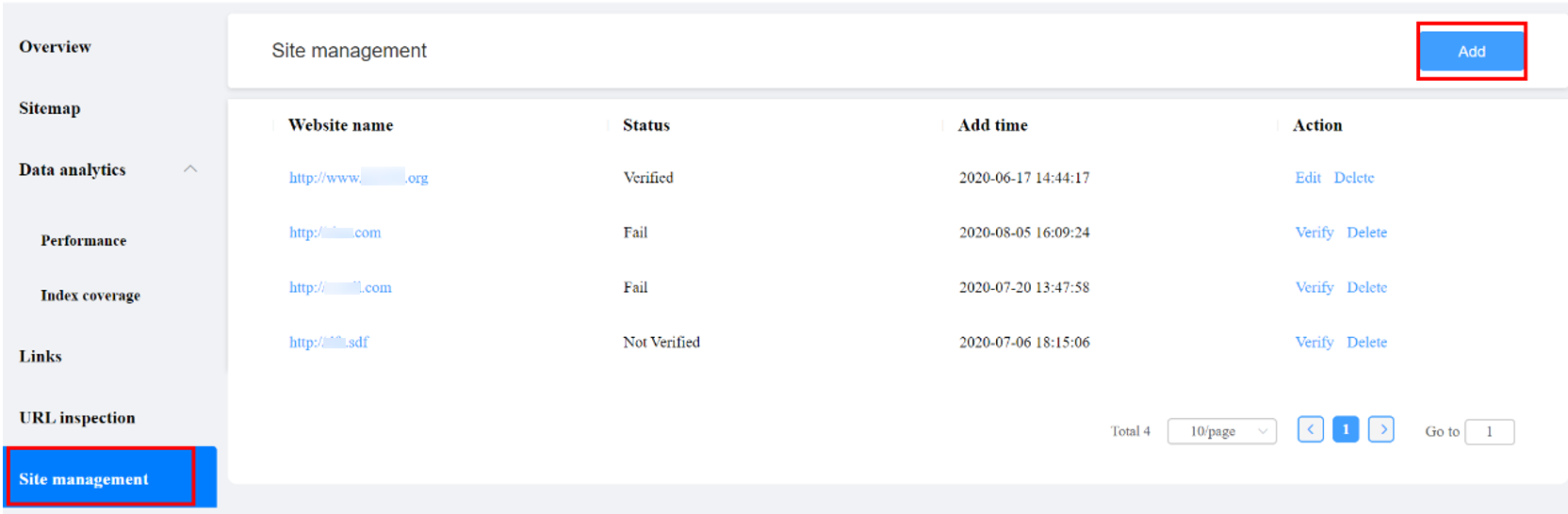
1. Go to Site management in the navigation bar on the left and click Add.
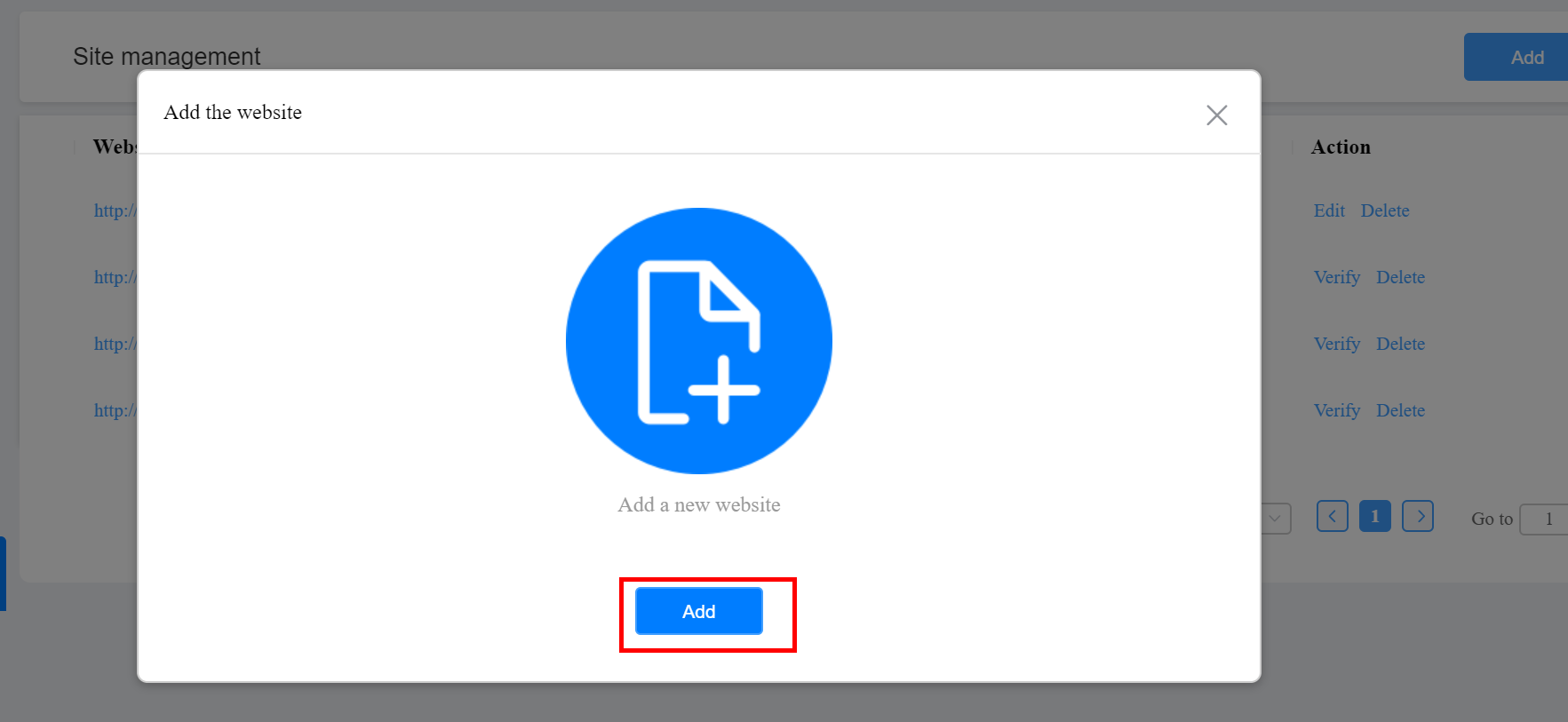
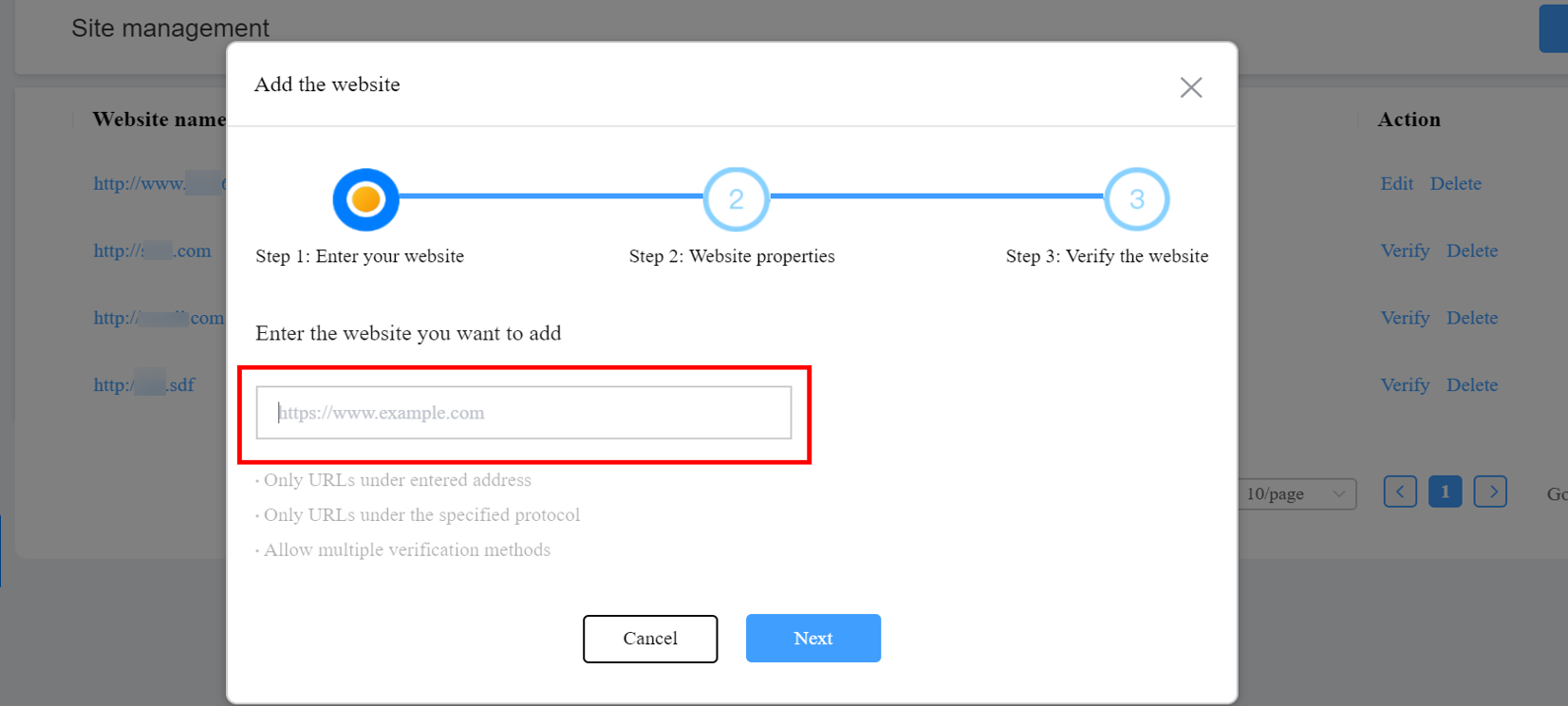
2. Enter the URL of your website and click Next.
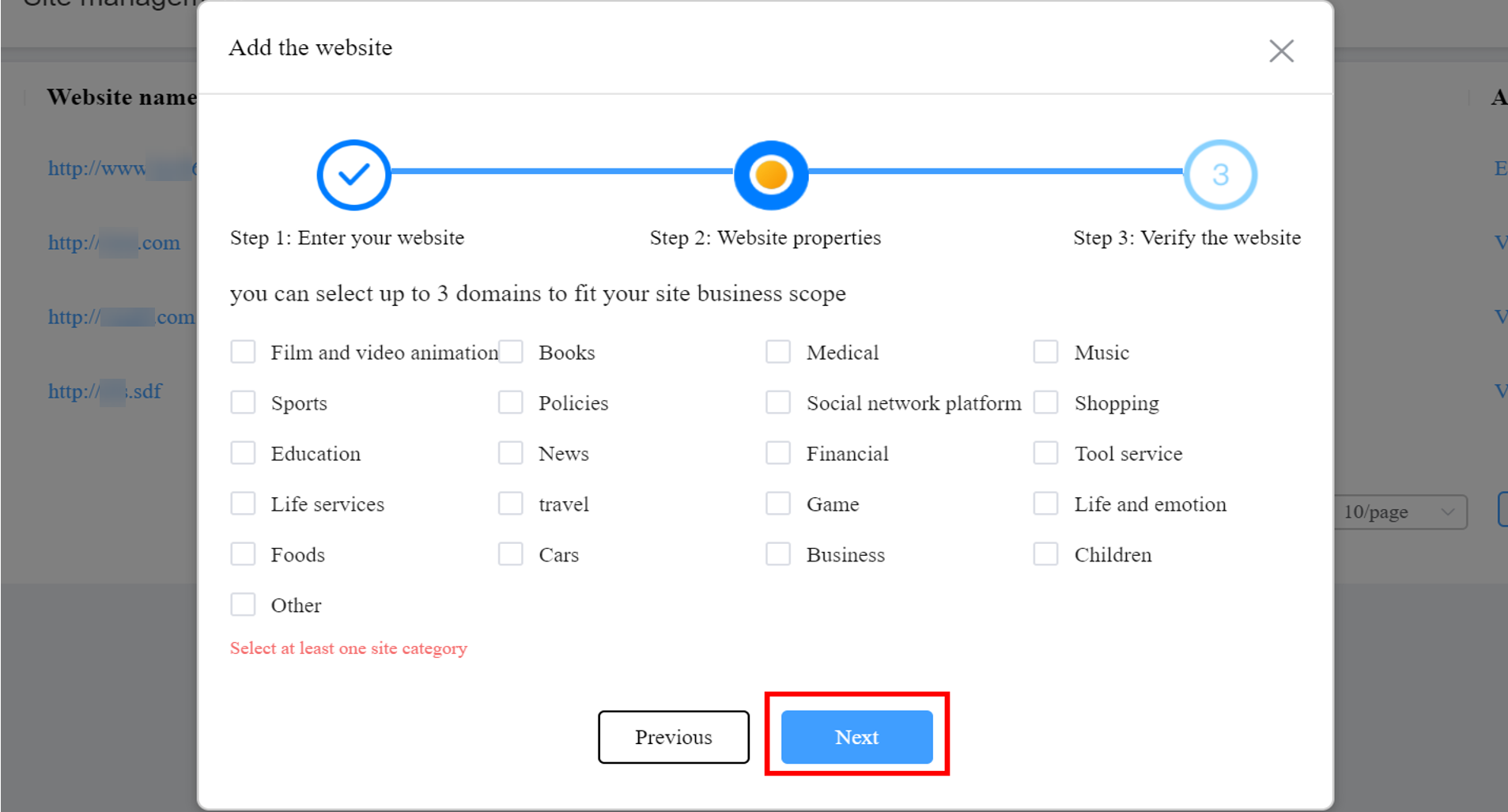
3. Select website properties and click Next.
4. Verify your website ownership
There are three method you can use based on your preference.
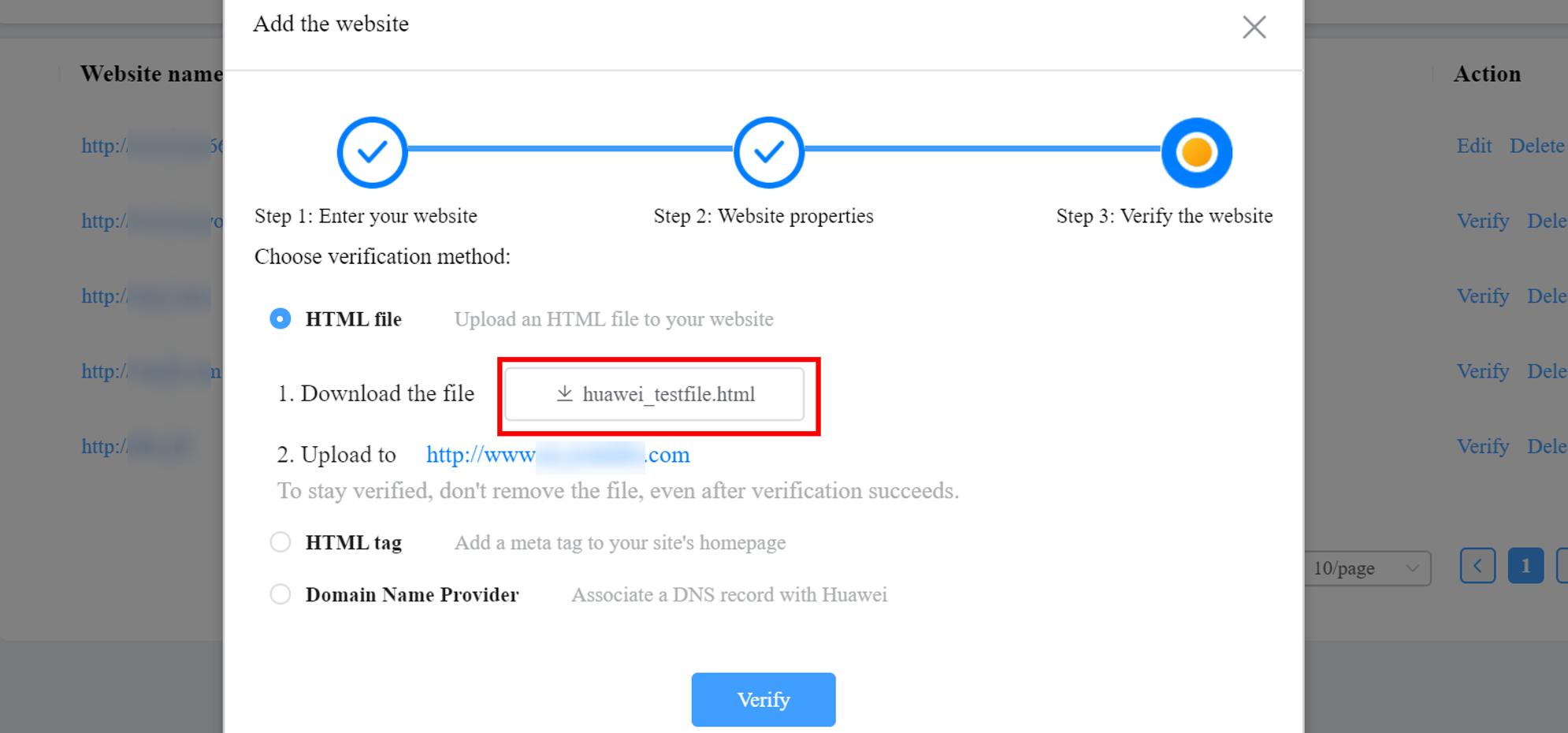
(1)HTML File: Click the file and add the verification file to the root directory on your website server. Then click Verify to verify your website.
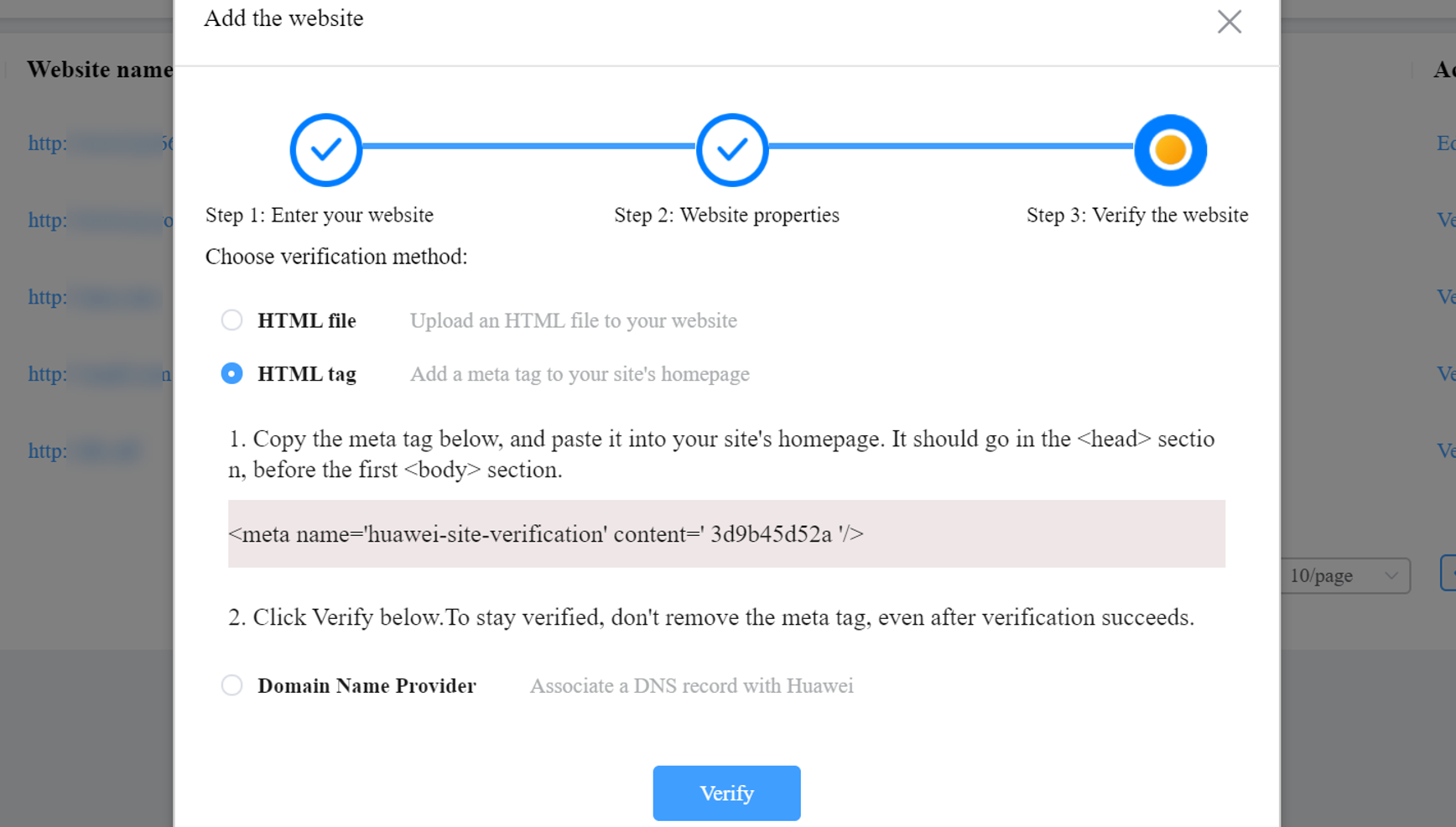
(2)Html Tag: With Html tag method, you need to copy the meta tag value from the platform and paste it into your site's homepage. It should go in the <head> section. Then click Verify to move forward.
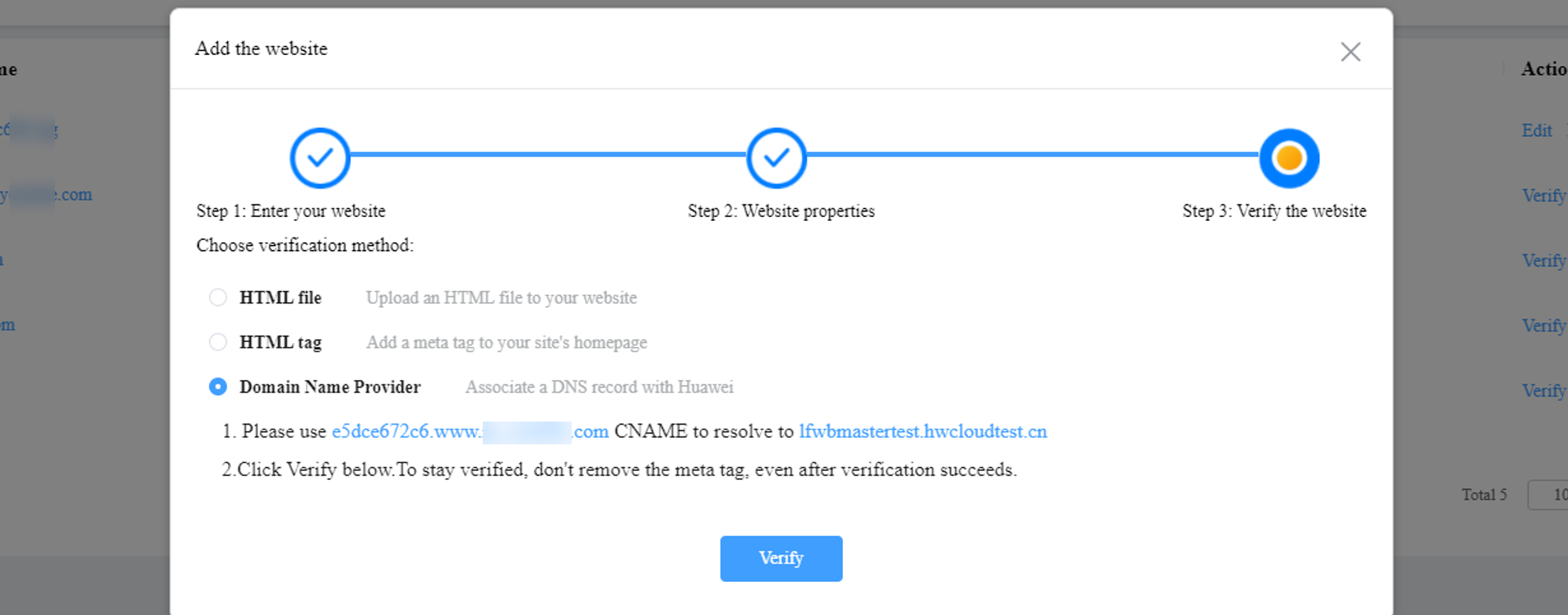
(3)Domain name provider:Please add a CNAME record from the platform to your domain host to verify your domain.
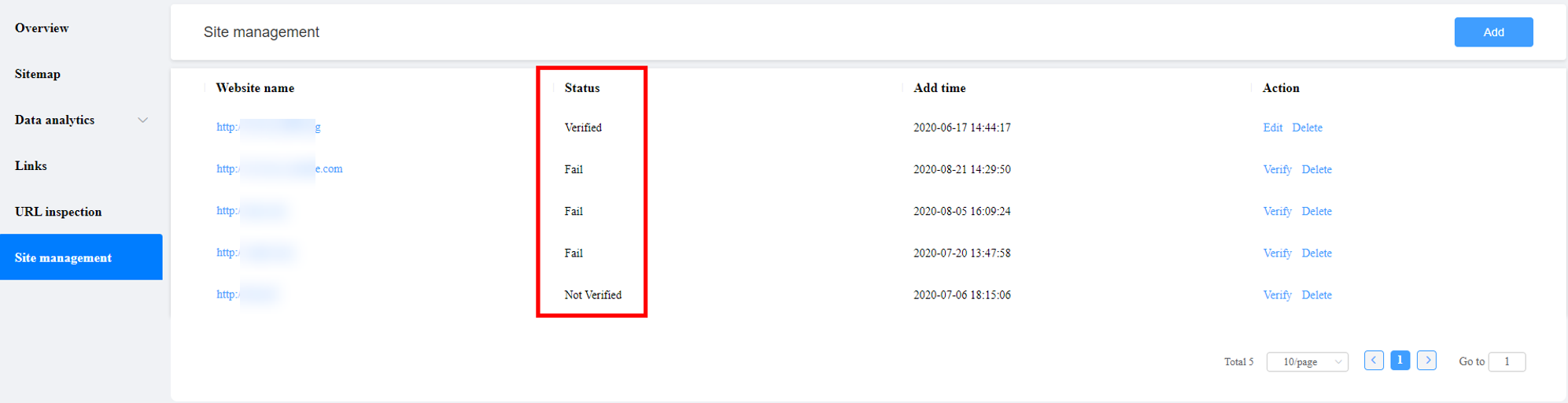
Once this process is complete, you can see the verification result.
5. (Optional) Re-initiate website verification.
If you have already submitted your website to OpenWeb Platform and want to verify it now, go to Site management in the navigation bar on the left. Then, click Verify and complete the verification process by following the instructions in step 4.
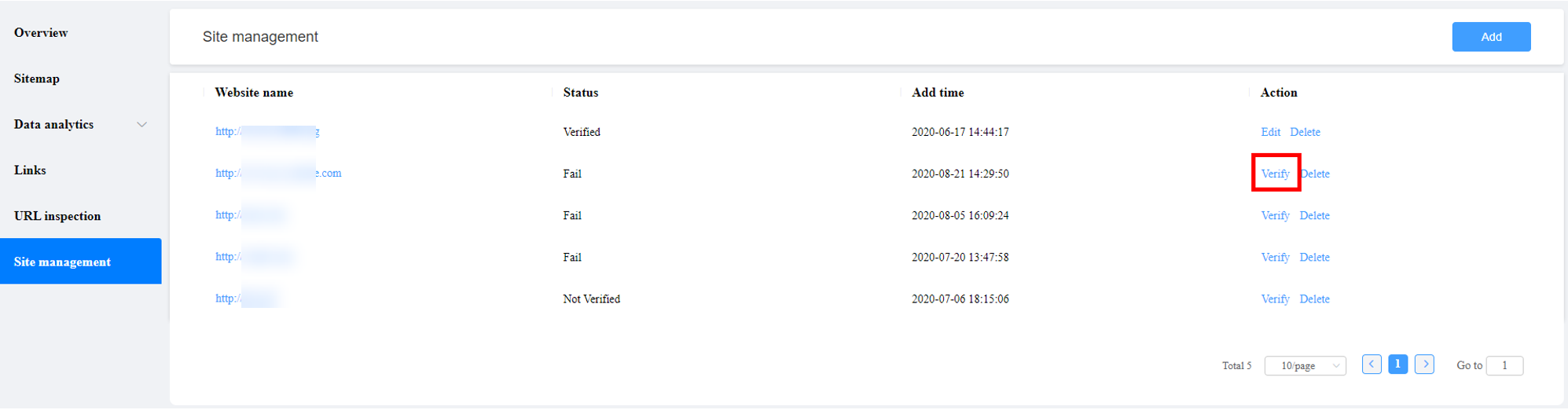
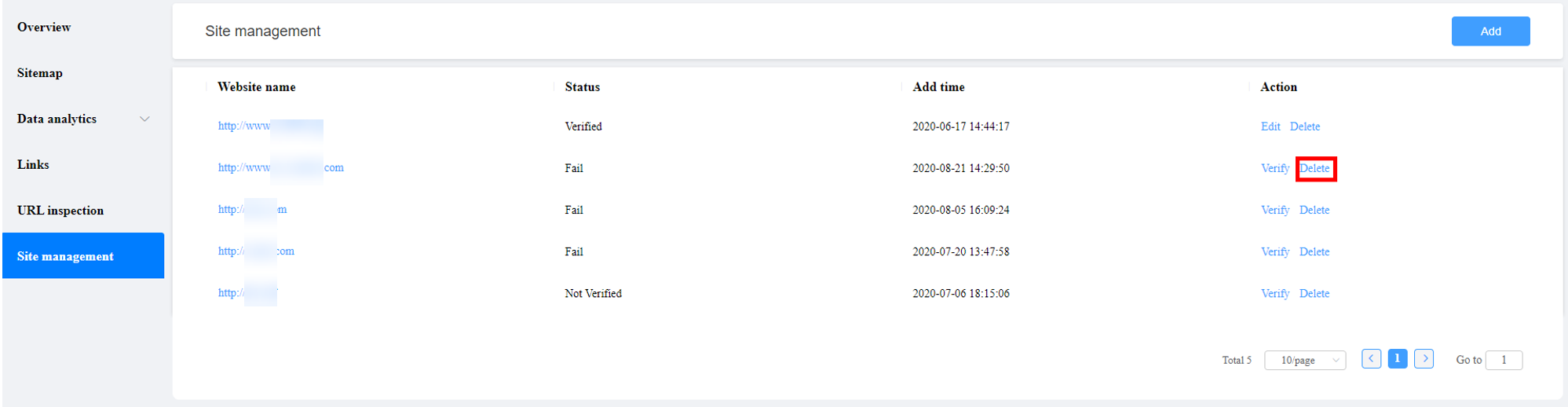
6. (Optional) Remove a website.
To remove a website, go to Site management in the navigation bar on the left and click the Delete button next to the website you want to remove.
1. What does website ownership verification mean?
We need to verify that you are the owner of each website that you submit before we can provide you with coverage and traffic data. Each website must have one verified owner.
2. How long does the verification last?
Once your website has been verified, your verification will be valid permanently.
Sitemaps are aggregation files that contain location of your website, such as the URL. They allow search engines to locate your website, and crawl and index your pages. This improves your search ranking in Petal Search results.
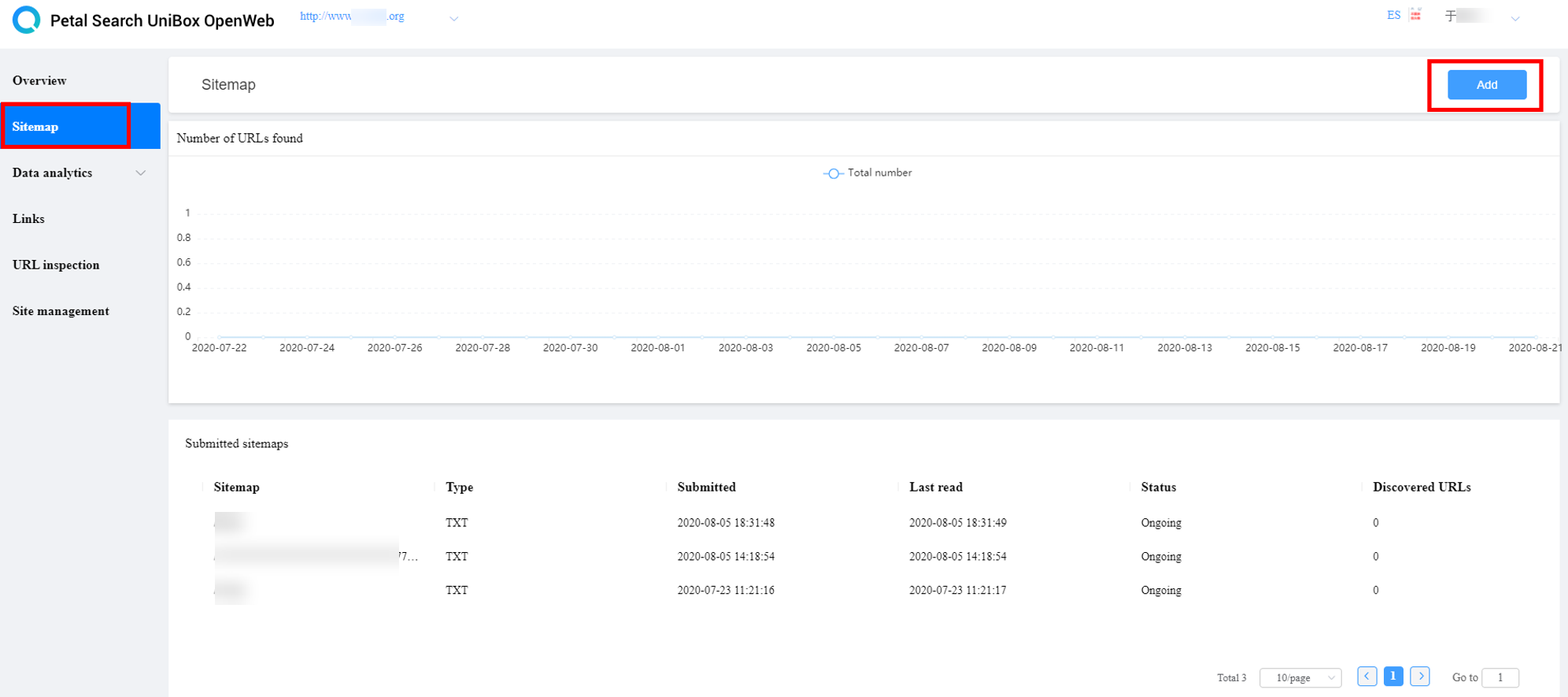
Once you have completed the website verification, you can add sitemaps which contain the URLs of the websites you want to index. This help crawlers to find your URLs faster.
1. Go to Sitemap in the navigation bar on the left and click Add.
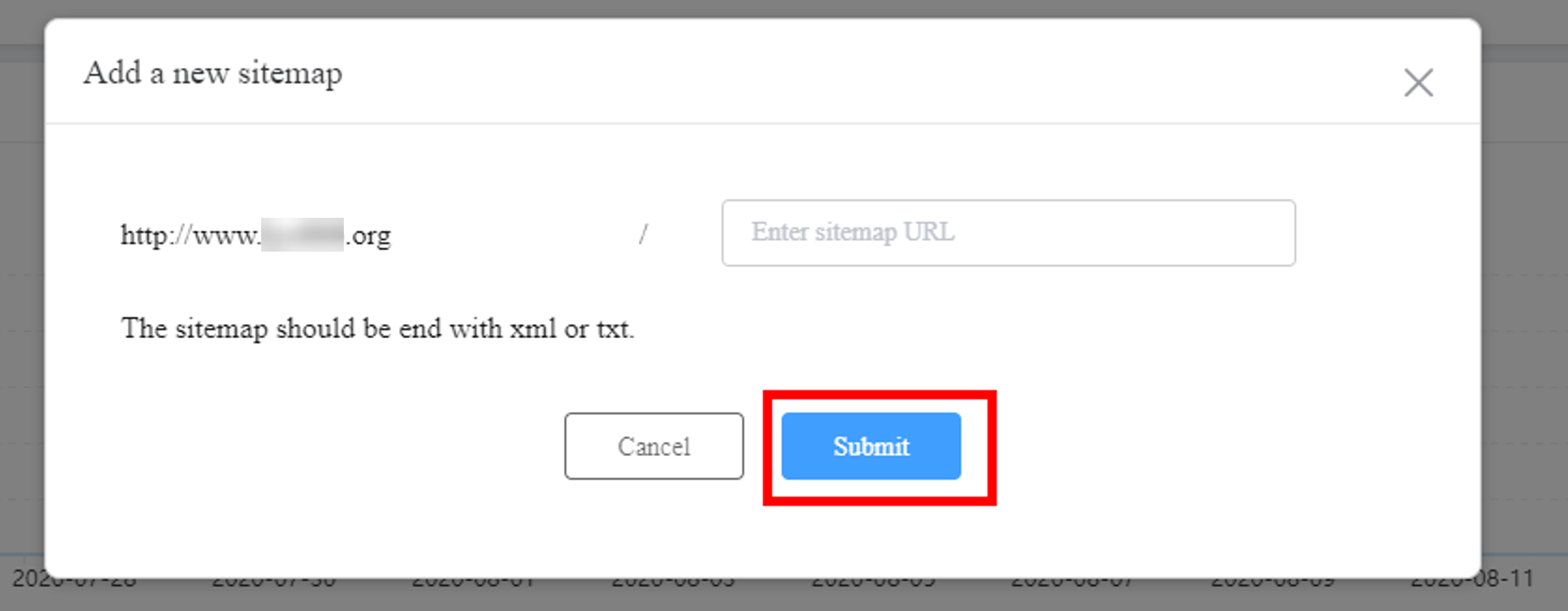
2. Enter your sitemap URL and click Submit.
3. Check the status of your sitemap you’ve submitted.
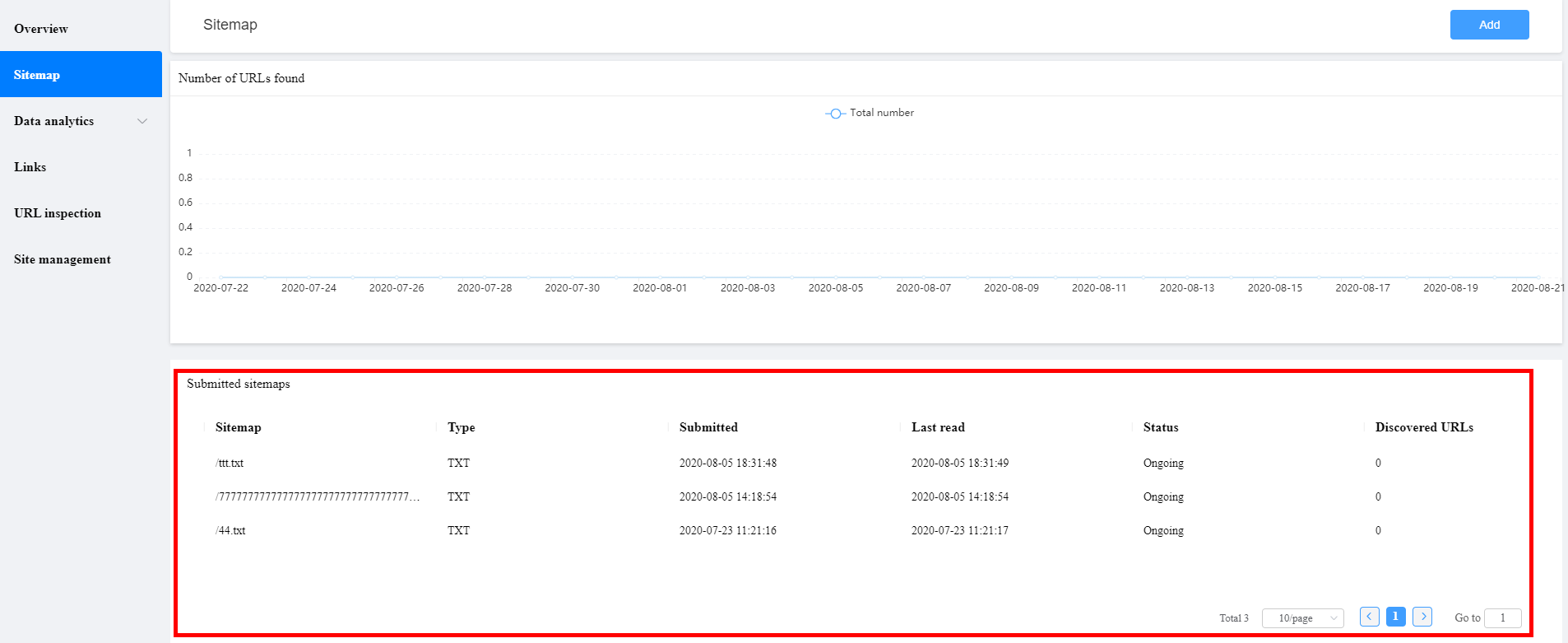
1. Webmaster submits sitemap to OpenWeb platform. This means crawlers can find URLs faster, but it doesn’t guarantee that all of the items in your sitemap will be crawled and indexed.
2. You can submit sitemaps in xml and txt formats. The encoding format needs to be UTF-8. Each sitemap can contain a maximum of 50,000 URLs, and the maximum file size is 10 MB.
3. The sitemap URL should be the path on your website Domain.
4. Once you have submitted your sitemap, its status will be Ongoing. Once it has been successfully crawled, this will change to Success. If the crawling fails, it will change to Fail.
5. Regardless of whether the crawling is successful or not, the number of fetched URLs will be shown in the Discovered URLs field.
The Crawl Statistics report is only available for websites. It provides information of PetalBot 's activity on your website over the past 30 days.
Once you have selected your website property, click Overview in the navigation bar on the left. Your crawl statistics will then appear in the form of line charts.
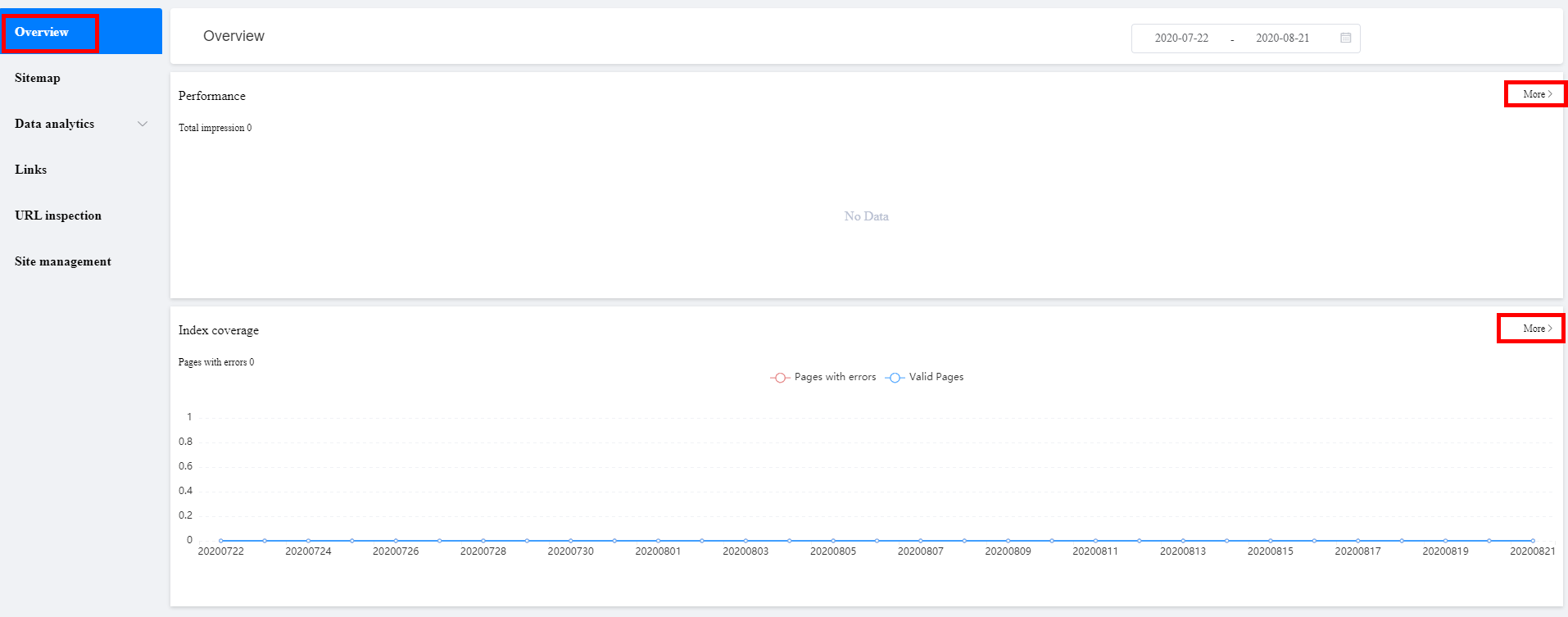
The line chart shows all valid and invalid indexed web pages over the last 30 days.
You can view detailed analysis by clicking More or go to Data Analytics.
The results of the trend analysis are displayed in three parts: aggregated summary chart combining all metrics, a trend analysis graph, and a details table.
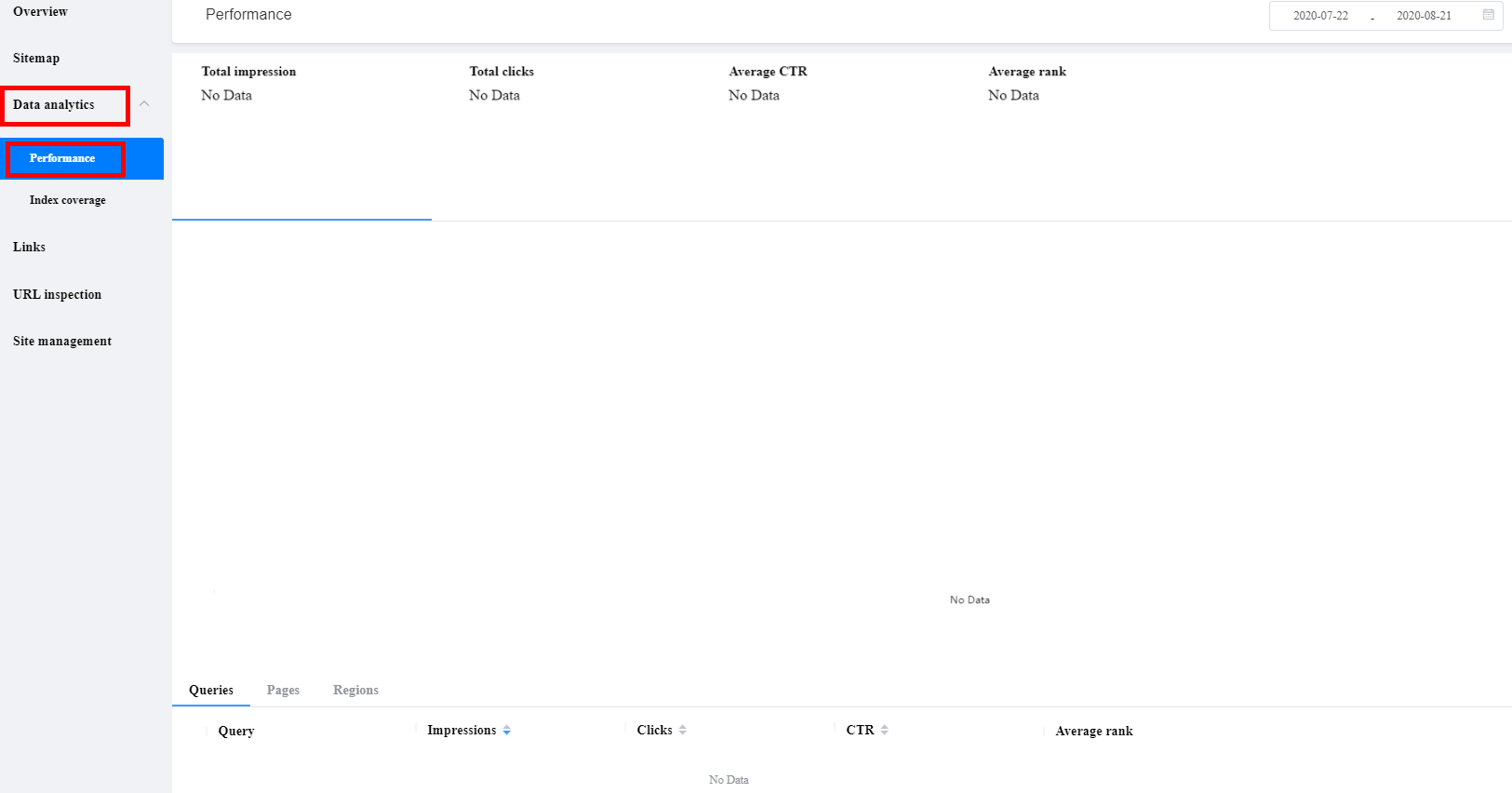
OpenWeb platform support multiple dimesons to analyze metrics and support you to optimize your website.
• Queries: Displays the rankings of all queries from end user. You can see the trend for a specific query which recall your page of website. For privacy protection, if the queries is very rare in your website, they will be omitted. There will be some discrepancy between the details table and aggregated summary.
• Pages:Display the URL of your website which appears in the SERP.
• Regions:shows where the Impression or click happens in the SERP.
• Impressions:Each time your website appears on a results page, it counts as an impression, even if it doesn't enter the user's view. If the user scrolls up and down the results page, and your website enters the user's view for multiple times, it only counts as one impression.
• Clicks:Count of clicks from search result which will recall your pages.
• CTR:Click-through rate: the click count divided by the impression count. the CTR is not available and will be shown as a dash (-)
• Average rank:The average position of thetopmostresult from your site
3.3.4 Index Coverage
The results of the trend analysis are displayed in three parts: a chart combining all statuses, a trend analysis graph, and a coverage list.
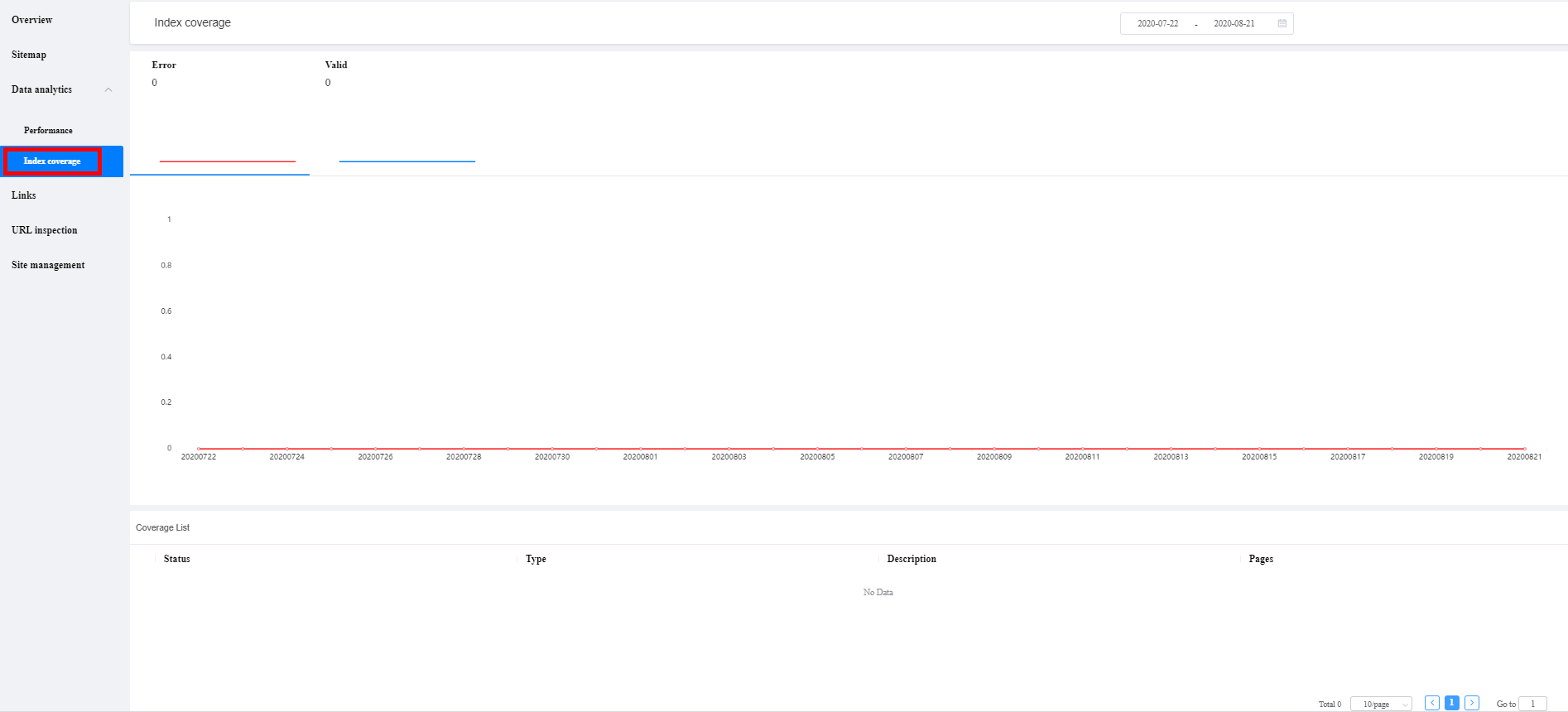
• Error:means how many errors happens which causes your page can not be indexed in search engine.
• Valid:means how many pages have been indexed in search engine.
• Status:shows the page status. The value should be error or valid. The table support drill down the type cell to check the specific URL of this error.
• Type: show the error code.
• Description:the detailed error information which will support webmaster to fixed the issue.
• Pages:how many pages which happen to the same error.
For information about specific errors, please refer to section 3.3.5.
1. Crawl statistics are shown for the last 30 days by default. You can modify the time range.
2. The Performance card provides you with a line chart that shows how your website has ranked in search results over the last 30 days.
3. The Index coverage card provides you with a line chart that tells you about successful and failed crawl attempts on the sitemap you submitted.
4. Index event description:
• Bad request (400):The request parameter is incorrect or the server didn’t understand the request.
• Submitted URL returns unauthorized request (401): You submitted your page for indexing but the server returned a 401 error.
• Forbidden (403): The server understood the request but refused to execute it.
• Submitted URL not found (404): The page you submitted for indexing doesn’t exist.
• Method not allowed (405): The method specified in the request line couldn’t be used to request the corresponding resource.
• Proxy authentication (407): This is similar to the 401 response, but the client needs to authenticate with the proxy server rather than the server. The proxy server needs to return a Proxy-Authenticate for an identity query. The client can authenticate by returning a Proxy-Authorization header.
• Request time out (408): The request timed out. The client failed to send the request within the period the server was prepared to wait. The client can resubmit the request at any time without needing to make any changes.
• Conflict (409): The request couldn’t be completed because there was a conflict with the current status of the requested resource.
• Gone (410): The requested resource is no longer available on the server and there is no known forwarding address.
• Length required (411): The server rejected the request because the Content-Length header wasn't defined.
• Server error (5xx): Your server returned a 5xxerror when the page was requested.
• Redirect error.
Dead links are links that lead to pages which don’t exist. If end users click a dead link, here is a 404 error page, which indicates that the link is damaged or incorrect, or the corresponding page has been deleted.
If your website has too many dead links, it can affect your search performance. You can block dead links by submitting them to search engines.
1. Go to Links in the navigation bar on the left and click Add.
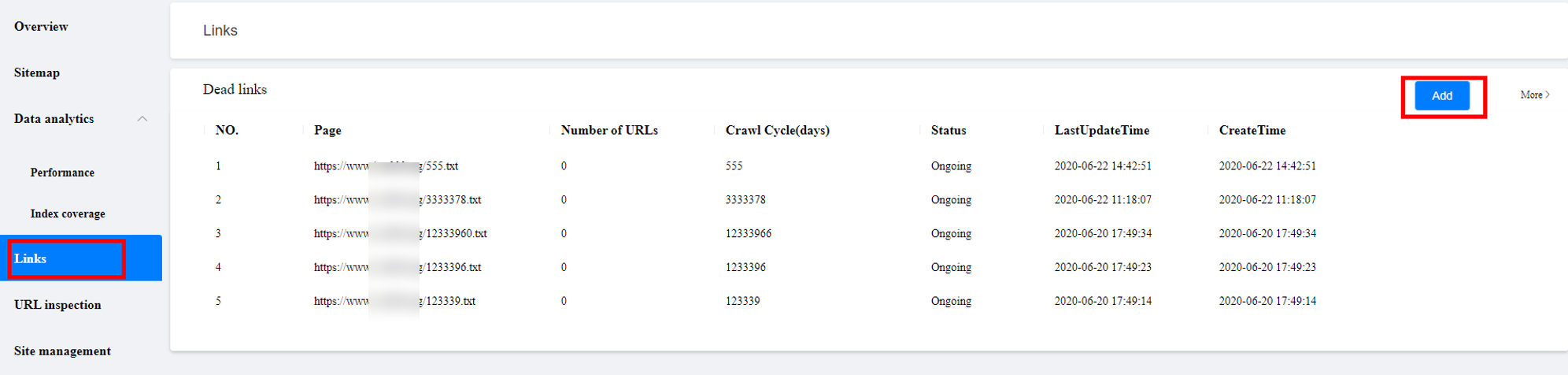
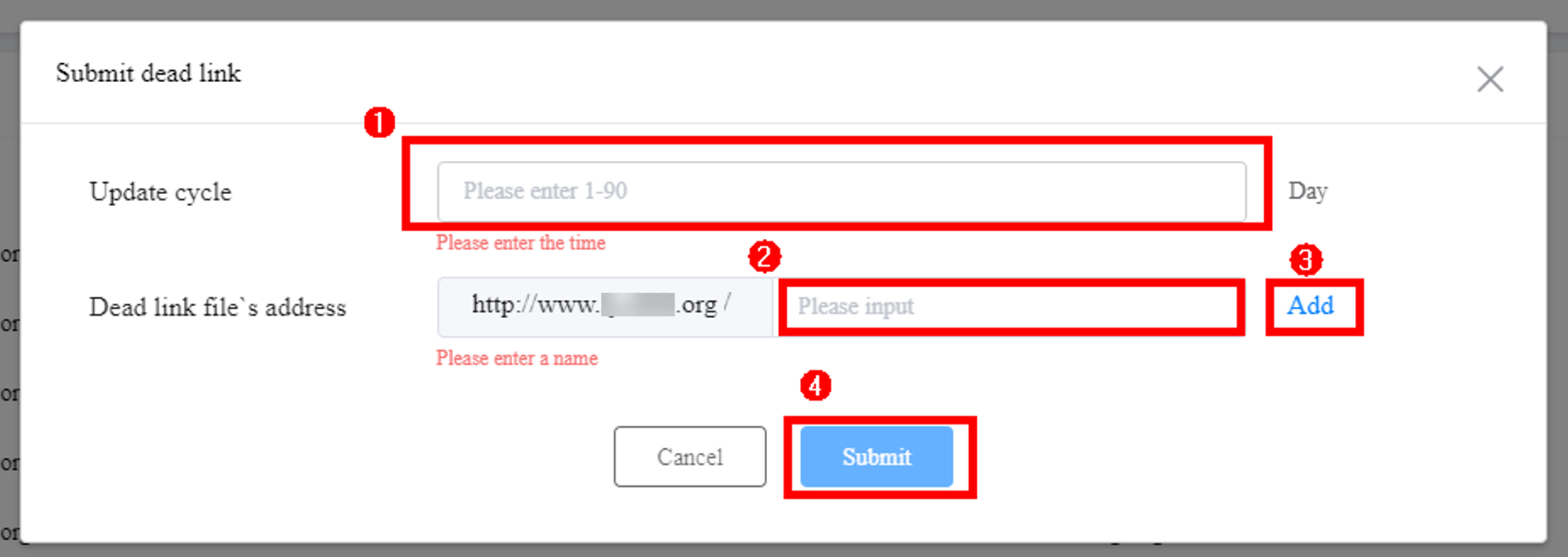
2. On the Submit dead link page, enter the dead link's update frequency and file address. If you want to add more, you can click Add. Then, click OK.
3. Check the status of the dead link you submitted.
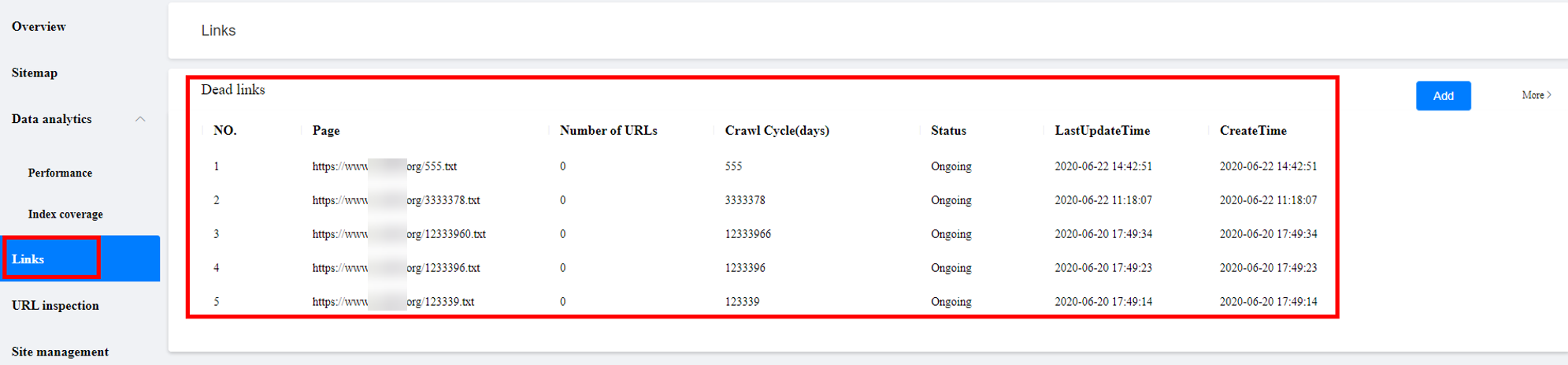
1. The dead link submission tool only identifies pages with an HTTP status code of 404, so you need to provide the 404 error data. If you accidentally submitted an active link using the tool, it will have no effect.
2. You can submit dead link files in xml and txt formats. The encoding format needs to be UTF-8. Each dead link file can contain a maximum of 50,000 URLs, and can be no larger than 10 MB.
3. Once you have submitted a dead link, its status will be set to Creating by default. If it is crawled successfully, the status will change to Success. If the crawling fails, the status will change to Fail.
4.Number of Urls indicates the number of URLs which have been obtained by the crawler. Grab Cycle indicates the update frequency of the dead link, which is measured by hour by default.
5.CreateTime indicates the time when the dead link is submitted, and Last UpdateTime indicates the last time the dead link was crawled.
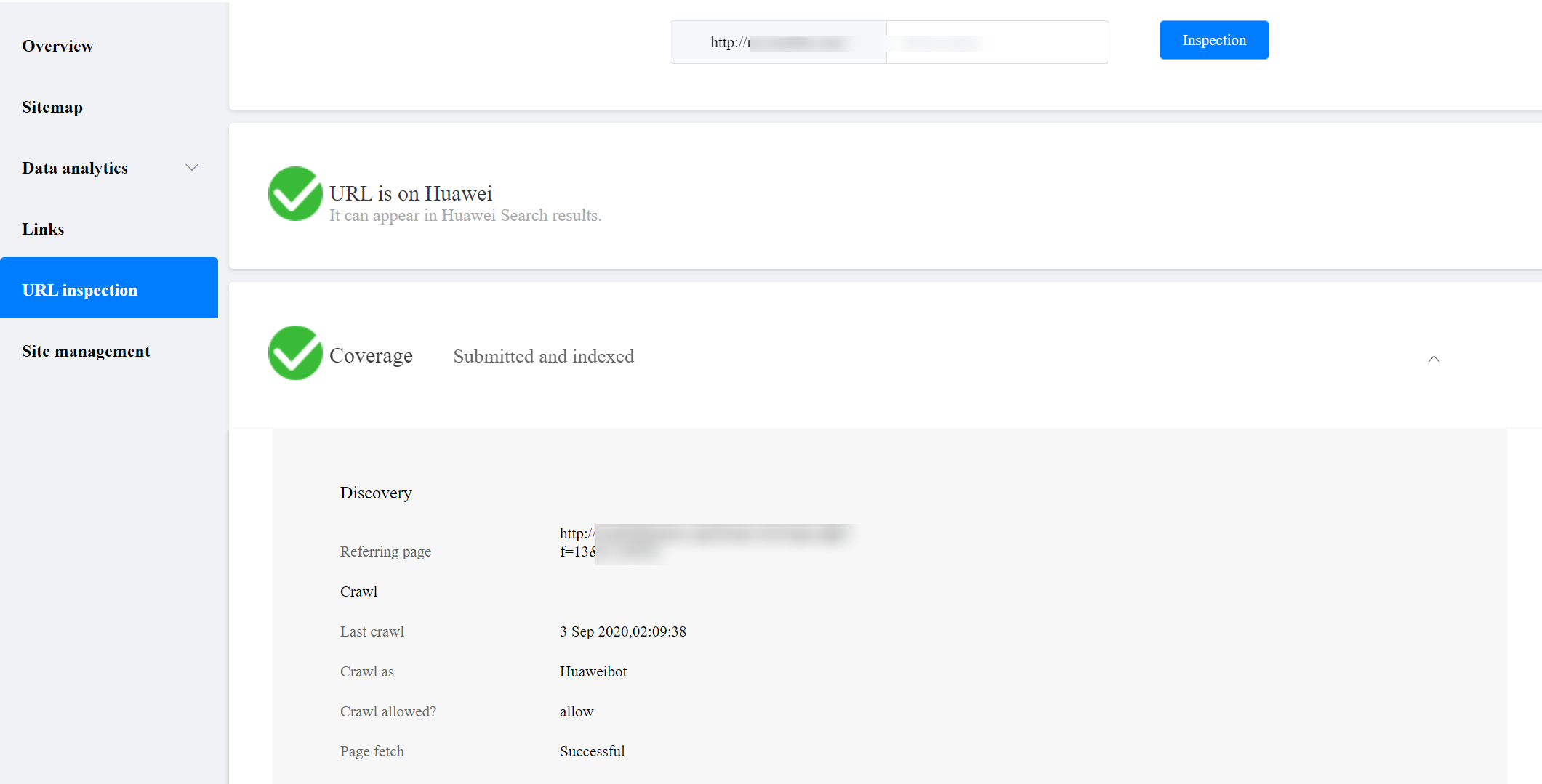
UniBox OpenWeb can check specific URL status, and you can view all information about current URL in Petal Search.
1. To inspect an URL, go to URL inspection in the navigation bar on the left, input the URL, and then click Inspection.
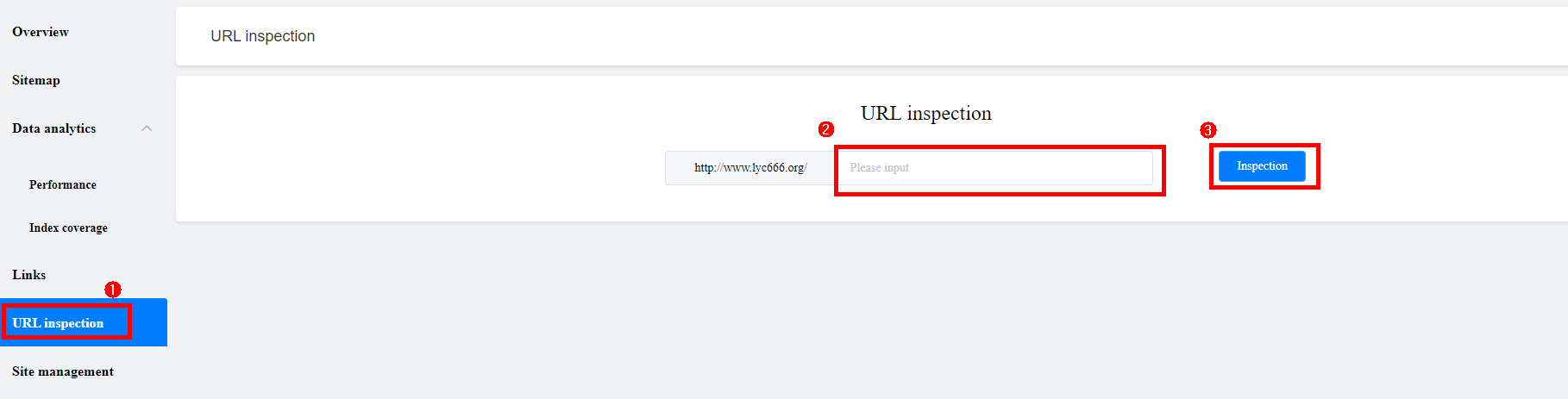
2. Then you can check the current status and the coverage analysis interface of the URL.
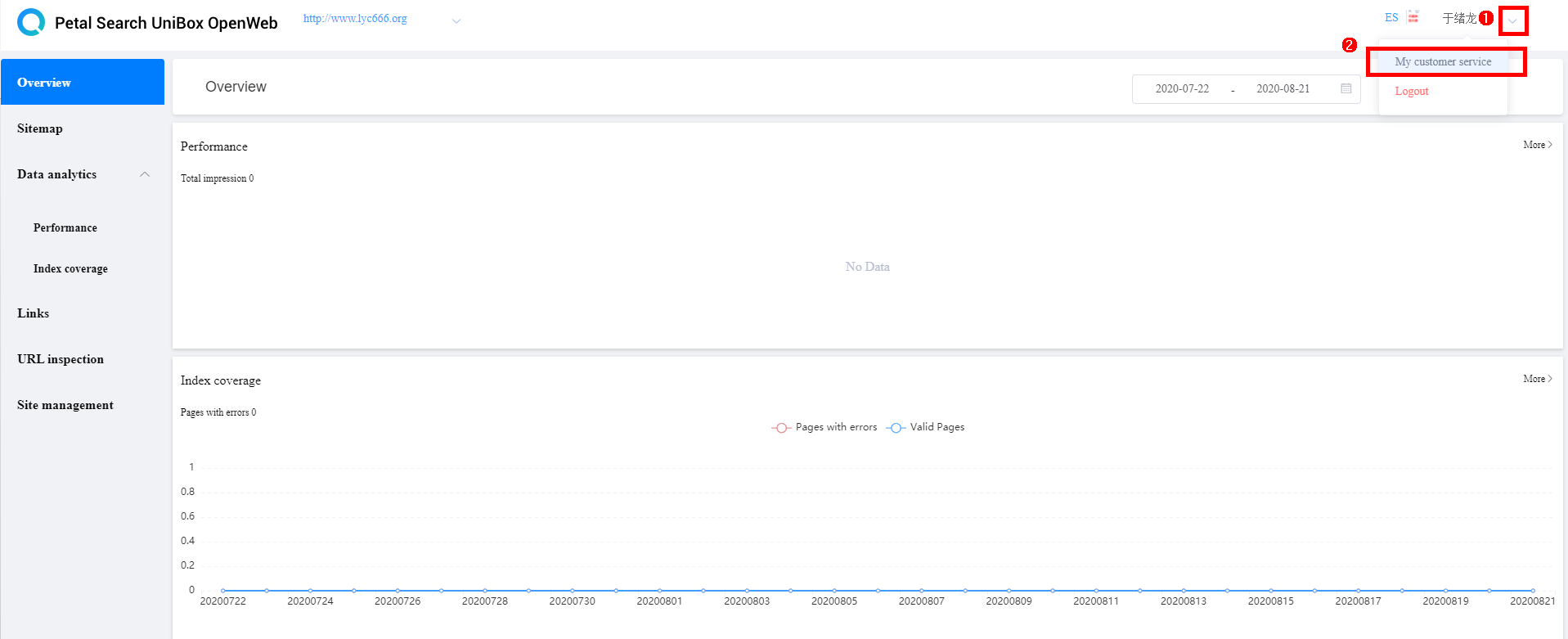
If you need to report a problem, click your account in the upper right corner and select My customer service.
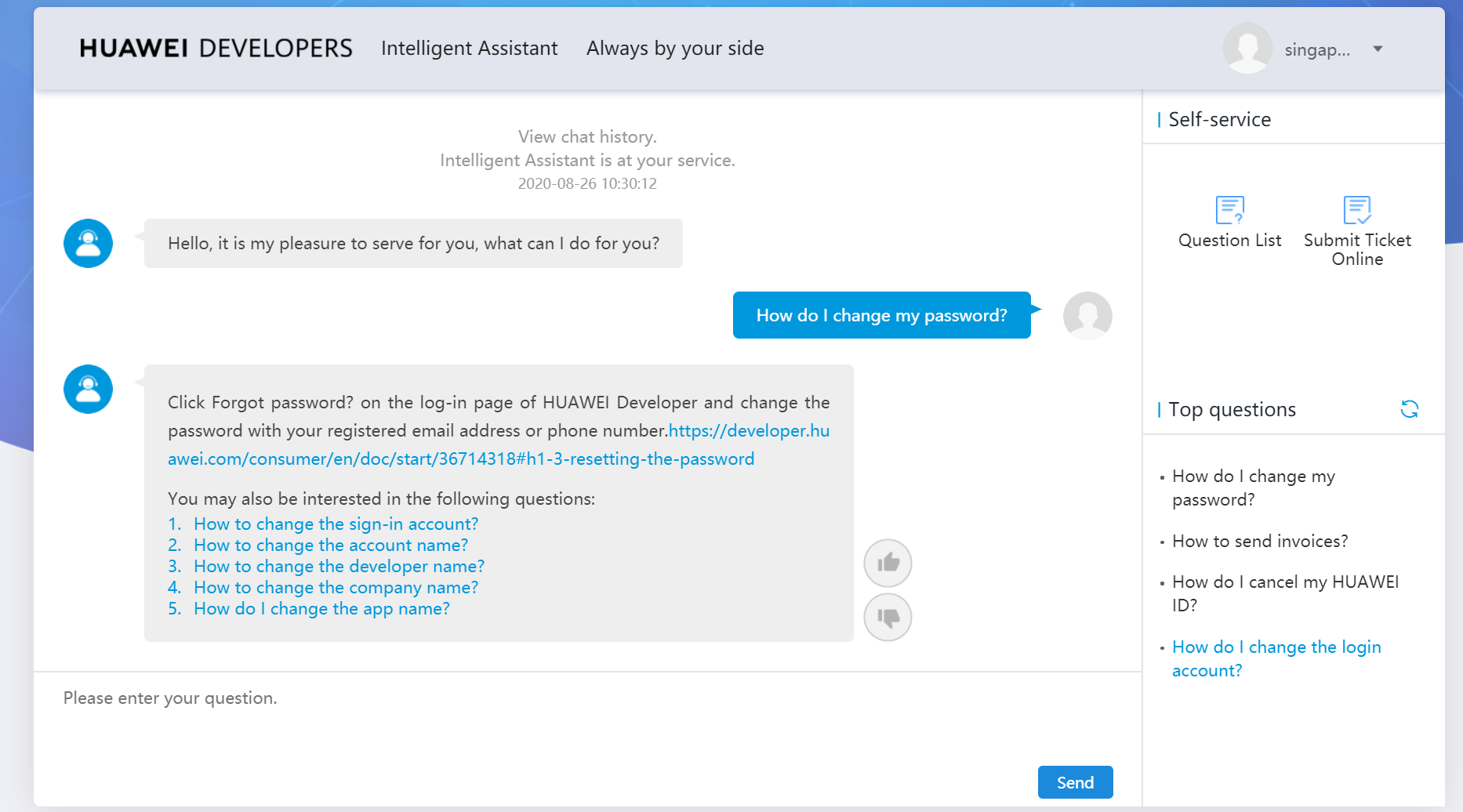
You can get the answers to frequently asked questions from the Intelligent Assistant. You can also report problems online.
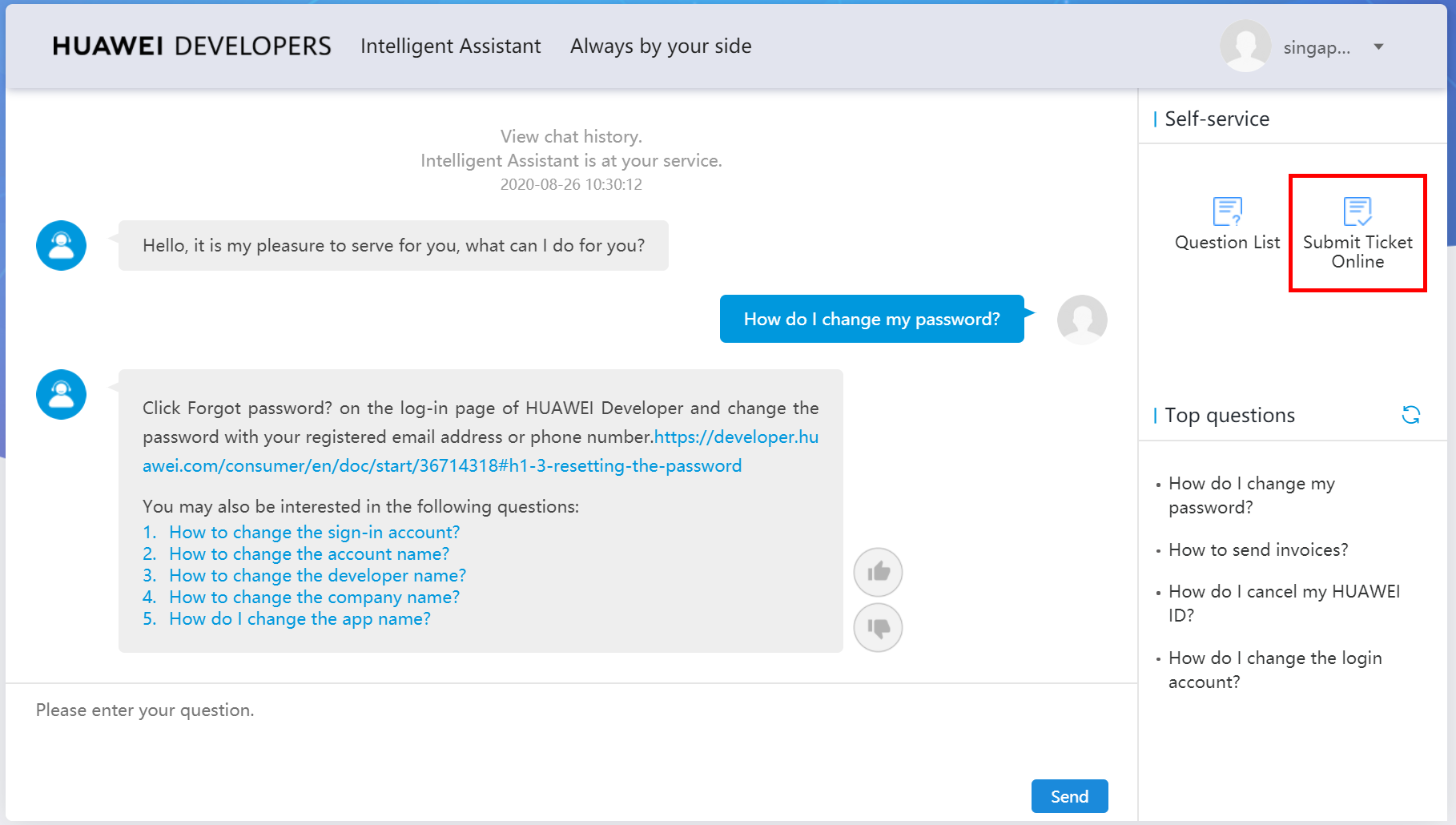
If you have a specific problem that you can’t find the answer to, go to Submit Ticket Online>Other>Search Console.
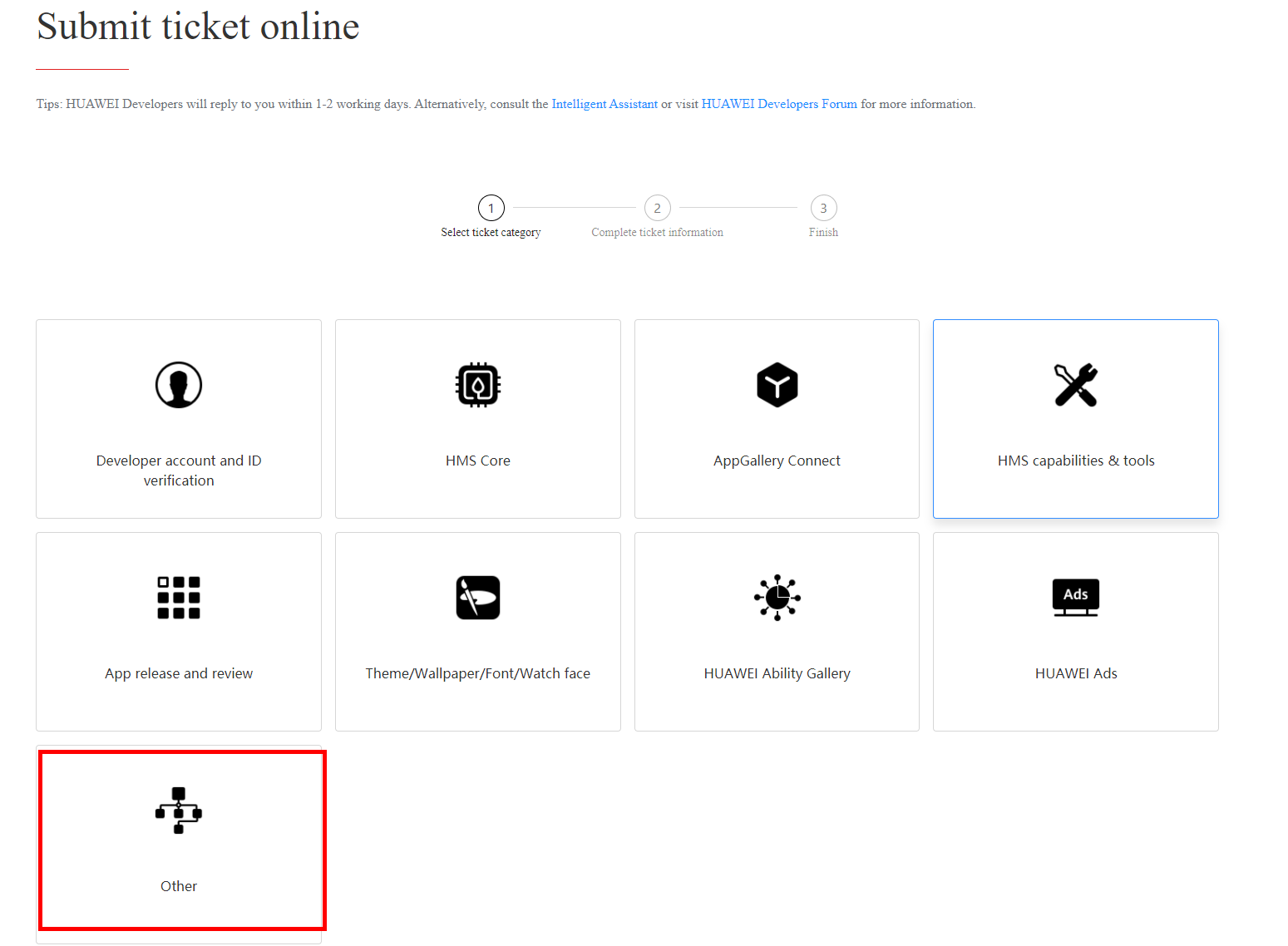
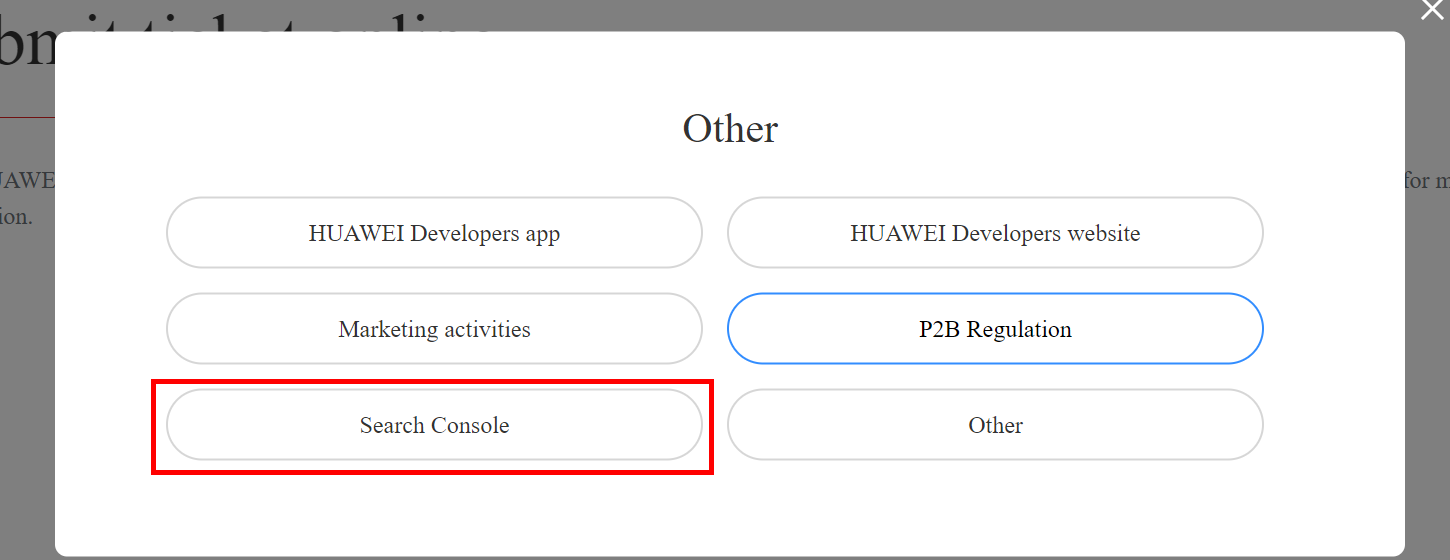
On the displayed page, as shown in the figure below, describe your problem and click Submit. We will handle your problem as soon as we receive it.
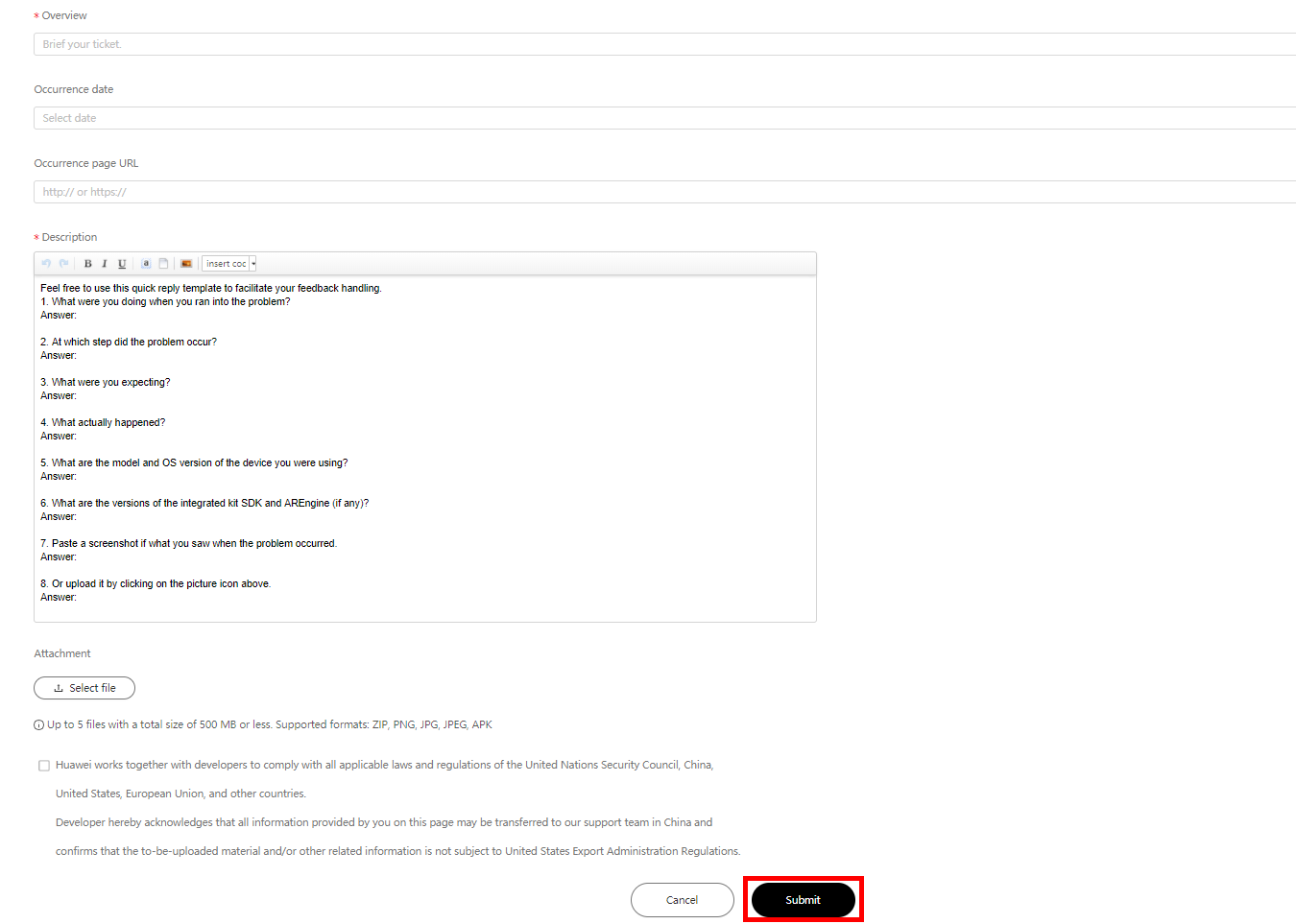
You can find all the problems you have reported in Question List.