
This section describes only module-specific error codes. For details about universal error codes, please refer to Universal Error Codes.
1002600001 Internal System Error
Message
System internal error.
Description
An internal system error occurs.
Possible causes
An unknown error occurred.
Solution
Try again or submit a ticket online.
1002600002 App Failed to Connect to Map Kit
Message
Failed to connect to the Map Kit server.
Description
The app fails to connect to Map Kit.
Possible causes
-
The device network is abnormal.
-
Map Kit is not connected during auto signing.
Solution
-
Verify that the device network status is normal.
-
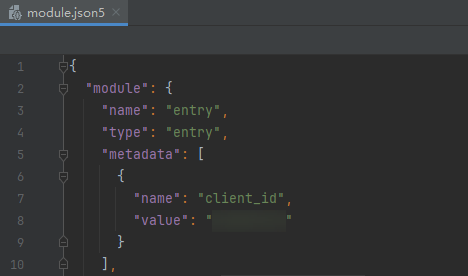
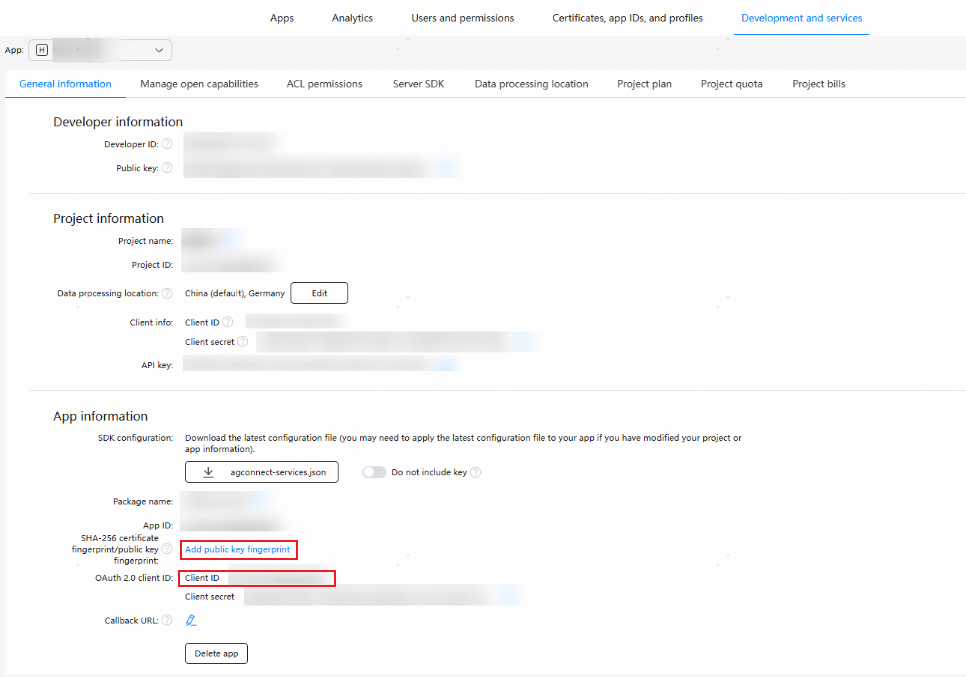
Clear the old certificate configuration, perform auto signing again, and configure client_id and the certificate fingerprint. Since HarmonyOS 5.0.2(14), refer to Preparations for the configuration.
-
If the fault persists, submit a ticket online.
1002600003 App Identity Verification Failed
Message
App authentication failed.
Description
The app identity verification failed.
Possible causes
-
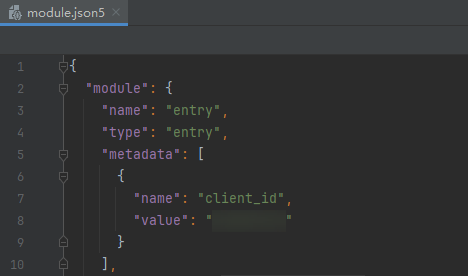
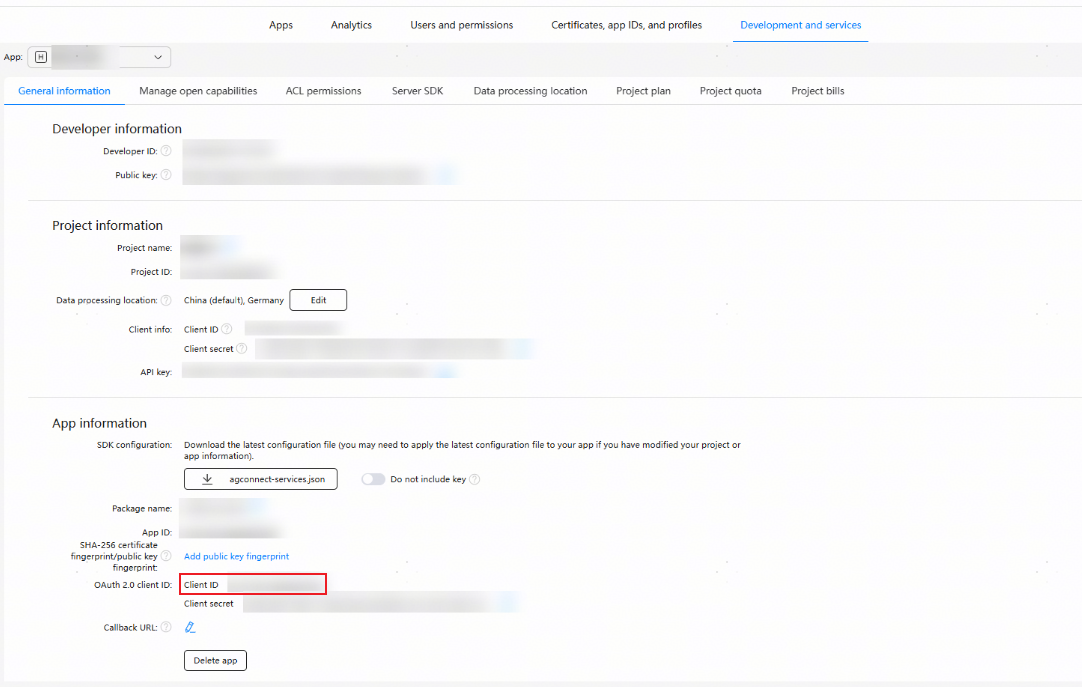
client_id configured in the module.json5 file of the project is different from that in AppGallery Connect.
-
The public key fingerprint in AppGallery Connect is empty or incorrect.
-
Identity verification timed out due to poor device network connection.
-
The public key fingerprint has not taken effect yet after configuration.
-
Map Kit has not been enabled before the profile is configured.
-
The debug certificate in AppGallery Connect does not match the local certificate due to multiple auto signing configurations.
Solution
-
Ensure that client_id configured in the module.json5 file of the project is the same as that in AppGallery Connect.
-
Regenerate the public key fingerprint (automatically or manually), and then configure the public key fingerprint in AppGallery Connect.
-
Verify that the device network status is normal and try again.
-
Adjust the system time of the device one day ahead.
-
Enable Map Kit, apply for a new debug profile, and manually sign the app.
-
If the automatic signing certificates do not match, use one of the following methods to resolve the issue:
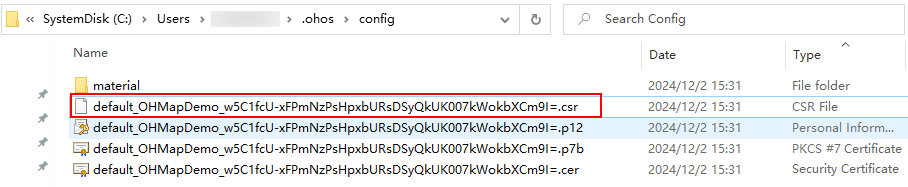
Method 1: Use the locally generated CSR signature to generate a new debug certificate in AppGallery Connect, and then use the new debug certificate to generate a new fingerprint certificate.
By default, the generated CSR file is stored in the path shown in the following figure, where the masked portion represents the user name.
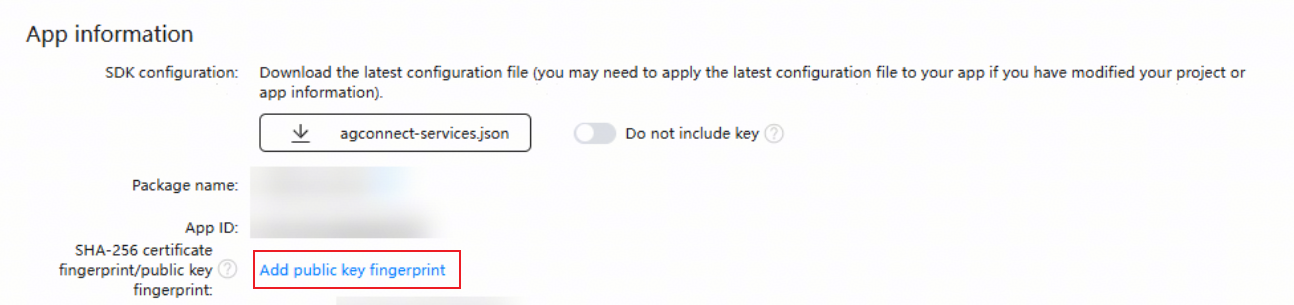
Generate a debug certificate in AppGallery Connect using the generated CSR file.

Add a public key fingerprint and select the newly generated debug certificate. (Note: The map may not be displayed immediately after the configuration due to the authentication cache. To resolve this, try to clear the cache or adjust the device's system time one day later.)
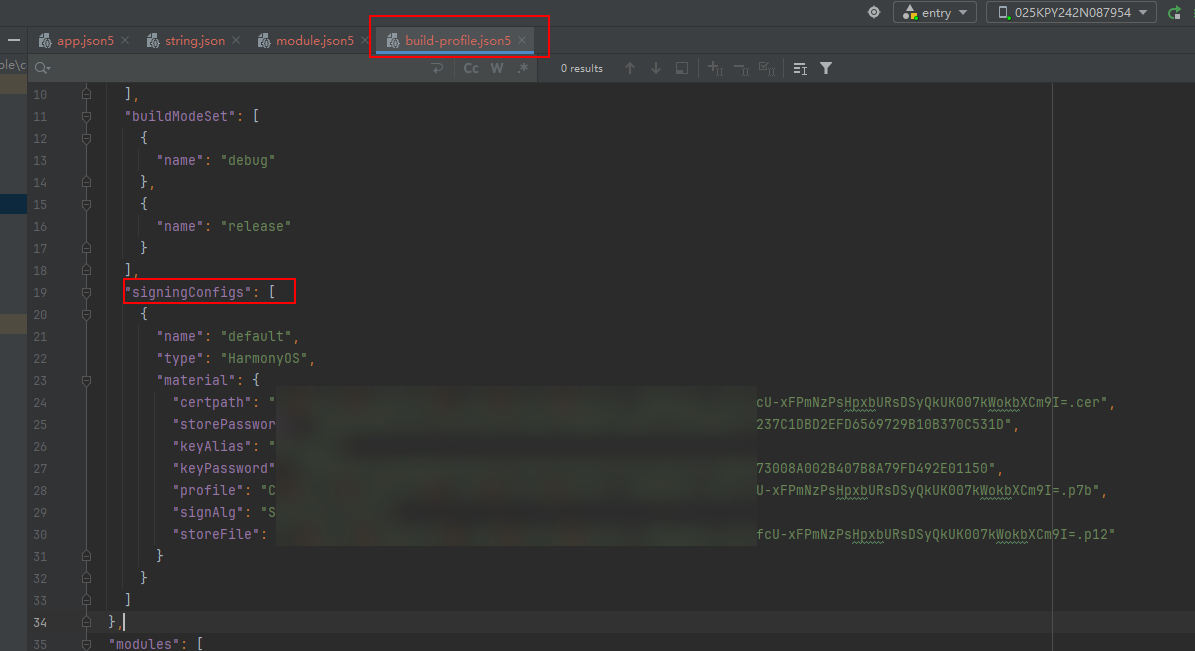
Method 2: Delete the local automatic signing certificate and the debug certificate in AppGallery Connect, and regenerate a new auto-signature. A new debug certificate will be generated automatically. Then use the new debug certificate to generate a public key fingerprint.
Delete the signingConfigs parameter from the build-profile.json5 file.
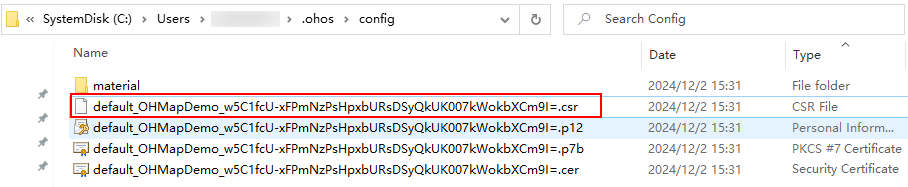
Delete all content from the config folder.
Delete the debug certificate generated by automatic signing.

After existing certificates are deleted, generate a new automatic signature. The debug certificate is created synchronously. Then, use the new debug certificate to generate a new fingerprint. (Note: The map may not be displayed immediately after the configuration due to the authentication cache. To resolve this, try to clear the cache or adjust the device's system time one day later.)

-
If the fault persists, submit a ticket online.
1002600004 Map Kit Not Enabled for the App
Message
The Map permission is not enabled.
Description
Map Kit has not been enabled for the app.
Possible causes
-
Map Kit has not been enabled for the app.
-
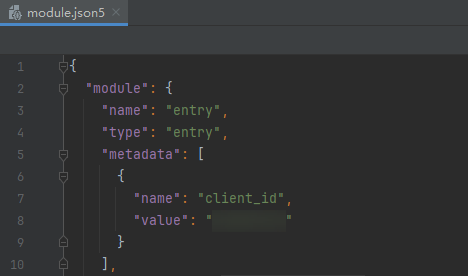
client_id is not configured.
Solution
-
Configure client_id.
-
If the fault persists, submit a ticket online.
1002600006 API Call Quota Used Up
Message
The API call times exceed the quota.
Description
The API call quota is used up.
Possible causes
The API call quota is used up.
Solution
1002600007 API QPS Quota Used Up
Message
The API QPS exceeds the quota.
Description
The API QPS quota is used up.
Possible causes
The API QPS quota is used up.
Solution
1002600008 API in Arrears
Message
The API is in arrears.
Description
The API is in arrears.
Possible causes
The API is in arrears.
Solution
1002600009 No Pay-as-you-go Plan Subscribed for the API
Message
The API has not subscribed to any pay-as-you-go package.
Description
You have not subscribed to any pay-as-you-go plan for the API.
Possible causes
You have not subscribed to any pay-as-you-go plan.
Solution
1002600010 Server Busy
Message
The server is busy. Please wait and try again.
Description
The server is busy.
Possible causes
The server is busy.
Solution
Try again or submit a ticket online.
1002600011 Server Error
Message
Server error.
Description
An internal system error occurs.
Possible causes
-
There is a server error.
-
The network is unavailable.
Solution
Try again or submit a ticket online.
1002600012 Country/Region Code Error
Message
The country code is not supported.
Description
The input country/region code is incorrect.
Possible causes
The country/region code is not supported.
Solution
Change the country/region code.
1002600013 Unknown Routing Location
Message
The current routing location is unknown. Try again later.
Description
The current routing location is unknown.
Possible causes
Failed to obtain the routing location of the current device.
Solution
-
Verify that the device network connection is normal.
-
Try again or submit a ticket online.
1002600014 Failed to Start the Map App
Message
Failed to start the map app.
Description
The map app failed to be started.
Possible causes
The map app is not installed on the device, and the map download details page in AppGallery failed to be opened.
Solution
-
Search for and download the map app from AppGallery.
-
Try again or submit a ticket online.
1002600015 Heatmap ID Already Exists
Message
The heatmap ID already exists.
Description
The heatmap ID already exists.
Possible causes
The heatmap ID already exists.
Solution
Try another ID. If the fault persists, submit a ticket online.
1002600017 The App Does Not Have Permission to Use the Map Signal Prediction Function
Message
The app lacks permission for the map signal prediction capability.
Description
The app does not have permission to use the map signal prediction function.
Possible causes
The app does not have permission to use the map signal prediction function.
Solution
1002600018 signalId in the Signal Line Already Exists
Message
signalId in the signal route already exists.
Description
signalId in the signal line already exists.
Possible causes
signalId in the signal line already exists.
Solution
Change the value of signalId. If the fault persists, submit a ticket online.
1002600019 Route Length Exceeds the Maximum Limit of 200 km
Message
The route length exceeds the maximum limit of 200 km.
Description
The route length exceeds the maximum limit of 200 km.
Possible causes
The route length exceeds the maximum limit of 200 km.
Solution
Reduce the route length. If the fault persists, submit a ticket online.
1002600020 Invalid Carrier
Message
Invalid carrier.
Description
Invalid carrier.
Possible causes
SIM card not found.
Solution
Verify the SIM card. If the fault persists, submit a ticket online.
1002600021 Unpredictable Route Signal
Message
The route signal is unpredictable.
Description
The route signal is unpredictable.
Possible causes
The line result cannot be predicted based on the passed longitude and latitude.
Solution
Verify the passed longitude and latitude data and call the signal line API again.
1002600999 Unknown Error
Message
Unknown error.
Description
An internal system error occurs.
Possible causes
An unknown error occurred.
Solution
Try again or submit a ticket online.
1002601001 Object to Be Operated Does Not Exist
Message
The object to be operated does not exist.
Description
The object to be operated on does not exist.
Possible causes
The object to be operated on does not exist.
Solution
Try again or submit a ticket online.
1002601002 Custom Map Style File Does Not Exist
Message
The custom map style file does not exist.
Description
The custom map style file does not exist.
Possible causes
-
The custom map style file does not exist.
-
The device network is unavailable.
Solution
-
Verify that the style ID exists in Petal Maps Studio.
-
Verify that the device network connection is normal.
-
Try again or submit a ticket online.
1002601004 Incorrect Style Content Format
Message
The style content format is incorrect.
Description
The style content format is incorrect.
Possible causes
The style content format is incorrect.
Solution
Try again or submit a ticket online.
1002601005 Failed to Generate a Custom Component Icon
Message
Failed to generate the icon of the custom component.
Description
Failed to generate an icon for the custom component.
Possible causes
Failed to generate an icon for the custom component.
Solution
Try again or submit a ticket online.
1002602001 Departure Place or Destination Having No Home Country or Service Error
Message
The start and end points do not have home countries, or a service error occurred.
Description
The departure place or destination does not have country affiliation, or a service error occurs.
Possible causes
Invalid parameter.
Solution
Verify the departure place and destination and try again, or submit a ticket online.
1002602002 Cross-Region Route Planning Not Supported
Message
Cross-region route planning is not supported.
Description
Cross-region route planning is not supported.
Possible causes
Invalid parameter.
Solution
Ensure that the input departure place and destination are in the same region.
1002602003 Number of Departure Places or Destinations Exceeds 100
Message
The number of start points or end points exceed 100.
Description
The number of departure places or destinations exceeds 100.
Possible causes
Invalid parameter.
Solution
Ensure that the number of departure places or destinations in the input parameter does not exceed the upper limit.
1002602004 Linear Distance Between Two Points Exceeds the Upper Limit
Message
The linear distance between the start point and end point exceeds the upper limit.
Description
The linear distance between two points exceeds the upper limit.
Possible causes
Invalid parameter.
Solution
Check the input parameter and ensure that the linear distance between two points does not exceed the upper limit.
1002602006 Request Points Are Mapped to the Same Point on the Road
Message
The request point is mapped to the same point on the road.
Description
The request points are mapped to the same point on the road.
Possible causes
Invalid parameter.
Solution
Verify the input parameters.
1002603001 Empty Result
Message
Zero result.
Description
An empty result is returned.
Possible causes
Invalid parameter.
Solution
Verify the input parameters.
1022100001 Map Controller to Be Operated Does Not Exist
Message
The map controller to be operated does not exist.
Description
The map controller to be operated on does not exist.
Possible causes
The map controller to be operated on does not exist.
Solution
Try again or submit a ticket online.