


Intelligent Assistant
Chat with our virtual assistant to get answers promptly.
The bank card recognition service recognizes bank cards in camera streams within angle offset of 15 degrees and extracts key information such as card number and expiration date. This service works with the ID card recognition service to offer a host of popular functions such as identity verification and bank card number input, making user operations easier than ever. For details about the bank cards supported by this service, please refer to Bank Cards Supported by Bank Card Recognition.
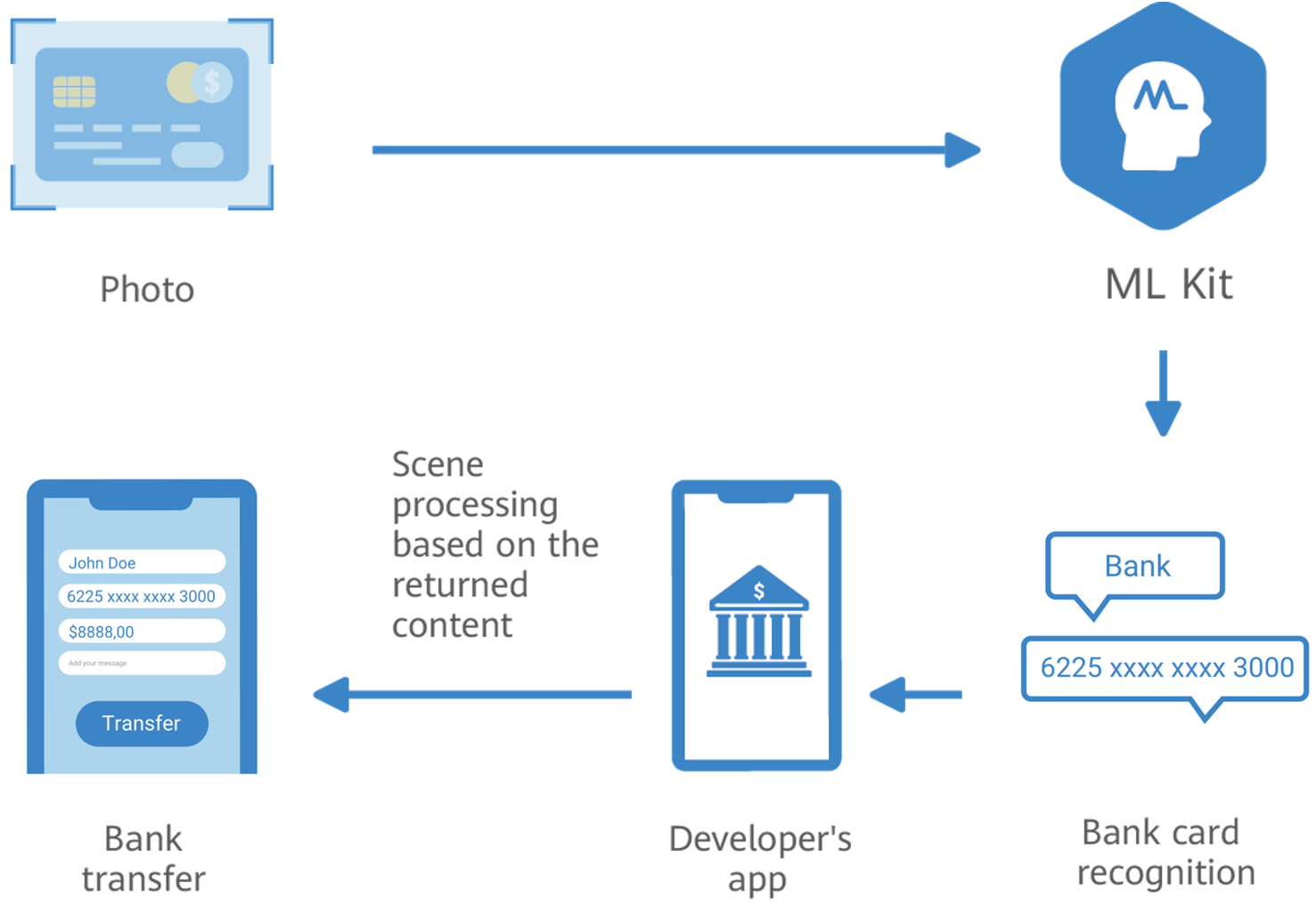
Huawei provides a bank card recognition plugin for you. Integrating the plugin will make the service available on your app. (For the integration process, please refer to Integrating the Bank Card Recognition Plugin SDK.) Instead of your app, the plugin will process camera streams.
The bank card recognition service is able to extract bank card information in its original structure, which is useful for identity verification in financial services and bank card binding for payment in e-commerce apps. For example, in the past, when binding a bank card for online payment, users have to manually input their card numbers. It is easy to make mistakes. At present, with the bank card recognition service, inputting bank card numbers is automatic, thereby quick and accurate, greatly improving user experience.
In the current version, only camera stream-based bank card recognition is supported. To use this service, integrate the bank card recognition plugin first.
Before app development, you need to make necessary development preparations, configure the Maven repository address for the HMS Core SDK, and integrate the bank card recognition plugin SDK.
Your app can directly call the bank card recognition plugin to obtain the recognition result through the callback function without processing camera streams. The process and sample code are as follows:
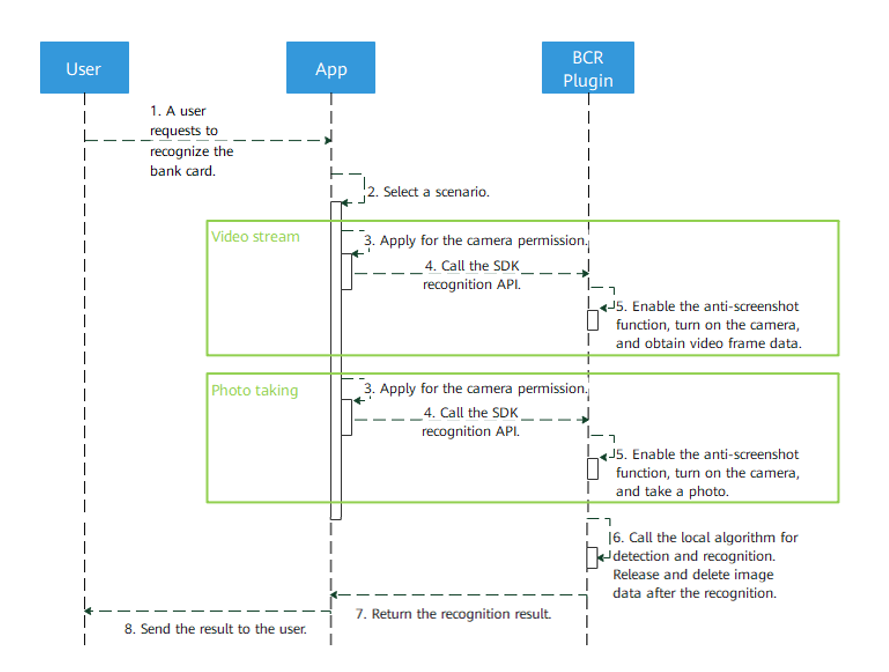
private MLBcrCapture.Callback callback = new MLBcrCapture.Callback() {
    @Override
    public void onSuccess(MLBcrCaptureResult bankCardResult){
      // Processing for successful recognition.
    }
    @Override
    public void onCanceled(){
        // Processing for recognition request cancelation.
    }
    // Callback method used when no text is recognized or a system exception occurs during recognition.
    // retCode: result code.
    // bitmap: bank card image that fails to be recognized.
    @Override
    public void onFailure(int retCode, Bitmap bitmap){
// Processing logic for recognition failure.
  }
    @Override
    public void onDenied(){
        // Processing for recognition request deny scenarios, for example, the camera is unavailable.
    }
};
private val callback: MLBcrCapture.Callback = object : MLBcrCapture.Callback {
override fun onSuccess(bankCardResult: MLBcrCaptureResult) {
// Processing for successful recognition.
}
override fun onCanceled() {
// Processing for recognition request cancelation.
}
// Callback method used when no text is recognized or a system exception occurs during recognition.
// retCode: result code.
// bitmap: bank card image that fails to be recognized.
override fun onFailure(retCode: Int, bitmap: Bitmap) {
// Processing logic for recognition failure.
}
override fun onDenied() {
// Processing for recognition request deny scenarios, for example, the camera is unavailable.
}
}private void startCaptureActivity(MLBcrCapture.Callback callback) {
MLBcrCaptureConfig config = new MLBcrCaptureConfig.Factory()
// Set the expected result type of bank card recognition.
// MLBcrCaptureConfig.RESULT_NUM_ONLY: Recognize only the bank card number.
// MLBcrCaptureConfig.RESULT_SIMPLE: Recognize only the bank card number and validity period.
// MLBcrCaptureConfig.RESULT_ALL: Recognize information, such as the bank card number, validity period, issuing bank, card organization, and card type.
.setResultType(MLBcrCaptureConfig.RESULT_SIMPLE)
// Set the recognition screen display orientation.
// MLBcrCaptureConfig.ORIENTATION_AUTO: adaptive mode. The display orientation is determined by the physical sensor.
// MLBcrCaptureConfig.ORIENTATION_LANDSCAPE: landscape mode.
// MLBcrCaptureConfig.ORIENTATION_PORTRAIT: portrait mode.
.setOrientation(MLBcrCaptureConfig.ORIENTATION_AUTO)
.create();
MLBcrCapture bankCapture = MLBcrCaptureFactory.getInstance().getBcrCapture(config);
bankCapture.captureFrame(this, callback);
}private fun startCaptureActivity(callback: MLBcrCapture.Callback) {
val config = MLBcrCaptureConfig.Factory() // Set the expected result type of bank card recognition.
// MLBcrCaptureConfig.RESULT_NUM_ONLY: Recognize only the bank card number.
// MLBcrCaptureConfig.RESULT_SIMPLE: Recognize only the bank card number and validity period.
// MLBcrCaptureConfig.RESULT_ALL: Recognize information such as the card number, expiration date, card issuing bank, card organization, and card type.
.setResultType(MLBcrCaptureConfig.RESULT_SIMPLE) // Set the recognition screen display orientation.
// MLBcrCaptureConfig.ORIENTATION_AUTO: adaptive mode. The display direction is determined by the physical sensor.
// MLBcrCaptureConfig.ORIENTATION_LANDSCAPE: landscape mode.
// MLBcrCaptureConfig.ORIENTATION_PORTRAIT: portrait mode.
.setOrientation(MLBcrCaptureConfig.ORIENTATION_AUTO)
.create()
val bankCapture = MLBcrCaptureFactory.getInstance().getBcrCapture(config)
bankCapture.captureFrame(this, callback)
}@Override
public void onClick(View v) {
switch (v.getId()) {
// Detection button.
case R.id.detect:
startCaptureActivity(callback);
break;
default:
break;
}
}override fun onClick(v: View) {
when (v.id) {
// Detection button.
R.id.detect -> startCaptureActivity(callback);
else -> {
}
}
}CustomView remoteView= new CustomView.Builder()
.setContext(this)
// Set the coordinates of the rectangular scanning box. The setting is mandatory.
.setBoundingBox(mScanRect)
// Set the expected result type of bank card recognition.
// MLBcrCaptureConfig.RESULT_NUM_ONLY: Recognize only the bank card number.
// MLBcrCaptureConfig.RESULT_SIMPLE: Recognize only the bank card number and validity period.
// MLBcrCaptureConfig.RESULT_ALL: Recognize information, such as the bank card number, validity period, issuing bank, card organization, and card type.
.setResultType(MLBcrCaptureConfig.RESULT_SIMPLE)
// Set the callback function of the recognition result.
.setOnBcrResultCallback(callback).build();val remoteView= new CustomView.Builder()
.setContext(this)
// Set the coordinates of the rectangular scanning box. The setting is mandatory.
.setBoundingBox(mScanRect)
// Set the expected result type of bank card recognition.
// MLBcrCaptureConfig.RESULT_NUM_ONLY: Recognize only the bank card number.
// MLBcrCaptureConfig.RESULT_SIMPLE: Recognize only the bank card number and validity period.
// MLBcrCaptureConfig.RESULT_ALL: Recognize information, such as the bank card number, validity period, issuing bank, card organization, and card type.
.setResultType(MLBcrCaptureConfig.RESULT_SIMPLE)
// Set the callback function of the recognition result.
.setOnBcrResultCallback(callback).build()private CustomView.OnBcrResultCallback callback = new CustomView.OnBcrResultCallback() {
@Override
public void onBcrResult(MLBcrCaptureResult idCardResult) {
if (idCardResult.getErrorCode() == 0 ){
// Process the detection result.
} else {
// Handle the error.
}
}
@Override
public void onBcrFailResult(MLBcrCaptureResult idCardResult) {
// Handle the error.
}
};private val callback : CustomView.OnBcrResultCallback = object :CustomView.OnBcrResultCallback{
override fun onBcrResult(idCardResult : MLBcrCaptureResult?) {
if (idCardResult!!.errorCode == 0) {
// Process the detection result.
} else {
// Handle the error.
}
}
override fun onBcrFailResult(idCardResult : MLBcrCaptureResult?) {
}
}Currently, the scanning screen customization function allows the scanning box to rotate according to the gravity sensor. However, due to an issue of Android, when a device is rotated 180 degrees quickly, onConfigurationChanged will not be called. As a result, the directions of the screen and the scanning box are different. You can restart Activity for your app to resolve this issue.
Rect mScanRect = createScanRectFromCamera();
// Create coordinates of the scanning box.
private Rect createScanRectFromCamera() {
    Point point = getRealScreenSize();
    int screenWidth = point.x;
    int screenHeight = point.y;
    Rect rect = createScanRect(screenWidth, screenHeight);
    return rect;
}
// Obtain the actual screen size.
private Point getRealScreenSize() {
    int heightPixels = 0;
    int widthPixels = 0;
    Point point = null;
    WindowManager manager = (WindowManager) this.getSystemService(Context.WINDOW_SERVICE);

    if (manager != null) {
        Display d = manager.getDefaultDisplay();
        DisplayMetrics metrics = new DisplayMetrics();
        d.getMetrics(metrics);
        heightPixels = metrics.heightPixels;
        widthPixels = metrics.widthPixels;
        if (Build.VERSION.SDK_INT >= 14 && Build.VERSION.SDK_INT < 17) {
            try {
                heightPixels = (Integer) Display.class.getMethod("getRawHeight").invoke(d);
                widthPixels = (Integer) Display.class.getMethod("getRawWidth").invoke(d);
                Log.i(TAG, "2 heightPixels=" + heightPixels + " widthPixels=" + widthPixels);
            } catch (IllegalArgumentException e) {
                Log.w(TAG, "getRealScreenSize exception");
            } catch (IllegalAccessException e) {
                Log.w(TAG, "getRealScreenSize exception");
            } catch (InvocationTargetException e) {
                Log.w(TAG, "getRealScreenSize exception");
            } catch (NoSuchMethodException e) {
                Log.w(TAG, "getRealScreenSize exception");
            }
        } else if (Build.VERSION.SDK_INT >= 17) {
            android.graphics.Point realSize = new android.graphics.Point();
            try {
                Display.class.getMethod("getRealSize", android.graphics.Point.class).invoke(d, realSize);
                heightPixels = realSize.y;
                widthPixels = realSize.x;
            } catch (IllegalArgumentException e) {
                Log.w(TAG, "getRealScreenSize exception");
            } catch (IllegalAccessException e) {
                Log.w(TAG, "getRealScreenSize exception");
            } catch (InvocationTargetException e) {
                Log.w(TAG, "getRealScreenSize exception");
            } catch (NoSuchMethodException e) {
                Log.w(TAG, "getRealScreenSize exception");
            }
        }
    }
    Log.i(TAG, "getRealScreenSize widthPixels=" + widthPixels + " heightPixels=" + heightPixels);
    point = new Point(widthPixels, heightPixels);
    return point;
}
// Create coordinate information.
private Rect createScanRect(int screenWidth, int screenHeight) {
    final float heightFactor = 0.8f;
    final float CARD_SCALE = 0.63084F;
    int width = Math.round(screenWidth * heightFactor);
    int height = Math.round((float) width * CARD_SCALE);
    int leftOffset = (screenWidth - width) / 2;
    int topOffset = (int) (screenHeight * TOP_OFFSET_RATIO) - height / 2;
    Rect rect = new Rect(leftOffset, topOffset, leftOffset + width, topOffset + height);
    return rect;
}
// Obtain the actual screen size.
private final realScreenSize: Point {
var heightPixels = 0
var widthPixels = 0
var point: Point? = null
val manager = getSystemService(Context.WINDOW_SERVICE) as WindowManager?
if (manager != null) {
val d = manager.defaultDisplay
val metrics = DisplayMetrics()
d.getMetrics(metrics)
heightPixels = metrics.heightPixels
widthPixels = metrics.widthPixels
if (Build.VERSION.SDK_INT >= 14 && Build.VERSION.SDK_INT < 17) {
try {
heightPixels = Display::class.java.getMethod("getRawHeight").invoke(d) as Int
widthPixels = Display::class.java.getMethod("getRawWidth").invoke(d) as Int
Log.i(TAG, "2 heightPixels=$heightPixels widthPixels=$widthPixels")
} catch (e: IllegalArgumentException) {
Log.w(TAG, "getRealScreenSize exception")
} catch (e: IllegalAccessException) {
Log.w(TAG, "getRealScreenSize exception")
} catch (e: InvocationTargetException) {
Log.w(TAG, "getRealScreenSize exception")
} catch (e: NoSuchMethodException) {
Log.w(TAG, "getRealScreenSize exception")
}
} else if (Build.VERSION.SDK_INT >= 17) {
val realSize = Point()
try {
Display::class.java.getMethod("getRealSize", Point::class.java).invoke(d, realSize)
heightPixels = realSize.y
widthPixels = realSize.x
} catch (e: IllegalArgumentException) {
Log.w(TAG, "getRealScreenSize exception")
} catch (e: IllegalAccessException) {
Log.w(TAG, "getRealScreenSize exception")
} catch (e: InvocationTargetException) {
Log.w(TAG, "getRealScreenSize exception")
} catch (e: NoSuchMethodException) {
Log.w(TAG, "getRealScreenSize exception")
}
}
}
Log.i(TAG, "getRealScreenSize widthPixels=$widthPixels heightPixels=$heightPixels")
point = Point(widthPixels, heightPixels)
return point
}
// Create coordinate information.
private fun createScanRect(screenWidth: Int, screenHeight: Int): Rect {
val heightFactor = 0.8f
val CARD_SCALE = 0.63084f
val width = Math.round(screenWidth * heightFactor)
val height = Math.round(width.toFloat() * CARD_SCALE)
val leftOffset = (screenWidth - width) / 2
val topOffset = (screenHeight * TOP_OFFSET_RATIO) - height / 2
return Rect(leftOffset, topOffset, leftOffset + width, topOffset + height)
}