


Intelligent Assistant
Chat with our virtual assistant to get answers promptly.
We use essential cookies for the website to function, as well as analytics cookies for analyzing and creating statistics of the website performance. To agree to the use of analytics cookies, click "Accept All". You can manage your preferences at any time by clicking "Cookie Settings" on the footer. More Information.
AppGallery Connect
APM can automatically cluster similar network request data. For each request, APM checks whether the URL of the network request matches a default URL pattern. If so, the network request is automatically clustered. You can query clustering data on the Network analysis page.
If no default URL pattern can meet your requirements, perform the following steps to customize one.
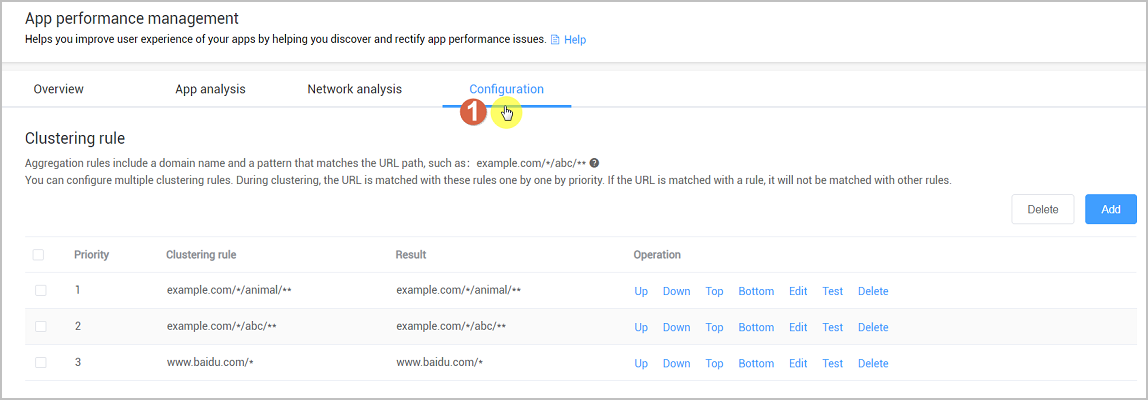
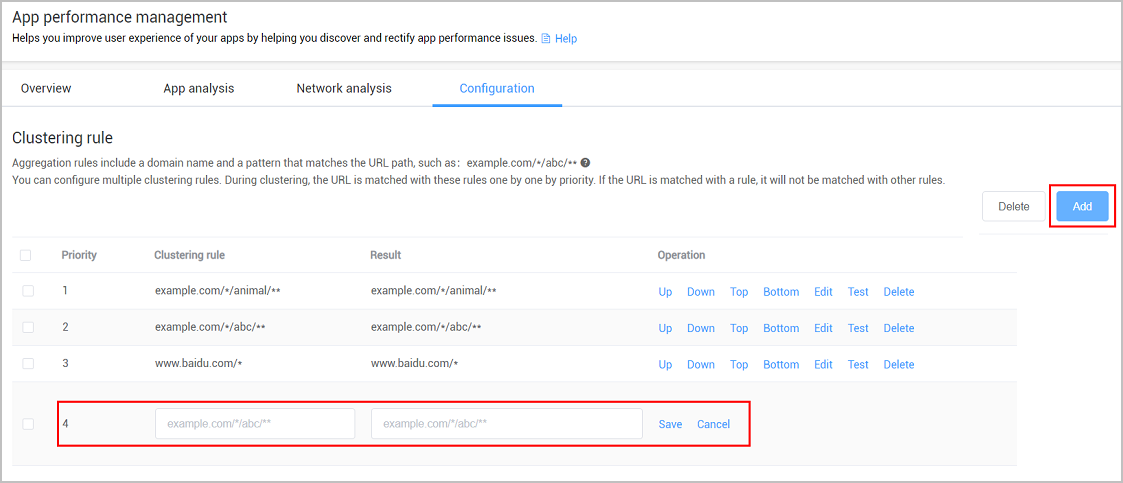
When setting a URL pattern, you can:
The clustering result is displayed on the Network analysis page. The following are URL pattern examples.
URL Pattern | URL |
|---|---|
www.baidu.com/* | www.baidu.com/abc |
www.baidu.com/bcd | |
example.com/abc/** | example.com/abc/abc |
example.com/abc/bcd | |
example.com/*/animal/** | example.com/abc/animal/acd/bc |
example.com/bcd/animal/acd | |
example.com/cde/animal/cde | |
example.com/abc/*.jpg | example.com/abc/ASDAS123.jpg |
example.com/abc/ABCDED1D.jpg |
Click Up, Down, Top, or Bottom, to adjust URL pattern priorities, and click Save order.

Click Edit next to a URL pattern, modify the URL pattern, and click Save.
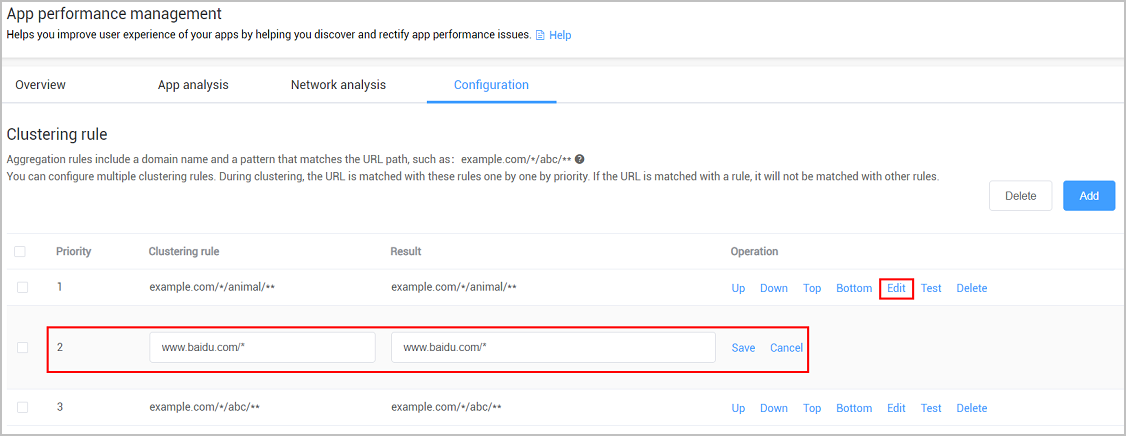
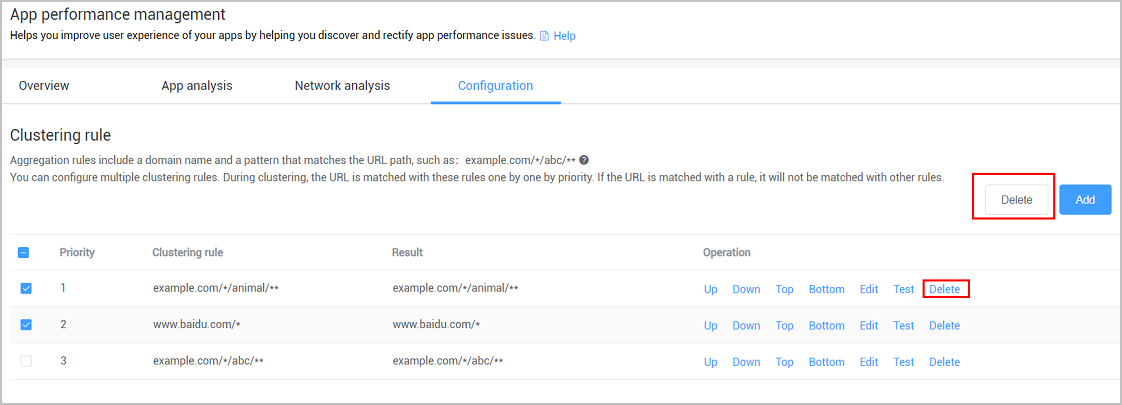
Click Test in the Operation column of a URL pattern, enter the test URL, and click Test to check whether the URL can be matched by the URL pattern.

Intelligent Assistant
Chat with our virtual assistant to get answers promptly.
Quick start
Helps you find desired resources with ease.