We use essential cookies for the website to function, as well as analytics cookies for analyzing and creating statistics of the website performance. To agree to the use of analytics cookies, click "Accept All". You can manage your preferences at any time by clicking "Cookie Settings" on the footer. More Information.

Only Essential Cookies
Accept All
AppGallery Connect GuidesAuth ServiceAndroidSign-inGoogle Account

Google Account

You can integrate Google account sign-in into your app so that your users can be identified by AppGallery Connect using their Google accounts.

NOTE
  • Google sign-in is supported only when your data processing location is Germany, Singapore, or Russia.
  • If your app allows users to sign in using Google accounts, GMS must be available on user devices.

Before You Start

Development Process

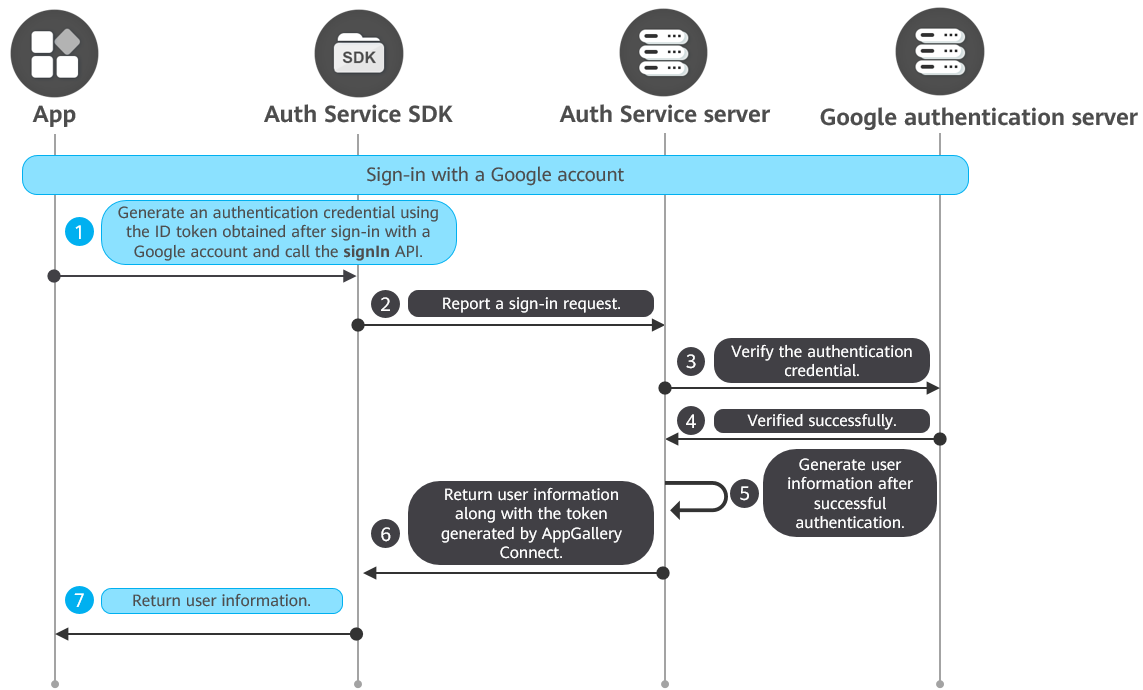
Auth Service allows you to integrate Google account sign-in in either of the following methods:
Unified Sign-in

  1. Add the SDK dependency.
    • Android Studio
      • Managing dependencies using Version Catalog
        1. Open the libs.versions.toml file in the project-level gradle directory of Android Studio and declare the version number of the Google SDK in [versions].
          Collapse
          Word wrap
          Dark theme
          Copy code
          1. [versions]
          2. googleVersion = "16.0.1" # 16.0.1 is used as an example.
        2. Declare the Huawei Auth Service SDK and Google SDK in [libraries] of the libs.versions.toml file.
          Collapse
          Word wrap
          Dark theme
          Copy code
          1. [libraries]
          2. agconnect-auth-google = { module = "com.huawei.agconnect:agconnect-auth-google", version.ref = "agcVersion" } # For details about agcVersion declaration, please refer to Declaring the AppGallery Connect Plugin and SDKs.
          3. google-sdk = { module = "com.google.android.gms:play-services-auth", version.ref = "googleVersion" }
        3. Add dependencies for the Huawei Auth Service SDK and Google SDK to the dependencies block in the app-level build.gradle file.
          Collapse
          Word wrap
          Dark theme
          Copy code
          1. dependencies {
          2. implementation libs.agconnect.auth.google
          3. implementation libs.google.sdk
          4. }
      • Managing dependencies not using Version Catalog

        Open the app-level build.gradle file (usually in the app directory) and add dependencies for the Huawei Auth Service SDK and Google SDK to the dependencies block.

        Collapse
        Word wrap
        Dark theme
        Copy code
        1. dependencies {
        2. implementation "com.huawei.agconnect:agconnect-auth-google:1.9.4.300"
        3. implementation "com.google.android.gms:play-services-auth:{version}"
        4. }
    • Eclipse
      Open the build.gradle file in the aar2eclipse/aar directory and add dependencies for the Huawei Auth Service SDK and Google SDK to the dependencies block. The procedure is similar to that for integrating the AppGallery Connect SDK in Eclipse.
      Collapse
      Word wrap
      Dark theme
      Copy code
      1. dependencies {
      2. embed "com.huawei.agconnect:agconnect-auth-google:1.9.4.300"
      3. embed "com.google.android.gms:play-services-auth:{version}"
      4. }
    NOTE
    • Replace googleVersion and {version} in the sample code with the latest version number of the Google SDK. Huawei is not responsible for the update.
    • Since Huawei does not provide the required Google SDK, you can manually integrate it by downloading the latest version from the Google open platform (Google for Developers).
  2. Set parameters required for users to sign in with a Google account.
    Set google_app_id and google_client_id in the /app/res/values/strings.xml file.
    NOTE

    Set google_client_id to the client ID that you have configured when enabling the Google authentication mode. The number (typically 12 or more digits) at the beginning of the client ID is the value of google_app_id.

    Collapse
    Word wrap
    Dark theme
    Copy code
    1. <string name="google_app_id">
      5758********
      </string>
    2. <string name="google_client_id">
      5758********.apps.googleusercontent.com
      </string>
  3. Add the lifecycle callback.
  4. Call AGConnectAuth.signIn for a user to sign in with a Google account.
    Java
    Kotlin
    Collapse
    Word wrap
    Dark theme
    Copy code
    1. AGConnectAuth.getInstance().signIn(this,AGConnectAuthCredential.Google_Provider).addOnSuccessListener(new OnSuccessListener<SignInResult>() {
    2. @Override
    3. public void onSuccess(SignInResult signInResult) {
    4. // onSuccess
    5. AGConnectUser user = signInResult.getUser();
    6. }
    7. })
    8. .addOnFailureListener(new OnFailureListener() {
    9. @Override
    10. public void onFailure(Exception e) {
    11. // onFail
    12. }
    13. });
    Collapse
    Word wrap
    Dark theme
    Copy code
    1. AGConnectAuth.getInstance().signIn(this, AGConnectAuthCredential.Google_Provider).addOnSuccessListener {
    2. // Update the UI.
    3. }.addOnFailureListener {
    4. // onFailure
    5. }

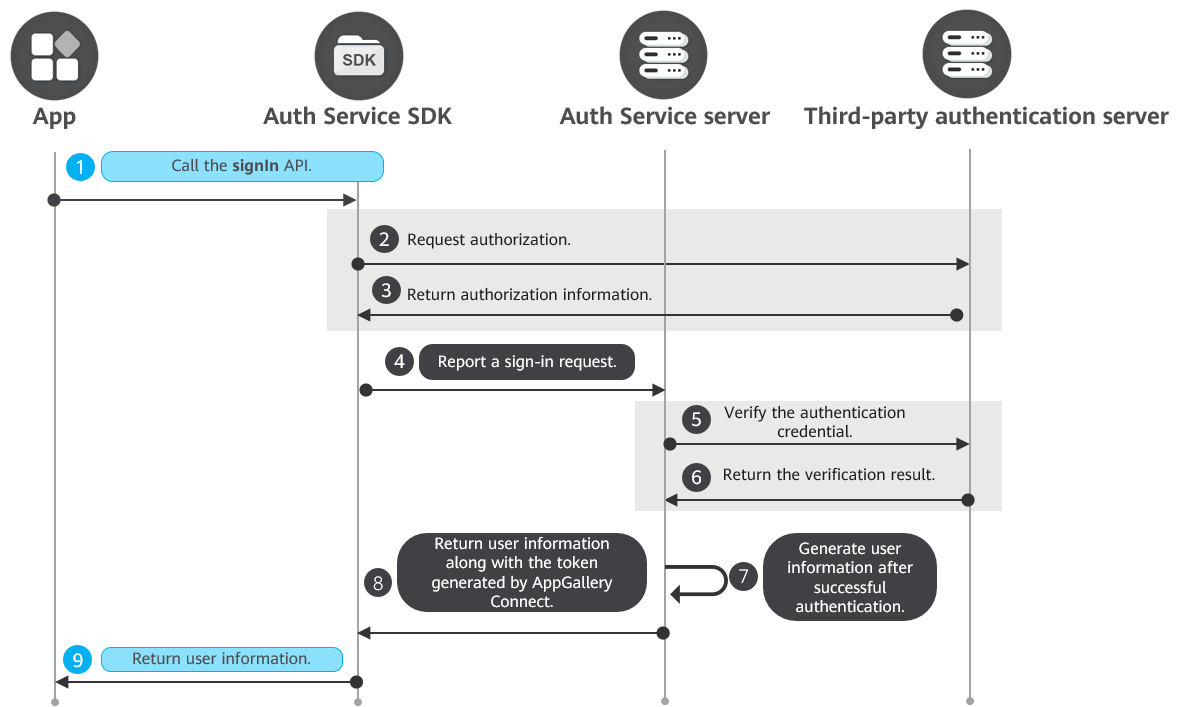
Traditional Sign-in

  1. Initialize the AGConnectAuth instance on the app sign-in page, obtain user information from AppGallery Connect, and check whether a user has signed in. If so, display the app's home page to the user. If not, display the sign-in page.
    Java
    Kotlin
    Collapse
    Word wrap
    Dark theme
    Copy code
    1. AGConnectUser user = AGConnectAuth.getInstance().getCurrentUser();
    Collapse
    Word wrap
    Dark theme
    Copy code
    1. val user = AGConnectAuth.getInstance().currentUser
  2. After a user requests to sign in using a Google account, obtain the user's authorization.
    NOTE

    This step is for reference only. For details, please refer to Google documentation.

    1. Obtain authorization for Google account sign-in.
      Java
      Collapse
      Word wrap
      Dark theme
      Copy code
      1. GoogleSignInOptions gso = new GoogleSignInOptions.Builder(GoogleSignInOptions.DEFAULT_SIGN_IN)
      2. .requestIdToken(CLIENT_ID)
      3. .requestProfile()
      4. .build();
      5. client = GoogleSignIn.getClient(this, gso);
      6. Intent signInIntent = client.getSignInIntent();
      7. startActivityForResult(signInIntent, RC_SIGN_IN);
    1. Add a callback to obtain the ID token upon successful authorization.
      Java
      Collapse
      Word wrap
      Dark theme
      Copy code
      1. @Override
      2. protected void onActivityResult(int requestCode, int resultCode, Intent data) {
      3. super.onActivityResult(requestCode, resultCode, data);
      4. if (requestCode == RC_SIGN_IN) {
      5. Task<GoogleSignInAccount> task = GoogleSignIn.getSignedInAccountFromIntent(data);
      6. task.addOnSuccessListener(new OnSuccessListener<GoogleSignInAccount>(){
      7. @Override
      8. public void onSuccess(GoogleSignInAccount googleSignInAccount) {
      9. String idToken = googleSignInAccount.getIdToken();
      10. }
      11. }).addOnFailureListener(new OnFailureListener(){
      12. @Override
      13. public void onFailure(@NonNull Exception e) {
      14. }
      15. });
      16. }
      17. }
  3. Call GoogleAuthProvider.credentialWithToken to generate a credential using the obtained ID token, and then call AGConnectAuth.signIn to implement sign-in.
    Java
    Kotlin
    Collapse
    Word wrap
    Dark theme
    Copy code
    1. AGConnectAuthCredential credential = GoogleAuthProvider.credentialWithToken(idToken);
    2. AGConnectAuth.getInstance().signIn(credential)
    3. .addOnSuccessListener(new OnSuccessListener<SignInResult>() {
    4. @Override
    5. public void onSuccess(SignInResult signInResult) {
    6. // onSuccess
    7. AGConnectUser user = signInResult.getUser();
    8. }
    9. })
    10. .addOnFailureListener(new OnFailureListener() {
    11. @Override
    12. public void onFailure(Exception e) {
    13. // onFail
    14. }
    15. });
    Collapse
    Word wrap
    Dark theme
    Copy code
    1. val credential = GoogleAuthProvider.credentialWithToken(idToken)
    2. AGConnectAuth.getInstance().signIn(credential).addOnSuccessListener {
    3. // onSuccess
    4. val user = it.user
    5. }.addOnFailureListener {
    6. // onFail
    7. }

More You May Need to Know

  • If you want to allow a user to use multiple accounts to sign in to your app, you can link these accounts.
  • If a user wants to exit the current account or switch to another account, you need to sign this user out.
  • You can deregister an account as required.
  • Users can perform sensitive operations, such as deregistration, password change, account linking, and mobile number and email address resetting, only within 5 minutes after sign-in. If more than 5 minutes have passed since the user signed in and they try to perform such operations, you need to reauthenticate the account first.
  • You can implement your own exception handling logic to provide a better experience for users.
  • You can use Cloud Functions triggers to receive key events, such as user registration, sign-in, and deregistration, to extend the capabilities of Auth Service.
  • You can unlock or disable a user by referring to Managing Users.
Search in Guides
Enter a keyword.