Overview
You can use the AppsFlyer SDK for conversion tracking through a supported attribution mode. For details, please refer to the AppsFlyer official website.
- The AppsFlyer SDK versions later than 5.4.0 support attribution by OAID.
- The AppsFlyer SDK versions later than 6.1.1 support attribution by referrer parameter.
Flowchart

Procedure
- Integrate the AppsFlyer SDK, and configure OAID collection.
- Integrate the SDK: For details, please refer to AppsFlyer's SDK integration guide. If you have already integrated this SDK, skip this step.
- Configure OAID collection: The OAID is a must for conversion tracking by a third-party tracking platform. Ensure that your app has integrated the code for OAID collection.
- To track an app released on AppGallery using an AppsFlyer SDK version that is earlier than version 6.2.3, follow AppsFlyer's OAID collection guide for detailed configuration.
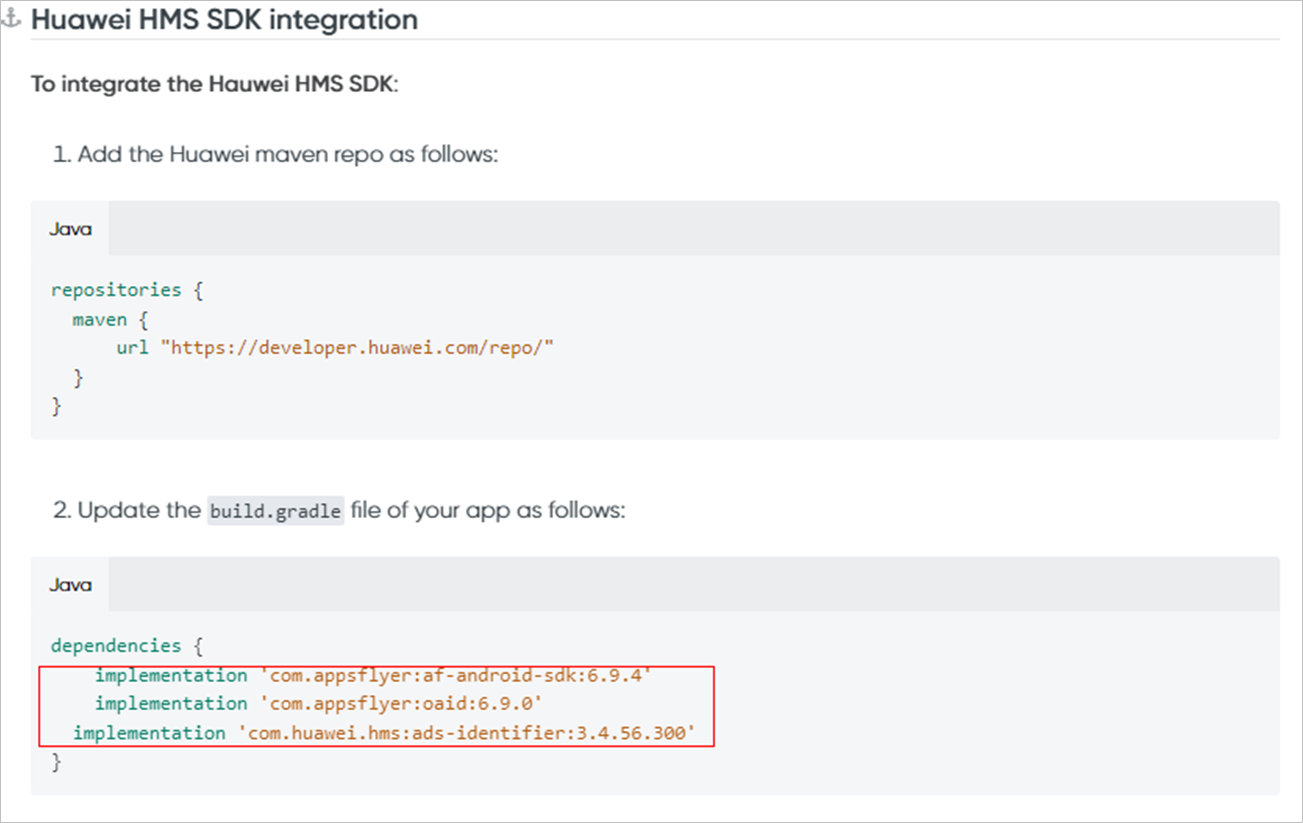
- To track an app released on AppGallery using AppsFlyer SDK 6.2.3 or later, you only need to supplement the code snippet as shown in the following red box, as such SDK versions already contain partial code for OAID collection.
- Create an association in Petal Ads.
You must associate each app that you want to track with a specified analytics provider.
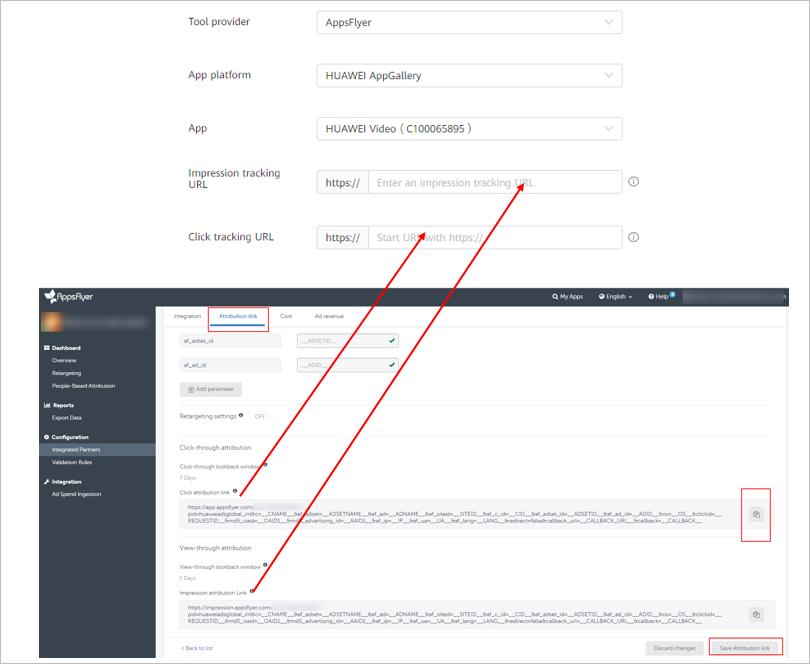
Enter the impression and click tracking URLs obtained from a third-party platform.
NOTE
- If you change the impression or click tracking URL in Analytics association for an app that has multiple conversions, you need to find one of these conversions in Conversion tracking and manually test it. The new URL will take effect for the app only after the conversion passes the testing. The status of the tested conversion will become Activated, and status of other conversions will remain unchanged.
- You can manually test conversions before ad delivery.
- If the tracking URL does not contain any referrer parameter (such as af_ref=__REFERRER__), you need to copy the tracking URL from the third-party tracking platform and paste it to Petal Ads.
- Set the data postback in AppsFlyer.
This setting will help send conversion data tracked by AppsFlyer to Petal Ads for report statistics and ad delivery optimization.
- Create an ad task in Petal Ads.
You can manually test conversions before ad delivery.
- View the conversion data in Petal Ads.
After Petal Ads receives the conversion data, the conversion status will automatically change to Activated (this process may take 3 to 10 minutes). Then, you can view the data in the report.
If you cannot find any conversion data in Petal Ads, go back to verify the app tracking and postback settings.


