


Intelligent Assistant
Chat with our virtual assistant to get answers promptly.
Currently, the refund can only be made to the original payment account. Ensure that the bank account for receiving the refund is the same as the bank account used for payment.
In special scenarios such as deregistration of the original payment bank account or company, send an email to devConnect@huawei.com to apply for offline refund.
Refund prerequisites:
1. The top-up is made by cash. (Top-up amount made by reward and rebate cannot be refunded.)
2. The top-up order is in one of the following states: Pending review, Review failed, Successful, and Refund failed.
(1) If the top-up is made from the partner account, you first need to transfer the balance from the operator account and partner subaccount to the partner account and then apply for a refund.
(2) The account of the balance to be refunded must be the same as the top-up account. (You can transfer the balance to the top-up account under My accounts > Prepaid on the HUAWEI Developers console. If the top-up is made to the AppGallery promotion fund/general fund, the balance must be transferred to the AppGallery promotion fund/general fund for refund. If the top-up is made to the Petal Ads delivery fund/general fund, the balance must be transferred to the Petal Ads delivery fund/general fund for refund.)
(3) All promotion tasks are suspended before refund.
To apply for a refund, sign in to the HUAWEI Developers console, go to My accounts > Prepaid, and click Refund in the Operation column of the order to be refunded.
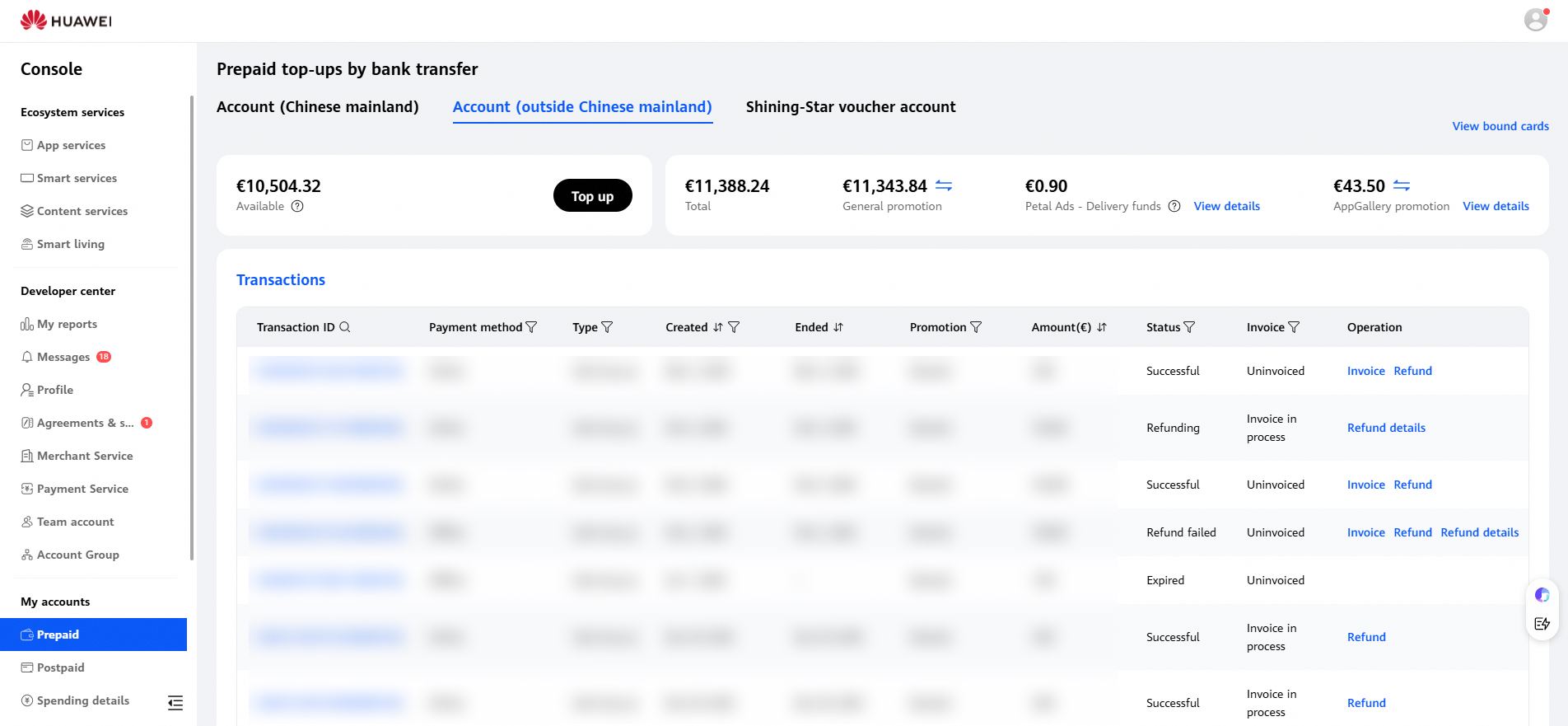
If you want to cancel a refund, go to the Refund details page and click Withdraw request in the Operation column of the refund record. If a refund is under review, you cannot cancel the refund. Therefore, exercise caution when you apply for a refund.
1. The bank account for receiving the refund must be the same as the original bank account used for top-up. No space is allowed between digits in the account number.
2. The opening bank and branch information must be completed and abbreviation is not allowed. Otherwise, the refund will fail, prolonging the time required for refunding.
The procedure in this section is applicable to the scenario where the top-up fails because an individual account is used for payment or the payment account name is incorrect. Generally, the top-up order is in Review failed state and the order invoice state is Uninvoiced.
Procedure: Click Refund in the Operation column of the order, fill in information such as the payer's name and recipient bank account, and click Submit. Items marked with red asterisks (*) are mandatory.
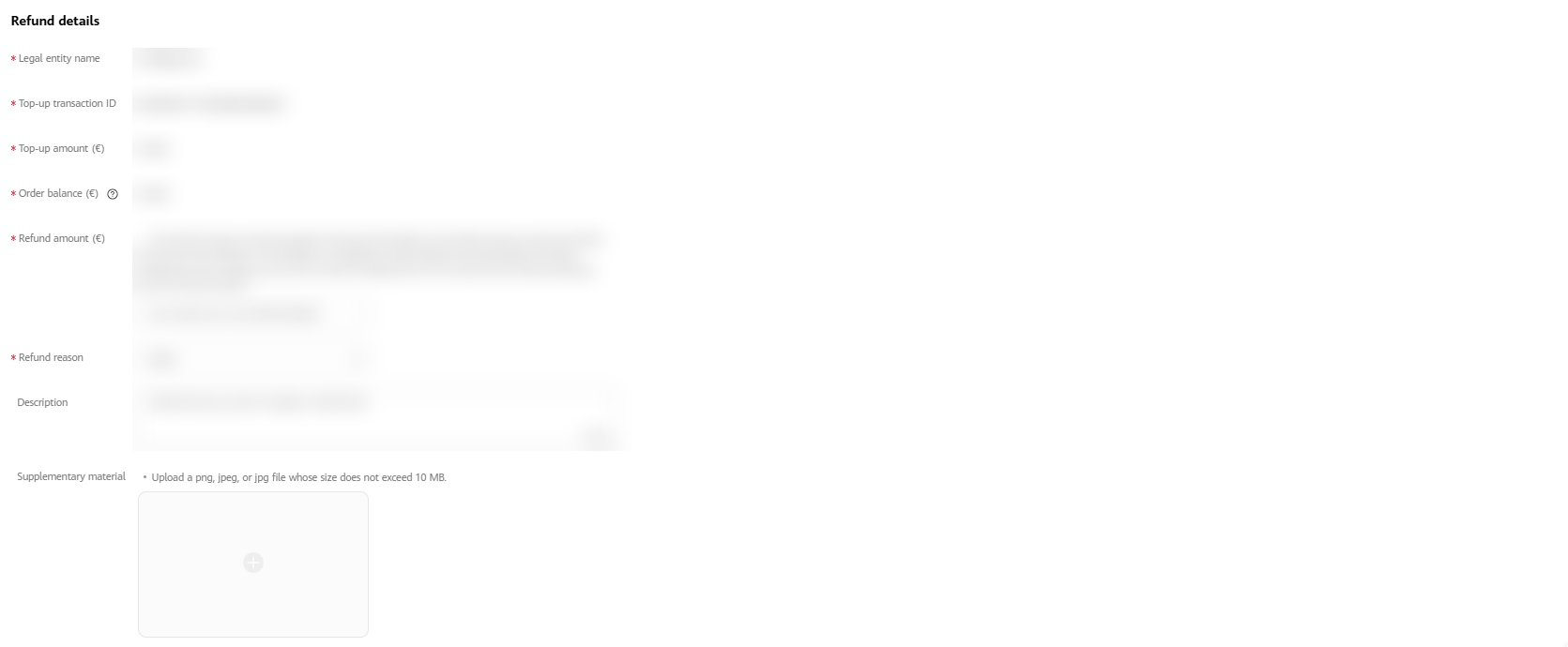
The procedure in this section is applicable to the scenario where the top-up is successful but the promotion is paused due to reasons such as service adjustment and product removal. Generally, the top-up order is in Successful state and the order invoice state is Invoiced, Uninvoiced, or Invoice returned.
Procedure: Click Refund in the Operation column of the order, set Entrusted payment, fill in information such as the payer's name, refund amount, and recipient bank account, and click Submit. Items marked with red asterisks (*) are mandatory. (Note that the refund amount cannot be greater than the order amount and the available balance in the account.)
Instructions for setting Entrusted payment:
(1) If entrusted payment is not required, set Entrusted payment to No, click Next, set relevant parameters, and click Submit.
(2) If entrusted payment is required, set Entrusted payment to Yes, upload an entrusted payment agreement (based on the downloaded template), click Next, set relevant parameters, and click Submit.

To view the refund progress of an order, sign in to the HUAWEI Developers console, go to My accounts > Prepaid, and view the refund status in the Status column of the order.
To view detailed refund information, you can click Refund details in the Operation column of the order.
Generally, refund order states are as follows:
(1) Refund failed: The refund is rejected. View the rejection comments, modify the refund information accordingly as soon as possible, and submit the modified information for refund again.
(2) Refunded: The refund is finished. Check whether the refund has been made to your recipient bank account.
(3) Pending refund review: The refund is under review. Please wait patiently.
(4) Reviewing: The refund is pending review. You can cancel the refund if necessary.
(5) Withdrawn: The refund has been canceled. You can check the refund information and submit it for refund again if necessary.
The online refund period is about one month. Please wait patiently.
A team account can be used to apply for a refund and check the refund details.