


Intelligent Assistant
Chat with our virtual assistant to get answers promptly.
The title element is used to record page titles such as product titles and news titles. It supports:
The following figure shows the effect.
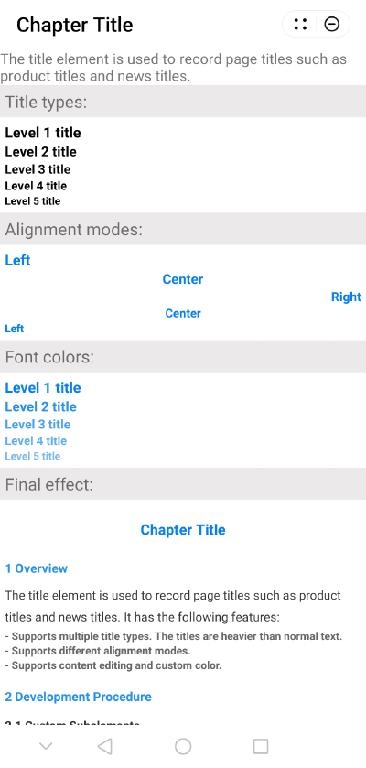
The basic layout code is as follows:
<import name="title" src="./Title/title1.ux"></import>
<template>
  <!-- Only one root node is allowed in template. -->
  <div class="container">
    <text>The title element is used to record page titles such as product titles and news titles.</text>
    <div class="item-content">
    <text class="section">Basic usage</text>
      <div class="example-body">
        <title  type="h1" title="Level 1 title: Set left alignment" color="black" align="left"> </title>
        <title  type="h2" title="Level 2 title: Set title type" color="black" align="left"> </title>
        <title  type="h3" title="Level 3 title: Set center alignment" color="black" align="center"> </title>
        <title  type="h4" title="Level 4 title: Set right alignment" color="black" align="right"> </title>"right"> </title>
        <title  type="h5" title="Level 5 title: Change color" color="#7db9f7" align="left"> </title>
      </div>
    </div>
  </div>
</template> The title element consists of the div and text elements.
<template>
 <div class="box" style="align-items:{{textAlign}}">
  <text class="{{type}}"  style="color: {{color}}">{{title}}</text>
 </div>
</template> Supported attributes
Attribute | Type | Default Value | Description |
|---|---|---|---|
type | String | - | Title type. The value can be h1, h2, h3, h4, and h5. The titles are heavier than normal text. |
title | String | - | Title content. |
align | String | left | Alignment mode. The options are:
|
color | String | #333333 | Font color. |
Define the parameters in props and pass the values when the parent element references the subelements. Call this.xxx in the subelements to obtain the values for further use.
props: {
  type: {
    type: String,
    default: ''
  },
  title: {
    type: String,
    default: ''
  },
  align: {
    type: String,
    default: 'left'
  },
  color: {
    type: String,
    default: '#333333'
  },
}, Use the computed attribute to dynamically compute the parameters of props and return the style data to the element.
computed: {
  textAlign() {
    let align = 'center';
    switch (this.align) {
      case 'left':
        align = 'flex-start'
        break;
      case 'center':
        align = 'center'
        break;
      case 'right':
        align = 'flex-end'
        break;
    }
    return align
  }
}, title.ux file:
<template>
  <div class="box" style="align-items:{{textAlign}}">
    <text class="{{type}}"  style="color: {{color}}">{{title}}</text>
  </div>
</template>

<style lang="less" >
    .box {
    flex-direction: column;
    justify-content: center;
    }
    .h1 {
      font-size: 30px;
      color: #333;
      font-weight: bold;
    }
    .h2 {
      font-size: 28px;
      color: #333;
      font-weight: bold;

    }
    .h3 {
      font-size: 26px;
      color: #333;
      font-weight: bold;
      /* font-weight: 400; */
    }
    .h4 {
      font-size: 24px;
      color: #333;
      font-weight: bold;
      /* font-weight: 300; */
    }
    .h5 {
      font-size: 22px;
      color: #333;
      font-weight: bold;
      /* font-weight: 200; */
    }
</style>

<script>
  export default {
    props: {
      type: {
        type: String,
        default: ''
      },
      title: {
        type: String,
        default: ''
      },
      align: {
        type: String,
        default: 'left'
      },
      color: {
        type: String,
        default: '#333333'
      },
    },
    computed: {
      textAlign() {
        let align = 'center';
        switch (this.align) {
          case 'left':
            align = 'flex-start'
            break;
          case 'center':
            align = 'center'
            break;
          case 'right':
            align = 'flex-end'
            break;
        }
        return align
      }
    },
  }
</script>
hello.ux file:
<import name="title" src="./Title/title1.ux"></import>
<template>
  <!-- Only one root node is allowed in template. -->
  <div class="container">
    <text>The title element is used to record page titles such as product titles and news titles.</text>
    <div class="item-content">
      <text class="section">Title types:</text>
      <div class="example-body">
        <title  type="h1" title="Level 1 title" color="black" align="left"> </title>
        <title  type="h2" title="Level 2 title" color="black" align="left"> </title>
        <title  type="h3" title="Level 3 title" color="black" align="left"> </title>
        <title  type="h4" title="Level 4 title" color="black" align="left"> </title>
        <title  type="h5" title="Level 5 title" color="black" align="left"> </title>
      </div>
      </div>
     <div class="item-content">
      <text class="section">Alignment modes:</text>
      <div class="example-body">
        <title  type="h1" title="Left" color="#027fff" align="left"> </title>
        <title  type="h2" title="Center" color="#027fff" align="center"> </title>
        <title  type="h3" title="Right" color="#027fff" align="right"> </title>
        <title  type="h4" title="Center" color="#027fff" align="center"> </title>
        <title  type="h5" title="Left" color="#027fff" align="left"> </title>
      </div>
    </div>

    <div class="item-content">
       <text class="section">Font colors:</text>
      <div class="example-body">
        <title  type="h1" title="Level 1 title" color="#027fff" align="left"> </title>
        <title  type="h2" title="Level 2 title" color="#2490ff" align="left"> </title>
        <title  type="h3" title="Level 3 title" color="#439ffc" align="left"> </title>
        <title  type="h4" title="Level 4 title" color="#60adfb" align="left"> </title>
        <title  type="h5" title="Level 5 title" color="#7db9f7" align="left"> </title>
      </div>
    </div>

    <div class="item-content">
       <text class="section">Final effect:</text>
      <div class="example-body">
          <title  class="box-head" type="h1" title="Chapter Title" color="#027fff" align="center"> </title>
          <title  class="box" type="h3" title="1 Overview" color="#2490ff" align="left"> </title>
        <div>
          <text class="text">The title element is used to record page titles such as product titles and news titles. It has the following features:</text>
        </div>
        <title type="h5" color="#666" title="- Supports multiple title types. The titles are heavier than normal text."></title>
        <title type="h5" color="#666" title="- Supports different alignment modes."></title>
        <title type="h5" color="#666" title="- Supports content editing and custom color."></title>

        </div>
        <div class="example-body">
          <title class="box" type="h3" title="2 Development Procedure" color="#2490ff" align="left"> </title>
          <title class="box" type="h4" title="2.1 Custom Subelements" align="left"></title>
          <div>
             <text class="text">1. Design the layout.</text>
          </div>
           <div>
             <text class="text">2. Customize attributes and events.</text>
          </div>

          <title class="box" type="h4" title="2.2 Data Communication Between the Parent Element and Subelements" align="left"></title>
          <div>
            <text class="text">Define the parameters in props.</text>
          </div>
          <title class="box" type="h4" title="2.3 Computing the Style" align="left"></title>
          <div>
            <text class="text">Use the computed attribute to dynamically compute the parameters of props and return the style data to the element.</text>
          </div>
        </div>

        <div class="example-body">
           <title type="h2" title="Sample Code" align="left"></title>
        </div>

    </div>

  </div>
</template>
<style>
  .container {
    flex-direction: column;
  }
  .section {
   font-size: 35px;
   padding: 10px;
   background-color: rgb(235, 233, 233);
  }
  .item-content {
    width: 100%;
    flex-direction: column;
    align-content: center;
  }
  .example-body {
    padding: 10px;
    flex-direction: column;
  }
  .text {
    font-size: 25px;
    line-height: 22px;
    color: #333;
    line-height: 45px
  }
  .box-head {
    height: 100px;
  }
  .box {
    height: 60px;
  }
</style>

<script>
  module.exports = {
    data() {
    },
    onInit() {
      this.$page.setTitleBar({text: 'Chapter Title'})
    },
  }
</script>