Introduction
As a ciphertext URL service, atomic service links are designed for atomic service developers, which can be used to directly access any page of an atomic service. As a developer, you can generate and configure a dedicated link for your atomic service and set its validity period to precisely manage the time and scope of users' access, so that users can be directed to a specific page of your atomic service within the validity period of the link.
For example, after receiving a link for airtime top-up, a user can tap the link to instantly access the corresponding atomic service page.
Use Cases
- Social sharing for content communication: For atomic services where content sharing is triggered frequently, atomic service links, combined with Huawei Share, can simplify the content for sharing and provide users with convenient content access, thus improving user experience.
- Inactive user engagement and user activeness improvement: For atomic services needing to quickly capture user attention or activate a feature, atomic service links can work with SMS or Push messages to minimize user operations and improve the service response speed.
- Routine marketing and promotion, and high-quality advertising: During the promotion and marketing of atomic services, atomic service links, acting as a bridge between ad content and users, effectively instruct users to access and experience the atomic services, thereby boosting the ad conversion rate.
Before You Start
- You have registered an enterprise developer account.
- You have created a project and an atomic service in AppGallery Connect.
- You have enabled App Linking in AppGallery Connect.
[h2]Creating an Atomic Service Link
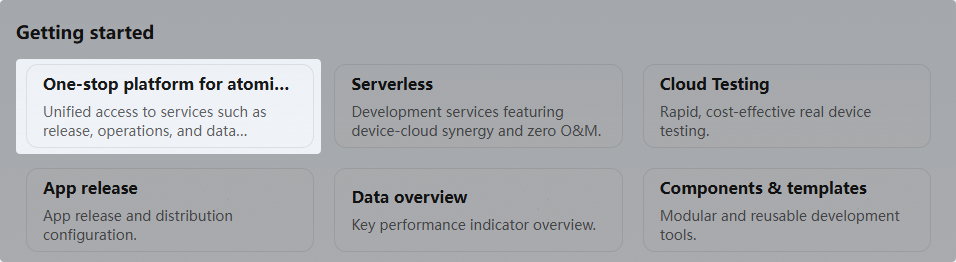
- Sign in to AppGallery Connect and click the One-stop platform for atomic services card below Getting started.
- Select the atomic service for which you want to create a link from the drop-down list in the upper left corner.
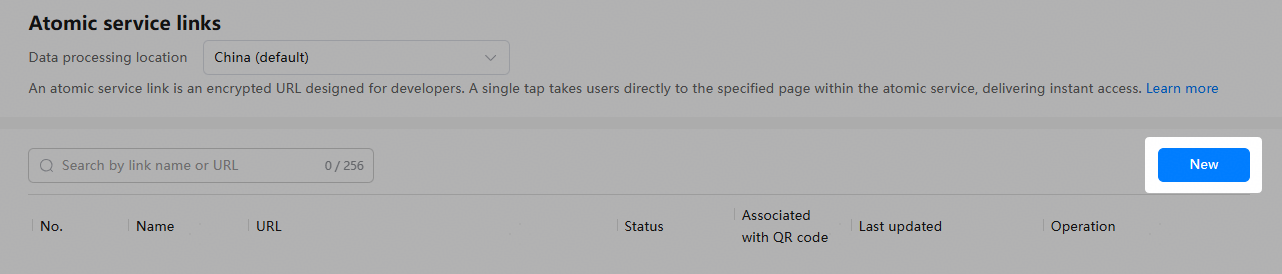
- In the navigation pane on the left, choose Basic services > Atomic service links. On the displayed Atomic service links page, click New in the upper right corner.

If you have not enabled App Linking, the App Linking introduction page will be displayed. Click Use now and set data processing locations.
- After creating an atomic service link, click Save or Release.

Parameter
Description
Name
Name of the atomic service link.
URL
Atomic service link.
The prefix is the fixed domain name of AppGallery Connect. You cannot modify or customize it. The suffix is automatically generated by AppGallery Connect by default. If you want to customize it, ensure that it is unique and contains a maximum of 100 characters.
NOTE:The suffix can contain only uppercase or lowercase letters, digits (0–9), underscores (_), and hyphens (-).
URL preview
Preview of the complete link of your atomic service. The link can be copied.
NOTE:(Optional) When using an atomic service link, you can append dynamic custom parameters to the URL to precisely redirect users to a specified page of your atomic service. No additional configuration is required in AppGallery Connect. Use ? followed by key-value pairs in the format of key=value, and separate multiple key-value pairs with an ampersand (&).
URL example: https://hoas.drcn.agconnect.link/9P7g?key1=value1&key2=value2
For details, please refer to (Optional) Using Dynamic Custom Parameters to Access a Specified Page.
Atomic service
Name of the atomic service for which a link needs to be configured. The name can be copied.
Custom parameters
(Optional) Static custom parameters configured for precisely redirecting users to a specified page of your atomic service. Enter key-value pairs in the format of key=value. Separate multiple key-value pairs with an ampersand (&). Example: key1=value1&key2=value2&key3=value3...
For details, please refer to (Optional) Using Static Custom Parameters to Access a Specified Page.
Associate with QR code
Whether to associate your atomic service with a basic URL QR code.
This section only describes how to use the atomic service link for redirection, so please select No.
NOTE:If you want users to be redirected to your atomic service after scanning the basic URL QR code, select Yes and refer to Using a Basic URL QR Code for Atomic Service Redirection.
Link validity period
Link validity period, which must range from 1 to 90 days. The end time must be later than the current time.

- If you click Save, the atomic service link will be in draft state. You can view, modify, or delete the link in draft state.

- If you click Release, AppGallery Connect will check whether the current time is within the link validity period and update the status of the atomic service link in real time. The status can be To be effective, Effective, or Expired. In this case, you cannot edit or delete the link.

[h2](Optional) Using Dynamic Custom Parameters to Access a Specified Page
After generating an atomic service link in AppGallery Connect, you can append dynamic custom parameters to the URL to precisely redirect users to a specified page of your atomic service.

URL example: https://hoas.drcn.agconnect.link/9P7g?key1=value1&key2=value2
The part after the question mark (?) represents dynamic parameters that you define. No additional configuration is required in AppGallery Connect.
Add the following sample code to the onCreate() or onNewWant() lifecycle callback of an ability (for example, EntryAbility) of the atomic service to process the passed link:
import { AbilityConstant, UIAbility, Want } from '@kit.AbilityKit';
import { hilog } from '@kit.PerformanceAnalysisKit';
import { url } from '@kit.ArkTS';
export default class EntryAbility extends UIAbility {
  onCreate(want: Want, launchParam: AbilityConstant.LaunchParam): void {
    // Obtain the passed link information from want.
    // For example, the passed URL is https://hoas.drcn.agconnect.link/9P7g?action=showall.
    let uri = want?.uri;
    if (uri) {
      // Parse the query parameter from the link. You can perform subsequent processing based on your service requirements.
      try {
        let urlObject = url.URL.parseURL(uri);
        let action = urlObject.params.get('action');
        // For example, if action is set to showall, all programs are displayed.
        if (action === "showall"){
          // ...
        }
        // ...
      } catch (error) {
        hilog.error(0x0000, 'testTag', `Failed to parse url.`);
      }
    }
  }
}
[h2](Optional) Using Static Custom Parameters to Access a Specified Page
When creating an atomic service link, you can set static custom parameters to precisely redirect users to a specified page of your atomic service. The use scenarios are as follows:
- Scenario 1: The URL is linked to a page in the main package, and subPackageName does not need to be passed.
- Scenario 2: The URL is linked to a page in a subpackage. You need to set the subPackageName parameter to specify the subpackage name.

subPackageName is a key reserved by the system and can be used only after a subpackage is installed. You cannot customize this parameter.
You can set static custom parameters which are parsed during system running, in order to redirect users to a specified page. Examples of redirecting to a specified page are described as follows:
- Example 1: Use router for page redirection.
- Specify the page path as a static custom parameter when configuring an atomic service link in AppGallery Connect. The following is an example:
pagePath=pages/SubPage

To redirect users to a page in a subpackage, you need to set pagePath to @bundle:bundleName/moduleName/path/page file name, for example, pagePath=@bundle:com.atomicservice.123456789/library/ets/pages/SubPage.
- Parse static custom parameters passed from AppGallery Connect in the onCreate() lifecycle callback of an ability (for example, EntryAbility) of the atomic service, and implement redirection to a specified page in the onWindowStageCreate() lifecycle callback.
import { UIAbility, Want } from '@kit.AbilityKit';
import { hilog } from '@kit.PerformanceAnalysisKit';
import { window } from '@kit.ArkUI';

export default class EntryAbility extends UIAbility {
  // Store the page to which the atomic service link redirects using router.
  pagePath: string = '';

  onCreate(want: Want): void {
    this.resolvePagePath(want);
    hilog.info(0x0000, 'testTag', '%{public}s', 'Ability onCreate');
  }

    onWindowStageCreate(windowStage: window.WindowStage): void {
    // Main window is created, set main page for this ability
    hilog.info(0x0000, 'testTag', '%{public}s', 'Ability onWindowStageCreate');

    if(this.pagePath){
      windowStage.loadContent(this.pagePath, (err) => {
        if (err.code) {
          hilog.error(0x0000, 'testTag', '%{public}s', `Failed to load the content, cause: ${JSON.stringify(err)}`);
          return;
        }
        hilog.info(0x0000, 'testTag', '%{public}s', 'Succeeded in loading the content.');
      });
    }
    else{
      windowStage.loadContent('pages/Index', (err) => {
        if (err.code) {
          hilog.error(0x0000, 'testTag', '%{public}s', `Failed to load the content, cause: ${JSON.stringify(err)}`);
          return;
        }
        hilog.info(0x0000, 'testTag', '%{public}s', 'Succeeded in loading the content.');
      });
    }
  }

  resolvePagePath(want: Want){
    // Obtain the link information from want. For example, the passed URL is https://hoas.drcn.agconnect.link/9P7g.
    let uri = want?.uri;
    hilog.info(0x0000, 'testTag', '%{public}s', `uri is: ${uri}`);
    if (uri) {
      // Parse the page that is redirected to through router.
      this.pagePath =  want.parameters?.['pagePath'] as string;
      hilog.info(0x0000, 'testTag', '%{public}s', `pagePath is: ${this.pagePath}`);
    }
  }
}
- Specify the page path as a static custom parameter when configuring an atomic service link in AppGallery Connect. The following is an example:
- Example 2: Use Navigation to redirect users to a specified NavDestination.
- Specify the NavDestination page name as a static custom parameter when configuring an atomic service link in AppGallery Connect. The following is an example:
navRouterName=ProductList

- In order to specify the NavDestination, set navRouterName to the corresponding value in the pageMap method or the value of name in routerMap (for example, ProductList in the sample code).
- If the NavDestination is in a subpackage, you need to set subPackageName to the name of the subpackage where the NavDestination is stored. For example, if you want to redirect users to the NavDestination in the product subpackage (the name of NavDestination in routerMap is ProductDetail), set the static custom parameters as follows: subPackageName=product&navRouterName=ProductDetail.
- Parse static custom parameters passed from AppGallery Connect in the onCreate() lifecycle callback of an ability (for example, EntryAbility) of the atomic service and share the objects in the ability to the UI through LocalStorage.
import { UIAbility, Want } from '@kit.AbilityKit'; import { hilog } from '@kit.PerformanceAnalysisKit'; import { window } from '@kit.ArkUI'; export default class EntryAbility extends UIAbility { // Share objects in the ability to the UI. storage: LocalStorage|null = null; onCreate(want: Want): void { hilog.info(0x0000, 'testTag', '%{public}s', `want in onCreate is ${JSON.stringify(want)}`); this.resolveNavigationRouter(want); hilog.info(0x0000, 'testTag', '%{public}s', 'Ability onCreate'); } onDestroy(): void { hilog.info(0x0000, 'testTag', '%{public}s', 'Ability onDestroy'); } onWindowStageCreate(windowStage: window.WindowStage): void { // Main window is created, set main page for this ability hilog.info(0x0000, 'testTag', '%{public}s', 'Ability onWindowStageCreate'); windowStage.loadContent('pages/Index', this.storage, (err) => { if (err.code) { hilog.error(0x0000, 'testTag', '%{public}s', `Failed to load the content. cause: ${JSON.stringify(err)}`); return; } hilog.info(0x0000, 'testTag', '%{public}s', 'Succeeded in loading the content.'); }); } resolveNavigationRouter(want: Want){ // Obtain the link information from want. For example, the passed URL is https://hoas.drcn.agconnect.link/9P7g. let uri = want?.uri; hilog.info(0x0000, 'testTag', '%{public}s', `uri is: ${uri}`); if (uri) { // Parse the static custom parameters for page redirection using Navigation. const navRouterName = want.parameters?.['navRouterName'] as string; hilog.info(0x0000, 'testTag', '%{public}s', `navRouterName is: ${navRouterName}`); const subPackageName = want.parameters?.['subPackageName'] as string; hilog.info(0x0000, 'testTag', '%{public}s', `subPackageName is: ${subPackageName}`); let para: Record<string, string> = { 'navRouterName': navRouterName , 'subPackageName': subPackageName}; this.storage = new LocalStorage(para); } } } - Navigate to the specified NavDestination in pages/Index.
import { NavPushPathHelper } from '@kit.ArkUI';
import { BusinessError } from '@kit.BasicServicesKit';
import { hilog } from '@kit.PerformanceAnalysisKit';

@Entry({ useSharedStorage: true })
@Component
struct Index {
  pathStack: NavPathStack = new NavPathStack();
  helper: NavPushPathHelper = new NavPushPathHelper(this.pathStack);
  @LocalStorageProp('subPackageName') subPackageName:string = '';
  @LocalStorageProp('navRouterName') navRouterName:string = '';

    build() {
    // Pass the page stack object to Navigation.
    Navigation(this.pathStack) {
	  // Content of the main page.
    }
    .title('Main');
  }
  aboutToAppear(): void{
    if(this.navRouterName){
      if(this.subPackageName){
        this.helper.pushPath(this.subPackageName, { name: this.navRouterName }, false)
          .then(() => {
            hilog.info(0x0000, 'testTag', '%{public}s', 'Succeeded in pushing the route page.');
          })
          .catch((error: BusinessError) => {
            hilog.info(0x0000, 'testTag', '%{public}s', `Failed to push the route page, code: ${error.code}, message: ${error.message}.`);
          });
      }
      else{
        this.pathStack.pushPathByName(this.navRouterName, null, false);
      }
    }
  }
}
- Specify the NavDestination page name as a static custom parameter when configuring an atomic service link in AppGallery Connect. The following is an example:


[h2]Modifying an Atomic Service Link in Draft State
Click Edit in the Operation column. After modifying the information, click Save or Release.

[h2]Deleting an Atomic Service Link
Only atomic service links in draft state can be deleted. Click Delete in the Operation column. In the displayed dialog box, click OK.

[h2]Starting the Atomic Service Through the UIAbilityContext.openLink() API
The caller app passes the link of the target atomic service through the UIAbilityContext.openLink() API to start the target atomic service.
The UIAbilityContext.openLink() API enables access to the target atomic service page by opening the atomic service using App Linking. You can compile code based on your needs.
If there is a matching atomic service, it is directly opened. Otherwise, an exception is thrown for processing.
To check whether the atomic service link is correctly configured, please refer to the following sample code:
- Add the GlobalContext.ets file to the entry/src/main/ets/common directory for initializing and obtaining the app context.
import { common } from '@kit.AbilityKit'; export class GlobalContext { private static context: common.UIAbilityContext; public static initContext(context: common.UIAbilityContext): void { GlobalContext.context = context; } public static getContext(): common.UIAbilityContext { return GlobalContext.context; } } - Import GlobalContext to the entry/src/main/ets/entryability/EntryAbility.ets file and use GlobalContext.initContext(this.context) in the onCreate method to initialize the global app context.
- In the entry/src/main/ets/pages/Index.ets file, call the UIAbilityContext.openLink() API to open the atomic service.
import { BusinessError } from '@kit.BasicServicesKit';
import { hilog } from '@kit.PerformanceAnalysisKit';
import { GlobalContext } from '../common/GlobalContext';

@Entry
@Component
struct Index {
  build() {
    Button('start link', { type: ButtonType.Capsule, stateEffect: true })
      .width('87%')
      .height('5%')
      .margin({ bottom: '12vp' })
      .onClick(() => {
        let context = GlobalContext.getContext();
        // Use the atomic service link you configured.
        let link: string = "https://hoas.drcn.agconnect.link/9P7g";
        context.openLink(link)
          .then(() => {
            hilog.info(0x0000, 'testTag', '%{public}s', 'Succeeded in opening the link.');
          })
          .catch((error: BusinessError) => {
            hilog.error(0x0000, 'testTag', `Failed to open link, code: ${error.code}, message: ${error.message}`);
          })
      })
  }
}
Take the airtime top-up atomic service as an example. link in the code should be set to the link to the main screen of the atomic service. When the link is tapped in the caller app, a dialog box is displayed, asking if the user wants to open the atomic service. Upon confirmation, the user is successfully redirected to the atomic service.
You can also set the appLinkingOnly parameter in the UIAbilityContext.openLink() API.
- When the parameter is set to true, the system will directly open the target atomic service if there is a matching one. Otherwise, the system throws an exception for processing.
- When the parameter is set to false or the default value, the system will directly open the target atomic service if there is a matching one. If the system detects that the atomic service link is invalid or expired, an error web page is displayed.
context.openLink(link, { appLinkingOnly: true })
.then(() => {
  hilog.info(0x0000, 'testTag', '%{public}s', 'Succeeded in opening the link.');
})
[h2]Starting the Atomic Service Through the System Browser or ArkWeb
ArkWeb deeply integrates App Linking. When a user taps a link in the system browser or on the web page of an atomic service integrating ArkWeb, the system will redirect the user to the atomic service profile page through App Linking if a matching atomic service is available, and instruct the user to tap atomic service launch button to start the target atomic service.
[h2]Error Scenarios
- If the atomic service link is expired, an error will be returned as follows:
- When appLinkingOnly is set to true, the redirection fails when the link is tapped, and error code 16000019 indicating a failure to open the link is displayed.
- When appLinkingOnly is set to false or the default value, the link is opened in a browser and an error page is displayed.
- If the link is not an atomic service link, for example, it is an app link or an invalid link, an error will be returned as follows:
- When appLinkingOnly is set to true, the system checks whether the link is an app link. If so, the system redirects users to the page within the local pre-installed app. If not, the redirection fails and error code 16000019 indicating a failure to open the link is displayed.
- When appLinkingOnly is set to false or the default value, the system checks whether the link is an app link. If so, the system redirects users to the page within the local pre-installed app. If not, the system attempts to open the web page using a browser.