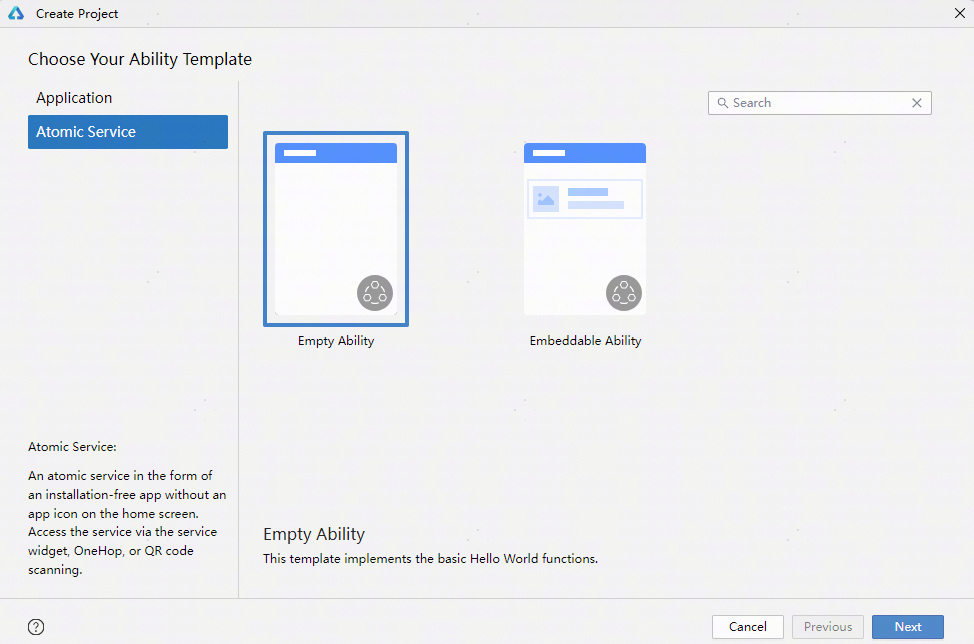
If you open DevEco Studio for the first time, click Create Project to create a project. If a project is already open, choose File > New > Create Project from the menu bar. Choose Atomic Service, select a template, and click Next.
Template types supported are described as follows:
- Empty Ability: Displays basic Hello World features. This template applies to phones, tablets, and cars.
- Embeddable Ability: Implements an atomic service that can run on other applications in embedded mode.

An atomic service does not support the native development mode. Therefore, no native project templates are available for atomic service development.
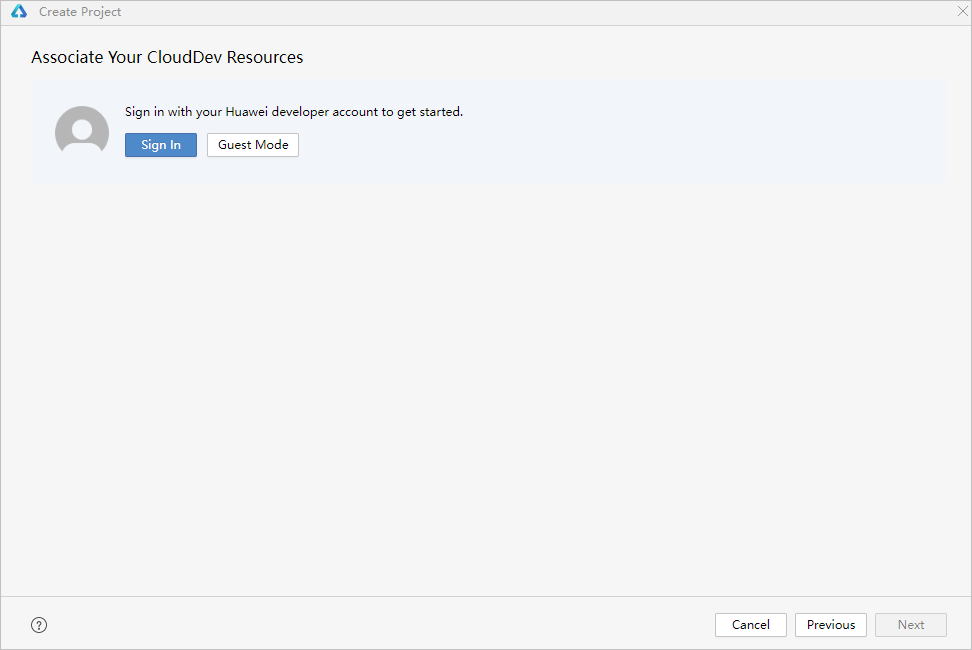
- Click Sign In and sign in with your HUAWEI ID. You can also use the guest mode without signing in.

The guest mode is used only to experience the atomic service development functionalities. To run and install an atomic service project developed in guest mode or a historical atomic service project on a real device, add the bundle name that has been registered with AppGallery using the developer account to the AppScope > app.json5 file.
- On the displayed page, click ALLOW.

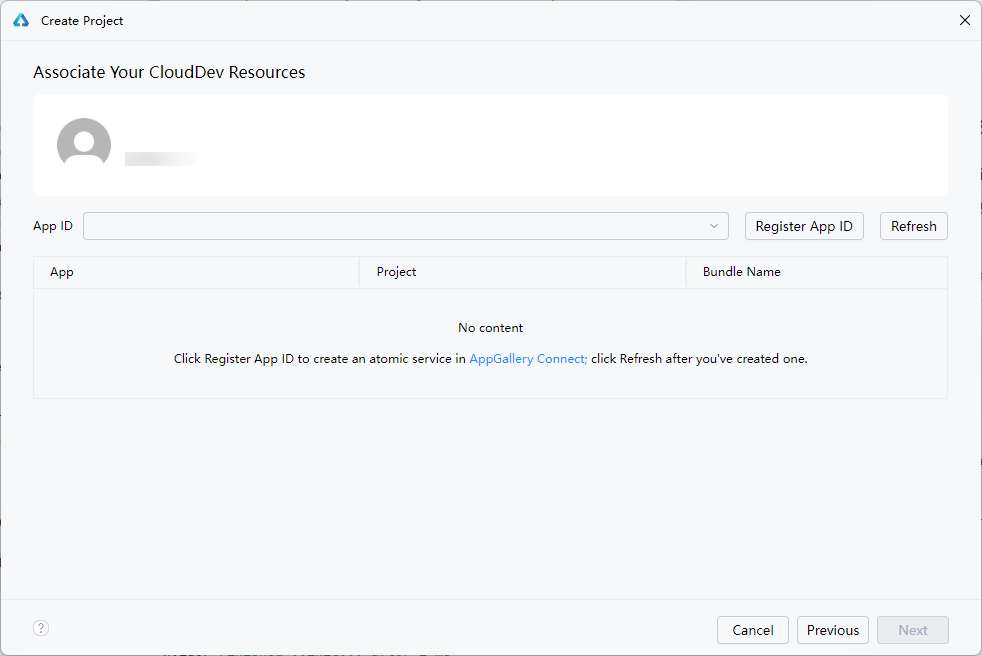
- Select the app ID for the atomic service. If you have not registered an atomic service application in AppGallery, click Register App ID to register a new app ID.

Only the app IDs of atomic services are displayed on the current page.
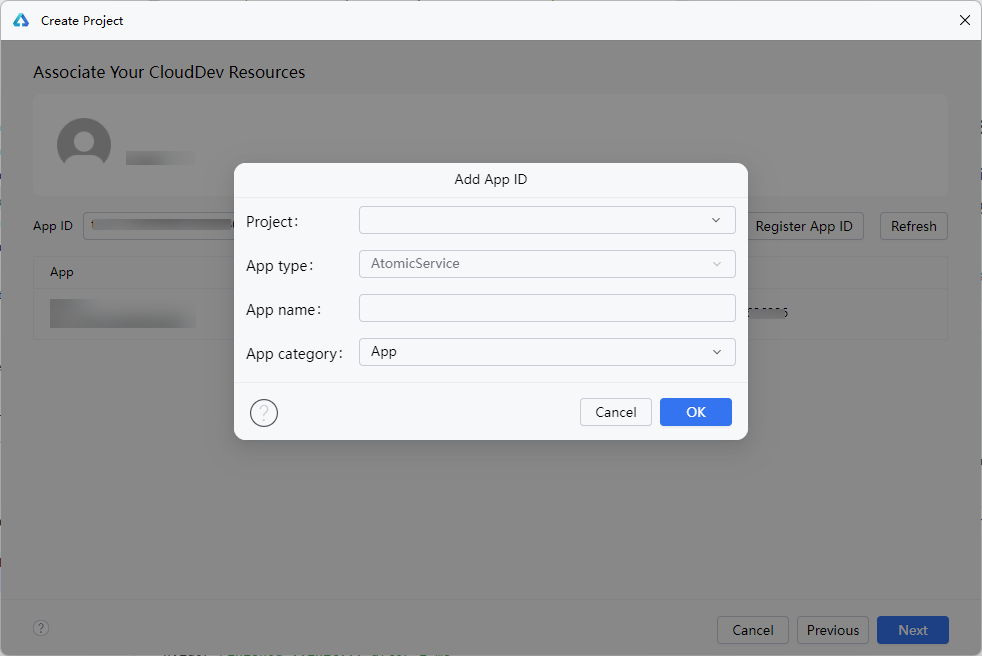
- Click Register App ID. In the displayed dialog box, input the basic information about the atomic service and click OK.
- Project: project name. You can input a new project name or select an existing project from the drop-down list.
- App type: The application type is AtomicService, which cannot be modified.
- App name: name of an atomic service displayed on the details page on AppGallery. For details about the requirements on the atomic service name, see Creating an App ID for an Atomic Service.
- App category: application category.
- After the registration is complete, return to the DevEco Studio page. The newly generated app ID is automatically selected. Click Next.
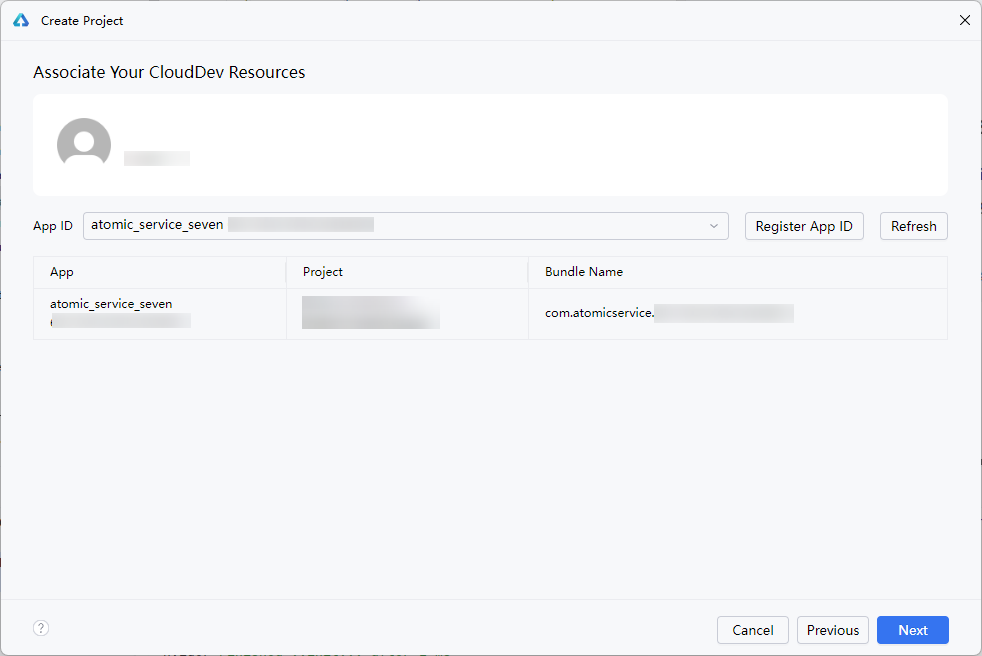

The bundle name of an atomic service is in the format of com.atomicservice.[appid]. The bundle name is automatically generated and cannot be manually modified. Bundle names that do not comply with the naming rules will not be displayed in the App ID drop-down list box.
On the project configuration page, set Project name and retain the default values for other parameters. Since 6.0.0 Beta5, DevEco Studio supports Car for Device type.
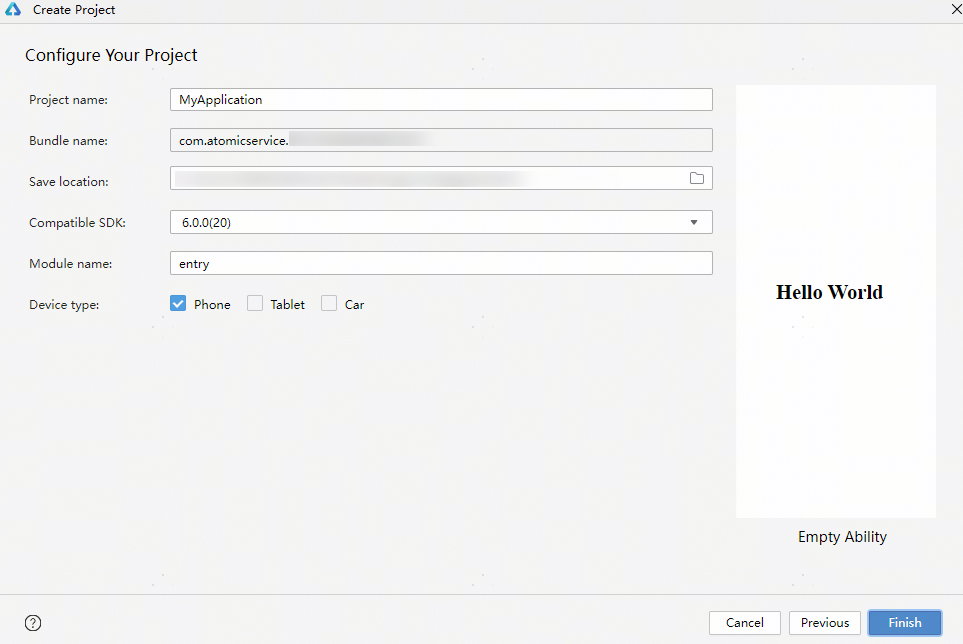
Click Finish. DevEco Studio will automatically generate the sample code and resources that match your project type. Wait until the project is created.
The directory structure of an atomic service project is as follows.

- AppScope > app.json5: global configuration information of the atomic service.
- entry: HarmonyOS project module, which can be built into a HAP.
- src > main > ets: a collection of ArkTS source code.
- src > main > ets > entryability: entry of the atomic service.
- src > main > ets > pages: a collection of pages contained in the atomic service.
- src > main > resources: a collection of resource files used by the atomic service, such as graphics, multimedia, character strings, and layout files. For details about resource files, see Resource Categories and Access.
- src > main > module.json5: module configuration file. This file describes the configuration information of the HAP file, and the device-specific configuration information and global configuration information of the atomic service. For details about the configuration file, see module.json5 Configuration File.
- build-profile.json5: current module information and build configuration options, including buildOption and targets.
- hvigorfile.ts: module-level build script. You can customize related tasks and code implementation.
- oh_modules: third-party library dependency information.
- build-profile.json5: configuration options of the atomic service, including signingConfigs and products.
- hvigorfile.ts: build script of the atomic service.