Use Case
Pushing service updates is a business-to-customer (B2C) message capability. You can use this capability to push real-time updates of orders to users based on codes (which are either HUAWEI IAP order IDs or codes obtained when scenario-specific buttons are tapped on user devices), keeping users informed of their order status and focused on ongoing tasks with glanceable, actionable notifications.
Service updates messages have the following features:
The corresponding real-time event has definite start and end time.
An event or service needs to last for a period of time with the definite start time and end time, rather than an instantaneous event.
For example, ride hailing and food delivery last for a certain period from the start to the end, so they are applicable scenarios of service updates messages. On the contrary, notifications about instantaneous events do not belong to this category.
The corresponding real-time event is time-sensitive.
The message content is a notification of an ongoing event or service. The information is valuable to users only in a specific period.
For example, ride-hailing and food delivery are ongoing, duration-based services. In contrast, when a user purchases an air ticket for a flight in two days, an immediate notification upon purchase is often unnecessary. Instead, a service update message is sent to the user at a predefined interval (determined by actual business requirements) before the flight's scheduled departure.
The corresponding real-time event status keeps changing.
Service updates content needs to be dynamically updated to present users with the latest status of the event.
For example, in the ride hailing scenario, the following status nodes are displayed based on the status changes of the driver and passenger: calling driver, driver on the way, driver arrives at pickup point, heading to destination, pending payment, and payment completed. However, notifications like coupon expiration reminders and call fee top-up reminders do not involve service status changes later and therefore do not belong to service updates messages.
Service updates messages can be displayed in various locations such as the notification panel, lock screen, status bar, and Assistant·TODAY, in either the capsule or widget form. The capsule form is displayed in the status bar, and once tapped, will turn into the floating widget form.
Eligibility Criteria for Service Updates Messages
- Service updates are of great concern to users and require repeated viewing or shortcut operations.
- The involved service event must have definite start and end time to establish its operational timeframe.
- Users have a clear expectation of receiving notifications about this event, which is typically triggered by a deliberate user action rather than passive content recommendations.
- The message content must be valuable to users, and cannot be used for marketing or advertising purposes.
Service Updates Scenario Templates
Each scenario template has specific requirements, and only atomic services that meet these criteria are eligible to apply for the corresponding scenario template. (For details about the scenario template parameters, refer to the example in Service Updates Parameters.)
Currently, the following service updates scenario templates are supported.
Scenario ID (sceneId) | Scenario Name | Subscenario ID (subSceneId) | Subscenario Name | Applicable Category | Code Source |
|---|---|---|---|---|---|
10001 | Takeout | 100010001 | Takeout - self-pickup | Food - takeout/fresh food/coffee | HUAWEI IAP order ID |
100010002 | Takeout - delivery | Food - takeout/fresh food/coffee | HUAWEI IAP order ID | ||
10003 | Hotel/Guesthouse check-in | 100030001 | Hotel/Guesthouse check-in | Travel - accommodation/hotel/guesthouse/resort | HUAWEI IAP order ID |
10005 | Number taking and queuing | 100050001 | Number taking | Finance - bank, life service - public service, travel - travel/scenic spot service |
|
100050002 | Registration and treatment | Medical - outpatient appointment/hospital/physical examination |
| ||
100050003 | Queuing for food | Food & drink - restaurant/ordering |
| ||
10011 | Scenic spot reservation | 100110001 | Scenic spot reservation | Travel - scenic spot service/amusement park | HUAWEI IAP order ID |
10018 | Performance reminder | 100180001 | Performance reminder | Entertainment - performance tickets | HUAWEI IAP order ID |
10019 | In-park shuttle | 100190001 | In-park shuttle | Travel - travel/scenic spot service, navigation - transportation & tickets | HUAWEI IAP order ID |
10021 | Ride hailing | 100210001 | Ride hailing | Navigation - cars/ride hailing/taxi/ride sharing/carpooling |
|
10022 | Travel check-in | 100220001 | Check-in route | Travel - travel/trip assistant/travel tips/trip records | HUAWEI IAP order ID |
10023 | Visit reservation | 100230001 | Exhibition venue reservation | Lifestyle |
|
[h2]Confirming the Service Scenario
You are required to determine your specific service scenario, and subsequently apply for and integrate the necessary service updates message scenario. For details about available scenarios, please refer to Service Updates Scenario Templates.
[h2]Applying for the Permission
You need to apply for the service updates message permission by referring to Applying for the Permission. Once approved, you can start developing.
[h2]Determining How to Obtain the Code
This code is unique to the service process and serves as the reference identifier for pushing service updates to the corresponding user. There are two methods to obtain the code:
- A HUAWEI IAP order ID can be used as this code.
When a user launches the HUAWEI Pay checkout page in your atomic service for payment, you can obtain the payment order ID as the code.

- Only HUAWEI IAP order IDs generated for the current atomic service are supported. Do not use order IDs of other atomic services or apps.
- In pending payment state, you can query the payment status of the order using the merchant order ID.
- A code obtained when a user taps a scenario-specific button on their device can also be used as the code. This capability is supported since HarmonyOS 6.0. Note that, a code can be obtained through button tapping only for an eligible scenario.
To do so, you need to set the openType of the button component that triggers the service to functionalButtonComponentManager.OpenType.REQUEST_SUBSCRIBE_MESSAGE. When a user taps the button, an authorization code can be obtained.

The system verifies the button component for compliance, including whether the user is misled to tap the button or whether the button is irrelevant to the message card to be activated. Therefore, proper use of the button component is required.
[h2]Activating the Message Card
If your atomic service uses a HUAWEI IAP order ID as the code, you need to call the send API on the server side to transfer the initialized message card status and status-related fields (for details, please refer to Pushing the Body of a Service Updates Message) after the payment is complete to activate the code for the first time. In this way, service updates can then be pushed using the send API.
If your atomic service uses the authorization code obtained when a scenario-specific button is tapped as the code, you need to call the send API on the server side to transfer the initialized message card status and status-related fields within 24 hours after the code is obtained to activate the code for the first time. In this way, service updates can then be pushed using the send API.
If the code is not activated within 24 hours after it is obtained, it cannot be used to push service updates messages.
[h2]Updating the Message Card Status
After the code is activated, you can call the send API on the server side to pass the updated message card status and status-related fields (for details, please refer to Pushing the Body of a Service Updates Message). Message card updates are only permitted within the event's validity period. Once the validity period expires, or the event reaches a final status (for example, the status is already "Order completed"), further updates are not allowed.

The specifications of service updates message cards displayed in the notification panel, lock screen, status bar must comply with the live view design specifications. Solutions that do not comply with the design specifications will not be granted the formal permission on service updates messages. To ensure the timeliness of the messages, be sure to update the live view content promptly.
- The lifecycle of a live view cannot exceed 8 hours. After 8 hours, the system considers that the live view ends. That is, all card status updates of a single event must be completed within 8 hours.
- If a live view is not updated for more than 2 hours, the system will hide the live view display on the status bar and lock screen, but retain its display in the notification panel. If a live view is not updated for more than 4 hours, the system considers that the live view ends and clears the live view from all display entrances.
[h2]Pushing the Body of a Service Updates Message
The following uses the self-pickup sub-scenario of the takeout scenario as an example. For details, please refer to the service updates push API.
// Request URL
POST https://push-api.cloud.huawei.com/v1/[projectId]/service_timeline/send

// Request Header
Authorization: Bearer eyJr*****OiIx---****.eyJh*****iJodHR--***.QRod*****4Gp---****

// Request Body
{
    "appId": "5**********7",
    "toOpenId": "A**********O",
    "sceneId": "10001",
    "subSceneId": "100010001",
    "code": "3**********7",
    "content": {
        "status": 3,
        "expireTime": 60,
        "orderTime": 1716191520,
        "amount": "¥ 18.00",
        "productCount": 1,
        "productName": "Mango",
        "productImg": "image_test_1",
        "merchantName": "Store A",
        "pickupNumber": "1668",
        "pickupTime": "16:08",
        "remainOrders": "5 orders/5 cups",
        "waitTime": "10-20 minutes",
        "button": {
            "type": 1,
            "text": "Pickup code",
            "action": "https://***",
            "uri": "https://***"
        },
        "clickAction": {
            "type": 1,
            "action": "https://***",
            "uri": "https://***"
        },
        "appendButtons": [
            {
                "type": 1,
            "text": "Pickup code",
                "action": "https://***",
                "uri": "https://***"
            }
        ]
    }
} - [projectId]: project ID. To obtain the project ID, sign in to AppGallery Connect, click Development and services, click the desired project, and go to the Project settings page.
- Authorization: a character string in JWT format. You can obtain the value by referring to Authorization.
- appId: app ID of the atomic service. To obtain the app ID, sign in to AppGallery Connect, click Apps and atomic services, go to Release app > App information, and check the app ID.
- toOpenId: OpenID of a sign-in user. Use the OpenID reported by the device, or request the Account Kit server to obtain user information. For details about how to design and integrate the HUAWEI ID sign-in function, please refer to the account usage requirements of atomic services.
- sceneId: scenario ID. For details, please refer to Service Updates Sending Scenarios.
- subSceneId: subscenario ID. For details, please refer to Service Updates Sending Scenarios.
- code: authorization code, which is used to push and update service updates messages. For details, please refer to Determining How to Obtain the Code.
- content: order status parameters in service updates. The lifecycle of service updates messages must begin with the event start node status and conclude with the event end node status. For details, please refer to Request Body Structure. Define Button, clickAction, and appendButtons to specify the action of opening a specific page when the message card is tapped. The destination is strictly limited to the current atomic service.
- clickAction: card tap event. It can carry the data field to transfer specific data to the atomic service upon a card tap. For details, please refer to Actions to Be Triggered upon Message Tapping.
- button: card button tap event. It can carry the data field to transfer specific data to the atomic service upon a button tap. For details, please refer to Actions to Be Triggered upon Message Tapping.
For details about the service response codes, please refer to Service Response Codes.
Applying for the Permission
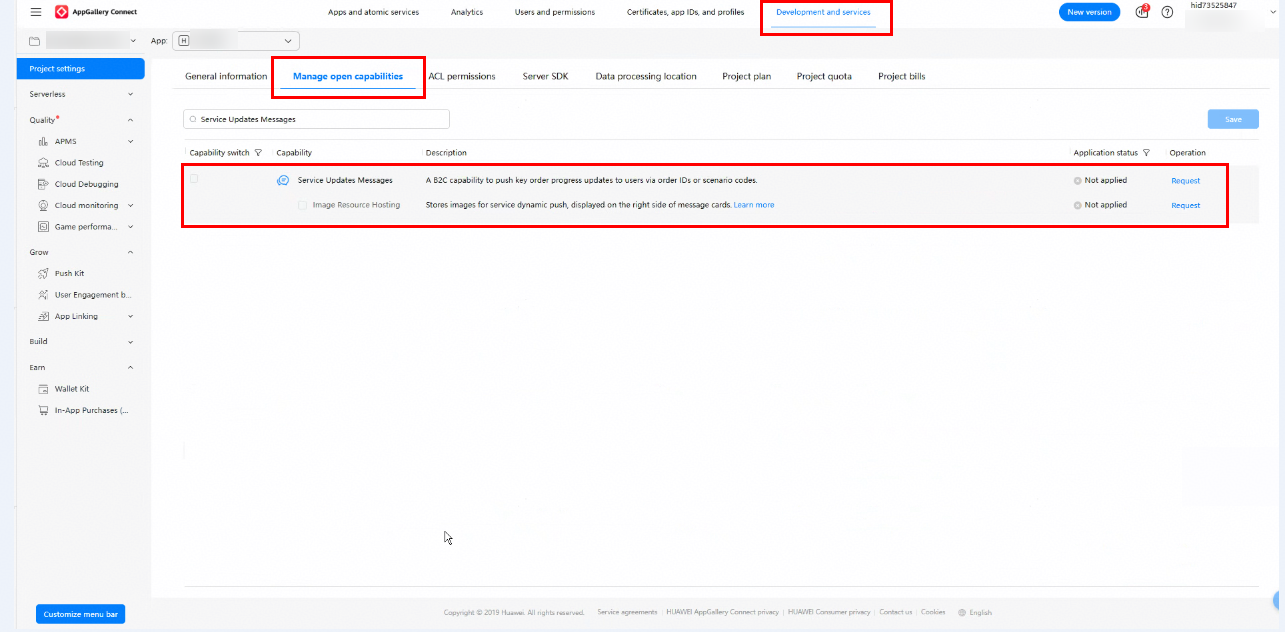
- Sign in to AppGallery Connect and click Development and services.
- Select your target project from the project list. In the app list, select the app for which you want to request service updates messages.
- Go to Project settings > Manage open capabilities and click Request next to Service Updates Messages.
- To push service updates messages, request the image resource hosting sub-capability (images displayed on the right of the message card). For details, see Status effect.
- Provide the required information, including the request scenario, usage scenario, and basic app information, by referring to the template in Request reason, and click Submit.
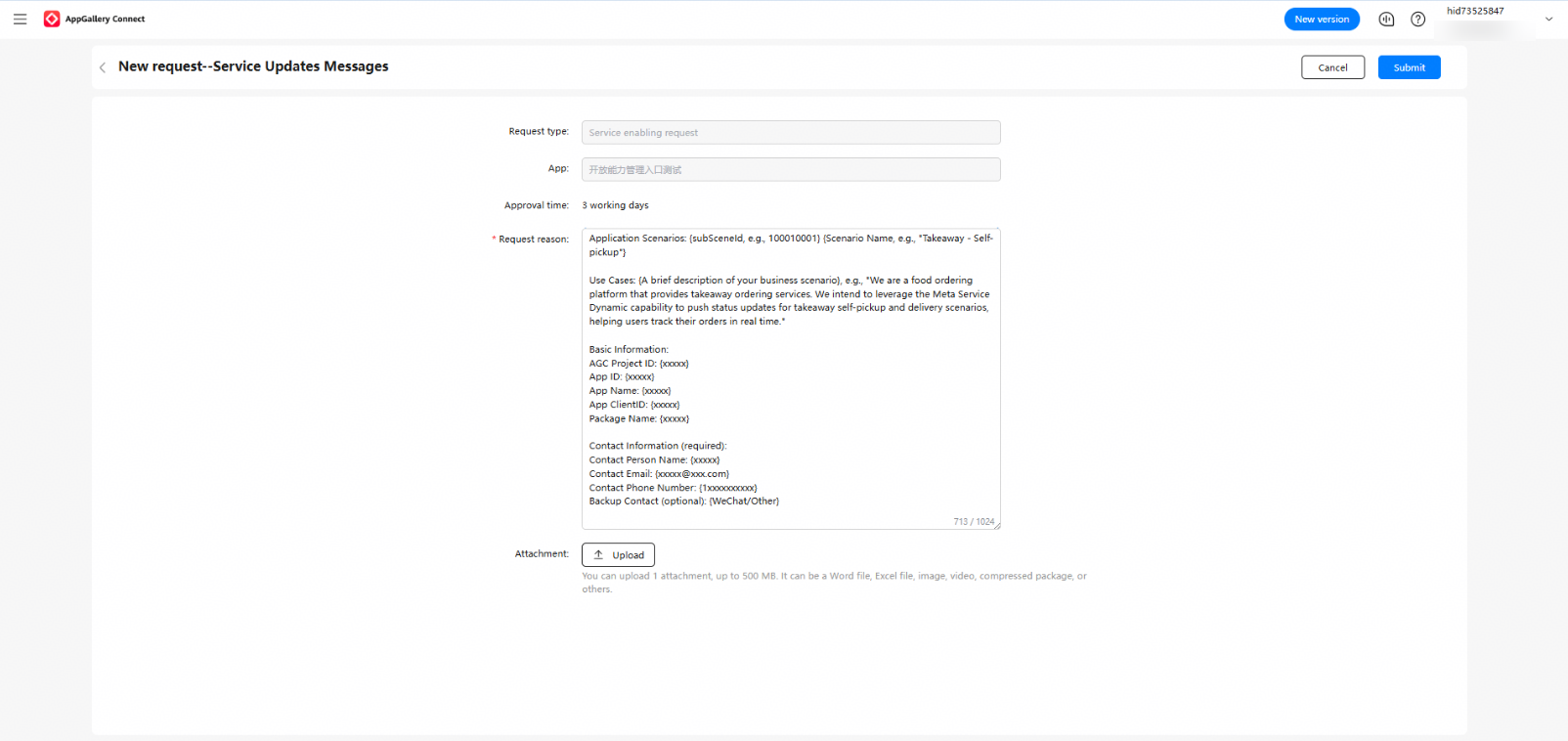
Return to the Manage open capabilities page. The Request button changes to Requesting. The request result will be provided within 1 to 3 working days. Please check the service enabling request information in the interaction center.

After the request is approved, the interaction center will send you a notification, and the status will change from "Requesting" to "Request" (dimmed). The open capability of service updates messages or image resource hosting has been enabled for your app.


- ProjectID: project ID. To obtain the project ID, sign in to AppGallery Connect, click Development and services, click the desired project, and go to the Project settings page.
- AppID: app ID of the atomic service. To obtain the app ID, sign in to AppGallery Connect, click Apps and atomic services, go to Release app > App information, and check the app ID.
- ClientID: client ID of the atomic service. To obtain the client ID, sign in to AppGallery Connect, click Development and services, go to Project settings > General information and find the app's client ID under App information > OAuth 2.0 client ID.
- If you have any questions during the request process, please feel free to contact us at atomicservice@huawei.com.