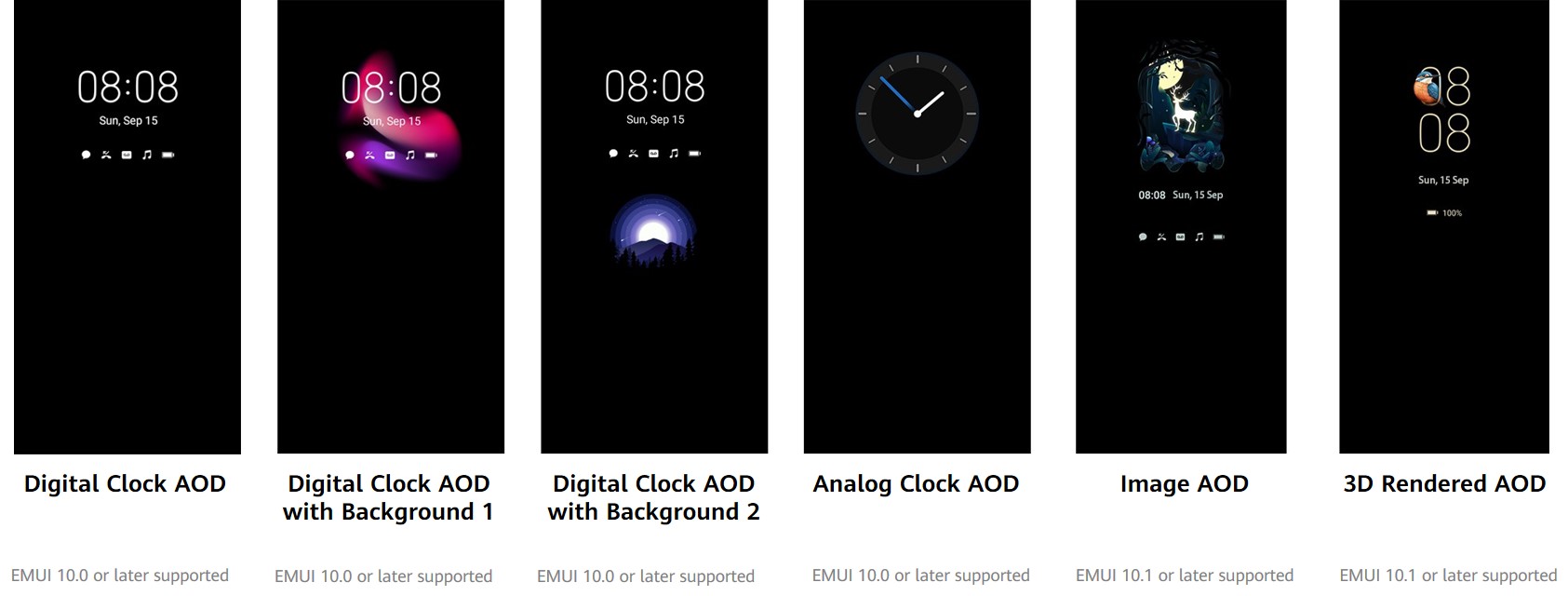
Static AOD themes
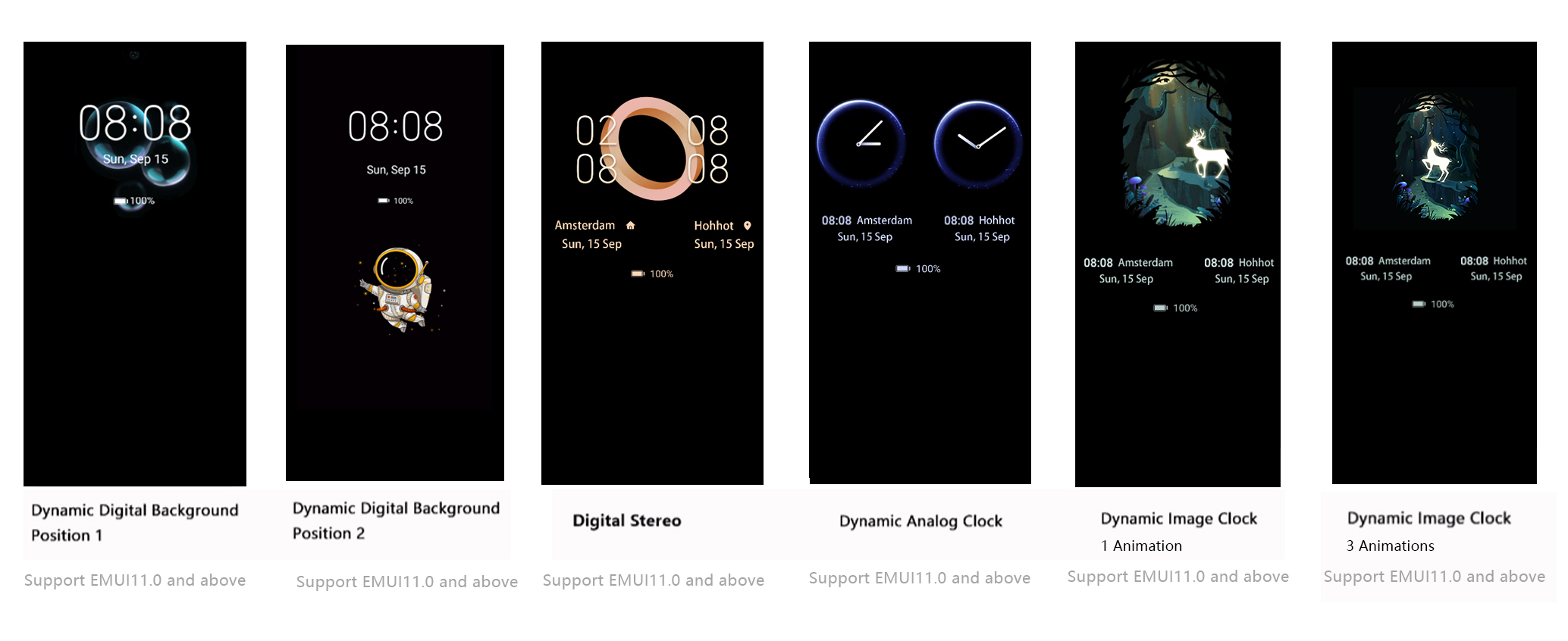
Dynamic AOD themes
2. Development Process
- Select an AOD theme type and make sliced images.
- Use Theme Studio to create an AOD theme.
- Check your theme according to AOD test specifications.
- Upload your theme to HUAWEI Developers by referring to Uploading Phone Themes & AOD.
- Wait for approval.
[h2]3.1 Design of Digital Clock AOD
When you select digital clock AOD, you can design the digit style and text color. Digital clock AOD is supported by phones running EMUI 10.0 or later.
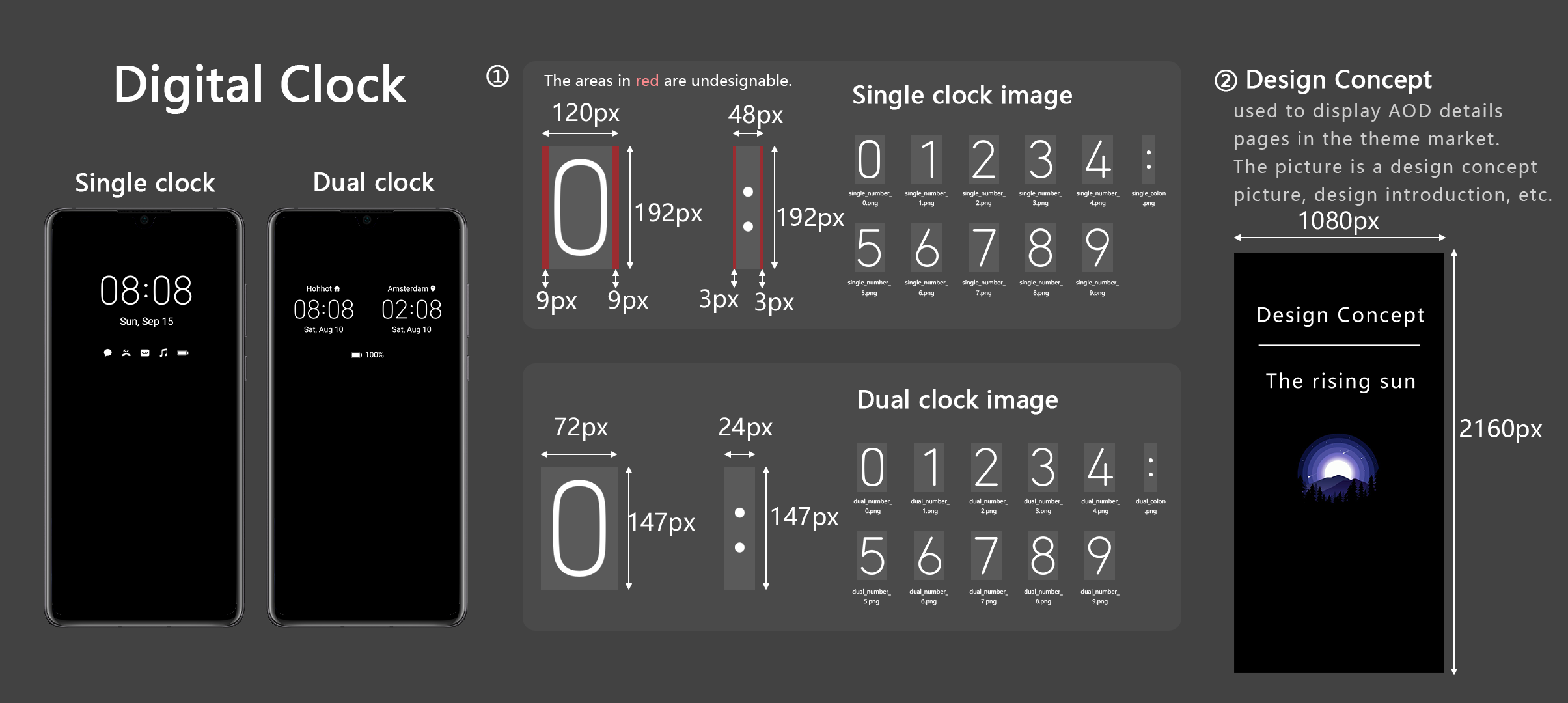
- Select an AOD theme type and make sliced images.
Note that:
- The sliced images of digital clocks shall be in PNG format and the area surrounding the clock scale and hands shall be transparent with no patterns.
- You need to provide sliced images of both single clock and dual clocks, in appropriate sizes.
- The design concept image shall display the characters such as design concept, with no digital clocks on it.
- Use Theme Studio to create an AOD theme.
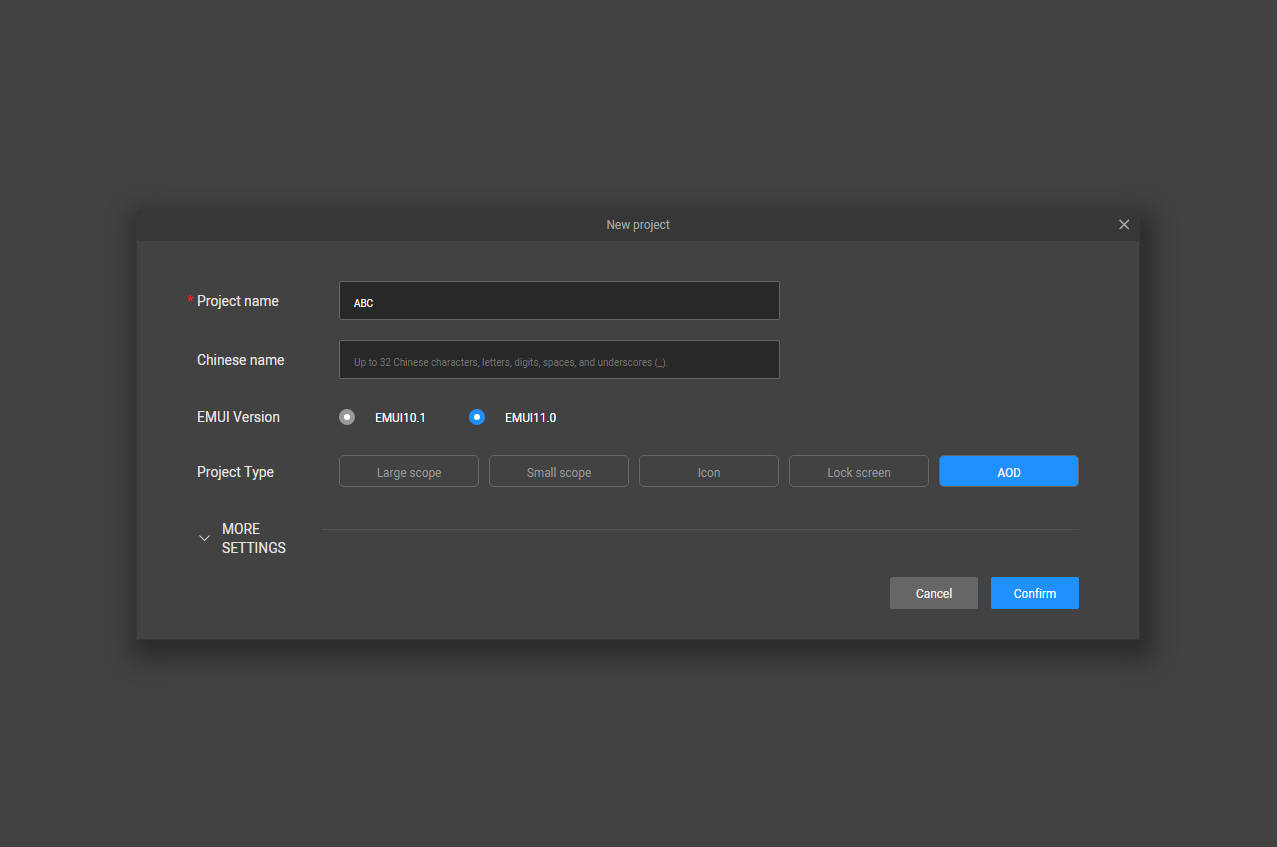
- Open Theme Studio, click Create, and set Project type to AOD in the displayed dialog box.
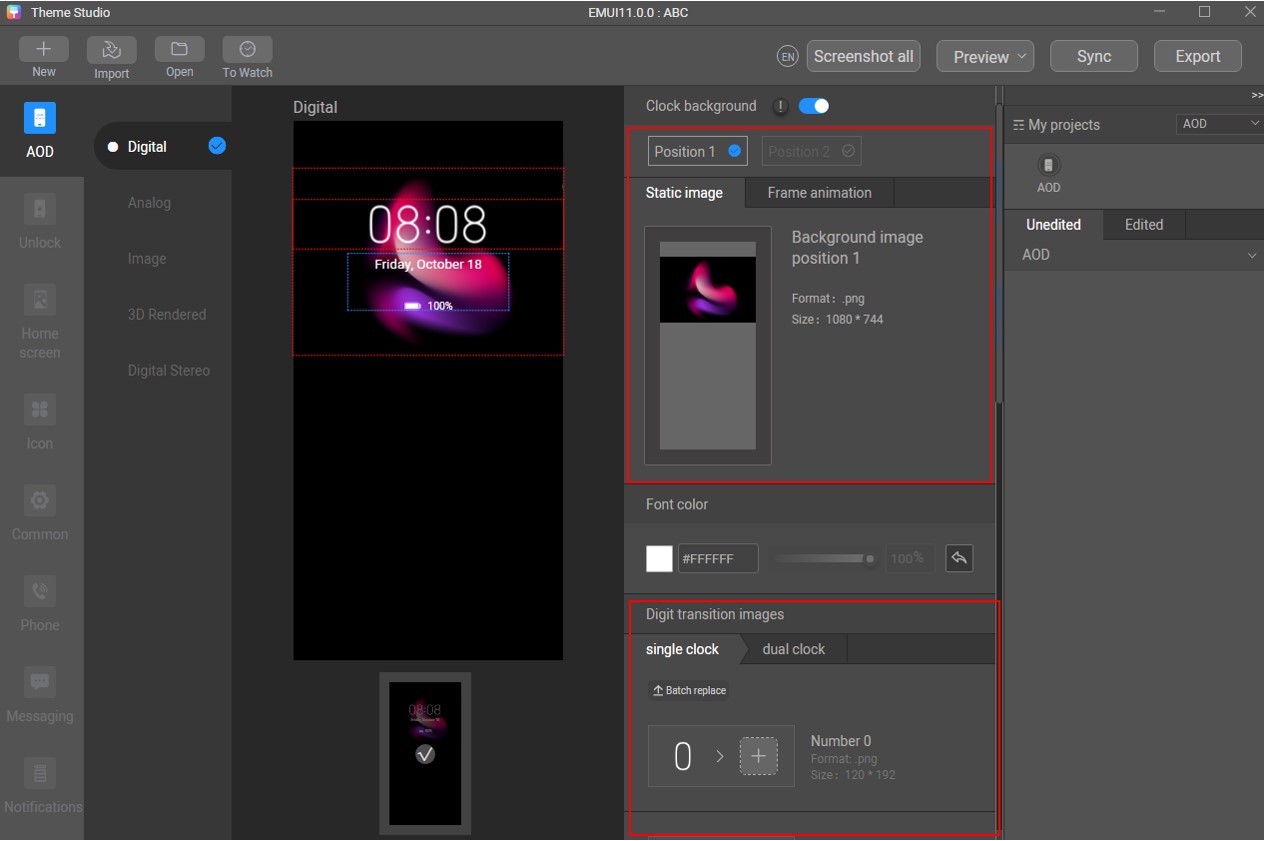
- Upload the sliced images of both single clock and dual clocks.
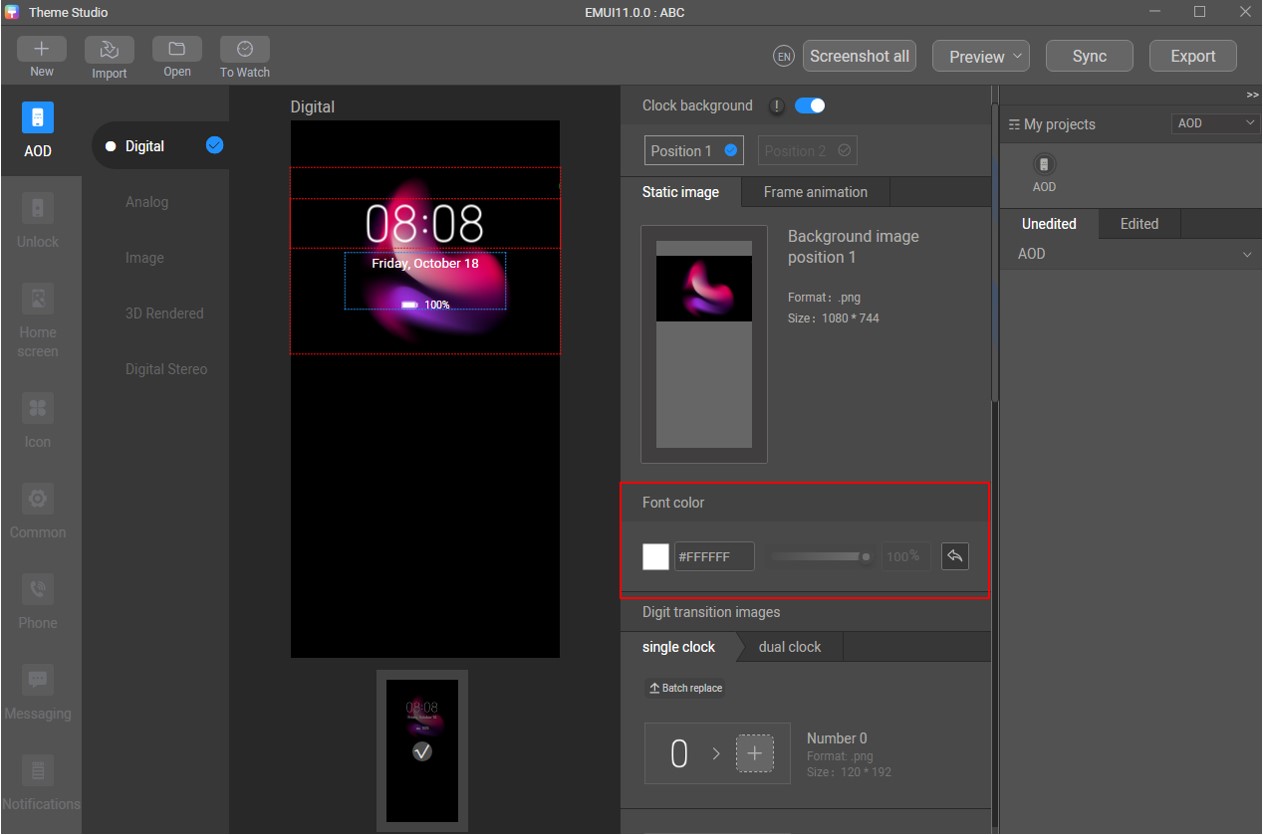
- Adjust the color of the text and digits to make the theme more attractive.
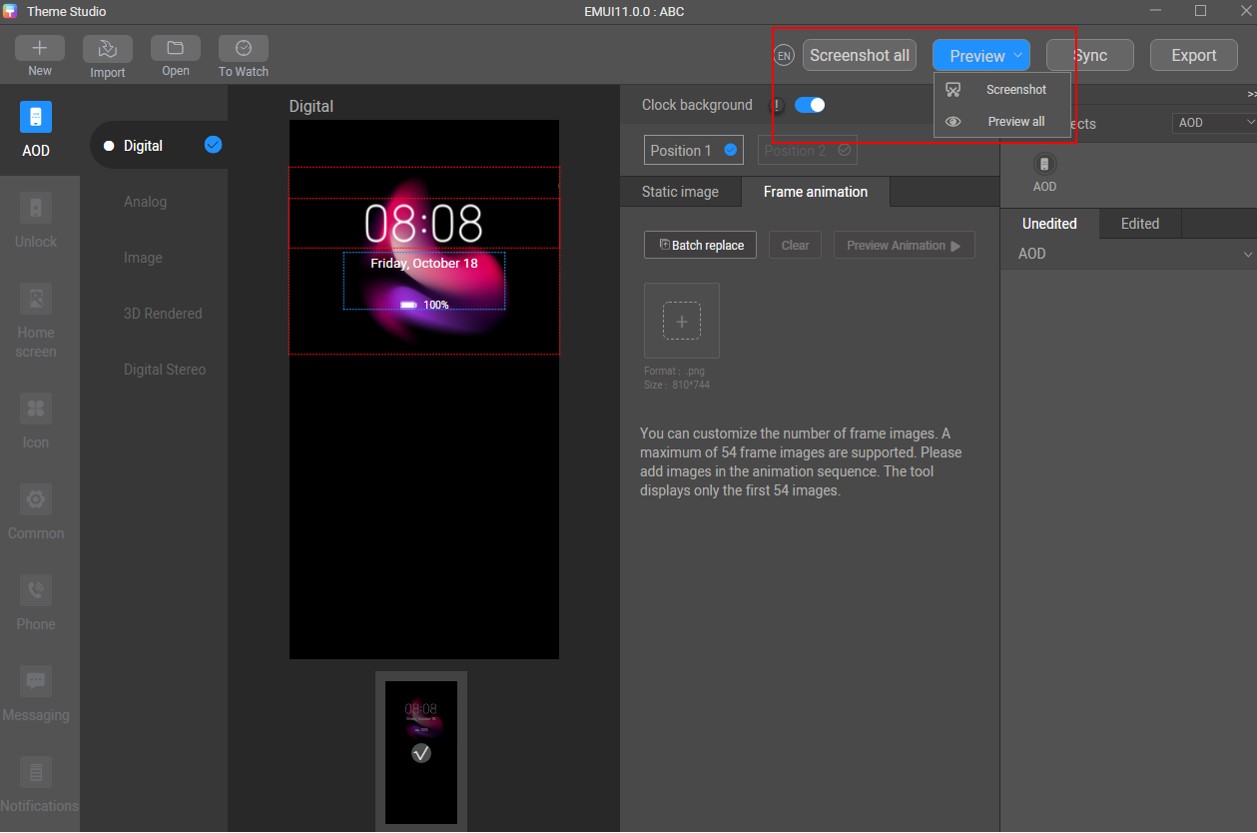
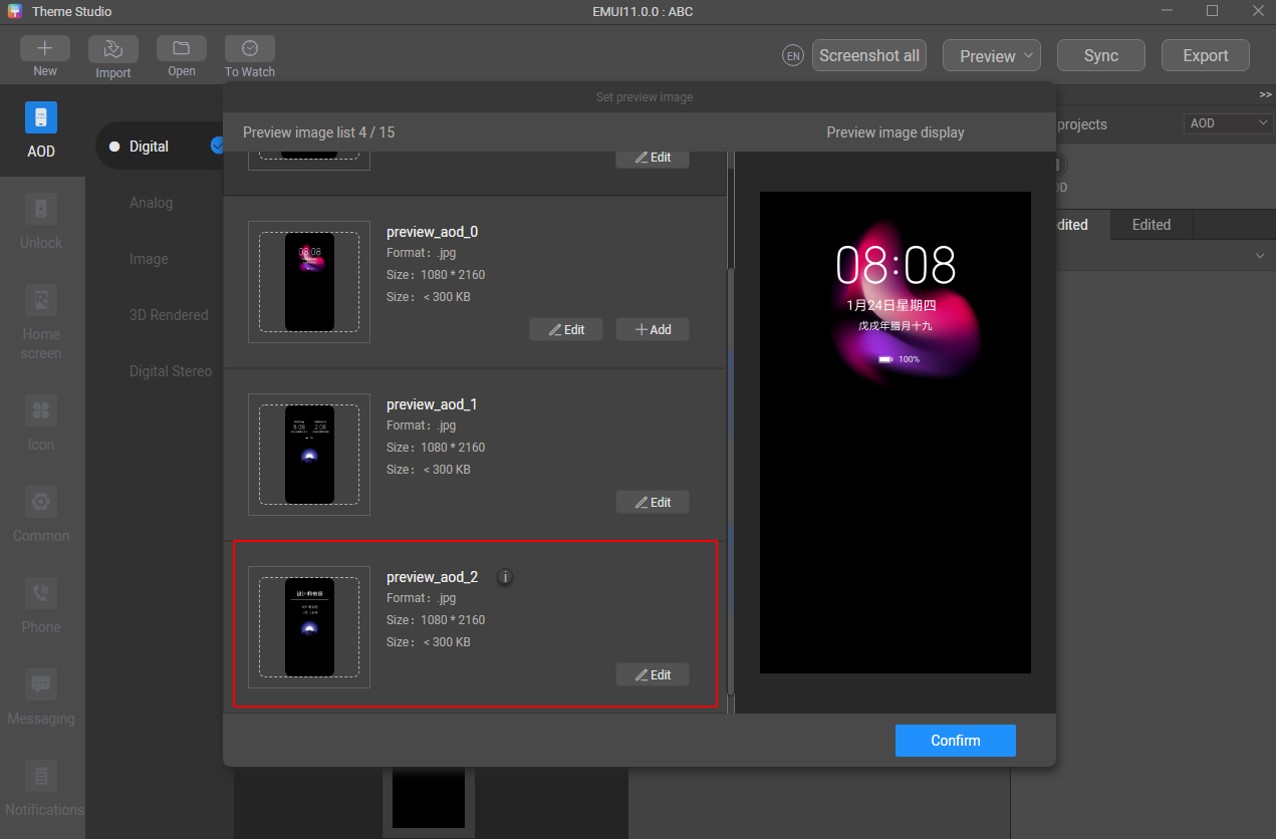
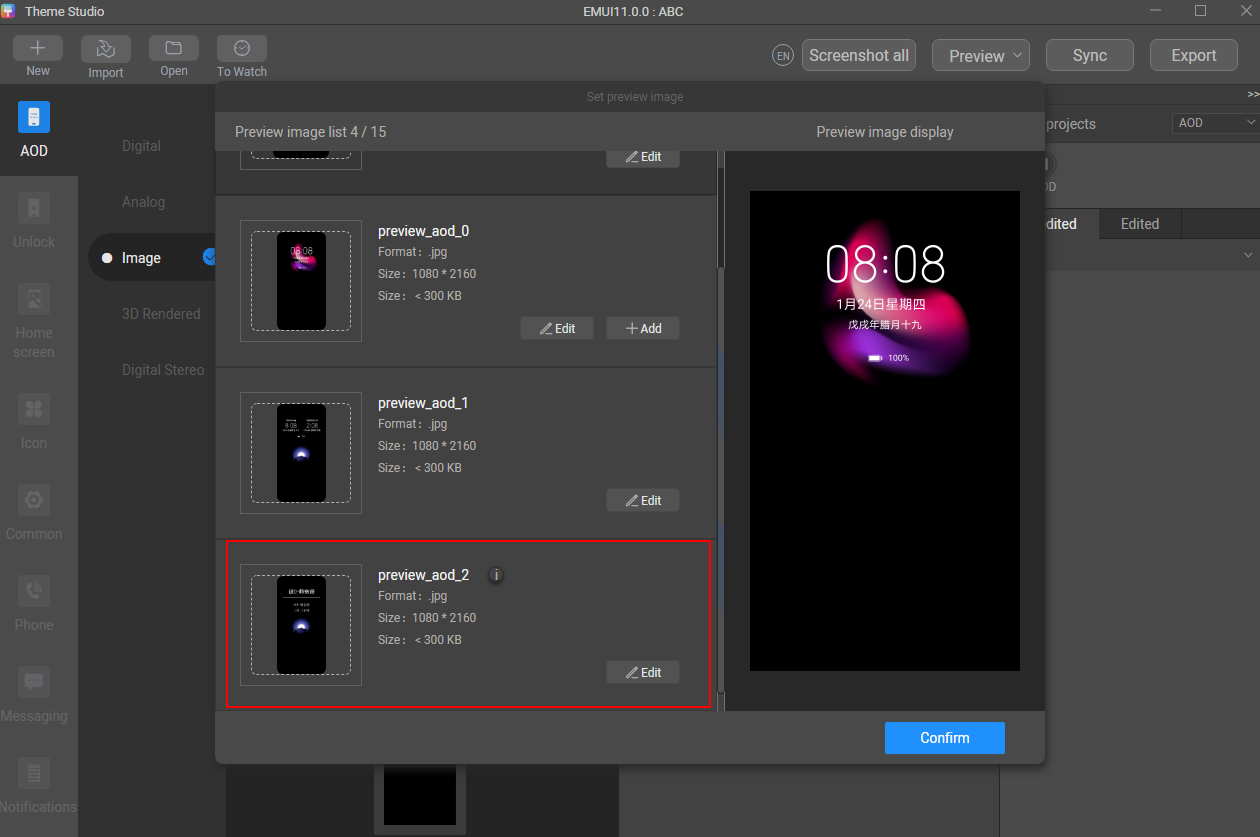
- Take a screenshot to generate a preview effect, and upload the design concept image to replace preview_aod_2.jpg.
- Export the theme package.
[h2]3.2 Design of Digital Clock AOD with Background
When you select digital clock AOD with background, you can design your theme's time style and color. Digital clock AOD with background is supported by phones running EMUI 10.0 or later.
- Select an AOD theme type and make sliced images.
Note that:
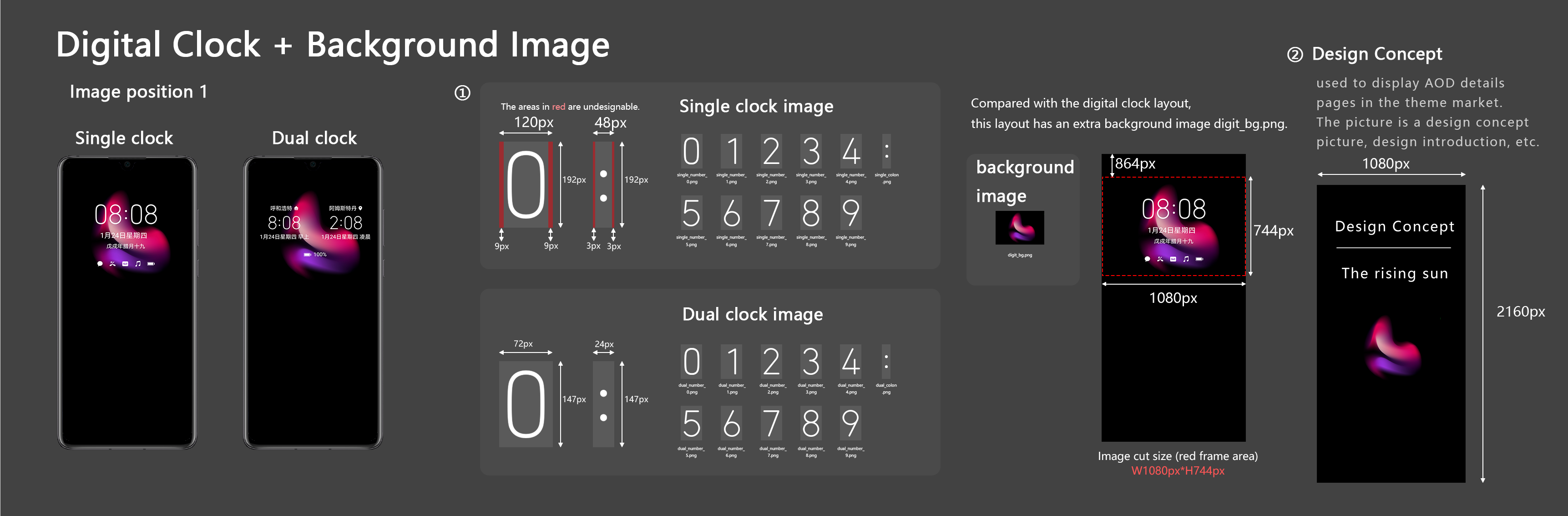
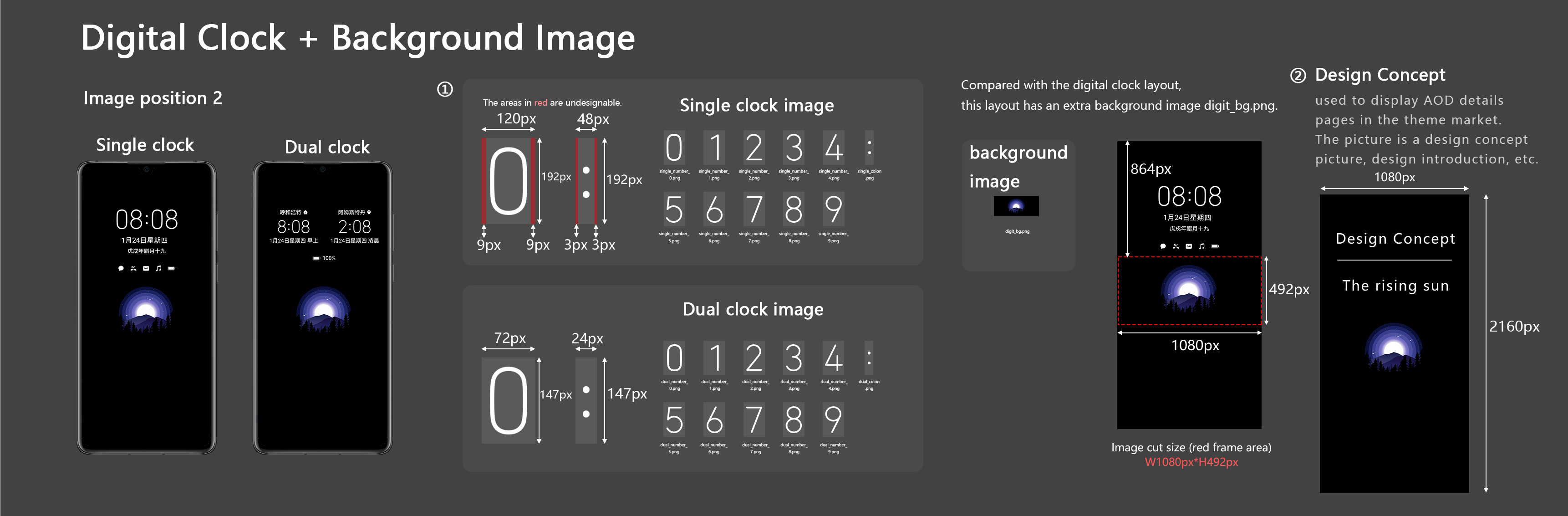
- The sliced images of digital clocks shall be in PNG format and the area surrounding the digits and colons shall be transparent with no patterns.
- You need to provide sliced images of both single clock and dual clocks, as well as a background image, in appropriate sizes.
- Select either Position 1 or Position 2 to place the background image.
- The design concept image shall display the characters such as design concept, with no digital clocks on it.
- Use Theme Studio to create an AOD theme.
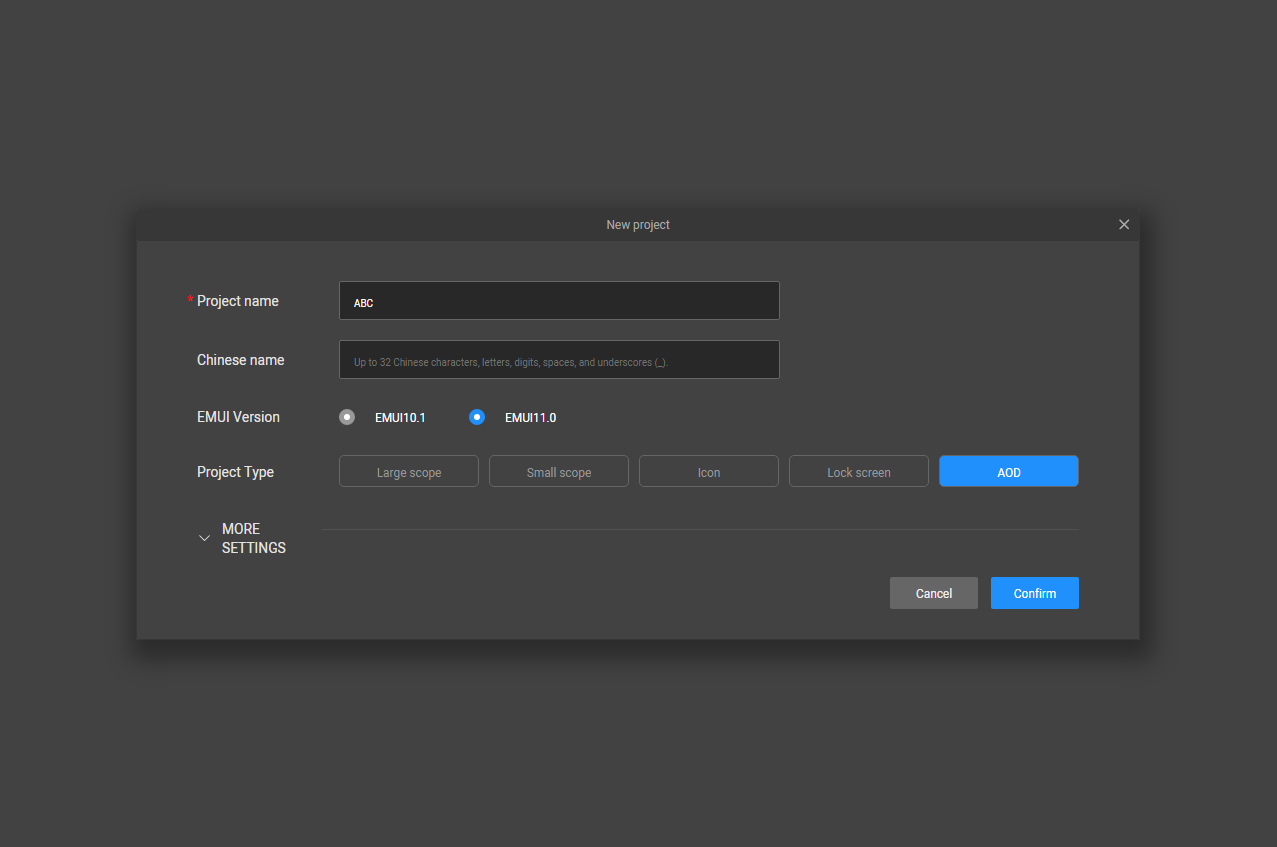
- Open Theme Studio, click Create, and set Project type to AOD in the displayed dialog box.
- Upload the sliced images of both single clock and dual clocks.
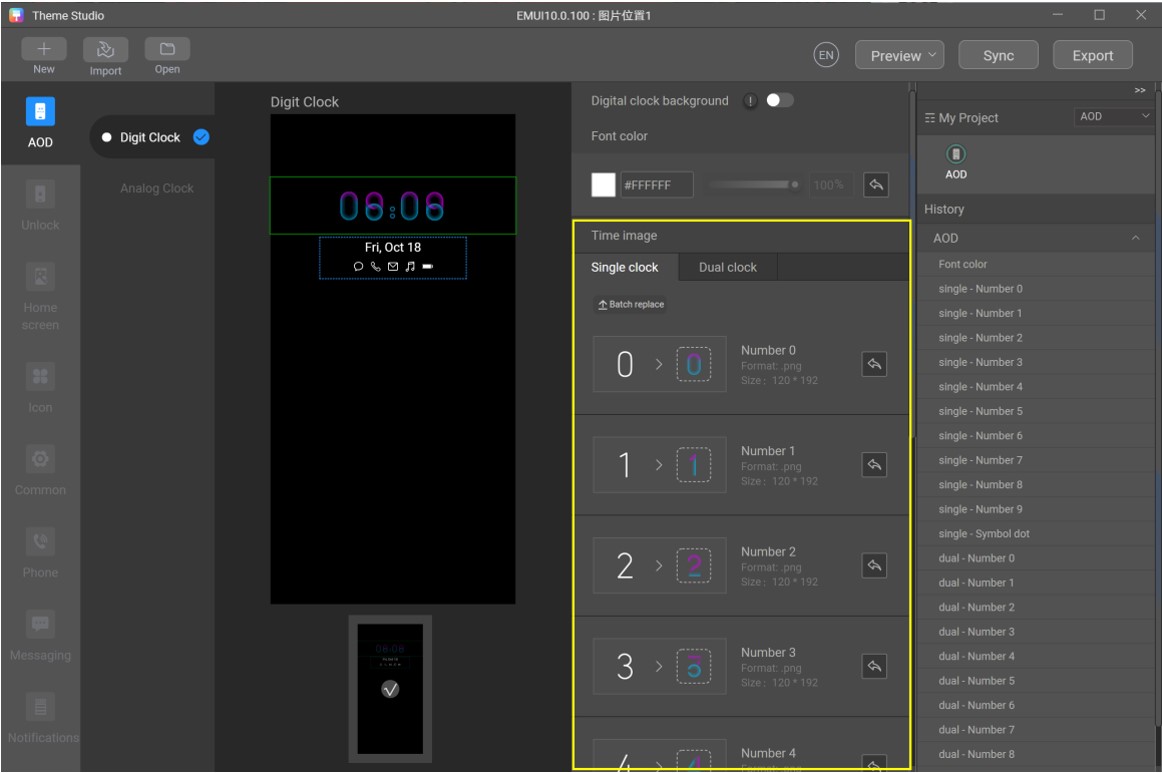
- Adjust the color of the text and digits to make the theme more attractive.
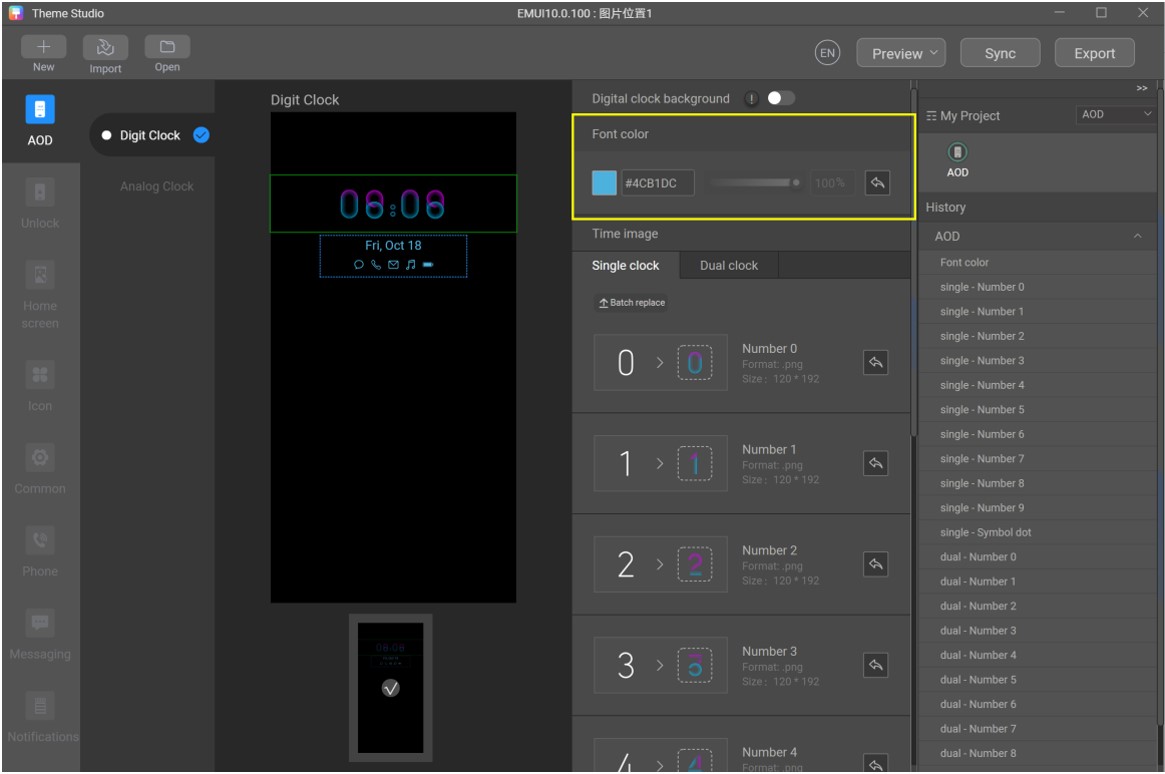
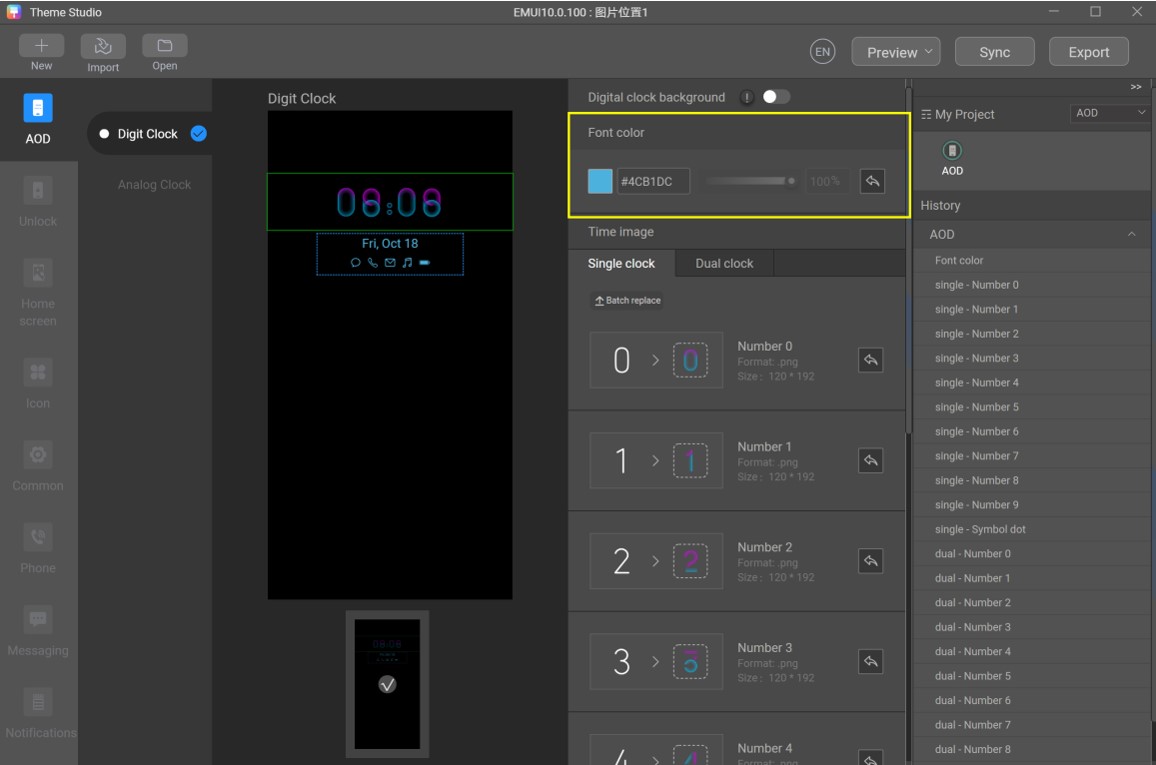
- Enable Clock background and select Position 1 or Position 2 to upload the background image.
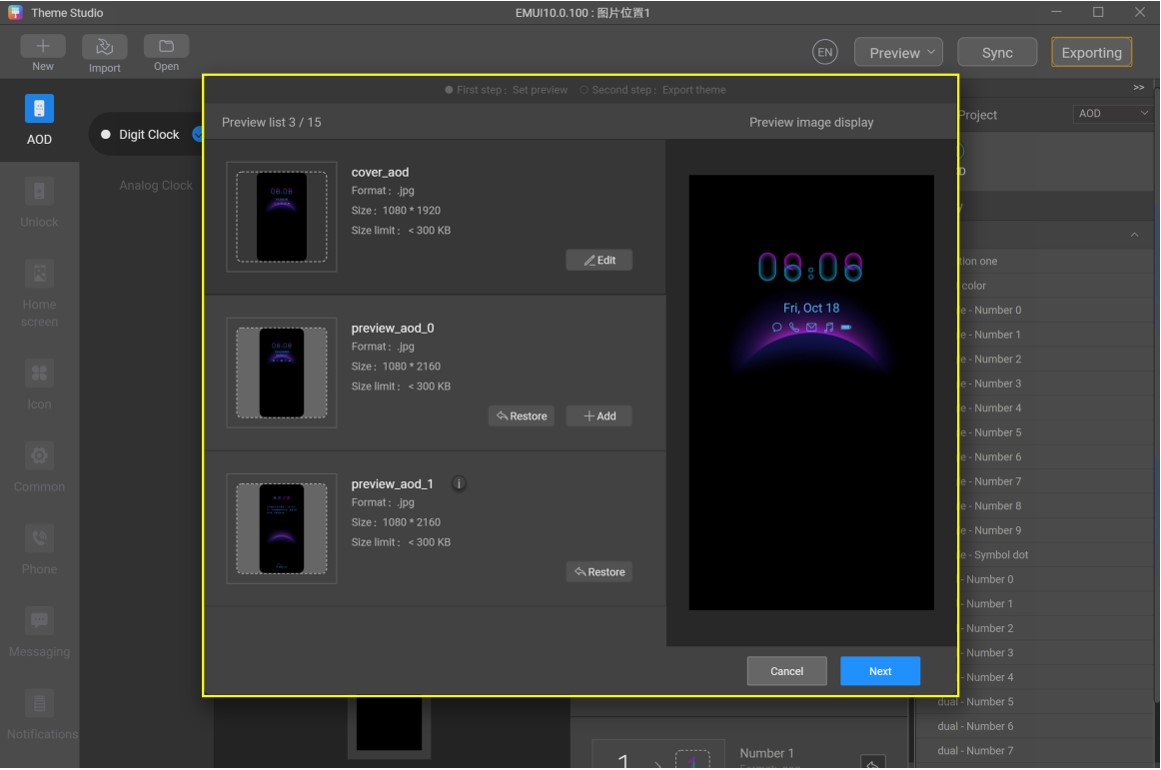
- Take a screenshot to generate a preview effect, and upload the design concept image to replace preview_aod_2.jpg.
- Export the theme package.
[h2]3.3 Design of Analog Clock AOD
When you select analog clock AOD, you can design the style of hour hand and minute hand. Analog clock AOD is supported by phones running EMUI 10.0 or later.
- Select an AOD theme type and make sliced images.
Note that:
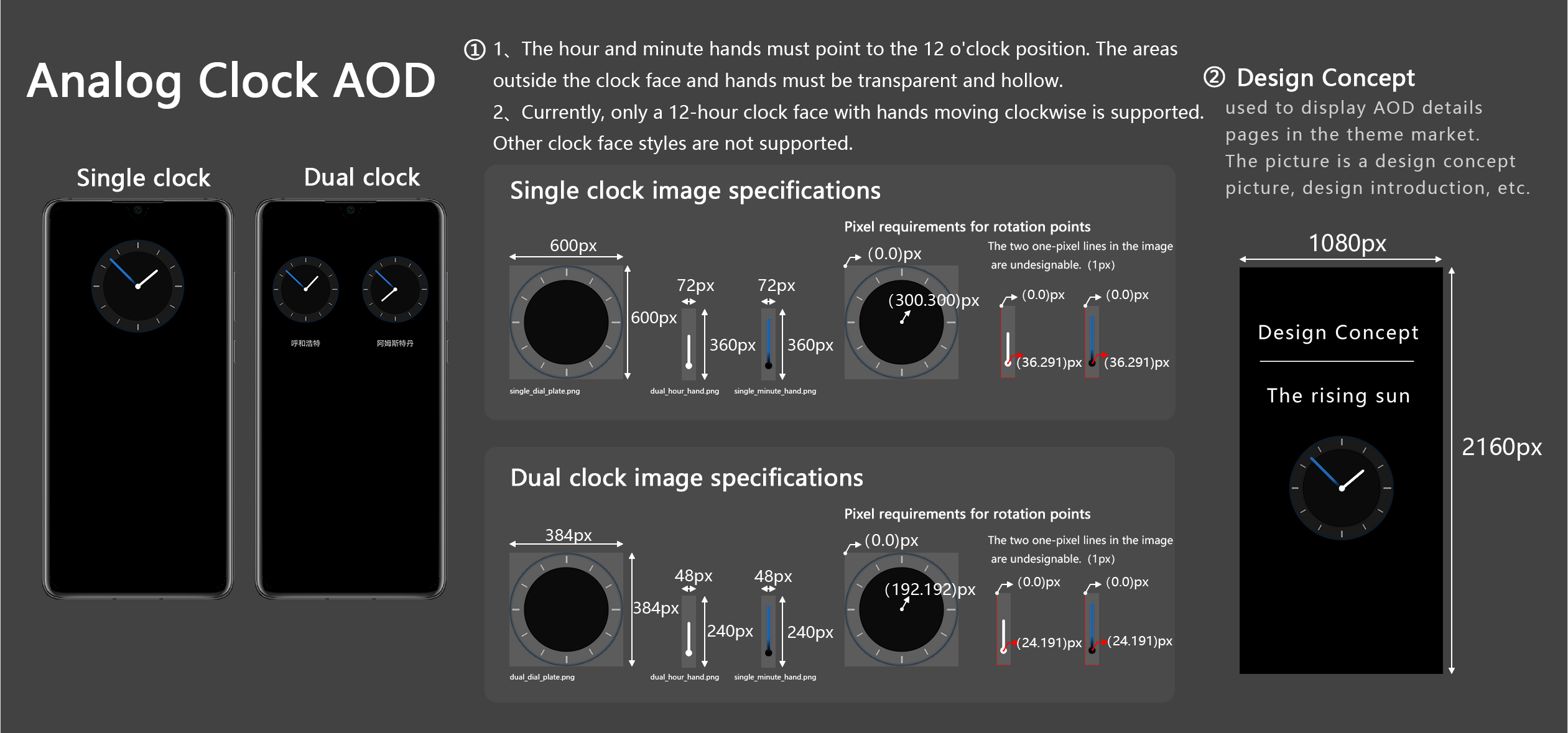
- The sliced images of digital clocks shall be in PNG format and the area surrounding the clock scale and hands shall be transparent with no patterns.
- You need to provide sliced images of both single clock and dual clocks, in appropriate sizes.
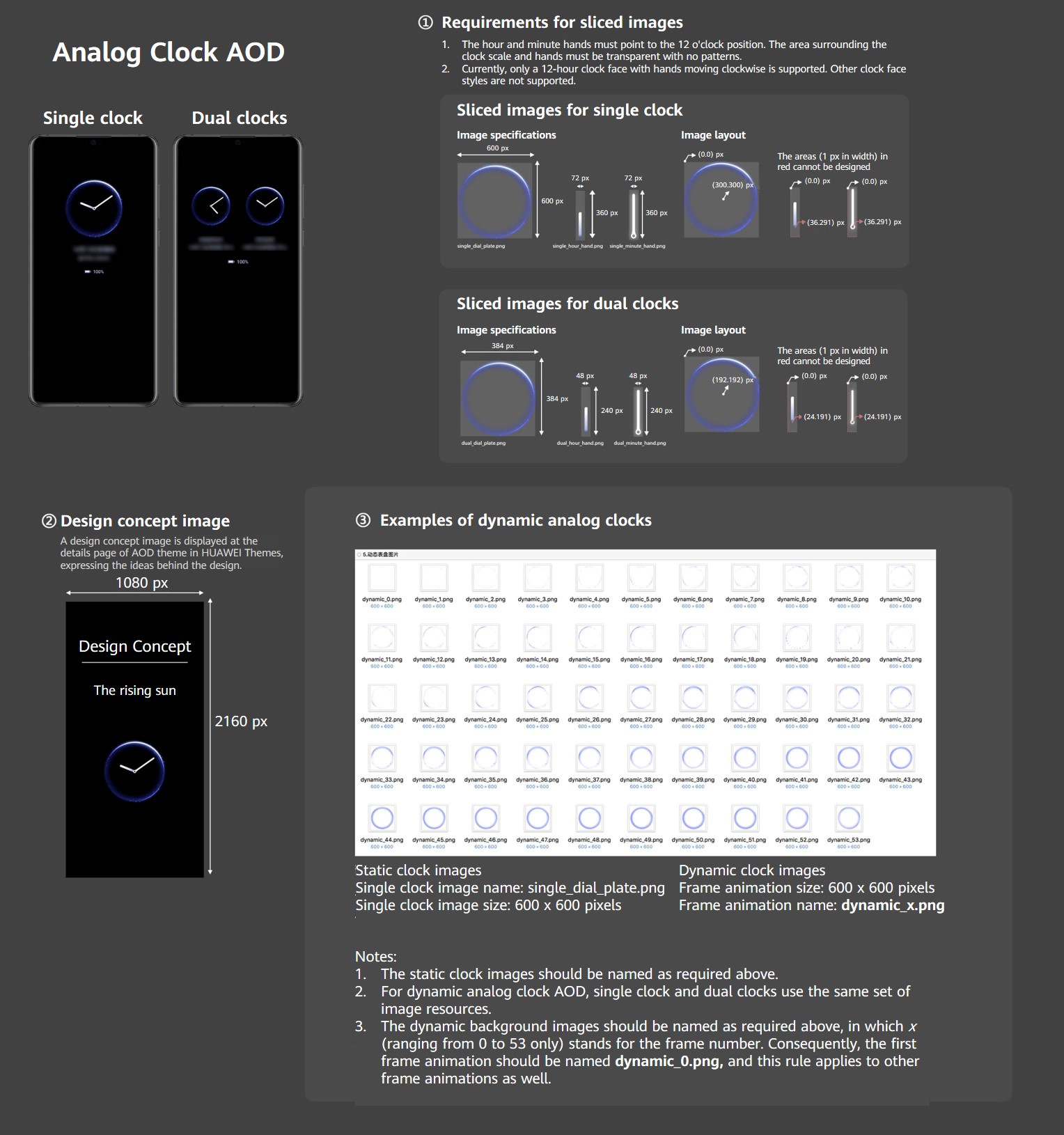
- The hour and minute hands must point to the 12 o'clock position. The area surrounding the clock scale and hands must be transparent with no patterns.
- Currently, only a 12-hour clock face with hands moving clockwise is supported. Other clock face styles are not supported.
- The design concept image shall display the characters such as design concept, with no digital clocks on it.
- Use Theme Studio to create an AOD theme.
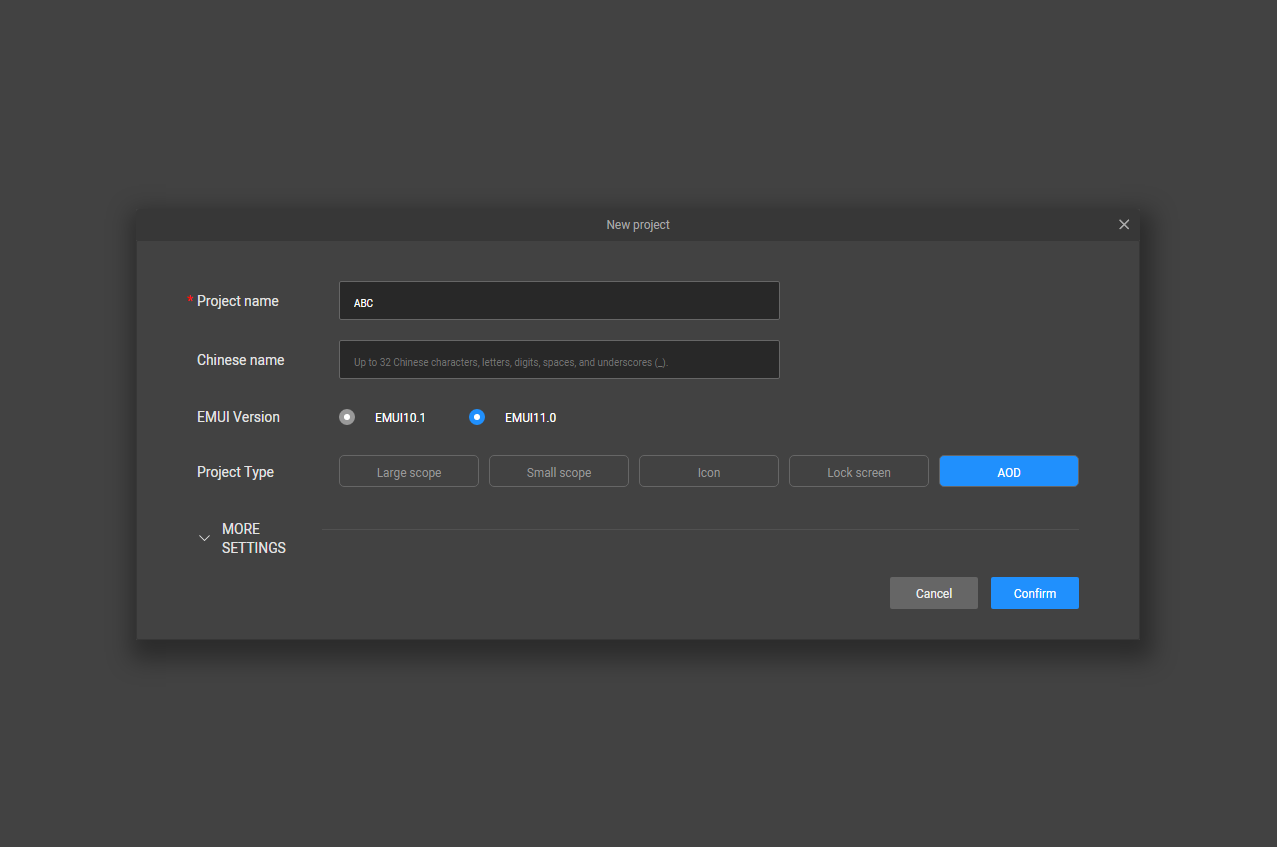
- Open Theme Studio, click Create, and set Project type to AOD in the displayed dialog box.
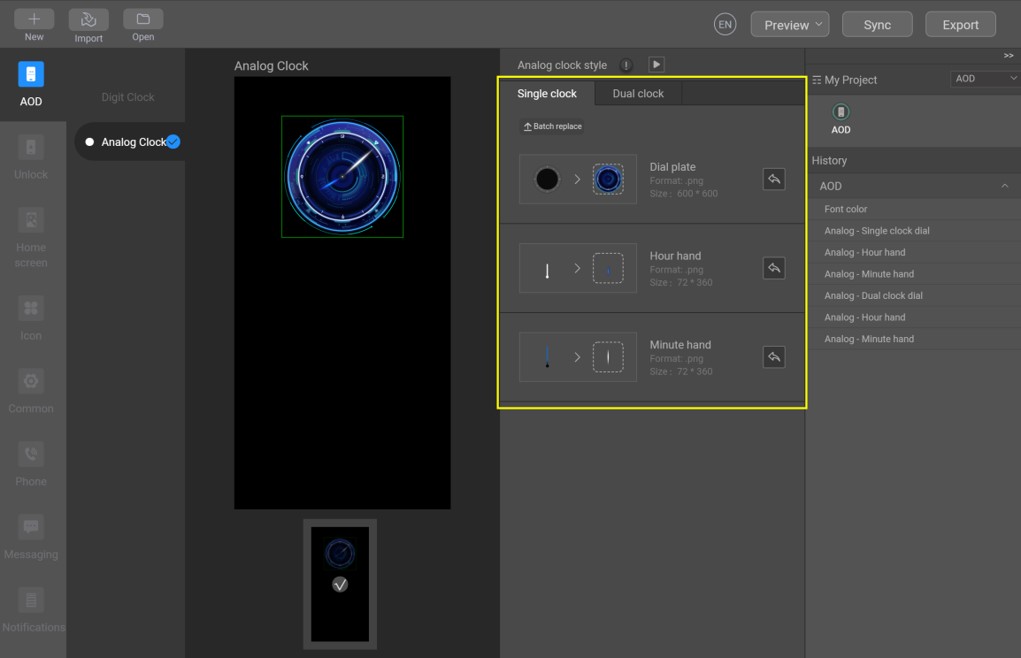
- Upload images of the clock face, hour hand, and minute hand for both single clock and dual clocks, and adjust the color of the text and digits to make the theme more attractive.
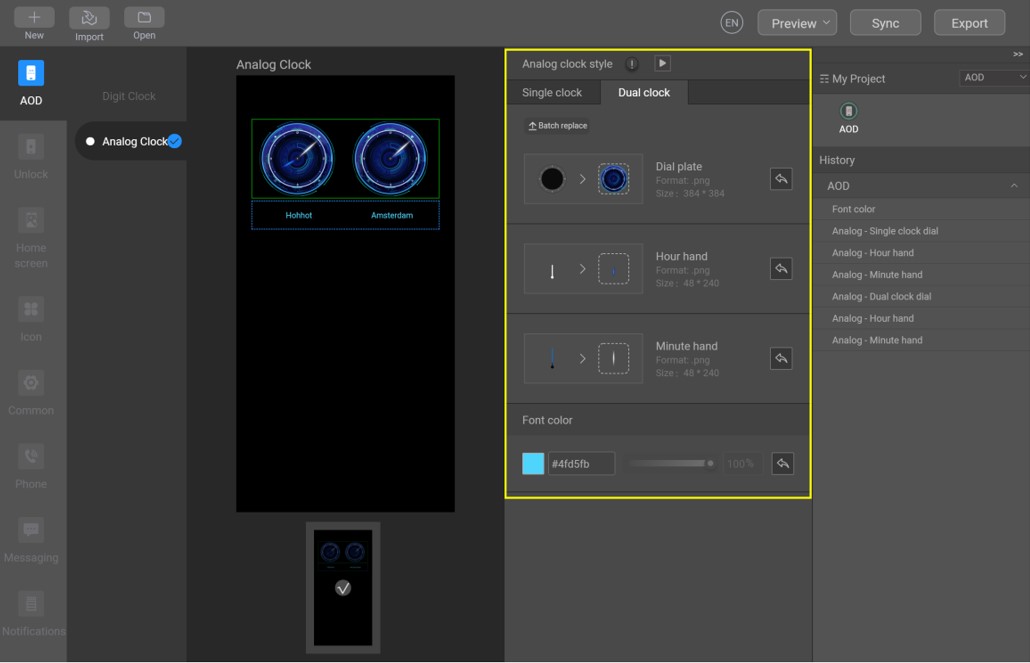
- Take a screenshot to generate a preview effect, and upload the design concept image to replace preview_aod_2.jpg.
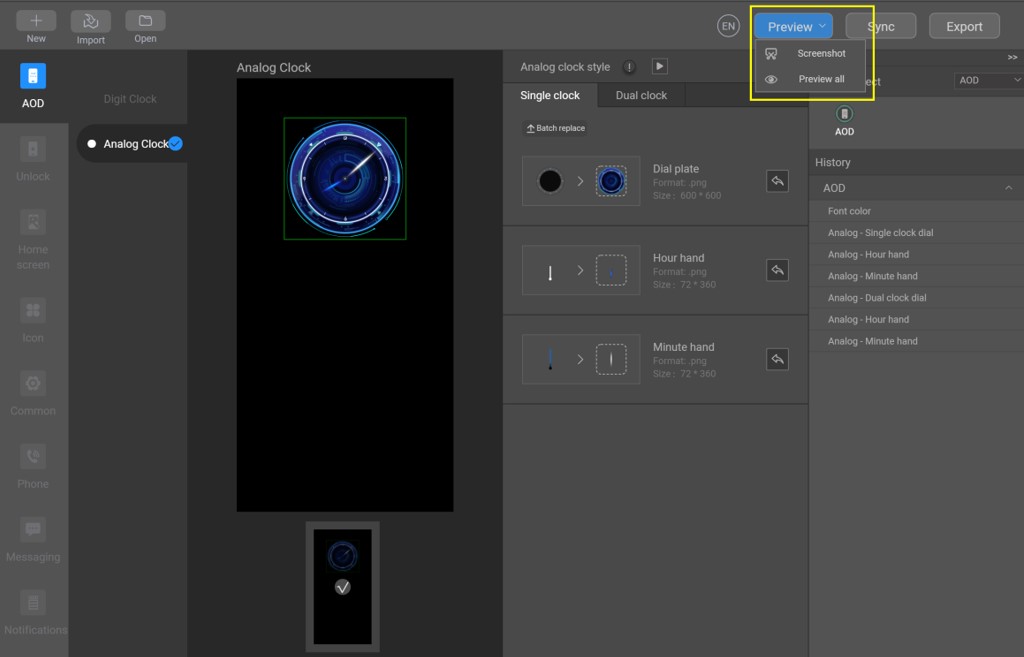
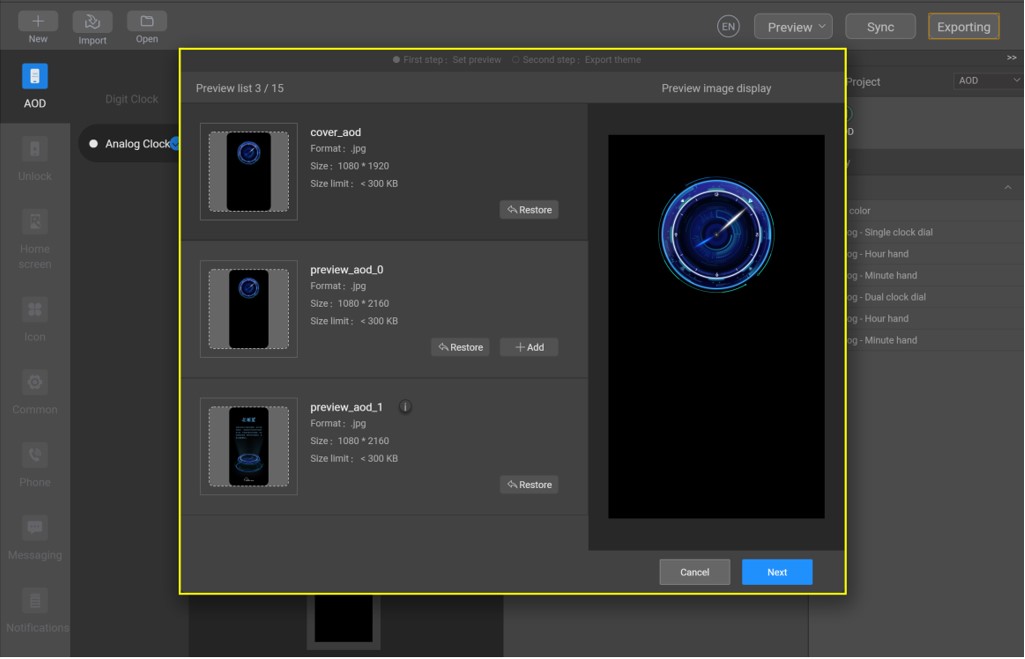
- Export the theme package.
[h2]3.4 Image AOD Design
When you select image AOD, you can design the style of the image. Image AOD is a new feature supported by phones running EMUI 10.1 or later.
- Select an AOD theme type and make sliced images.
Note that:
- The digit style cannot be customized.
- The image must be in PNG format.
- The image file name must be digit_bg.png.
- The design concept image shall display the characters such as design concept, with no digital clocks on it.
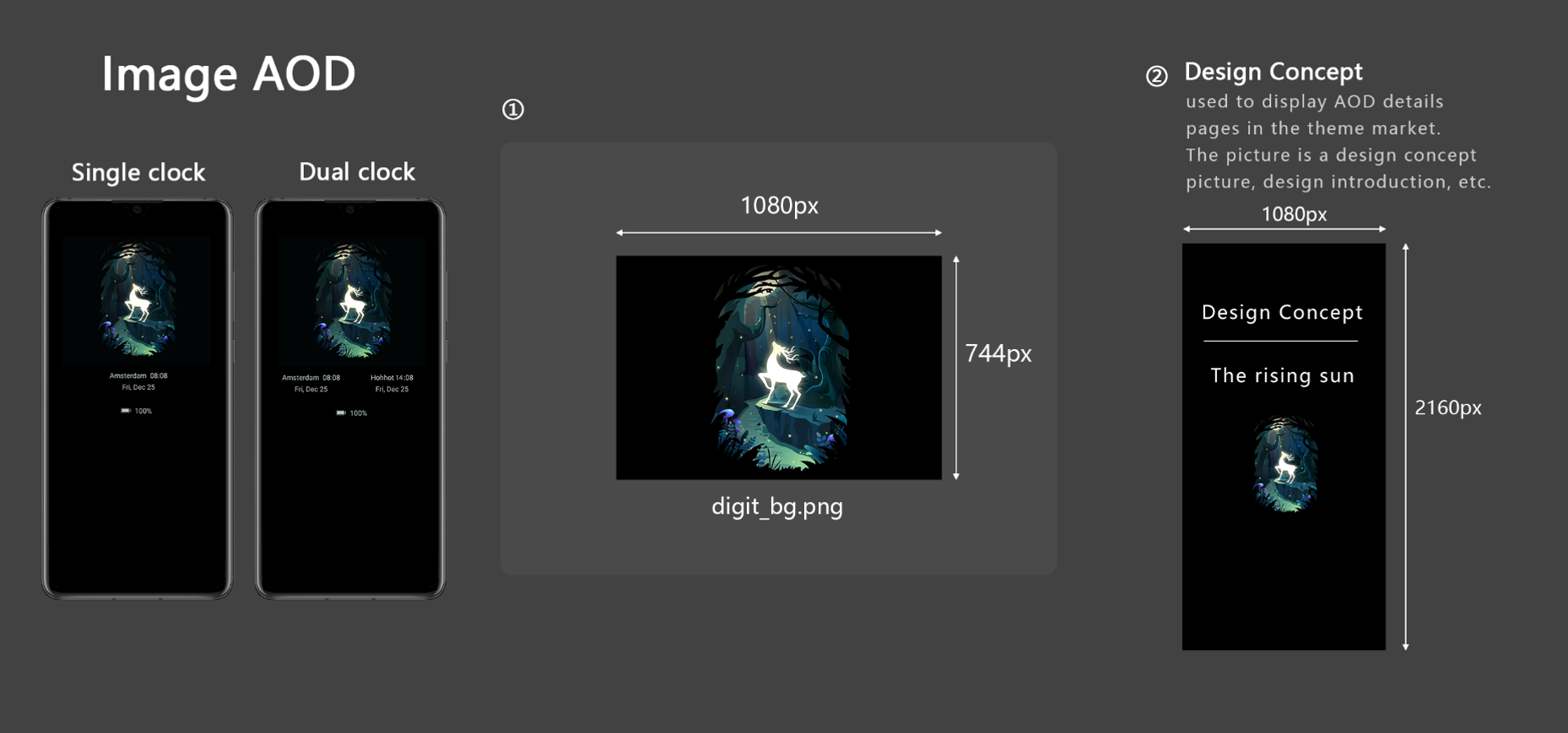
- Use Theme Studio to create an AOD theme.
- Open Theme Studio, click Create, and set Project type to AOD in the displayed dialog box.
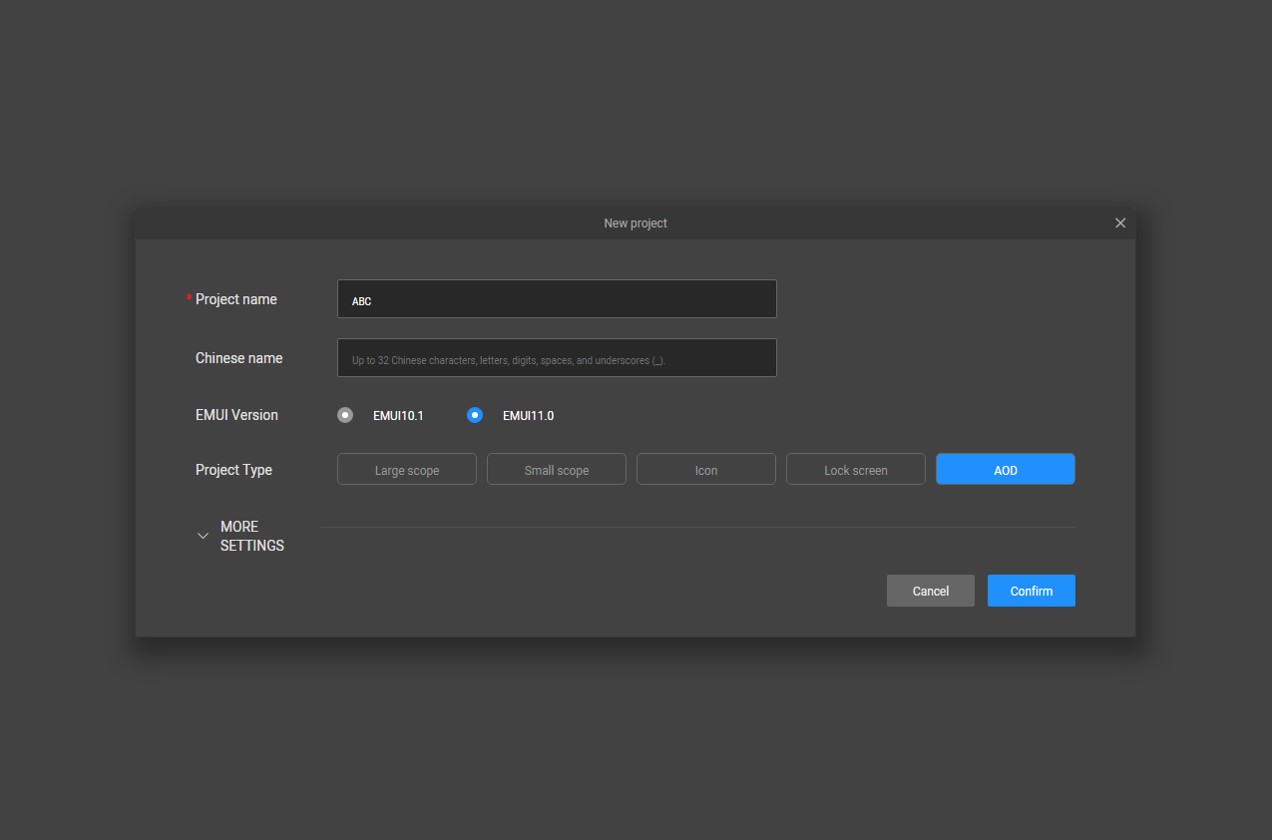
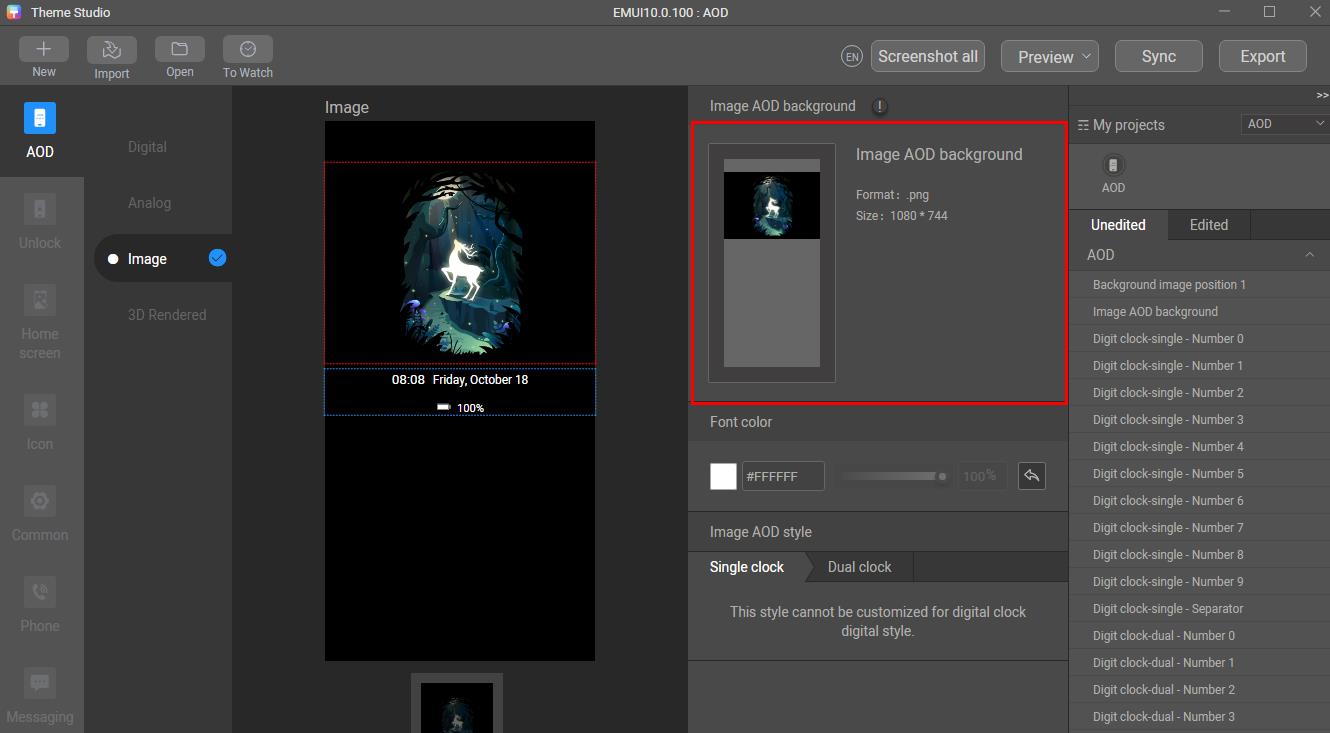
- Upload the background image.
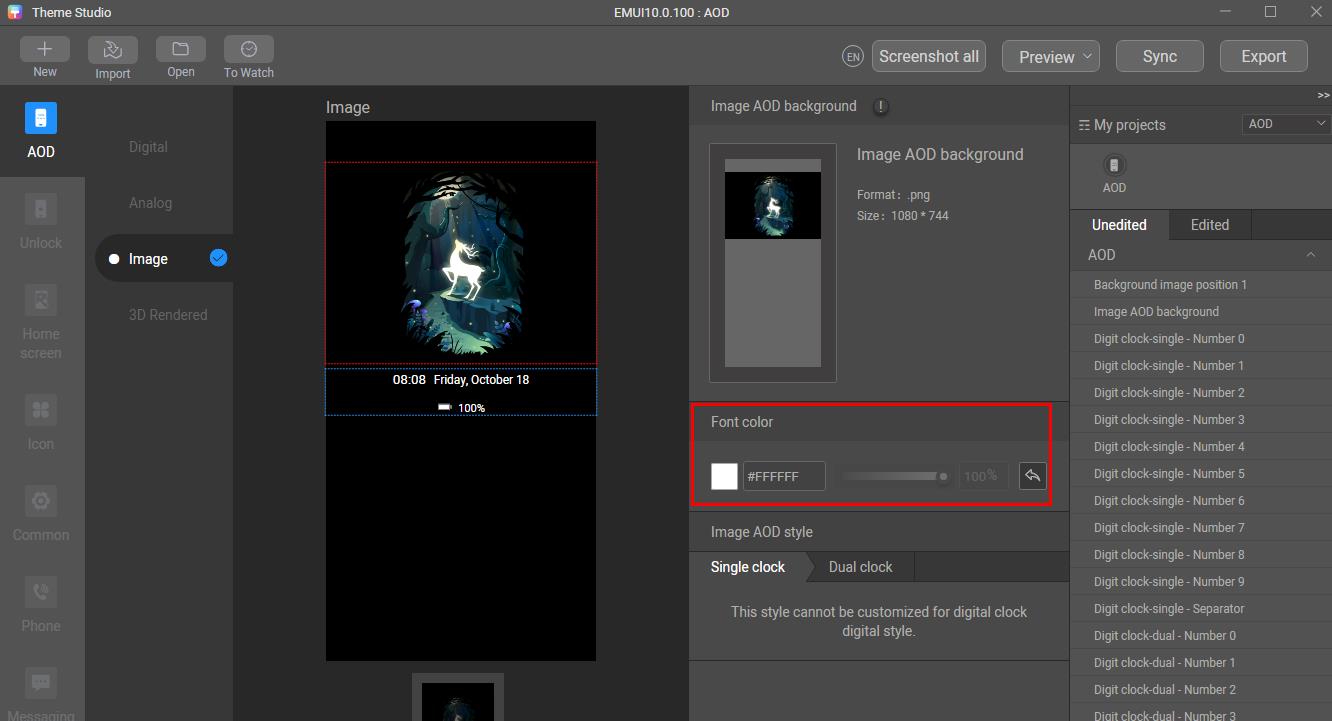
- Adjust the color of the text and digits to make the theme more attractive.
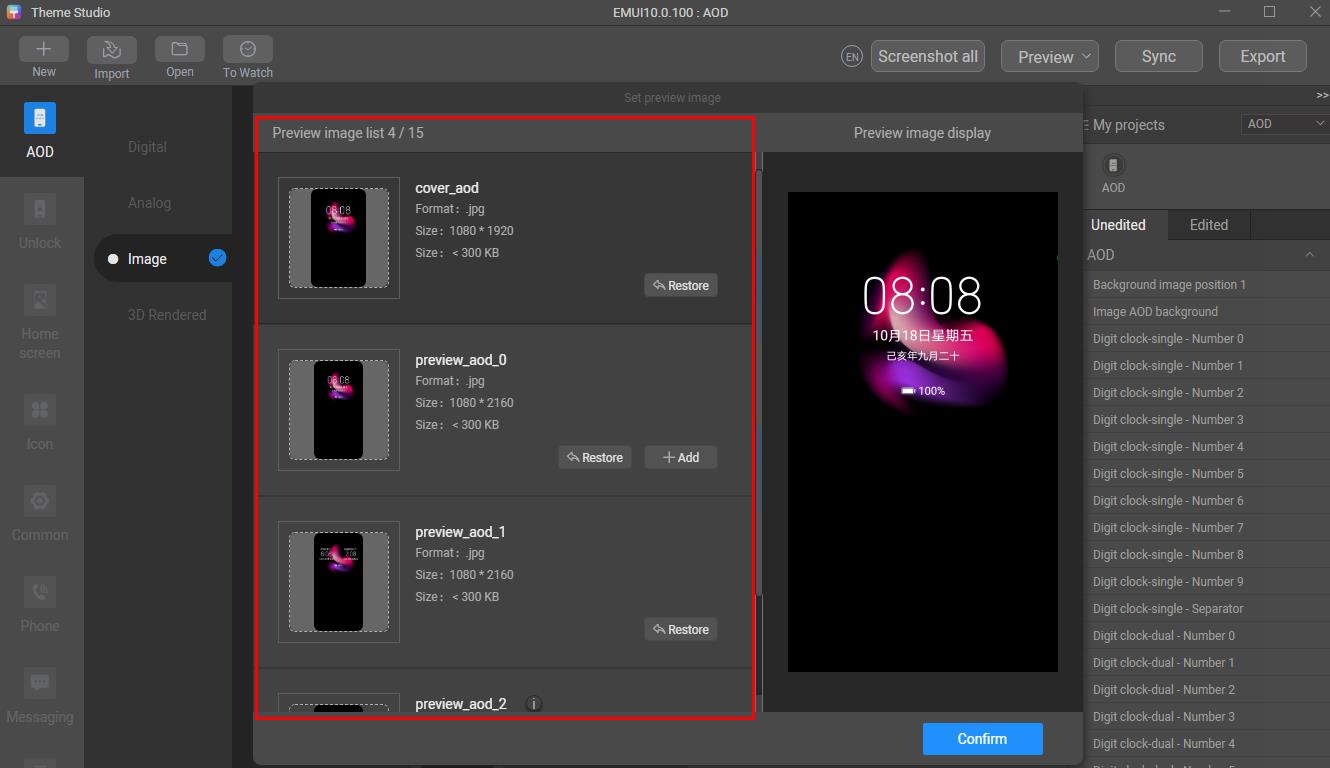
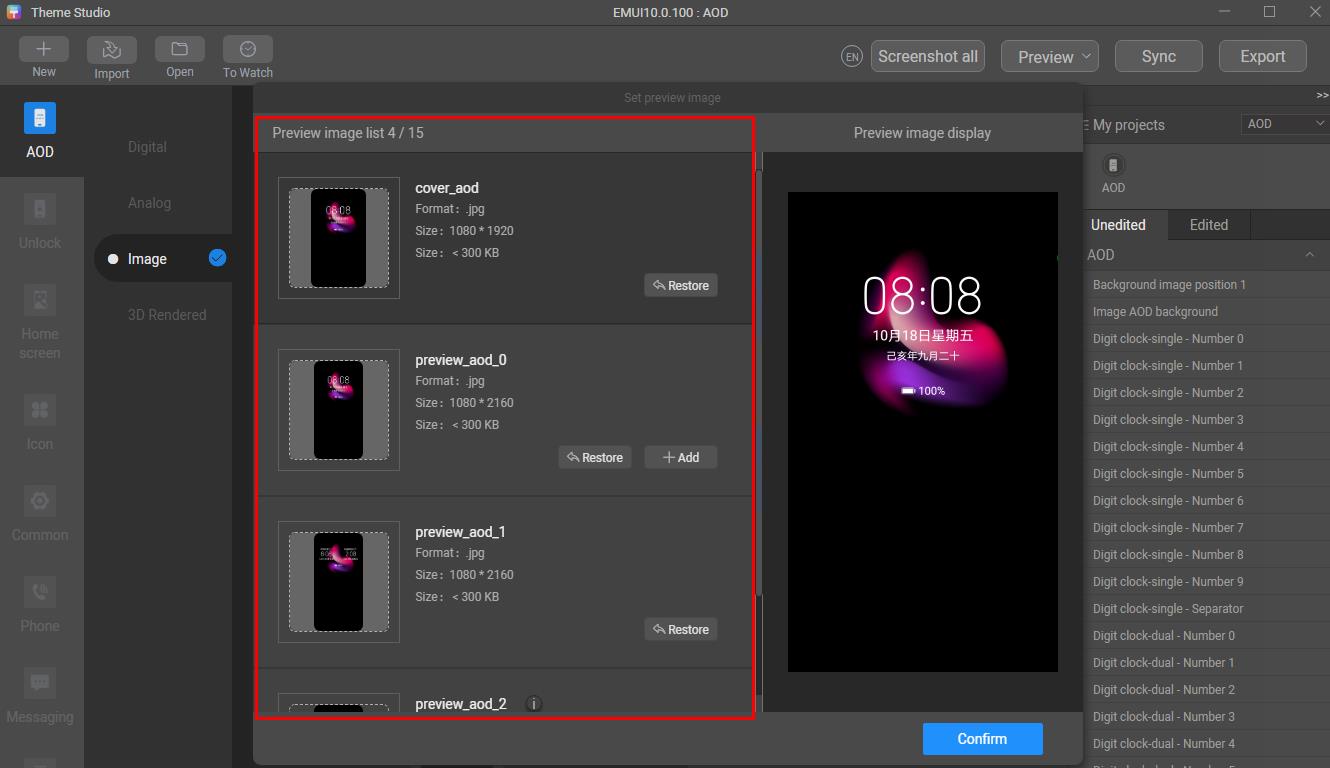
- Take a screenshot to generate a preview effect, and upload the design concept image to replace preview_aod_2.jpg.
- Export the theme package.
[h2]3.5 Design of 3D Rendered AOD
3D rendered AOD helps you create finely-crafted and attractive visual effects.
3D rendered AOD is a new feature supported by phones running EMUI 10.1 or later.
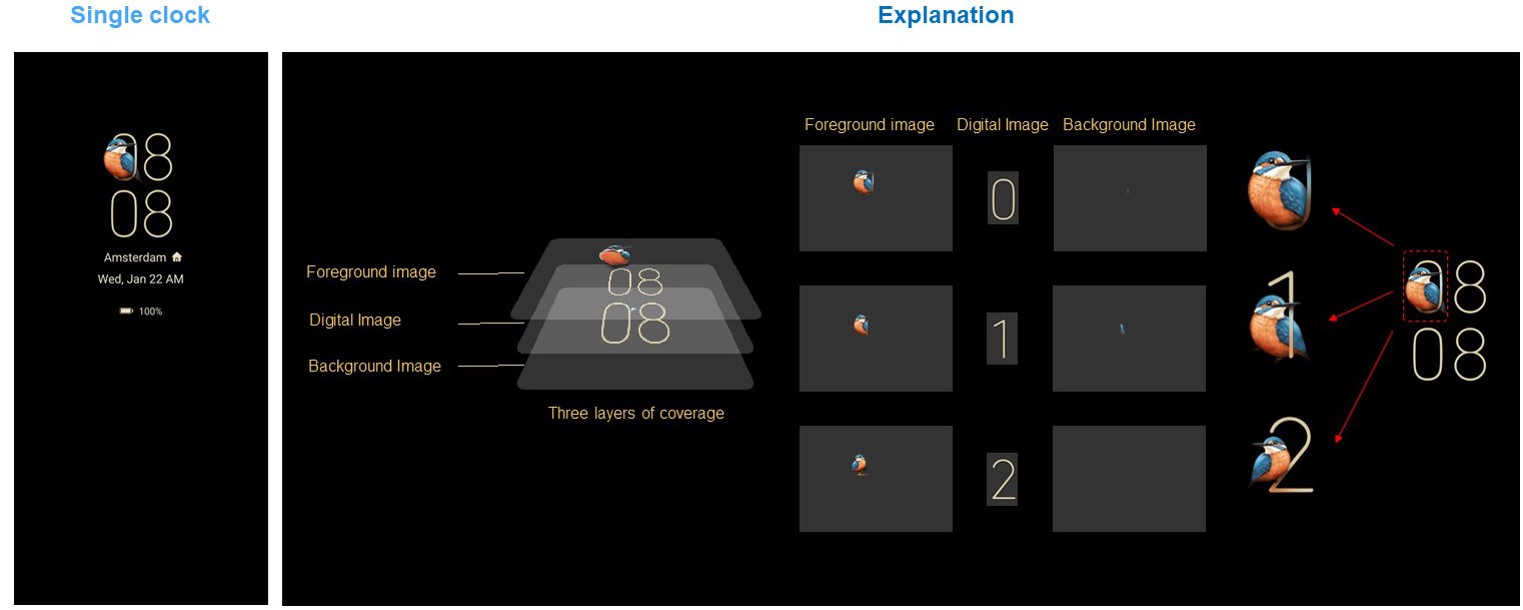
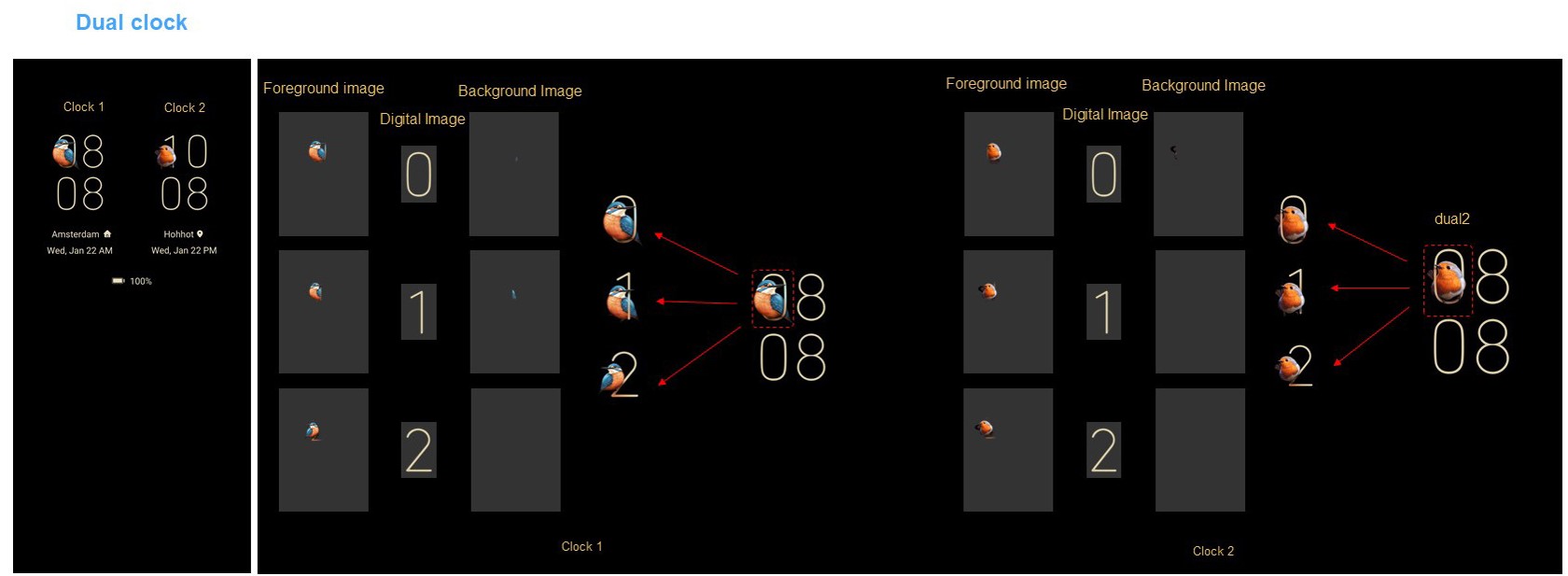
- Select an AOD theme type and make sliced images.Note that:
- The sliced images shall be in PNG format and the blank area shall be transparent with no patterns.
- The background images for dual clocks should be different.
- The designed content should not affect the time display.
- The design concept image shall display the characters such as design concept, with no digital clocks on it.
- Use Theme Studio to create an AOD theme.
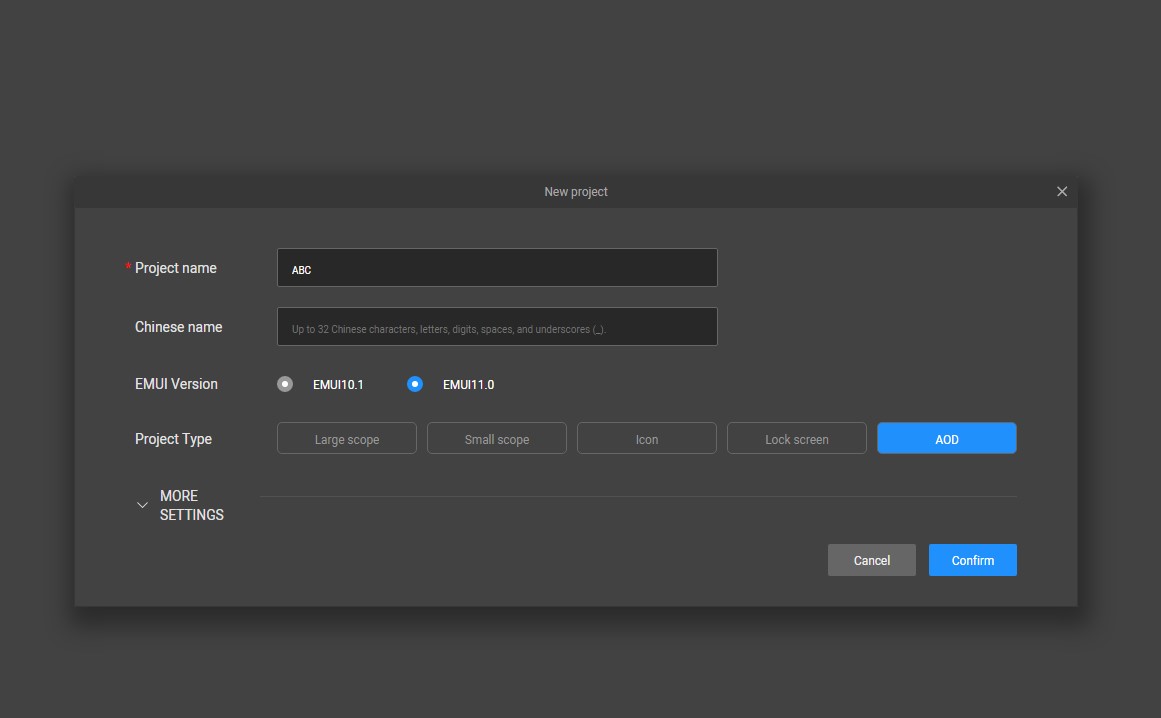
- Open Theme Studio, click Create, and set Project type to AOD in the displayed dialog box.
- Select the 3D rendered AOD style.
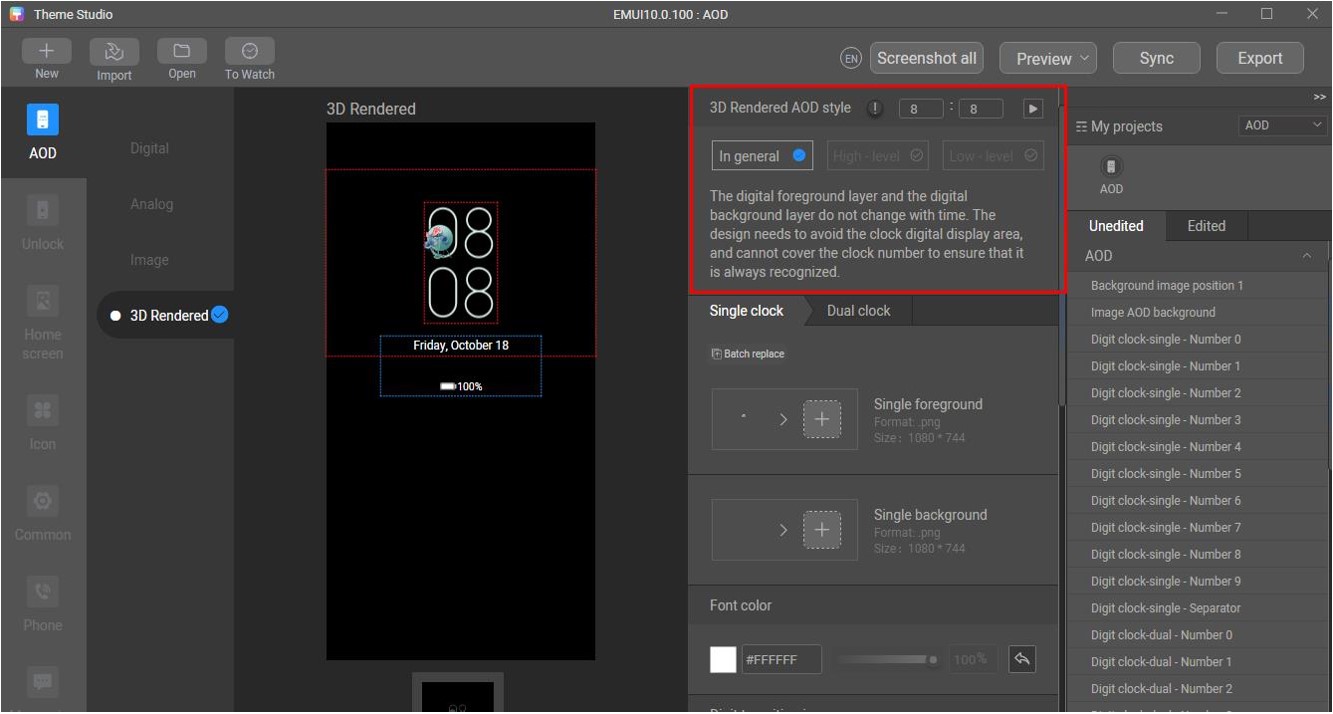
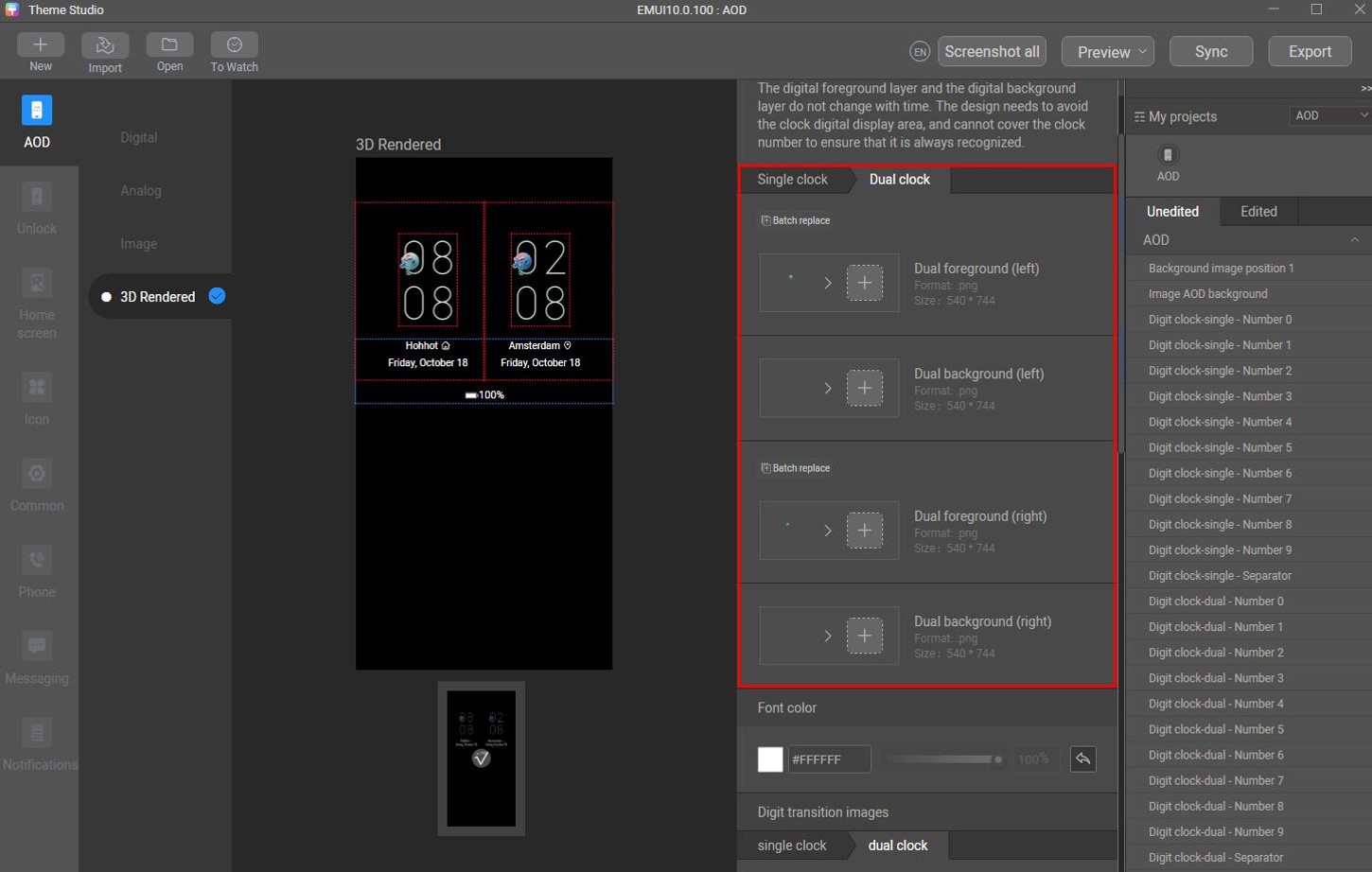
- Upload the foreground and background images of both single clock and dual clocks.
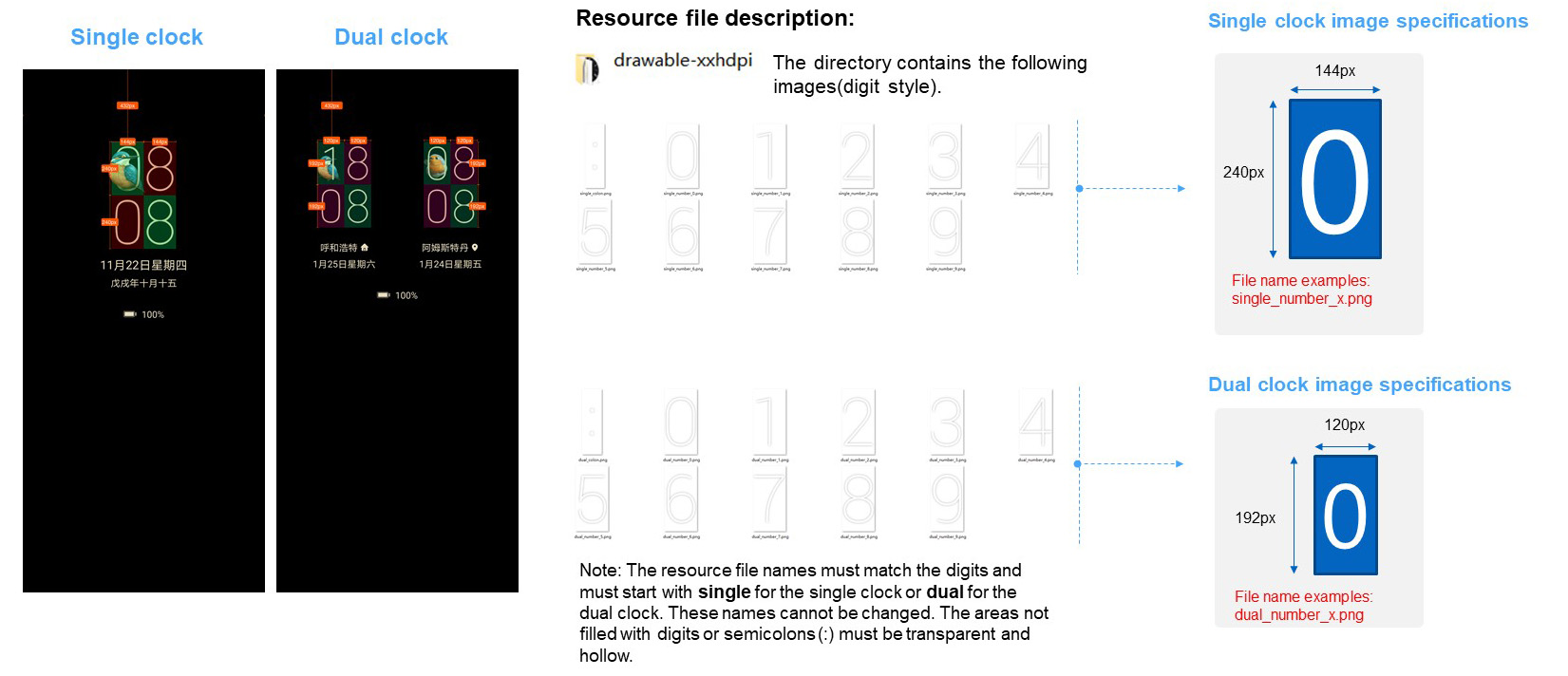
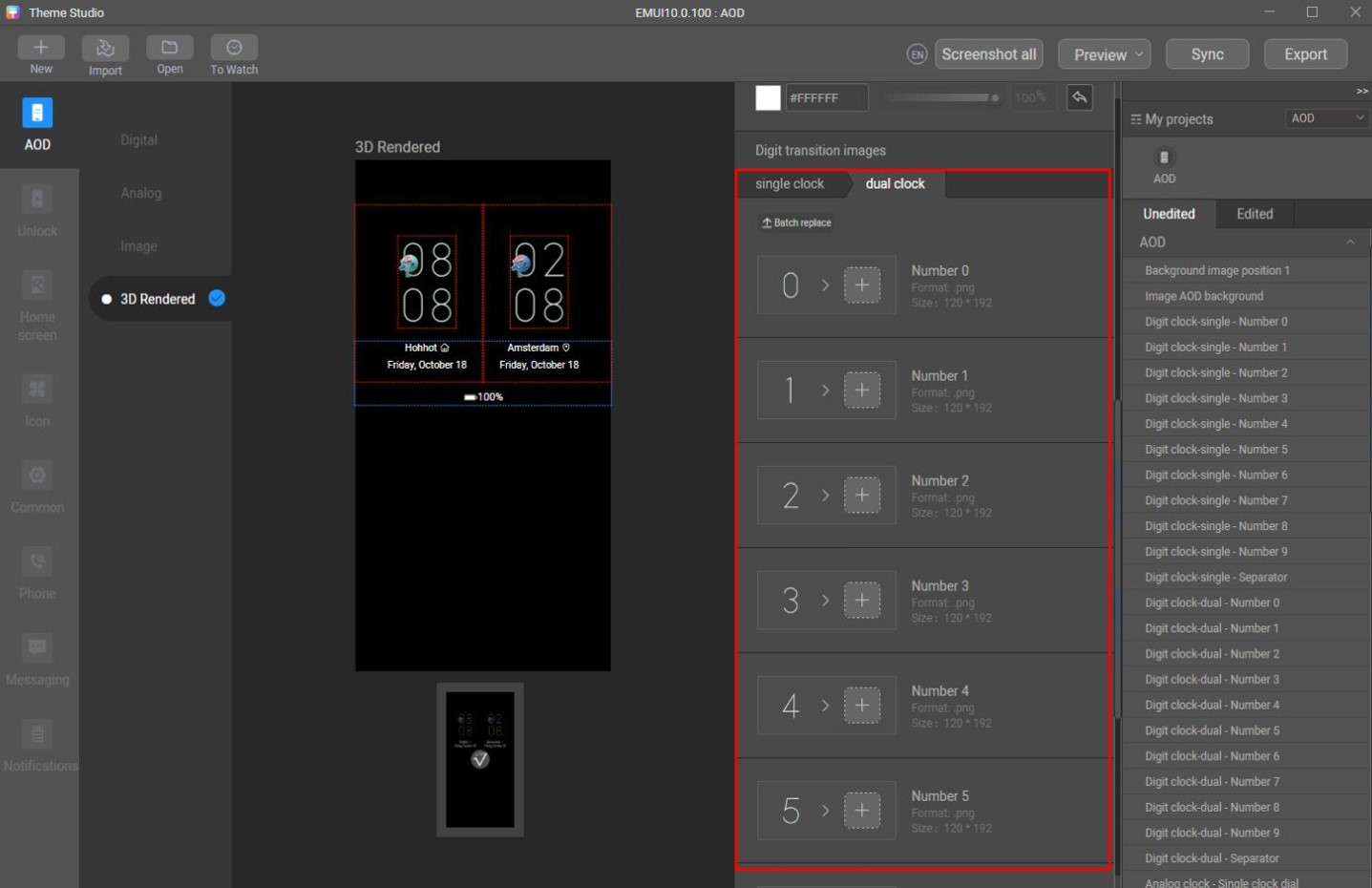
- Upload the sliced images of digits for both single clock and dual clocks.
- Adjust the color of the text and digits to make the theme more attractive.
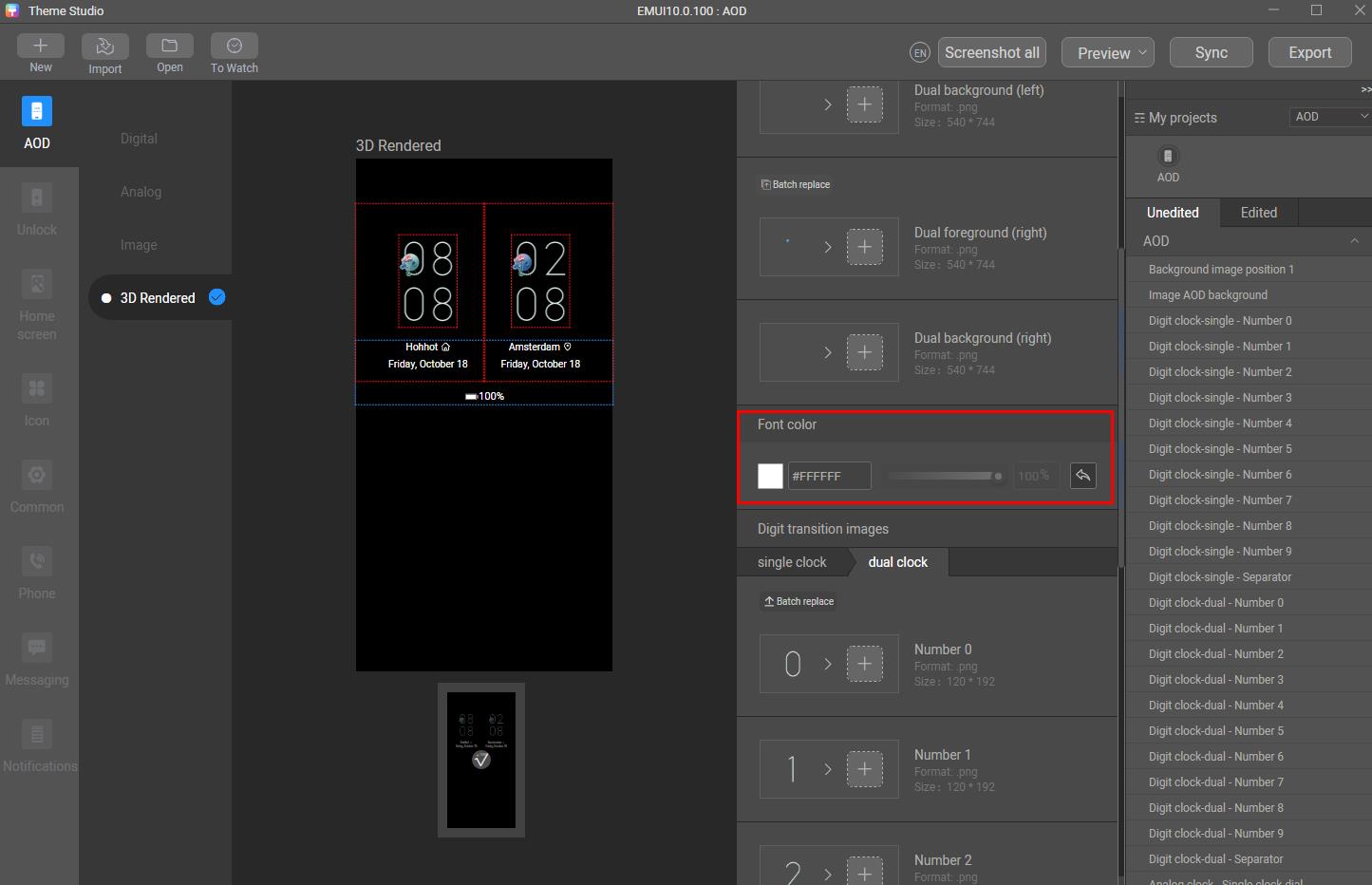
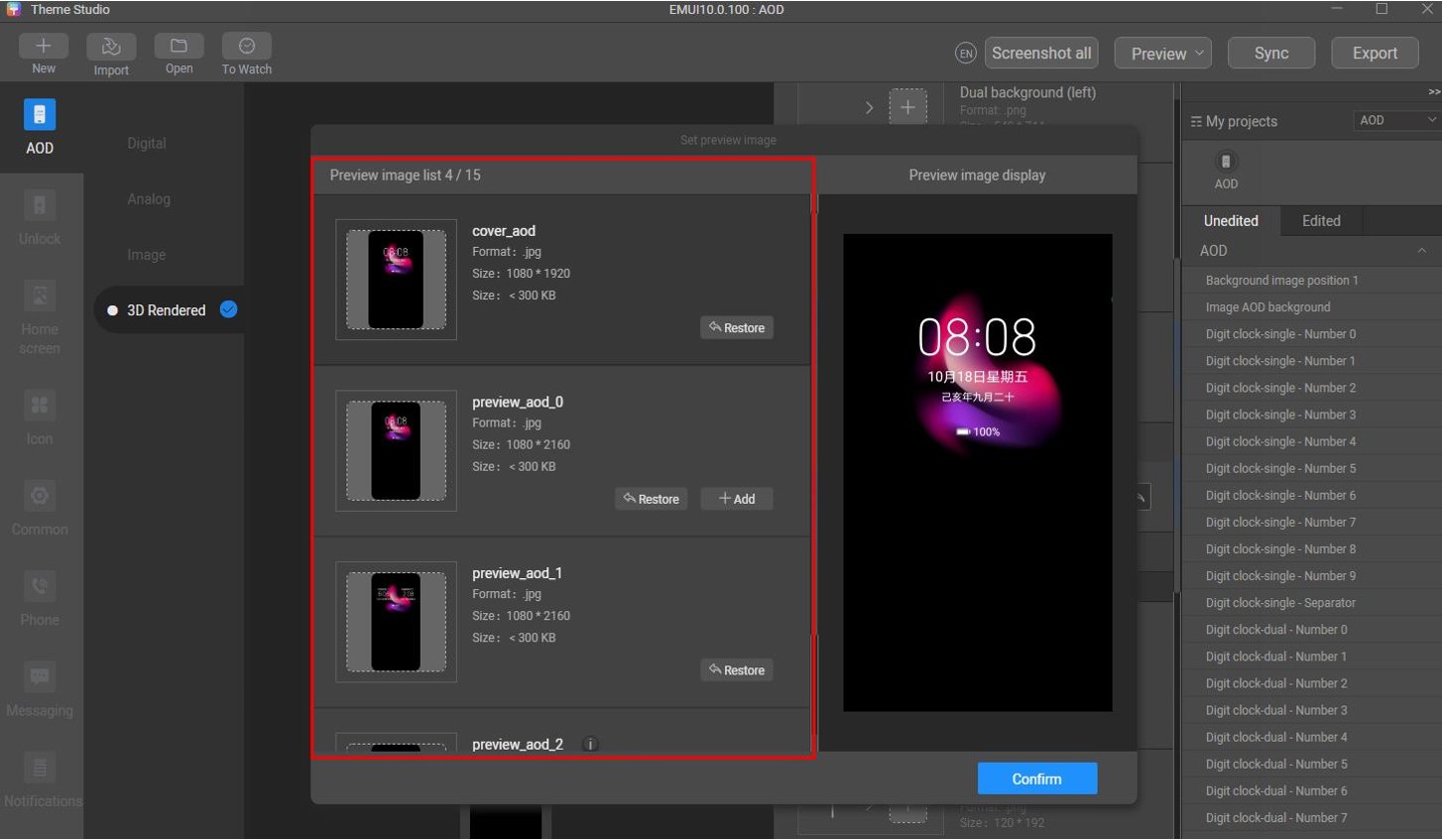
- Take a screenshot to generate a preview effect, and upload the design concept image to replace preview_aod_2.jpg.
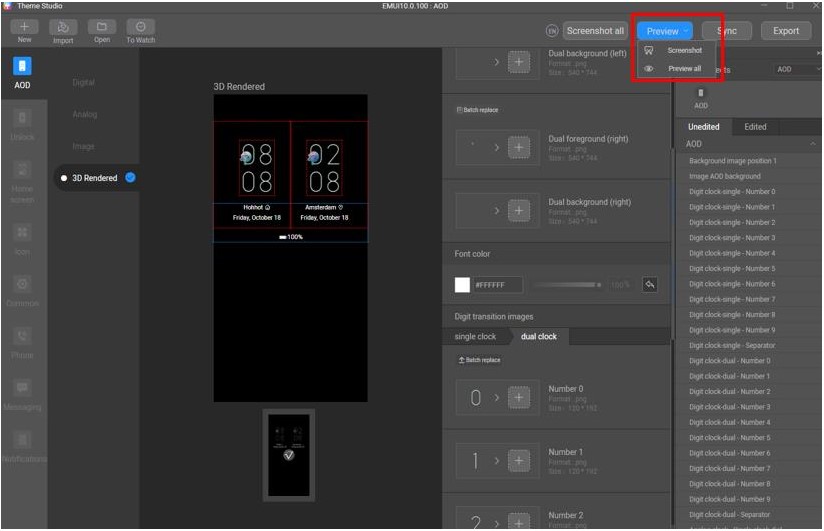
- Export the theme package.
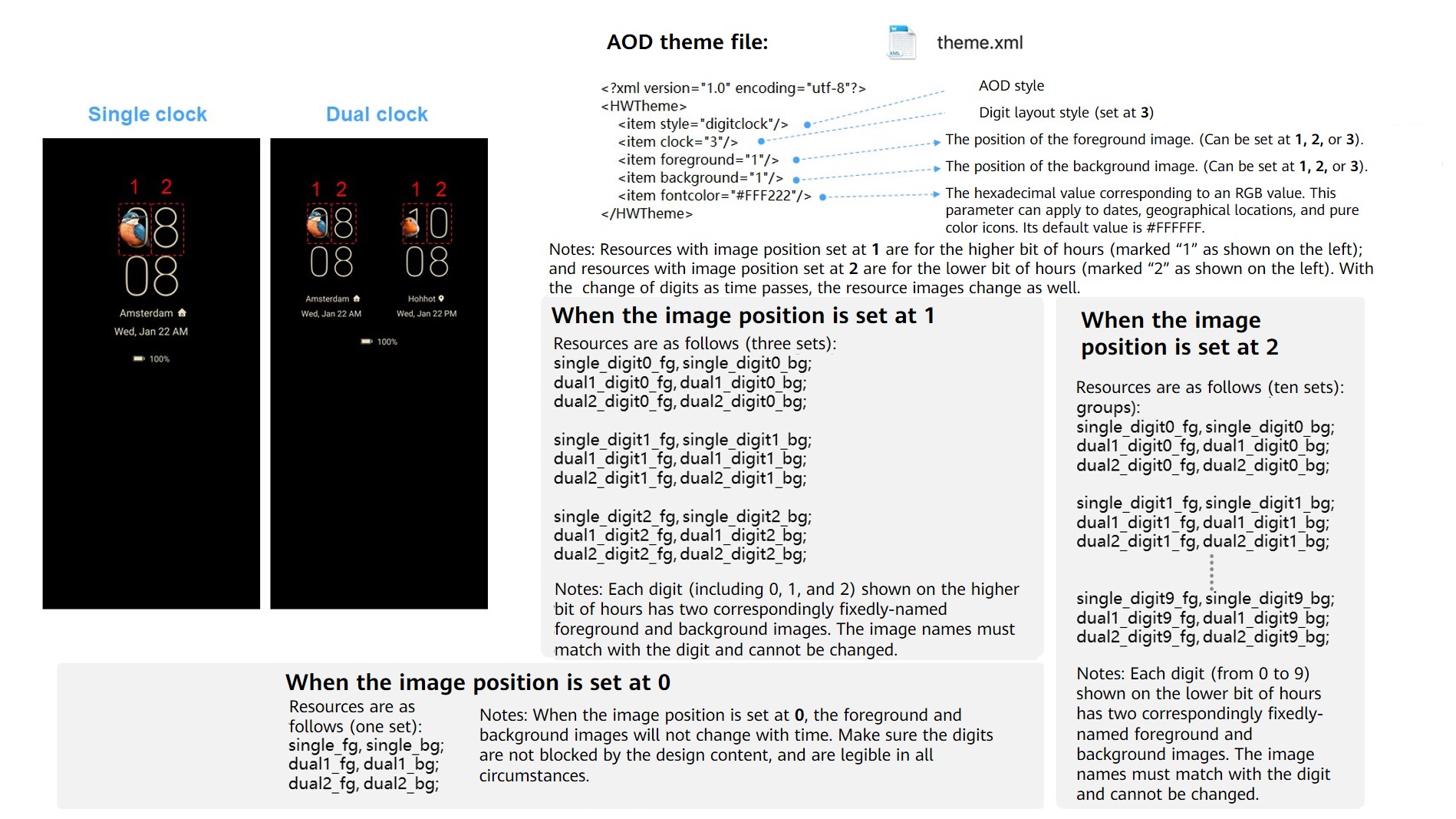
AOD theme file description
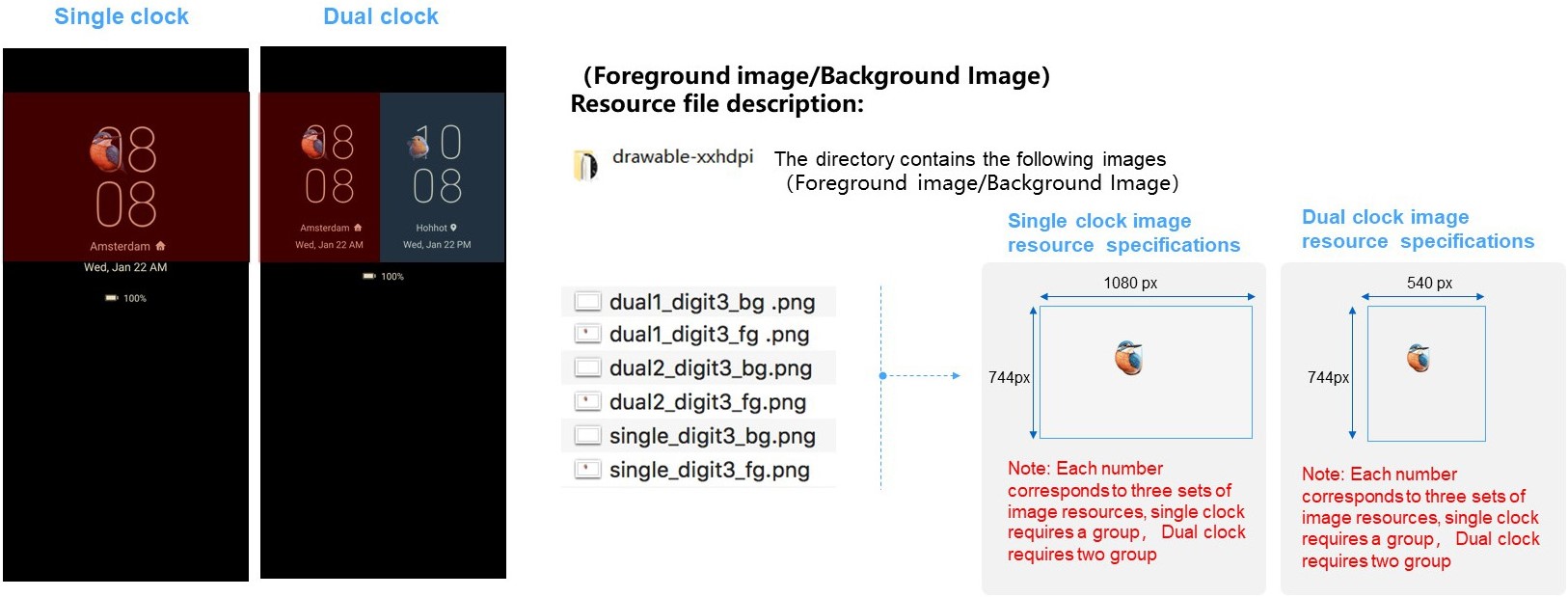
- Use a foreground image and a background image whose image positions are both set at 0, 1, or 2 for a digit.
- Name the image files according to the specifications.
- Set the image position for the sliced images of higher bit of hours to 1, the sliced images of lower bit of hours to 2, and the sliced images of foreground and background to 0. The foreground and background images can be used for all digits.
4. Dynamic AOD Design
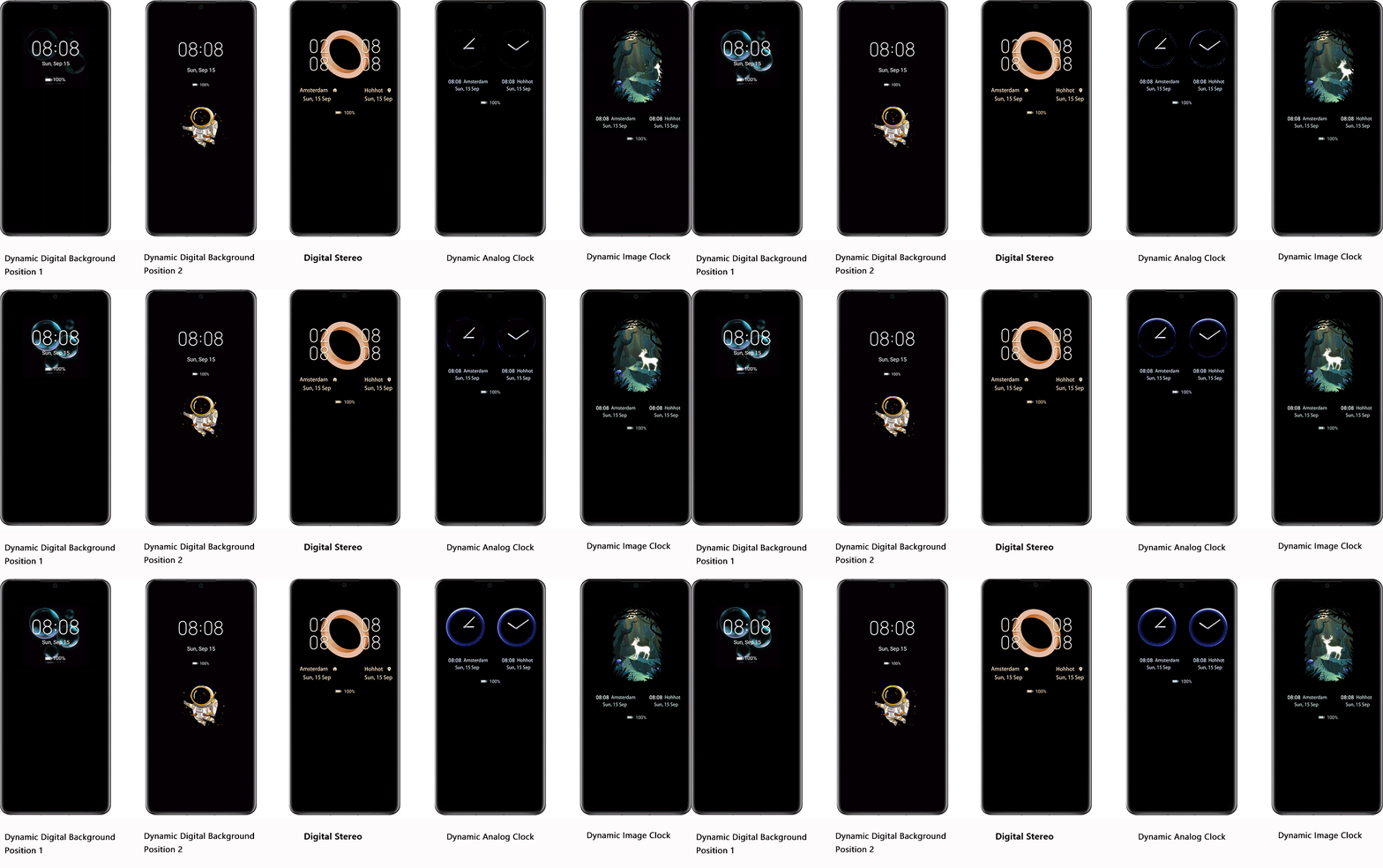
Dynamic AOD applies frame animations to add dynamic effects to the display, and is supported by phones running EMUI 11.0 or later.
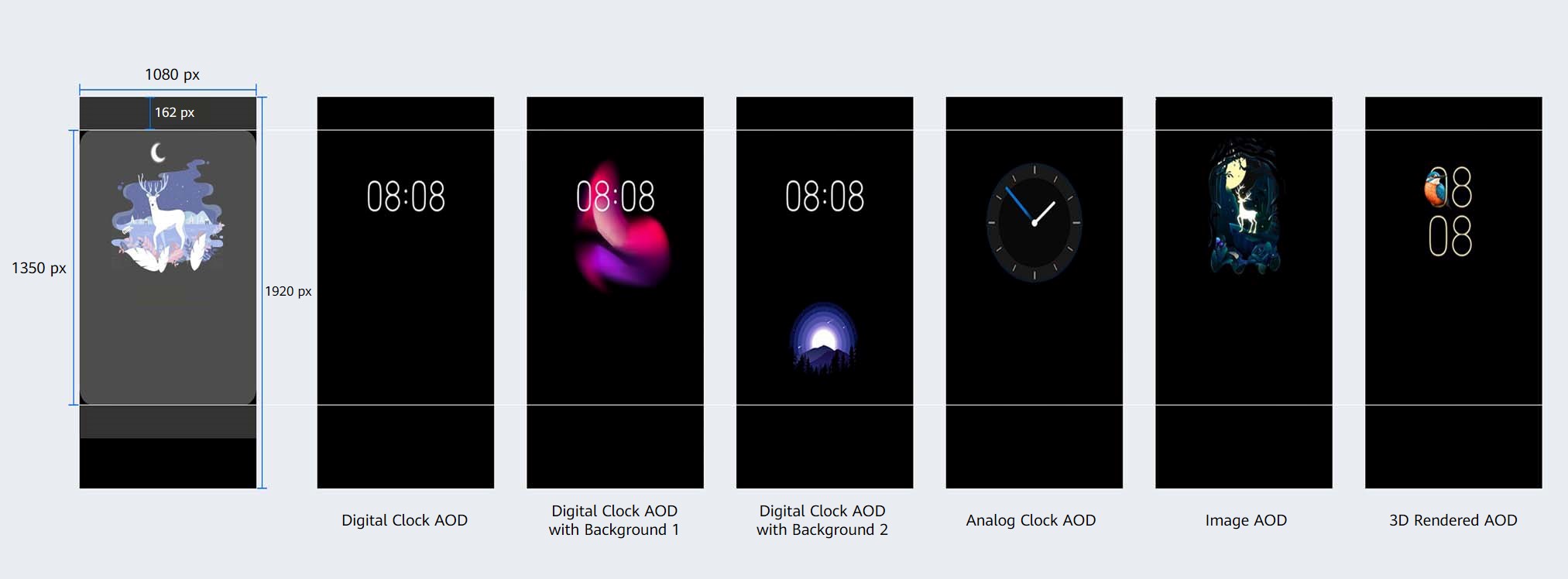
Dynamic AOD includes digital clock AOD with background, digital stereo clock AOD, analog clock AOD, and image AOD (with one segment of animation), as shown below.
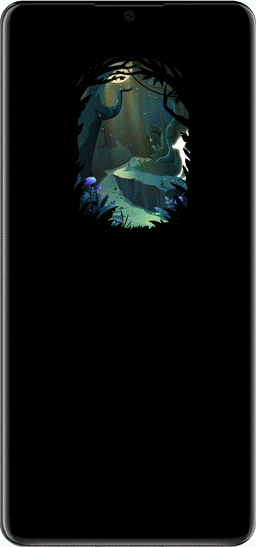
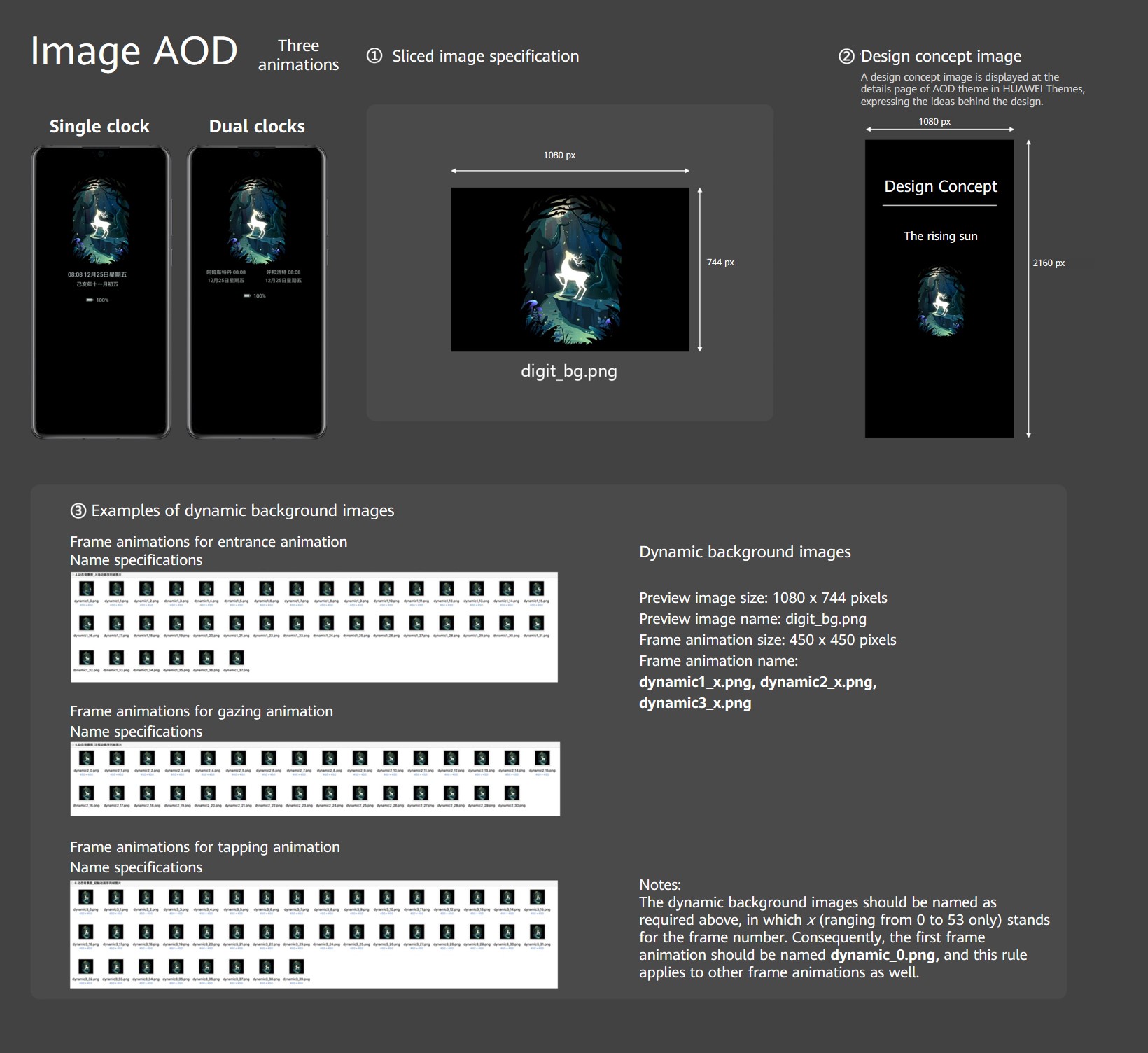
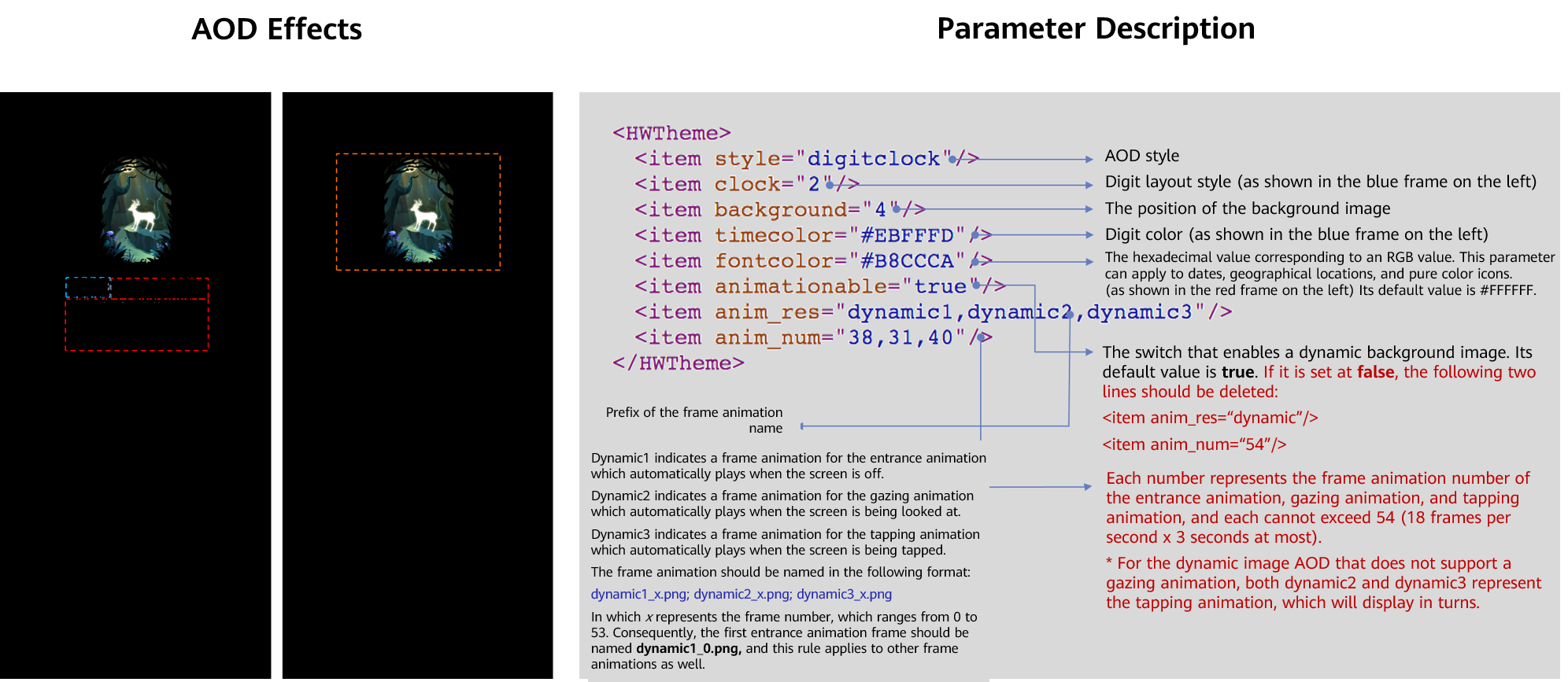
The three animations of image AOD include Admission animation, Gaze animation, and Touch animation, as shown below.
[h2]4.1 Design of Dynamic Digital Clock AOD with Background
- Select an AOD theme type and make sliced images.
Image position 1
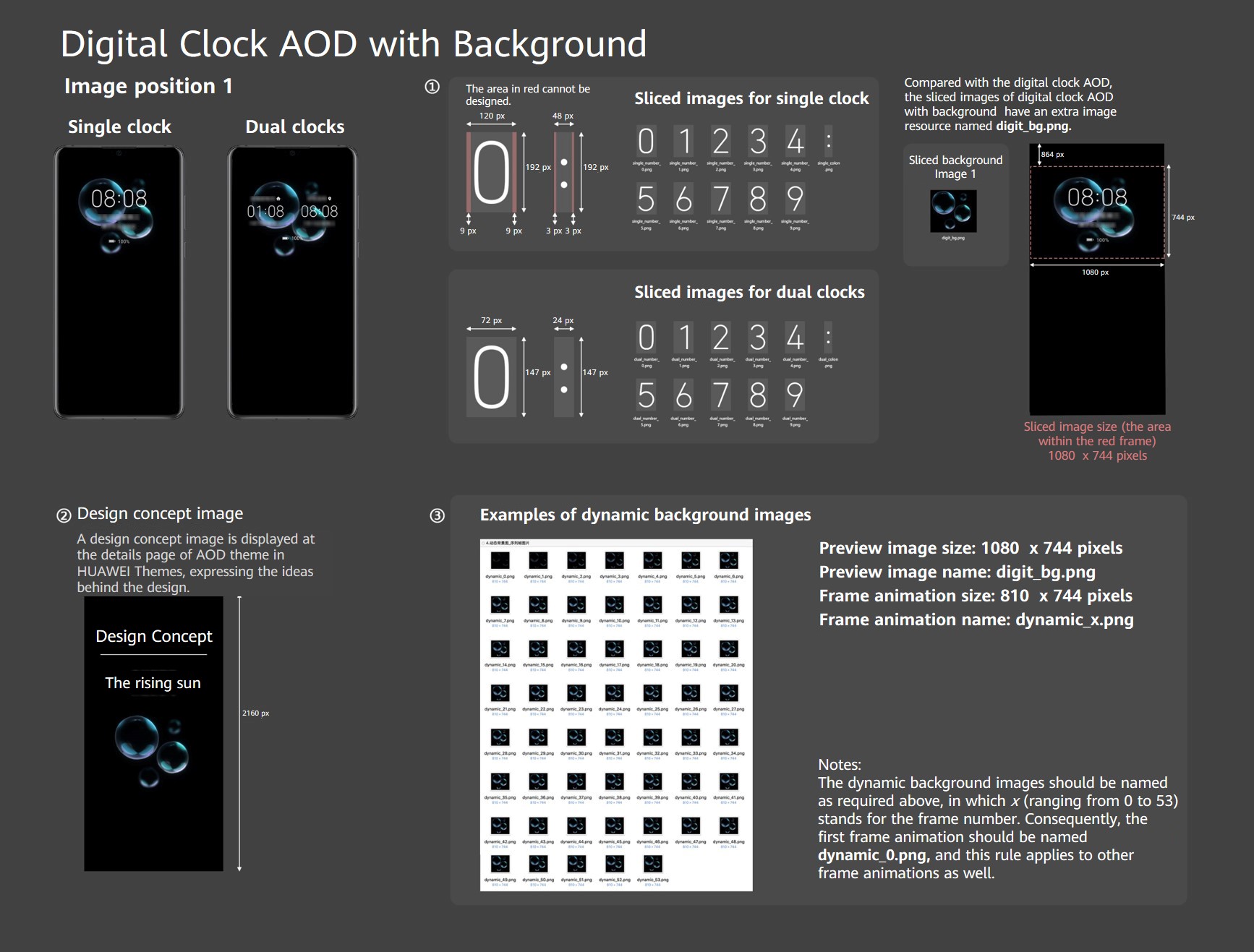
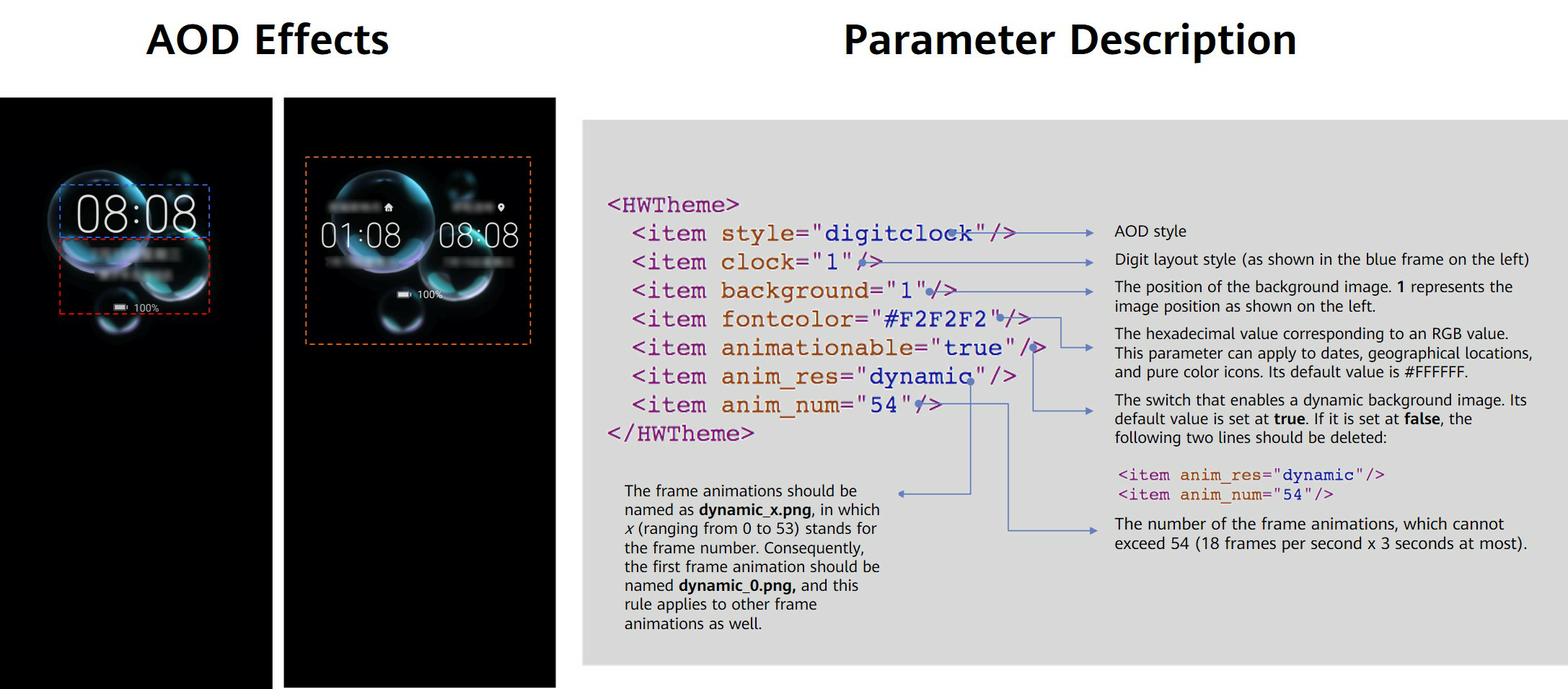
Image position 2
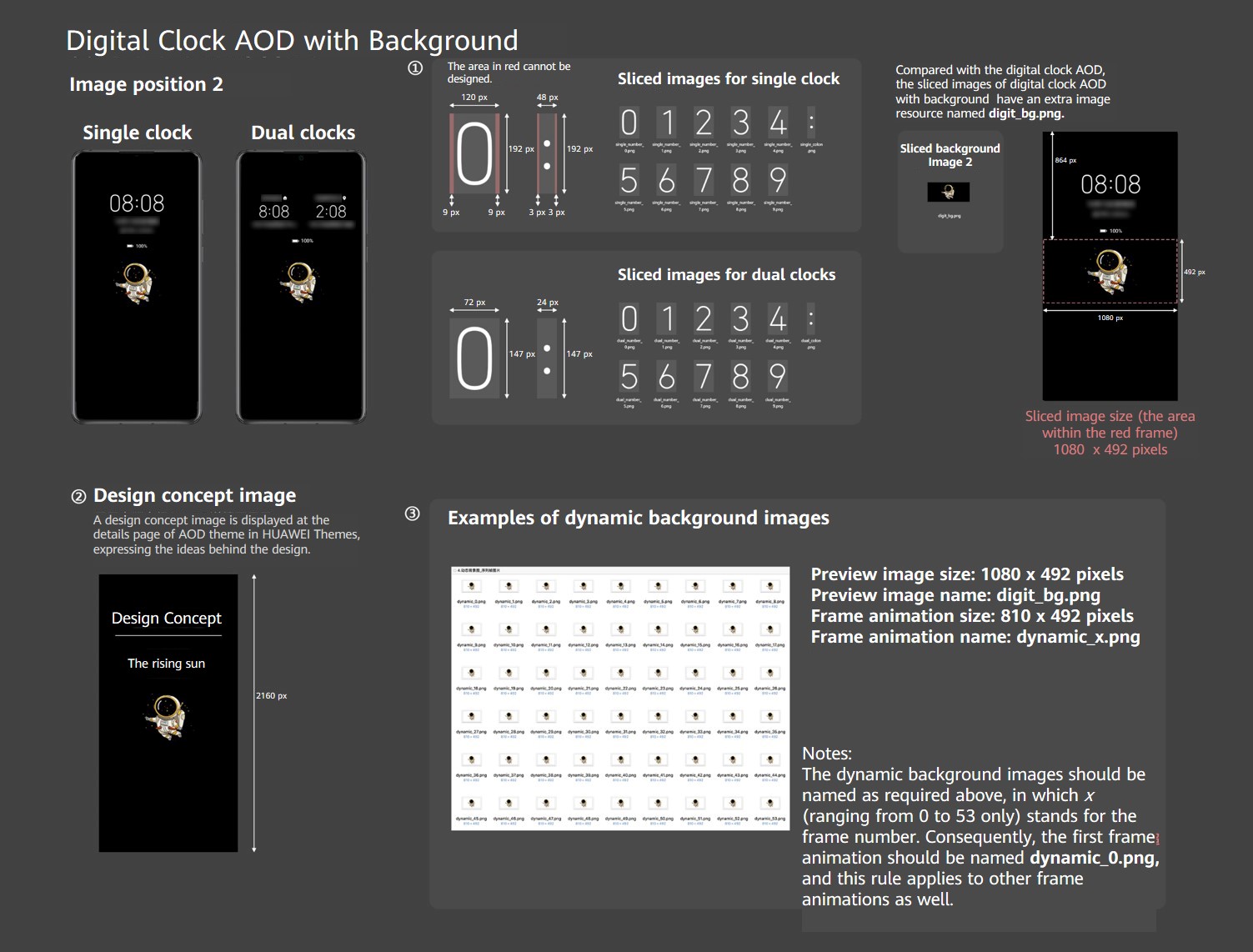
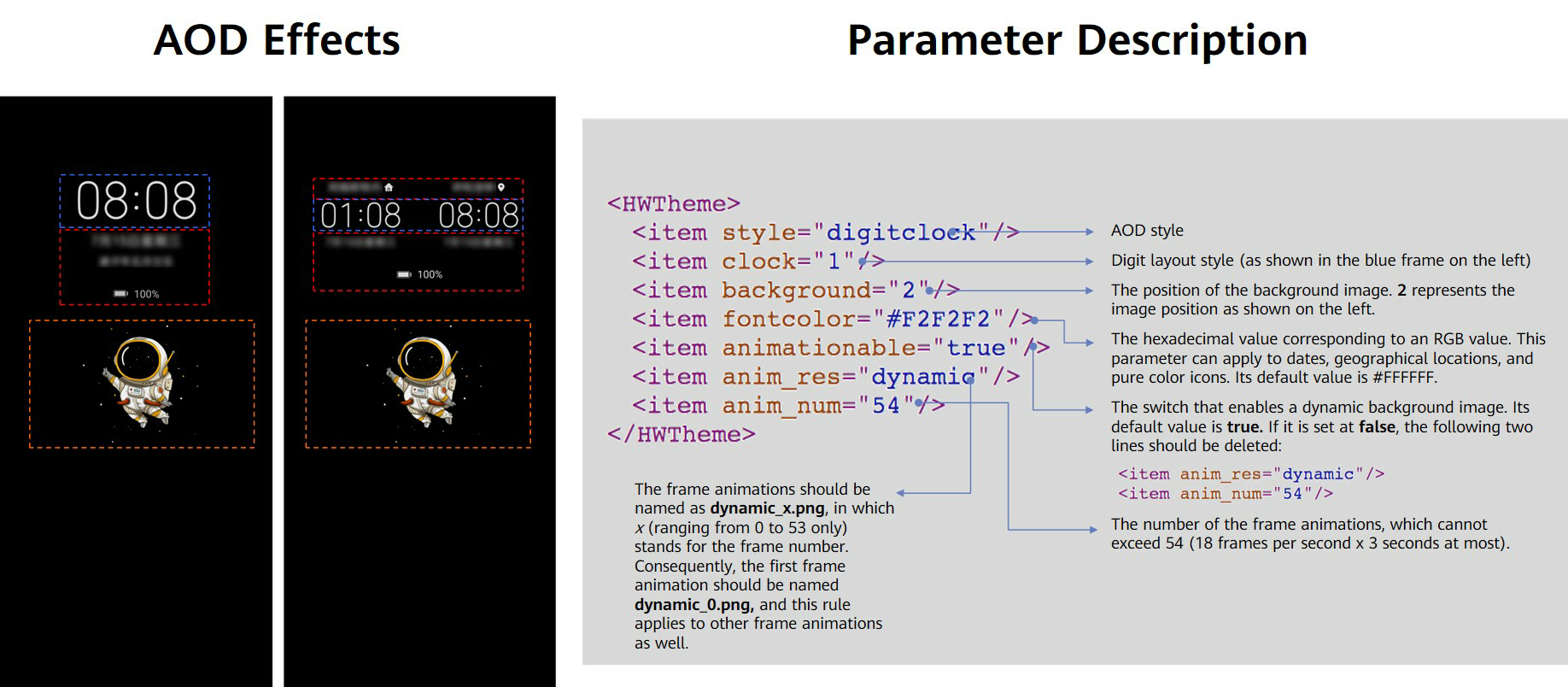
- Use Theme Studio to create an AOD theme.
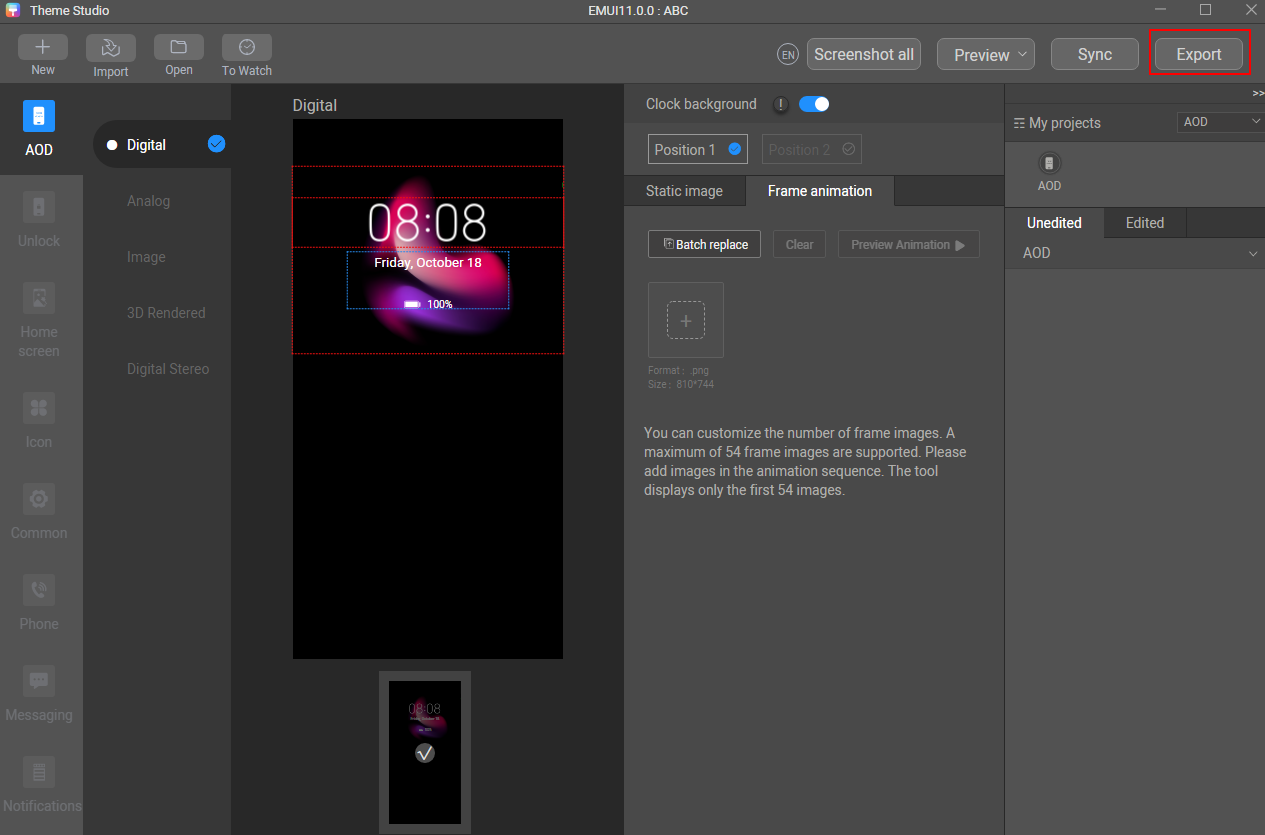
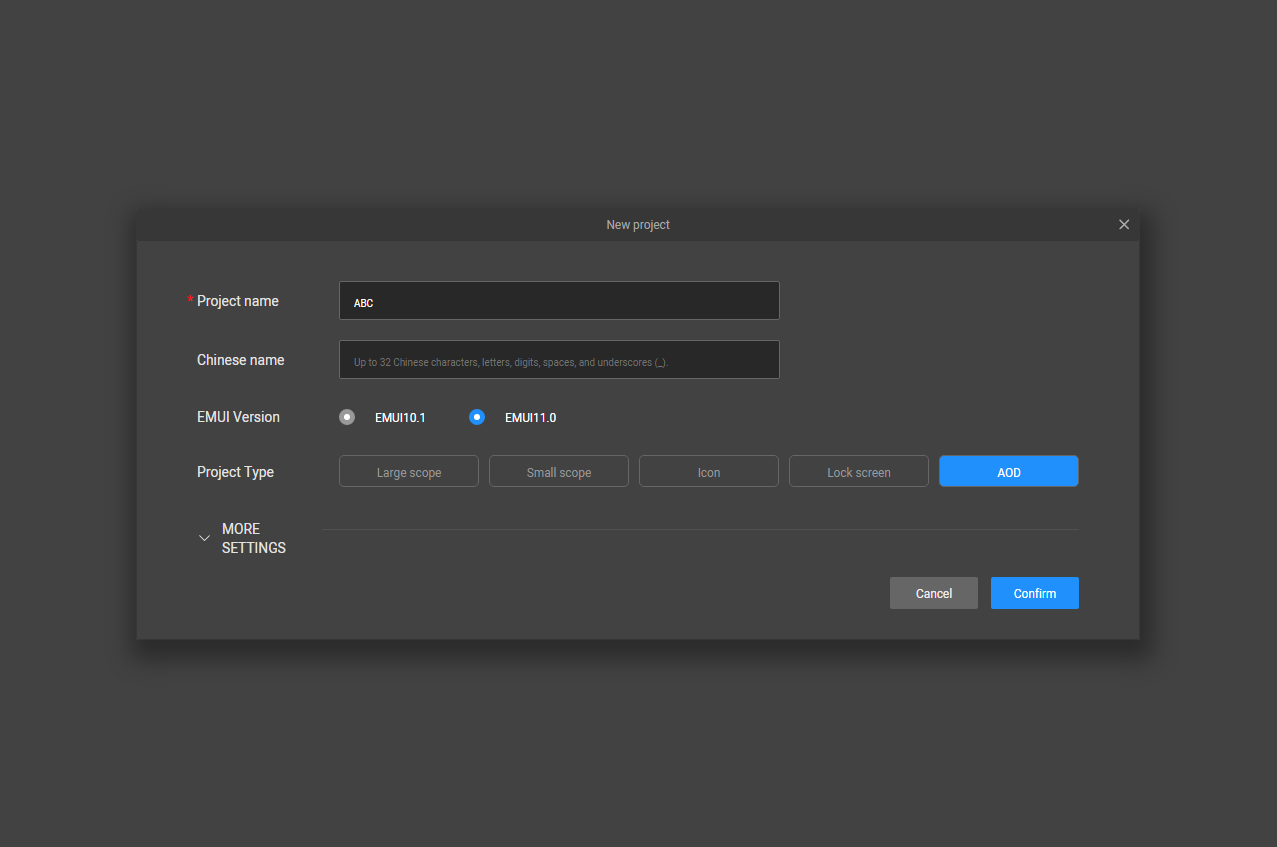
- Open Theme Studio, click Create, and set Project type to AOD in the displayed dialog box.
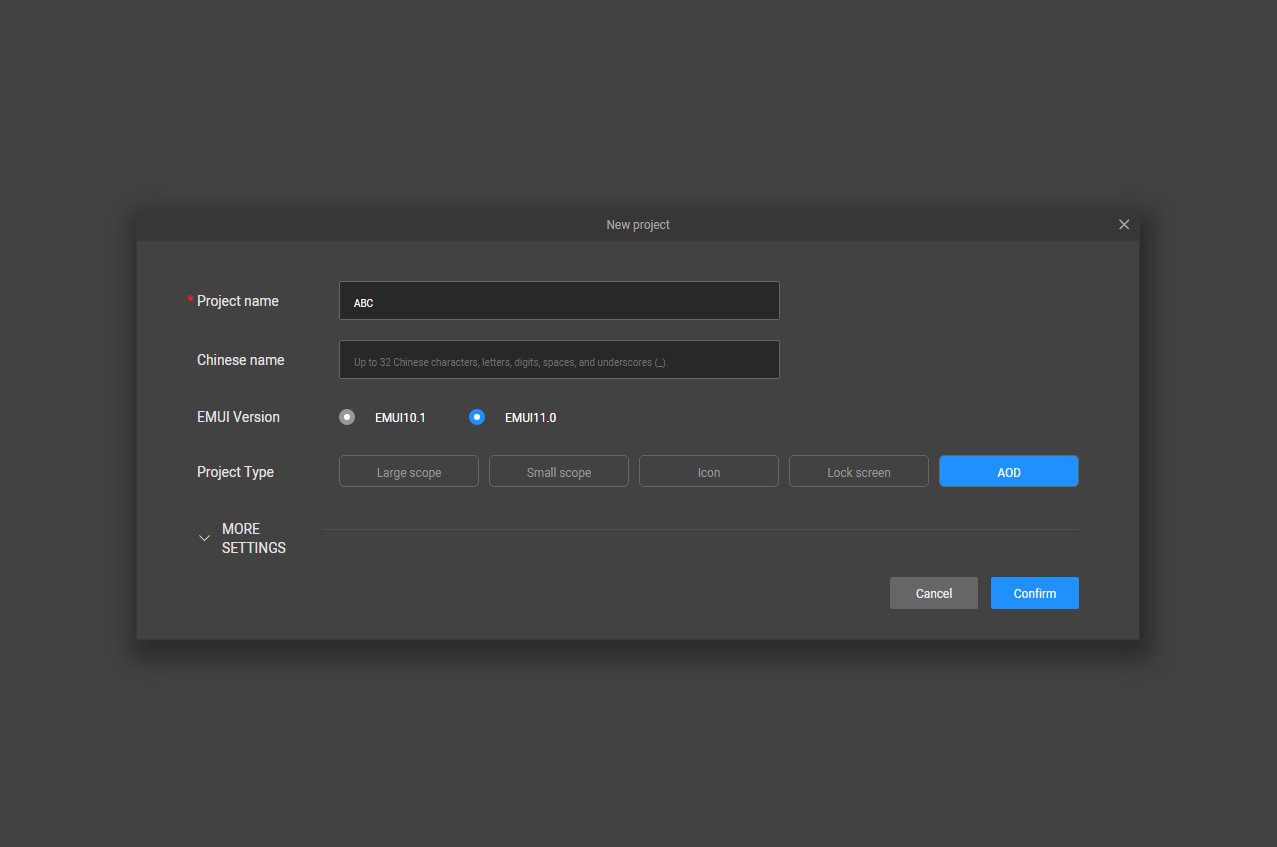
- Select Position 1 or Position 2 to import a background image, and replace the sliced images of both single clock and dual clocks.
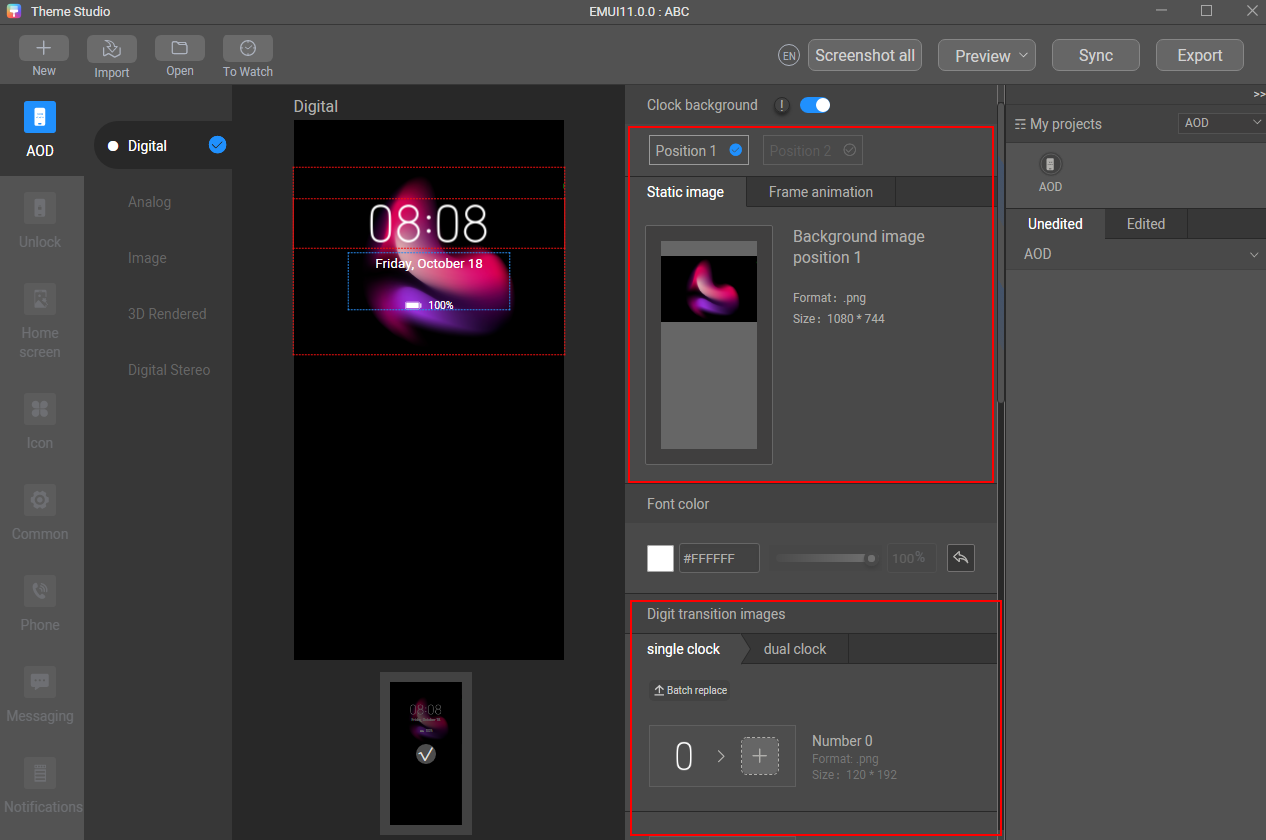
- Adjust the color of the text and digits to make the theme more attractive.
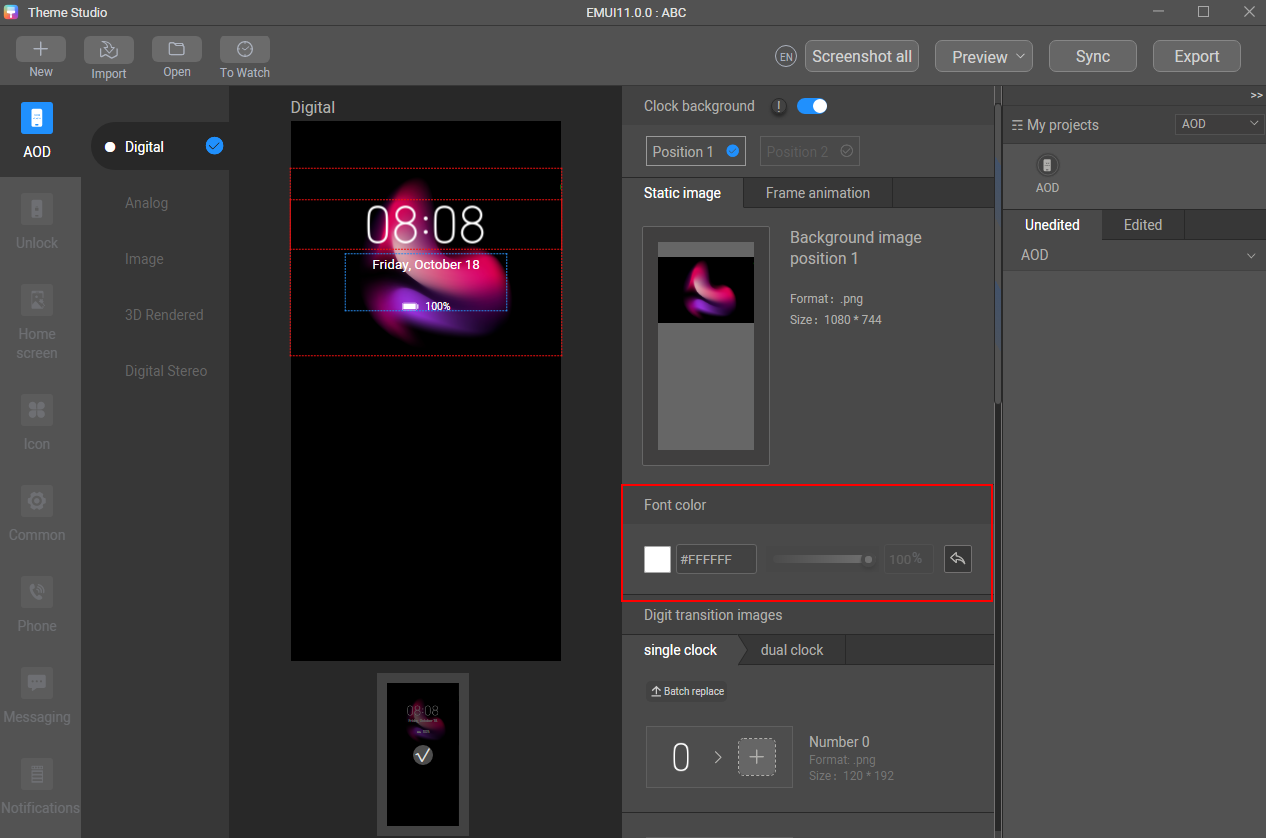
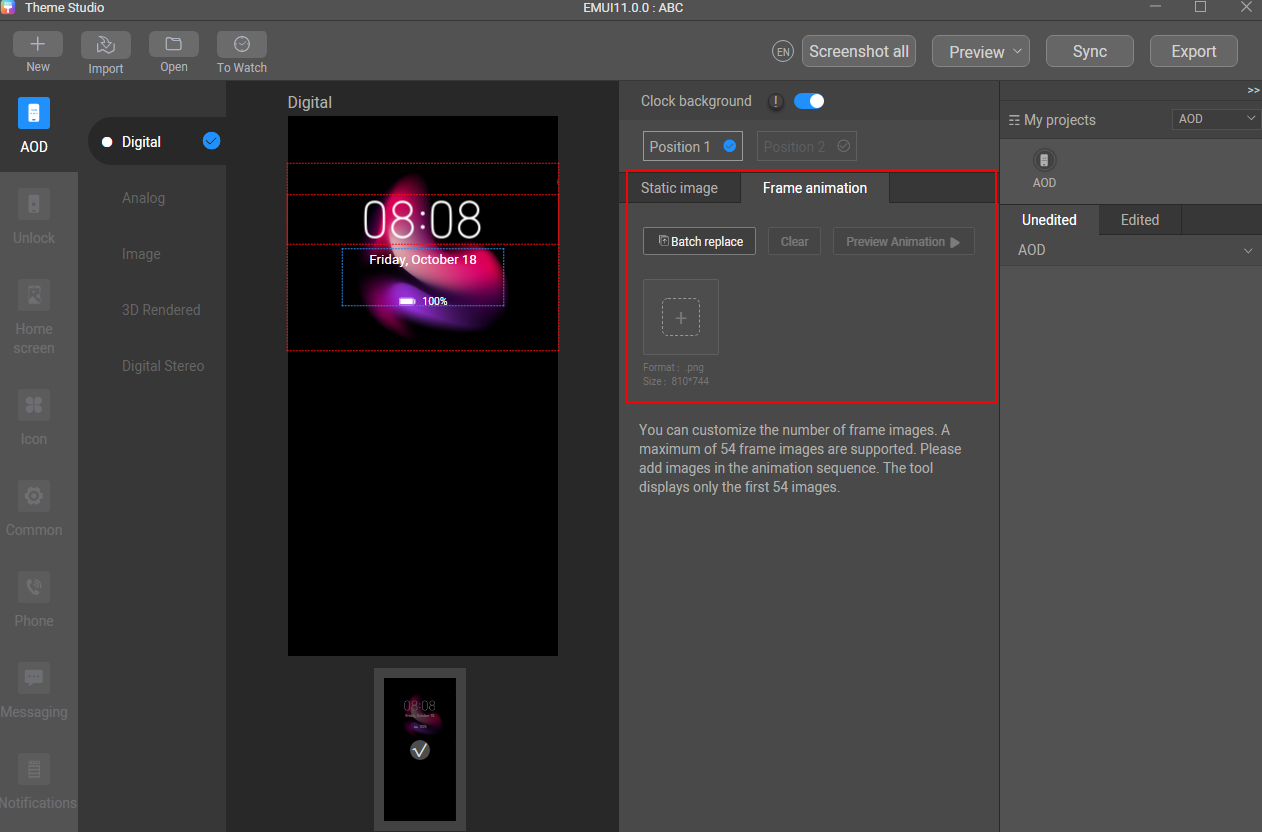
- Click Frame animation and import sequence frame images. After the import is complete, preview the frame images.
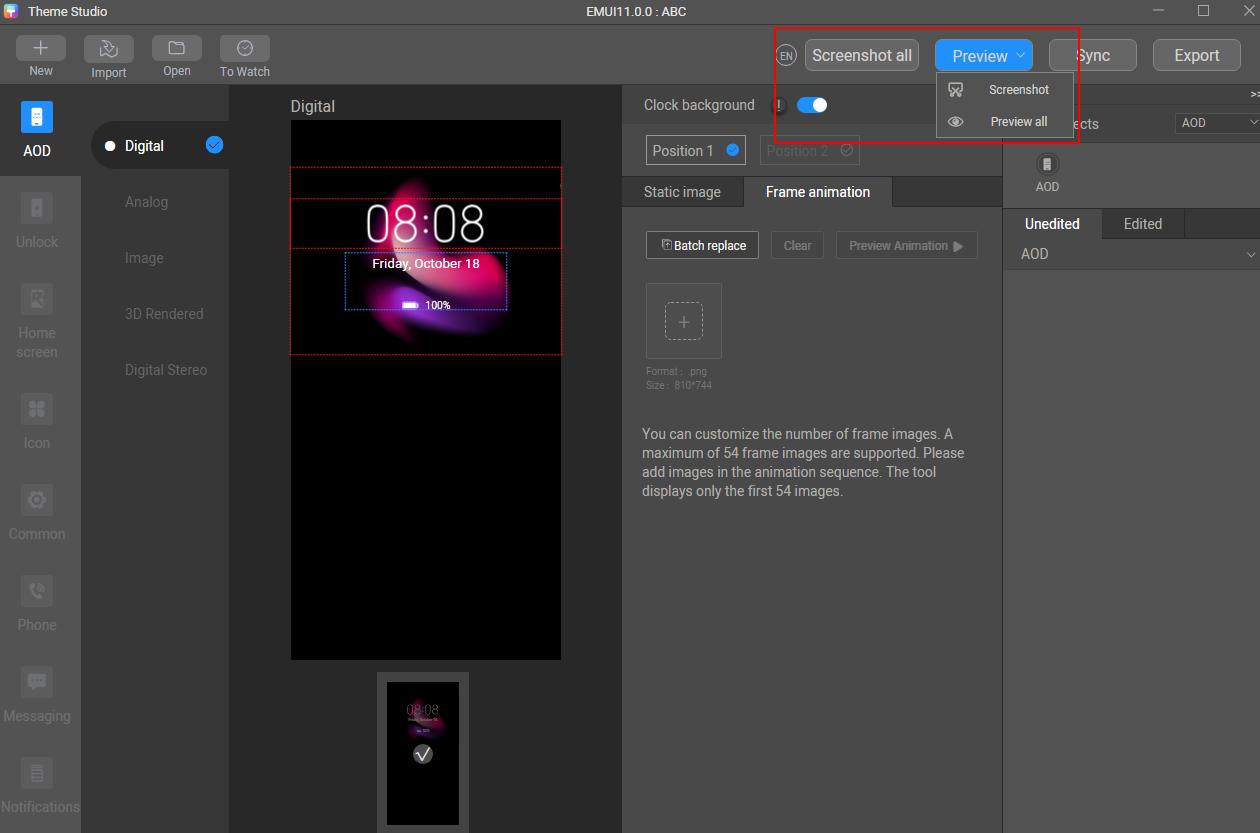
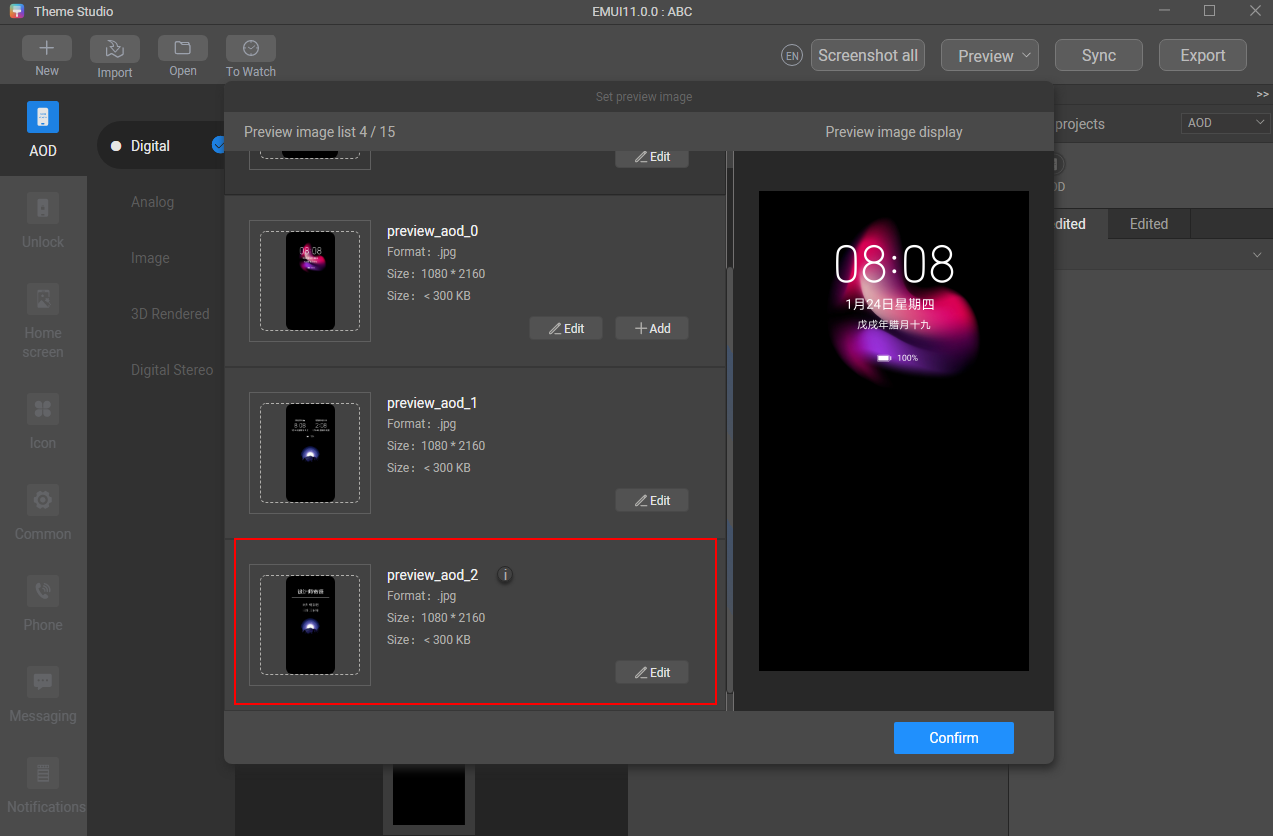
- Take a screenshot to generate a preview effect, and upload the design concept image to replace preview_aod_2.jpg.
- Export the theme package.
[h2]4.2 Design of Dynamic Digital Stereo Clock AOD
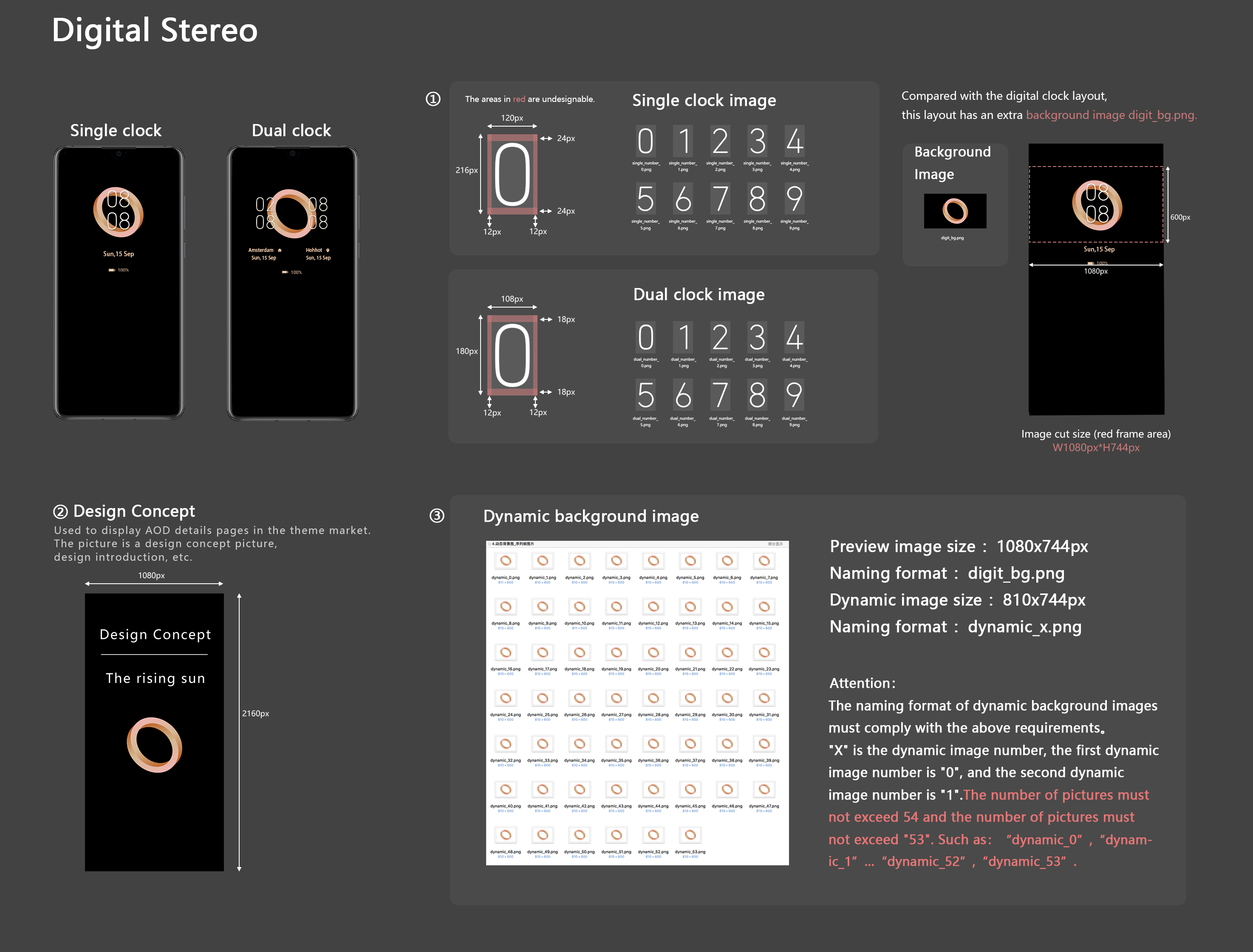
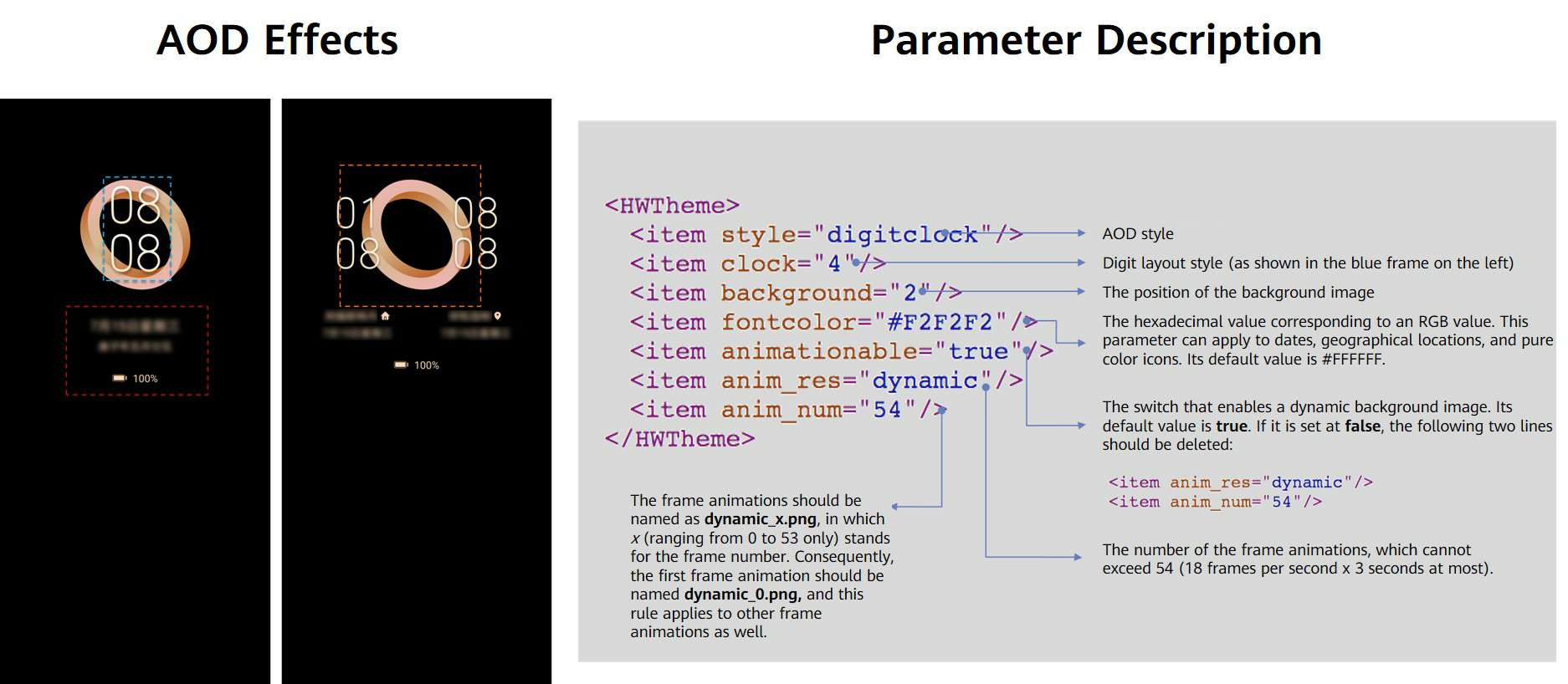
- Select an AOD theme type and make sliced images.
Digital stereo clock AOD
- Use Theme Studio to create an AOD theme.
- Open Theme Studio, click Create, and set Project type to AOD in the displayed dialog box.
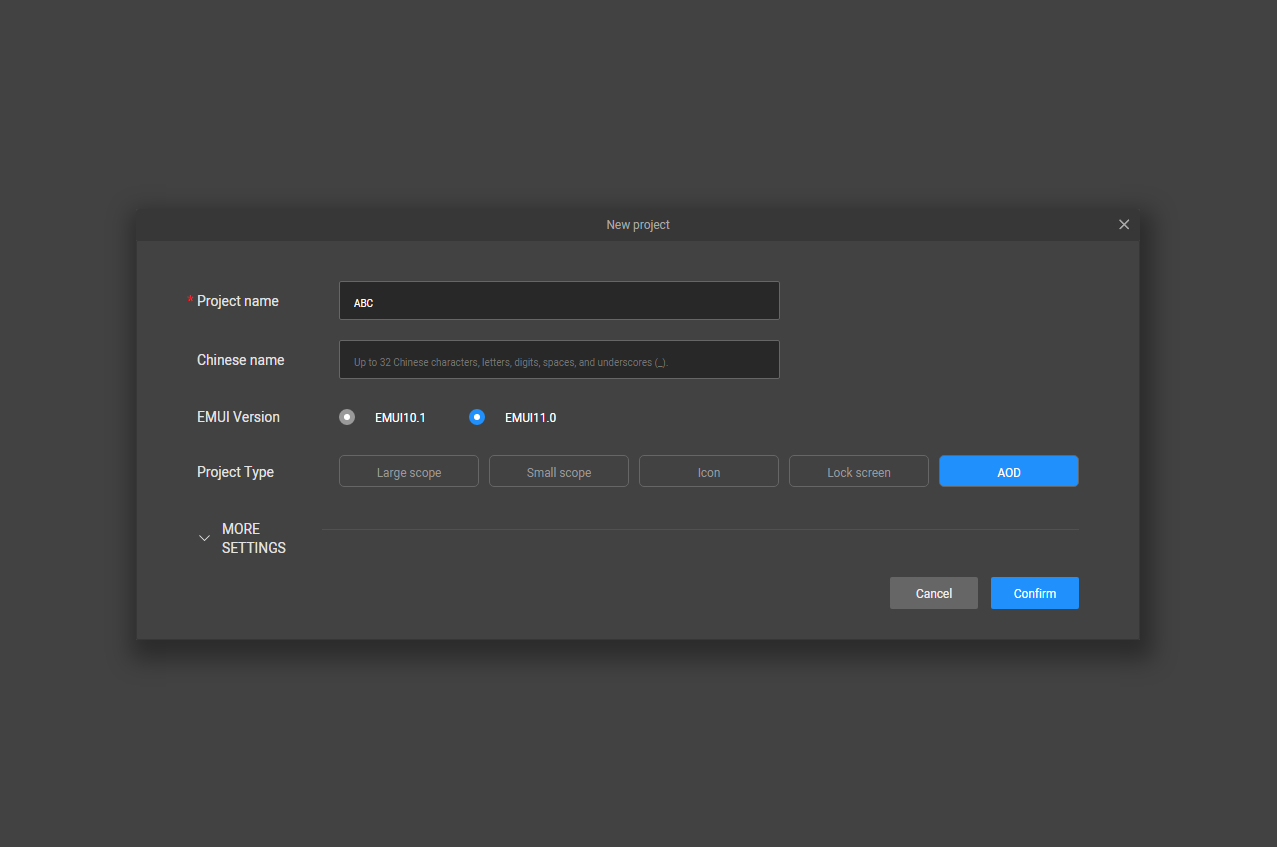
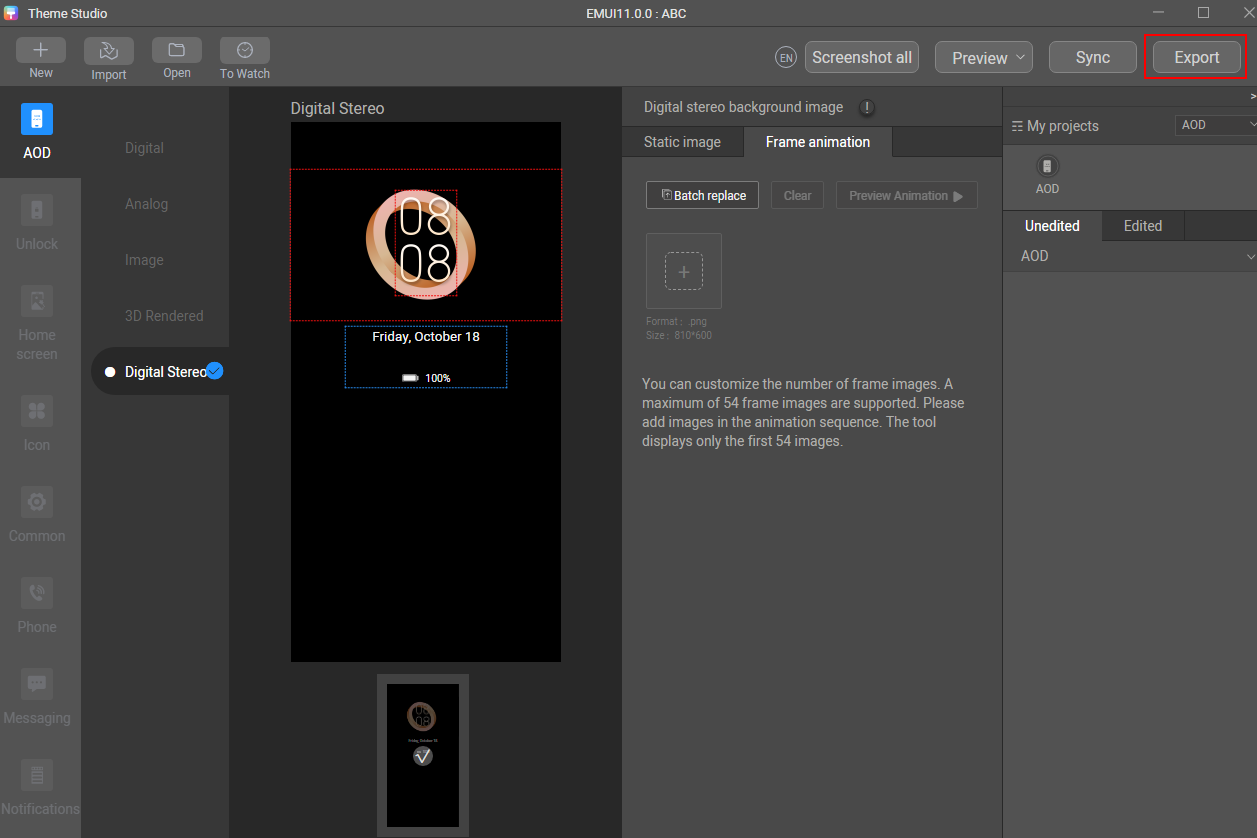
- Import a background image, and replace the sliced images of both single clock and dual clocks.
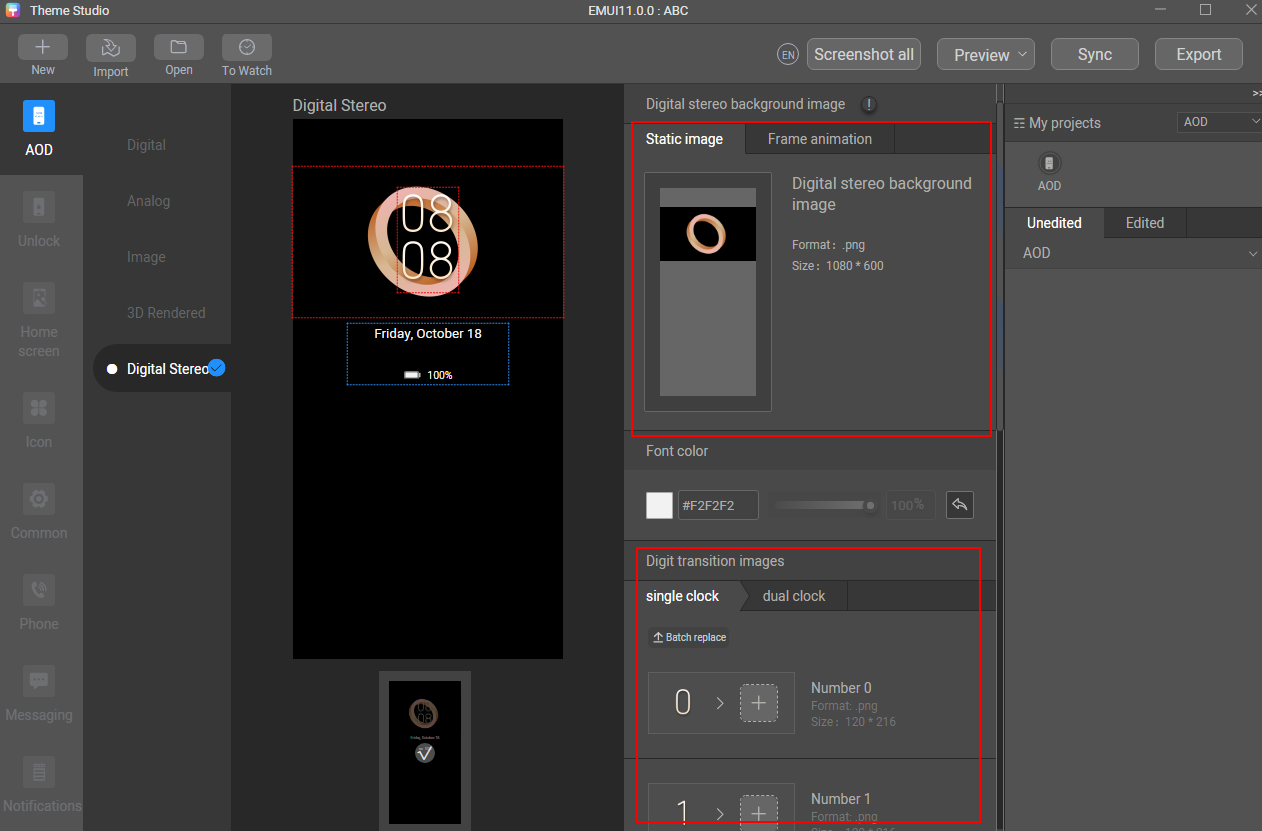
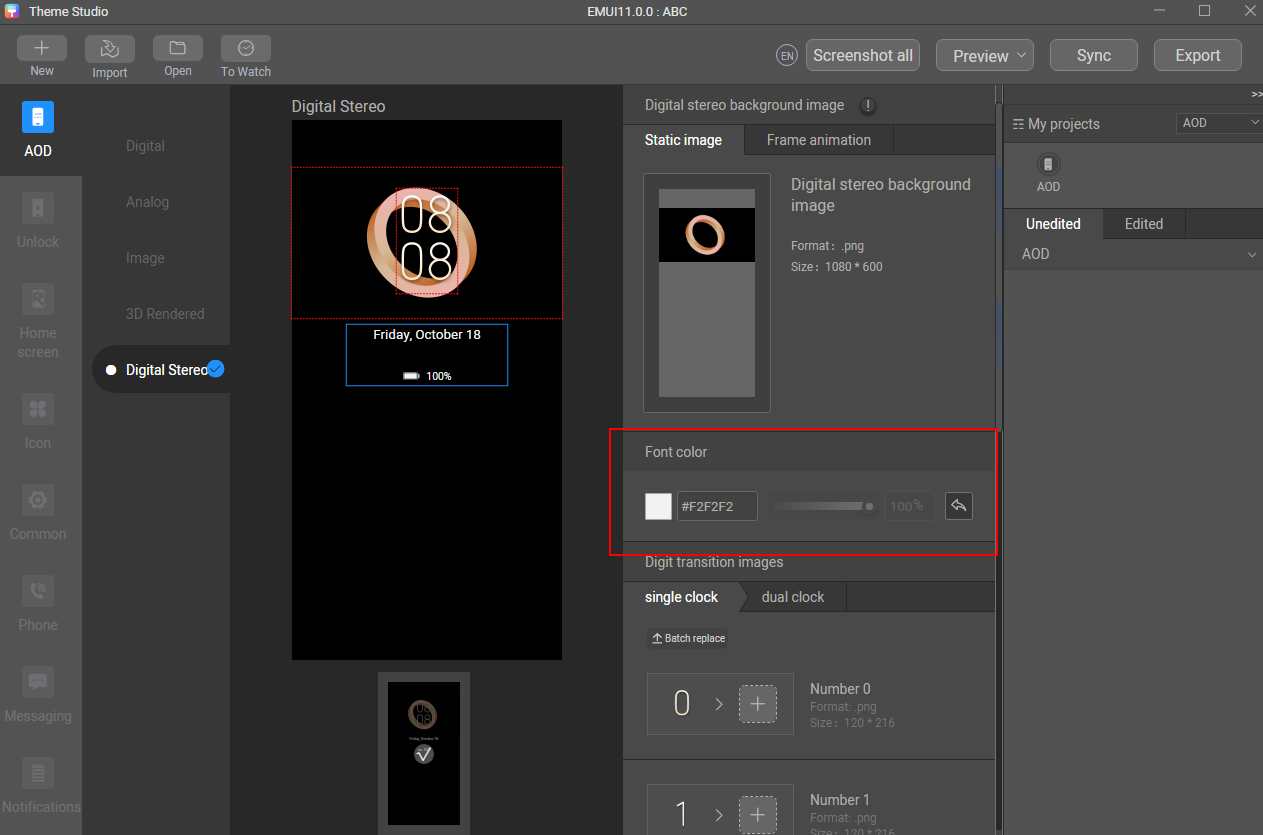
- Adjust the color of the text and digits to make the theme more attractive.
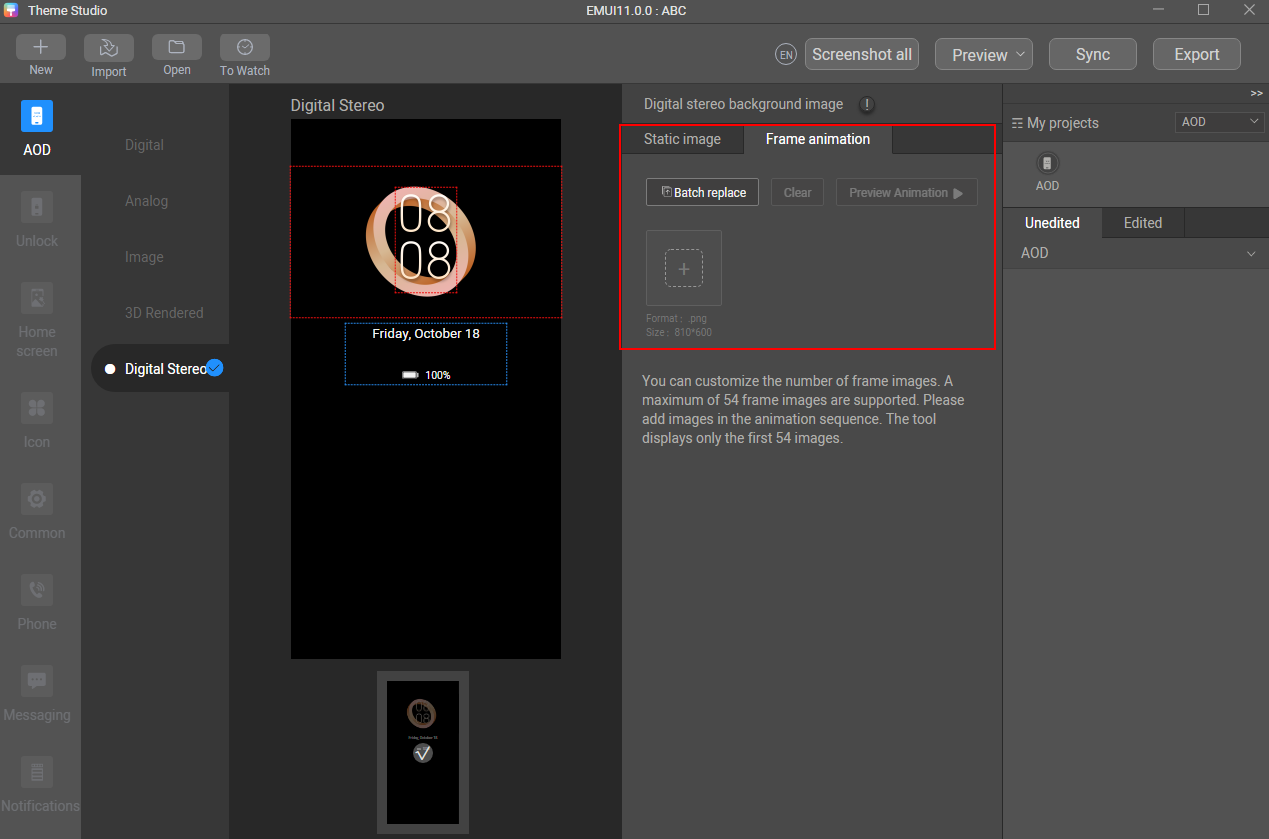
- Click Frame animation and import sequence frame images. After the import is complete, preview the frame images.
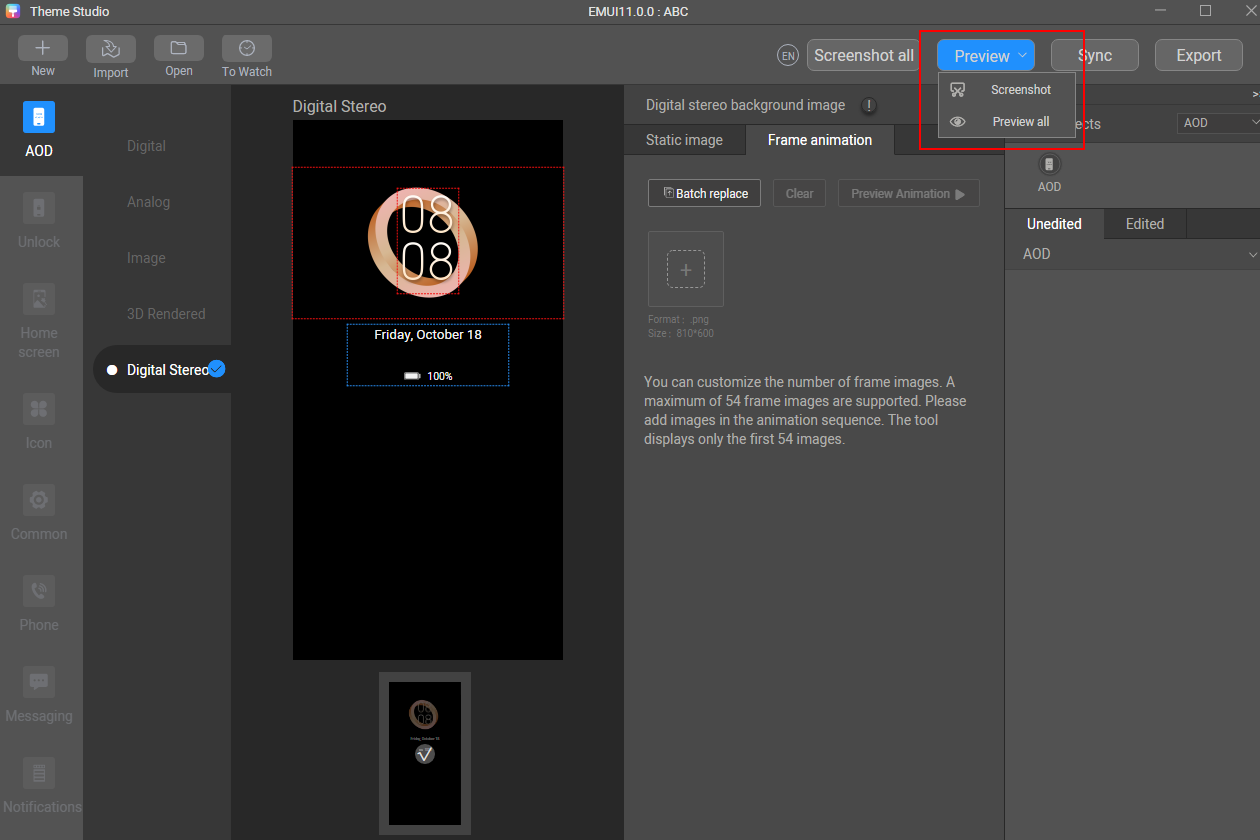
- Take a screenshot to generate a preview effect, and upload the design concept image to replace preview_aod_2.jpg.
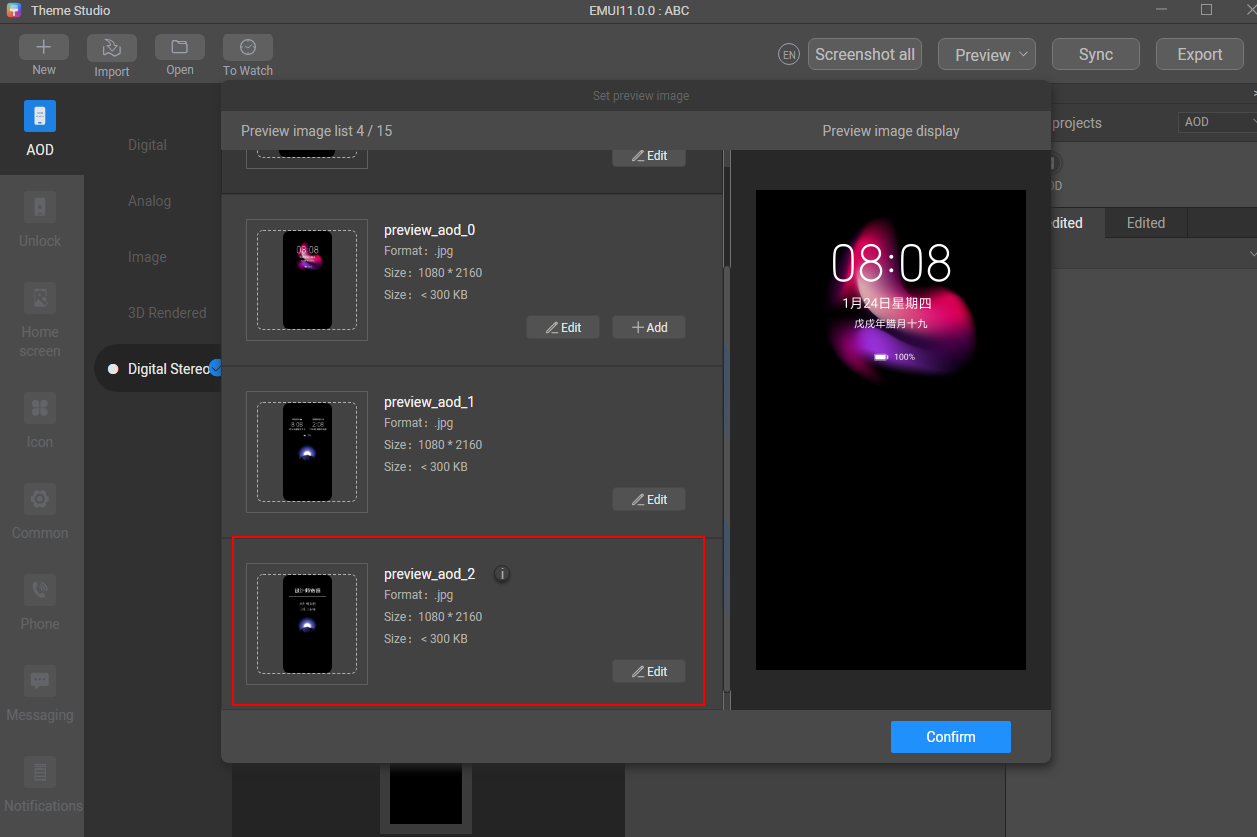
- Export the theme package.
[h2]4.3 Design of Dynamic Analog Clock AOD
- Select an AOD theme type and make sliced images.
- Use Theme Studio to create an AOD theme.
- Open Theme Studio, click Create, and set Project type to AOD in the displayed dialog box.
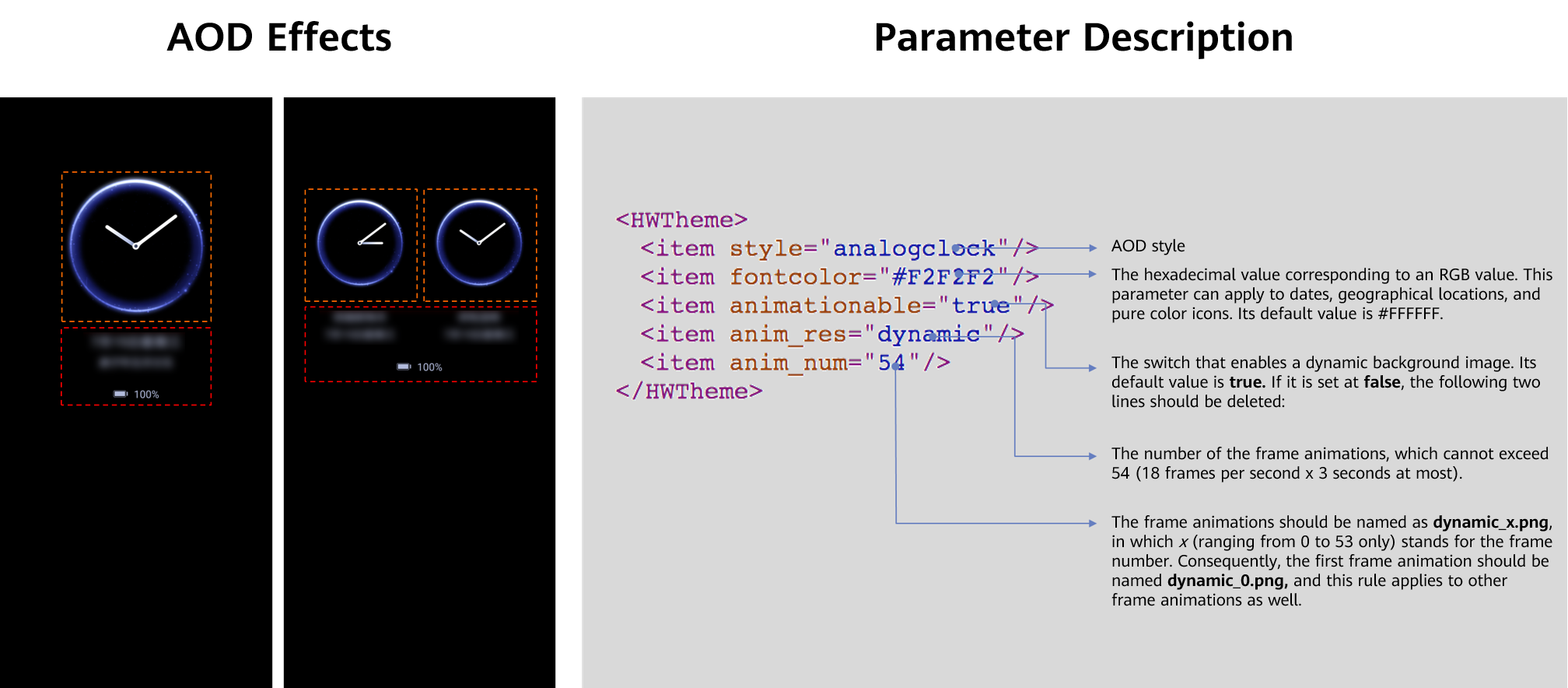
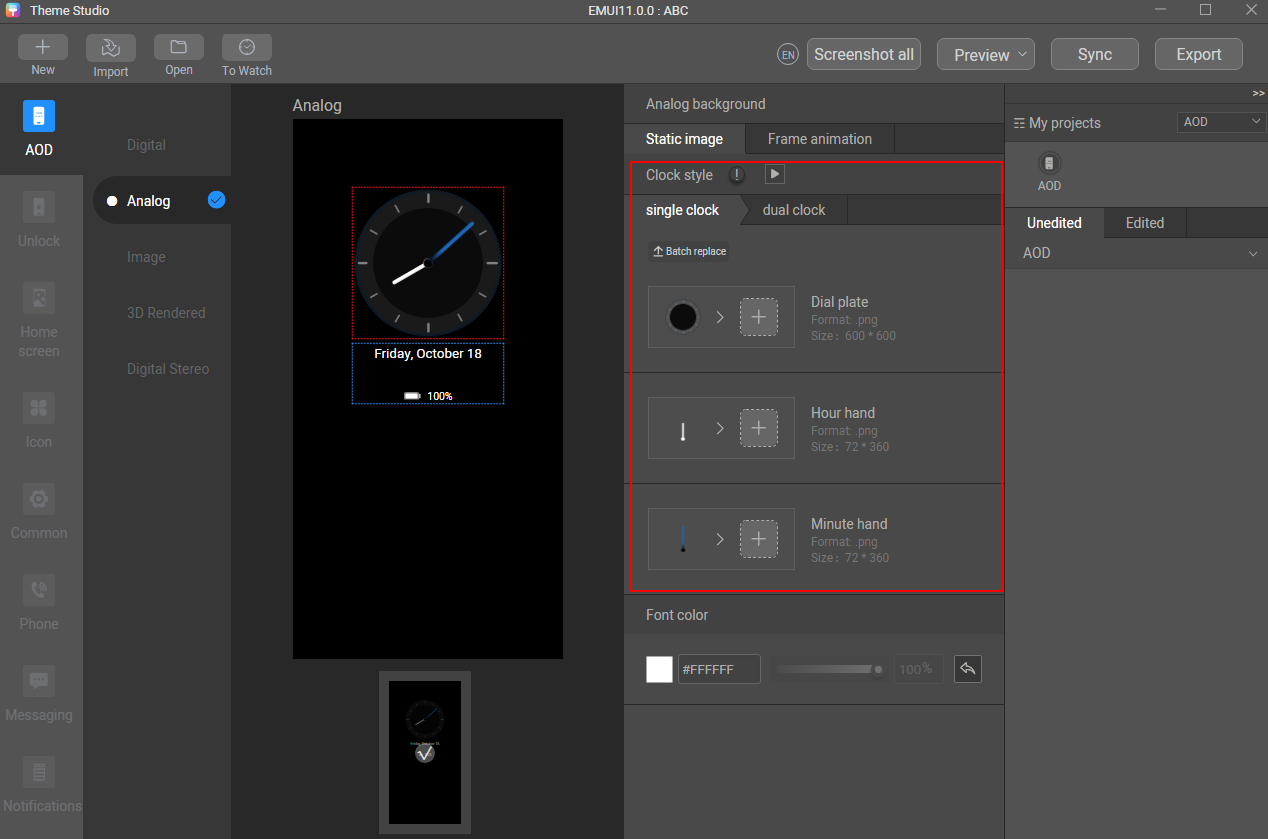
- Replace the sliced images of both single clock and dual clocks.
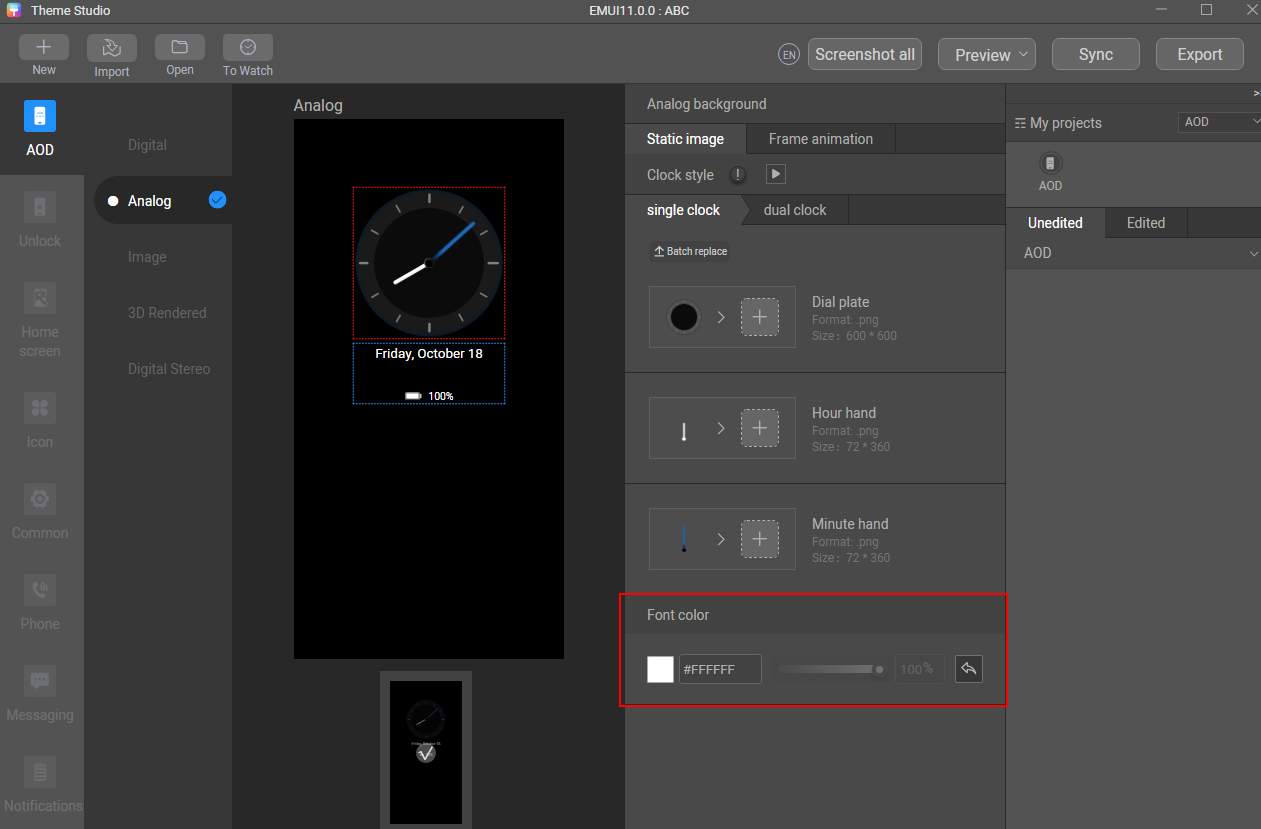
- Adjust the color of the text and digits to make the theme more attractive.
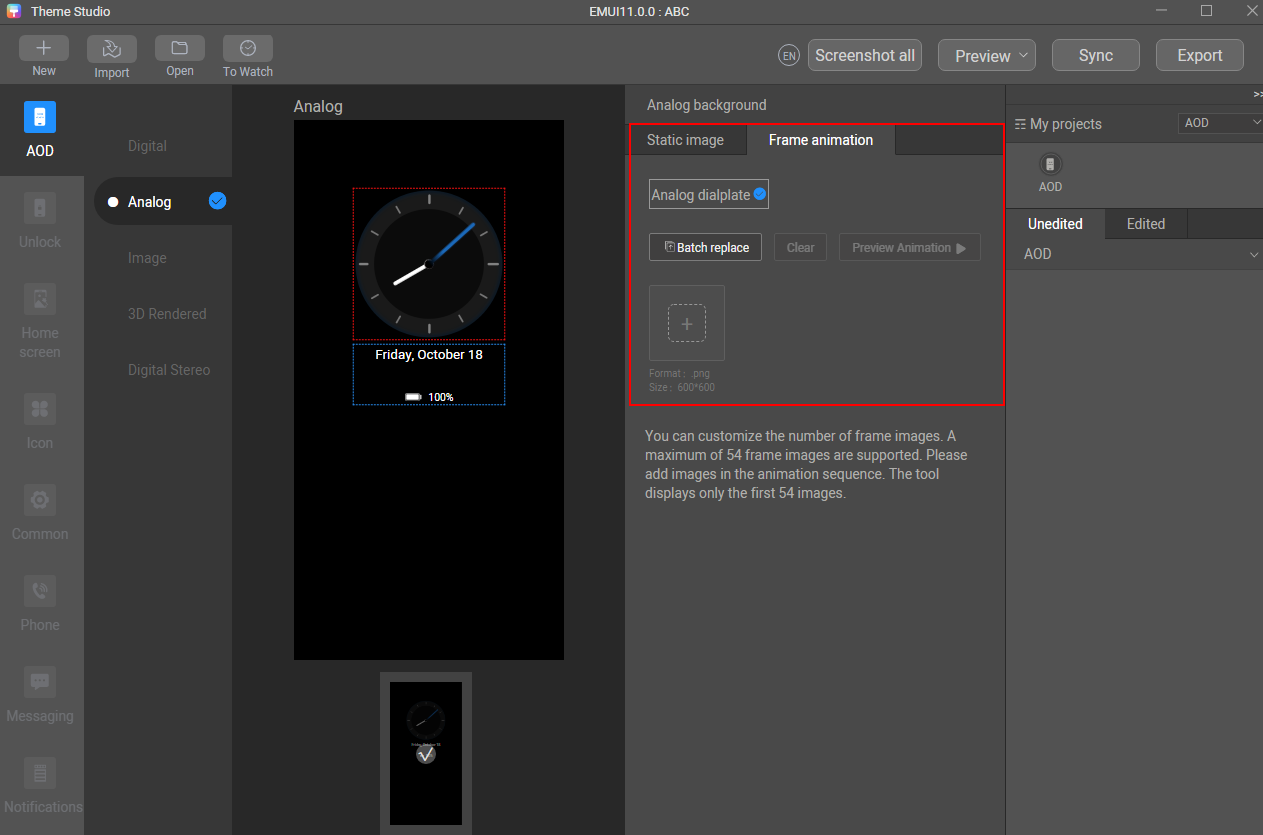
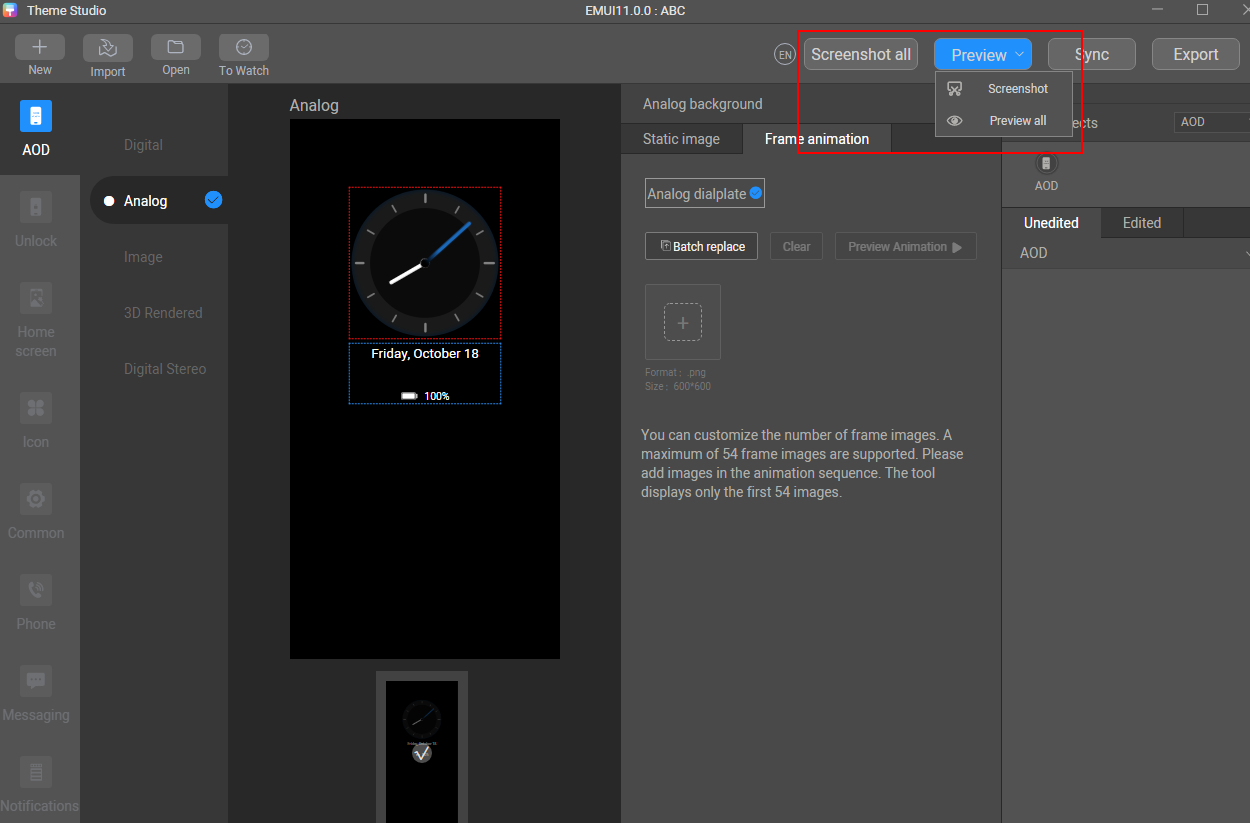
- Click Frame animation and import sequence frame images. After the import is complete, preview the frame images.
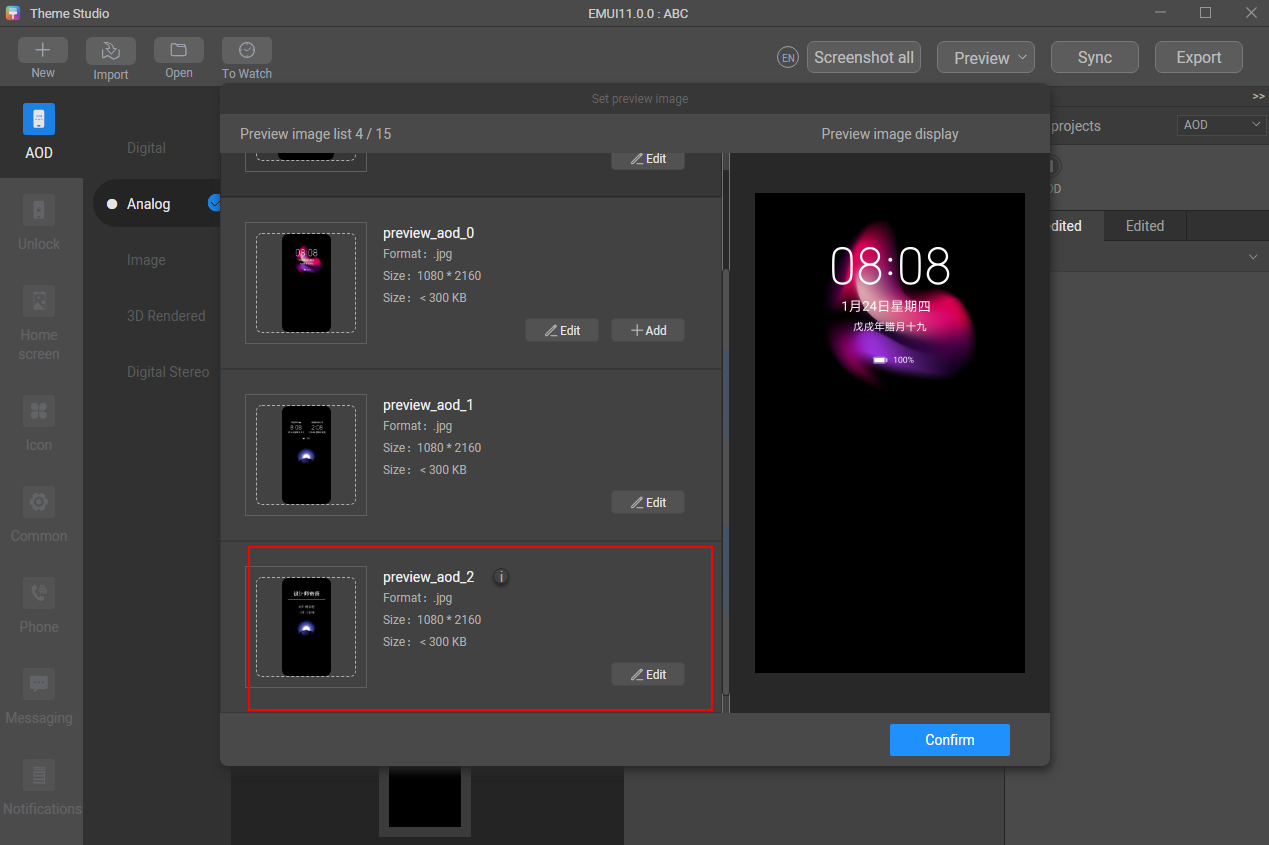
- Take a screenshot to generate a preview effect, and upload the design concept image to replace preview_aod_2.jpg.
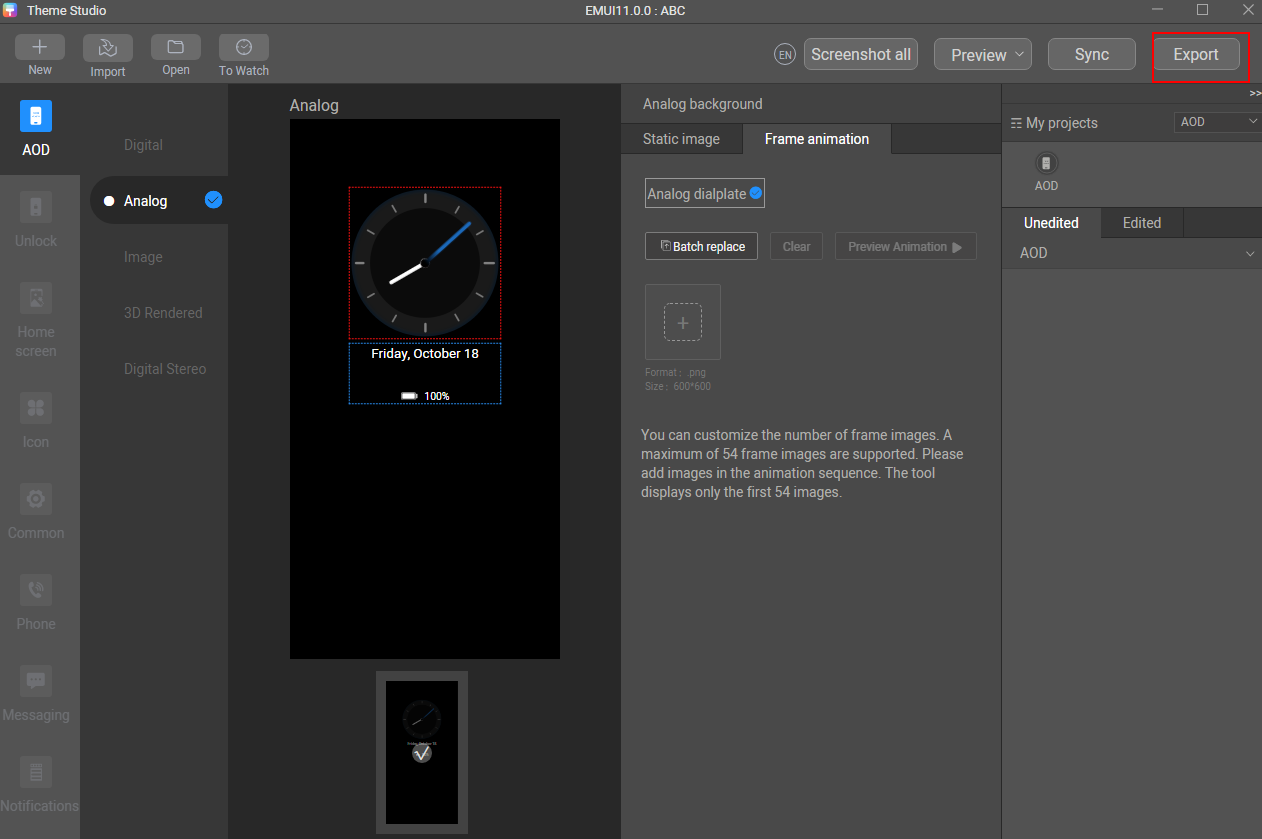
- Export the theme package.
[h2]4.4 Design of Dynamic Image Clock AOD
- Select an AOD theme type and make sliced images.
Image AOD with one segment of animation
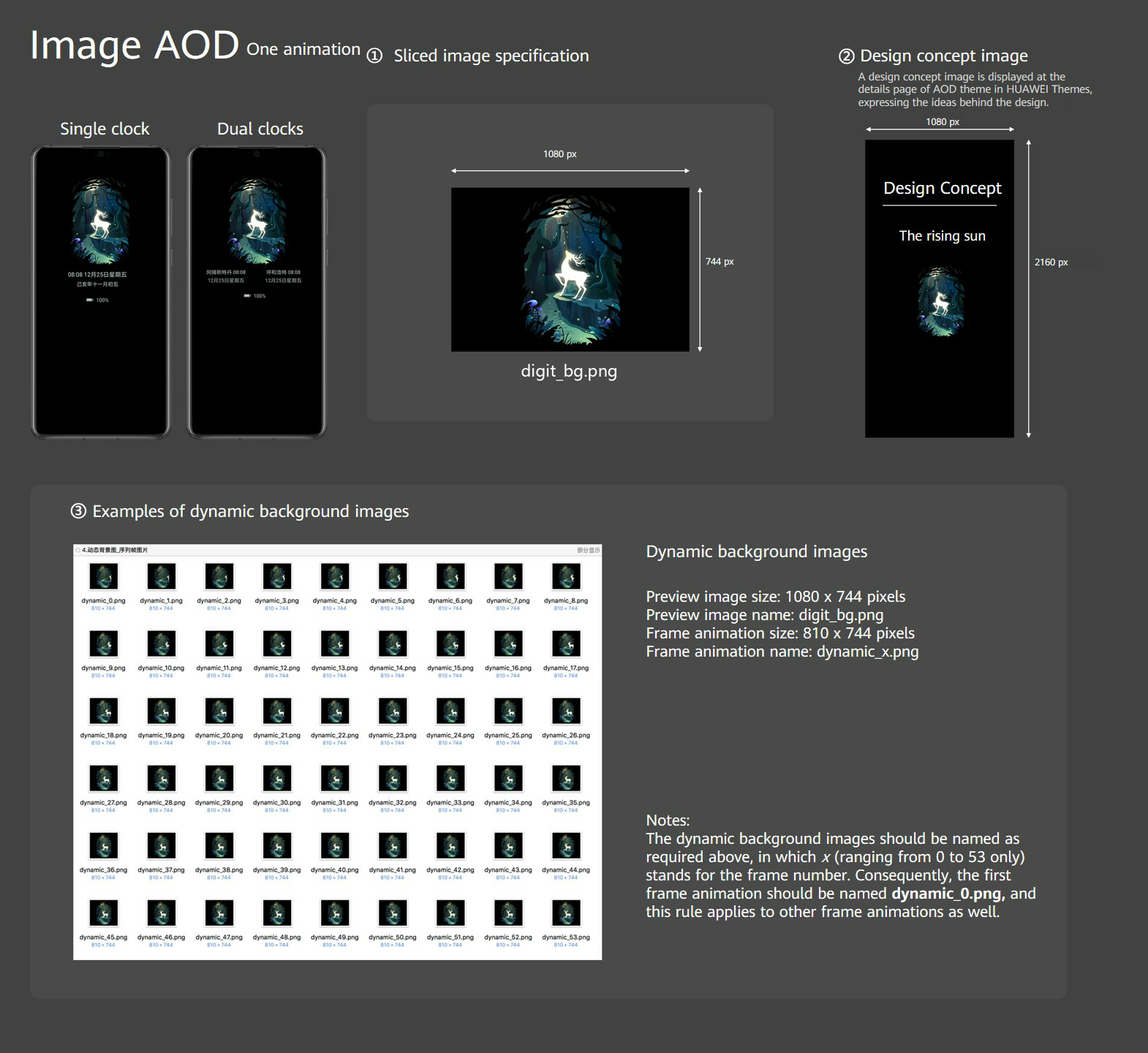
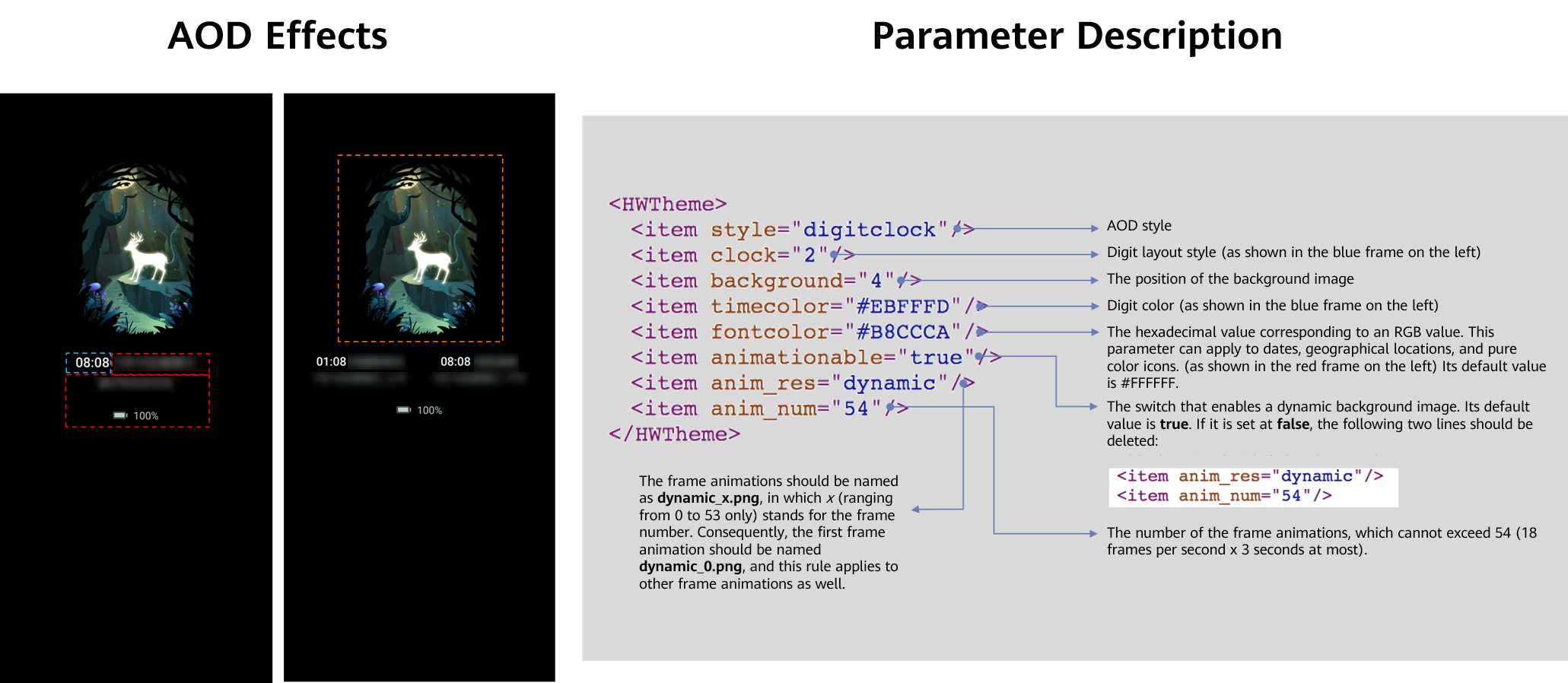
Image AOD with three segments of animations
- Use Theme Studio to create an AOD theme.
- Open Theme Studio, click Create, and set Project type to AOD in the displayed dialog box.
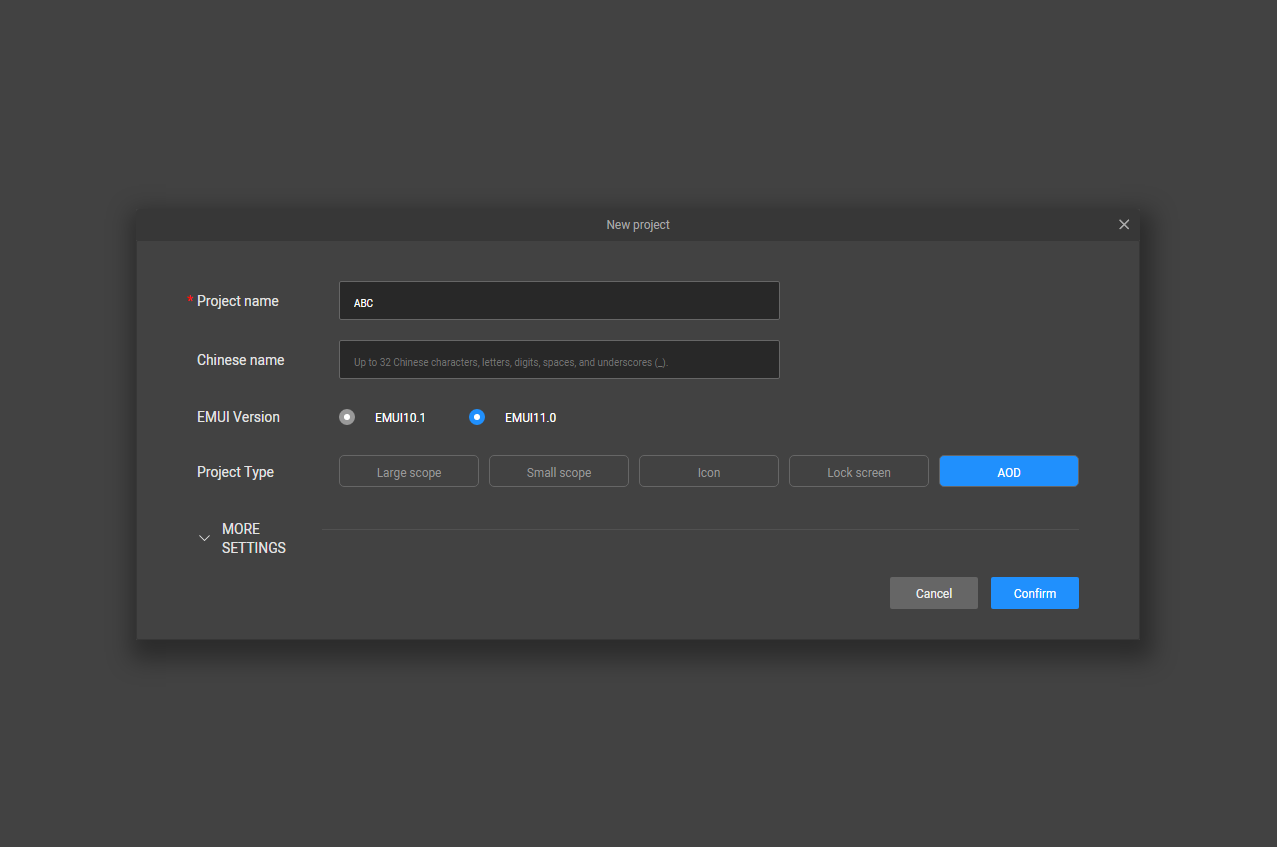
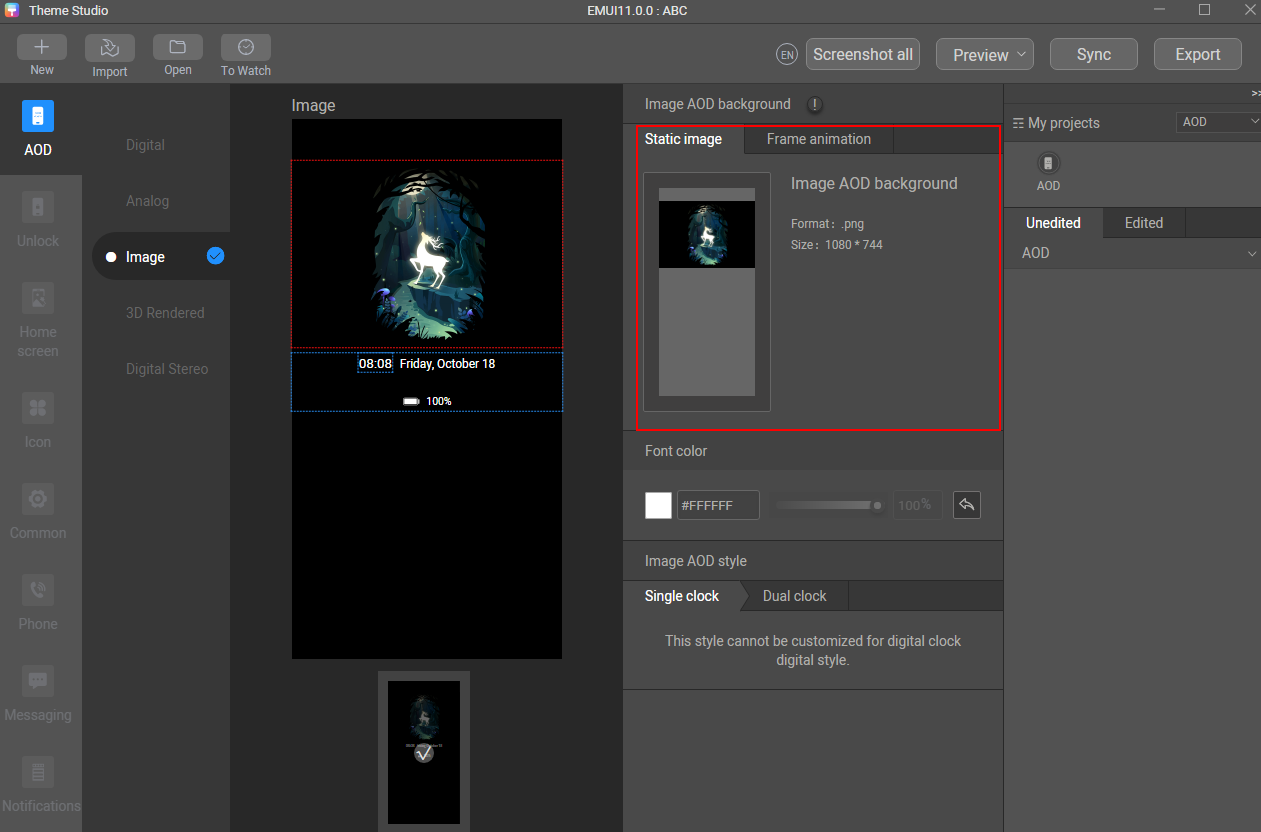
- Import a static background image.
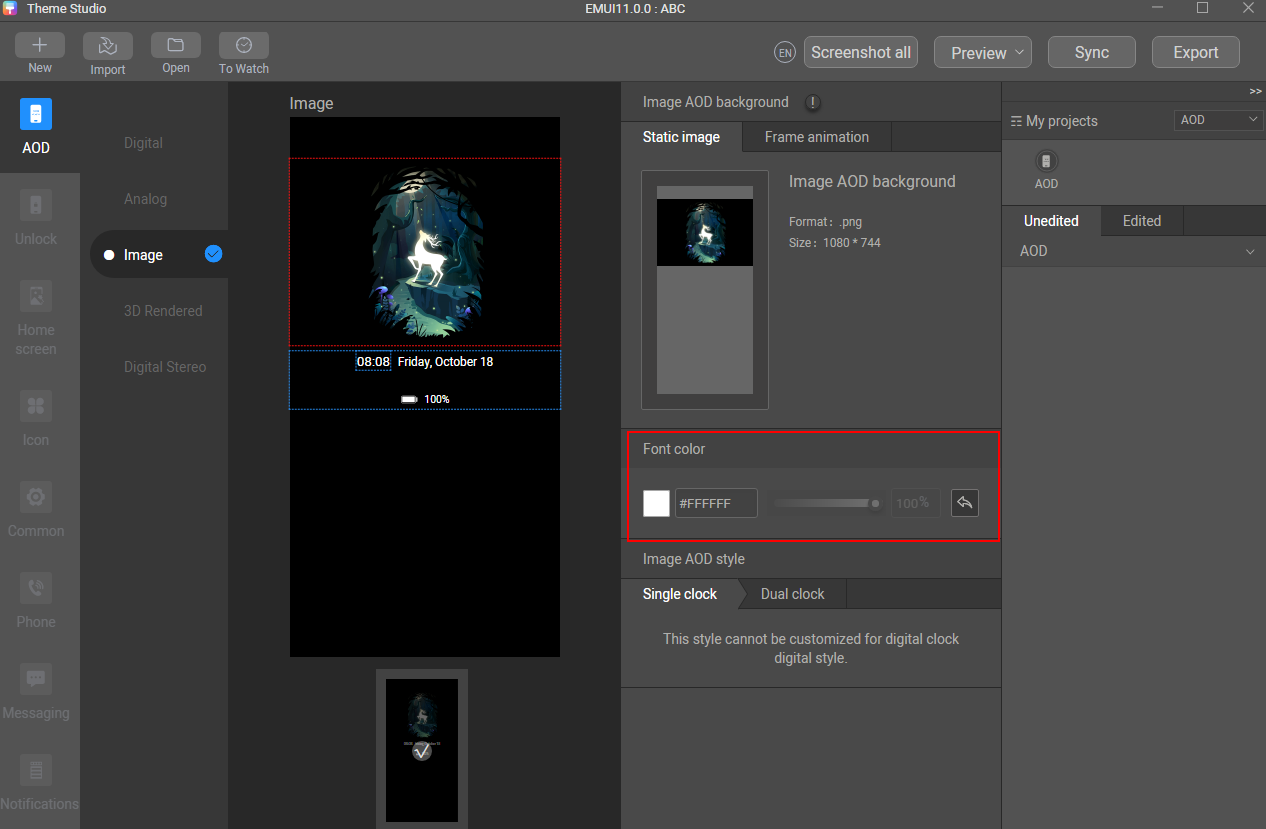
- Adjust the color of the text and digits to make the theme more attractive.
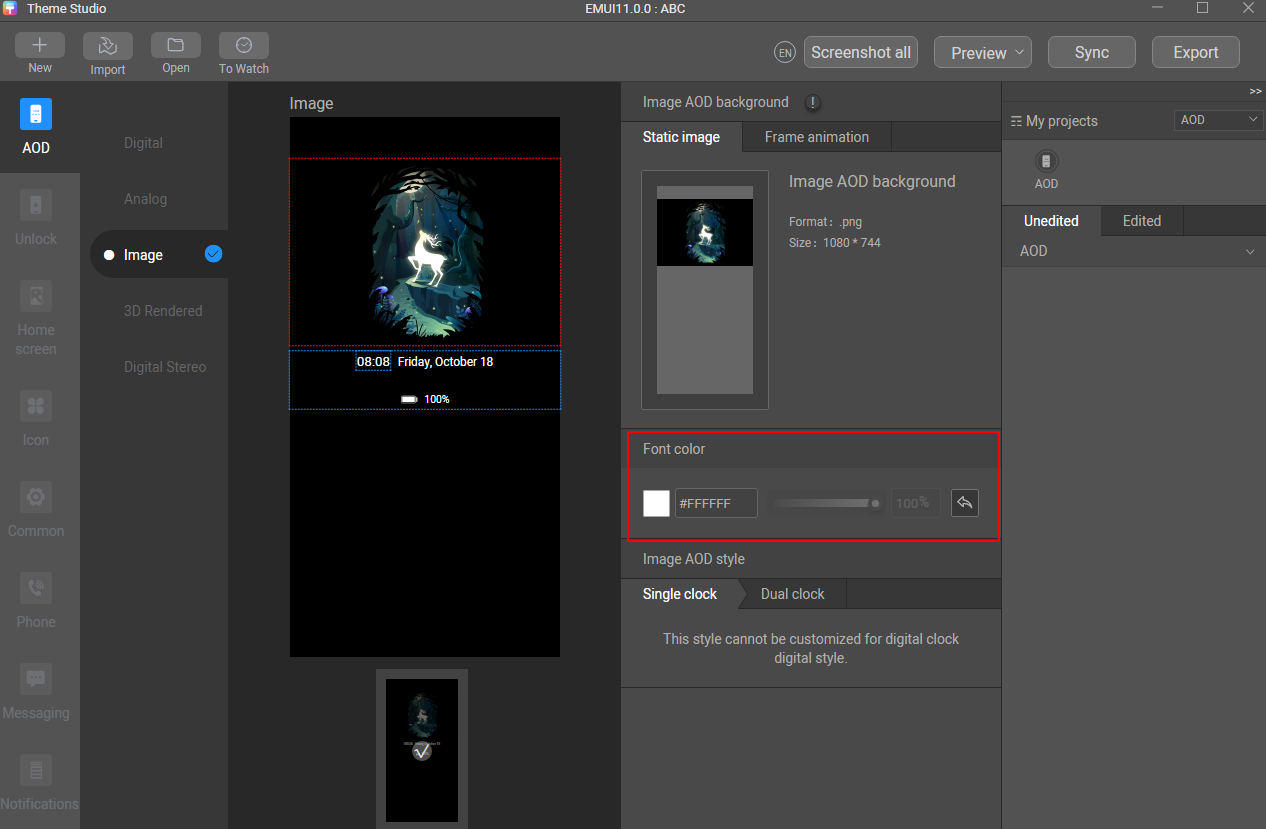
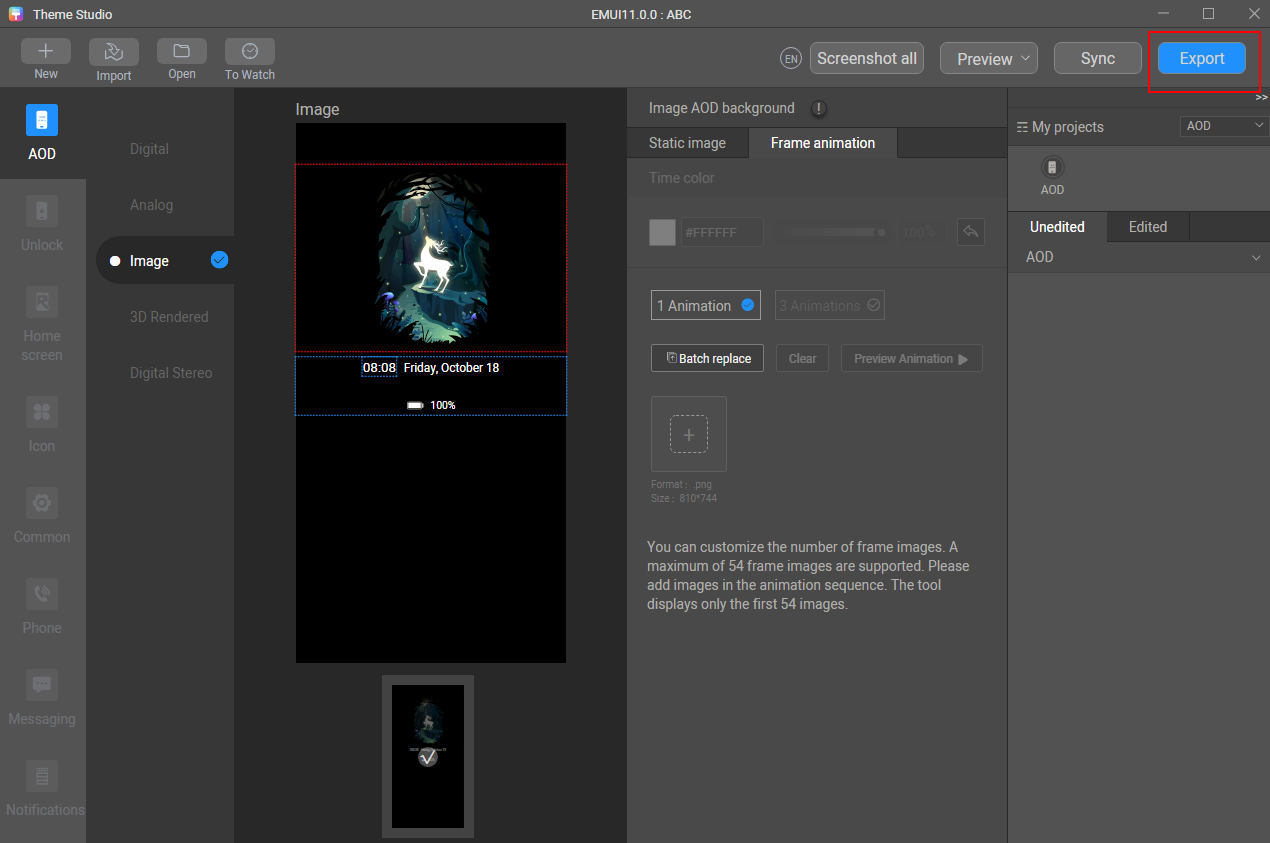
- Click Frame Animation, select 1 animation or 3 animations, and import an appropriate number of sequence frame images. After the import is complete, preview the frame images.
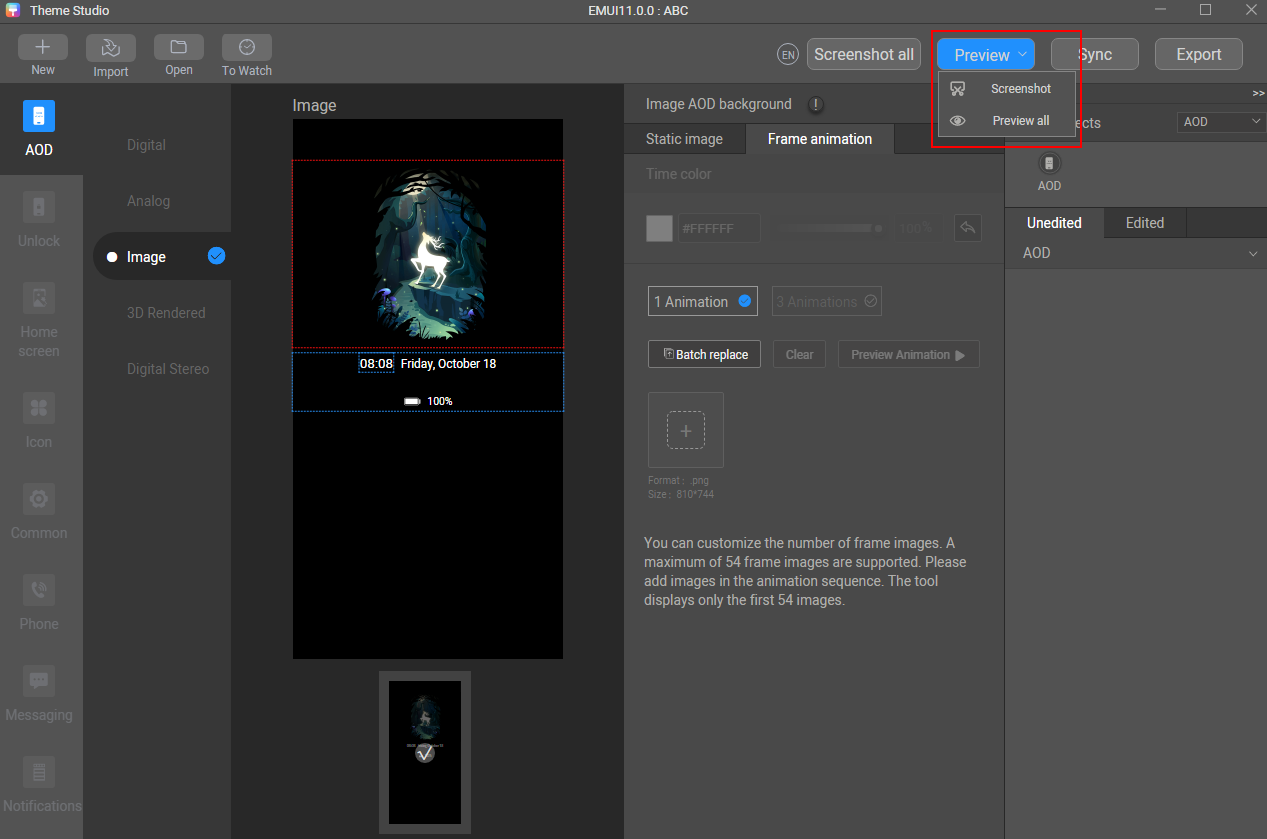
- Take a screenshot to generate a preview effect, and upload the design concept image to replace preview_aod_2.jpg.
- Export the theme package.
5. Self-Check
To pass our review quickly, you need to perform the following operations before uploading your AOD theme to HUAWEI Developers:
- Perform checks according to AOD self-check specifications.
- Check black pixels via Theme Studio and modify your images as prompted. Ensure that the ratio of non-black pixels to the total pixels on the screen is less than 15%.
6. Theme Upload
After the self-check is complete, upload the AOD theme package to HUAWEI Developers for approval. For details, please refer to Uploading Phone Themes & AOD.
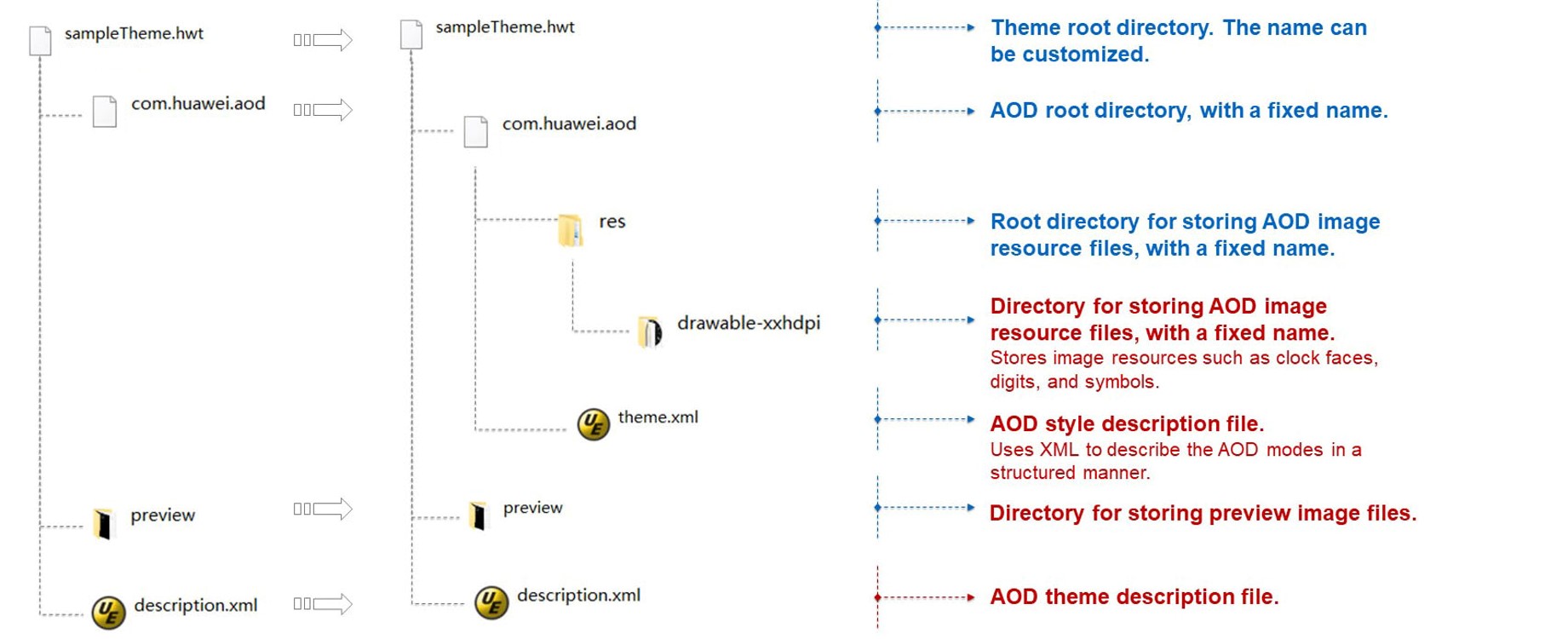
- Your AOD theme resources cannot be packaged by Theme Studio.
- You need to modify a single item of the AOD theme.
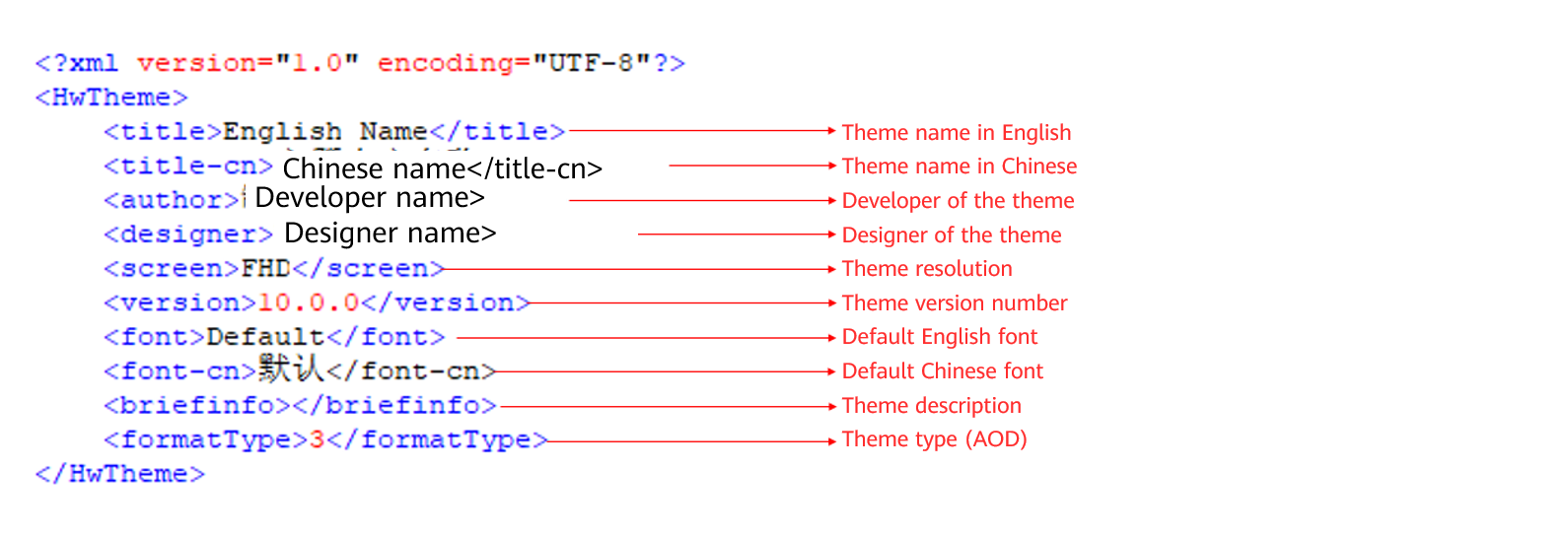

The theme name (both in English and Chinese), developer name, and designer name cannot be changed after the theme is released.
The designer name must be the same as your account name on HUAWEI Developers.
The theme resolution and theme font (both in English and Chinese) are set at the default value and cannot be changed.
The version number of your theme is 10.0.0 and can be 10.0.X for any further updates (X should be an Arabic numeral). For image AOD and 3D rendered AOD, name the first version 10.0.100 and later versions 10.0.10X (X should be an Arabic numeral). For dynamic AOD, name the first version 11.0.0 and later versions 11.0.X (X should be an Arabic numeral).
[h2]7.4 Preview Image
- When you tailor the preview images for display in HUAWEI Themes, do not tailor the safe zone of your preview images as your design elements are within the scope. The safe zones can be seen in the following figure.
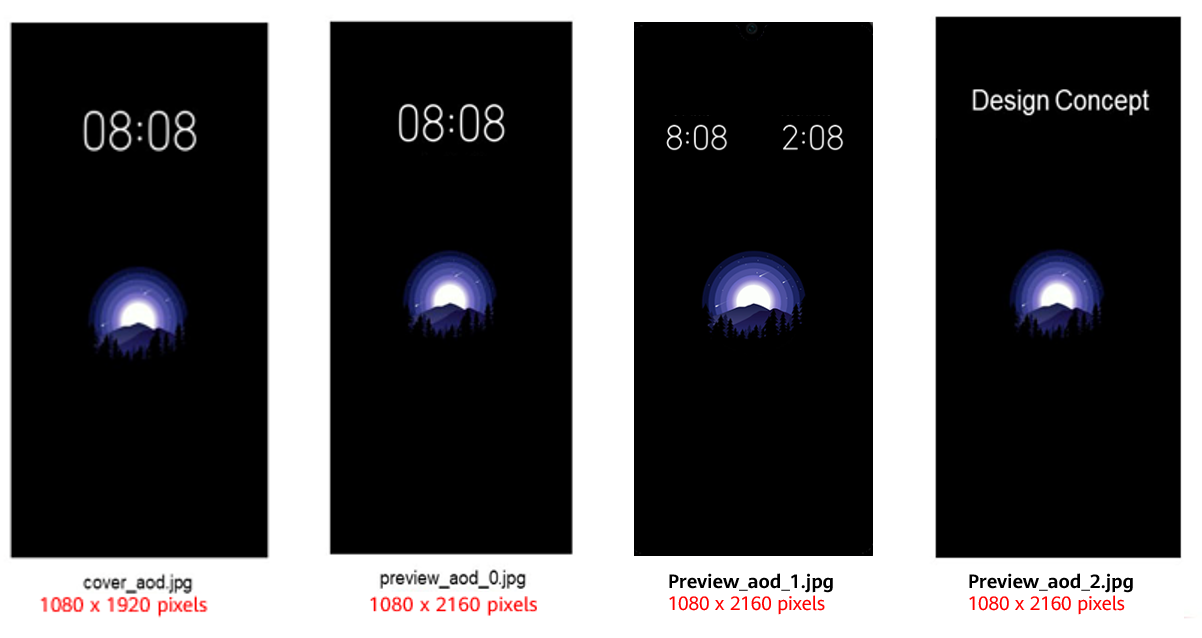
- The preview folder contains the following files:
cover_aod.jpg: It is used as the preview images in the AOD area of HUAWEI Themes.
preview_aod_0.jpg and preview_aod_1.jpg: They are used as the detail images in the AOD theme of HUAWEI Themes.
preview_aod_2.jpg: It is the designer concept image that is displayed when the screen is off.