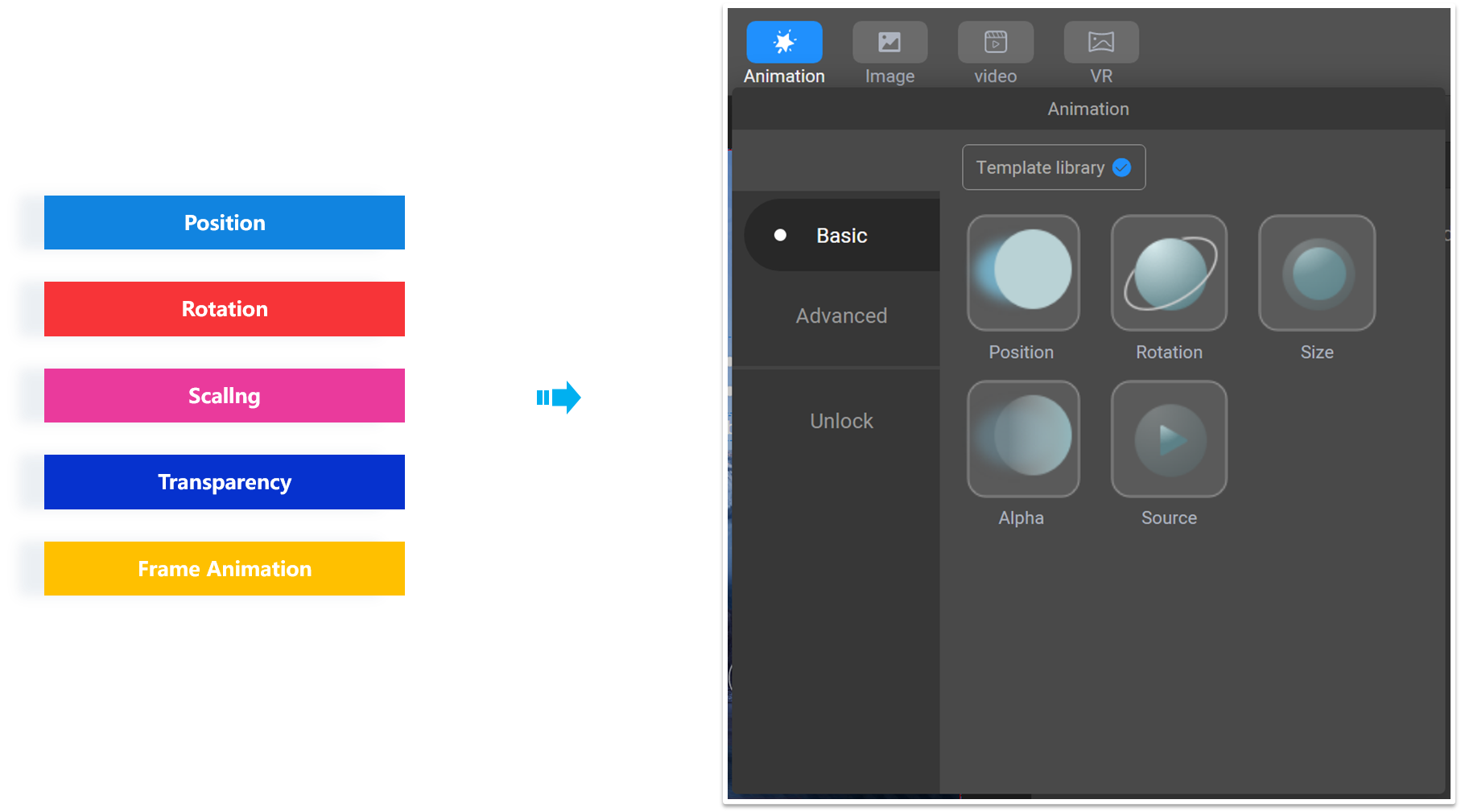
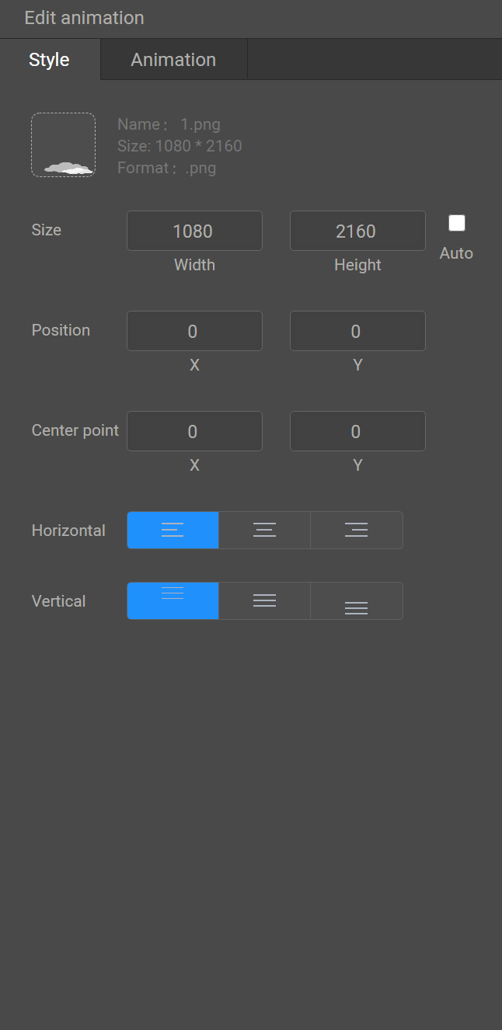
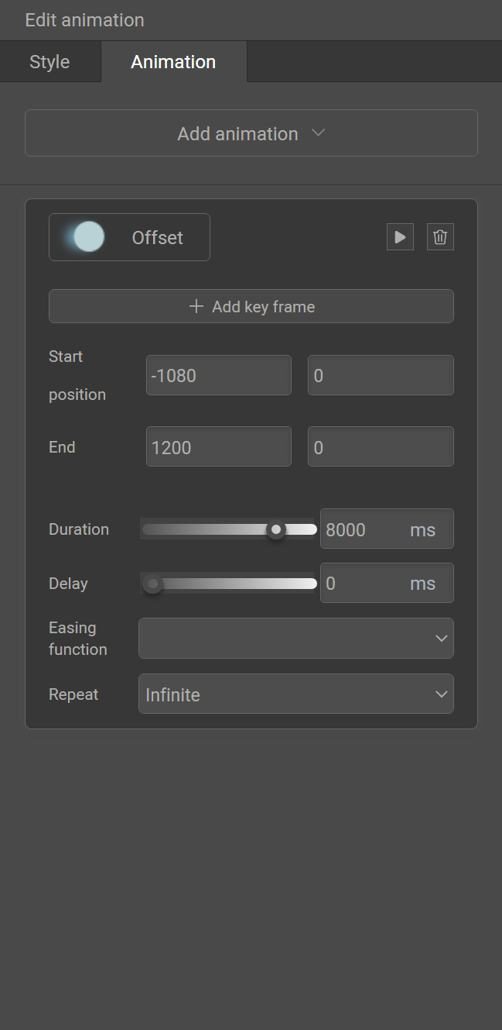
Example 1: The image positon animation changes from 0 ms to 8000 ms from (-1080, 0) to (1200, 0).
<Image src="1.png" pivotX="0" pivotY="0" w="1080" h="2160" align="left" alignV="top" x="0" y="0" >
<PositionAnimation repeat="0" delay="0" >
<Position x="-1080" y="0" time="0" />
<Position x="1200" y="0" time="8000" />
</PositionAnimation>
</Image>
Basic command, can be used to implement the animation rotation effect.
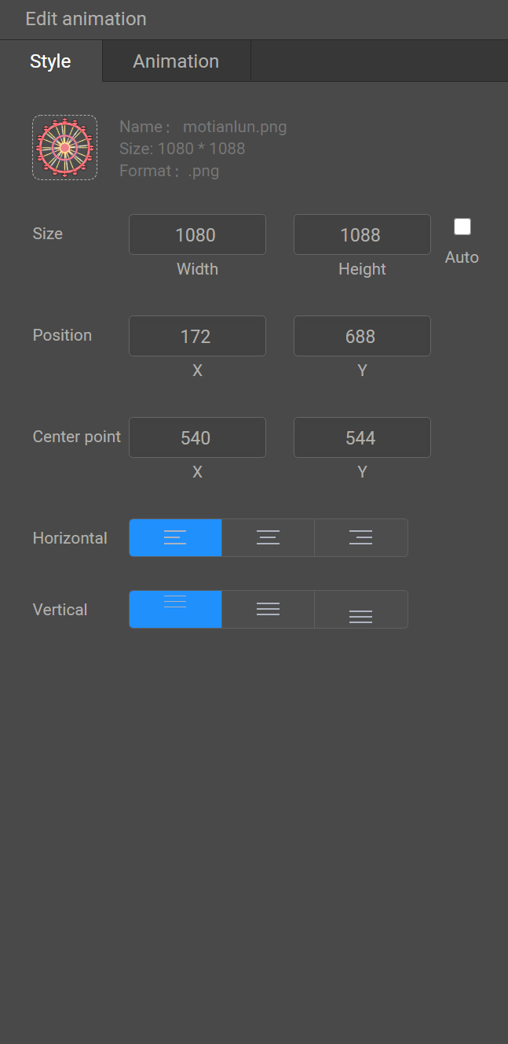
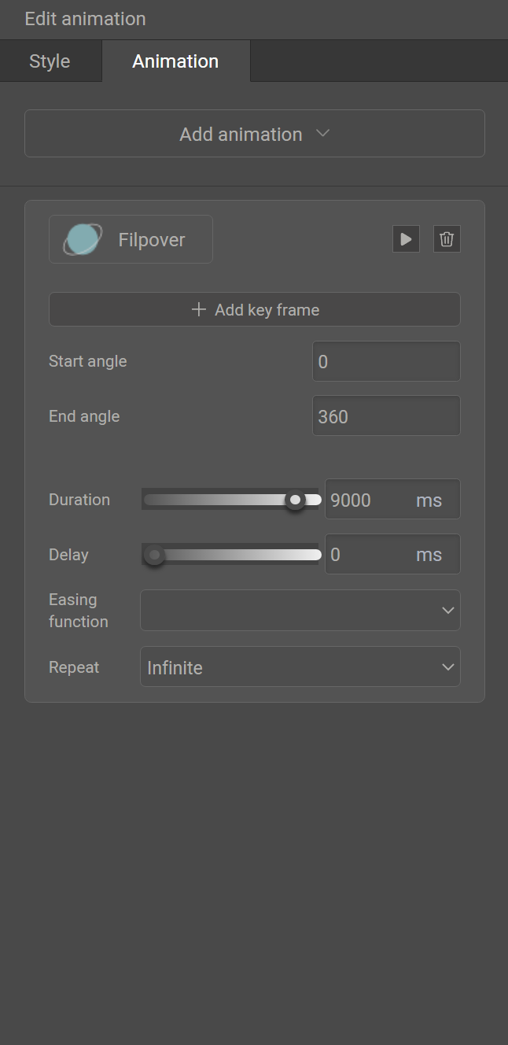
Example 1: Image rotation animation. The image rotation angle is updated in each frame. For example, when the value ranges from 0 ms to 9000 ms, the clockwise rotation angle of the image increases from 0 to 360 ms.
<Image x="172" y="688" src="motianlun.png" pivotX="540" pivotY="544" w="1080" h="1088" align="left" alignV="top" >
<RotationAnimation repeat="0" delay="0" >
<Rotation angle="0" time="0" />
<Rotation angle="360" time="9000" />
</RotationAnimation>
</Image>
Example 1: Image scaling animation, and the image size is updated each frame. For example, the image size increases from (126, 100) to (139, 110) when the value ranges from 0 ms to 600 ms.
<Image x="269" y="887" src="zuo.png" pivotX="63" pivotY="50" w="126" h="100" align="left" alignV="top" >
<SizeAnimation repeat="0" delay="0" >
<Size w="126" h="100" time="0" />
<Size w="139" h="110" time="600" />
</SizeAnimation>
</Image>
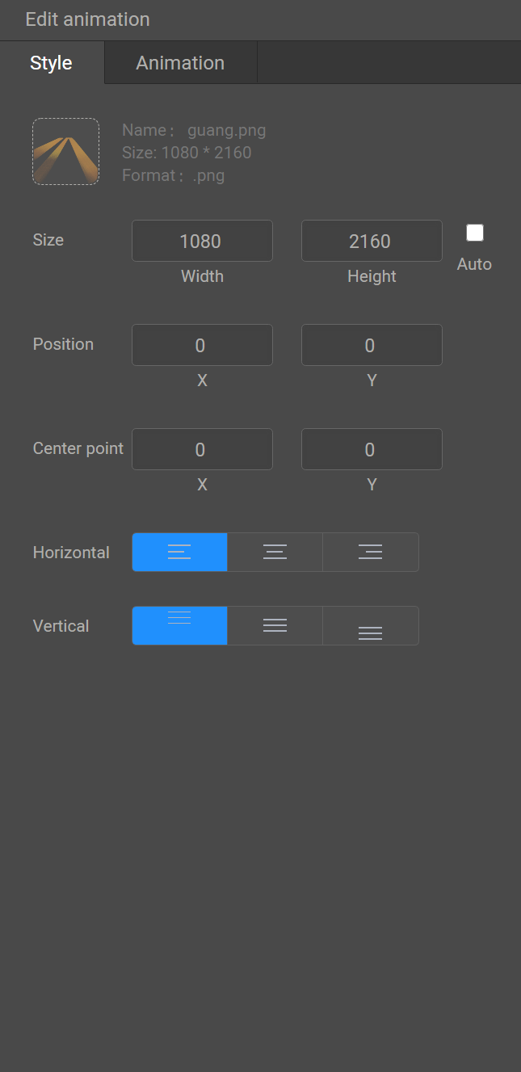
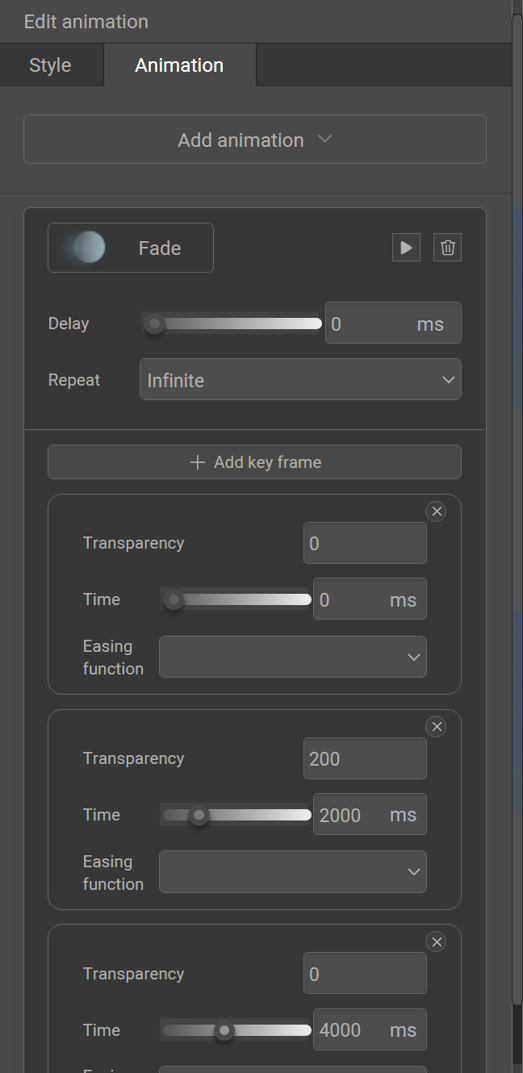
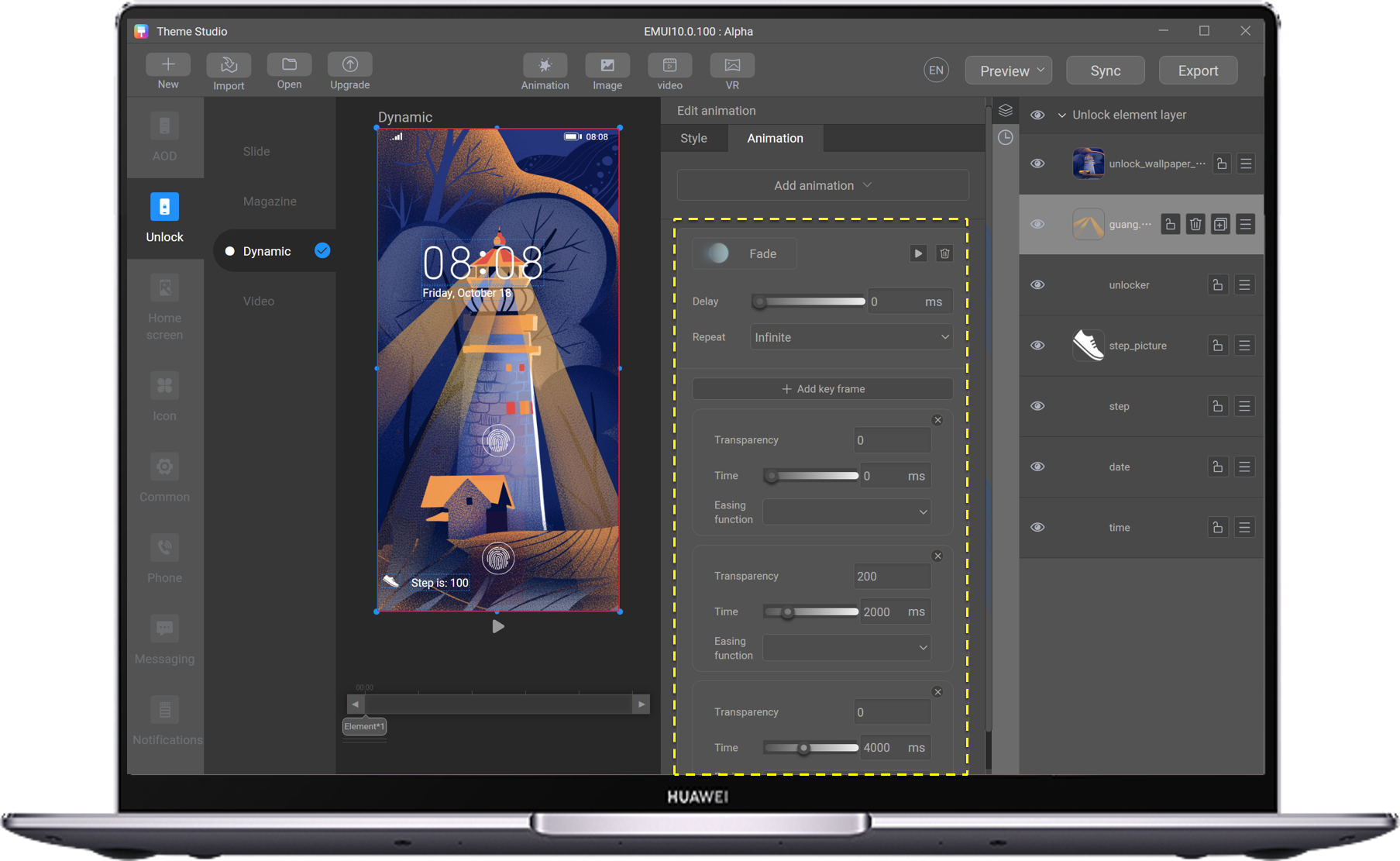
Example 1: Transparent animation of an image. The transparency changes from 0 ms to 200 ms and from 2000 ms to 4000 ms from 200 ms to 0.
<Image x="0" y="0" src="guang.png" pivotX="0" pivotY="0" w="1080" h="2160" align="left" alignV="top" >
<AlphaAnimation repeat="0" delay="0" >
<Alpha a="0" time="0" />
<Alpha a="200" time="2000" />
<Alpha a="0" time="4000" />
</AlphaAnimation>
</Image>
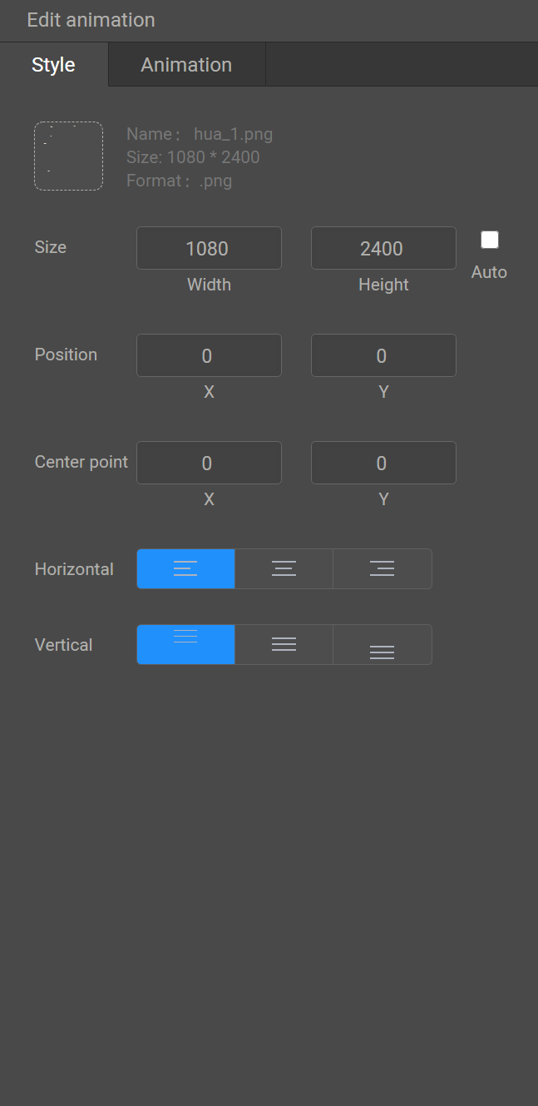
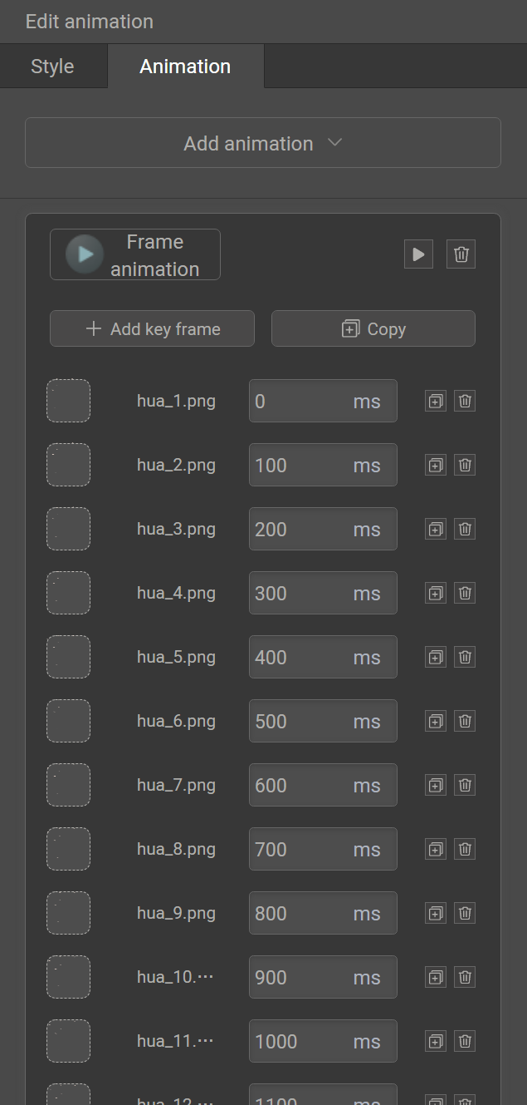
Example 1: Animation of a picture. The picture is updated each frame. For example, the image hua_1.png is changed to hua_117.png in the range from 0 to 11600 ms.
<Image x="0" y="0" pivotX="0" pivotY="0" align="left" alignV="top" src="hua_1.png" w="1080" h="2400" >
<SourcesAnimation repeat="0" delay="0" >
<Source time="0" src="hua_1.png" />
<Source time="100" src="hua_2.png" />
<Source time="200" src="hua_3.png" />
......
<Source time="11600" src="hua_117.png" />
</SourcesAnimation>
</Image>
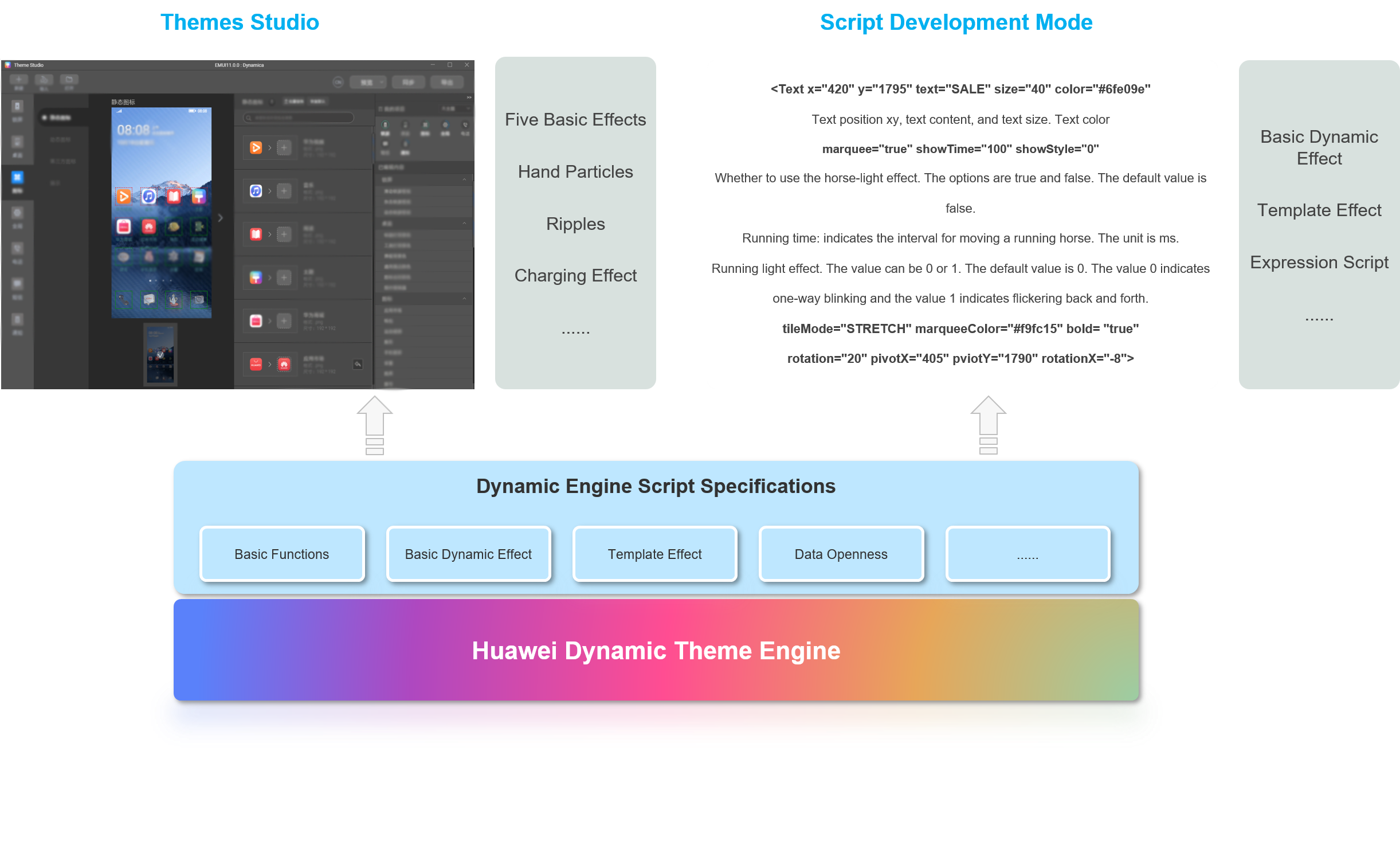
Double-click Theme Studio
Click New to create a project.
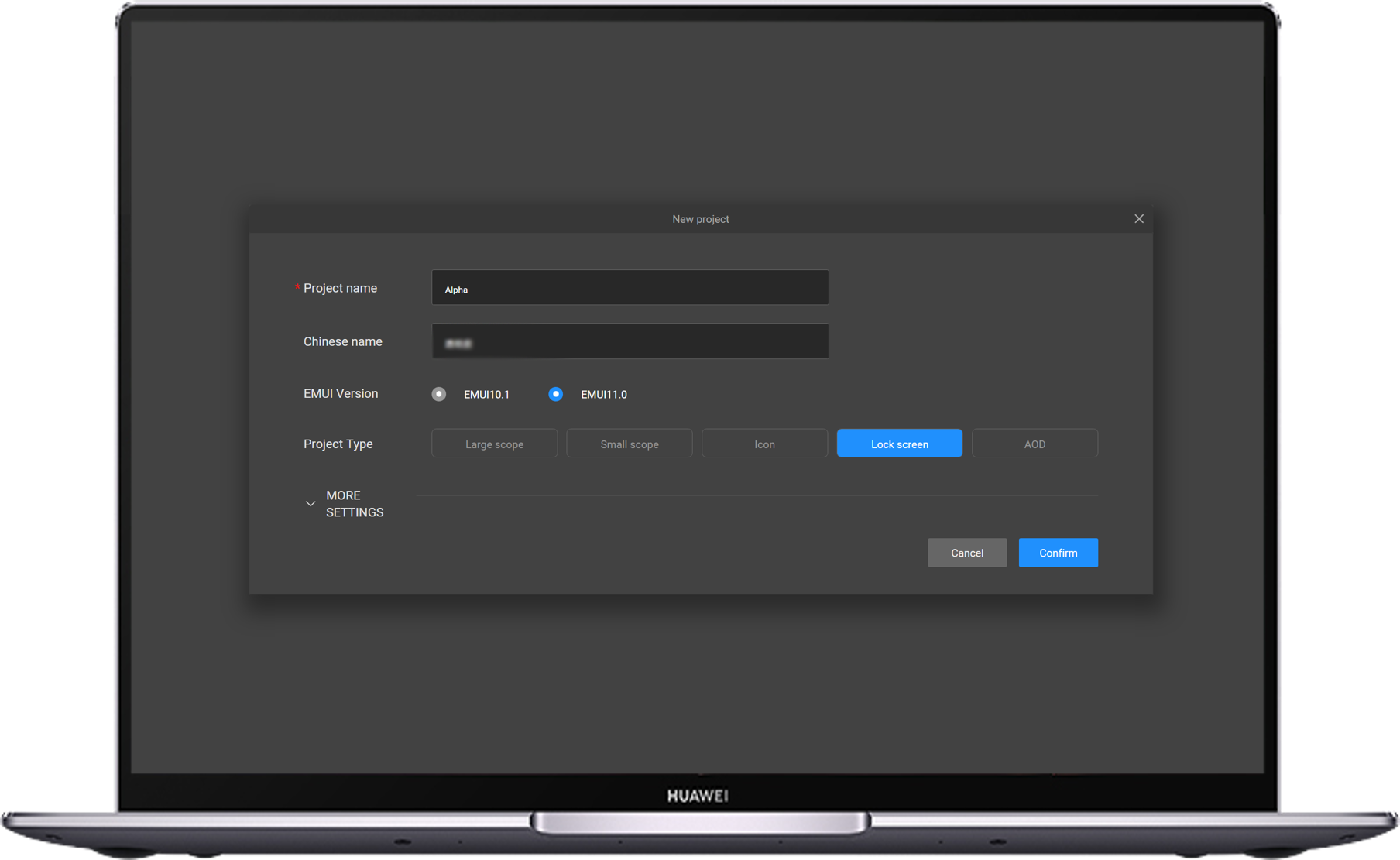
Enter the project name in English and Chinese, select the lock screen theme type, and click OK.
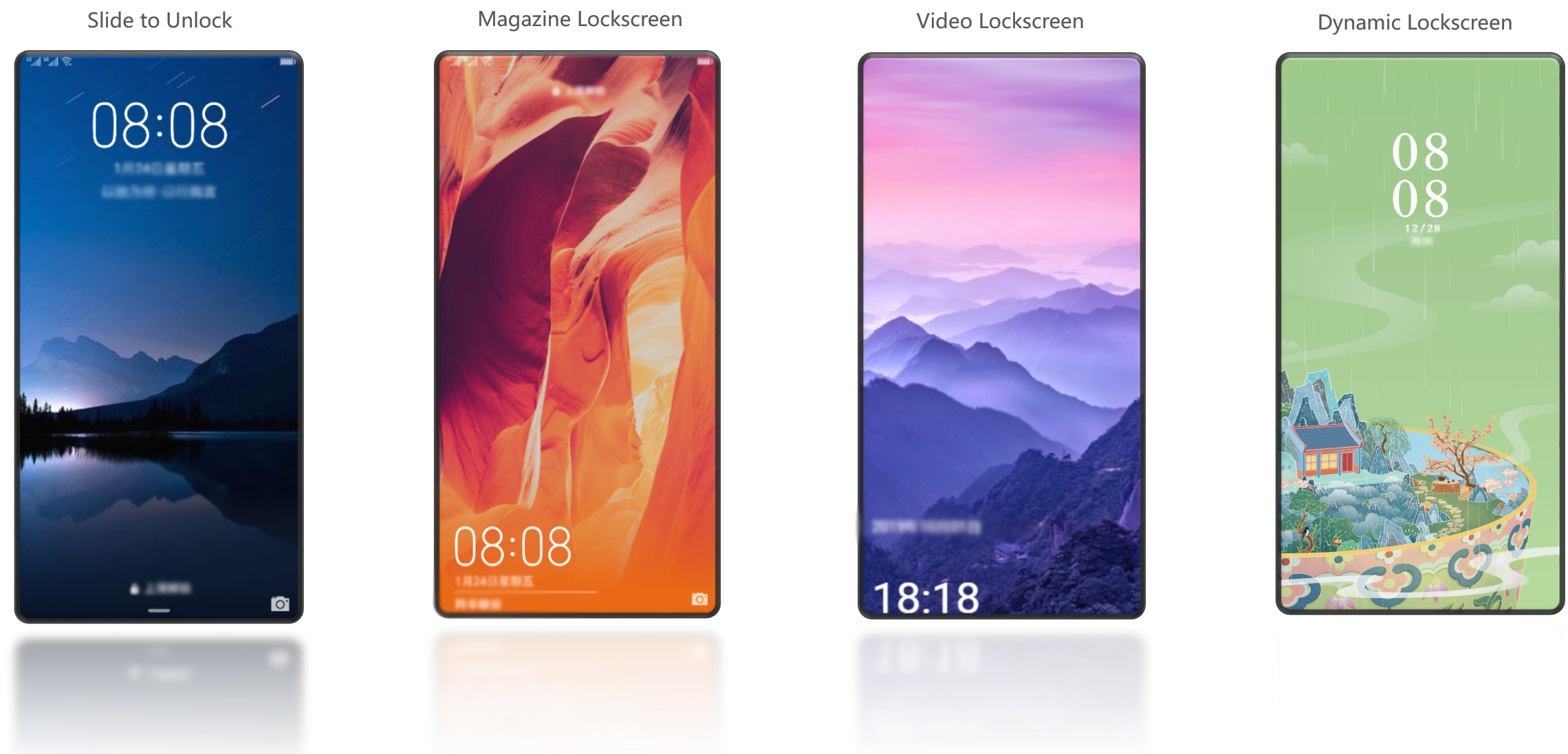
Select Dynamic lock screen and add a static lock screen wallpaper.
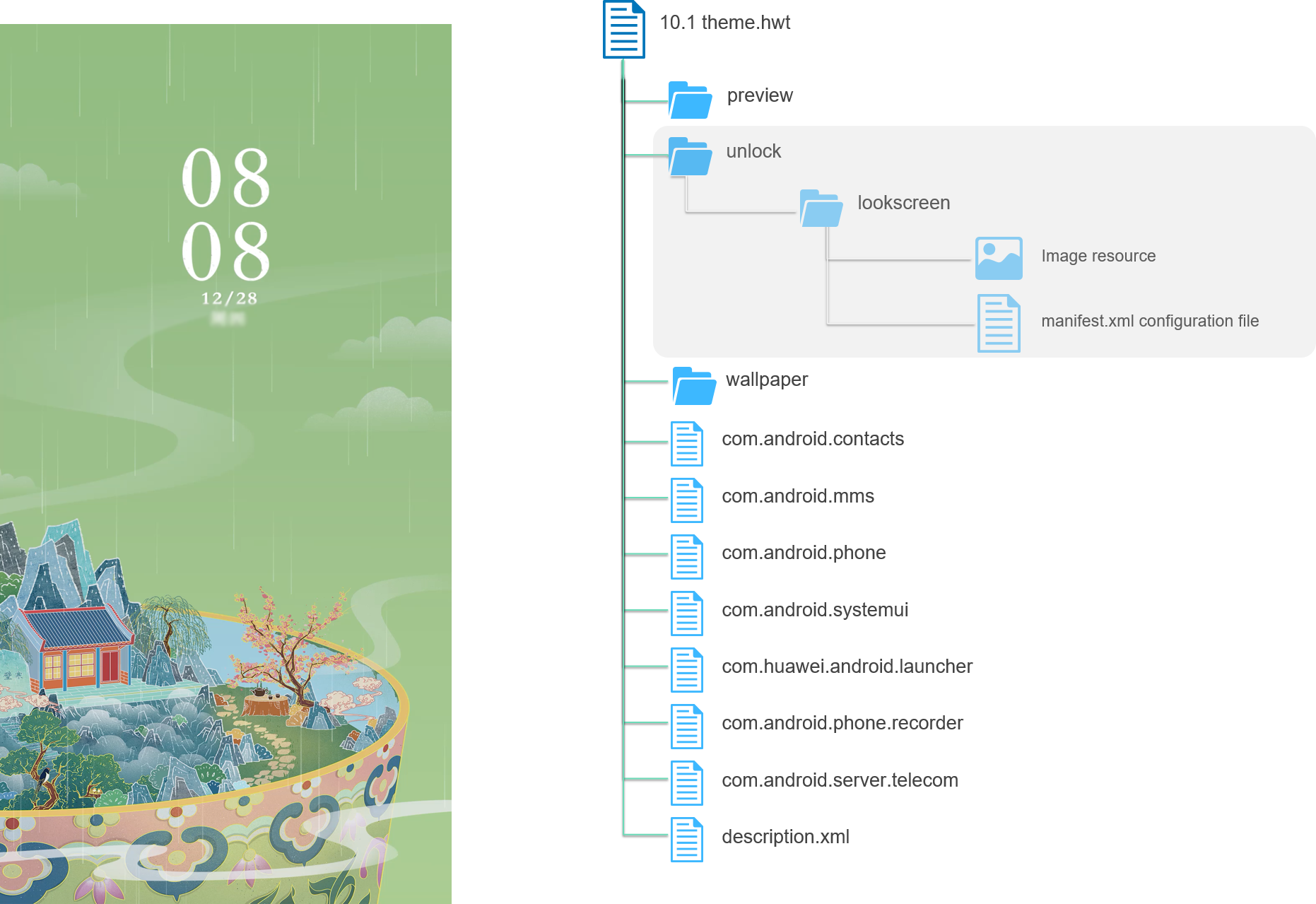
Note: The wallpaper size is 1080 x 2160 pixels. The memory size must be less than 1 MB.
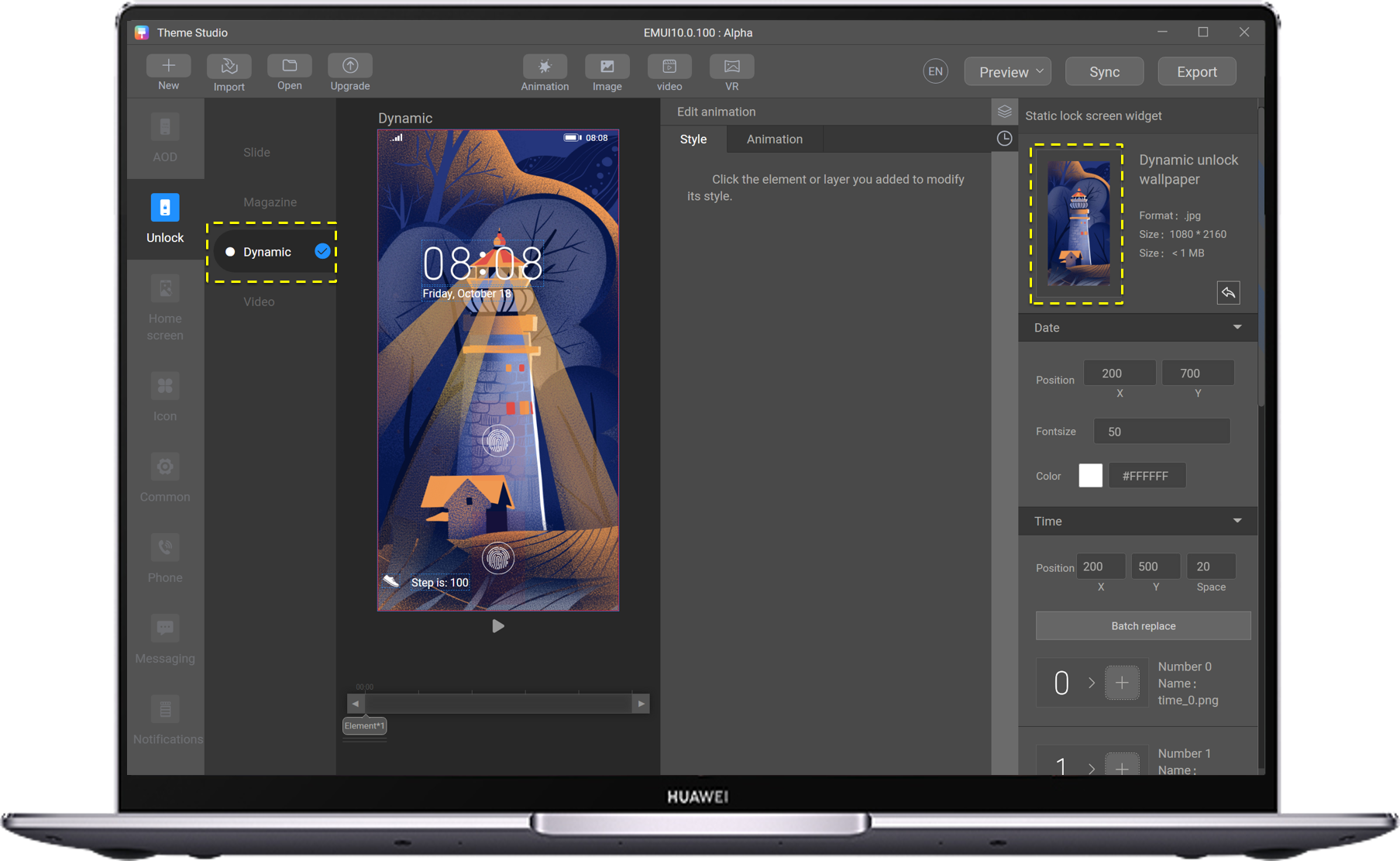
Add a static picture.
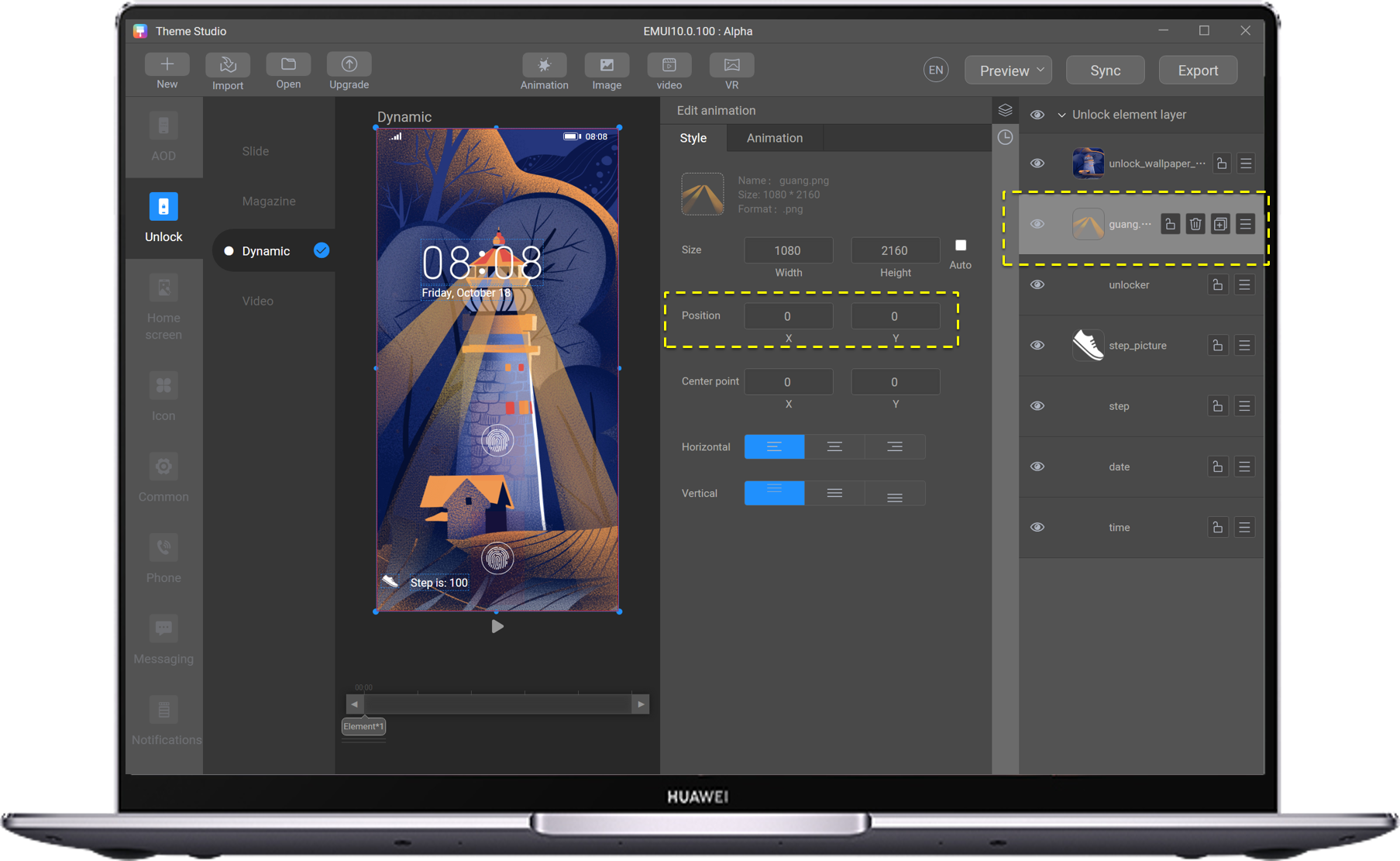
Add a guang.png static image and set the position of X to 0 and Y to 0.
Add a transparency animation (Fade) to the guang.png static picture. The animation contains three frames with an interval of 2000 ms. The transparency is 0, 200, and 0.
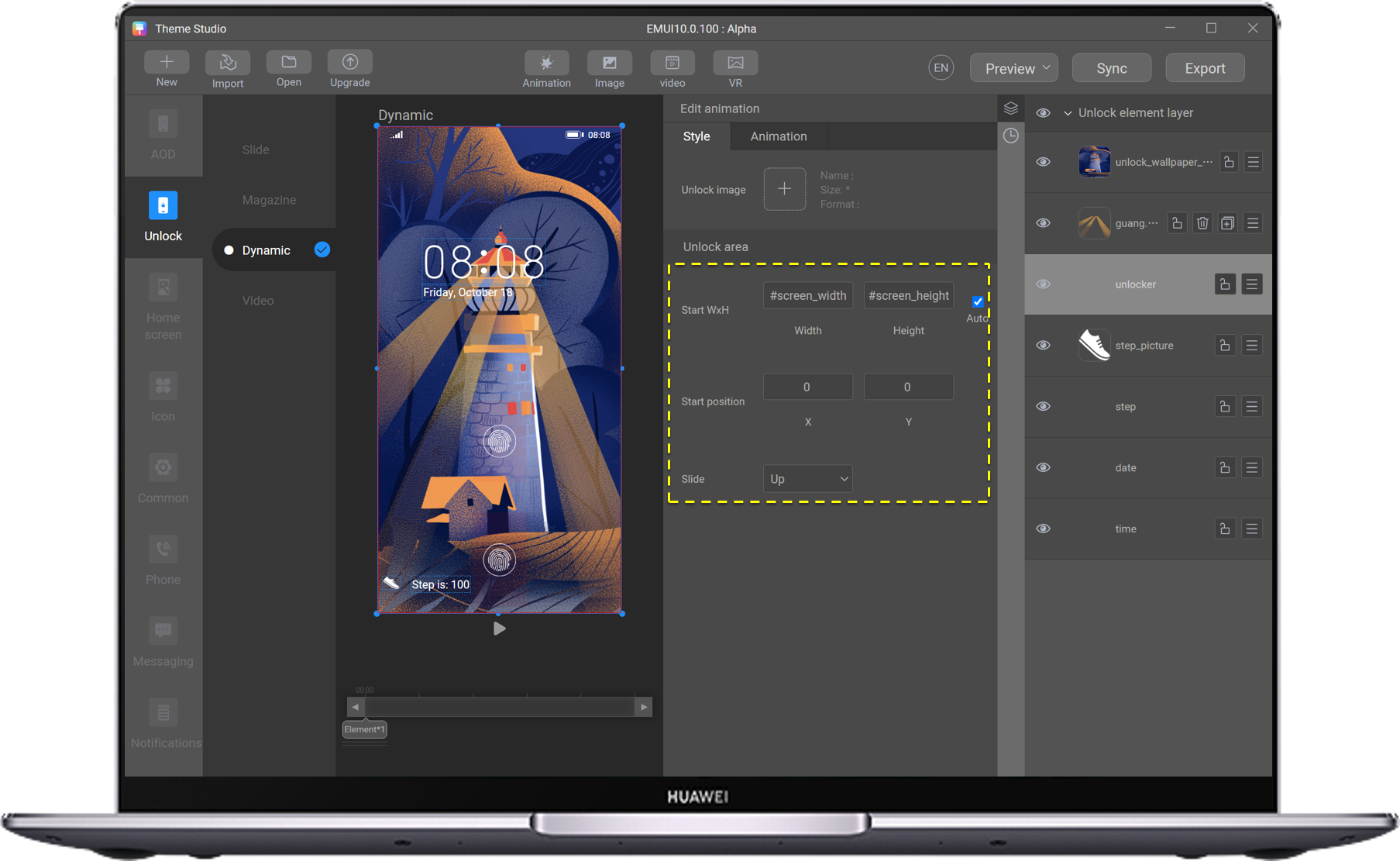
Set the screen lock and unlock mode.
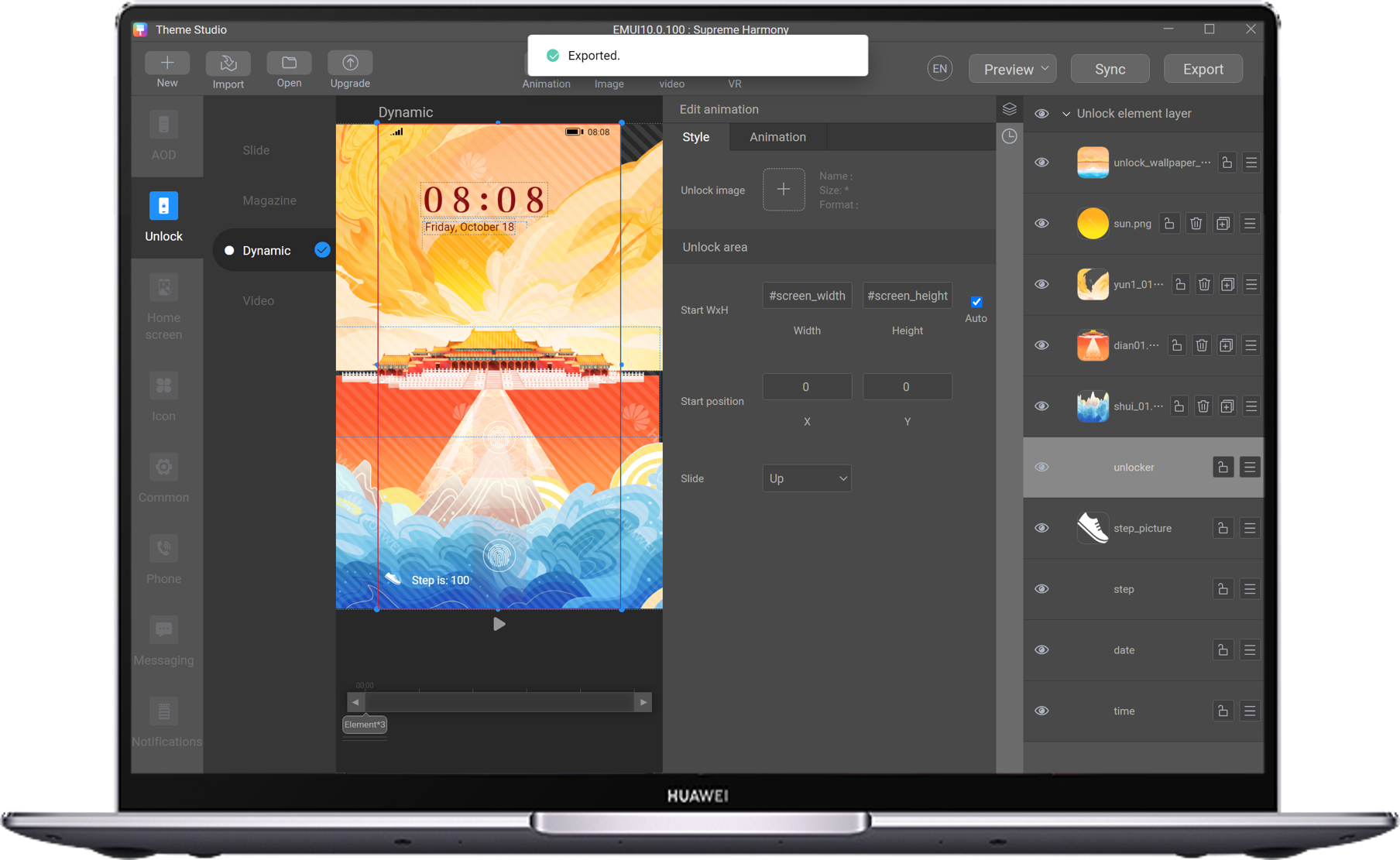
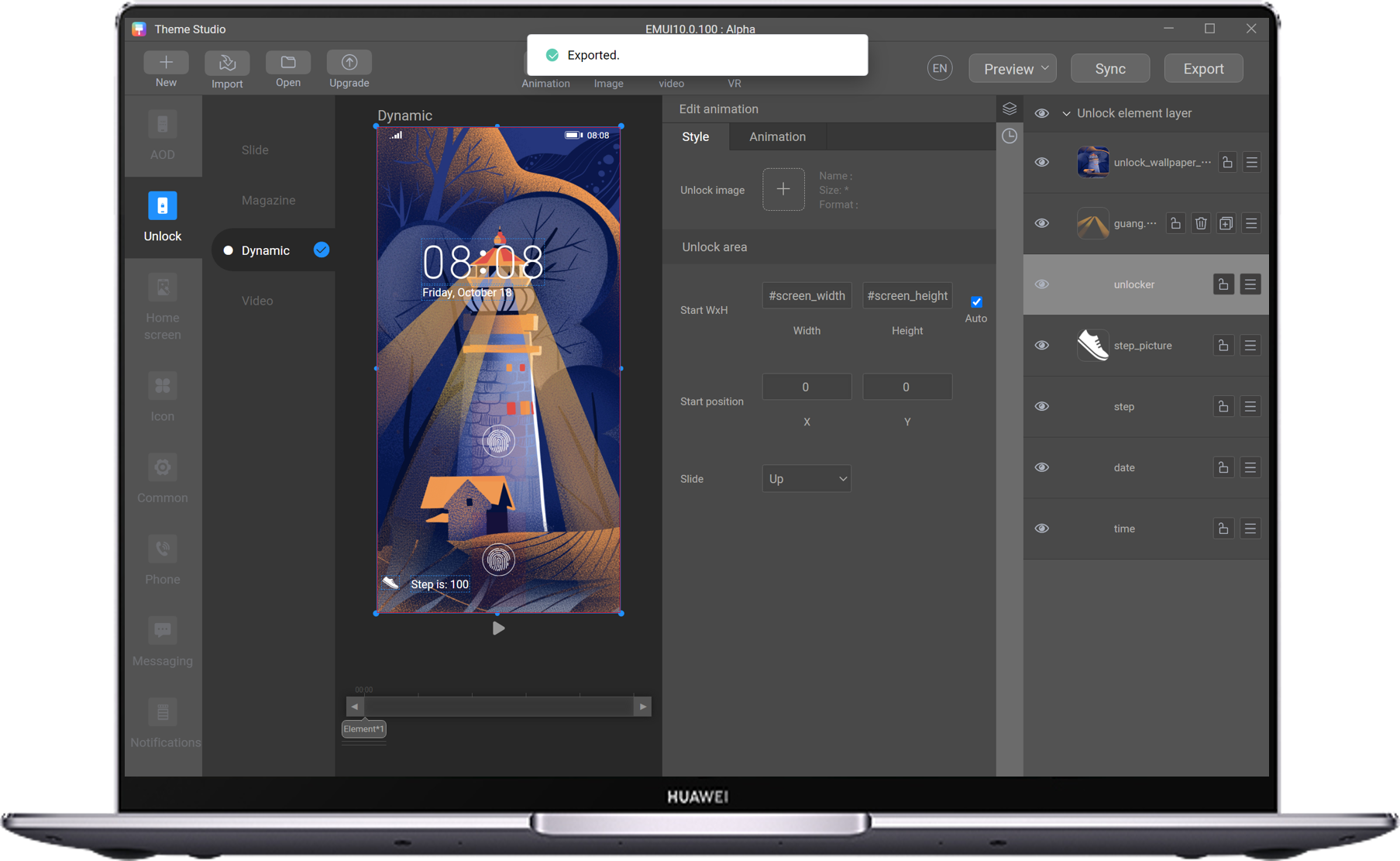
Select unlocker, set the Unlock area to fit the phone, position X to 0, and slide upward.
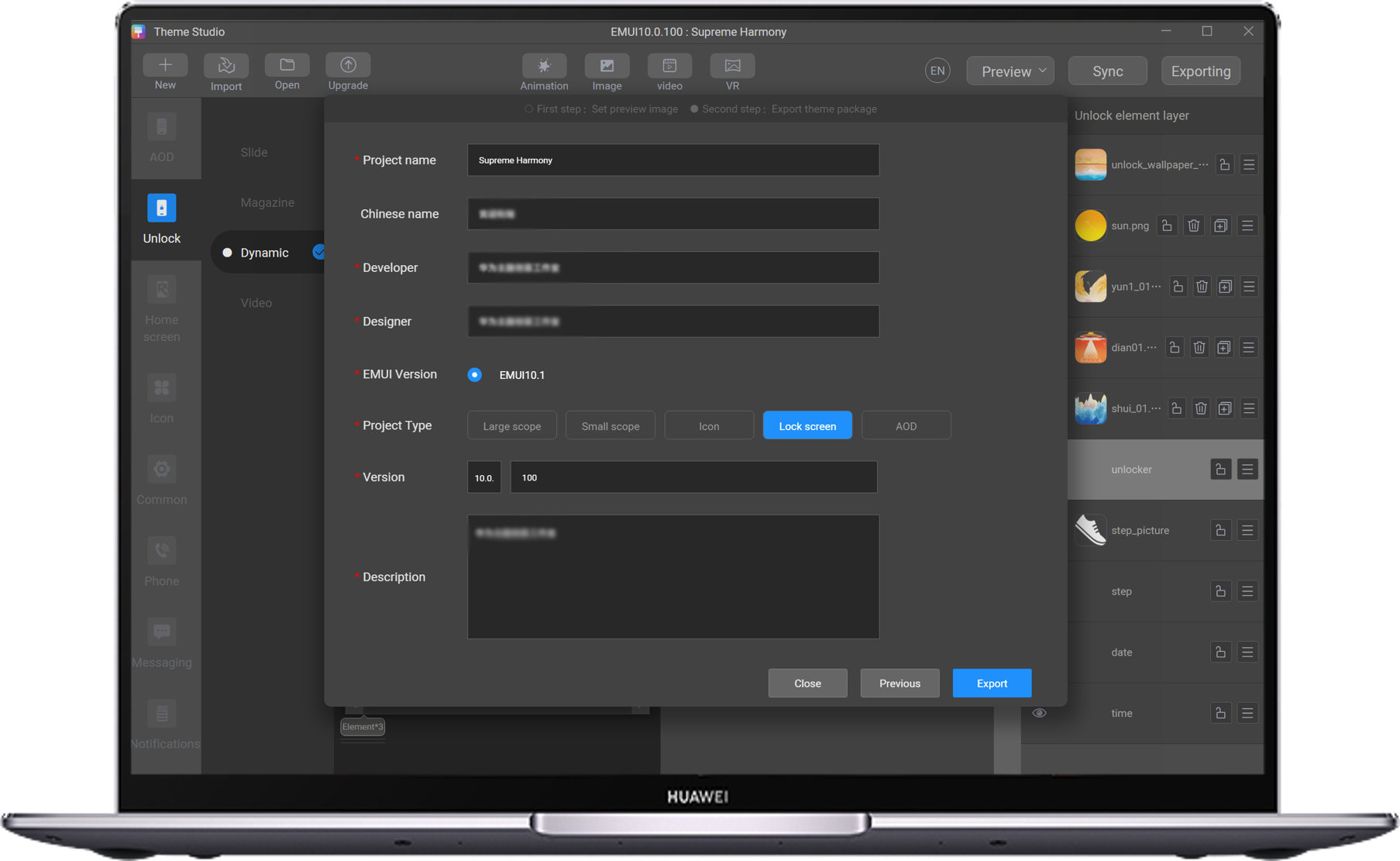
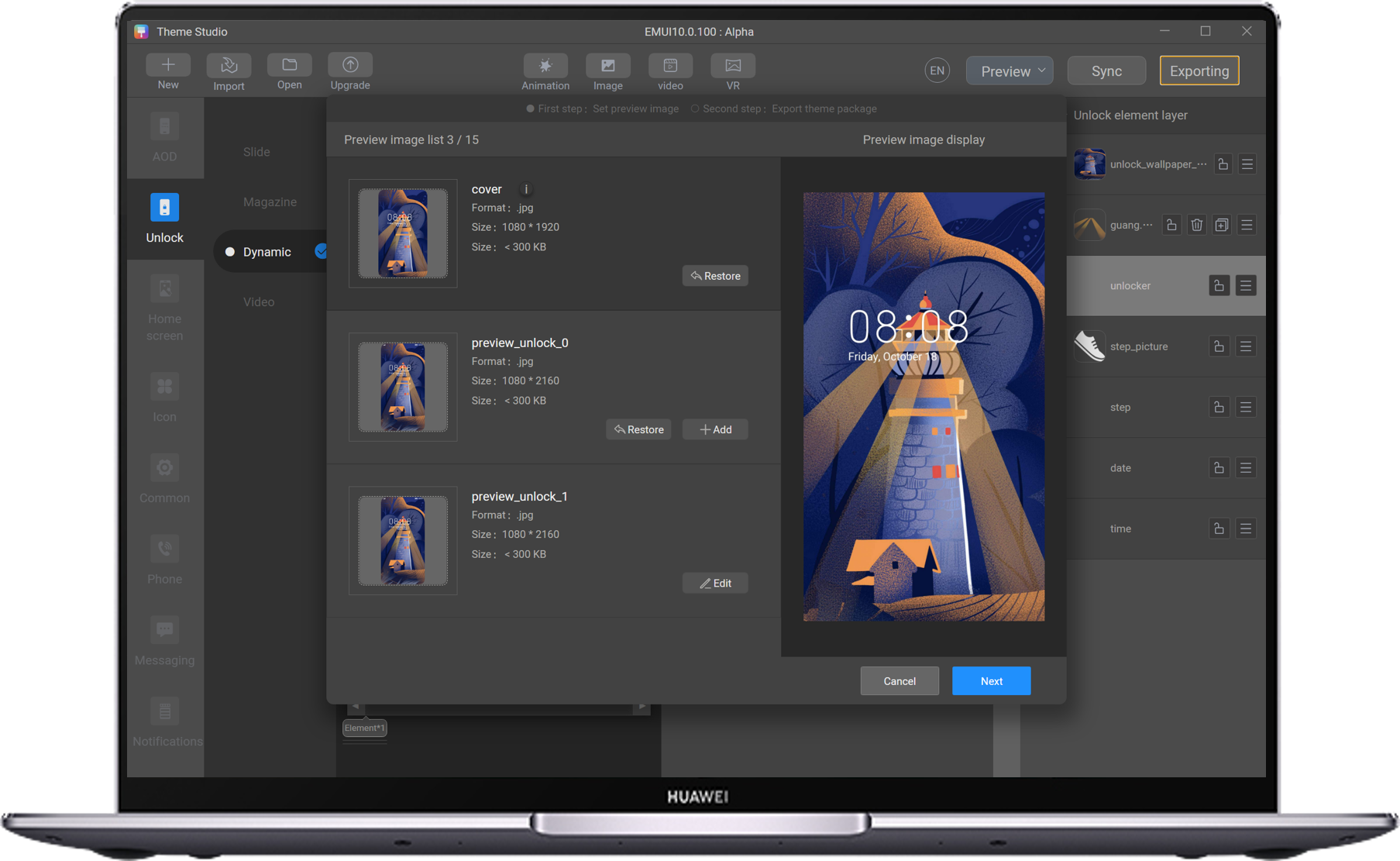
If no error is found, click Exporting, check and edit the preview image, and touch Next.
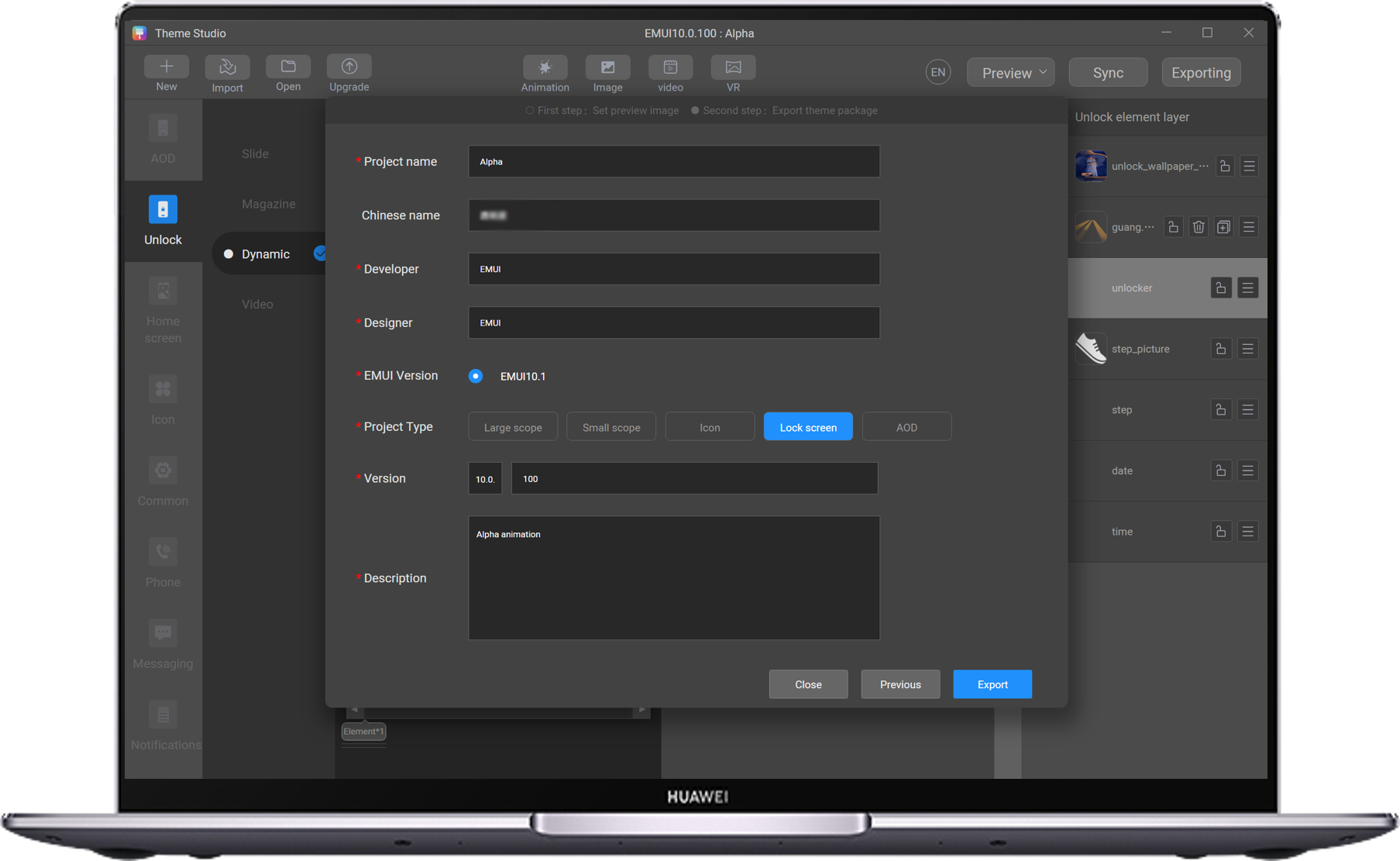
Enter and confirm the theme information, click Export, select the export path, and click OK.
Double-click Theme Studio
Click New to create a project.
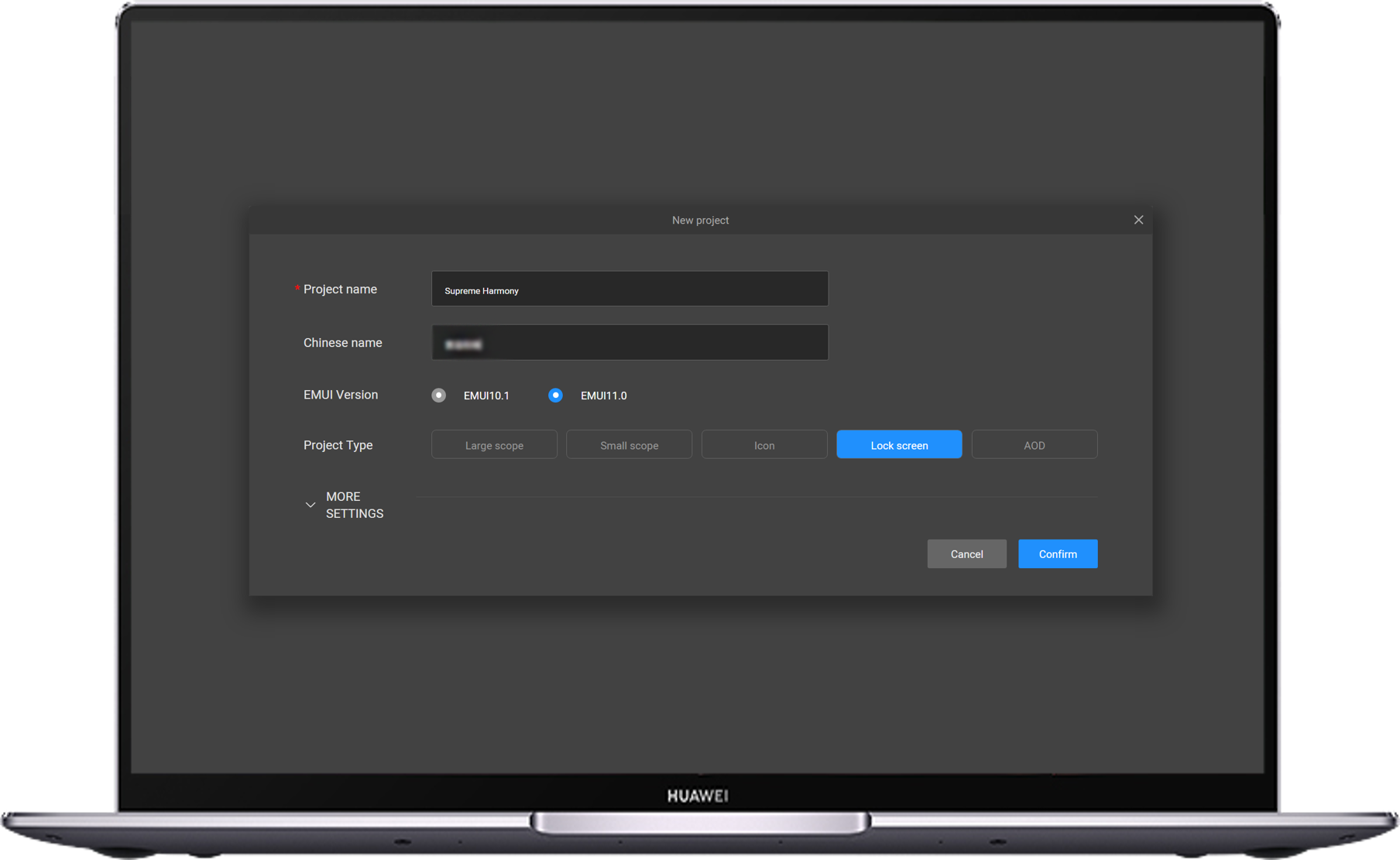
Enter the project name in English and Chinese, select the lock screen theme type, and click OK.
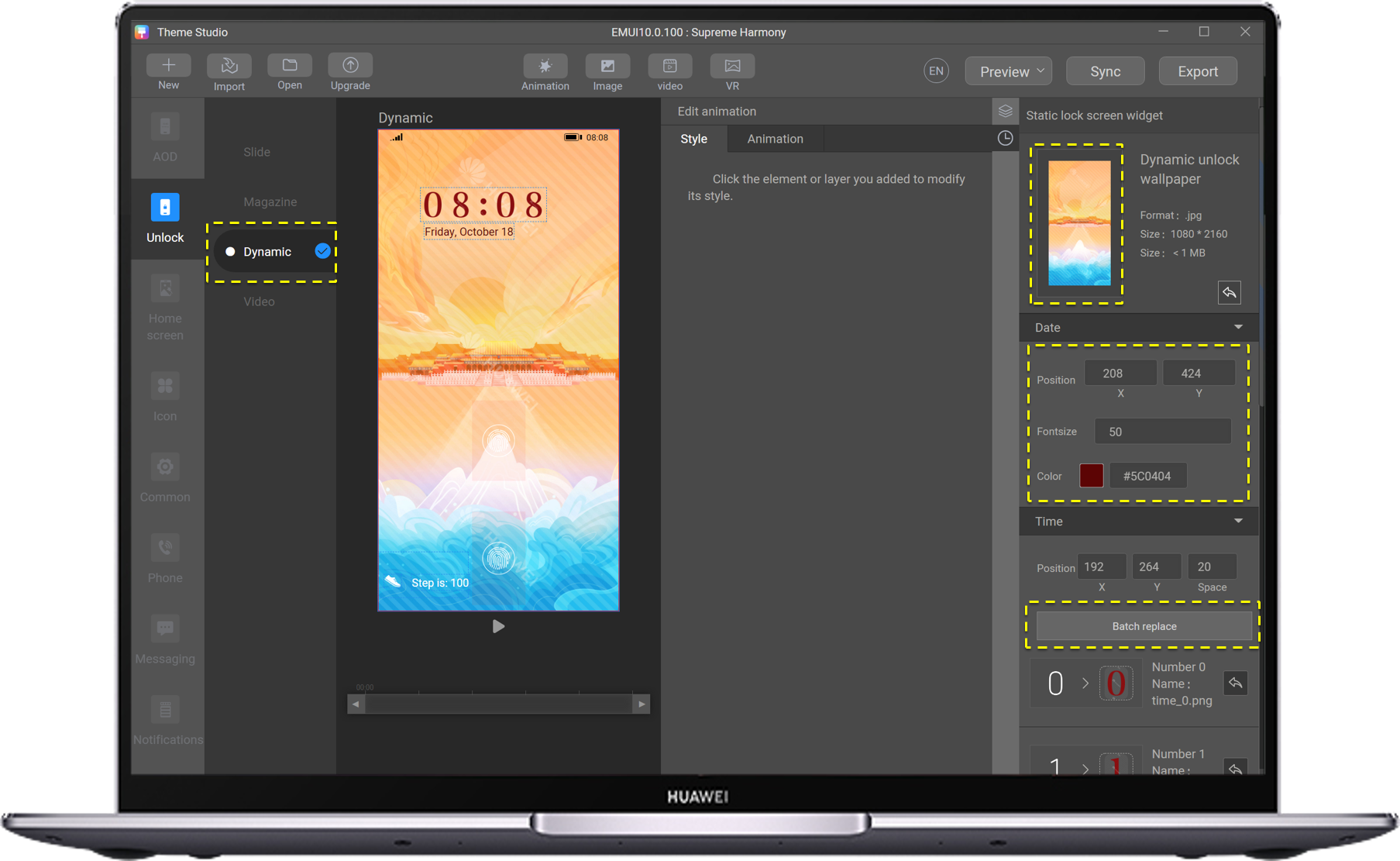
Select Dynamic lock screen and add a static wallpaper. The wallpaper size is 1080 x 2160 pixels and the memory size must be less than 1 MB.
Change the date style and time segment.
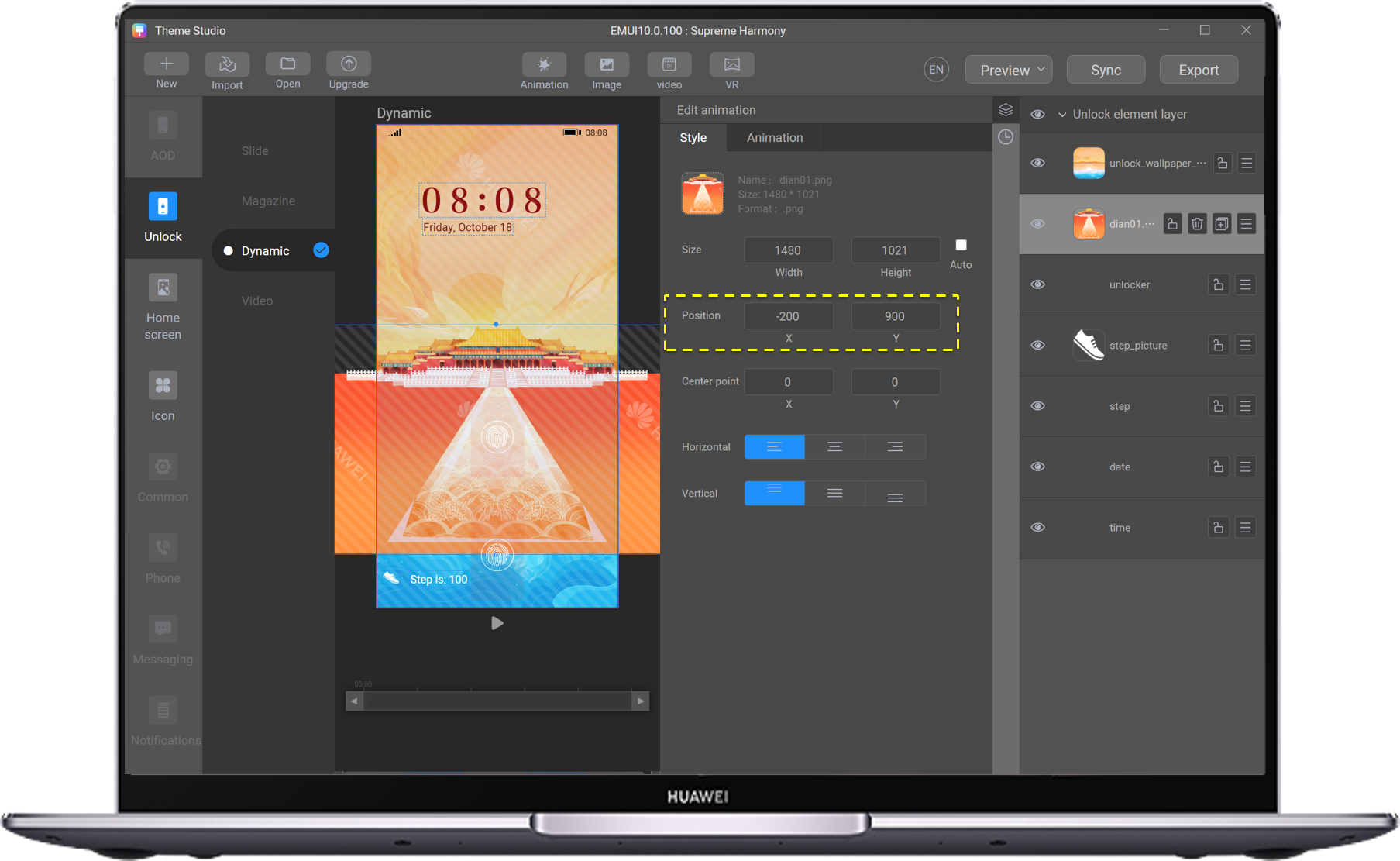
Add a static picture.
Add the static image dian01.jpg and set the position of X to -200 and Y to 900.
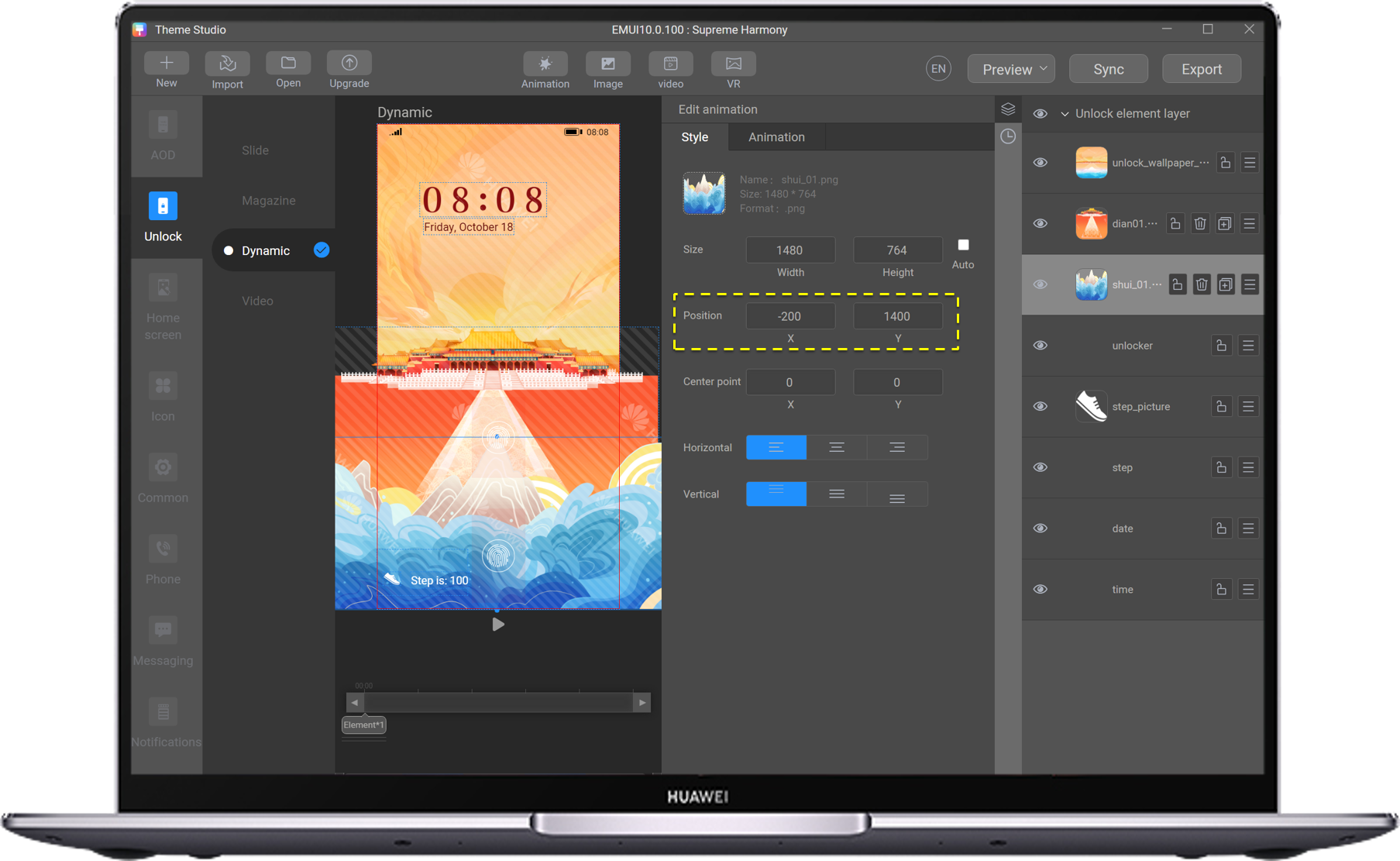
Add the basic animation effect of the wave frame.
Add the shui_01.png first image and set the position to X=-200 and Y=1400.
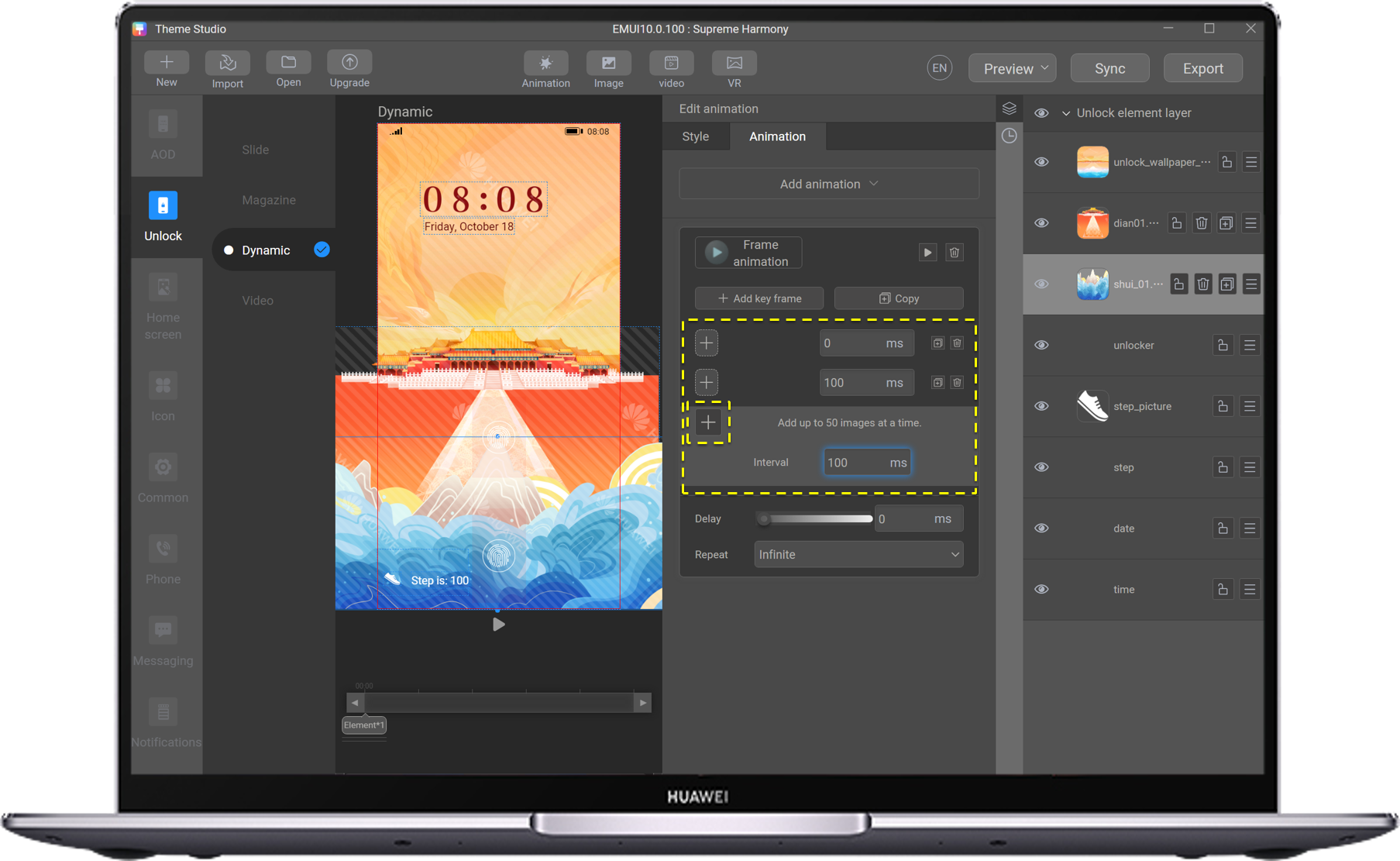
Add a frame animation to shui_01.png, set the interval to 100 ms, and add frame animations in batches.
(A maximum of 50 images can be selected at a time.)
Add the basic animation effect of the cloud frame.
Add the first image yun1_01.png and set the position to X=-200 and Y=0.
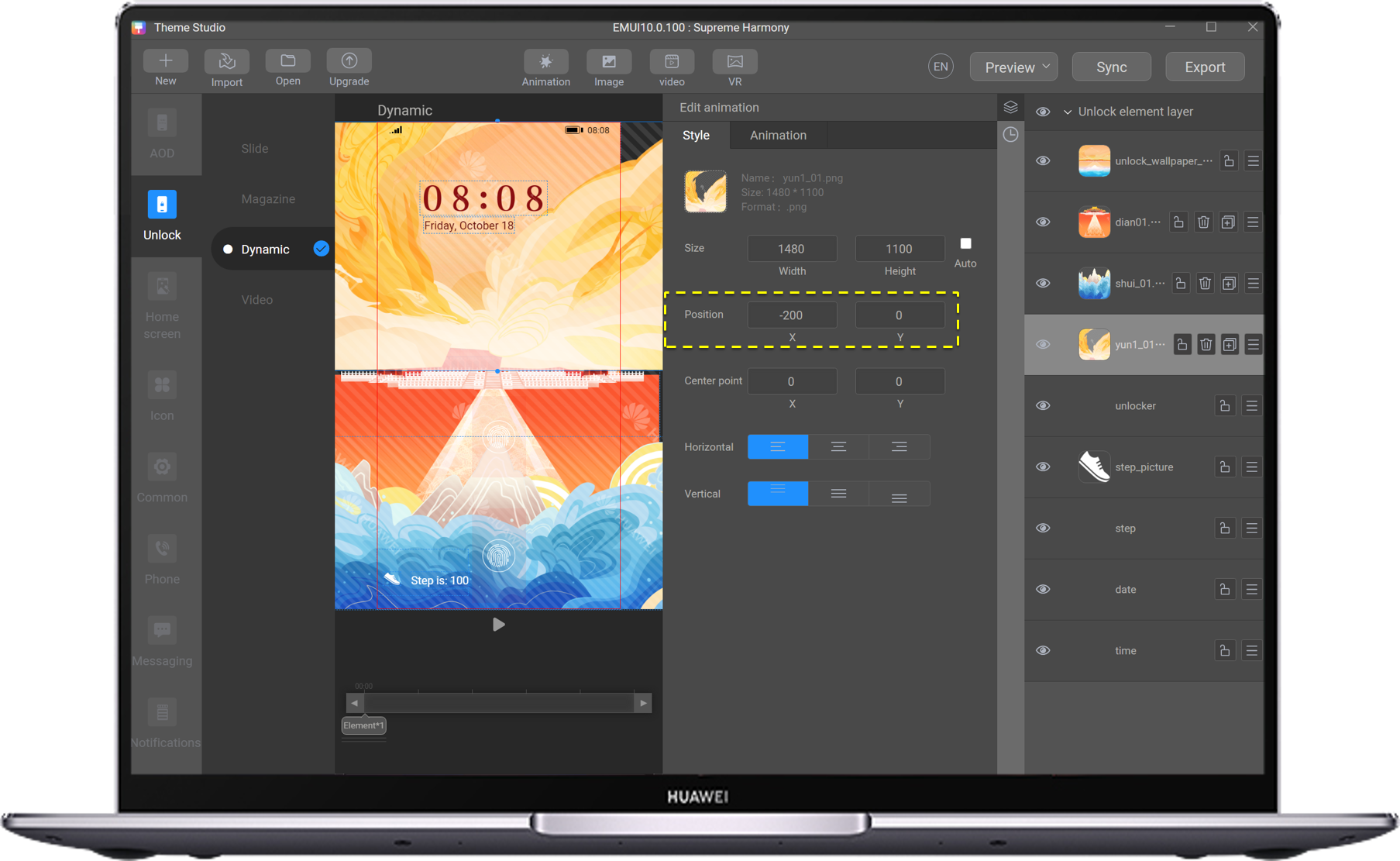
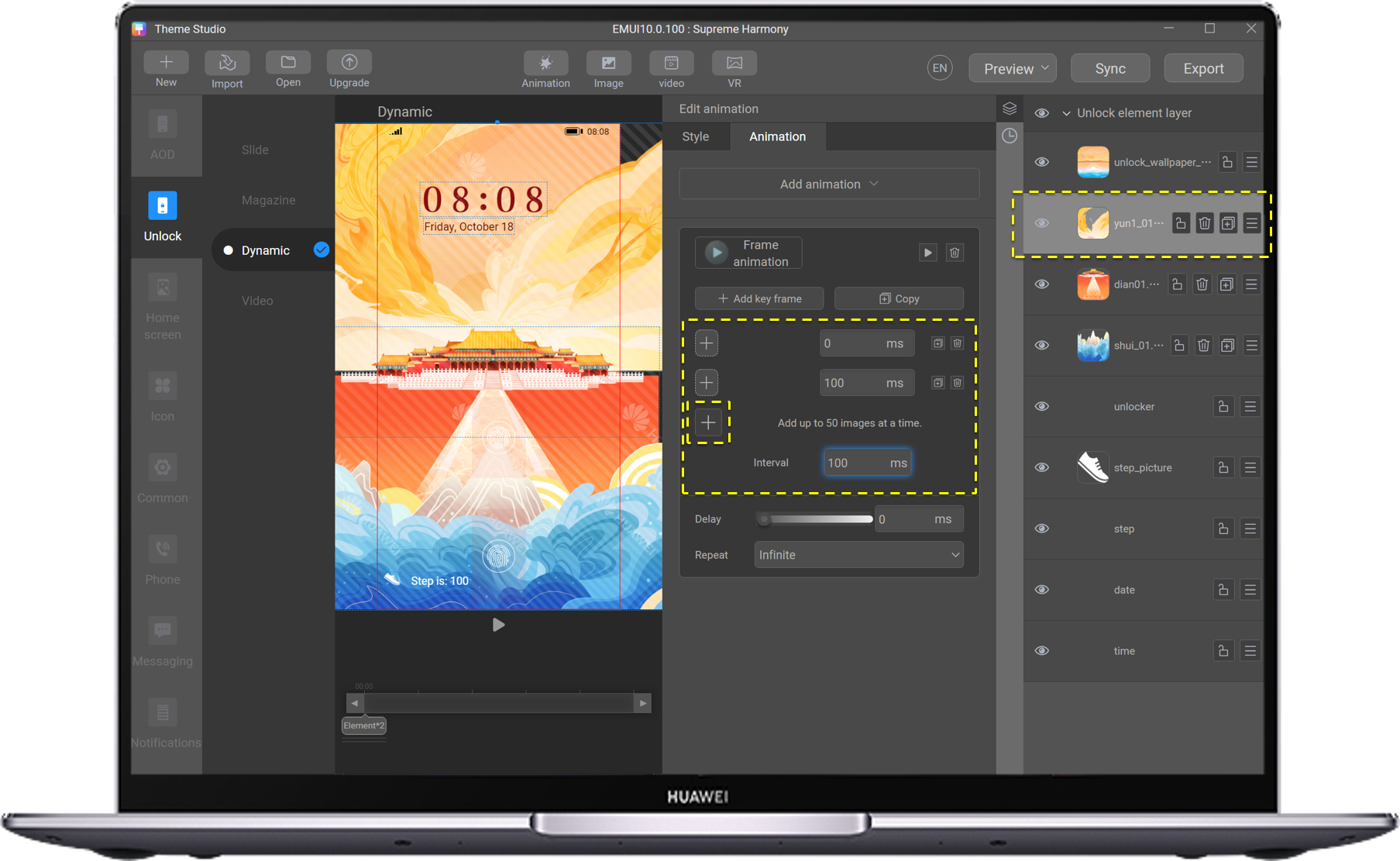
Adjust the auspicious cloud layer to the back of the palace. lAdd a frame animation to yun1_01.png, set the interval to 100 ms, and add frame animations in batches.
(A maximum of 50 images can be selected at a time.)
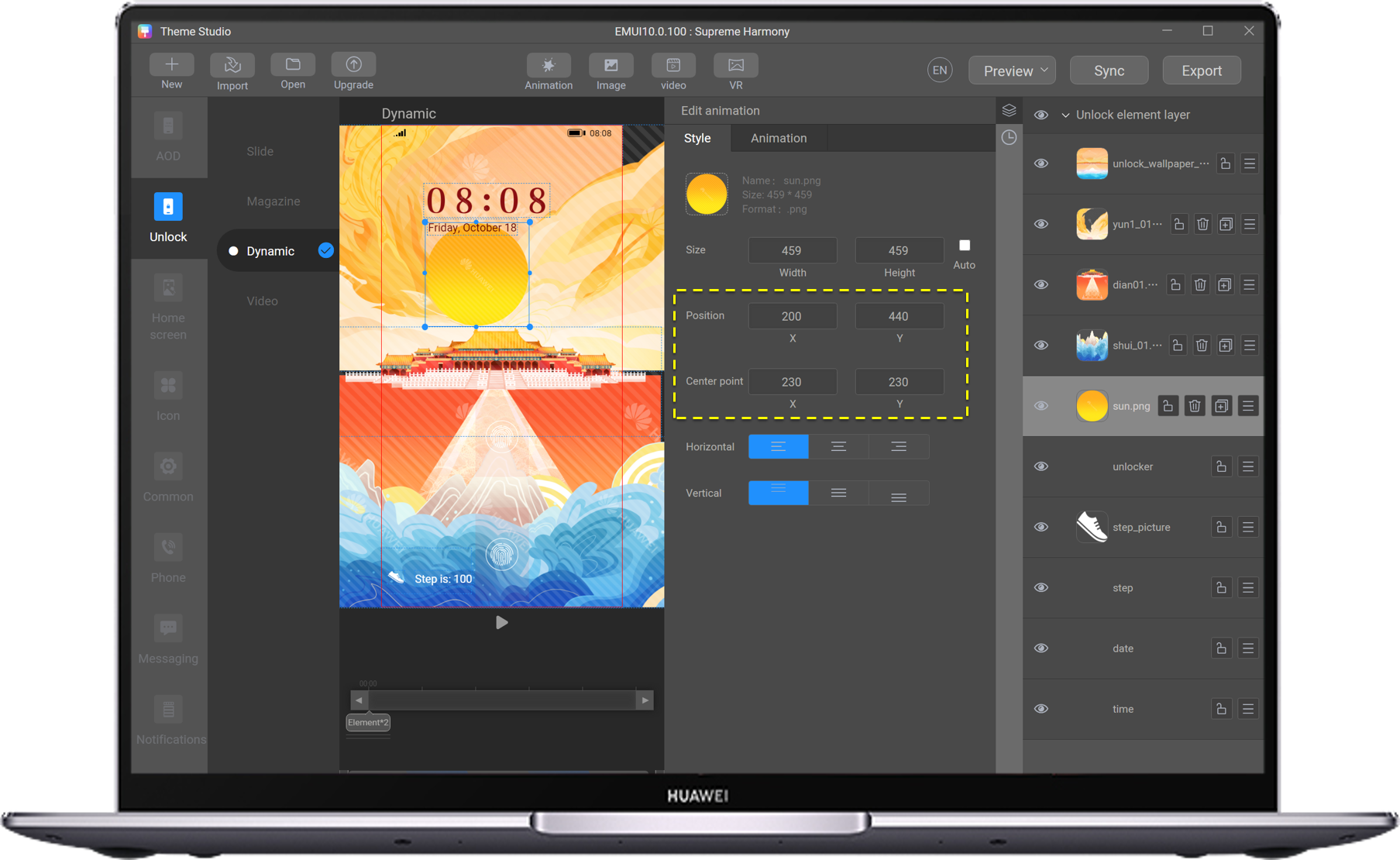
Add the sun rotation animation.
Add sun.png and set the position coordinates to 200, Y to 440, and X to 230 and Y to 230.
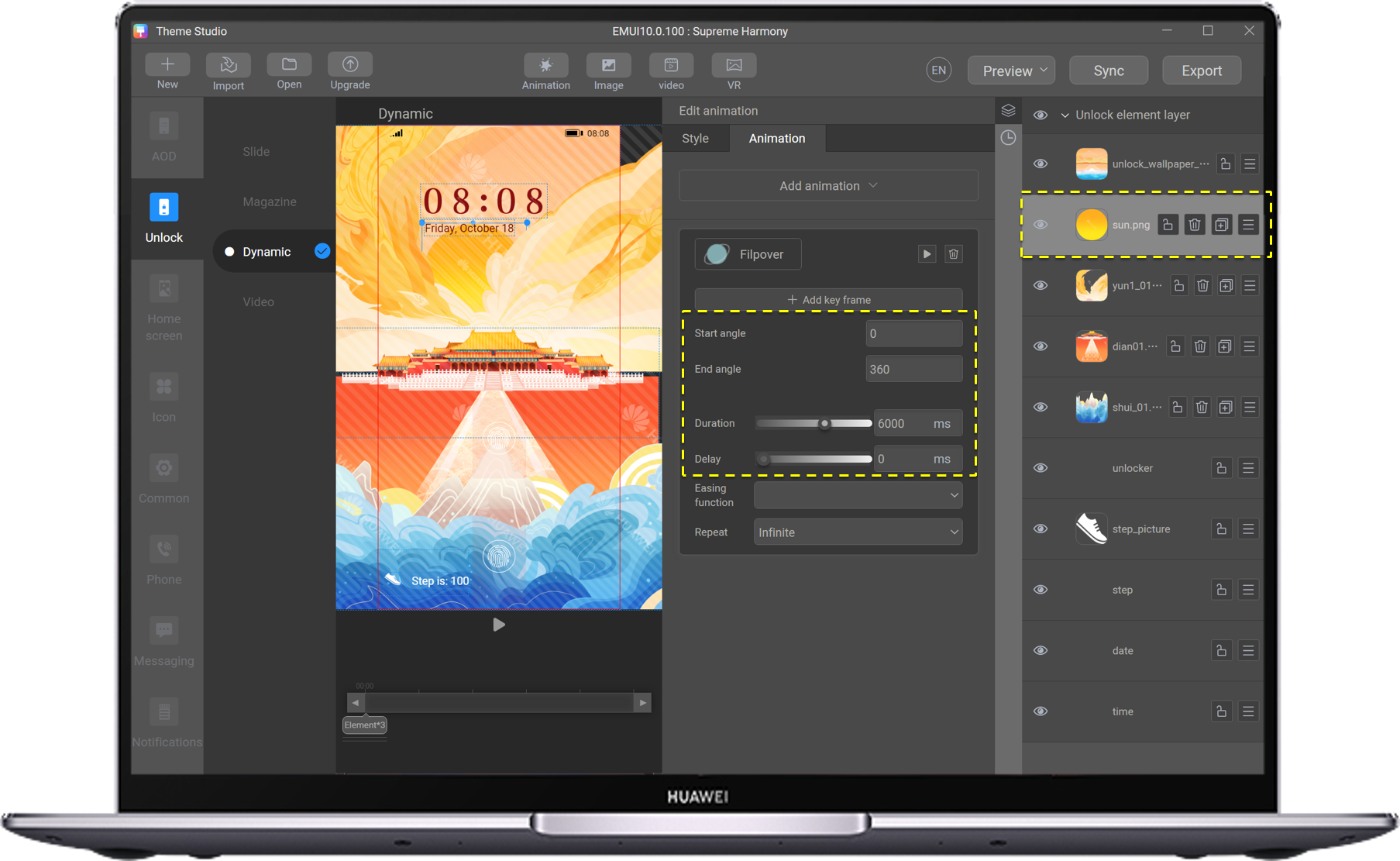
Adjust the sun layer to behind the clouds. lAdd a rotation animation to sun.png. The rotation animation consists of two frames. The start angle is 0, the end angle is 360, and the duration is 6000 ms.
Set the screen lock and unlock mode.
Select unlocker, set the Unlock area to fit the phone, position X to 0, and slide upward.
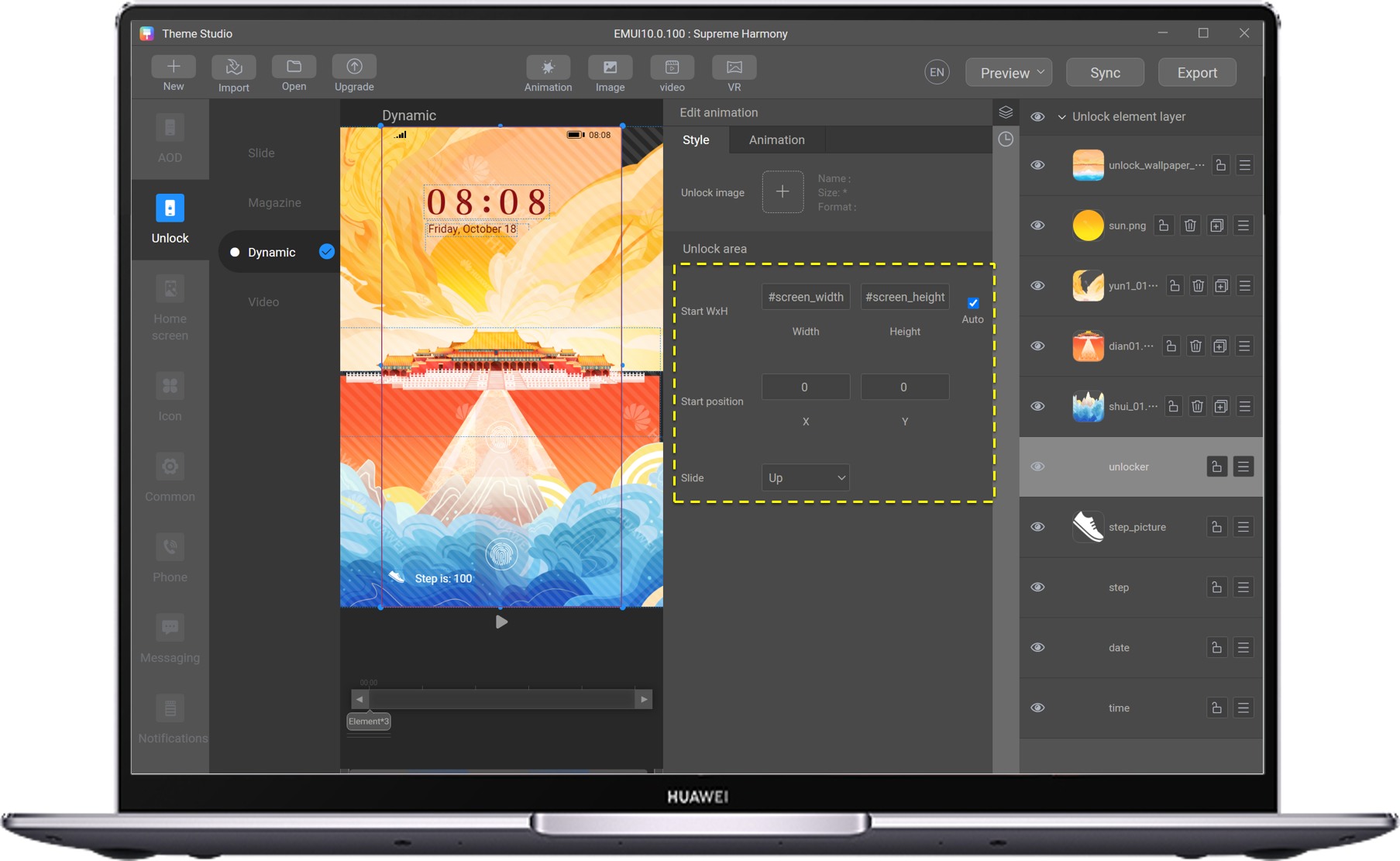
If no error is found, click Exporting, check and edit the preview image, and touch Next.
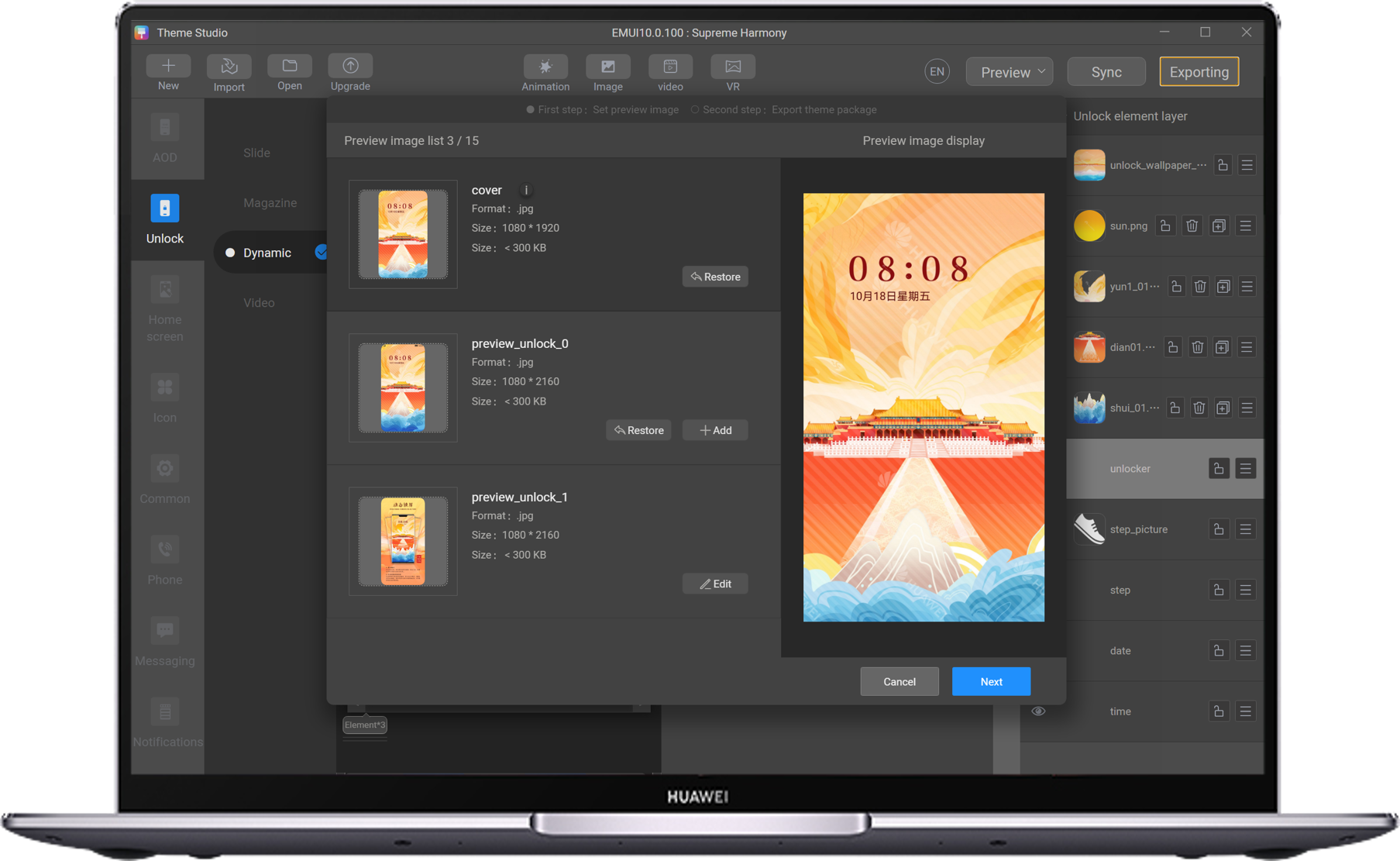
Enter and confirm the theme information, click Export, select the export path, and click OK.