Function
The background image is changed through the global variable #steps_value. For example, you can set #steps_value to a certain value to change the background.
An example is the theme Meet Museum. You can search for it in HUAWEI Themes to experience the effect.
Materials
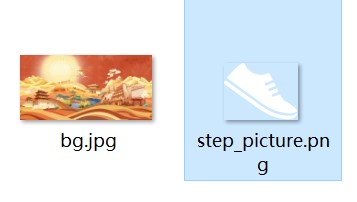
The demo video uses materials from the theme Meet Museum. You can download the theme in HUAWEI Themes.
XML Specifications
<?xml version="1.0" encoding="utf-8"?>
<Lockscreen version="1" frameRate="60" displayDesktop="false" screenWidth="1080" >
    <!-- Change the background image through #steps_value. The image width is 4883. -->
    <Image src="bg.jpg" x="0-#steps_value" visibility="gt(-#steps_value,-4883+#screen_width)"/>
              <Image src="bg.jpg" x="-4883+#screen_width" y="0" visibility="le(-#steps_value,-4883+#screen_width)"/>
                <!-- Show the step. -->
    <Image src="step_picture.png" x="50" y="#screen_height*0.933" />
     <Text x="130" y="#screen_height*0.93" format="The current step is %d" paras="#steps_value" size="50" color="#fdfdfd"/>.
      <!-- Unlock the screen. -->
    <Button x="0" y="0" w="#screen_width" h="#screen_height">
        <Trigger action="double">
             <ExternCommand command="unlock"/>
        </Trigger>
    </Button>
</Lockscreen>