Procedure
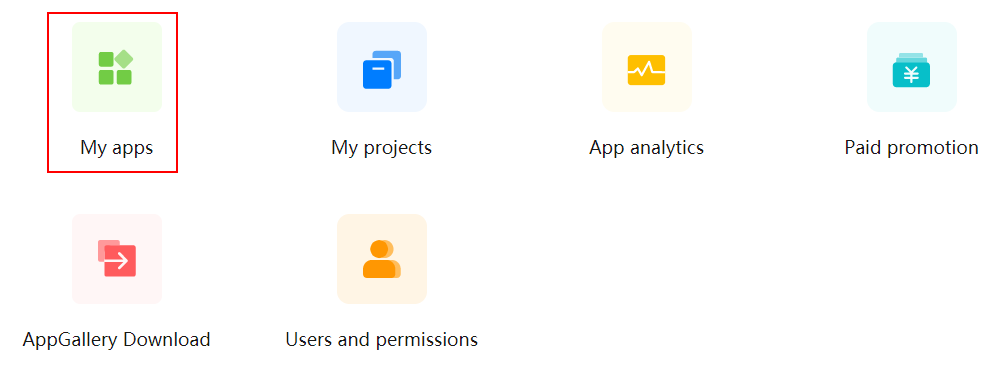
- Sign in to AppGallery Connect and click My apps.
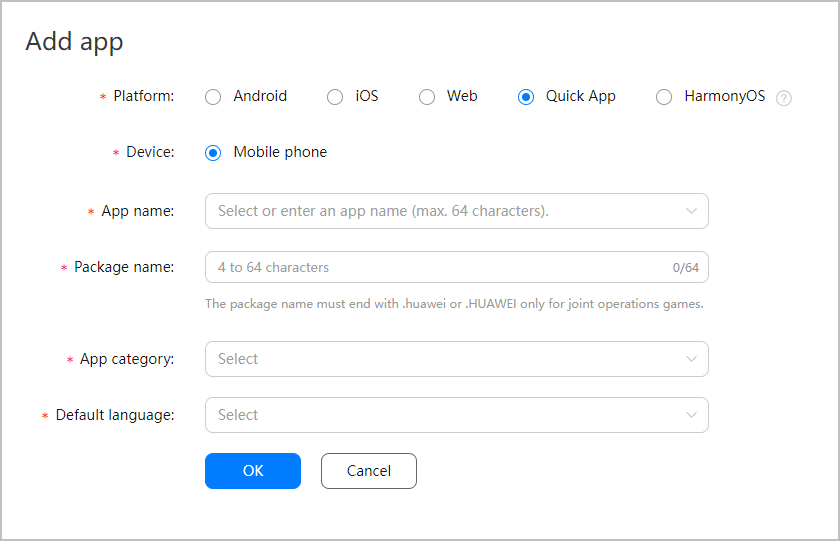
- Click New app. On the page that is displayed, complete app information and click OK.
Parameter
Description
Package type
Select RPK (quick app).
Device
Device on which the app will run after being released.
Select Mobile phone.
App name
App name that consists of 1 to 64 characters and can be modified on the App information page. An app ID will be generated after app creation.
App category
- App: common apps
- Game: game apps
Default language
Set the default language based on the country or region in which an app will be released.
Add to project
Select this check box. For details about the concepts "project" and "app", please refer to About Projects.
Project
- If you want to add the app to an existing project, select the project from the drop-down list box.
- If you want to add the app to a new project, enter the project name.
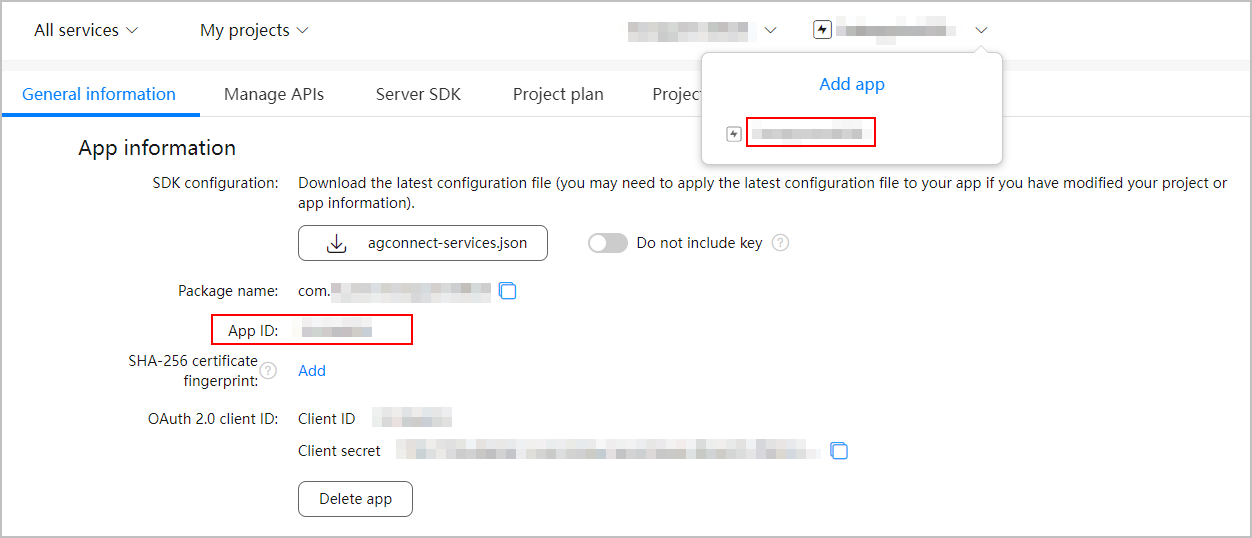
Obtaining the App ID
An app ID is a unique identifier allocated by HUAWEI Developers to an app and will be used in further development. To obtain an app ID, perform the following steps:
- In AppGallery Connect, click My projects.
- Click a project card.
- Click a quick app.
- Go to Project settings > General information, and view the app ID in the App information area.
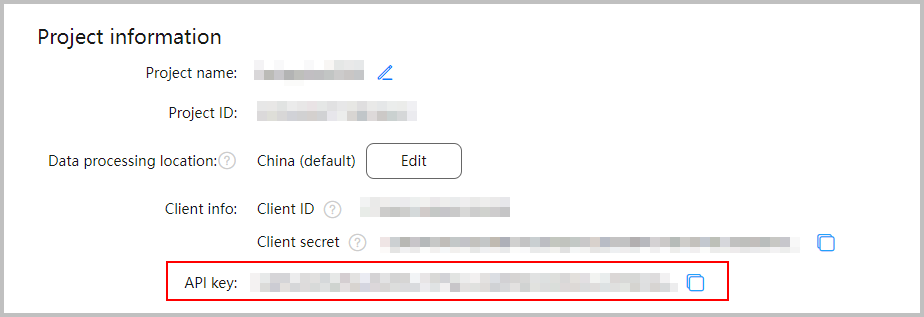
Obtaining the API Key (Credential)
- In AppGallery Connect, click My projects.
- Click a project card.
- Go to Project settings > General information, and click
 to copy the API key (credential).