Before You Start
Complete the following preparations:
- Register as a Huawei developer and pass identity verification on HUAWEI Developers.
- Set up the development environment, including installing Huawei Quick App IDE on the PC and Huawei Quick App Loader (for mobile phones and tablets) on the test device.
- Create a quick app in AppGallery Connect.
Creating a Project
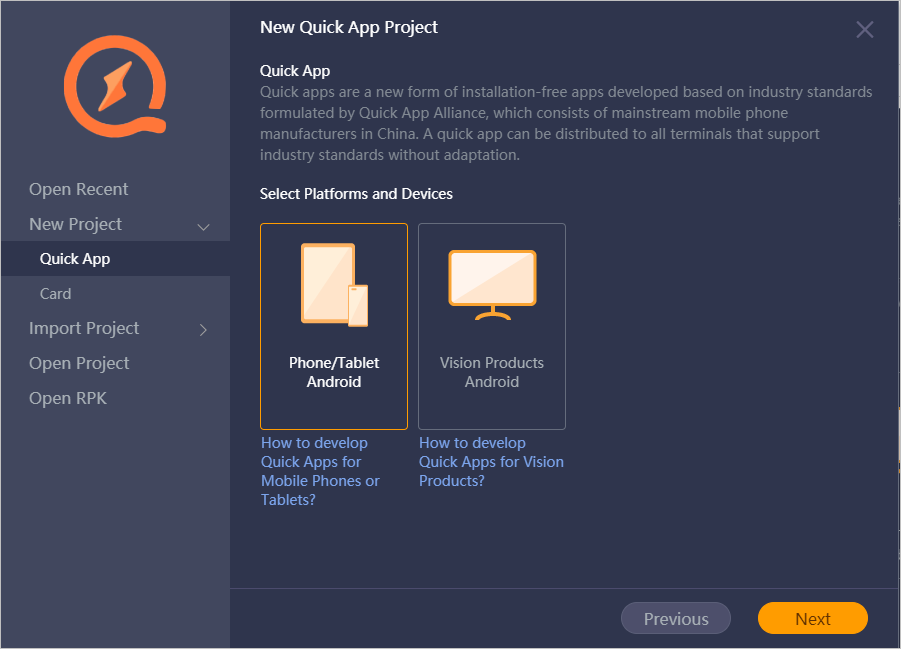
- Open Huawei Quick App IDE. Go to New Project > Quick App, select Phone, and then click Next.
- Select a proper template and click Next.
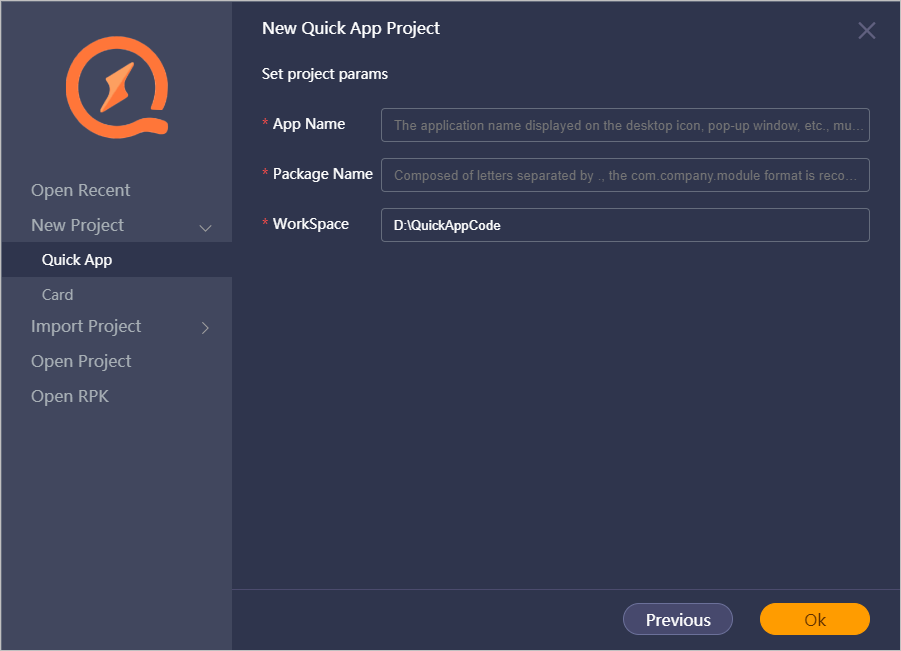
- Configure project information and click Ok.
- App Name: app name displayed on the home screen and in pop-ups, for example, QuickAppDemo.
- Package Name: name of the quick app package to be released, with the file name extension .rpk. The format com.company.module is recommended, for example, com.huawei.quickappdemo.
- WorkSpace: save path of a project.
Editing Code
- Set minPlatformVersion in the manifest.json file as needed.
- Select your project file from the project directory on the left and develop basic functions by referring to the quick app specifications.
Quick app specifications include:
- File structure
- Elements supported by phones or tablets in Index
- APIs supported by phones and tablets in API Index
- Implement more functions as needed.
- Release a quick app to the countries or regions outside the Chinese mainland. For details, please refer to Multi-language Capability.
- Divide an app package into multiple subpackages for loading if it is too large to reduce the first launch time of the app.
- Adapt your quick app to screens of different sizes. For details, please refer to Responsive Layout.
- Integrate the following open capabilities by calling APIs provided by Huawei:
- Account Kit
- IAP 3.0
- Location Kit
- Push Kit
- Ads Kit
- Keyring
- ML Kit, including Automatic Speech Recognition, Text Translation, and Text to Speech.
Debugging
- Use a USB cable to connect the test device (Huawei mobile phone recommended) to a computer where Huawei Quick App IDE is installed. Enable the Developer options on the test device.
- Go to Tools > Certificate.
- If there is no signature file, in the dialog box that is displayed in the lower right corner, click Create to create a signature file. After completing relevant information, click Create. You can also click Import to import an existing signature file.

- If there is already a signature file, click OK for the displayed signature information.
- If there is no signature file, in the dialog box that is displayed in the lower right corner, click Create to create a signature file. After completing relevant information, click Create. You can also click Import to import an existing signature file.
- Select the file to be compiled and debugged, and click compilation.

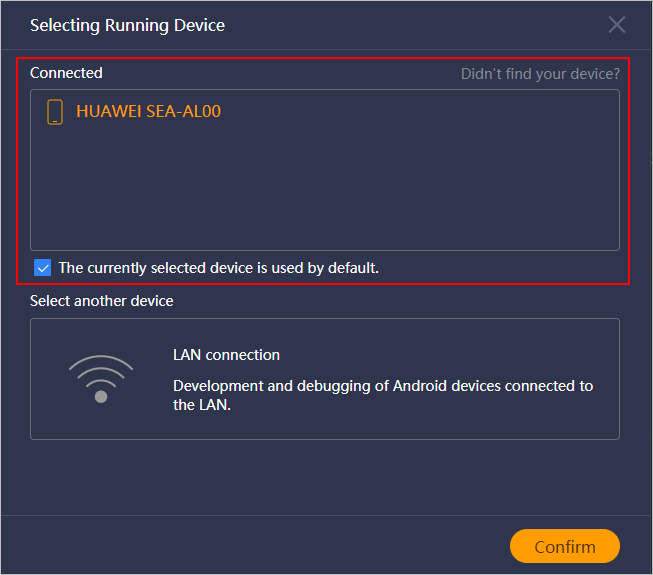
- Select the device on the Selecting Running Device page and click Confirm.
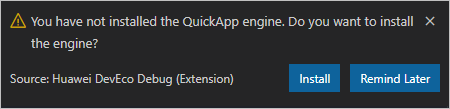
- If your test device has not installed Huawei Quick App Loader, click Install in the dialog box displayed in the lower right corner. Otherwise, skip this step.
- View the compilation effect on the simulator.
Packaging a Formal Version
After ensuring that the developed quick app functions are normal, you can use Huawei Quick App IDE to package your quick app into an RPK file and submit it in AppGallery Connect for review.
[h2]Cases
- Cannot add property
- JSON.parse Error
- Rectifying the Error "xxx is not a function"
- White Screen Is Displayed When an App Is Opened
- Rectifying the Error "XXX can not modify"
- Data Type Verification Failure
- Avoiding Errors Caused by Reading an Undefined Variable in a Quick App
- Avoiding JSON.parse() Parsing Errors in Quick Apps
- The Error Message "Buffer is not defined" Is Displayed When the buffer API Is Called