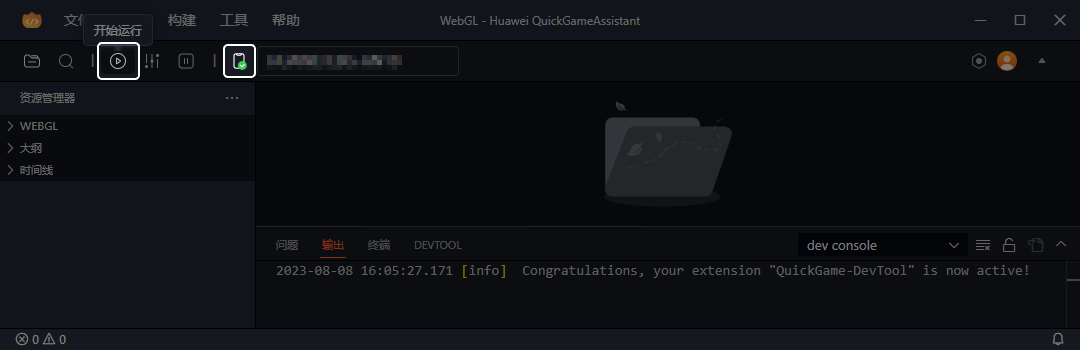
[h2]Method 1: QuickGameAssistant
You can run a quick game in QuickGameAssistant after connecting your phone to the computer.
[h2]Method 2: adb commands

On HarmonyOS 5.0 or later, quick games cannot be tested using adb commands.
You can run adb commands to push the RPK package to the phone. The steps are as follows:
- Connect the phone to the PC using a data cable.
- Run the following command in the CLI to push the RPK package to the phone:
// Example of the RPK file storage path on the phone: sdcard/a. If it is not specified, a directory will be automatically created.
adb push [RPK file path (which is automatically generated when you drag the RPK file to the CLI)] [RPK file storage path on the phone]
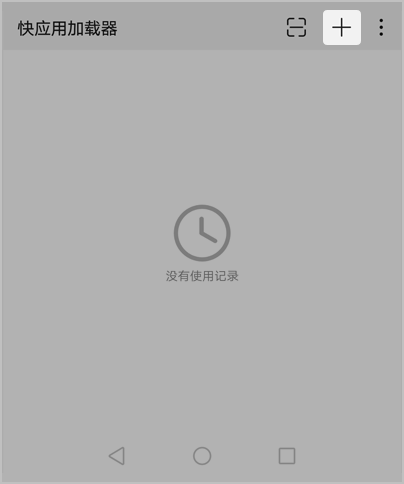
- Open Quick App Loader on the phone, tap + in the upper right corner, and select the RPK file. Then, you can open and run the quick game on the phone.
Functional Testing
You need to test the integrated quick game services one by one. The following table lists some test cases for your reference.
Quick Game Capability | Test Case | Expected Results | Description |
|---|---|---|---|
Game sign-in | Sign in to the game using a HUAWEI ID that has completed identity verification and is identified as an adult. | The sign-in is successful, and the Huawei sign-in welcome banner is displayed exactly once. | - |
Open the quick game with a HUAWEI ID already signed in. | A welcome banner slides down from the top of the screen and then slowly fades out. | ||
Payment | Check the price and currency displayed in-app and those on the IAP checkout page. | The price and currency displayed in-app are consistent with those on the IAP checkout page. | If your game needs to use the sandbox payment function, create a test account. For details, please refer to Sandbox Testing. |
Check the product ID and type passed by the createPurchaseIntent API and those created in AppGallery Connect. | The product ID and type passed by the API are the same as those created in AppGallery Connect. | ||
Sign in with a HUAWEI ID and make an in-app payment. | The payment is successful. The order placement success page is displayed, and the purchased product is successfully delivered. | ||
After the payment is successful, force the game to exit from the order page (do not tap OK), and then launch the game again. | The product is successfully delivered. | ||
Perform redelivery of consumables in the following exception cases:
| The redelivery is performed in a timely manner in these cases. | ||
Advertising | Test the integrated ad capabilities by referring to Official Self-Test Items. | All self-test items pass. | Use a test ID in the test phase. |