


智能客服
你问我答,随时在线为你解决问题














在平板横屏状态下,播放视频两侧出现了大量黑边。

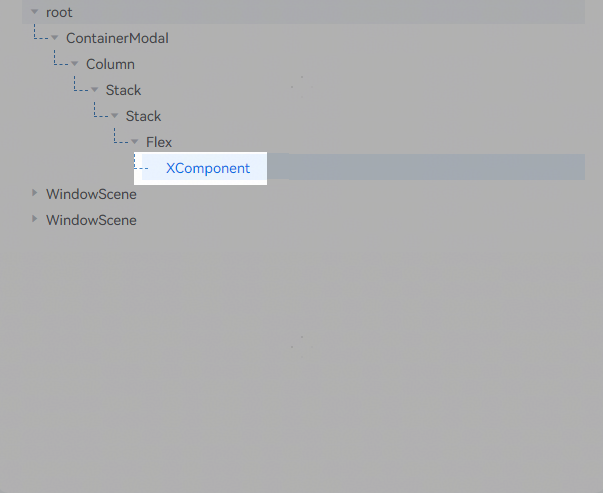
Flex({ direction: FlexDirection.Column, alignItems: ItemAlign.Center, justifyContent: FlexAlign.Start }) {
XComponent({
id: 'xComponentId',
type: XComponentType.SURFACE,
controller: this.myXComponentController
})
.width(this.getUIContext().px2vp(this.windowWidth))
.height(this.getUIContext().px2vp(this.windowHeight))
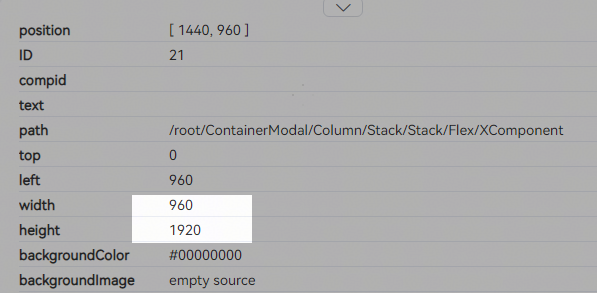
} XComponent组件设置了固定宽高,没有通过on('windowSizeChange')获取到当前窗口最新尺寸,动态调整页面布局,导致两侧出现大量黑边。
onWindowStageCreate(windowStage: window.WindowStage): void {
// Main window is created, set main page for this ability
hilog.info(DOMAIN, 'testTag', '%{public}s', 'Ability onWindowStageCreate');
windowStage.getMainWindow().then((windowClass) => {
// 获取窗口尺寸,存入AppStorage
AppStorage.setOrCreate('windowWidth', windowClass.getWindowProperties().windowRect.width);
AppStorage.setOrCreate('windowHeight', windowClass.getWindowProperties().windowRect.height);
// 监听窗口尺寸变化
windowClass.on('windowSizeChange', (windowSize) => {
AppStorage.setOrCreate('windowWidth', windowSize.width);
AppStorage.setOrCreate('windowHeight', windowSize.height);
});
});
windowStage.loadContent('pages/Index', (err) => {
if (err.code) {
hilog.error(DOMAIN, 'testTag', 'Failed to load the content. Cause: %{public}s', JSON.stringify(err));
return;
}
hilog.info(DOMAIN, 'testTag', 'Succeeded in loading the content.');
});
} import { media } from '@kit.MediaKit';
@Entry
@Component
struct XComponentIndex {
private avPlayer: media.AVPlayer | null = null; // AVPlayer实例
private surfaceId: string = ''; // 播放窗口SurfaceID
// 初始化参数,这里会初始化为AppStorage中存储的值
@StorageLink('windowWidth') windowWidth: number | undefined = AppStorage.get('windowWidth');
@StorageLink('windowHeight') windowHeight: number | undefined = AppStorage.get('windowHeight');
myXComponentController: XComponentController = new XComponentController();
// 初始化播放器
async initAVPlayer() {
try {
// 创建AVPlayer实例
this.avPlayer = await media.createAVPlayer();
// 设置监听事件
this.avPlayer.on('stateChange', async (state: string) => {
if (state === 'initialized') {
// 设置播放窗口
this.avPlayer!.surfaceId = this.surfaceId;
await this.avPlayer!.prepare();
} else if (state === 'prepared') {
await this.avPlayer!.play(); // 自动开始播放
}
});
this.avPlayer.url = 'https://xxx.mp4'; // 替换为实际地址
} catch (error) {
console.error(`Player initialization failed: ${error}`);
}
}
build() {
Flex({ direction: FlexDirection.Column, alignItems: ItemAlign.Center, justifyContent: FlexAlign.Start }) {
XComponent({
id: 'xComponentId',
type: XComponentType.SURFACE,
controller: this.myXComponentController
})
.onLoad(async () => {
// 获取SurfaceID并初始化播放器
this.surfaceId = this.myXComponentController.getXComponentSurfaceId();
this.initAVPlayer();
})
.width(this.getUIContext().px2vp(this.windowWidth))
.height(this.getUIContext().px2vp(this.windowHeight));
};
}
} "requestPermissions": [
{
"name": "ohos.permission.INTERNET"
}
], 智能客服
你问我答,随时在线为你解决问题
合作咨询
我们的专家服务团队将竭诚为您提供专业的合作咨询服务
解决方案
精准高效的一站式服务支持,助力开发者商业成功