Intelligent Assistant
Chat with our virtual assistant to get answers promptly.
The Button component can be used to create different types of buttons.
This component is supported since API version 7. Updates will be marked with a superscript to indicate their earliest API version.
This component can contain only one child component.
Button(options: ButtonOptions)
Creates a button that can contain a single child component.
Widget capability: This API can be used in ArkTS widgets since API version 9.
Atomic service API: This API can be used in atomic services since API version 11.
System capability: SystemCapability.ArkUI.ArkUI.Full
Parameters
| Name | Type | Mandatory | Description |
|---|---|---|---|
| options | ButtonOptions | Yes | Button settings. |
Button(label: ResourceStr, options?: ButtonOptions)
Creates a button based on text content. In this case, the component cannot contain child components.
By default, the text content is displayed in a one line.
Widget capability: This API can be used in ArkTS widgets since API version 9.
Atomic service API: This API can be used in atomic services since API version 11.
System capability: SystemCapability.ArkUI.ArkUI.Full
Parameters
| Name | Type | Mandatory | Description |
|---|---|---|---|
| label | ResourceStr | Yes | Button text. Note: If the text is longer than the width of the button, it is truncated. |
| options | ButtonOptions | No | Button settings. |
Button()
Creates an empty button.
Widget capability: This API can be used in ArkTS widgets since API version 9.
Atomic service API: This API can be used in atomic services since API version 11.
System capability: SystemCapability.ArkUI.ArkUI.Full
Describes the button style.
System capability: SystemCapability.ArkUI.ArkUI.Full
| Name | Type | Read Only | Optional | Description |
|---|---|---|---|---|
| type | ButtonType | No | Yes | Button display style. Default value: ButtonType.ROUNDED_RECTANGLE API version 18 and later: The default value is ButtonType.ROUNDED_RECTANGLE. Versions earlier than API version 18: The default value is ButtonType.Capsule. Widget capability: This API can be used in ArkTS widgets since API version 9. Atomic service API: This API can be used in atomic services since API version 11. |
| stateEffect | boolean | No | Yes | Whether to enable the pressed state effect when the button is clicked. true: The pressed state effect is enabled. false: The pressed state effect is disabled. Default value: true NOTE When the pressed state effect is enabled and a custom pressed state style is configured, the resulting color displayed after pressing is a composite blend of the original background color and the newly defined pressed state color. Widget capability: This API can be used in ArkTS widgets since API version 9. Atomic service API: This API can be used in atomic services since API version 11. |
| buttonStyle11+ | ButtonStyleMode | No | Yes | Style and importance of the button. The system automatically adjusts the button background color and text color based on the enumerated value. You can also use the backgroundColor, fontColor, and role APIs to set the background color and text color. The actual displayed effect will be determined by the last setting. Default value: ButtonStyleMode.EMPHASIZED NOTE The button primacy is as follows, from high to low: emphasized button, normal button, text button. Widget capability: This API can be used in ArkTS widgets since API version 11. Atomic service API: This API can be used in atomic services since API version 12. |
| controlSize11+ | ControlSize | No | Yes | Button size. Default value: ControlSize.NORMAL Widget capability: This API can be used in ArkTS widgets since API version 11. Atomic service API: This API can be used in atomic services since API version 12. |
| role12+ | ButtonRole | No | Yes | Role of the button. The system automatically adjusts the button background color and text color based on the enumerated value. You can also use the backgroundColor, fontColor, and buttonStyle APIs to set the background color and text color. The actual displayed effect will be determined by the last setting. Default value: ButtonRole.NORMAL Widget capability: This API can be used in ArkTS widgets since API version 12. Atomic service API: This API can be used in atomic services since API version 12. |
In addition to the universal attributes, the following attributes are supported.
type(value: ButtonType)
Sets the button type.
Widget capability: This API can be used in ArkTS widgets since API version 9.
Atomic service API: This API can be used in atomic services since API version 11.
System capability: SystemCapability.ArkUI.ArkUI.Full
Parameters
| Name | Type | Mandatory | Description |
|---|---|---|---|
| value | ButtonType | Yes | Button type. API version 18 and later: The default value is ButtonType.ROUNDED_RECTANGLE. |
fontSize(value: Length)
Sets the font size for the button.
Widget capability: This API can be used in ArkTS widgets since API version 9.
Atomic service API: This API can be used in atomic services since API version 11.
System capability: SystemCapability.ArkUI.ArkUI.Full
Parameters
| Name | Type | Mandatory | Description |
|---|---|---|---|
| value | Length | Yes | Font size of the button. Default value: $r('sys.float.Body_L') when controlSize is set to ControlSize.NORMAL $r('sys.float.Body_S') when controlSize is set to ControlSize.SMALL Note: For the string type, percentage values are not supported. |
fontColor(value: ResourceColor)
Sets the font color for the button.
Widget capability: This API can be used in ArkTS widgets since API version 9.
Atomic service API: This API can be used in atomic services since API version 11.
System capability: SystemCapability.ArkUI.ArkUI.Full
Parameters
| Name | Type | Mandatory | Description |
|---|---|---|---|
| value | ResourceColor | Yes | Font color of the button. Default value: $r('sys.color.font_on_primary'), which means white |
fontWeight(value: number | FontWeight | string)
Sets the font weight for the button.
Widget capability: This API can be used in ArkTS widgets since API version 9.
Atomic service API: This API can be used in atomic services since API version 11.
System capability: SystemCapability.ArkUI.ArkUI.Full
Parameters
| Name | Type | Mandatory | Description |
|---|---|---|---|
| value | number | FontWeight | string | Yes | Font weight of the button. For the number type, the value ranges from 100 to 900, at an interval of 100. A larger value indicates a thicker font. Default value: 500 For the string type, only strings that represent a number, for example, '400', and the following enumerated values of FontWeight are supported: 'bold', 'bolder', 'lighter', 'regular', and 'medium'. If the value is abnormal or invalid, the font weight defaults to 400. |
fontStyle(value: FontStyle)
Sets the font style for the button.
Widget capability: This API can be used in ArkTS widgets since API version 9.
Atomic service API: This API can be used in atomic services since API version 11.
System capability: SystemCapability.ArkUI.ArkUI.Full
Parameters
| Name | Type | Mandatory | Description |
|---|---|---|---|
| value | FontStyle | Yes | Font style of the button. Default value: FontStyle.Normal |
stateEffect(value: boolean)
Specifies whether to enable the pressed state effect when the button is clicked.
Widget capability: This API can be used in ArkTS widgets since API version 9.
Atomic service API: This API can be used in atomic services since API version 11.
System capability: SystemCapability.ArkUI.ArkUI.Full
Parameters
| Name | Type | Mandatory | Description |
|---|---|---|---|
| value | boolean | Yes | Whether to enable the pressed state effect when the button is clicked. true: The pressed state effect is enabled. false: The pressed state effect is disabled. Default value: true |
When the polymorphic style is used to set the pressed state, set stateEffect to false to avoid conflicts between the built-in and custom pressed state effects.
fontFamily(value: string | Resource)
Sets the font family.
Widget capability: This API can be used in ArkTS widgets since API version 9.
Atomic service API: This API can be used in atomic services since API version 11.
System capability: SystemCapability.ArkUI.ArkUI.Full
Parameters
| Name | Type | Mandatory | Description |
|---|---|---|---|
| value | string | Resource | Yes | Font family. The 'HarmonyOS Sans' font and registered custom fonts are supported. |
labelStyle(value: LabelStyle)
Sets the label style for the button.
Atomic service API: This API can be used in atomic services since API version 11.
System capability: SystemCapability.ArkUI.ArkUI.Full
Parameters
| Name | Type | Mandatory | Description |
|---|---|---|---|
| value | LabelStyle | Yes | Label style of the button. |
buttonStyle(value: ButtonStyleMode)
Sets the style and primacy for the button. The system automatically adjusts the button background color and text color based on the enumerated value. You can also use the backgroundColor, fontColor, and role APIs to set the background color and text color. The actual displayed effect will be determined by the last setting.
This API can be called within attributeModifier since API version 12.
Widget capability: This API can be used in ArkTS widgets since API version 11.
Atomic service API: This API can be used in atomic services since API version 12.
System capability: SystemCapability.ArkUI.ArkUI.Full
Parameters
| Name | Type | Mandatory | Description |
|---|---|---|---|
| value | ButtonStyleMode | Yes | Style and primacy of the button Default value: ButtonStyleMode.EMPHASIZED |
controlSize(value: ControlSize)
Sets the size for the button.
This API can be called within attributeModifier since API version 12.
Widget capability: This API can be used in ArkTS widgets since API version 11.
Atomic service API: This API can be used in atomic services since API version 12.
System capability: SystemCapability.ArkUI.ArkUI.Full
Parameters
| Name | Type | Mandatory | Description |
|---|---|---|---|
| value | ControlSize | Yes | Size of the button. Default value: ControlSize.NORMAL |
role(value: ButtonRole)
Sets the role of the button. The system automatically adjusts the button background color and text color based on the enumerated value. You can also use the backgroundColor, fontColor, and buttonStyle APIs to set the background color and text color. The actual displayed effect will be determined by the last setting.
Widget capability: This API can be used in ArkTS widgets since API version 12.
Atomic service API: This API can be used in atomic services since API version 12.
System capability: SystemCapability.ArkUI.ArkUI.Full
Parameters
| Name | Type | Mandatory | Description |
|---|---|---|---|
| value | ButtonRole | Yes | Role of the button. Default value: ButtonRole.NORMAL |
contentModifier(modifier: ContentModifier<ButtonConfiguration>)
Creates a content modifier.
Atomic service API: This API can be used in atomic services since API version 12.
System capability: SystemCapability.ArkUI.ArkUI.Full
Parameters
| Name | Type | Mandatory | Description |
|---|---|---|---|
| modifier | ContentModifier<ButtonConfiguration> | Yes | Content modifier to apply to the button. modifier: content modifier. You need a custom class to implement the ContentModifier API. |
minFontScale(scale: number | Resource)
Sets the minimum font scale factor for text.
Atomic service API: This API can be used in atomic services since API version 18.
System capability: SystemCapability.ArkUI.ArkUI.Full
Parameters
| Name | Type | Mandatory | Description |
|---|---|---|---|
| scale | number | Resource | Yes | Minimum font scale factor for text. Value range: [0, 1] NOTE A value less than 0 is handled as 0. A value greater than 1 is handled as 1. Abnormal values are ineffective by default. |
maxFontScale(scale: number | Resource)
Sets the maximum font scale factor for text.
Atomic service API: This API can be used in atomic services since API version 18.
System capability: SystemCapability.ArkUI.ArkUI.Full
Parameters
| Name | Type | Mandatory | Description |
|---|---|---|---|
| scale | number | Resource | Yes | Maximum font scale factor for text. Value range: [1, +∞) NOTE A value less than 1 is handled as 1. Abnormal values are ineffective by default. If this parameter is not configured, the maximum scale for a circular button is 1x, while the maximum scale for capsule-type buttons, standard buttons, and rounded rectangle buttons defaults to the system-defined value. |
Enumerates the button types.
System capability: SystemCapability.ArkUI.ArkUI.Full
| Name | Value | Description |
|---|---|---|
| Normal | 0 | Normal button, with no rounded corners by default. Widget capability: This API can be used in ArkTS widgets since API version 9. Atomic service API: This API can be used in atomic services since API version 11. |
| Capsule | 1 | Capsule-type button (the round corner is half of the height by default). Widget capability: This API can be used in ArkTS widgets since API version 9. Atomic service API: This API can be used in atomic services since API version 11. |
| Circle | 2 | Circular button. Widget capability: This API can be used in ArkTS widgets since API version 9. Atomic service API: This API can be used in atomic services since API version 11. |
| ROUNDED_RECTANGLE15+ | 8 | Rounded rectangle button (default value: when controlSize is NORMAL, the corner radius is 20 vp; when controlSize is SMALL, the corner radius is 14 vp). Widget capability: This API can be used in ArkTS widgets since API version 15. Atomic service API: This API can be used in atomic services since API version 15. |
Label text and font style of the button.
System capability: SystemCapability.ArkUI.ArkUI.Full
| Name | Type | Read Only | Optional | Description |
|---|---|---|---|---|
| overflow | TextOverflow | No | Yes | Display mode when the label text is too long. Text is clipped at the transition between words. To clip text in the middle of a word, add zero-width spaces between characters. Default value: TextOverflow.Ellipsis Atomic service API: This API can be used in atomic services since API version 11. |
| maxLines | number | No | Yes | Maximum number of lines in the label text. If this attribute is specified, the text will not exceed the specified number of lines. If there is extra text, you can use overflow to specify how it is displayed. Default value: 1 NOTE If this parameter is set to a value less than or equal to 0, the default value is used. Atomic service API: This API can be used in atomic services since API version 11. |
| minFontSize | number | ResourceStr | No | Yes | Minimum font size of the label text. For the setting to take effect, this attribute must be used together with maxFontSize, maxLines, or layout constraint settings. NOTE If the value of minFontSize is less than or equal to 0, the adaptive font size does not take effect. Atomic service API: This API can be used in atomic services since API version 11. |
| maxFontSize | number | ResourceStr | No | Yes | Maximum font size of the label text. For the setting to take effect, this attribute must be used together with minFontSize, maxLines, or layout constraint settings. Atomic service API: This API can be used in atomic services since API version 11. |
| heightAdaptivePolicy | TextHeightAdaptivePolicy | No | Yes | How the adaptive height is determined for the label text. Default value: TextHeightAdaptivePolicy.MAX_LINES_FIRST Atomic service API: This API can be used in atomic services since API version 11. |
| font | Font | No | Yes | Font of the label text. Default value: { size:'16.0fp', weight:FontWeight.Medium, style:FontStyle.Normal, family:'HarmonyOS Sans' } Atomic service API: This API can be used in atomic services since API version 11. |
| textAlign23+ | TextAlign | No | Yes | Horizontal alignment of the label text. This attribute does not take effect when the Text component of the child node is used to set the label. The actual text alignment mode is determined by the textAlign attribute of the Text component of the child node. The default value is TextAlign.Center for wearables and TextAlign.Start for other devices. Atomic service API: This API can be used in atomic services since API version 23. |
Enumerates the button importance levels.
Widget capability: This API can be used in ArkTS widgets since API version 11.
Atomic service API: This API can be used in atomic services since API version 12.
System capability: SystemCapability.ArkUI.ArkUI.Full
| Name | Value | Description |
|---|---|---|
| NORMAL | 0 | Normal button (used to direct the user to a common task). |
| EMPHASIZED | 1 | Emphasized button (used to direct the user to the most important task). |
| TEXTUAL | 2 | Text button (displayed as simple text without any background color). |
Button size.
Widget capability: This API can be used in ArkTS widgets since API version 11.
Atomic service API: This API can be used in atomic services since API version 12.
System capability: SystemCapability.ArkUI.ArkUI.Full
| Name | Value | Description |
|---|---|---|
| SMALL | "small" | Small button. |
| NORMAL | "normal" | Normal button. |
Role of the button.
Widget capability: This API can be used in ArkTS widgets since API version 12.
Atomic service API: This API can be used in atomic services since API version 12.
System capability: SystemCapability.ArkUI.ArkUI.Full
| Name | Value | Description |
|---|---|---|
| NORMAL | 0 | Normal button. |
| ERROR | 1 | Warning button. |
You need a custom class to implement the ContentModifier API. Inherits from CommonConfiguration.
Atomic service API: This API can be used in atomic services since API version 12.
System capability: SystemCapability.ArkUI.ArkUI.Full
| Name | Type | Read Only | Optional | Description |
|---|---|---|---|---|
| label | string | No | No | Text label of the button. Note: If the text is longer than the width of the button, it is truncated. |
| pressed | boolean | No | No | Whether the button is pressed. true: pressed; false: not pressed. Default value: false NOTE This setting applies to the original button size, not to any new component constructed using the builder. |
| triggerClick | ButtonTriggerClickCallback | No | No | Click event of the new component constructed using the builder. |
type ButtonTriggerClickCallback = (xPos: number, yPos: number) => void
Defines the callback type used in ButtonConfiguration.
Atomic service API: This API can be used in atomic services since API version 12.
System capability: SystemCapability.ArkUI.ArkUI.Full
Parameters
| Name | Type | Mandatory | Description |
|---|---|---|---|
| xPos | number | Yes | X-coordinate of the click point. Unit: vp |
| yPos | number | Yes | Y-coordinate of the click point. Unit: vp |
The universal events are supported.
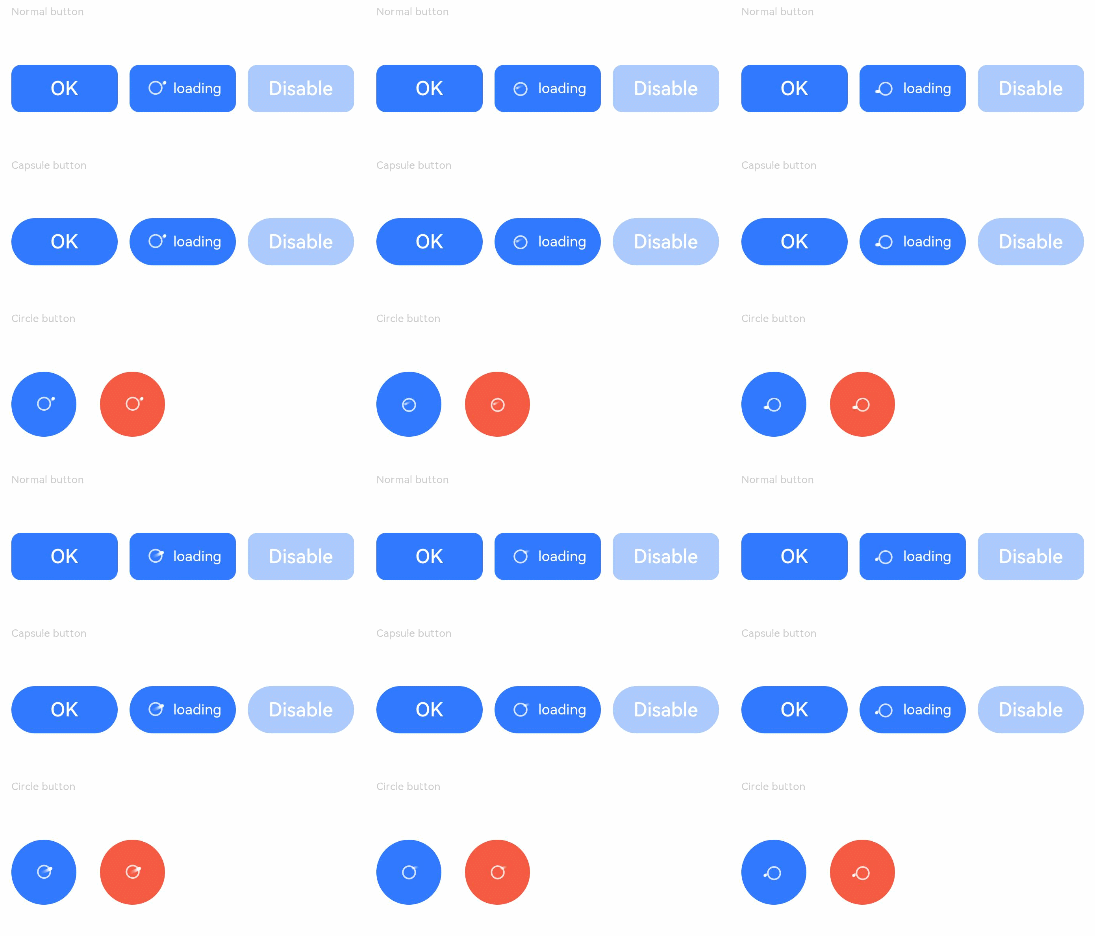
This example demonstrates two methods to create buttons, either with child components or using text content.
- // xxx.ets
- @Entry
- @Component
- struct ButtonExample {
- build() {
- Flex({ direction: FlexDirection.Column, alignItems: ItemAlign.Start, justifyContent: FlexAlign.SpaceBetween }) {
- Text('Normal button').fontSize(9).fontColor(0xCCCCCC)
- Flex({ alignItems: ItemAlign.Center, justifyContent: FlexAlign.SpaceBetween }) {
- Button('OK', { type: ButtonType.Normal, stateEffect: true })
- .borderRadius(8)
- .backgroundColor(0x317aff)
- .width(90)
- .onClick(() => {
- console.info('ButtonType.Normal');
- })
- Button({ type: ButtonType.Normal, stateEffect: true }) {
- Row() {
- LoadingProgress().width(20).height(20).margin({ left: 12 }).color(0xFFFFFF)
- Text('loading').fontSize(12).fontColor(0xffffff).margin({ left: 5, right: 12 })
- }.alignItems(VerticalAlign.Center)
- }.borderRadius(8).backgroundColor(0x317aff).width(90).height(40)
-
- Button('Disable', { type: ButtonType.Normal, stateEffect: false }).opacity(0.4)
- .borderRadius(8).backgroundColor(0x317aff).width(90)
- }
-
- Text('Capsule button').fontSize(9).fontColor(0xCCCCCC)
- Flex({ alignItems: ItemAlign.Center, justifyContent: FlexAlign.SpaceBetween }) {
- Button('OK', { type: ButtonType.Capsule, stateEffect: true }).backgroundColor(0x317aff).width(90)
- Button({ type: ButtonType.Capsule, stateEffect: true }) {
- Row() {
- LoadingProgress().width(20).height(20).margin({ left: 12 }).color(0xFFFFFF)
- Text('loading').fontSize(12).fontColor(0xffffff).margin({ left: 5, right: 12 })
- }.alignItems(VerticalAlign.Center).width(90).height(40)
- }.backgroundColor(0x317aff)
-
- Button('Disable', { type: ButtonType.Capsule, stateEffect: false }).opacity(0.4)
- .backgroundColor(0x317aff).width(90)
- }
-
- Text('Circle button').fontSize(9).fontColor(0xCCCCCC)
- Flex({ alignItems: ItemAlign.Center, wrap: FlexWrap.Wrap }) {
- Button({ type: ButtonType.Circle, stateEffect: true }) {
- LoadingProgress().width(20).height(20).color(0xFFFFFF)
- }.width(55).height(55).backgroundColor(0x317aff)
-
- Button({ type: ButtonType.Circle, stateEffect: true }) {
- LoadingProgress().width(20).height(20).color(0xFFFFFF)
- }.width(55).height(55).margin({ left: 20 }).backgroundColor(0xF55A42)
- }
- }.height(400).padding({ left: 35, right: 35, top: 35 })
- }
- }
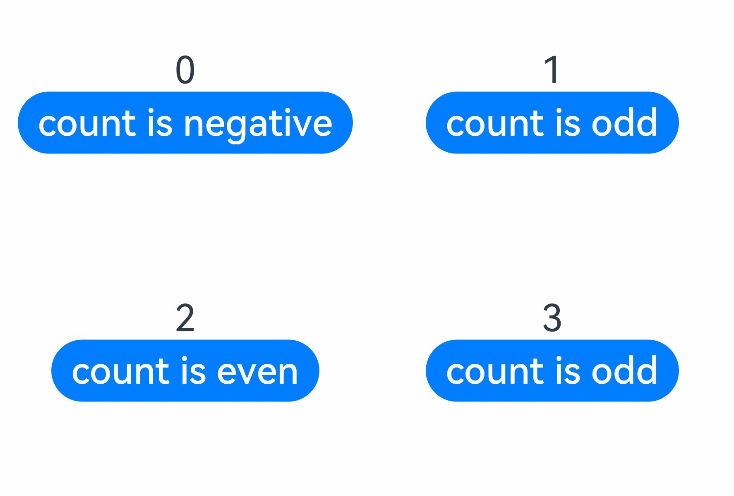
This example uses if/else statements to control the display text of the button.
- // xxx.ets
- @Entry
- @Component
- struct SwipeGestureExample {
- @State count: number = 0;
-
- build() {
- Column() {
- Text(`${this.count}`)
- .fontSize(30)
- .onClick(() => {
- this.count++;
- })
- if (this.count <= 0) {
- Button('count is negative').fontSize(30).height(50)
- } else if (this.count % 2 === 0) {
- Button('count is even').fontSize(30).height(50)
- } else {
- Button('count is odd').fontSize(30).height(50)
- }
- }.height('100%').width('100%').justifyContent(FlexAlign.Center)
- }
- }
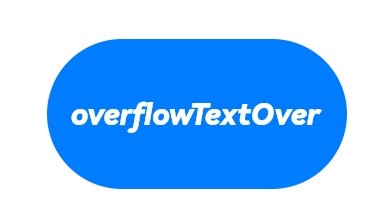
This example customizes the display style of button text by configuring labelStyle.
- // xxx.ets
- @Entry
- @Component
- struct ButtonTestDemo {
- @State txt: string = 'overflowTextOverLengthTextOverflow.Clip';
- @State widthShortSize: number = 205;
-
- build() {
- Row() {
- Column() {
- Button(this.txt)
- .type(ButtonType.Capsule)
- .width(this.widthShortSize)
- .height(100)
- .backgroundColor(0x317aff)
- .labelStyle({ overflow: TextOverflow.Clip,
- maxLines: 1,
- minFontSize: 20,
- maxFontSize: 20,
- font: {
- size: 20,
- weight: FontWeight.Bolder,
- family: 'cursive',
- style: FontStyle.Italic
- }
- })
- .fontSize(40)
- }
- .width('100%')
- }
- .height('100%')
- }
- }
This example demonstrates how to set the importance of buttons of different sizes by configuring controlSize and buttonStyle.
- // xxx.ets
- @Entry
- @Component
- struct ButtonExample {
- build() {
- Flex({ direction: FlexDirection.Column, alignItems: ItemAlign.Start, justifyContent: FlexAlign.SpaceBetween }) {
- Text('Normal size button').fontSize(9).fontColor(0xCCCCCC)
- Flex({ alignItems: ItemAlign.Center, justifyContent: FlexAlign.SpaceBetween }) {
- Button('Emphasized', { buttonStyle: ButtonStyleMode.EMPHASIZED });
- Button('Normal', { buttonStyle: ButtonStyleMode.NORMAL });
- Button('Textual', { buttonStyle: ButtonStyleMode.TEXTUAL });
- }
-
- Text('Small size button').fontSize(9).fontColor(0xCCCCCC)
- Flex({ alignItems: ItemAlign.Center, justifyContent: FlexAlign.SpaceBetween }) {
- Button('Emphasized', { controlSize: ControlSize.SMALL, buttonStyle: ButtonStyleMode.EMPHASIZED });
- Button('Normal', { controlSize: ControlSize.SMALL, buttonStyle: ButtonStyleMode.NORMAL });
- Button('Textual', { controlSize: ControlSize.SMALL, buttonStyle: ButtonStyleMode.TEXTUAL });
- }
-
- Text('Small size button').fontSize(9).fontColor(0xCCCCCC)
- Flex({ alignItems: ItemAlign.Center, justifyContent: FlexAlign.SpaceBetween }) {
- Button('Emphasized').controlSize(ControlSize.SMALL).buttonStyle(ButtonStyleMode.EMPHASIZED);
- Button('Normal').controlSize(ControlSize.SMALL).buttonStyle(ButtonStyleMode.NORMAL);
- Button('Textual').controlSize(ControlSize.SMALL).buttonStyle(ButtonStyleMode.TEXTUAL);
- }
-
- }.height(400).padding({ left: 35, right: 35, top: 35 })
- }
- }
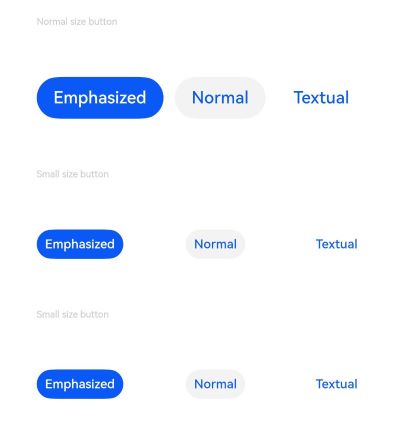
This example demonstrates how to set the role of the button by configuring role.
- // xxx.ets
- @Entry
- @Component
- struct ButtonExample {
- build() {
- Flex({ direction: FlexDirection.Column, alignItems: ItemAlign.Start, justifyContent: FlexAlign.SpaceBetween }) {
- Text('Role is Normal button').fontSize(9).fontColor(0xCCCCCC)
- Flex({ alignItems: ItemAlign.Center, justifyContent: FlexAlign.SpaceBetween }) {
- Button('Emphasized', { buttonStyle: ButtonStyleMode.EMPHASIZED, role: ButtonRole.NORMAL });
- Button('Normal', { buttonStyle: ButtonStyleMode.NORMAL, role: ButtonRole.NORMAL });
- Button('Textual', { buttonStyle: ButtonStyleMode.TEXTUAL, role: ButtonRole.NORMAL });
- }
- Text('Role is Error button').fontSize(9).fontColor(0xCCCCCC)
- Flex({ alignItems: ItemAlign.Center, justifyContent: FlexAlign.SpaceBetween }) {
- Button('Emphasized', { buttonStyle: ButtonStyleMode.EMPHASIZED, role: ButtonRole.ERROR});
- Button('Normal', { buttonStyle: ButtonStyleMode.NORMAL, role: ButtonRole.ERROR });
- Button('Textual', { buttonStyle: ButtonStyleMode.TEXTUAL, role: ButtonRole.ERROR });
- }
- }.height(200).padding({ left: 15, right: 15, top: 35 })
- }
- }
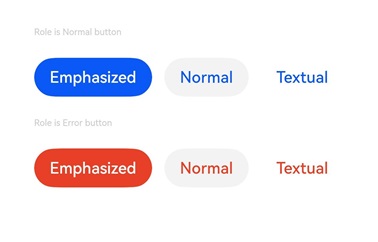
This example implements a custom button in the shape of a circle. The circle is red when pressed, accompanied by the text "Pressed" in the title. It is black when not pressed, accompanied by the text "Not pressed" in the title.
- class MyButtonStyle implements ContentModifier<ButtonConfiguration> {
- x: number = 0;
- y: number = 0;
- selectedColor: Color = Color.Black;
-
- constructor(x: number, y: number, colorType: Color) {
- this.x = x;
- this.y = y;
- this.selectedColor = colorType;
- }
-
- applyContent(): WrappedBuilder<[ButtonConfiguration]> {
- return wrapBuilder(buildButton1);
- }
- }
-
- @Builder
- function buildButton1(config: ButtonConfiguration) {
- Column({ space: 30 }) {
- Text(config.enabled ? "enabled true" : "enabled false")
- Text('Circle state' + (config.pressed? "(Pressed)" : "(Not pressed)"))
- Text('X-coordinate of the click point:' + (config.enabled ? (config.contentModifier as MyButtonStyle).x : "0"))
- Text('Y-coordinate of the click point:' + (config.enabled ? (config.contentModifier as MyButtonStyle).y : "0"))
- Circle({ width: 50, height: 50 })
- .fill(config.pressed ? (config.contentModifier as MyButtonStyle).selectedColor : Color.Black)
- .gesture(
- TapGesture({ count: 1 }).onAction((event: GestureEvent) => {
- config.triggerClick(event.fingerList[0].localX, event.fingerList[0].localY)
- })).opacity(config.enabled ? 1 : 0.1)
- }
- }
-
- @Entry
- @Component
- struct ButtonExample {
- @State buttonEnabled: boolean = true;
- @State positionX: number = 0;
- @State positionY: number = 0;
- @State state: boolean[] = [true, false];
- @State index: number = 0;
-
- build() {
- Column() {
- Button('OK')
- .contentModifier(new MyButtonStyle(this.positionX, this.positionY, Color.Red))
- .onClick((event) => {
- console.info('change' + JSON.stringify(event));
- this.positionX = event.displayX;
- this.positionY = event.displayY;
- }).enabled(this.buttonEnabled)
- Row() {
- Toggle({ type: ToggleType.Switch, isOn: true }).onChange((value: boolean) => {
- if (value) {
- this.buttonEnabled = true;
- } else {
- this.buttonEnabled = false;
- }
- }).margin({ left: -80 })
- }
- }.height('100%').width('100%').justifyContent(FlexAlign.Center)
- }
- }
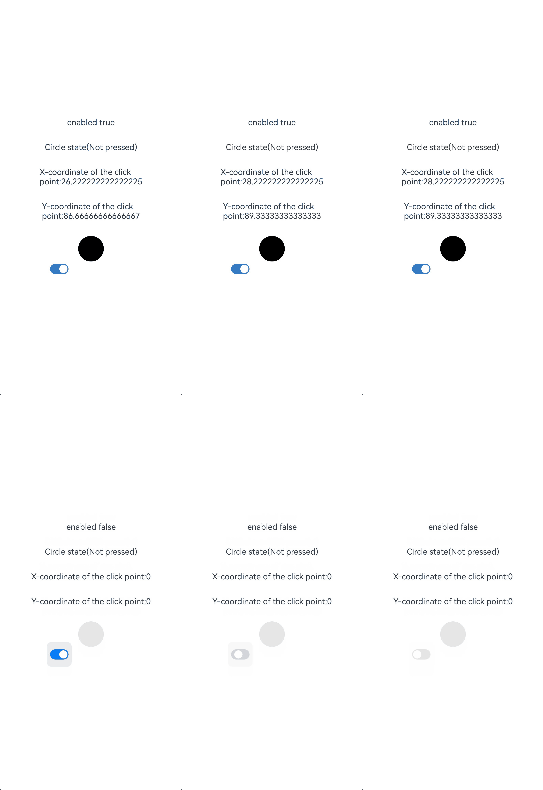
This example creates rounded rectangle buttons by configuring ButtonType.ROUNDED_RECTANGLE.
- @Entry
- @Component
- struct ButtonExample {
- build() {
- Flex({ direction: FlexDirection.Column, alignItems: ItemAlign.Start, justifyContent: FlexAlign.SpaceBetween }) {
- Text('Rounded rectangle button with rounded corners by default.').fontSize(9).fontColor(0xCCCCCC)
- Flex({ alignItems: ItemAlign.Center, justifyContent: FlexAlign.SpaceBetween }) {
- Button('Rounded rectangle')
- .type(ButtonType.ROUNDED_RECTANGLE)
- .backgroundColor(0x317aff)
- .controlSize(ControlSize.NORMAL)
- .width(180)
- }
- Text('Rounded rectangle button configured with a borderRadius of 5.').fontSize(9).fontColor(0xCCCCCC)
- Flex({ alignItems: ItemAlign.Center, justifyContent: FlexAlign.SpaceBetween }) {
- Button('Rounded rectangle')
- .type(ButtonType.ROUNDED_RECTANGLE)
- .backgroundColor(0x317aff)
- .controlSize(ControlSize.NORMAL)
- .width(180)
- .borderRadius(5)
- }
- Text('Rounded rectangle button configured extra long text.').fontSize(9).fontColor(0xCCCCCC)
- Flex({ alignItems: ItemAlign.Center, justifyContent: FlexAlign.SpaceBetween }) {
- Button('Rounded rectangle Rounded rectangle Rounded rectangle Rounded rectangle')
- .type(ButtonType.ROUNDED_RECTANGLE)
- .backgroundColor(0x317aff)
- .width(180)
- .labelStyle({overflow:TextOverflow.Ellipsis, maxLines:3, minFontSize: 0})
- }
- }.height(400).padding({ left: 35, right: 35, top: 35 })
- }
- }
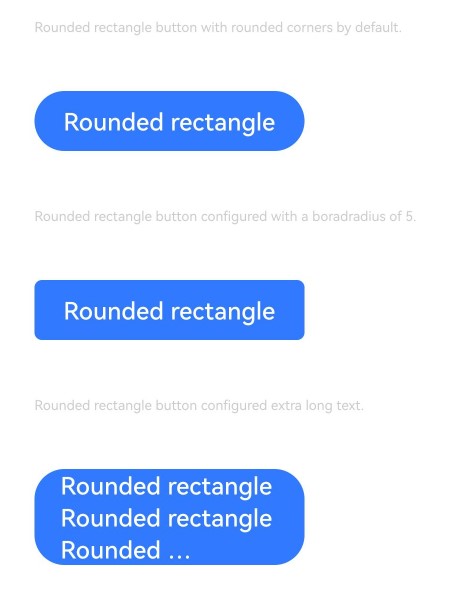
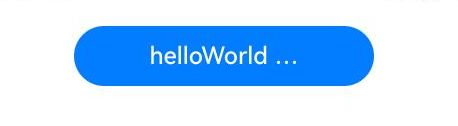
This example shows how to set the text alignment mode by configuring textAlign of LabelStyle.
The textAlign API is supported since API version 23.
- @Entry
- @Component
- struct Index {
- build() {
- Column(){
- Button('helloWorld helloWorld helloWorld helloWorld helloWorld helloWorld')
- .width(200)
- .labelStyle({
- textAlign: TextAlign.Center
- })
- }
- .width('100%')
- .alignItems(HorizontalAlign.Center)
- }
- }