


智能客服
你问我答,随时在线为你解决问题















支持桌面万象小组件随手机主题包一起上架。应用时可根据自己的想法将桌面万象小组件自由组合,打造个性化桌面。
桌面万象小组件示例:时钟、天气、音乐、日历、步数、倒计时等小组件。
桌面万象小组件随手机主题包一起上架时,结构如下图所示:
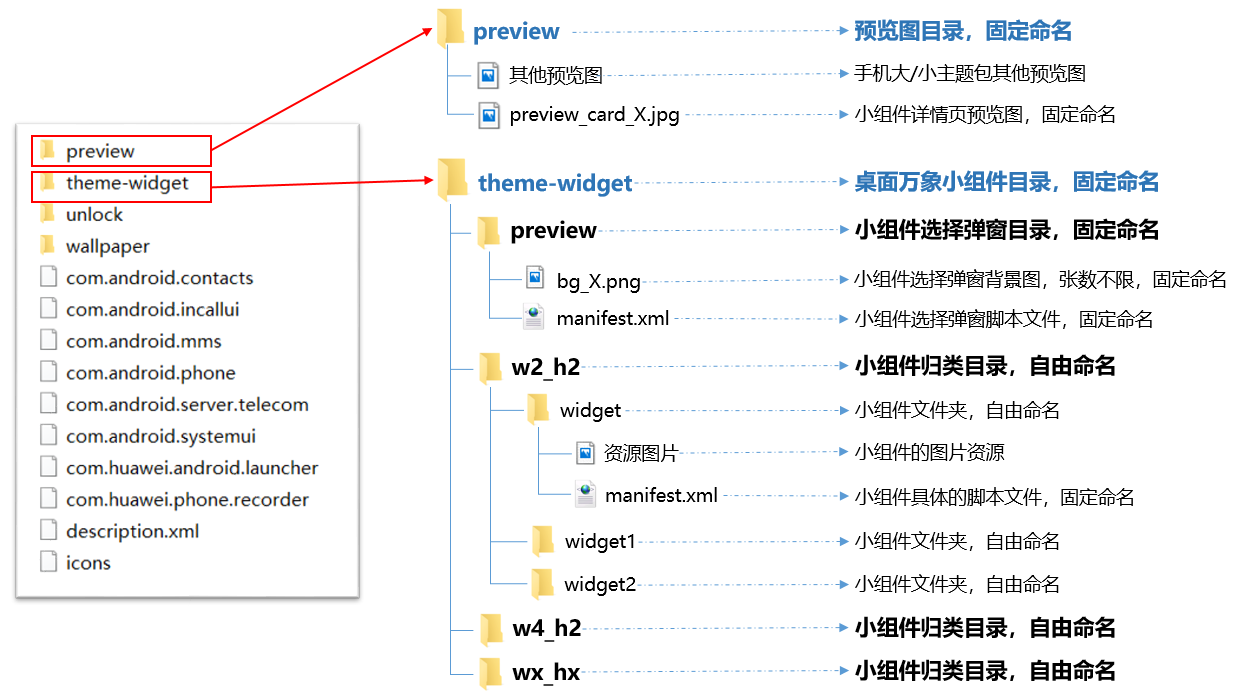
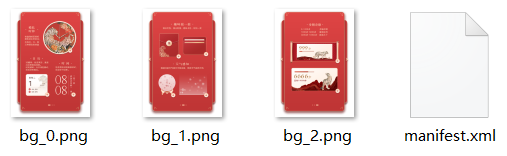
theme-widget文件夹下的preview文件夹为小组件选择弹窗目录,包含多张bg_X.png和一个manifest.xml文件。
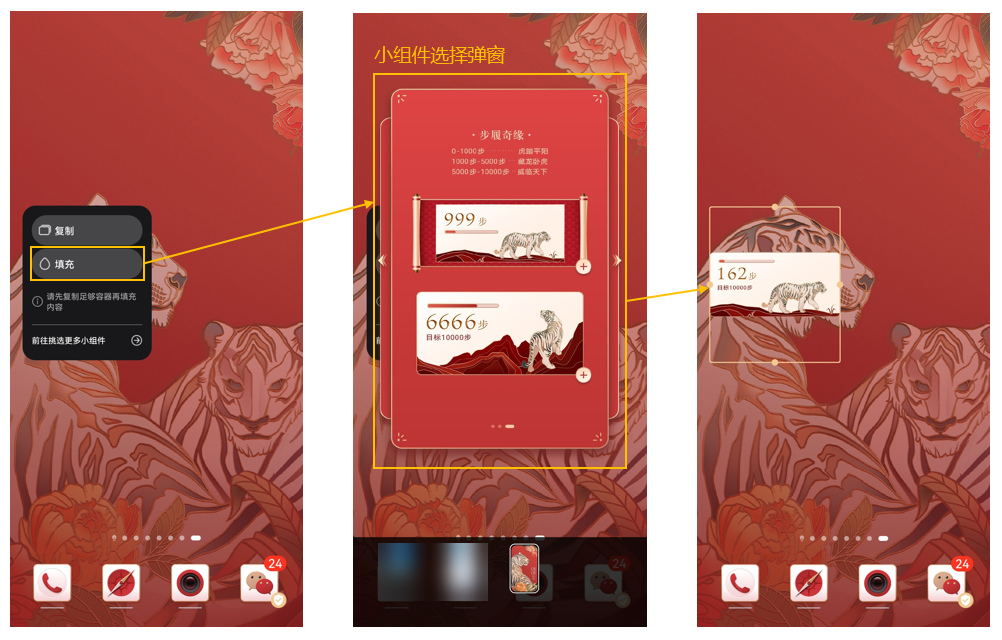
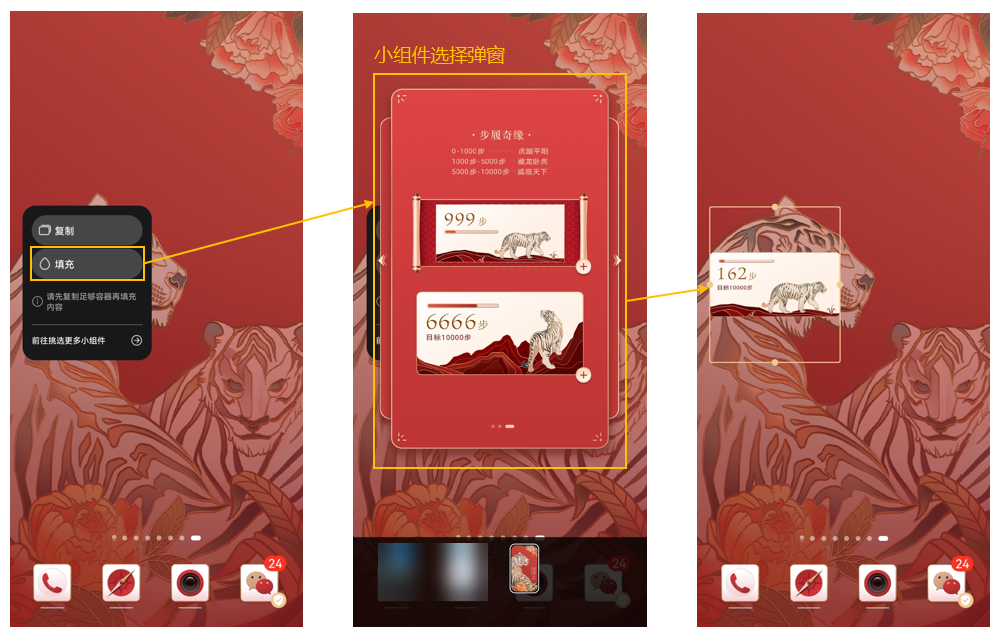
应用场景:在桌面上添加小组件容器后,点击“填充”将出现小组件选择弹窗,用户在此弹窗中选择并添加某个具体的小组件。
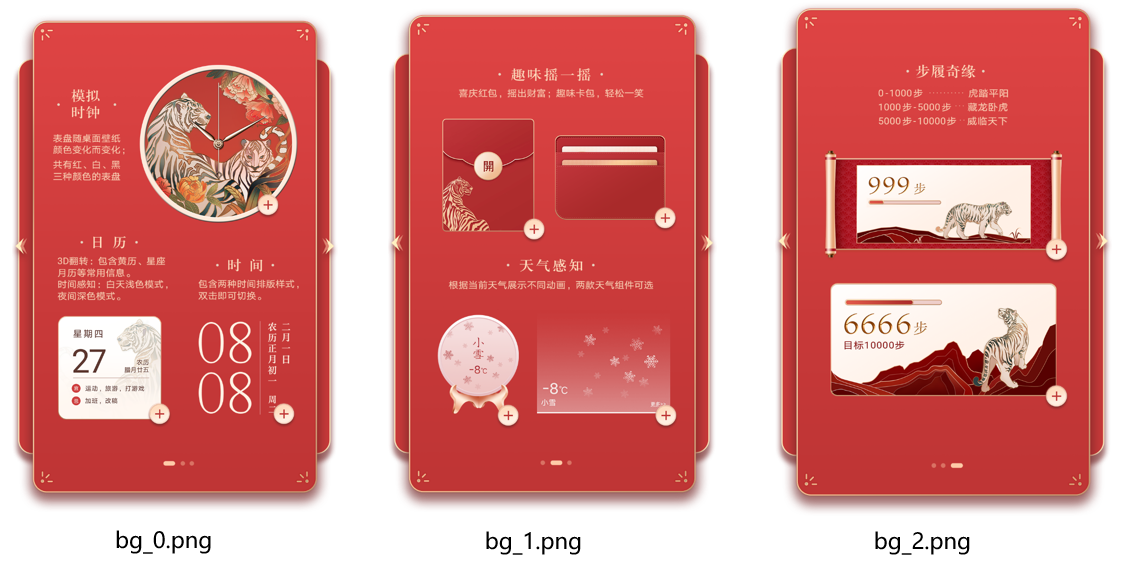
bg_X.png为小组件选择弹窗背景图。
样例参考:
规格要求:
此manifest.xml文件是小组件选择弹窗的脚本文件,规定了弹窗的大小和每个小组件的添加方式。
xml规范
<?xml version="1.0" encoding="UTF-8"?>
<Widget version="1" screenWidth="984" screenHeight="1656" frameRate="30" displayDesktop="true">

    <Image y="" x="" w="" src="" h=""/>
    <Button y="" x="" w="" h="">
       <Trigger action="">
           <ExternCommand condition="" command=""/>
       </Trigger>
    </Button>

</Widget> xml示例
<?xml version="1.0" encoding="UTF-8"?>
<Widget version="1" screenWidth="984" screenHeight="1656" frameRate="30" displayDesktop="true">
    <Var persist="true" expression="#screen_width" const="true" name="w"/>
    <Var persist="true" expression="#screen_height" const="true" name="h"/>
    <Var expression="0" name="group"/>

    <!-- 第1组 -->
    <Group visibility="eq(#group,0)">
    <Image y="0" x="0" w="#screen_width" src="bg1.png" h="#screen_height"/>
    <!-- 模拟时钟 -->
    <Button y="150" x="359" w="471.5" h="490.1">
       <Trigger action="click">
           <ExternCommand condition="1" command="w2_h2/widget"/>
       </Trigger>
    </Button>
    <!-- 3D翻转 -->
    <Button y="870" x="119" w="336.7" h="372">
        <Trigger action="click">
            <ExternCommand condition="1" command="w2_h2/widget1"/>
        </Trigger>
    </Button>
    <!-- 时间UI -->
    <Button y="870" x="512" w="312.9" h="372">
        <Trigger action="click">
           <ExternCommand condition="1" command="w2_h2/widget2"/>
        </Trigger>
    </Button>
    </Group>

    <!-- 第2组 -->
    <Group visibility="eq(#group,1)">
    <Image y="0" x="0" w="#screen_width" src="bg2.png" h="#screen_height"/>
    <!-- 卡片 -->
    <Button y="363" x="469" w="362.7" h="301.3">
        <Trigger action="click">
           <ExternCommand condition="1" command="w2_h2/widget3"/>
        </Trigger>
    </Button>
    <!-- 红包 -->
    <Button y="317" x="141" w="315.3" h="375.7">
      <Trigger action="click">
         <ExternCommand condition="1" command="w2_h2/widget4"/>
      </Trigger>
    </Button>
    <!-- 天气2 -->
    <Button y="898" x="131" w="264.1" h="326.4">
       <Trigger action="click">
          <ExternCommand condition="1" command="w2_h2/widget5"/>
       </Trigger>
    </Button>
    <!-- 天气1 -->
    <Button y="900" x="414" w="415.7" h="324.6">
        <Trigger action="click">
            <ExternCommand condition="1" command="w4_h2/widget"/>
        </Trigger>
    </Button>
    </Group>

    <!-- 第3组 -->
    <Group visibility="eq(#group,2)">
    <Image y="0" x="0" w="#screen_width" src="bg3.png" h="#screen_height"/>
    <!-- 步数1 -->
    <Button y="419" x="123" w="706.8" h="336.7">
        <Trigger action="click">
            <ExternCommand condition="1" command="w4_h2/widget1"/>
        </Trigger>
    </Button>
    <!-- 步数2 -->
    <Button y="782" x="124" w="705.9" h="389.7">
        <Trigger action="click">
            <ExternCommand condition="1" command="w4_h2/widget2"/>
        </Trigger>
    </Button>
    </Group>

    <Button y="590" x="0" w="100" h="212">
        <Trigger action="click">
            <VariableCommand expression="ifelse(gt(#group,0), #group-1, #group)" name="group"/>
        </Trigger>
    </Button>

    <Button y="590" x="839" w="100" h="212">
        <Trigger action="click">
            <VariableCommand expression="ifelse(lt(#group,2), #group+1, #group)" name="group"/>
        </Trigger>
    </Button>

    <Button y="0" x="0" w="#w" h="#h">
        <Trigger action="up">
            <VariableCommand expression="ifelse(lt(#group,2), #group+1, #group)" name="group" condition="gt(#touch_begin_x-#touch_x,150)"/>
            <VariableCommand expression="ifelse(gt(#group,0), #group-1, #group)" name="group" condition="lt(#touch_begin_x-#touch_x,-150)"/>
        </Trigger>
    </Button>

</Widget> 在桌面上添加小组件容器后,点击“填充”将出现小组件选择弹窗,用户在此弹窗中选择并添加某个具体的小组件。
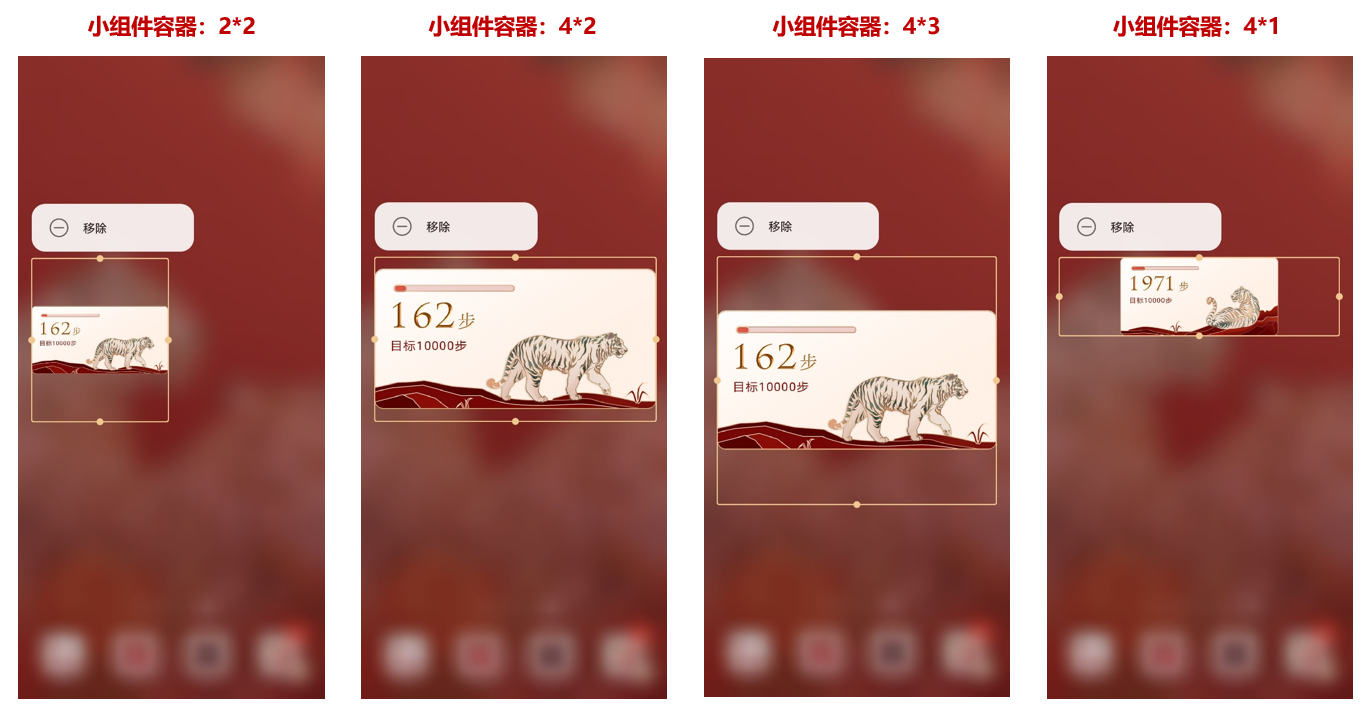
添加的小组件容器默认尺寸为2*2,可以根据当前填充的小组件内容,将其调整至合适尺寸。
制作桌面万象小组件主题包时,建议将在相同尺寸的小组件容器中填充效果较好的小组件,归类放在同一个文件夹中,这个归类文件夹建议命名为:wx_hx(wx为小组件容器的宽,hx为小组件容器的高,x为尺寸值,取值范围1-6)。归类文件夹可以根据需要,添加多个。
例如:当前填充的小组件为步数小组件,在默认的2*2小组件容器中填充效果不太好。手动将小组件容器尺寸调整为4*2时,步数小组件的填充效果较好。则可以将步数小组件归类放在w4_h2文件夹中。
wx_hx文件夹更多示例:


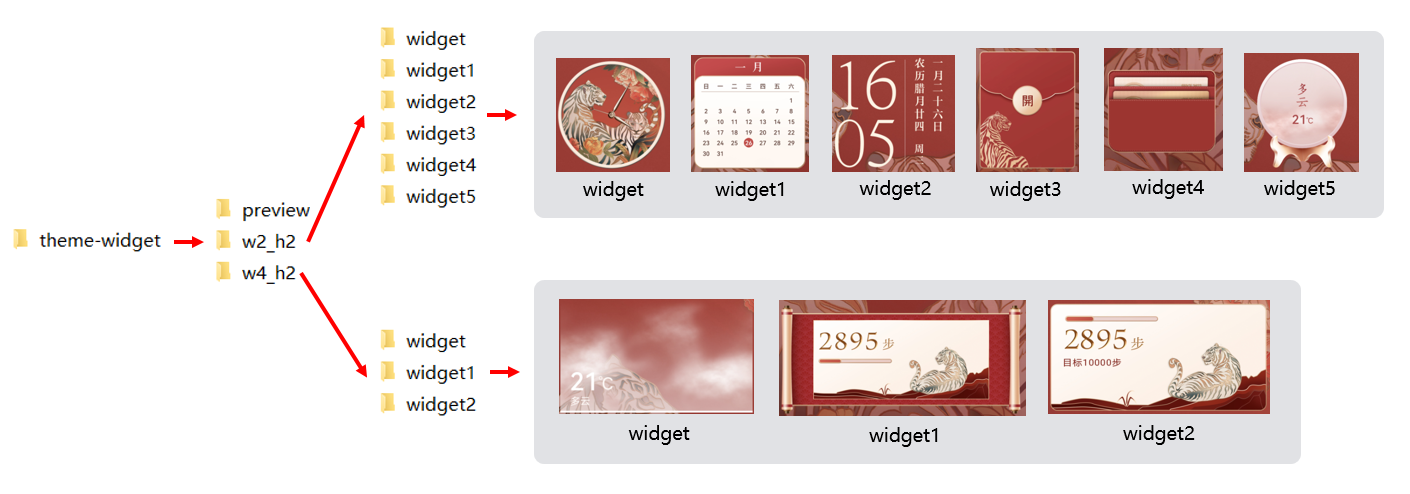
wx_hx文件夹说明:
归类文件夹名称和小组件文件夹名称确定后,需要与manifest.xml文件中command的值一一对应,command的值是添加小组件的路径。
示例:command="w2_h2/widget",添加的是w2_h2文件夹中的widget,即模拟时钟组件;command="w4_h2/widget2",添加的是w4_h2文件中的widget2,即步数2组件。
    <!-- 模拟时钟 -->
    <Button y="150" x="359" w="471.5" h="490.1">
       <Trigger action="click">
           <ExternCommand condition="1" command="w2_h2/widget"/>
       </Trigger>
    </Button>

    <!-- 步数2 -->
    <Button y="782" x="124" w="705.9" h="389.7">
        <Trigger action="click">
            <ExternCommand condition="1" command="w4_h2/widget2"/>
        </Trigger>
</Button> widget是小组件文件夹,包含当前小组件使用的资源图片和manifest.xml文件。
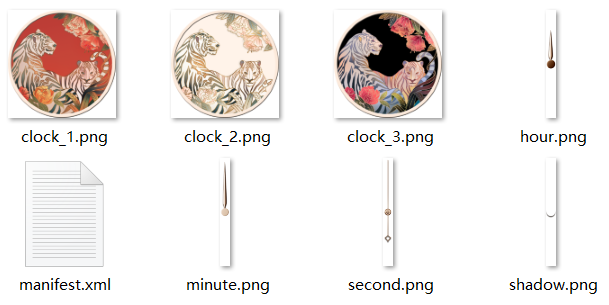
xml规范
<?xml version="1.0" encoding="UTF-8"?>
<Widget screenHeight="" screenWidth="" displayDesktop="true" frameRate="30" version="1">
</Widget>
xml注意事项
步数:action="android.intent.action.MAIN" package="com.huawei.health" class="com.huawei.health.MainActivity"
时钟:action="android.intent.action.MAIN" package="com.android.deskclock" class="com.android.deskclock.AlarmsMainActivity"
天气:action="android.intent.action.MAIN" package="com.huawei.android.totemweather" class="com.huawei.android.totemweather.WeatherHome"
    <!-- 示例:跳转至天气应用,跳转方式为click -->
    <Button y="0" x="0" w="940" h="940">
       <Trigger action="click">
          <IntentCommand action="android.intent.action.MAIN" package="com.huawei.android.totemweather" condition="1" class="com.huawei.android.totemweather.WeatherHome"/>
       </Trigger>
</Button> <ExternalCommands>
<Trigger action="resume">
<RefreshWeatherCommand/>
</Trigger>
<Trigger action="pause"/>
</ExternalCommands> 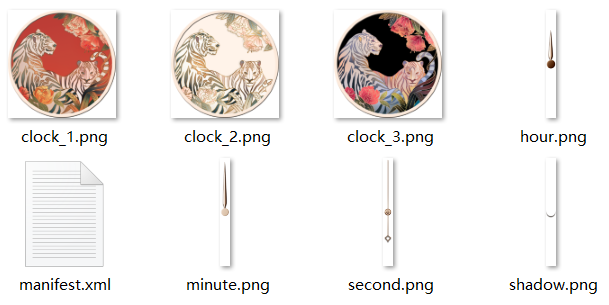
<?xml version="1.0" encoding="UTF-8"?>
<Widget screenHeight="940" screenWidth="940" displayDesktop="true" frameRate="30" version="1">
<Group visibility="true" y="0" x="0">
<Image visibility="eq(#bg_id,0)" y="0" x="0" src="clock_1.png"/>
<Image visibility="eq(#bg_id,1)" y="0" x="0" src="clock_2.png"/>
<Image visibility="eq(#bg_id,2)" y="0" x="0" src="clock_3.png"/>
<Image y="90" x="435" src="minute.png" rotation="360*(#minute/60)" pivotY="380" pivotX="35"/>
<Image y="90" x="435" src="hour.png" rotation="360*(#hour12/12)+30*(#minute/60)" pivotY="380" pivotX="35"/>
<Image y="90" x="435" src="second.png" rotation="360*(#second/60)" pivotY="380" pivotX="35"/>
</Group>
<Button y="0" x="0" h="940" w="940">
<Trigger action="click">
<IntentCommand action="android.intent.action.MAIN" class="com.android.deskclock.AlarmsMainActivity" package="com.android.deskclock"/>
</Trigger>
</Button>
</Widget> 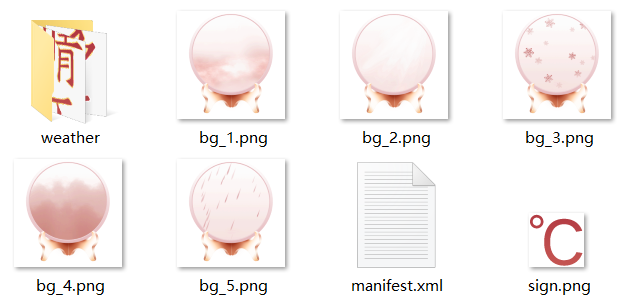
<?xml version="1.0" encoding="UTF-8"?>
<Widget screenHeight="940" screenWidth="940" displayDesktop="true" frameRate="30" version="1">
<Var persist="true" expression="#screen_width" const="true" name="w"/>
<Var persist="true" expression="#screen_height" const="true" name="h"/>
   <ExternalCommands>
        <Trigger action="resume">
            <RefreshWeatherCommand/>
        </Trigger>
        <Trigger action="pause"/>
    </ExternalCommands>
<Weather>
<Var expression="0" name="Weather.today.weatherid" type="int"/>
<!-- 今天天气 -->
<Var expression="0" name="Weather.today.weatherDes" type="string"/>
<!-- 今天天气 -->
<Var expression="0" name="Weather.today.currentTem" type="int"/>
<!-- 当前气温 -->
<Var expression="0" name="Weather.today.maxtemp" type="string"/>
<!-- 最高气温 -->
<Var expression="0" name="Weather.today.mintemp" type="string"/>
<!-- 最低气温 -->
<Var expression="0" name="Weather.today.winddirDes" type="string"/>
<!-- 风向 -->
<!--Var name="Weather.today.dressingLevel" expression="0" type="string"/-->
<!-- 穿衣 -->
<Var expression="0" name="Weather.today.humidity" type="string"/>
<!-- 湿度 -->
<Var expression="0" name="Weather.today.aqivaluetext" type="string"/>
<!-- 空气 -->
<!--Var name="Weather.today.sportsLevel" expression="0" type="string"/-->
<!-- 运动 -->
<Var expression="0" name="Weather.today.coldLevel" type="string"/>
<!-- 感冒 -->
<Var expression="0" name="Weather.today.carWashLevel" type="string"/>
<!-- 洗车 -->
<Var expression="0" name="Weather.today.sunRise" type="string"/>
<!-- 日出 -->
<Var expression="0" name="Weather.today.sunSet" type="string"/>
<!-- 日落 -->
</Weather>
<Image visibility="eq(#Weather.today.weatherid,4)+eq(#Weather.today.weatherid,6)+eq(#Weather.today.weatherid,7) +eq(#Weather.today.weatherid,13)+eq(#Weather.today.weatherid,16)+eq(#Weather.today.weatherid,20)+ eq(#Weather.today.weatherid,23)+eq(#Weather.today.weatherid,35)+eq(#Weather.today.weatherid,36)+ eq(#Weather.today.weatherid,38)+eq(#Weather.today.weatherid,39)+eq(#Weather.today.weatherid,40)+ eq(#Weather.today.weatherid,41)+eq(#Weather.today.weatherid,42)+eq(#Weather.today.weatherid,43)+eq(#Weather.today.weatherid,44)" src="bg_1.png" y="0" x="0"/>
<Image visibility="eq(#Weather.today.weatherid,1)+eq(#Weather.today.weatherid,2)+ eq(#Weather.today.weatherid,3)+eq(#Weather.today.weatherid,5)+eq(#Weather.today.weatherid,14)+eq(#Weather.today.weatherid,17) +eq(#Weather.today.weatherid,21)+eq(#Weather.today.weatherid,30)+eq(#Weather.today.weatherid,33)+eq(#Weather.today.weatherid,34)+eq(#Weather.today.weatherid,37)" src="bg_2.png" y="0" x="0"/>
<Image visibility="eq(#Weather.today.weatherid,19)+eq(#Weather.today.weatherid,22) +eq(#Weather.today.weatherid,24)+eq(#Weather.today.weatherid,25)" src="bg_3.png" y="0" x="0"/>
<Image visibility="eq(#Weather.today.weatherid,8)+eq(#Weather.today.weatherid,31)+ eq(#Weather.today.weatherid,32)+eq(#Weather.today.weatherid,11)" src="bg_4.png" y="0" x="0"/>
<Image visibility="eq(#Weather.today.weatherid,12)+eq(#Weather.today.weatherid,15)+ eq(#Weather.today.weatherid,18)+eq(#Weather.today.weatherid,26)+eq(#Weather.today.weatherid,29)" src="bg_5.png" y="0" x="0"/>
<Group visibility="true" y="0" x="0"
<!--晴天-->
<Image visibility="eq(#Weather.today.weatherid,1)+eq(#Weather.today.weatherid,2)+ eq(#Weather.today.weatherid,3)+eq(#Weather.today.weatherid,5)+eq(#Weather.today.weatherid,14)+eq(#Weather.today.weatherid,17) +eq(#Weather.today.weatherid,21)+eq(#Weather.today.weatherid,30)+eq(#Weather.today.weatherid,33)+eq(#Weather.today.weatherid,34)+eq(#Weather.today.weatherid,37)" src="weather/weather_2.png" y="200" x="#w/2" align="center"/>
<!--多云-->
<Image visibility="eq(#Weather.today.weatherid,4)+eq(#Weather.today.weatherid,6)+eq(#Weather.today.weatherid,7) +eq(#Weather.today.weatherid,13)+eq(#Weather.today.weatherid,16)+eq(#Weather.today.weatherid,20)+ eq(#Weather.today.weatherid,23)+eq(#Weather.today.weatherid,35)+eq(#Weather.today.weatherid,36)+ eq(#Weather.today.weatherid,38)+eq(#Weather.today.weatherid,39)+eq(#Weather.today.weatherid,40)+ eq(#Weather.today.weatherid,41)+eq(#Weather.today.weatherid,42)+eq(#Weather.today.weatherid,43)+eq(#Weather.today.weatherid,44)" src="weather/weather_1.png" y="200" x="#w/2" align="center"/>
<!--雨天-->
<Image visibility="eq(#Weather.today.weatherid,12)+eq(#Weather.today.weatherid,15)+ eq(#Weather.today.weatherid,18)+eq(#Weather.today.weatherid,26)+eq(#Weather.today.weatherid,29)" src="weather/weather_5.png" y="200" x="#w/2" align="center"/>
<!--阴天-->
<Image visibility="eq(#Weather.today.weatherid,8)+eq(#Weather.today.weatherid,31)+ eq(#Weather.today.weatherid,32)+eq(#Weather.today.weatherid,11)" src="weather/weather_4.png" y="200" x="#w/2" align="center"/>
<!--雪天-->
<Image visibility="eq(#Weather.today.weatherid,19)+eq(#Weather.today.weatherid,22) +eq(#Weather.today.weatherid,24)+eq(#Weather.today.weatherid,25)" src="weather/weather_3.png" y="200" x="#w/2" align="center"/>
<Text name="tem" y="424" x="388" size="100" paras="#Weather.today.currentTem" format="%d" color="#B53F45" alignV="top"/>
<Image src="sign.png" y="477" x="388+#tem.text_width"/>
</Group>
<Button y="0" x="0" w="940" h="940">
<Trigger action="up">
<IntentCommand action="android.intent.action.MAIN" package="com.huawei.android.totemweather" condition="1" class="com.huawei.android.totemweather.WeatherHome"/>
</Trigger>
</Button>
</Widget> 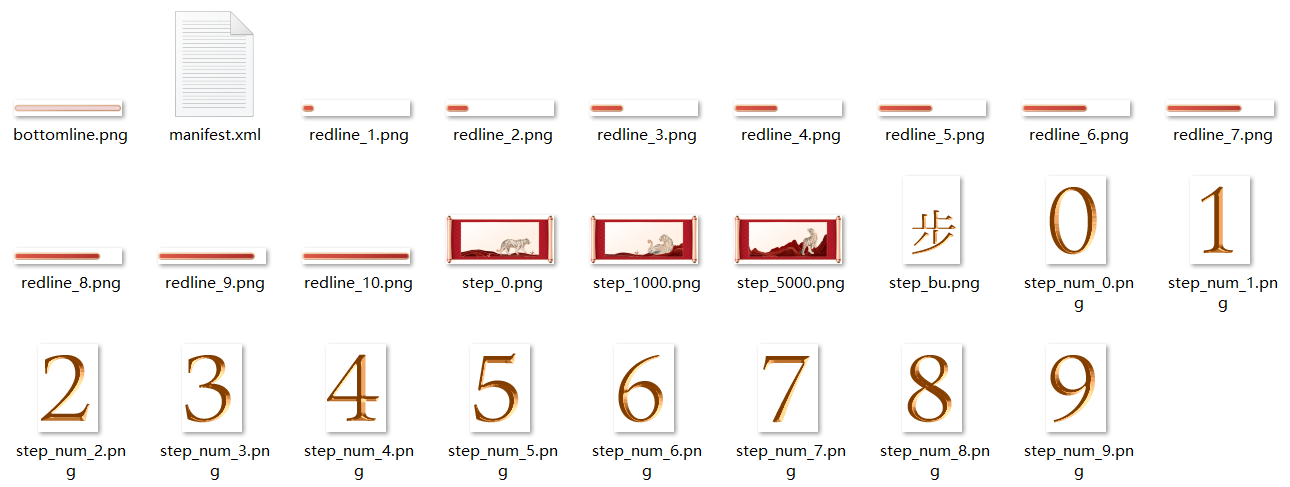
<?xml version="1.0" encoding="UTF-8"?>
<Widget screenHeight="470" screenWidth="940" displayDesktop="true" frameRate="30" version="1">
     <Var globalPersist="true" expression="#steps_value" name="step"/>
     <Image visibility="lt(#step, 1000)" y="0" x="0" src="step_0.png"/>
     <Image visibility="ge(#step, 1000)*lt(#step, 5000)" y="0" x="0" src="step_1000.png"/>
     <Image visibility="ge(#step, 5000)" y="0" x="0" src="step_5000.png"/>

     <!--步数显示-->
     <Image visibility="ge(#step,0)*lt(#step,10)" y="100" x="150" src="step_num.png" srcid="digit(#step, 1)"/>
     <Image visibility="ge(#step,0)*lt(#step,10)" y="100" x="210" src="step_bu.png"/>
     <Image visibility="ge(#step,10)*lt(#step,100)" y="100" x="150" src="step_num.png" srcid="digit(#step, 2)"/>
     <Image visibility="ge(#step,10)*lt(#step,100)" y="100" x="210" src="step_num.png" srcid="digit(#step, 1)"/>
     <Image visibility="ge(#step,10)*lt(#step,100)" y="100" x="270" src="step_bu.png"/>
     <Image visibility="ge(#step,100)*lt(#step,1000)" y="100" x="150" src="step_num.png" srcid="digit(#step, 3)"/>
     <Image visibility="ge(#step,100)*lt(#step,1000)" y="100" x="210" src="step_num.png" srcid="digit(#step, 2)"/>
     <Image visibility="ge(#step,100)*lt(#step,1000)" y="100" x="270" src="step_num.png" srcid="digit(#step, 1)"/>
     <Image visibility="ge(#step,100)*lt(#step,1000)" y="100" x="330" src="step_bu.png"/>
     <Image visibility="ge(#step,1000)*lt(#step,10000)" y="100" x="150" src="step_num.png" srcid="digit(#step, 4)"/>
     <Image visibility="ge(#step,1000)*lt(#step,10000)" y="100" x="210" src="step_num.png" srcid="digit(#step, 3)"/>
     <Image visibility="ge(#step,1000)*lt(#step,10000)" y="100" x="270" src="step_num.png" srcid="digit(#step, 2)"/>
     <Image visibility="ge(#step,1000)*lt(#step,10000)" y="100" x="330" src="step_num.png" srcid="digit(#step, 1)"/>
     <Image visibility="ge(#step,1000)*lt(#step,10000)" y="100" x="390" src="step_bu.png"/>
     <Image visibility="ge(#step,10000)" y="100" x="150" src="step_num.png" srcid="digit(#step, 5)"/>
     <Image visibility="ge(#step,10000)" y="100" x="210" src="step_num.png" srcid="digit(#step, 4)"/>
     <Image visibility="ge(#step,10000)" y="100" x="270" src="step_num.png" srcid="digit(#step, 3)"/>
     <Image visibility="ge(#step,10000)" y="100" x="330" src="step_num.png" srcid="digit(#step, 2)"/>
     <Image visibility="ge(#step,10000)" y="100" x="390" src="step_num.png" srcid="digit(#step, 1)"/>
     <Image visibility="ge(#step,10000)" y="100" x="450" src="step_bu.png"/>

     <!--进度条显示-->
     <Image y="200" x="150" src="bottomline.png"/>
     <Image visibility="gt(#step, 0)*le(#step, 1000)" y="200" x="150" src="redline_1.png"/>
     <Image visibility="gt(#step, 1000)*le(#step, 2000)" y="200" x="150" src="redline_2.png"/>
     <Image visibility="gt(#step, 2000)*le(#step, 3000)" y="200" x="150" src="redline_3.png"/>
     <Image visibility="gt(#step, 3000)*le(#step, 4000)" y="200" x="150" src="redline_4.png"/>
     <Image visibility="gt(#step, 4000)*le(#step, 5000)" y="200" x="150" src="redline_5.png"/>
     <Image visibility="gt(#step, 5000)*le(#step, 6000)" y="200" x="150" src="redline_6.png"/>
     <Image visibility="gt(#step, 6000)*le(#step, 7000)" y="200" x="150" src="redline_7.png"/>
     <Image visibility="gt(#step, 7000)*le(#step, 8000)" y="200" x="150" src="redline_8.png"/>
     <Image visibility="gt(#step, 8000)*lt(#step, 10000)" y="200" x="150" src="redline_9.png"/>
     <Image visibility="ge(#step, 10000)" y="200" x="150" src="redline_10.png"/>

     <!--步数跳转-->
     <Button y="0" x="0" h="470" w="940">
         <Trigger action="click">
             <IntentCommand action="android.intent.action.MAIN" class="com.huawei.health.MainActivity" package="com.huawei.health"/>
         </Trigger>
     </Button>

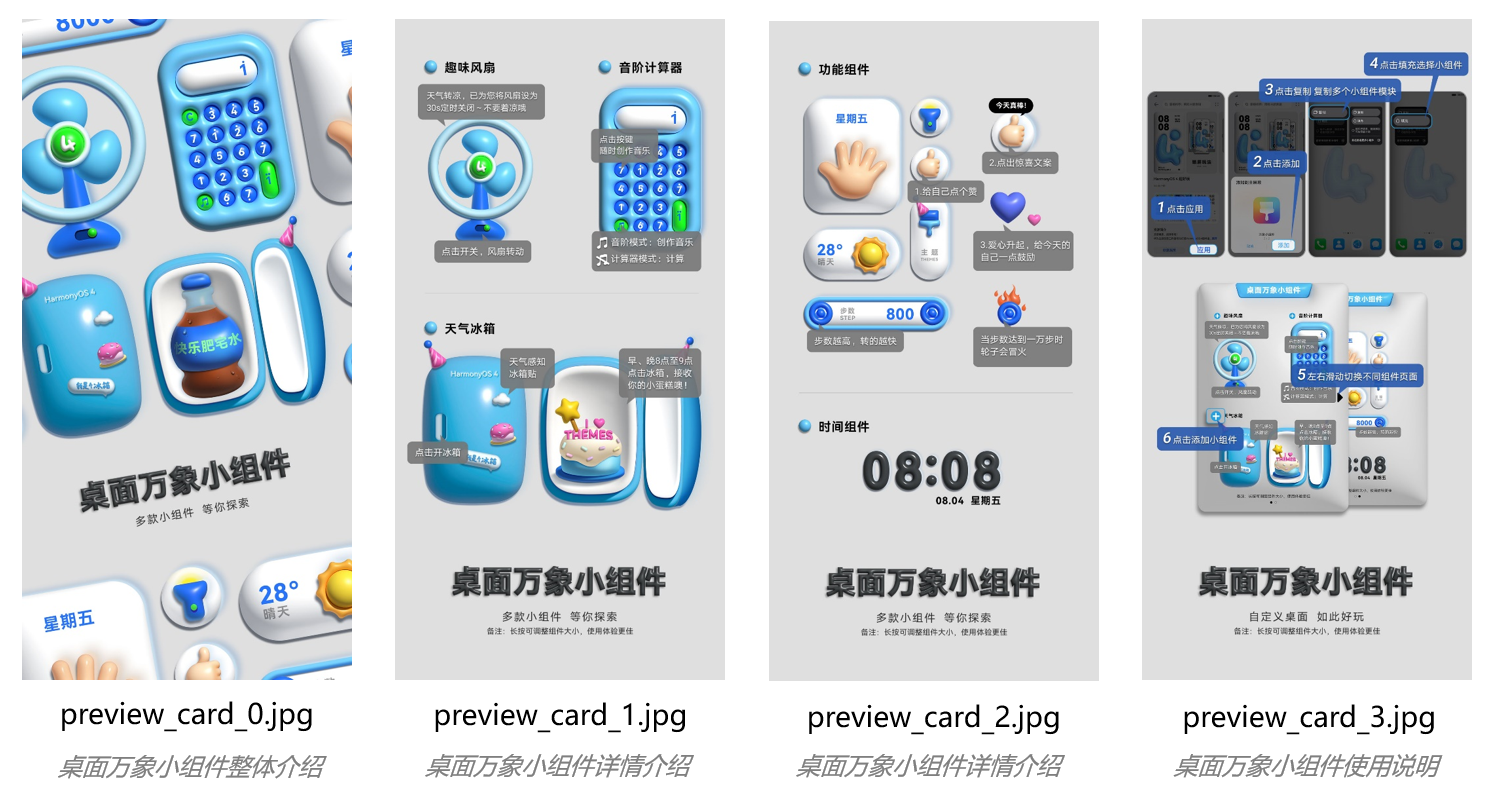
</Widget> preview文件下,包含桌面万象小组件详情页预览图(preview_card_X.jpg)和手机大/小主题包其他模块预览图。
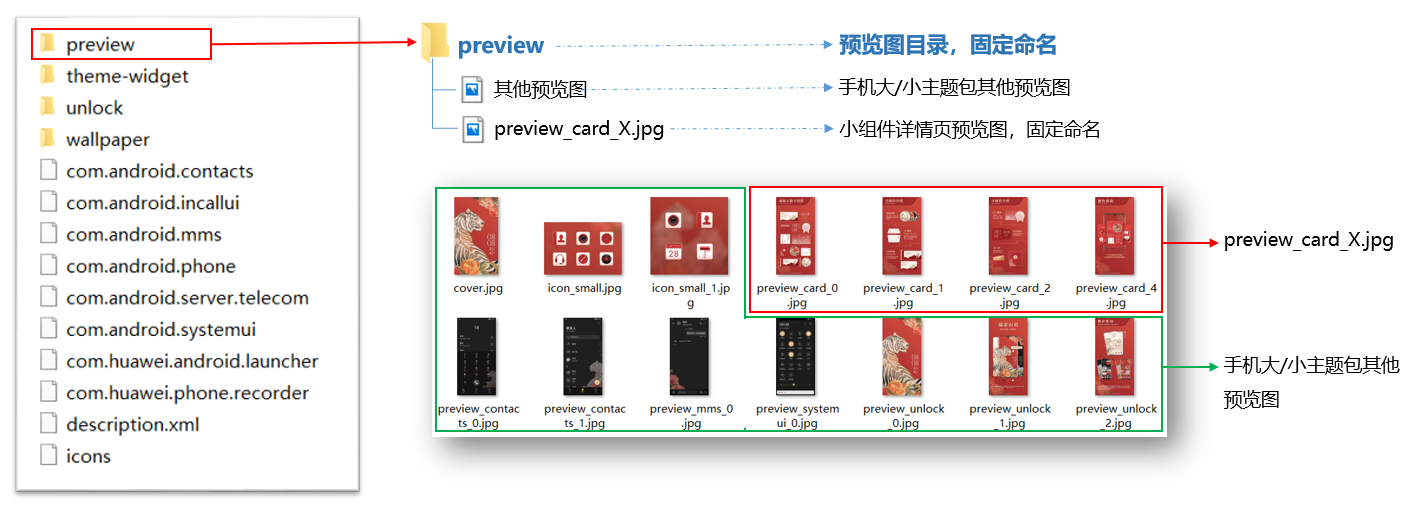
preview_card_X.jpg为桌面万象小组件详情页预览图,将展示在资源详情页。
规格要求:
内容要求:
| 张数 | 内容要求 |
|---|---|
| preview_card_0.jpg(第1张) | 桌面万象小组件整体介绍,展示所有小组件的样式。 |
| preview_card_X. jpg(X=1,2... 即第2张至倒数第2张) | 桌面万象小组件详情介绍,展示单个或多个小组件,介绍每个小组件的名称、简介或玩法。 |
| preview_card_X. jpg(最后1张) | 桌面万象小组件使用说明,展示添加桌面万象小组件的步骤和方法:①在主题APP的资源详情页点击“应用”→②点击“添加”小组件→③在桌面上点击“复制”小组件→④点击“填充”选择小组件→⑤滑动/点击等方式切换小组件选择页面→⑥点击添加小组件。具体可参考下图preview_card_3.jpg示例。 说明 请严格按以上的步骤和方法进行桌面万象小组件使用说明。 |
桌面万象小组件主题的简介描述中:大标题必须统一使用完整名称“桌面万象小组件”;详细内容介绍可以使用完整名称“桌面万象小组件”或简称“万象小组件”;具体的万象小组件可命名为“时钟小组件”、“步数小组件”等。完整名称"桌面万象小组件"和简称"万象小组件"都为固定写法,不可更改。
| 分类 | 引擎能力 | 桌面万象小组件 |
|---|---|---|
| 基础功能>视图 | √ | |
| √ | ||
| √ | ||
| √ | ||
| x | ||
| √ | ||
| √ | ||
| √ | ||
| √ | ||
| √ | ||
| x | ||
| √ | ||
| √ | ||
| √ | ||
| √ | ||
| 基础功能>组 | √ | |
| √ | ||
| 基础功能>控件 | √ | |
| x | ||
| x | ||
| 基础功能>变量 | √ | |
| √ | ||
| √ | ||
| √ | ||
| 基础功能>表达式 | √ | |
| √ | ||
| 基础功能>命令 | √ | |
| √ | ||
| √ | ||
| √ | ||
| √ | ||
| √ | ||
| x | ||
| x | ||
| √ | ||
| √ | ||
| x | ||
| √ | ||
| 基础功能>多语言 | √ | |
| 基础功能>数学曲线 | √ | |
| 基础功能>数据开放 | √ | |
| √ | ||
| √ | ||
| √ | ||
| √ | ||
| √ | ||
| √ | ||
| 基础功能>适配功能 | √ | |
| √ | ||
| x | ||
| √ | ||
| √ | ||
| √ | ||
| x | ||
| √ | ||
| 基础功能>用户自定义文案 | √ | |
| 2D基础动效 | √ | |
| √ | ||
| √ | ||
| √ | ||
| √ | ||
| √ | ||
| √ | ||
| 2D高级动效 | √ | |
| x | ||
| x | ||
| √ | ||
| √ | ||
| x | ||
| x | ||
| x | ||
| x | ||
| x | ||
| x | ||
| 3D高级动效 | √ | |
| x |