Intelligent Assistant
Chat with our virtual assistant to get answers promptly.
The functions of capturing and replaying consecutive frames are implemented in the LiveCapture and TraceOutline windows.
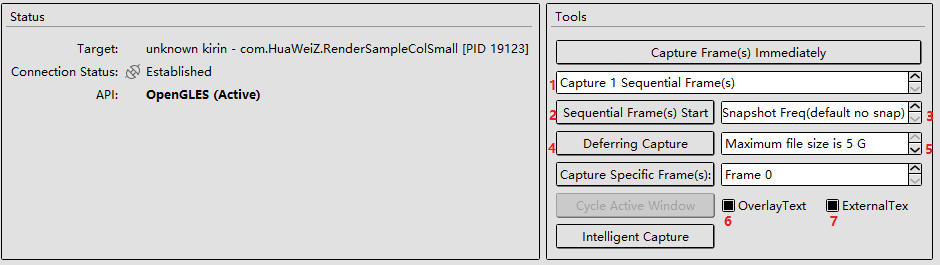
# | Description |
|---|---|
1 | The initial value of Capture 1 Sequential Frame(s) is 1. In this case, the tool can capture a single frame or consecutive frames. If the value is greater than 10, for example, Capture 11 Sequential Frame(s), the tool automatically switches to the mode of capturing consecutive frames. The value 1 indicates the mode of capturing a single frame, and the values 2 to 10 indicate the mode of capturing multiple frames. Before capturing frames, set the upper limit of captured frames. When the upper limit is reached, frame capture automatically stops. |
2 | Starts or stops capturing consecutive frames. On the first click, the button changes to Sequential Frame(s) Stop. On the second click, frame capturing stops and thumbnails are generated. |
3 | Sets the interval (in frames) for taking a snapshot. |
4 | Defers frame capture. This function is used to automatically capture consecutive frames when the frame rate fluctuates abnormally or frame freezing occurs, facilitating troubleshooting. |
5 | Sets the maximum size of a file.
|
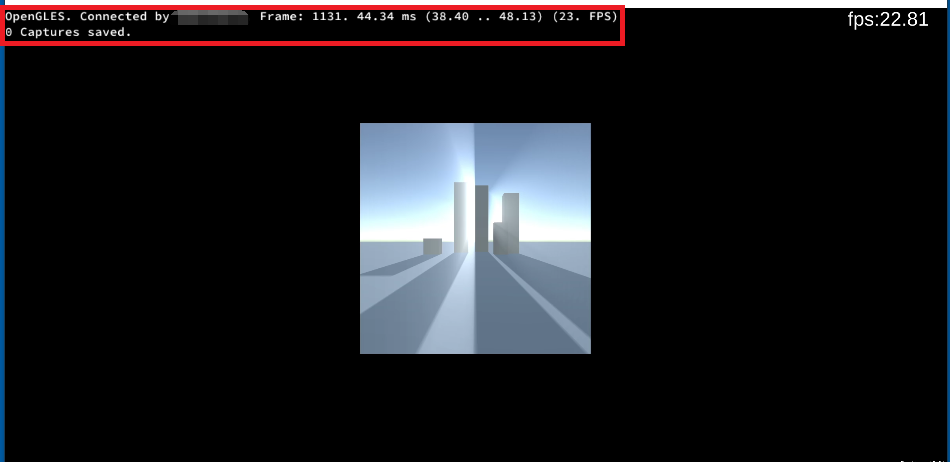
6 | Selects OverlayText to overlay text on the device, as shown in the following figure. |
7 | (Selected by default) Shows external textures. You are advised to deselect this option to avoid system crash due to large memory footprint. |
# | Description |
|---|---|
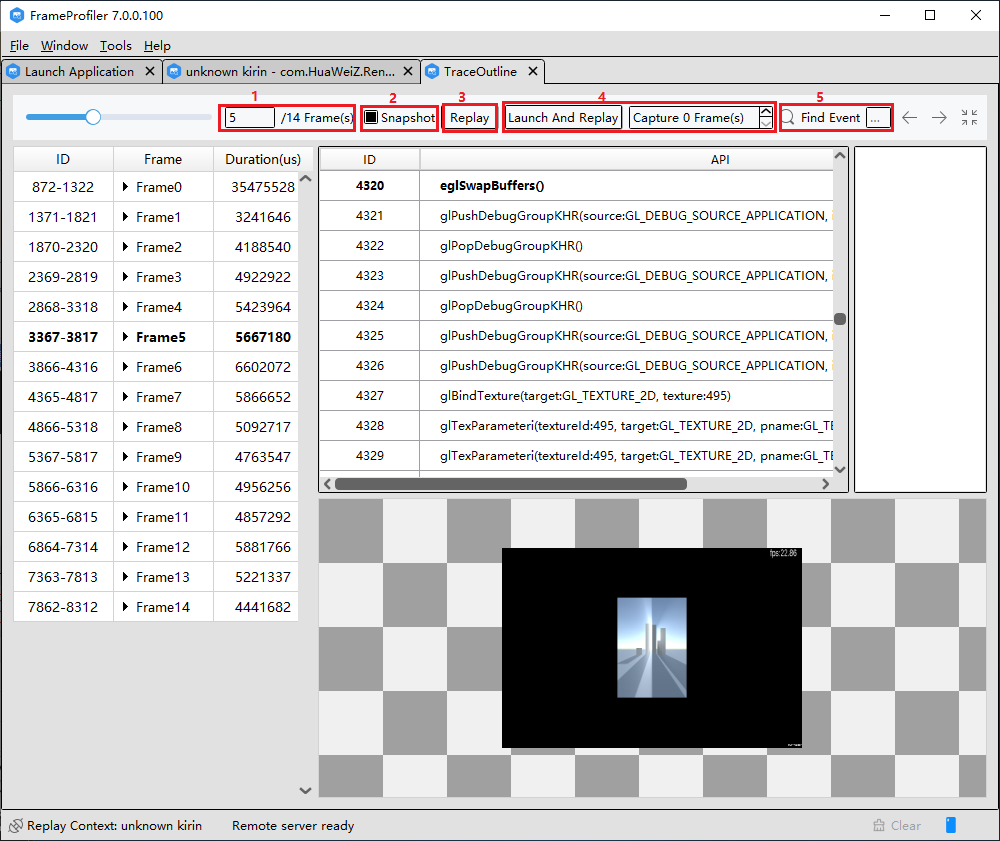
1 | Displays the current frame ID. |
2 | Refreshes the image in the lower right area if selected. |
3 | Installs Retrace_Release.apk on the connected phone and replays the captured frames consecutively. |
4 | Captures a frame according to the specified number. |
5 | Searches for a specified API. |
SQD file restriction: The file size must not exceed 3 GB or the number of APIs in the file must not exceed 3 million.
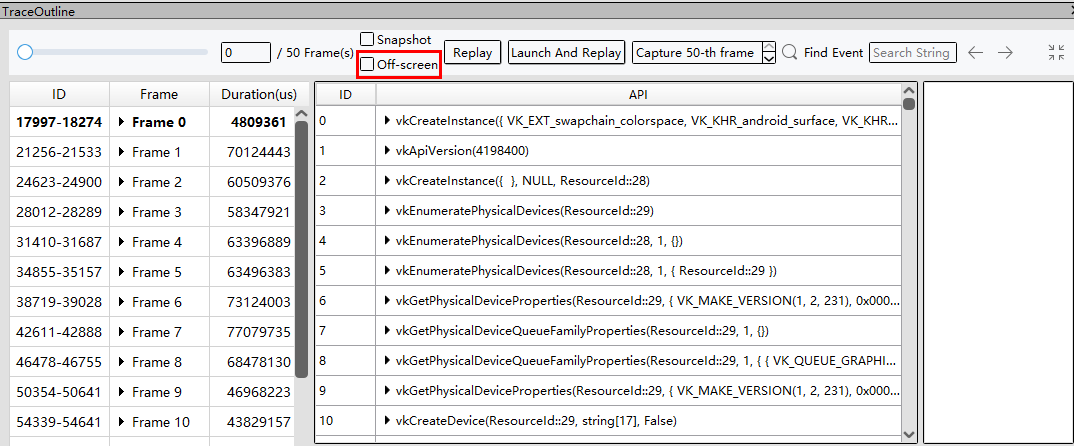
When you open a Vulkan SQD file, the toolbar displays the Off-screen option. After this option is selected, the replay result will not be displayed on the device screen when the SQD file is replayed.