HUAWEI HiAI is an AI computing platform that is designed for mobile devices. It builds a three-layer AI ecosystem for greater openness of service, app, and chipset capabilities. This three-layer open platform utilizes features of the chips, devices, and clouds to deliver better mobile experience to both users and developers.
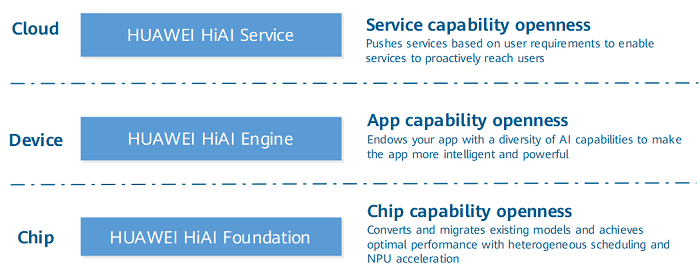
HMS Toolkit can quickly convert and migrate existing AI models to the HUAWEI HiAI platform so that the models can better run on Huawei HiSilicon chipsets to achieve better performance. For details about the functions of HUAWEI HiAI Foundation, refer to HUAWEI HiAI Foundation Introduction.
The Model Creator function in HUAWEI HiAI Foundation provides transfer learning capabilities such as image classification, text classification, table classification, and object detection. With in-depth machine learning and model training, Model Creator can help users accurately identify images and text. The image classification, text classification, and object detection capabilities have been supported, and table classification is coming soon.
The training framework of Model Creator uses TensorFlow, and the inference framework uses HUAWEI HiAI DDK (NPU model) and TenorFlow Lite (CPU model).
NOTE
Model Creator does not support macOS M processors (M1, M2, or M3).
Image Classification
Image classification uses the transfer learning algorithm to perform minute-level learning training on hundreds of images in specific fields (such as vehicles and animals) based on the base classification model with good generalization capabilities, and can automatically generate a model for image classification. The generated model can automatically identify the category to which the image belongs. HMS Toolkit also allows you to generate API files for the model at the click of a button and to utilize a demo project for quickly verifying and calling the image classification model in your app.
Resource Preparations
Before using the image classification capability, prepare image resources for training as required.
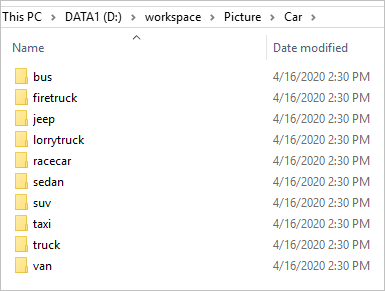
The image resources must meet the following conditions:
- Images are clear and classified by category.
NOTE
The image storage path and category name contain only letters, digits, underscores (_), and Chinese characters. Spaces and special characters are not allowed.
- The number of image categories ranges from 2 to 1000.
- Each category contains at least 10 images.
- The image format is .bmp, .jpg, .jpeg, .png, or .gif.
Model Training
- In Coding Assistant, go to AI > Model Creator.
- Select Image as the transfer learning capability.
- Set required parameters, then click Confirm.
NOTE
After you click Confirm, HMS Toolkit checks whether the training environment is ready. If the environment is not ready, HMS Toolkit automatically downloads and configures the environment.
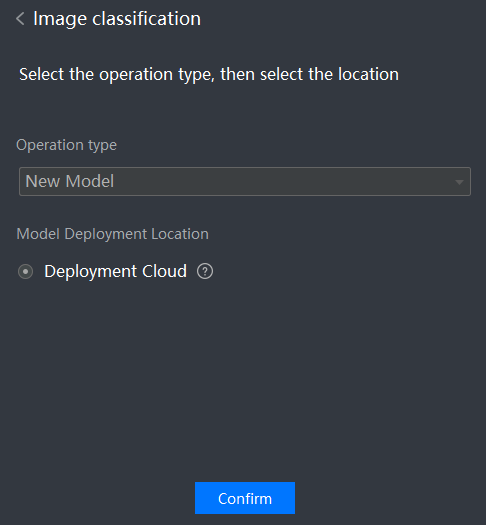
- Operation type: Select New Model.
- Model Deployment Location: Select Deployment Cloud. It is supported on all phones running Android 4.1 or later. Huawei phones with built-in NPUs can use hardware to accelerate inference.
- Drag or add the image classification folders to the Please select train image folder area, then set Output model file path and train parameters. Retain the default values of the parameters in Train parameter. If you have extensive experience in deep learning development, you can modify the parameter settings to improve the accuracy of the image recognition model.
- Iteration count: The default value is 100.
- Learning rate: The default value is 0.01.
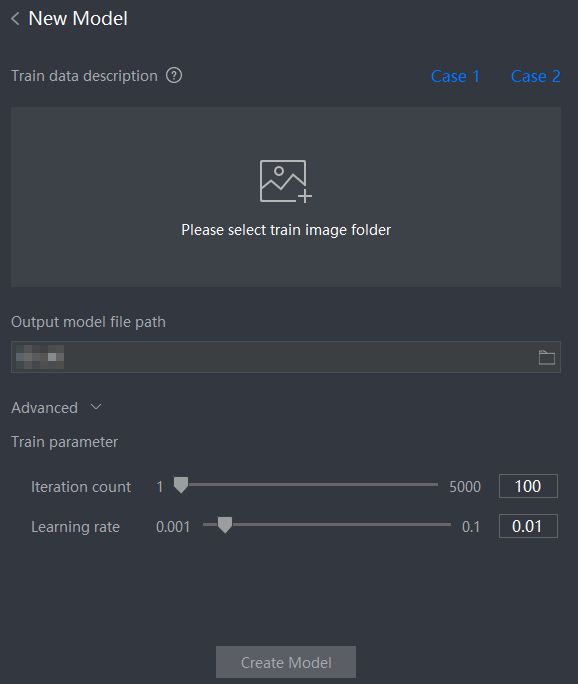
- Click Create Model to start training and generate an image classification model.
- After the model is generated, view the model learning result (training precision and verification precision), corresponding learning parameters, and training data.
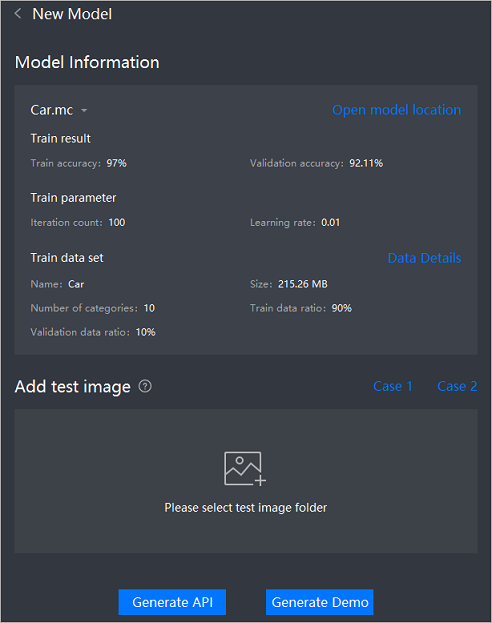
- After the model training is complete, verify the model by adding the image folders in Please select test image folder under Add test image. The tool automatically uses the trained model to perform the test and displays the test result.
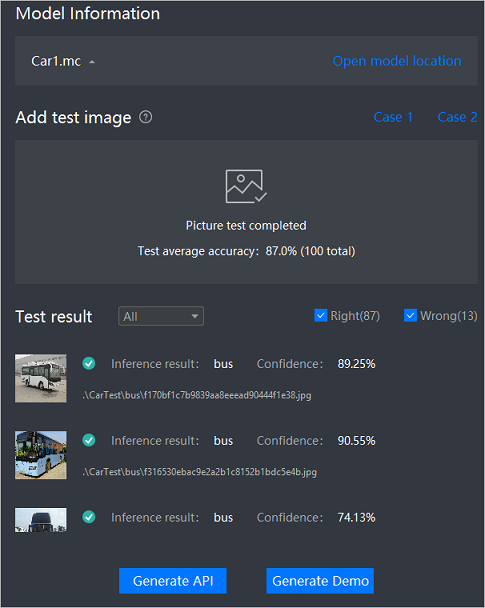
- When the model is ready, click either Generate API or Generate Demo.
- Generate API: HMS Toolkit automatically adds the dependency package, model file, and API sample source file of the trained model to the corresponding project folders, and adds dependencies to the build.gradle file of the module. You can then call the corresponding API in your app to integrate the image classification capability.
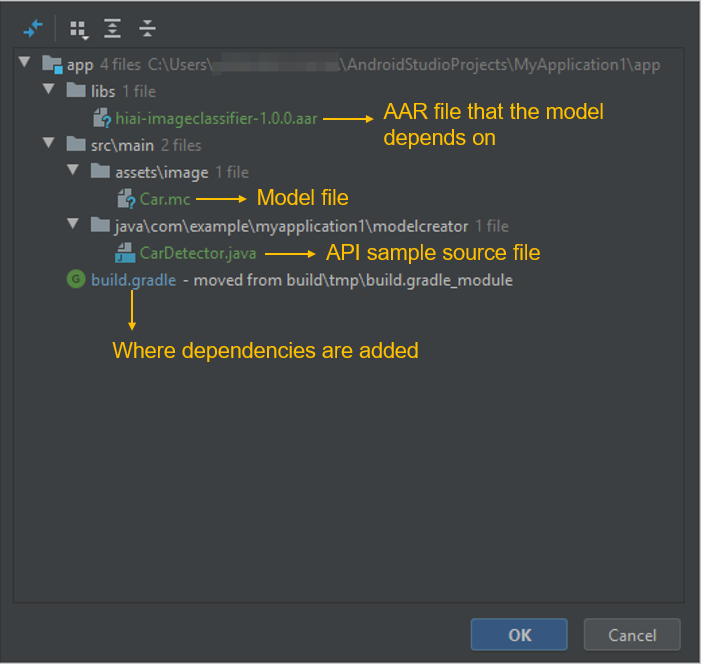
- Generate Demo: HMS Toolkit automatically generates a demo project, which automatically integrates the trained model. You can directly build and run the demo project to generate an APK file, and run the file on the simulator or real device to check the image classification performance.
Text Classification
Text classification uses the transfer learning algorithm to perform minute-level learning training on text data in specific fields (such as sports, entertainment, and education) based on the base classification model with good generalization capabilities, and can automatically generate a model for text classification. The generated model can automatically identify the category to which the text belongs. HMS Toolkit also allows you to generate API files for the model at the click of a button and to utilize a demo project for quickly verifying and calling the text classification model in your app.
Resource Preparations
Before using the text classification capability, prepare text resources for training as required. Text resources can be JSON files or TXT files classified by folder.
- Training text in JSON format: The JSON text format is [{"label": " ", "text": " "},{"label": " ", "text": " "}].
- Training text in TXT format: Classify the TXT files by category.
In addition to the format requirements, the text resources must meet the following requirements:
- The text storage path and category name contain only letters, digits, underscores (_), and Chinese characters. Spaces and special characters are not allowed.
- The number of text categories is at least 2.
- Each category contains at least 20 files. More files will guarantee a higher model precision.
- The total text size does not exceed 10 MB.
- The text encoding format must be UTF-8. (Only text in Unicode or GBK can be converted into that in UTF-8 mode.)
Model Training
- In Coding Assistant, go to AI > Model Creator.
- Select Text as the transfer learning capability.
- Set Operation type to New Model and Model Deployment Location to Load From Obs Cloud, then click Confirm.
NOTE
After you click Confirm, HMS Toolkit checks whether the training environment is ready. If the environment is not ready, HMS Toolkit automatically downloads and configures the environment.
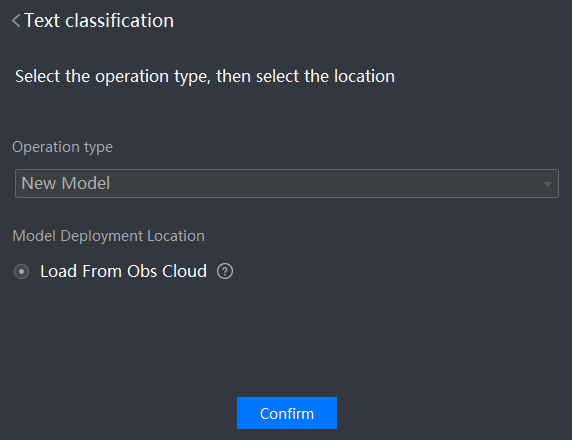
- Drag or add the classified text resources (JSON text or TXT category folders) to the Please select train text dataset area. If the text resources are not encoded in UTF-8 format, the following dialog box is displayed. Click OK to convert the resources. (Currently, only the resources in Unicode or GBK format can be converted). After the conversion is complete, select a file name and file type, and click Confirm.

Set
Language type,
Output model file path, and
Train parameter. Retain the default values of the parameters in
Train parameter. If you have extensive experience in deep learning development, you can modify the parameter settings to improve the accuracy of the text recognition model.
- High precision mode: If this option is selected, a high-precision training model is generated.
- Iteration count: The default value is 1000.
- Learning rate: The default value is 0.01.
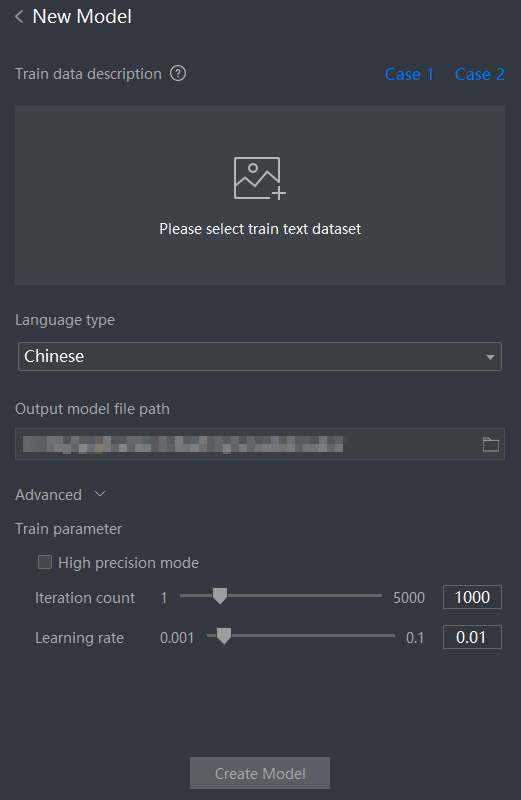
- Click Create Model to start training and generate a text classification model.
- After the model is generated, view the model learning result (training precision and verification precision), corresponding learning parameters, and training data.
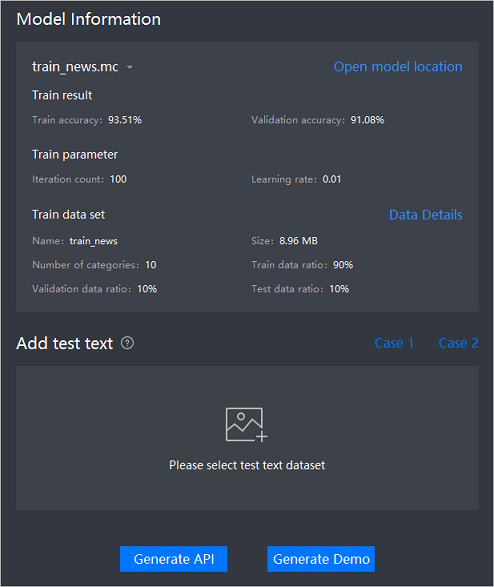
- After the model training is complete, you can verify the model by adding the text resources (JSON text or TXT category folders) in Please select test text dataset under Add test text. The tool automatically uses the trained model to perform the test and displays the test result.
- When the model is ready, click either Generate API or Generate Demo.
- Generate API: HMS Toolkit automatically adds the dependency package, model file, and API sample source file of the trained model to the corresponding project folders, and adds dependencies to the build.gradle file of the module. You can then call the corresponding API in your app to integrate the text classification capability.
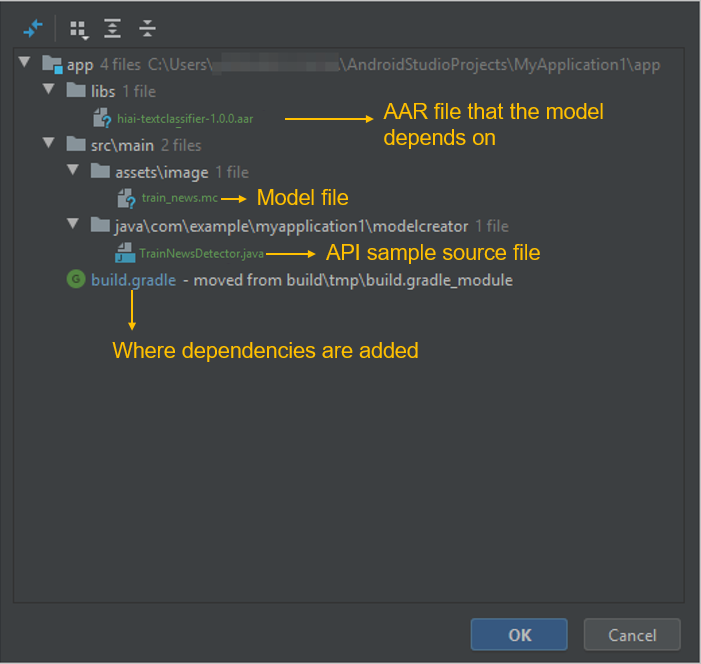
- Generate Demo: HMS Toolkit automatically generates a demo project, which automatically integrates the trained model. You can directly build and run the demo project to generate an APK file, and run the file on the simulator or real device to check the text classification performance.
Weakly Supervised Object Detection
Weakly supervised object detection uses the transfer learning algorithm to perform minute-level learning and training on easy-to-identify images of specific categories based on the base classification model with good generalization capabilities, analyze image features, extract objects from the images from the recognition model, and mark them. HMS Toolkit also allows you to generate API files for the model at the click of a button and to utilize a demo project for quickly verifying and calling the image classification model in your app.
Resource Preparations
Before using the image classification capability, prepare image resources for training as required.
- Images are clear and classified by category.
NOTE
The image storage path and category name contain only letters, digits, underscores (_), and Chinese characters. Spaces and special characters are not allowed.
- In the training dataset, it is recommended that the background style of images in different categories be the same.
- The number of image categories is at least 2.
- Each category contains at least 20 images. If there are more than 200 images, the training effect is better.
- The image format is .bmp, .jpg, .jpeg, .png, or .gif.
Model Training
- In Coding Assistant, go to AI > Model Creator.
- Select Object as the transfer learning capability.
- Set required parameters, then click Confirm.
NOTE
After you click Confirm, HMS Toolkit checks whether the training environment is ready. If the environment is not ready, HMS Toolkit automatically downloads and configures the environment.
- Operation type: Select New Model.
- Model type: Select a model type as required.
- Multi Object Detection: Indicates weakly supervised multi-object detection.
- Weak Supervised Single Object Detection: Indicates weakly supervised single-object detection.
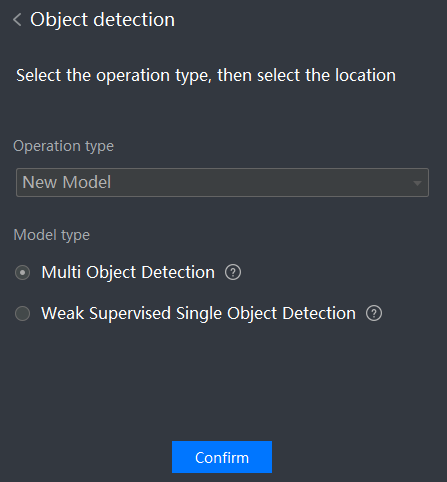
- Drag or add the image classification folders to Please select train image folder.
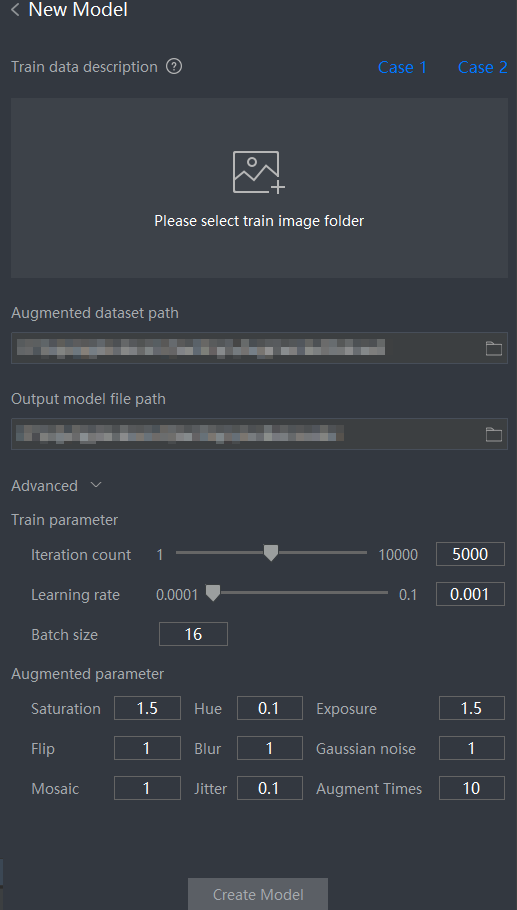
- When Model type is set to Multi Object Detection, you need to set Augmented dataset path, Output model file path, Train parameter, and Augmented parameter. Retain the default values of the parameters in Train parameter and Augmented parameter. If you have extensive experience in deep learning development, you can modify the parameter settings to improve the accuracy of the image recognition model.
- Iteration count: The default value is 5000.
- Learning rate: The default value is 0.001.
- Batch size: The default value is 16.
- Saturation: image saturation. The value can be an integer or a number with two decimal places at most. The default value is 1.5.
- Hue: image hue. The value can be an integer or a number with two decimal places at most. The default value is 0.1.
- Exposure: image impressions. The value can be an integer or a number with two decimal places at most. The default value is 1.5.
- Flip: image flipping. The value can only be 0 or 1 (default value).
- Blur: image blur. The value must be an integer. The default value is 1.
- Gaussian noise: The value must be an integer. The default value is 1.
- Mosaic: The value must be an integer. The default value is 1.
- Jitter: random adjustment range of the aspect ratio. The value can be an integer or a number with two decimal places at most ranging from 0 to 1. The default value is 0.1.
- Augment Times: number of data augmentation times. The data set doubles each time the data is augmented. The value must be an integer. The default value is 10.
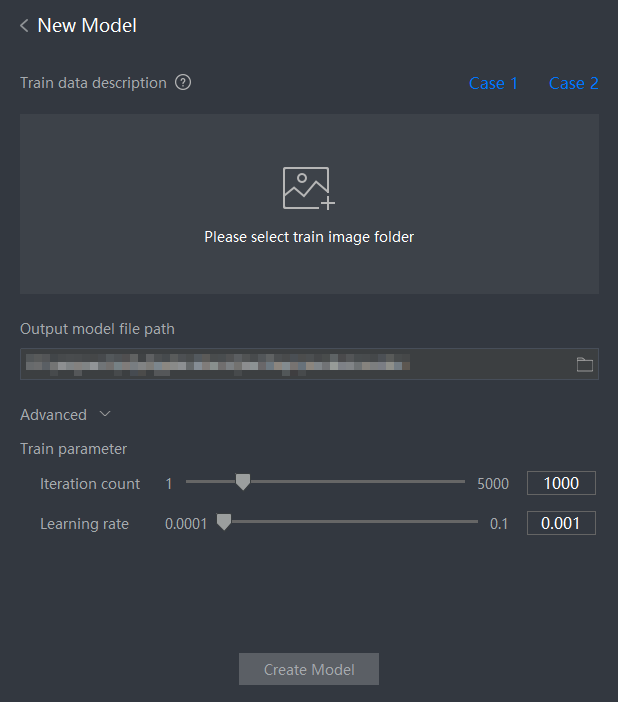
- When Model type is set to Weak Supervised Single Object Detection, you need to set Output model file path and Train parameter. Retain the default values of the parameters in Train parameter. If you have extensive experience in deep learning development, you can modify the parameter settings to improve the accuracy of the image recognition model.
- Iteration count: The default value is 1000.
- Learning rate: The default value is 0.001.
- Click Create Model to start training and generate an image classification model.
- After the model is generated, view the model learning result (training precision and verification precision), corresponding learning parameters, and training data.
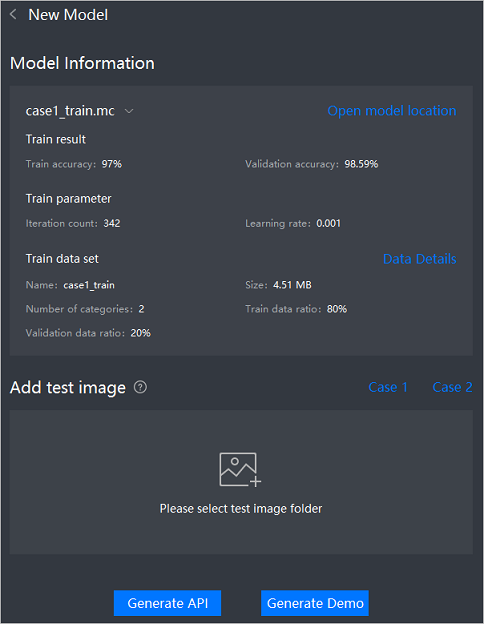
- After the model training is complete, verify the model. You only need to add the image classification folder (weakly supervised single-object detection) or a single image (weak supervision multi-object detection) to Please select test image folder in Add test image. The tool automatically uses the trained model to perform the test and displays the test result.
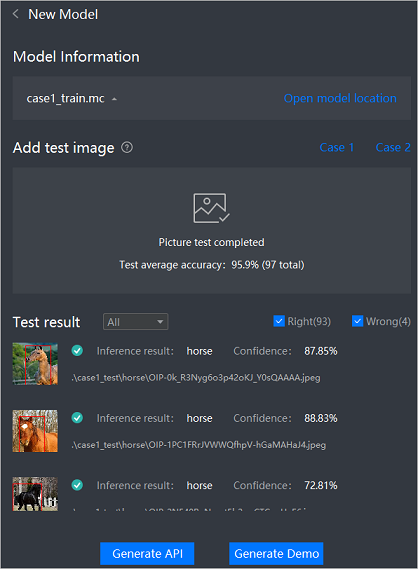
- When the model is ready, click either Generate API or Generate Demo.
- Generate API: HMS Toolkit automatically adds the dependency package, model file, and API sample source file of the trained model to the corresponding project folders, and adds dependencies to the build.gradle file of the module. You can then call the corresponding API in your app to integrate the weakly supervised object detection capability.
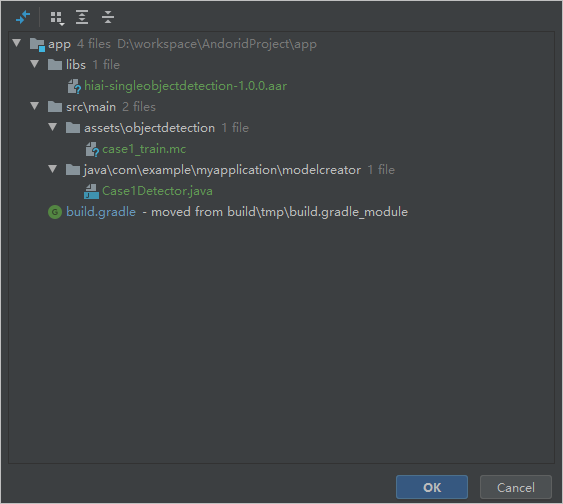
- Generate Demo: HMS Toolkit automatically generates a demo project, which automatically integrates the trained model. You can directly build and run the demo project to generate an APK file, and run the file on the simulator or real device to check the weakly supervised object detection performance.
Sound Classification
Sound classification uses the transfer learning algorithm to perform minute-level learning training on sound data in specific fields based on the base classification model with good generalization capabilities, and can automatically generate a model for sound classification. The generated model can automatically identify the category to which the sound belongs. HMS Toolkit also allows you to generate a demo project for the model at the click of a button and to utilize the project for quickly verifying and calling the sound classification model in your app.
NOTE
Sound Classification is only supported by Windows.
Resource Preparations
Before using the sound classification capability, prepare sound resources for training as required. The sound resource file in the classification folder is in WAV format. Besides, the sound resources must meet the following requirements:
- The sound storage path and category name contain only letters, digits, underscores (_), and Chinese characters. Spaces and special characters are not allowed.
- The number of sound categories is at least 2.
- Each category contains at least 10 sound files. More files will guarantee a higher model precision.
- The size of all sound resources cannot exceed 20 MB. The sound resource is encoded as a WAV file.
Model Training
- In Coding Assistant, go to AI > Model Creator.
- Select Sound as the transfer learning capability.
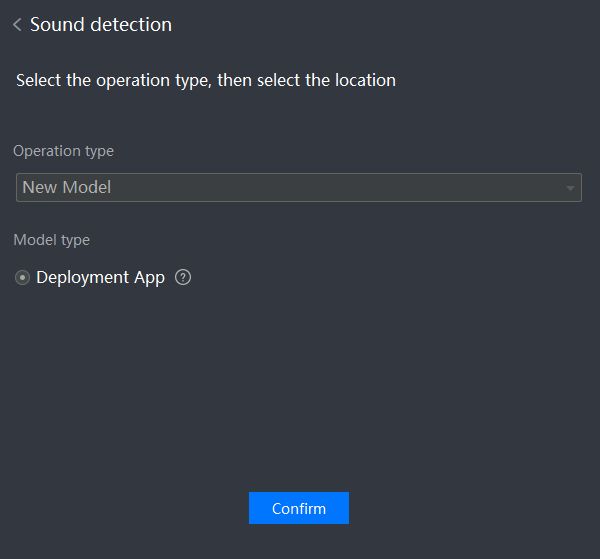
- Set Operation type to New Model and Model type to Deployment App, then click Confirm.
NOTE
After you click Confirm, HMS Toolkit checks whether the training environment is ready. If the environment is not ready, HMS Toolkit automatically downloads and configures the environment.
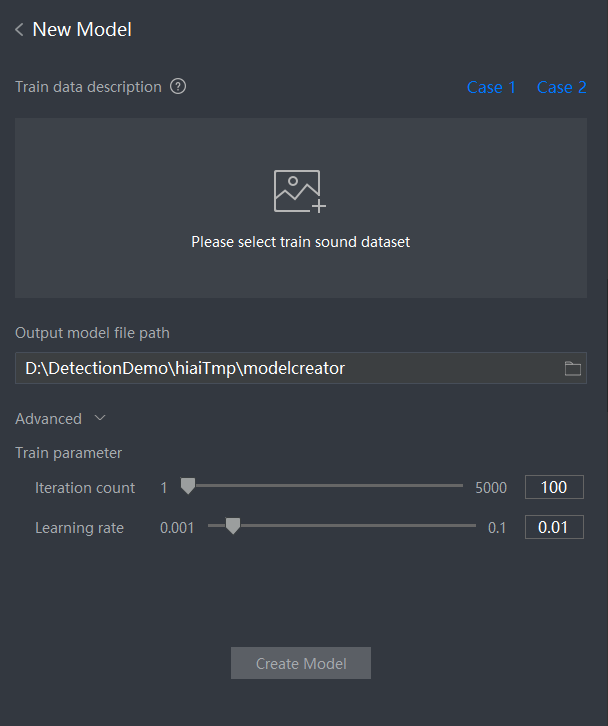
- Drag or add the sound classification folders to the Please select train sound dataset area, and set train parameters.
- Iteration count: The default value is 100.
- Learning rate: The default value is 0.01.
- Click Create Model to start training and generate a sound classification model.
- After the model is generated, view the model learning result (training precision and verification precision), corresponding learning parameters, and training data.
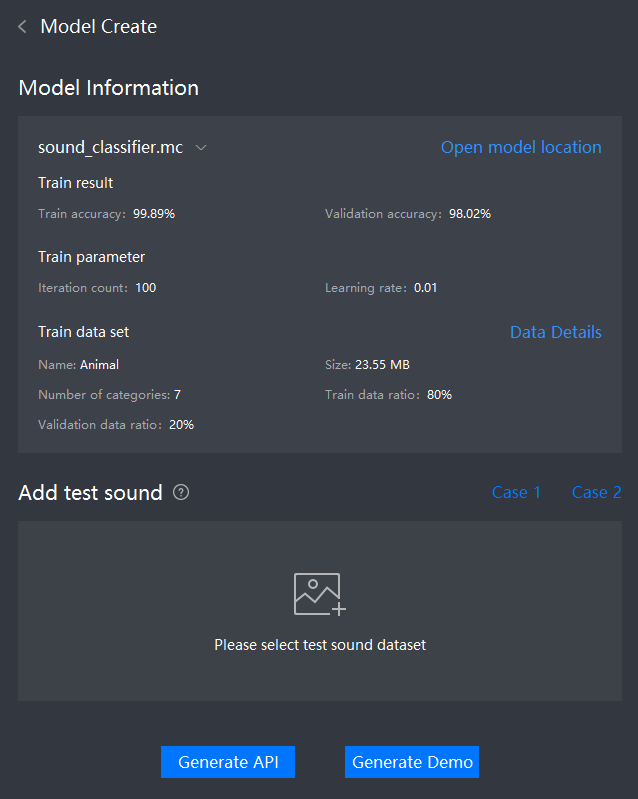
- After the model training is complete, verify the model by adding the sound resources to be tested to Please select test sound dataset under Add test sound. The tool automatically uses the trained model to perform the test and displays the test result.
- When the model is ready, click either Generate API or Generate Demo.
- Generate API: HMS Toolkit automatically adds the dependency package, model file, and API sample source file of the trained model to the corresponding project folders and adds dependencies to the build.gradle file of the module. You can then call the corresponding API in your app to integrate the sound classification capability.
- Generate Demo: HMS Toolkit automatically generates a demo project, which automatically integrates the trained model. You can directly build and run the demo project to generate an APK file, and run the file on the simulator or real device to check the sound classification performance.


