Intelligent Assistant
Chat with our virtual assistant to get answers promptly.
Method 1:
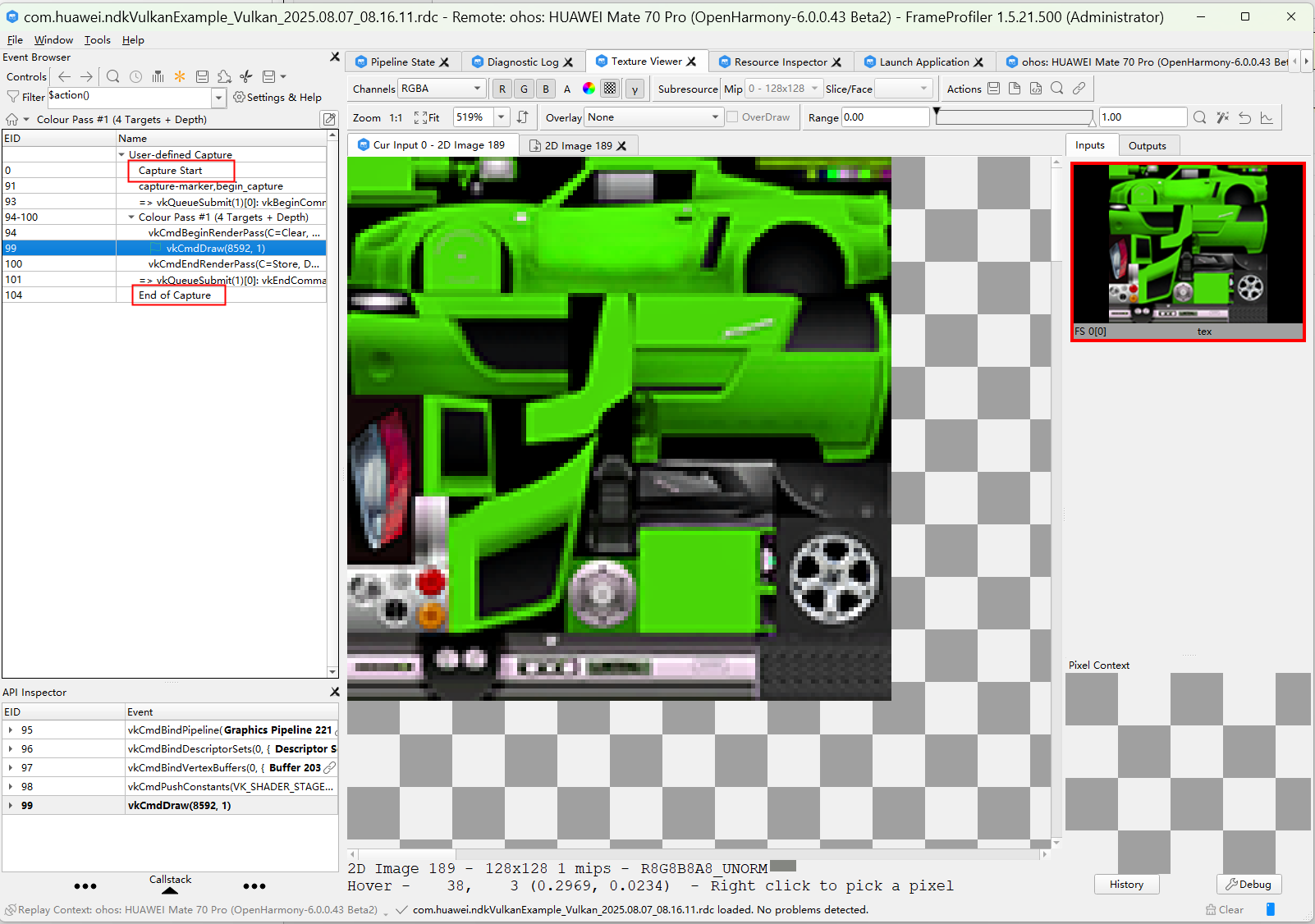
void DebugUtilsLable_Start()
{
VkDebugUtilsLabelEXT label = {};
label.sType = VK_STRUCTURE_TYPE_DEBUG_UTILS_LABEL_EXT;
label.pLabelName = "capture-marker,begin_capture";  // Label name, which is used for command or status identification during tool debugging.
// You can set other attributes such as the color as needed.
if (!vk::vkQueueInsertDebugUtilsLabelEXT) {
LOGE("vkQueueInsertDebugUtilsLabelEXT is nullptr");
}
vk::vkQueueInsertDebugUtilsLabelEXT(globalNS::getvk_queue(), &label);
}
void DebugUtilsLable_End()
{
VkDebugUtilsLabelEXT label = {};
label.sType = VK_STRUCTURE_TYPE_DEBUG_UTILS_LABEL_EXT;
label.pLabelName = "capture-marker,end_capture";  // Label name, which is used for command or status identification during tool debugging.
vk::vkQueueInsertDebugUtilsLabelEXT(globalNS::getvk_queue(), &label);
}
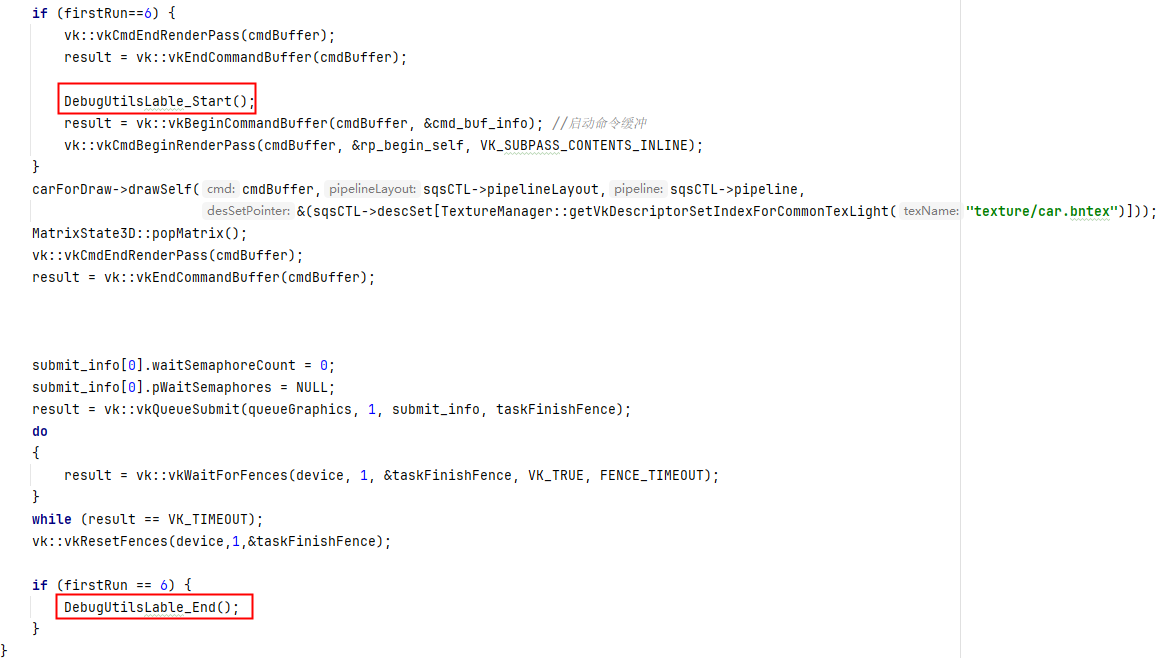
Example of the insertion position:
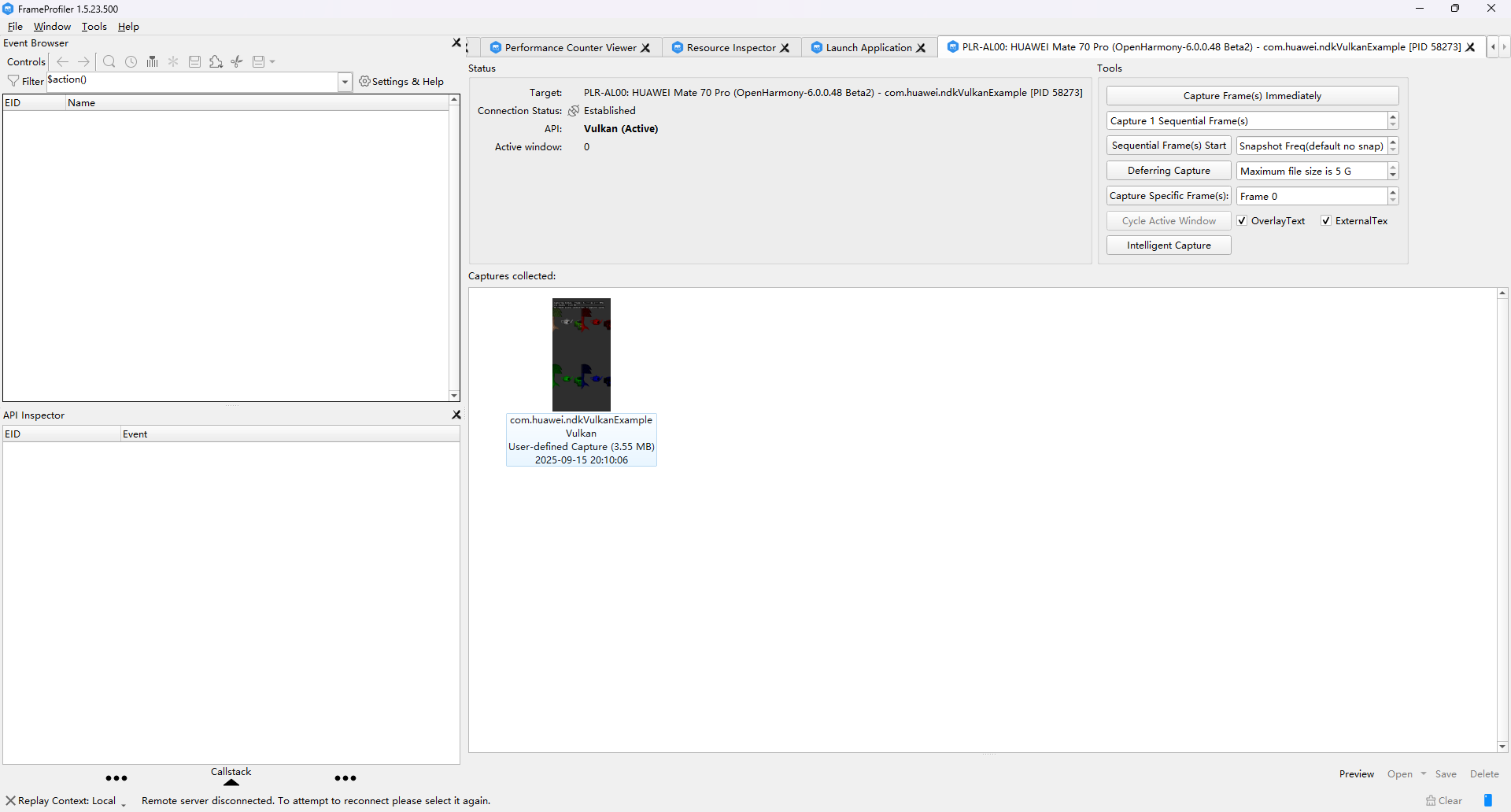
hdc shell param set debug.graphic.system_layer_flag 1
hdc shell param set debug.graphic.debug_layer squid
hdc shell param set debug.graphic.debug_hap com.huawei.ndkVulkanExample (HAP name)

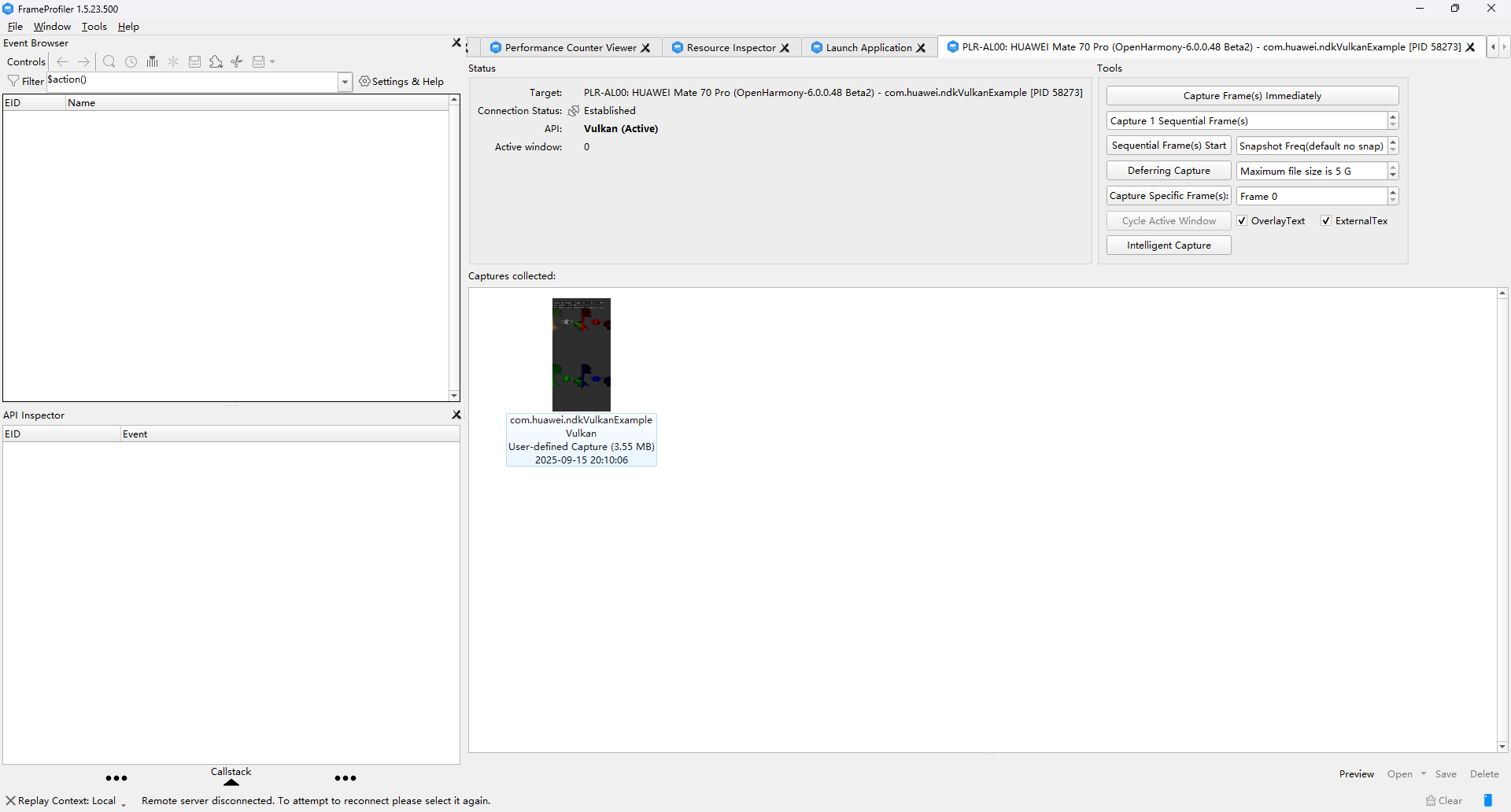
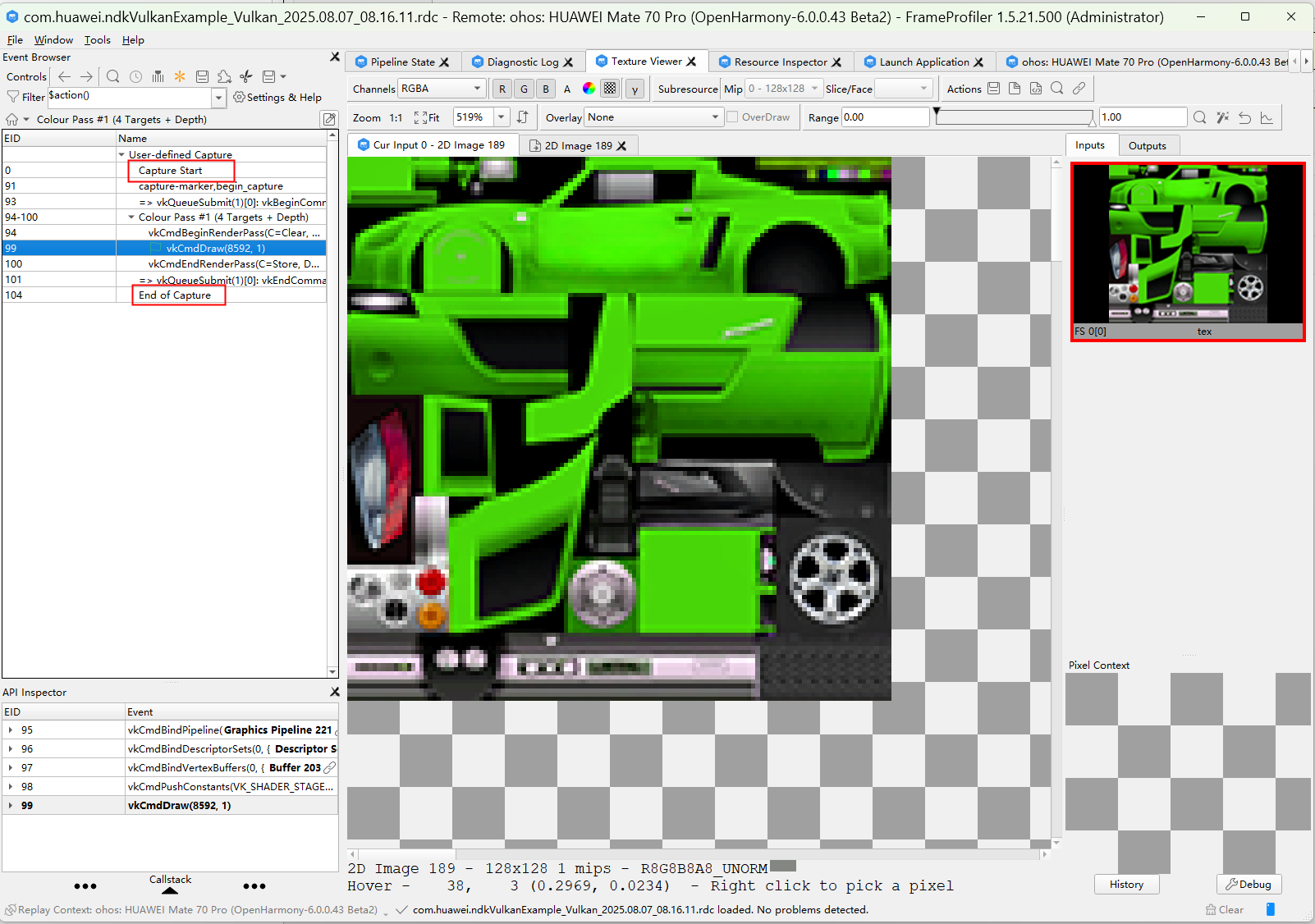
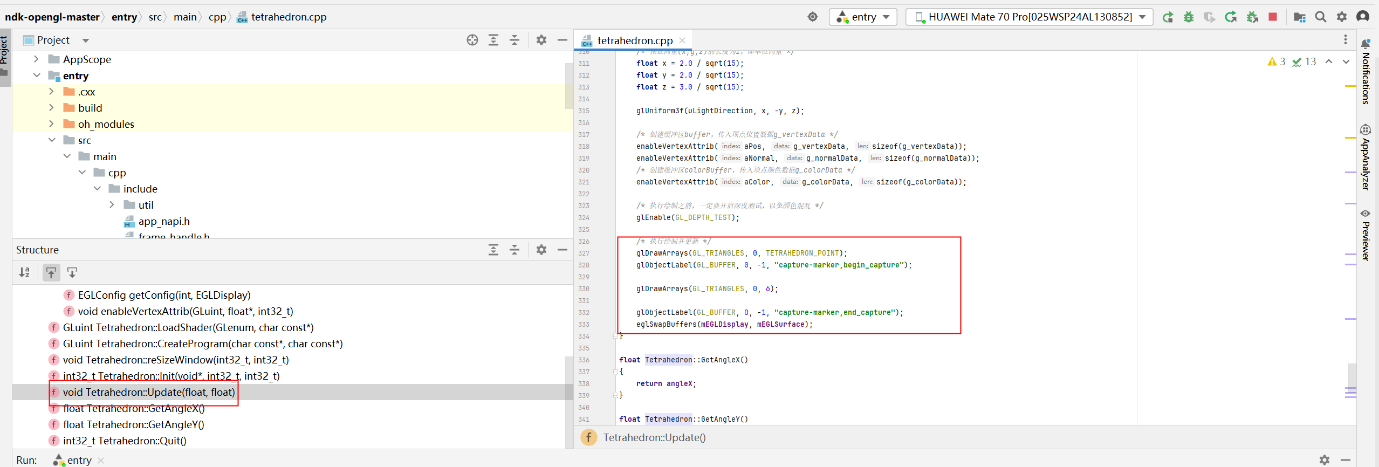
hdc shell param set debug.graphic.debug_layer squid
hdc shell param set debug.graphic.debug_hap com.samples.ndkopengl (HAP name)

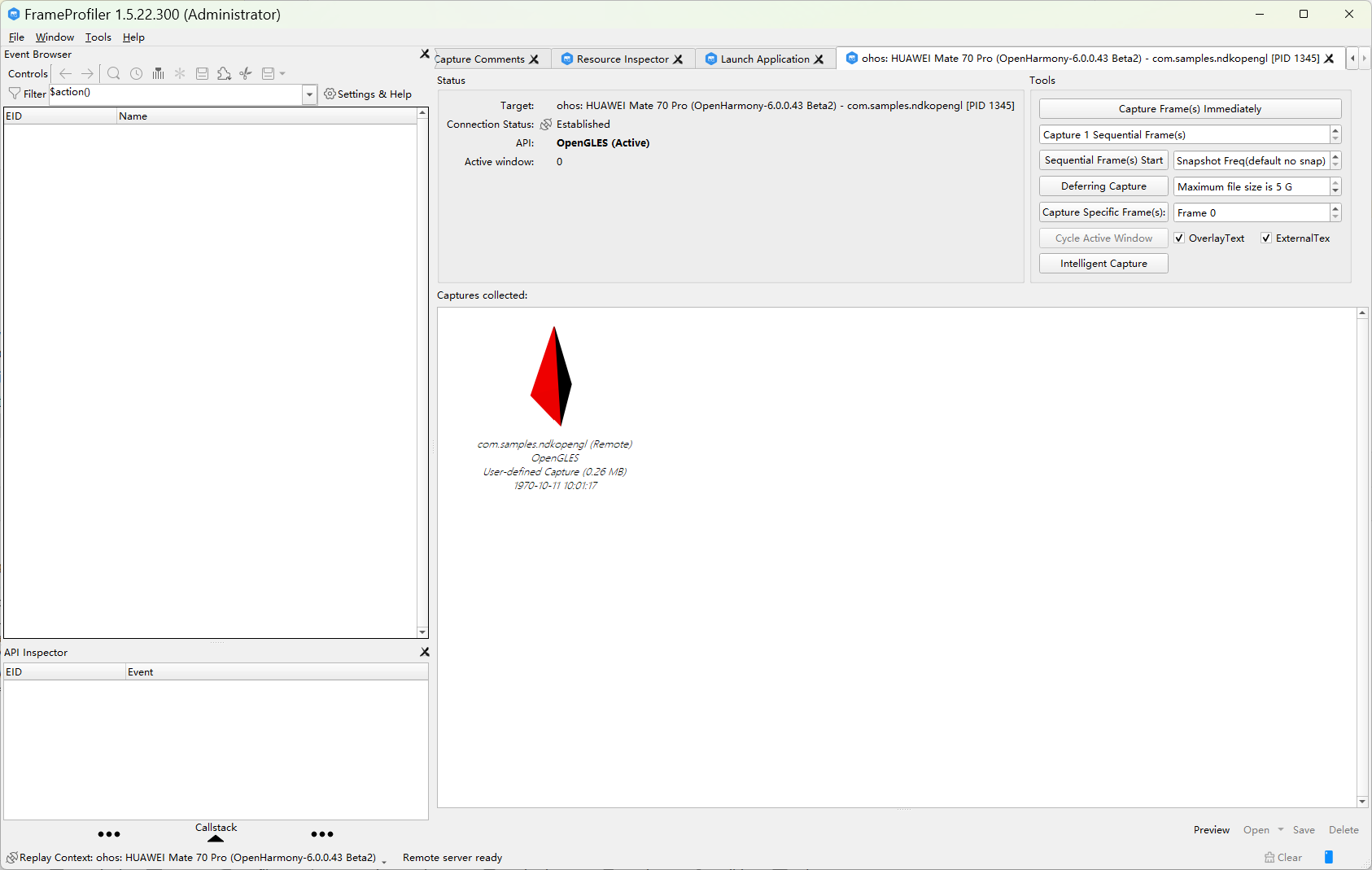
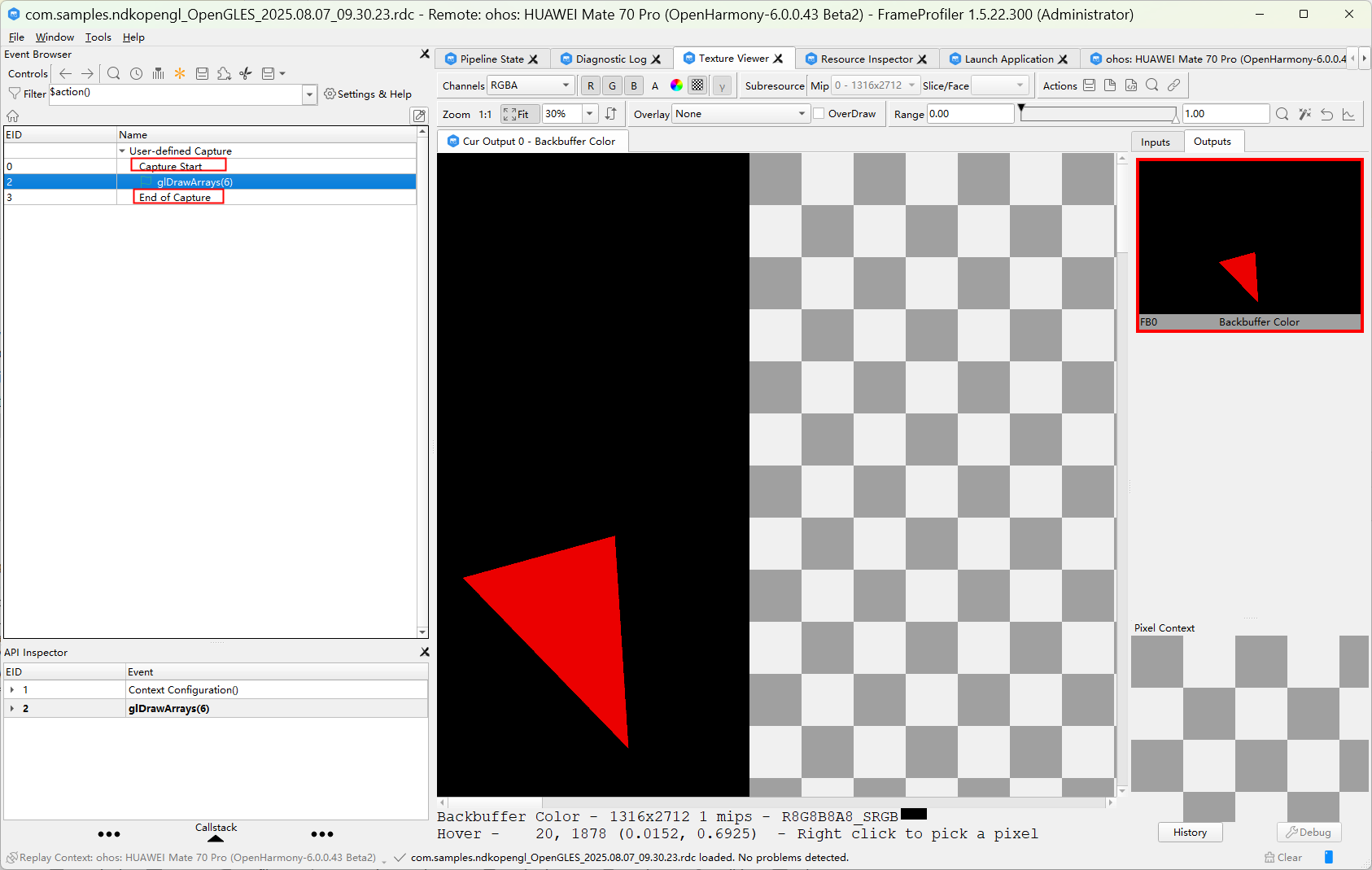
Method 2:
#include "renderdoc_app.h"
RENDERDOC_API_1_1_2* rdoc_api = nullptr;
void InitRenderDoc()
{
void *mod = dlopen("libsquid.so", RTLD_NOW | RTLD_NOLOAD);
if (mod) {
LOGI("[ZT]InitRenderDoc: RenderDoc library loaded");
pRENDERDOC_GetAPI RENDERDOC_GetAPI = (pRENDERDOC_GetAPI)dlsym(mod, "RENDERDOC_GetAPI");
if (!RENDERDOC_GetAPI) {
LOGE("[ZT]dlsym failed: %s", dlerror());
return;
}
int ret = RENDERDOC_GetAPI(eRENDERDOC_API_Version_1_1_2, (void **)&rdoc_api);
if (ret != 1) {
LOGE("[ZT]RENDERDOC_GetAPI failed");
rdoc_api = nullptr;
}
} else {
LOGE("[ZT]InitRenderDoc failed: %s", dlerror());
}
}
void BeginCapture()
{
if(rdoc_api) {
rdoc_api->StartFrameCapture(NULL, NULL);
}else{
LOGE("[ZT]NOT BEGINCAPTURE");
}
}
void EndCapture()
{
if(rdoc_api) {
rdoc_api->EndFrameCapture(NULL, NULL);
}else{
LOGE("[ZT]NOT  ENDCAPTURE");
}
}
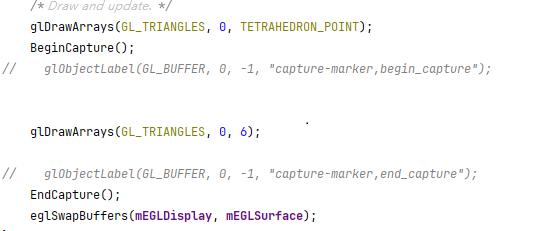
Example of the insertion position:
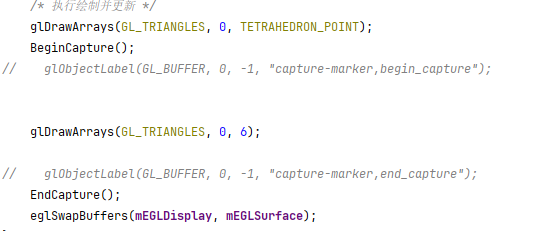
hdc shell param set debug.graphic.debug_layer squid
hdc shell param set debug.graphic.debug_hap com.samples.ndkopengl (HAP name)

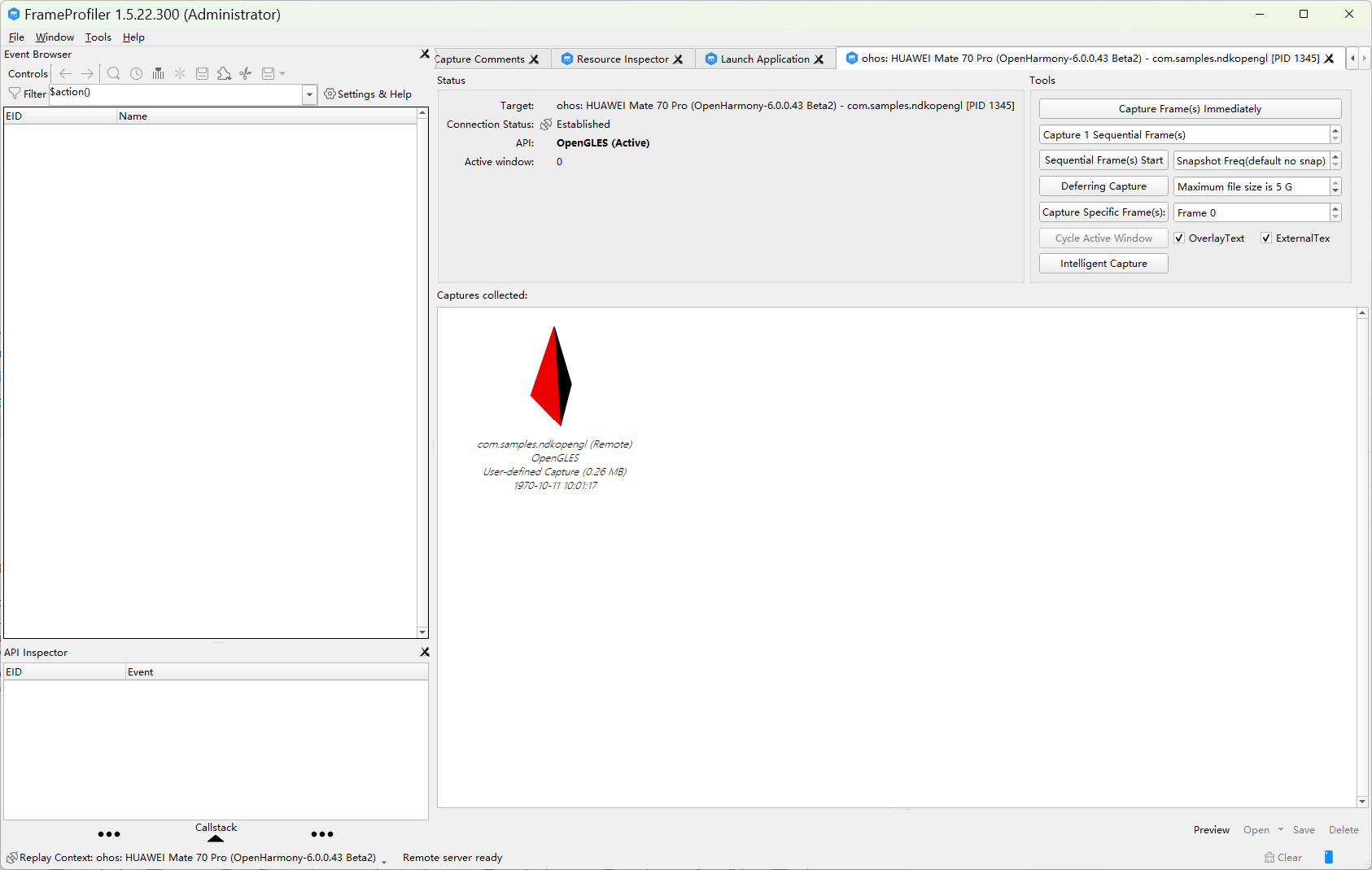
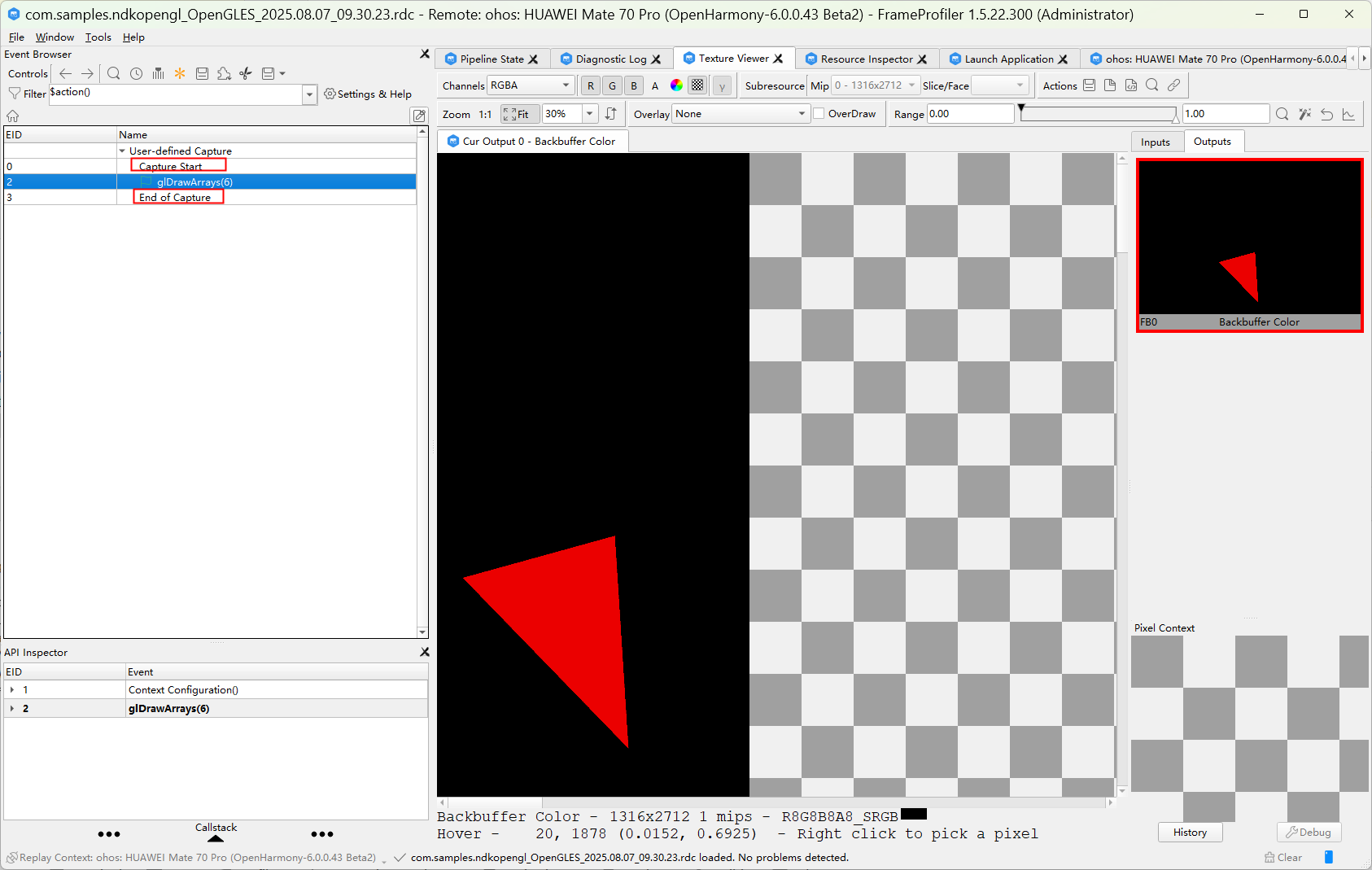
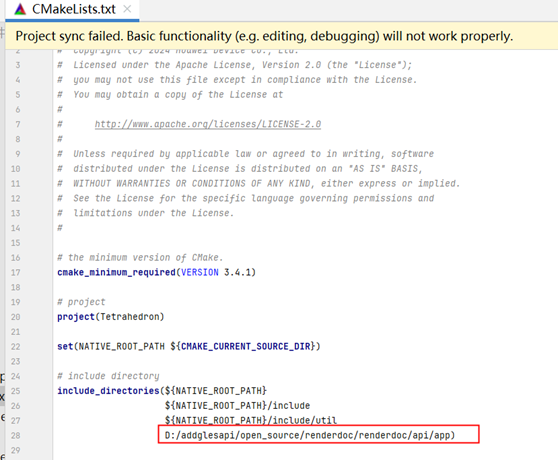
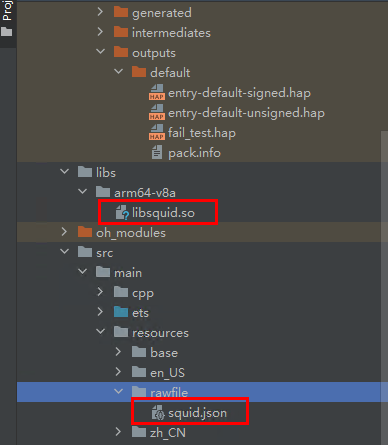
2. Copy the squid.json file in the <installation_folder>/frame_profiler/plugins/ohos/sdk directory to the src/main/resource/rawfile directory of the HAP.
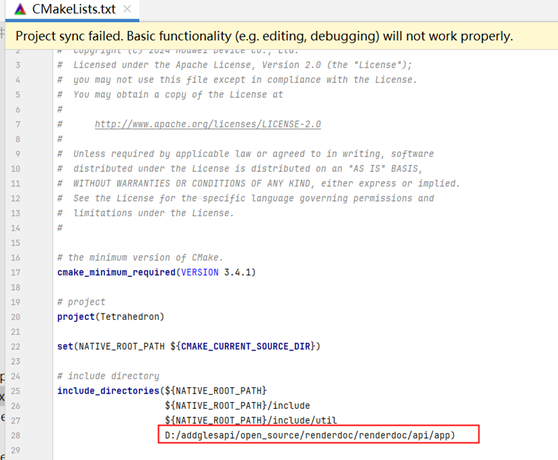
3. Copy the JSON file to the sandbox path of the application through the JS layer. Add the local path of renderdoc.h to the CMakeLists file, for example, D:/addglesapi/open_source/renderdoc/renderdoc/api/app.
import fs from '@ohos.file.fs';
uiContext = this.getUIContext();
aboutToAppear(): void {
    let path = this.uiContext?.getHostContext()?.filesDir;
    let buffer	= this.uiContext?.getHostContext()?.resourceManager.getRawFileContentSync('squid.json') ;
    let file = fs.openSync(path + '/squid.json', fs.OpenMode.READ_WRITE | fs.OpenMode.CREATE);
    fs.writeSync(file.fd, buffer?.buffer);
} 
#include "renderdoc_app.h"
RENDERDOC_API_1_1_2* rdoc_api = nullptr;
void InitRenderDoc()
{
void *mod = dlopen("libsquid.so", RTLD_NOW | RTLD_NOLOAD);
if (mod) {
LOGI("[ZT]InitRenderDoc: RenderDoc library loaded");
pRENDERDOC_GetAPI RENDERDOC_GetAPI = (pRENDERDOC_GetAPI)dlsym(mod, "RENDERDOC_GetAPI");
if (!RENDERDOC_GetAPI) {
LOGE("[ZT]dlsym failed: %s", dlerror());
return;
}
int ret = RENDERDOC_GetAPI(eRENDERDOC_API_Version_1_1_2, (void **)&rdoc_api);
if (ret != 1) {
LOGE("[ZT]RENDERDOC_GetAPI failed");
rdoc_api = nullptr;
}
} else {
LOGE("[ZT]InitRenderDoc failed: %s", dlerror());
}
}
void BeginCapture()
{
if(rdoc_api) {
rdoc_api->StartFrameCapture(NULL, NULL);
}else{
LOGE("[ZT]NOT BEGINCAPTURE");
}
}
void EndCapture()
{
if(rdoc_api) {
rdoc_api->EndFrameCapture(NULL, NULL);
}else{
LOGE("[ZT]NOT  ENDCAPTURE");
}
}
Example of the insertion position:
hdc shell param set debug.graphic.system_layer_flag 0
hdc shell param set debug.graphic.debug_layer squid
hdc shell param set debug.graphic.debug_hap com.huawei.ndkVulkanExample (HAP name)