Analytics Kit offers a rich array of preset analytics models that help you gain a deeper insight into your users, products, and content. With this insight, you can then take a data-driven approach to market your apps and optimize your products. For details about Analytics Kit and usage restrictions, please refer to Analytics Kit.
With Coding Assistant, you will efficiently integrate your app with Analytics Kit and debug the app.
Integration and Development
Configure the integration environment by referring to Configuration Wizard.
[h2]Analytics Kit Initialization
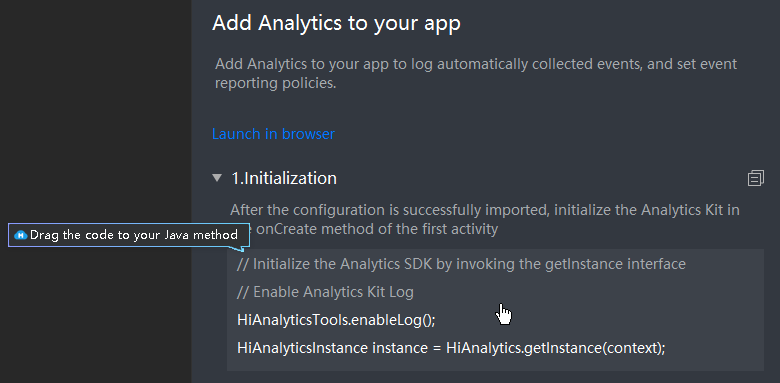
- Go to and select Add Analytics to your app. On the initialization details page displayed, drag or copy the code of the APIs to specified positions. Then, Analytics Kit is initialized.
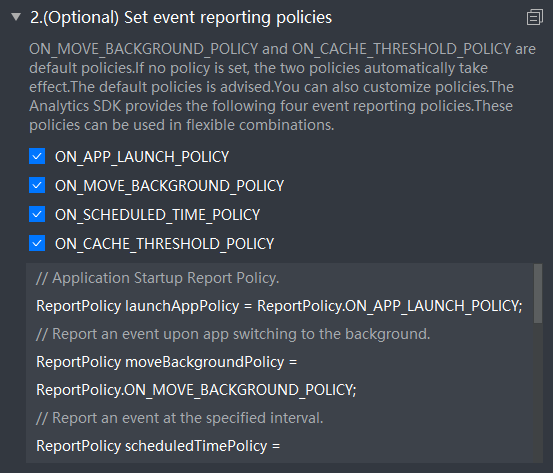
- In (Optional) Set event reporting policies, select a reporting policy and add its parameters by dragging or copying.
[h2]Tracing of Predefined Events and Custom Events
Go to and select Log on Analytics event. In Log Events, click New Event to add an event.
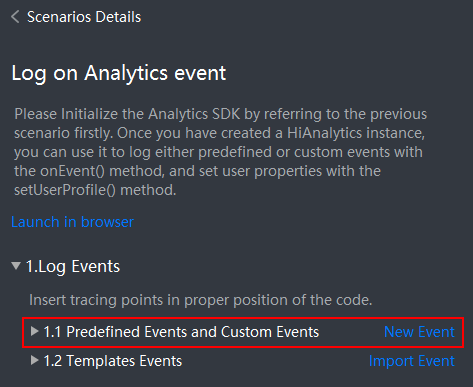
Adding a predefined event
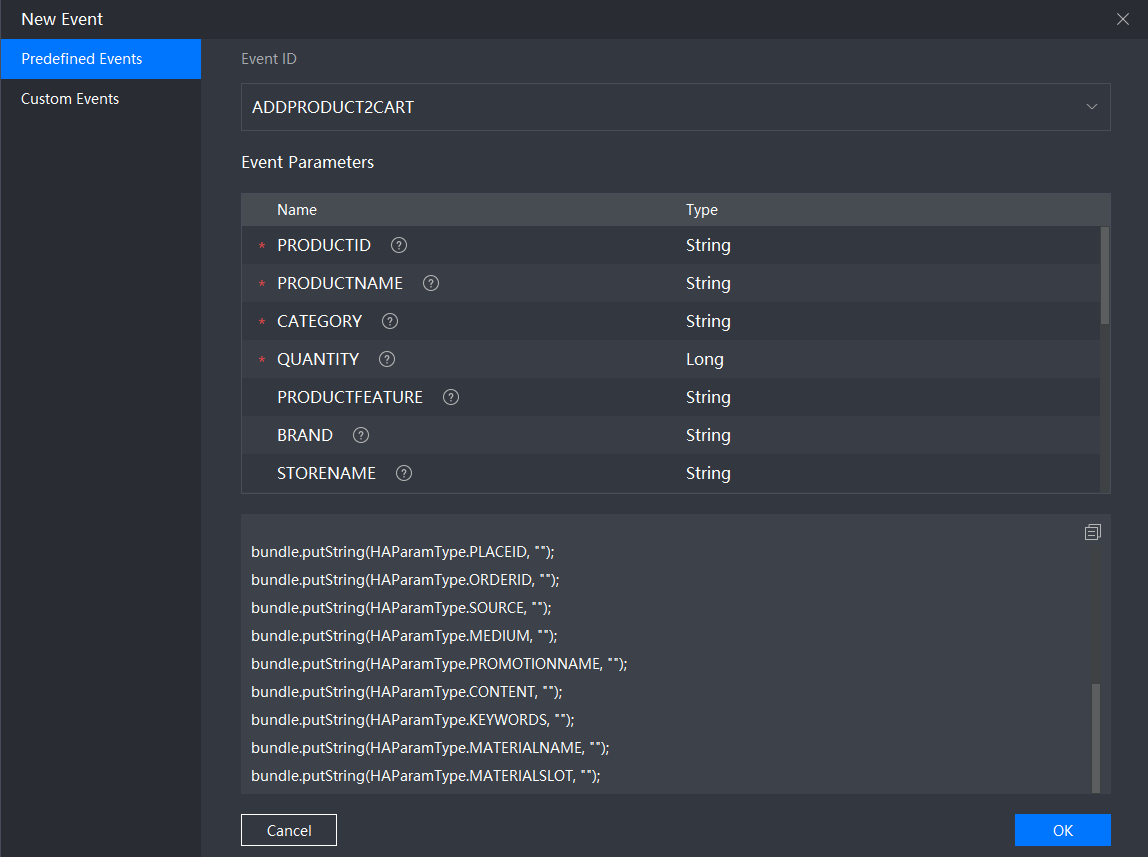
- In Predefined Events, view the events predefined by the Analytics SDK based on common application scenarios. It is recommended you use these events for tracing and analysis. Select a predefined event ID from the Event ID drop-down list box. Then the event parameters and sample code will be displayed below. Click OK and set Event Name to save the event to Predefined Events and Custom Events in Log Events.
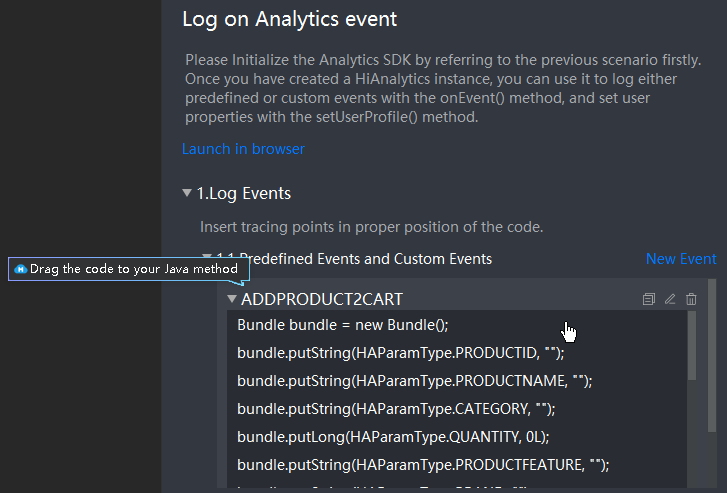
- Drag or copy the sample code of the saved event to the project. Then, supplement the parameter values in the sample code in the project as needed. The event tracing configuration is complete.
Adding a custom event
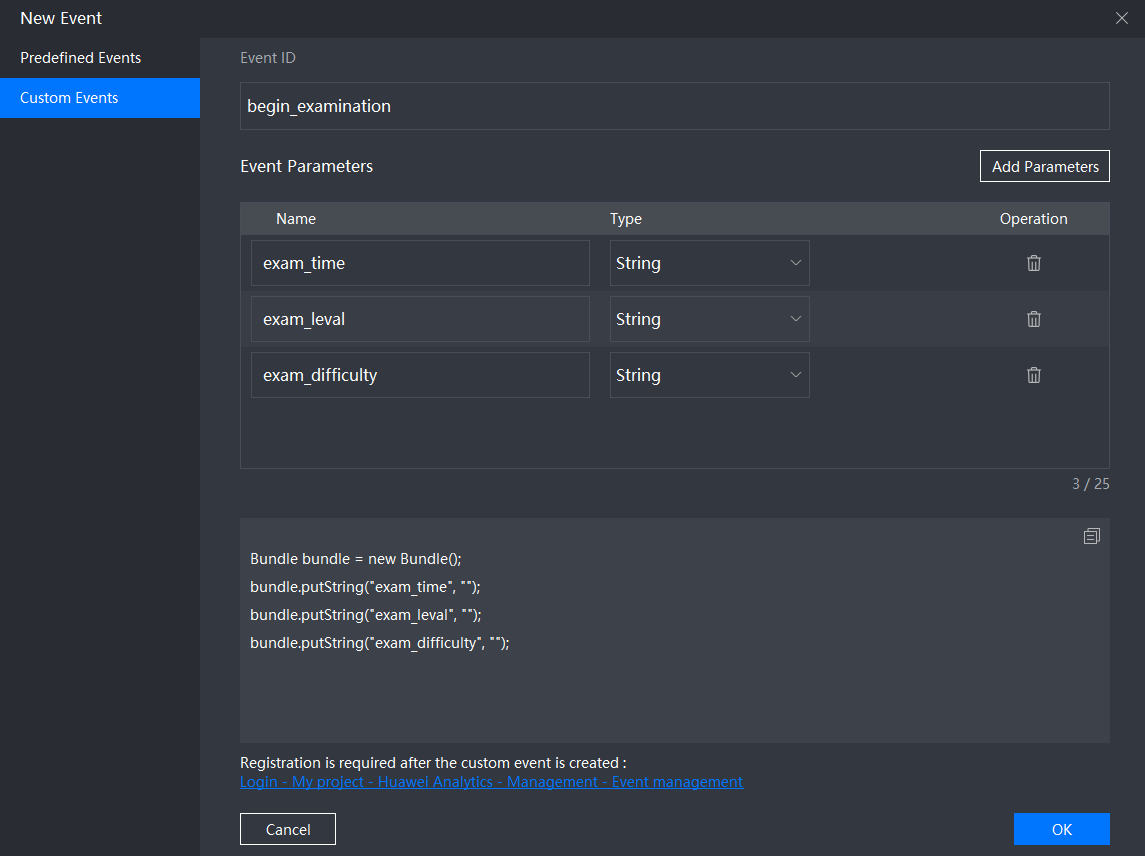
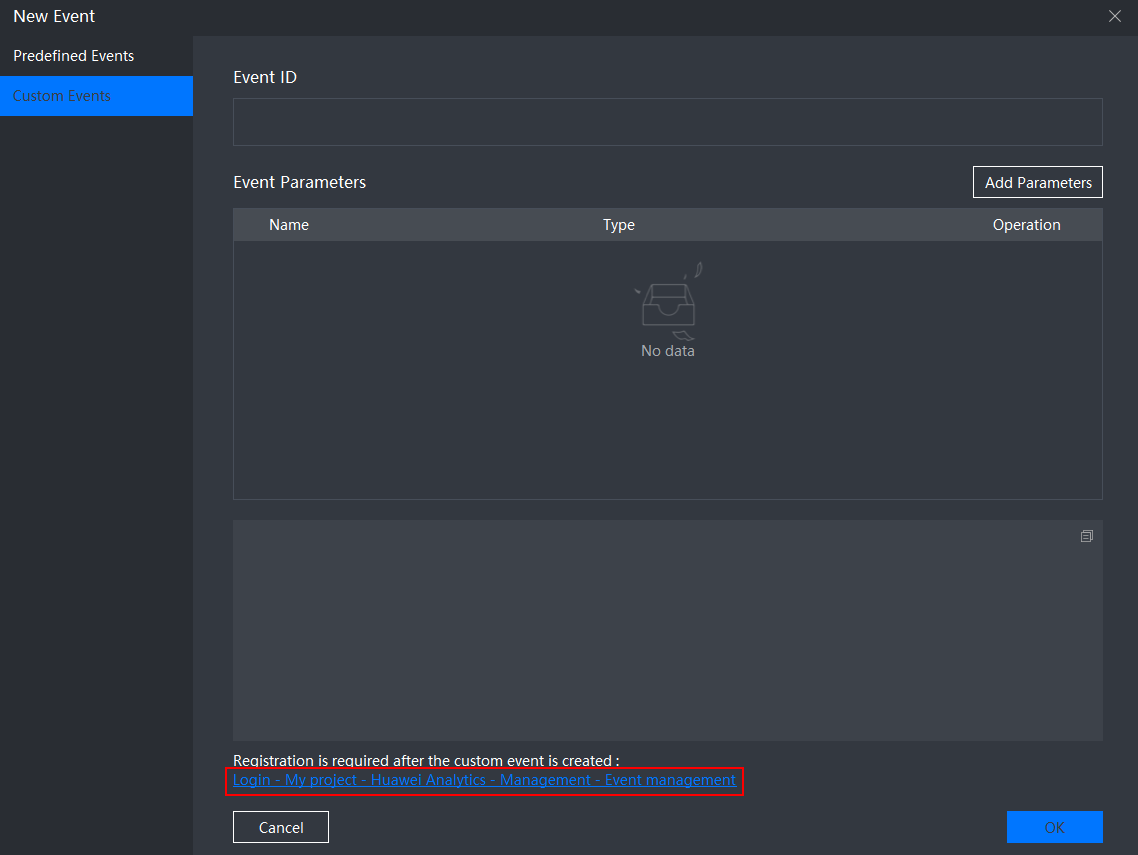
- In Custom Events, set an event ID and its parameters as needed. Click OK and set Event Name to save the event to Predefined Events and Custom Events in Log Events. The following uses the brief information about an exam as an example.
- Drag or copy the sample code of the saved event to the project. Then, supplement the parameter values in the sample code in the project as needed. The event tracing configuration is complete.
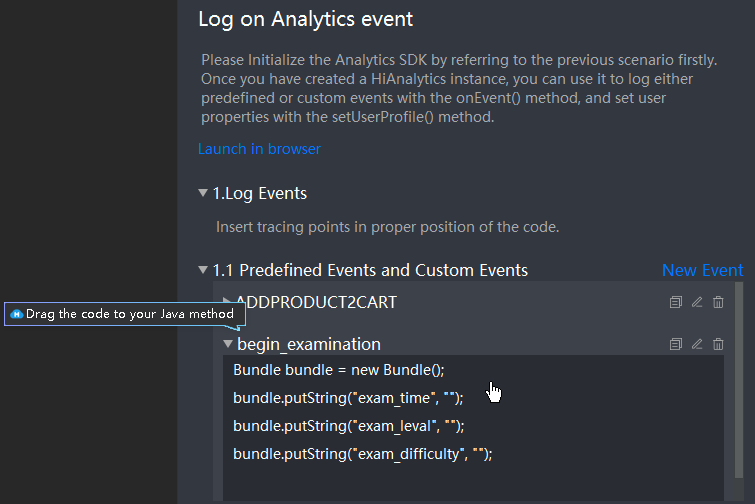
- Register the custom event and set relevant parameters on the Analytics Kit console for the event to take effect. Click Login - My project - Huawei Analytics - Management - Event management at the bottom of Custom Events. On the Analytics Kit console displayed, perform registration by referring to Events.
[h2]Event Tracing Template
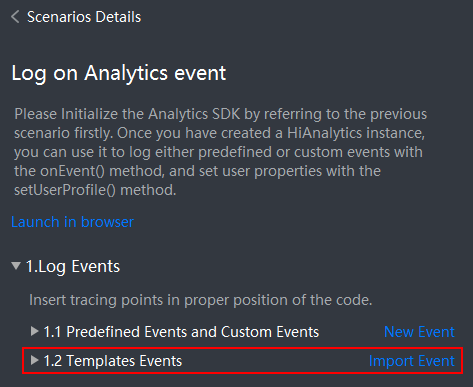
Analytics Kit provides you with tracing templates and sample code for game and education apps. You can code for event tracing by copying the sample code. With Coding Assistant, you can obtain the sample code of the event tracing template in Android Studio, and drag or copy the code to your project. To import the events from the tracing template, perform the following steps:
- Go to and select Log on Analytics event. In Log Events, click Import Event to import the events.
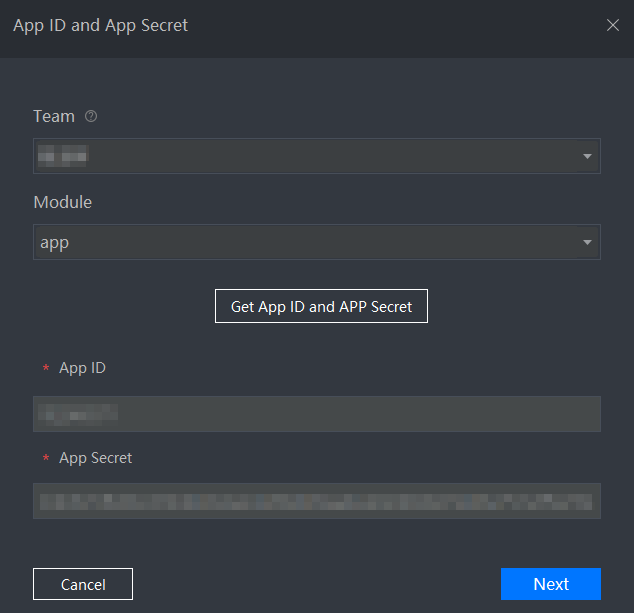
- Set Team and Module for the app that you are developing. Click Get App ID and App Secret to obtain App ID and App Secret. Click Next to obtain the template.

- If the error message The AccessToken obtaining failed please check out is displayed, you have not configured the event tracing template in advance. In this case, click AppGallery Connect, go to Intelligent data access > Tracing by coding, and configure the template. For details, please refer to Tracing by Coding.

- If the error message The region service is not enabled for the project is displayed, you have not enabled Analytics Kit. In this case, click AppGallery Connect, go to My projects, find your project, and click the app for which you want to enable Analytics Kit. Go to any submenu under HUAWEI Analytics, click Enable Analytics service. On the Project access settings page displayed, set the data processing location. For details, please refer to Enabling the Service.

- If the error message The AccessToken obtaining failed please check out is displayed, you have not configured the event tracing template in advance. In this case, click AppGallery Connect, go to Intelligent data access > Tracing by coding, and configure the template. For details, please refer to Tracing by Coding.
- Go to Import Event. In the left template list, select the template that you want to import. Then you will find all events in the template from the Event ID drop-down list box. Click Batch Import to import all of the events. They will be saved to Template Events.
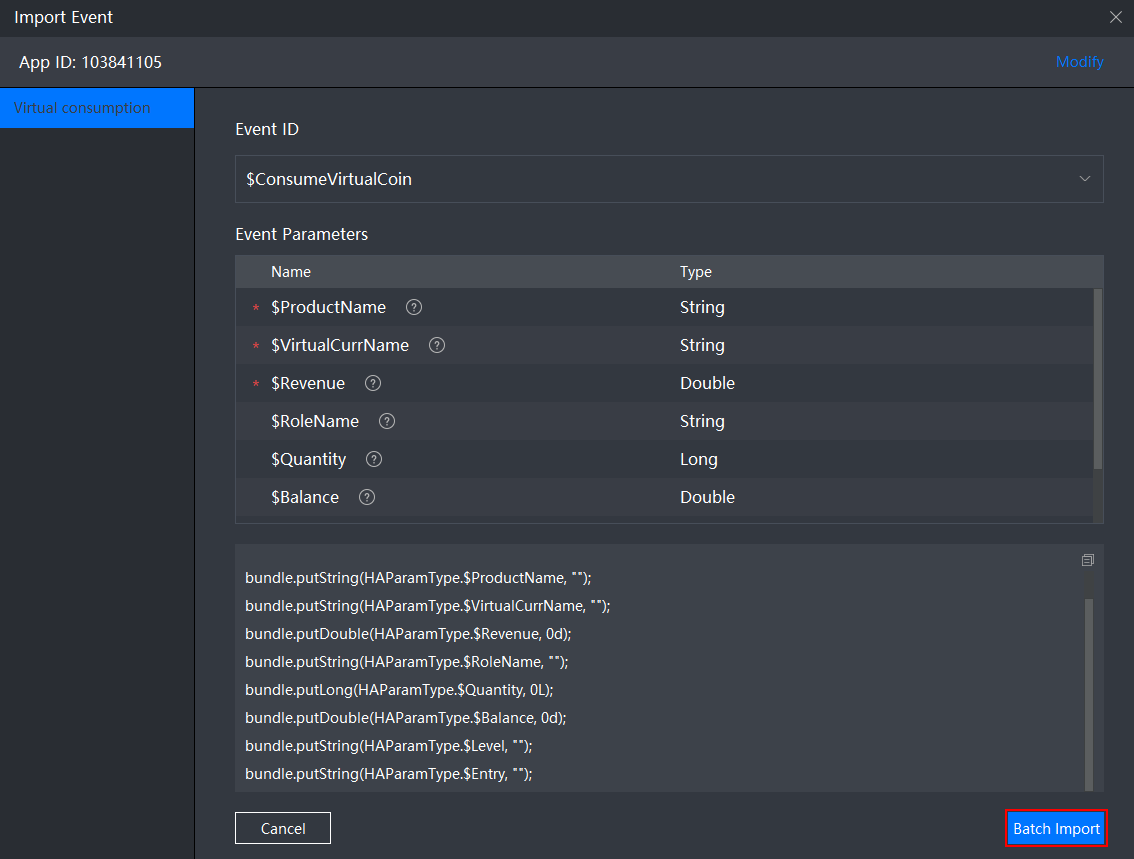
- Drag or copy the sample code of the events to the project. Then, supplement the parameter values in the sample code in the project as needed. The event tracing configuration is complete.


- If you want to generate an analysis report of an event tracing template, you need to complete the tracing configuration for all events in the template.
- After the configuration, you can use the verification function to identify incorrect event tracing configurations. For details, please refer to Verify Tracing Events.
- If you have imported the events from a tracing template in Template Events and updated the event data in the template on the Analytics Kit console, when you click Import Event again, Coding Assistant will automatically identify the changes of the template and notifies you of the changes.

[h2]User Attribute Settings
- Go to and select Log on Analytics event. In Set UserProfile, click Set UserProfile. On the New UserAttributes page that is displayed, add a user attribute. A maximum of 25 user attributes can be added at a time. Enter the user attribute value as required and click OK to save it.
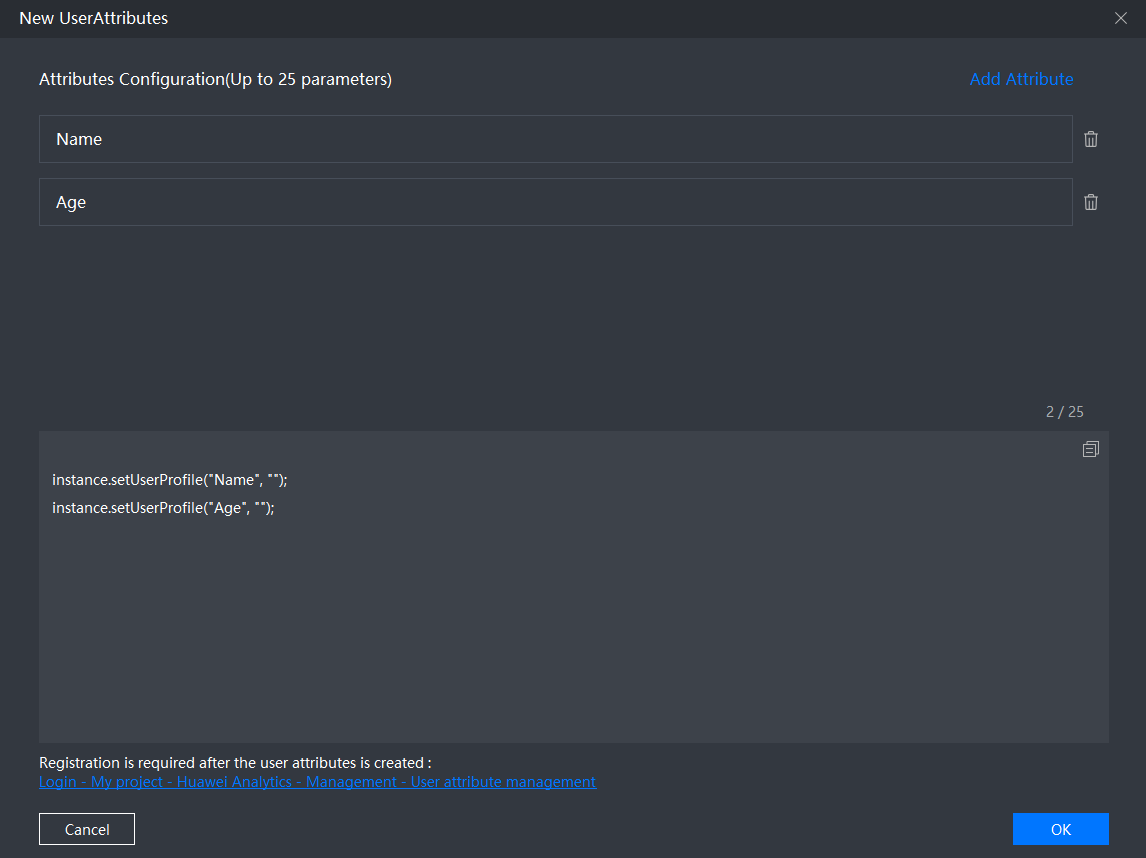
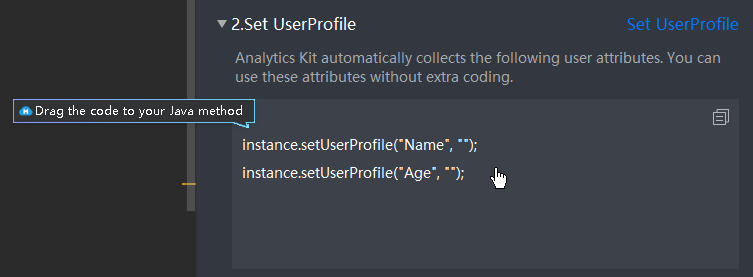
- Drag or copy the code corresponding to the attribute to your app. You need to set the parameters in the attribute as needed to record the attribute.
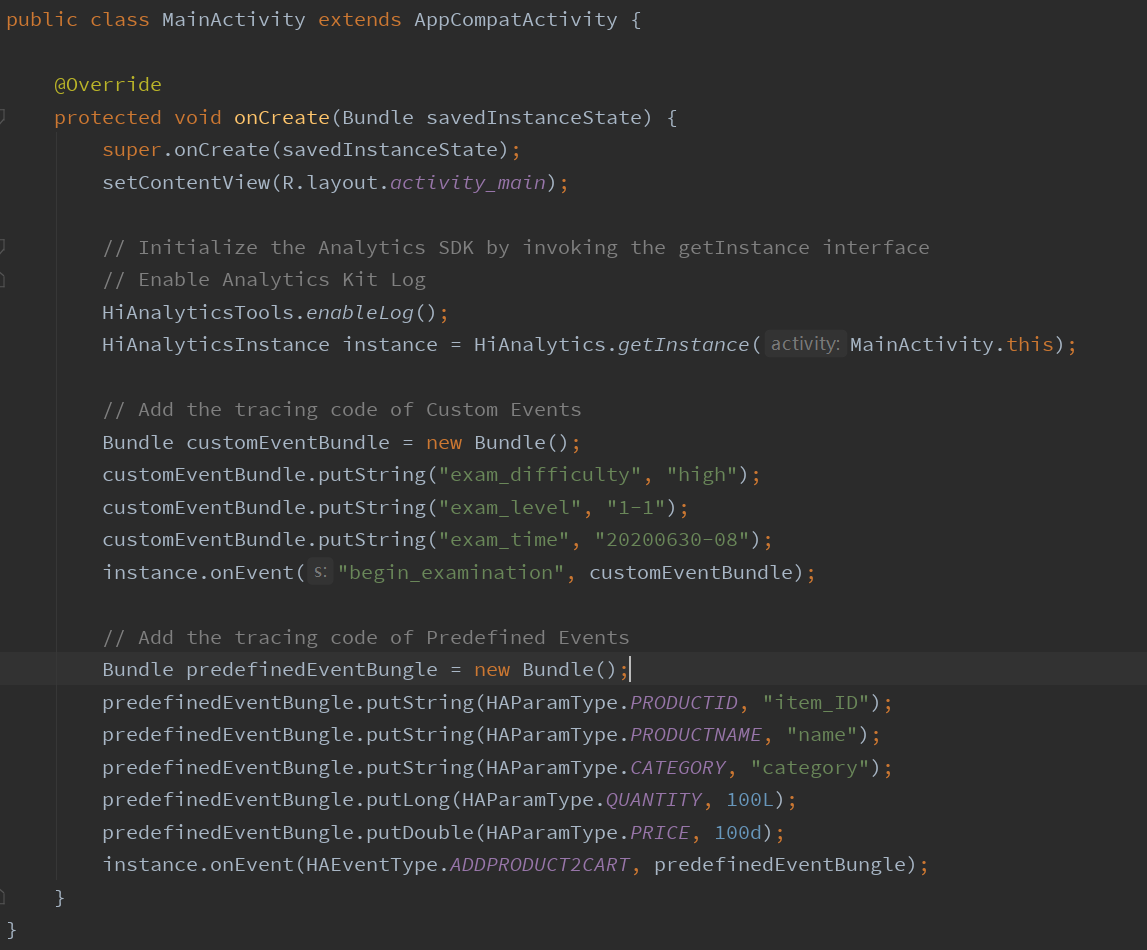
The code after the event and user attribute are recorded is as follows.
- To delete a user attribute, drag or copy the corresponding code in Delete UserProfile to the specified app.

Debugging
During the development, you can enable the debugging mode so that all events will be reported in real time. In this way, you can view the event records under HUAWEI Analytics > App debugging, observe the results, and adjust the event reporting policies.
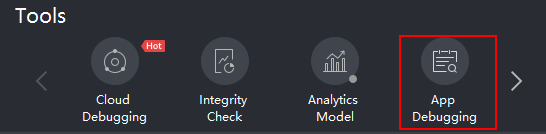
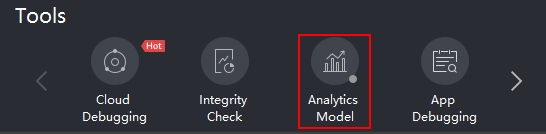
- On the Analytics Kit card, click Analytics Model on the toolbar to enable or disable the debugging mode.
- If a green dot is displayed in Analytics Model, the debugging mode is enabled, and all events are reported in real time.
- If a gray dot is displayed in Analytics Model, the debugging mode is disabled, and event reporting is suspended.
- After the debugging mode is enabled, all events are reported to AppGallery Connect in real time. Click App Debugging on the toolbar to sign in to AppGallery Connect. Click My projects, find your project, and click the app for which you want to view analysis data. Go to HUAWEI Analytics > App debugging, and view the data. For details, please refer to App Debugging.