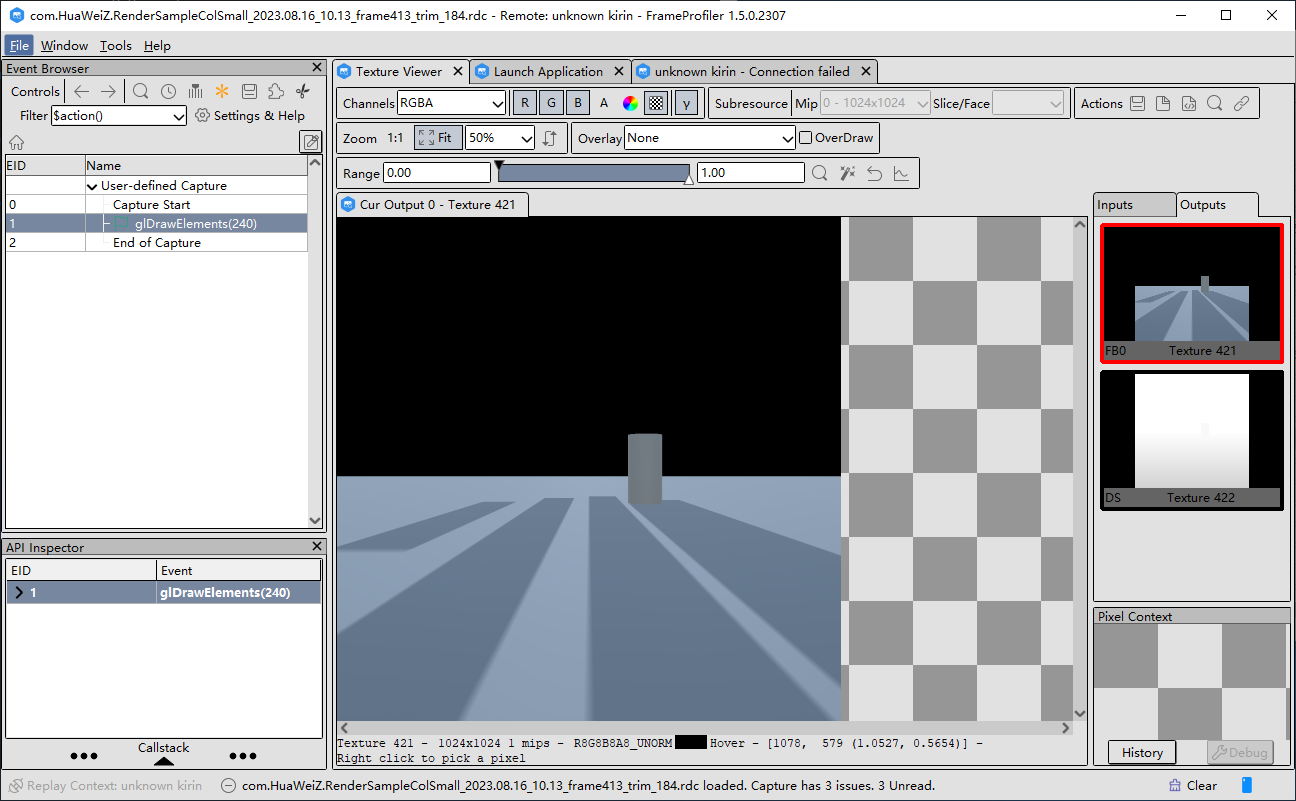
The following shows the keyframe trimming function using the OpenGL ES application (the same operations for Vulkan) as an example, including trimming and replay. The main functions are displayed in the Event Browser and Texture Viewer windows. In the figure below, Event Browser is displayed on the left, and details of the selected draw is displayed on the right.
Trimming Process
- Click the trim icon and select draws to be trimmed. You can select a single draw, multiple consecutive draws, or multiple non-consecutive draws.
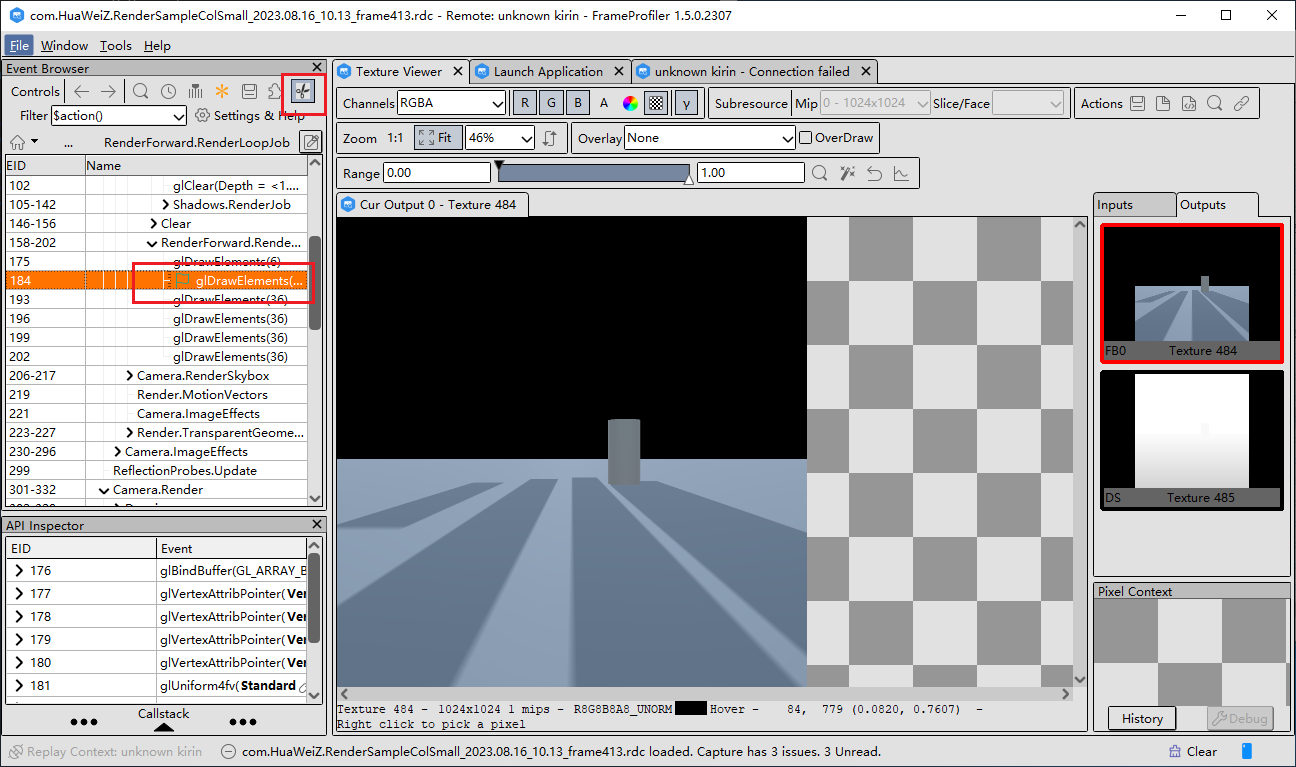
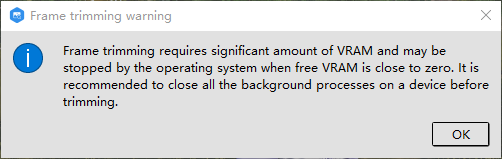
- Click the trim icon again to trim the selected draws. In the dialog box that is displayed, specify the path and name of the file to be saved. After confirming the save path, a dialog box will be displayed, prompting you to close all background processes on the device before trimming. Then, click OK.

The save path must not be the root directory of the disk.